How to Fix Blurry Corners and Poor Rendering in PhantomJS and wkhtmltoimage on Docker
Jagged corners and fuzzy text in Docker screenshots? Check capture dimensions, viewport, zoom, and encoding before investigating fonts and the container.
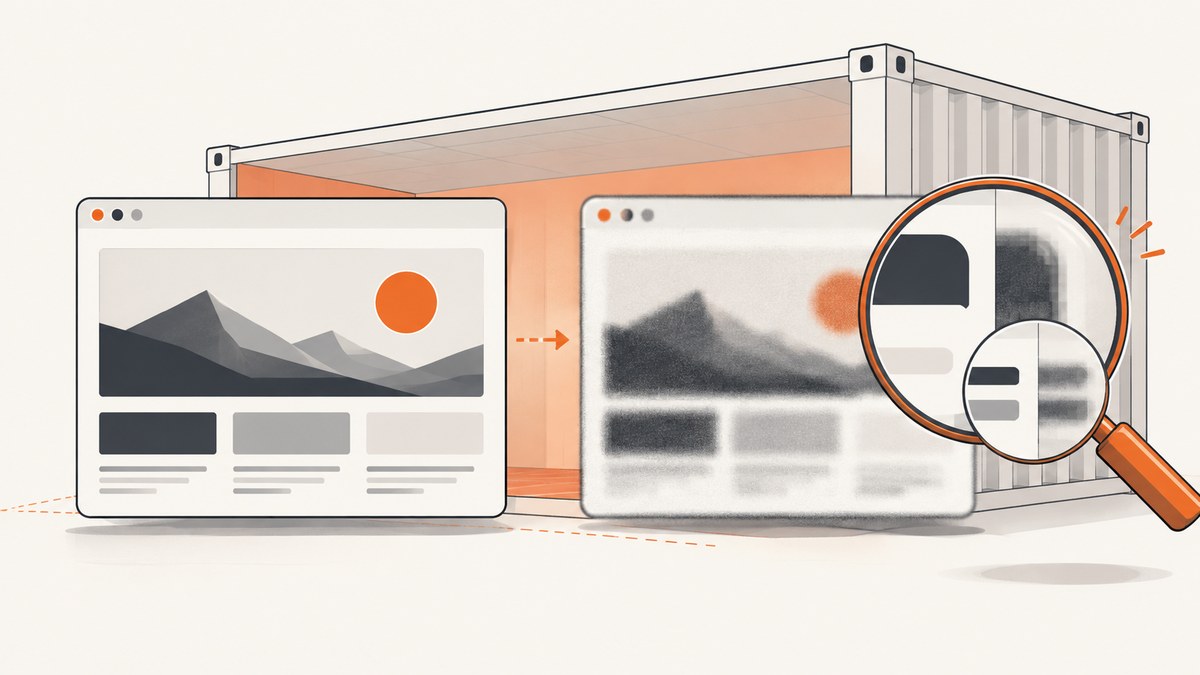
If rounded corners look jagged, text looks fuzzy, or images appear soft in screenshots generated by PhantomJS or wkhtmltoimage inside Docker, first check the image’s actual pixel dimensions, capture viewport, crop, and render scale. Then change one scale setting at a time while keeping the page layout and crop fixed.
A reported case tried both tools and set image quality to 100, but still showed jagged borders, images, and fonts. Its accepted community answer suggested increasing PhantomJS viewportSize and zoomFactor. That is a useful experiment, not a guaranteed Docker fix: the report describes one environment, and the available documentation does not establish one universal cause. Read the original report and answer.
1. Understand what “blurry” can mean
A screenshot can look poor for several different reasons that need different fixes:
- Too few raster pixels: the page was rendered at a small viewport or scale, then enlarged for display. Curves and text have fewer pixels to represent their edges.
- Unexpected crop or dimensions: the captured region is smaller or positioned differently than intended.
- Encoding artifacts: lossy compression can soften edges or introduce blocks. This changes the saved image, not the number of pixels the browser rendered.
- Rendering inputs differ: fonts or images did not load, the page was captured before it was ready, or the container’s browser engine differs from the one used elsewhere.
Keep the distinctions clear during diagnosis. Viewport describes the browser’s layout area; crop describes the region saved; zoom changes how the page is rendered; output dimensions describe the final raster. These values are related, but they are not interchangeable.
2. Measure the output before changing settings
Record the exact Docker image tag and executable version, the requested viewport, any crop, the output file’s pixel dimensions, and the image format. Inspect the screenshot at its native size before judging how it looks in a page or document that may scale it.
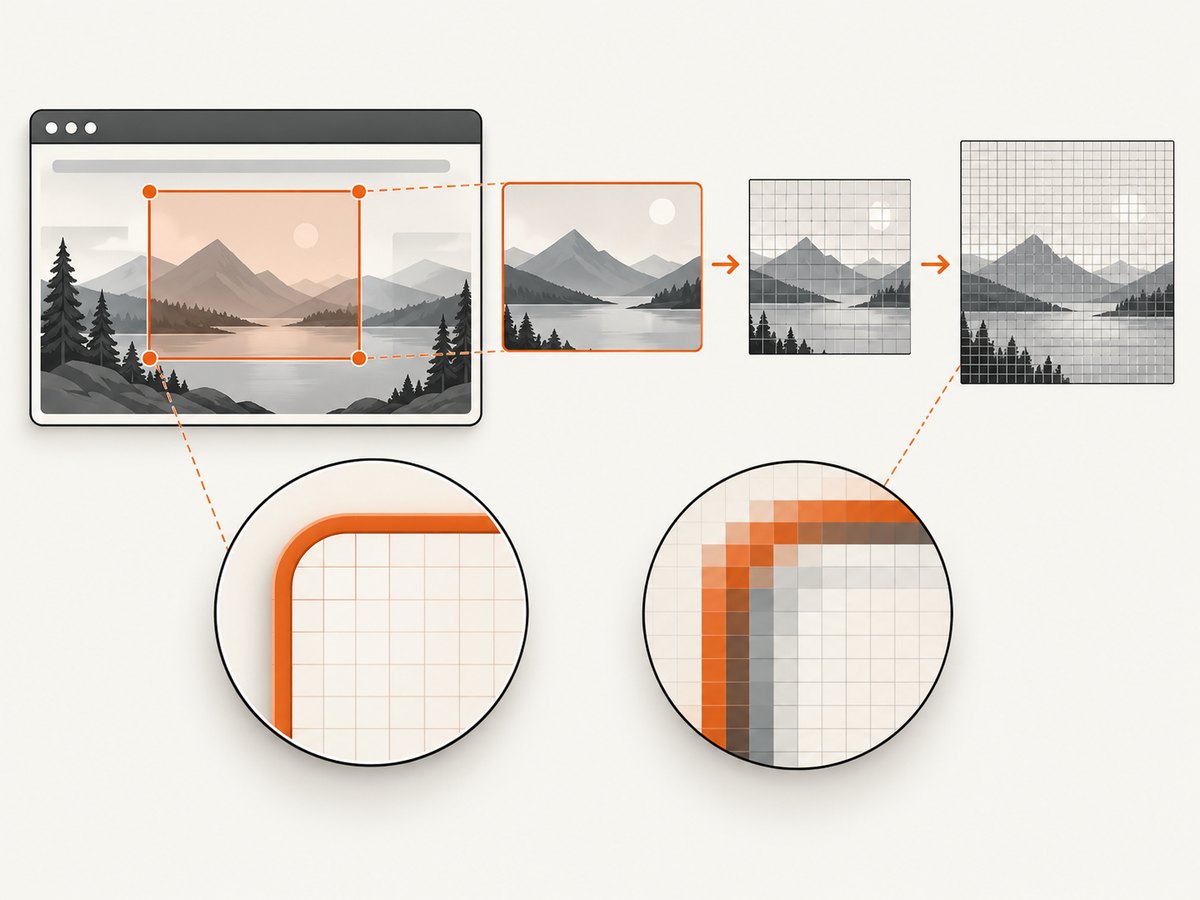
The community report gives one example with a 560 × 670 viewport and a 530 × 670 capture region. Those are the reporter’s settings, not recommended defaults. A crop narrower than the viewport can be intentional; the important thing is to know that it is happening.
- Capture a page with an obvious rounded rectangle, text, and an image.
- Save the image without resizing it in a downstream step.
- Read the saved raster’s width and height from your image viewer or image inspection tool.
- Compare those dimensions to the viewport and intended crop.
- Repeat with the same URL, container image, and format when evaluating changes.
PhantomJS documents viewportSize as the browser dimensions and clipRect as the captured region. Set them deliberately instead of assuming the default or inferring the crop from the page’s CSS. See the viewportSize API and clipRect API.
3. Test PhantomJS viewport and zoom
First make the viewport large enough for the layout you want. Then test a larger zoomFactor without changing the page, crop, or output format. Save and inspect the resulting pixel dimensions. The PhantomJS page automation reference documents zoom factor 1 as normal zoom. The scale experiment is suggested by the community answer, not promised by the official API documentation to fix this specific Docker problem.
Here is a complete PhantomJS script that loads a URL, sets the viewport and zoom explicitly, waits for the page load callback, and captures a PNG. Save it as capture.js:
var page = require('webpage').create();
var system = require('system');

var url = system.args[1] || 'https://example.com/';

page.viewportSize = { width: 1120, height: 900 };
page.clipRect = { top: 0, left: 0, width: 1120, height: 900 };
page.zoomFactor = 1.5;

page.onLoadFinished = function (status) {
  if (status !== 'success') {
    console.error('Page load failed: ' + status);
    phantom.exit(2);
    return;
  }

  page.render('capture.png', { format: 'png' });
  phantom.exit(0);
};

page.open(url);
Run it using the PhantomJS binary in your container, for example:
phantomjs capture.js https://example.com/The viewport and clip dimensions above are illustrative. Choose values that fit your page and desired output. The zoomFactor is also a starting value to compare, not a universal prescription. Keep the layout and crop constant while comparing scale values. If the result is shown at a smaller display size later, that resizing step can affect perceived sharpness. Qt’s general high-DPI guidance prefers integer scale factors for best results, but that advice does not prove the behavior of every legacy Qt/WebKit binary inside Docker. Qt High DPI documentation.
4. Check wkhtmltoimage’s image-specific settings
For wkhtmltoimage, inspect screenWidth, smartWidth, and load.zoomFactor, then check the resulting image dimensions. The project’s settings reference notes that web.enableIntelligentShrinking and load.printMediaType have no effect for wkhtmltoimage. Do not treat those settings as image-capture fixes.
Example command using commonly exposed command-line options:
wkhtmltoimage \
  --width 1120 \
  --disable-smart-width \
  --zoom 1.5 \
  https://example.com/ \
  capture.png
Option names and availability can vary by build. Check the help output from the exact executable in your container before relying on a flag:
wkhtmltoimage --helpIn particular, verify the screen width and zoom settings supported by that build, and compare the saved raster dimensions. Avoid copying a wkhtmltopdf setting into an image command just because the names look relevant. The official reference lists the underlying settings, including screenWidth, smartWidth, and load.zoomFactor.
5. Separate rendering scale from image quality
A quality value of 100 cannot add detail that was never rendered. Increasing JPEG quality changes compression behavior; it does not increase the browser’s pixel count. PhantomJS documents that JPEG output always uses 2 × 2 subsampling. For PNG, its quality setting controls lossless compression size; the documentation says different levels produce visually identical output. See the PhantomJS render API.
Use PNG as a diagnostic format when you want to avoid introducing JPEG compression artifacts. Once the rendering looks right, select the format and encoding settings that suit your storage and delivery needs. Do not interpret a larger file as proof of a sharper render: file size and edge detail are separate measurements.
6. If scale does not help, inspect the container inputs
If output dimensions and controlled scale changes do not explain the defect, compare the rendering environment. These checks are diagnostic possibilities, not confirmed causes of the reported issue:
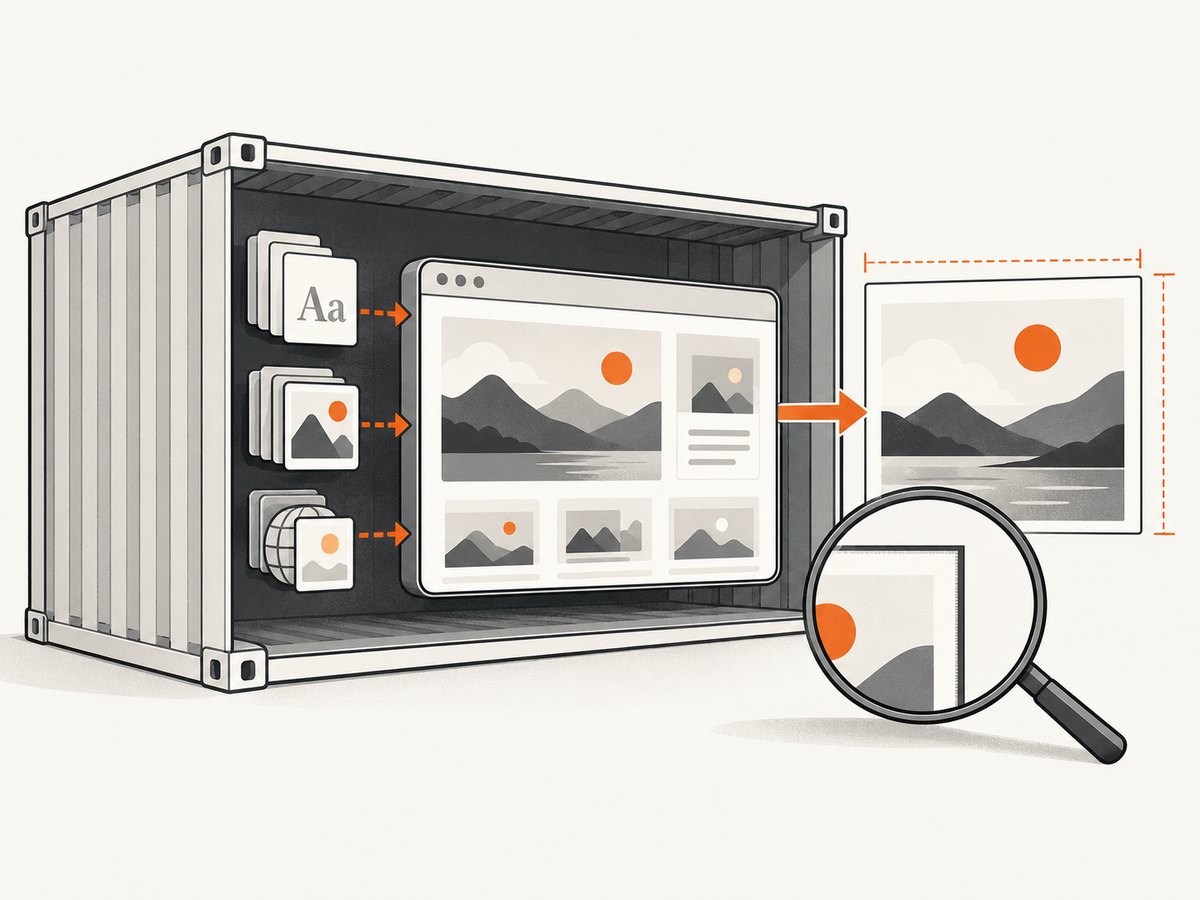
- Identify the exact build: record the Docker image tag, PhantomJS or wkhtmltoimage version, and relevant build details. Reproduce with the same image rather than comparing an unknown local binary.
- Check fonts: confirm the needed font families are installed and available to the browser process. A fallback font can change line breaks, glyph shapes, and perceived weight.
- Check web fonts and assets: confirm they load successfully in the container before capture. A page can finish its initial load while application code or remote assets are still changing.
- Check capture timing: wait for the page state or assets your screenshot actually needs. A fixed delay may help diagnose late-loading content, but it is not proof that all assets are ready.
- Compare outputs consistently: render the same page with the same dimensions and format, and inspect the native raster before any downstream resize.
- Review image maintenance: verify that the specific container image is maintained and includes the dependencies your workload needs. Docker Hub’s page for
wernight/phantomjsidentifies it as PhantomJS 2 and reports an update about six years before this research pass. That observation applies to that image page, not every PhantomJS image.
PhantomJS’s FAQ says that starting with version 1.5 it was pure headless and did not need X11/Xvfb. That is historical PhantomJS documentation; it should not be read as a statement about the maintenance status or dependencies of current alternatives. PhantomJS FAQ.
7. Troubleshooting common symptoms
| Symptom | Likely check | What to do |
|---|---|---|
| Jagged rounded corners at native size | Viewport, zoom, and saved raster dimensions | Hold layout and crop constant; test a larger capture scale and compare at native size. |
| Image looks sharp in the file but soft on a page | Display resizing | Check whether the consumer is stretching or resampling the screenshot. Compare at 100% scale. |
| Text differs between container and local capture | Font availability and font loading | Check installed fonts and confirm web fonts have loaded before capture. |
| Crop is unexpectedly narrow or content is missing | Viewport versus clip dimensions | Set both explicitly and compare the saved raster dimensions to the intended crop. |
| JPEG is soft despite quality 100 | Compression versus render resolution | Try PNG to isolate JPEG artifacts, then check viewport and zoom; quality does not create extra pixels. |
| wkhtmltoimage option has no visible effect | Whether the setting applies to image capture | Check the project reference and the exact binary’s help; some web/print settings do not apply to wkhtmltoimage. |
| Some images or fonts are missing intermittently | Asset load state and capture timing | Inspect asset requests and capture after the required content is ready. |
| Results change after rebuilding the container | Image tag and runtime dependencies | Pin and record the build used for comparison; investigate what changed in the image or dependencies. |
8. A controlled comparison checklist
Use this checklist to tell whether a scale adjustment improved the result or merely changed the layout:
- Keep the URL, container image, browser binary, page state, output format, and crop the same.
- Record viewport size, zoom, crop, and saved raster dimensions for each run.
- Compare the page layout as well as the edge quality; zoom can affect what fits into the capture.
- Inspect text and curves at the image’s native pixel size.
- Track file size separately from visible sharpness.
- Repeat a run to check that the same setup gives reproducible output.
If a larger scale looks better but changes the crop or page layout, decide whether the new composition is acceptable before adopting it. If the scale change has no effect, return to the environment checks rather than assuming Docker itself is the cause. The available evidence does not establish a single root cause for arbitrary containers.
9. Performance, reliability, and cost considerations
Larger output dimensions contain more pixels, so downstream files may be larger and take longer to transfer or process. The reviewed sources do not provide a benchmark for the performance cost of a particular scale or Docker setup. Measure your own workload with the same pages, output format, and container build; do not infer performance from a visual comparison alone.
For reliable captures, keep the rendering build and its inputs reproducible, detect load failures, and validate image dimensions before accepting the output. When diagnosing a problem, change one variable at a time. That makes it easier to tell whether the difference came from viewport, zoom, encoding, or the environment.
10. Or skip the browser setup
If you need website screenshots without maintaining a PhantomJS or wkhtmltoimage container, ScreenshotNeo is a website screenshot API and MCP server. One GET request takes a URL and returns an image or PDF. Its clean-shot flow accepts cookie or consent banners like a visitor and removes 60+ known consent platforms, newsletter popups, and chat widgets before capture; each step can be turned off. Only clean shots are billed: bot checks or CAPTCHAs, blank pages, timeouts, failed loads, and cache hits cost nothing, and the response includes X-Page-Verdict and X-Billed headers. It also provides an MCP server for AI agents, with take_screenshot, get_page_info, and capture_pdf tools.
See the ScreenshotNeo documentation for API options and setup. Here is the one-call cURL example:
curl -G "https://api.screenshotneo.com/v1/shot" \
  -d access_key=YOUR_API_KEY \
  --data-urlencode url=https://stripe.com \
  -o shot.webp
Equivalent Python and Node.js calls:
import requests

r = requests.get(
    "https://api.screenshotneo.com/v1/shot",
    params={"access_key": "YOUR_API_KEY", "url": "https://stripe.com"},
    timeout=90,
)
open("shot.webp", "wb").write(r.content)
const q = new URLSearchParams({
access_key: 'YOUR_API_KEY',
url: 'https://stripe.com'
});
const res = await fetch(`https://api.screenshotneo.com/v1/shot?${q}`);ScreenshotNeo’s free plan includes 1,000 screenshots each month with no card. Paid plans start at $5 for 3,000; every feature is on every plan. Sign up for 1,000 free screenshots a month—no card required.
11. Frequently asked questions
Does Docker always make PhantomJS screenshots blurry?
No. The report covers one user’s environment and two tools. Check capture geometry and runtime inputs before attributing the result to Docker.
Will changing devicePixelRatio fix jagged edges?
There is not enough evidence here to claim that it will. The cited community answer mentions it alongside viewport and zoom; test changes while recording the actual output dimensions.
Should I always set PhantomJS zoom above 1?
No universal value is established. Compare scales using your target layout and crop, and keep the setting only if the output improves for your use case.
Is PhantomJS’s Xvfb guidance current for every container?
The FAQ describes PhantomJS’s historical headless behavior. Check the documentation and dependencies for the exact tool and image you run.
Which image format should I use to diagnose this?
PNG is useful for isolating JPEG compression artifacts. Once rendering is assessed, choose the format based on the needs of your delivery pipeline.


