How to Fix Blurry Playwright Screenshots
Diagnose blurry Playwright screenshots by checking capture scale, image format, page state, and rendering environment—in that order.
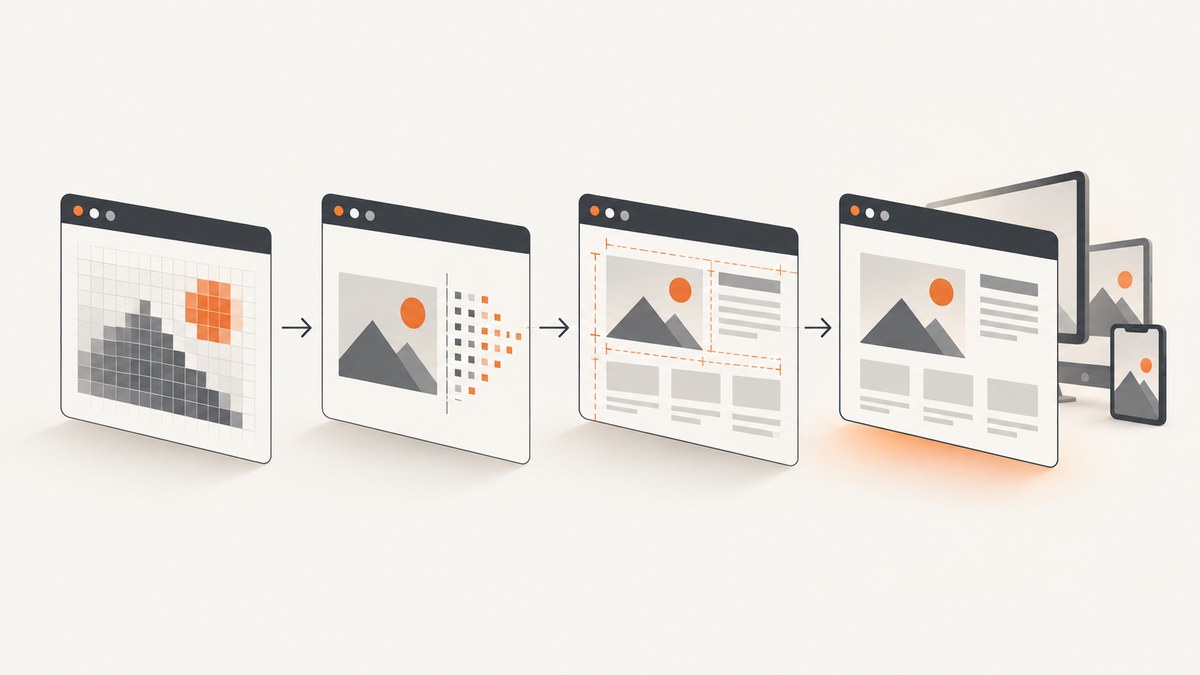
Blurry Playwright screenshots usually come from one of four places: capture scale, lossy image encoding, a changing page, or differences in the browser and host environment. Check them in that order. Increasing output pixels can help when a screenshot is displayed larger than its captured dimensions, but it cannot restore detail lost to compression or make fonts render consistently across machines.
Start with a lossless PNG at device scale, wait for the page to settle, and inspect the actual image dimensions. If the capture is still unclear, compare it in the same browser and operating-system environment used for your reference image. Playwright documents the relevant options in its Page screenshot API and visual comparisons guide.
1. Check screenshot scale and dimensions
Playwright’s page.screenshot() accepts scale: 'css' and scale: 'device'. CSS scale produces one output pixel per CSS pixel. Device scale produces one output pixel per device pixel, so a high-DPI browser context can produce a larger image. The Page screenshot API documents device as its default.
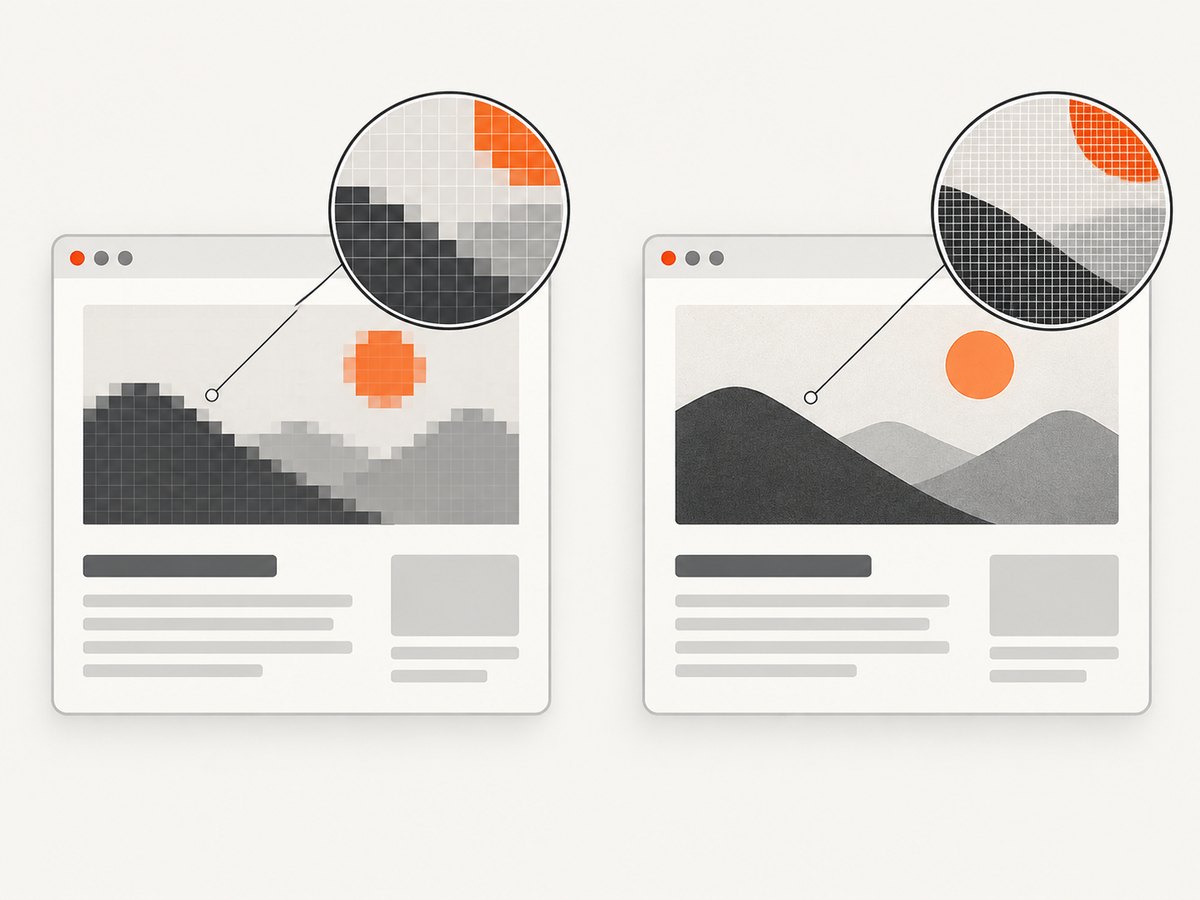
Do not assume the same default for visual assertions: Playwright’s screenshot assertions document CSS scale as their default. This difference matters when you compare an image saved with page.screenshot() against a toHaveScreenshot() baseline. Set the option explicitly when matching dimensions is important.
import { chromium } from 'playwright';

const browser = await chromium.launch();
const page = await browser.newPage({ viewport: { width: 1440, height: 900 } });
await page.goto('https://example.com', { waitUntil: 'networkidle' });

await page.screenshot({
  path: 'page.png',
  type: 'png',
  scale: 'device',
  fullPage: true
});

await browser.close();
Use scale: 'device' when you need device-pixel output and the browser context has the intended device scale factor. Use scale: 'css' when you want dimensions tied directly to CSS layout pixels, such as for predictable CSS-sized assets or a visual comparison configured around CSS pixels.
Inspect the resulting file’s pixel dimensions, then compare them with the size at which it is displayed. A 1440-pixel-wide image displayed at 2880 CSS pixels will be enlarged by the viewer and can look soft. Capturing more pixels may help in that situation; it does not help if the file is already displayed at or below its native dimensions. Resizing the output later can also discard detail.
2. Rule out lossy image compression
For a sharpness diagnosis, first save PNG. Playwright’s quality option applies to JPEG and WebP, not PNG. The Page API documents JPEG’s default quality as 80 and WebP quality 100 as lossless; lower WebP quality is lossy. If your current capture uses JPEG or reduced-quality WebP, compare it with PNG before changing scale.
await page.screenshot({
  path: 'diagnostic.png',
  type: 'png'
});

await page.screenshot({
  path: 'production.webp',
  type: 'webp',
  quality: 100
});
Use PNG as a diagnostic because it avoids lossy compression. Once the cause is clear, choose a format based on the use case: PNG for lossless output, JPEG for lossy photographic output, or WebP when its size and quality suit your pipeline. A larger file is not automatically a sharper image if it is subsequently resized or recompressed.
| Format or setting | What it changes | When to check it |
|---|---|---|
| PNG | Lossless image output; screenshot quality setting does not apply. | Use to isolate compression as the cause. |
| JPEG | Lossy output; Playwright documents default quality 80. | Check quality and downstream recompression. |
| WebP | Quality 100 is documented as lossless; lower values are lossy. | Compare quality 100 against the current setting. |
3. Capture a stable page state
A screenshot can look blurred or inconsistent when the page changes during capture: animations move elements, content loads late, or a banner overlays the target. Playwright’s Page screenshot option allows animations by default; you can disable them for a static capture. This makes the captured state more stable, but it does not raise image resolution.

await page.goto('https://example.com', { waitUntil: 'domcontentloaded' });
await page.locator('main').waitFor({ state: 'visible' });

await page.screenshot({
  path: 'stable.png',
  type: 'png',
  scale: 'device',
  animations: 'disabled'
});
Choose a readiness condition that matches the page. domcontentloaded only tells you that the initial document was parsed; it does not guarantee that client-rendered content, images, or custom fonts are ready. Wait for a meaningful selector when the page has a known content boundary. Use network idle only when the site’s network behavior makes that a useful signal; analytics or long polling can keep traffic active.
For Playwright Test visual assertions, toHaveScreenshot() waits until two consecutive screenshots match and its documented default disables animations. That helps reduce capture-to-capture differences; it does not correct compression or insufficient output dimensions.
import { test, expect } from '@playwright/test';

test('page visual baseline', async ({ page }) => {
  await page.goto('https://example.com');
  await expect(page).toHaveScreenshot('home.png');
});
4. Keep browser and host rendering consistent
If dimensions and encoding are appropriate and the page is stable, look at the rendering environment. Fonts, operating systems, browser versions, browser settings, hardware, power source, and headless mode can change rendering. Playwright’s visual comparison guidance recommends producing and checking baselines in a consistent environment. A machine with a substituted font or a different browser build may render text and antialiasing differently even when the page’s CSS is unchanged.
- Use the same Playwright browser and version for baseline creation and comparison.
- Keep the operating system and installed fonts consistent.
- Keep browser settings and viewport dimensions fixed.
- Use the same headless or headed mode for both captures.
- When a difference appears only on one machine, compare the environment before raising resolution.
Playwright notes that “Browser rendering can vary based on the host OS, version, settings, hardware, power source (battery or power adapter), headless mode, and other factors.” See the official visual comparisons guide and test configuration options.
5. Narrow the capture to the unclear area
If only one region looks unclear, capture that region separately. Playwright supports locator screenshots, clipping, masking, and full-page captures. A smaller capture can make inspection easier and avoid unrelated content, but it does not inherently increase the source resolution.
const card = page.locator('[data-testid="product-card"]');
await card.screenshot({ path: 'product-card.png', type: 'png' });

await page.screenshot({
  path: 'region.png',
  type: 'png',
  clip: { x: 100, y: 120, width: 800, height: 500 }
});
Prefer a locator screenshot when the target is a real element and should follow its position and bounds. Use clip when you need a specific viewport rectangle. Use fullPage: true when the document extends below the viewport; lazy-loaded content may need to be brought into view or otherwise made ready before capture.
6. A practical diagnostic checklist
- Save an unmodified PNG and inspect its native pixel dimensions.
- Set
scaleexplicitly; compare CSS and device scale in the intended context. - Check whether the viewer, report, or pipeline enlarges or recompresses the image.
- Disable animations and wait for the specific content that must appear.
- Compare the capture and baseline with matching browser, OS, fonts, viewport, and mode.
- If only one region is affected, take a locator or clipped screenshot to isolate it.
Change one factor at a time. That makes it possible to tell whether softness comes from pixel mapping, encoding, page state, or rendering differences rather than treating every visual mismatch as a resolution problem.
7. Troubleshooting common problems
| Symptom | Likely cause | What to do |
|---|---|---|
| Text looks soft when zoomed in | The image is being enlarged beyond its native dimensions, or capture scale is lower than intended. | Inspect pixel dimensions and display size; set scale: 'device' in an appropriate high-DPI context if device-pixel output is needed. |
PNG ignores quality |
The quality option does not apply to PNG. | Use PNG to diagnose lossless output. If using JPEG or WebP, adjust quality there. |
| JPEG or WebP looks blocky or smeared | Lossy quality settings or later recompression. | Compare with PNG or lossless WebP at quality 100; inspect any image-processing step after Playwright. |
| Successive screenshots differ | Animation, late content, rotating material, or an unstable readiness condition. | Disable animations, wait for a relevant selector, or use Playwright Test’s screenshot assertion stabilization. |
| Text differs across local and CI runs | Different browser, OS, fonts, settings, or rendering mode. | Run baseline and current captures in a consistent environment and align installed fonts and browser versions. |
| Only the full-page capture has unexpected areas | Content below the fold may load lazily or page layout may shift. | Make required content visible and stable before capturing; compare a locator screenshot to isolate the region. |
| Increasing scale did not fix the appearance | The cause is compression, downstream resizing, page state, or rendering differences. | Return to the four-step diagnosis instead of increasing dimensions again. |
8. Performance, reliability, and cost considerations
Higher pixel dimensions generally mean more image data to encode, store, and transfer. Full-page captures can be substantially larger than viewport captures because they include more of the document. Pick the smallest capture area and scale that meet the display or comparison requirement, then use an appropriate output format. For repeatable visual checks, stable page state and environment are as important as image size.
Reliability improves when capture readiness is explicit: wait for the content you need, disable animations for static output, and keep the browser environment aligned with the baseline. Avoid treating network idle as a universal guarantee, since pages with ongoing requests may never become idle. When a screenshot is part of a build or report pipeline, preserve the original output during diagnosis so downstream resizing or compression can be ruled in or out.
Or skip the browser setup
For a one-call capture, ScreenshotNeo is a website screenshot API and MCP server for developers. Its API returns PNG, JPEG, WebP, or PDF from a GET request. See the ScreenshotNeo documentation for request options.
curl -G "https://api.screenshotneo.com/v1/shot" -d access_key=YOUR_API_KEY --data-urlencode url=https://stripe.com -o shot.webpimport requests
r = requests.get(
"https://api.screenshotneo.com/v1/shot",
params={"access_key": "YOUR_API_KEY", "url": "https://stripe.com"},
timeout=90,
)
open("shot.webp", "wb").write(r.content)const q = new URLSearchParams({ access_key: 'YOUR_API_KEY', url: 'https://stripe.com' });
const res = await fetch(`https://api.screenshotneo.com/v1/shot?${q}`);
if (!res.ok) throw new Error(`Screenshot request failed: ${res.status}`);
await Bun.write('shot.webp', res);ScreenshotNeo accepts cookie and consent banners like a visitor and removes more than 60 known consent platforms, newsletter popups, and chat widgets before capture; each step can be turned off. Bot checks, CAPTCHAs, blank pages, timeouts, failed loads, and cache hits are not billed, and response headers identify the page verdict and billing status. Its MCP server provides take_screenshot, get_page_info, and capture_pdf for Claude, Cursor, and other MCP clients. The free plan includes 1,000 screenshots a month with no card; paid plans start at $5 for 3,000 shots.
Sign up free for 1,000 screenshots a month, with no card required.
FAQ
Does a higher device scale always make a screenshot sharper?
No. It increases output pixel density relative to CSS pixels, but cannot reverse lossy compression, downstream resizing, or font-rendering differences.
Why does my screenshot assertion have different dimensions from a saved screenshot?
The documented defaults differ: Page screenshots use device scale, while screenshot assertions use CSS scale. Set the scale explicitly when matching output dimensions.
Should I use PNG for every screenshot?
Use PNG when diagnosing sharpness or when lossless output is required. For routine delivery, choose format and quality based on the image’s use and inspect later processing steps.
Will disabling animations increase resolution?
No. It can make the captured content more stable and repeatable, but scale controls pixel mapping.


