How to Fix Blurry SVG Screenshots in Puppeteer
Fix blurry SVG screenshots in Puppeteer by controlling viewport density, SVG geometry, readiness, formats, and Chromium rasterization.
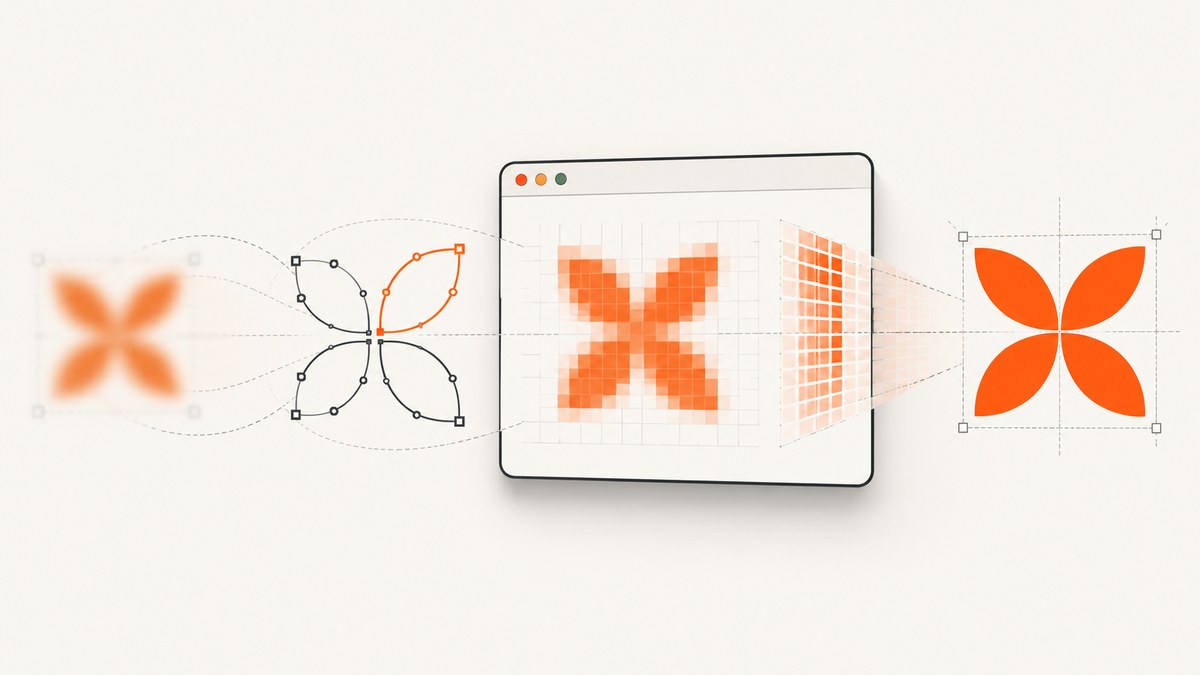
Short answer: make the viewport and deviceScaleFactor explicit, verify the SVG’s CSS dimensions and viewBox, wait for fonts, images, and application-specific visual readiness, and use lossless PNG while diagnosing. A higher device scale creates more pixels, but it cannot repair fractional geometry, a bad viewBox, or a page that was captured before the SVG finished rendering. If the basics are correct and the image is still soft, reduce the SVG to a minimal reproduction and compare Chromium versions because complex SVG paths can affect rasterization.
This guide shows a deterministic Puppeteer workflow, explains the options that change sharpness, and provides a troubleshooting checklist for viewport, element, and full-page captures.
1. Establish deterministic capture dimensions
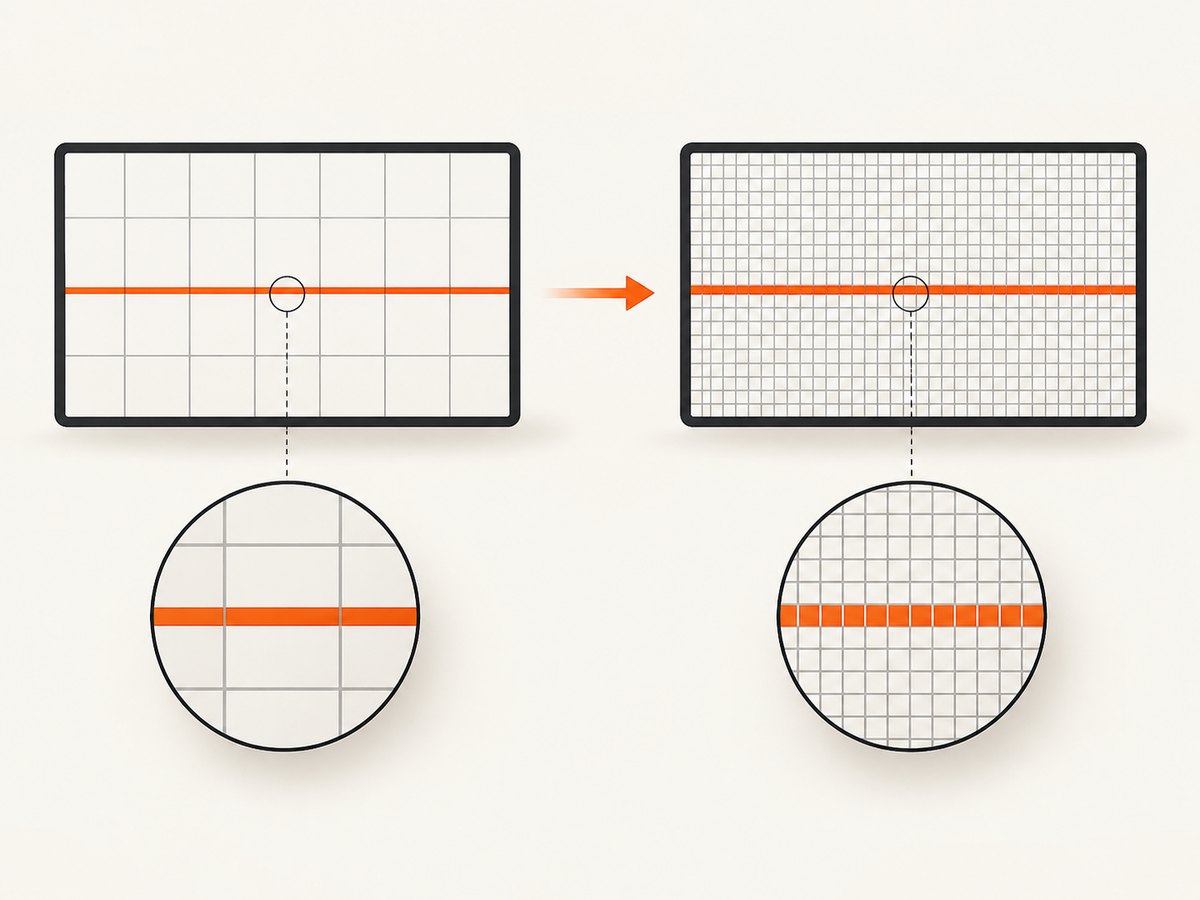
Screenshot sharpness depends on the relationship between CSS pixels and device pixels. Set all three important inputs deliberately: viewport width, viewport height, and device scale. Set the viewport before navigation so responsive CSS and layout calculations use the dimensions you intend.
import puppeteer from 'puppeteer';

const browser = await puppeteer.launch({
  headless: true,
});

const page = await browser.newPage();
await page.setViewport({
  width: 1440,
  height: 900,
  deviceScaleFactor: 2,
});

await page.goto('https://example.com/chart', {
  waitUntil: 'networkidle0',
});

await page.screenshot({
  path: 'chart.png',
  type: 'png',
});

await browser.close();
With a 1440 by 900 CSS viewport and a device scale factor of 2, a viewport screenshot is expected to be 2880 by 1800 physical pixels. Record both values in your debugging output. If the file is smaller than expected, check that another call did not overwrite the viewport or that the screenshot is not clipped.
Puppeteer’s screenshots guide recommends Page.screenshot() for captures, and the API exposes separate controls for clipping, full-page capture, and capturing beyond the viewport (Puppeteer screenshots guide, ScreenshotOptions reference).
Choose one capture mode while diagnosing
- Viewport:
page.screenshot()captures the visible viewport. This is the cleanest baseline for comparing pixel dimensions. - Element:
await page.locator('svg').screenshot()or an element handle screenshot tests the SVG’s own bounds without surrounding layout. - Full page:
{ fullPage: true }captures the page’s complete vertical content. Test it separately because long-page stitching and scale settings can expose different browser behavior. - Clip:
{ clip: { x, y, width, height, scale } }limits the capture to a rectangle. Keep coordinates in CSS pixels and verify that the rectangle is inside the page.
const svg = page.locator('svg');
await svg.screenshot({ path: 'svg-element.png', type: 'png' });

await page.screenshot({
  path: 'viewport.png',
  type: 'png',
  fullPage: false,
});

await page.screenshot({
  path: 'full-page.png',
  type: 'png',
  fullPage: true,
});
Compare the three files at 100% zoom. If the element capture is sharp but the full-page capture is soft, focus on full-page behavior and Chromium version rather than changing the SVG.
2. Inspect the SVG’s geometry
More DPI does not correct incorrect SVG geometry. Check the intrinsic and CSS dimensions, the viewBox, aspect-ratio behavior, transforms, and stroke widths.
const geometry = await page.$eval('svg', (svg) => {
  const rect = svg.getBoundingClientRect();
  return {
    attrWidth: svg.getAttribute('width'),
    attrHeight: svg.getAttribute('height'),
    viewBox: svg.getAttribute('viewBox'),
    cssWidth: getComputedStyle(svg).width,
    cssHeight: getComputedStyle(svg).height,
    transform: getComputedStyle(svg).transform,
    rect: {
      x: rect.x,
      y: rect.y,
      width: rect.width,
      height: rect.height,
    },
  };
});
console.log(geometry);
A reliable inline SVG normally has a meaningful viewBox, for example 0 0 800 400, and CSS dimensions that map cleanly to that aspect ratio. Watch for these causes of softness:
- The SVG has no
viewBox, so scaling is based on unexpected intrinsic dimensions. - The CSS width or height is fractional, such as
399.5px, placing edges between device pixels. - A transform scales the graphic to a non-integer value.
- Thin strokes land between pixels. A one-unit stroke in SVG user space may become a fractional physical pixel after scaling.
preserveAspectRatiointroduces letterboxing or a scale you did not expect.- An SVG image is being scaled by an ancestor with CSS transforms rather than rendered at its final size.
For a diagnostic capture, temporarily remove transforms, use integer CSS dimensions, and compare a simple rectangle and line with the production paths. If the simple shapes are sharp, the issue is usually geometry or path complexity rather than Puppeteer’s screenshot call.
3. Wait for the visual state, not only navigation
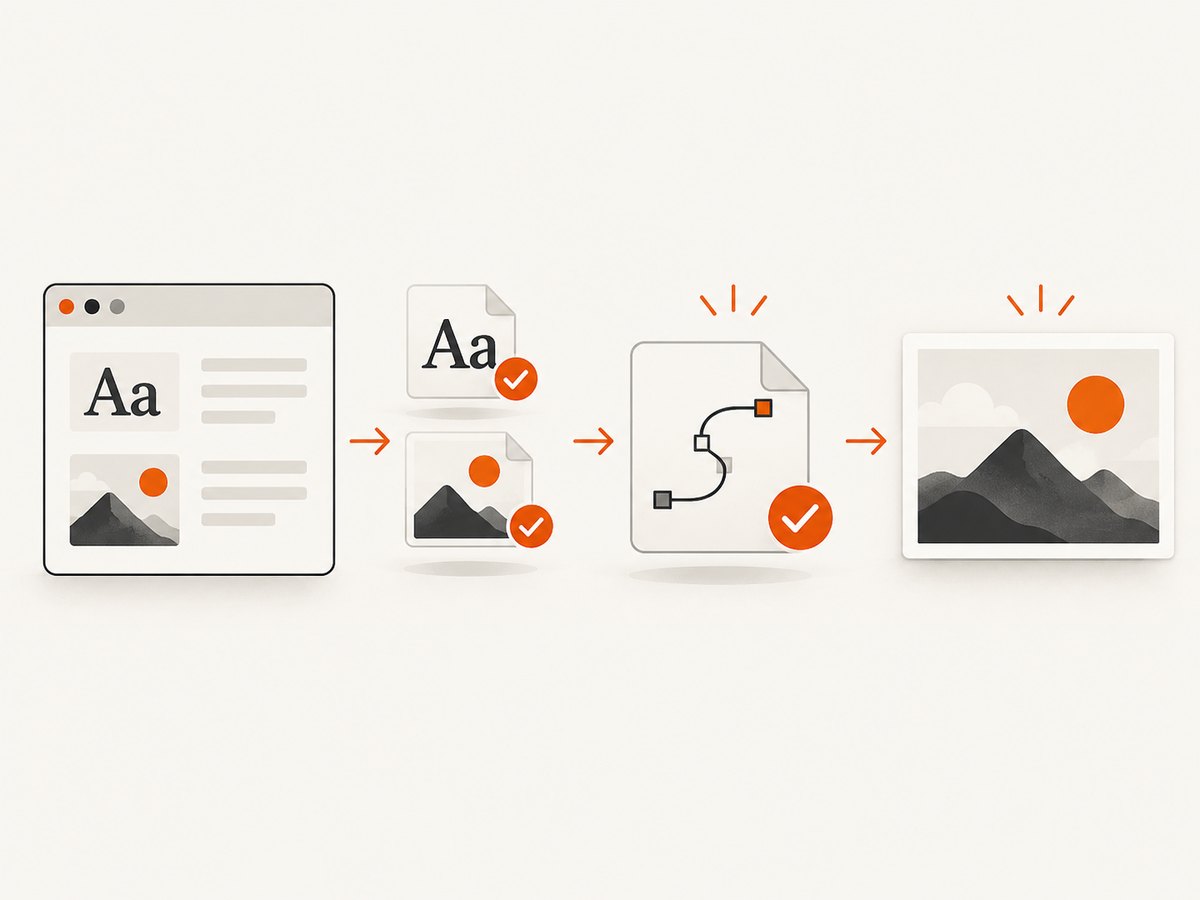
waitUntil: 'networkidle0' says that network activity has quieted. It does not prove that fonts have loaded, images have decoded, an SVG has been inserted, or an animation has reached its final frame. Add explicit readiness checks.
await page.goto('https://example.com/chart', { waitUntil: 'domcontentloaded' });

await page.evaluate(async () => {
  if (document.fonts) await document.fonts.ready;

  const images = Array.from(document.images);
  await Promise.all(images.map((image) => {
    if (image.complete) return image.decode?.().catch(() => {});
    return new Promise((resolve) => {
      image.addEventListener('load', resolve, { once: true });
      image.addEventListener('error', resolve, { once: true });
    }).then(() => image.decode?.().catch(() => {}));
  }));
});

await page.waitForSelector('svg[data-render-state="ready"]');

await page.waitForFunction(() => {
  const svg = document.querySelector('svg');
  if (!svg) return false;
  const rect = svg.getBoundingClientRect();
  return rect.width > 0 && rect.height > 0 && rect.width === Math.round(rect.width);
});

await page.screenshot({ path: 'ready.png', type: 'png' });
Prefer an application-specific marker such as data-render-state="ready" over an arbitrary delay. If you control the page, set that marker only after data binding, SVG insertion, font loading, image decoding, and layout have completed. A short delay can still be useful for a known animation, but it is less deterministic than a condition.
Freeze animations and transitions
await page.addStyleTag({
  content: `
    *, *::before, *::after {
      animation: none !important;
      transition: none !important;
      caret-color: transparent !important;
    }
  `,
});
If an SVG is animated, capture after a stable frame or disable the animation for screenshot mode. Otherwise two captures with identical settings can contain different intermediate geometry.
4. Use PNG while diagnosing compression versus rasterization
PNG is lossless and is the right diagnostic format. JPEG and WebP can be useful for delivery, but their quality settings change compression artifacts and cannot restore detail that Chromium never rasterized.
await page.screenshot({
  path: 'diagnostic.png',
  type: 'png',
});

await page.screenshot({
  path: 'delivery.webp',
  type: 'webp',
  quality: 90,
});

await page.screenshot({
  path: 'delivery.jpg',
  type: 'jpeg',
  quality: 90,
});
Puppeteer’s screenshot options allow PNG, JPEG, and WebP; quality applies to JPEG and WebP and is not applicable to PNG. Compare the PNG at 100% before tuning delivery format or quality.
5. Understand what deviceScaleFactor can and cannot do
deviceScaleFactor: 2 doubles the number of device pixels per CSS pixel. It can make text and vector edges better represented, but it cannot fix a malformed viewBox, a fractional transform, a clipped element, or an SVG that was not ready.
Test at scale factors 1 and 2 while keeping every other input fixed. Measure the output dimensions and inspect the same edge. If scale 2 adds pixels but the edge remains soft, investigate geometry or rasterization. If the layout changes between scales, responsive CSS or media queries are part of the problem.
6. Check full-page and Chromium interactions
Test viewport, element, and full-page screenshots separately. A historical Puppeteer issue reported rendering failures when fullPage: true was combined with deviceScaleFactor: 2. That report does not prove a universal current bug, but it is a reason to record your Puppeteer and Chromium versions and isolate the capture mode when reproducing a problem.
console.log(await browser.version());
console.log(await page.evaluate(() => ({
  devicePixelRatio: window.devicePixelRatio,
  innerWidth: window.innerWidth,
  innerHeight: window.innerHeight,
})));
Keep the browser executable and Puppeteer package pinned in CI when pixel output matters. A browser upgrade can change font rasterization, SVG handling, or full-page stitching. Store a small reference image and compare it after upgrades rather than assuming byte-for-byte identity across Chromium versions.
7. Investigate Chromium rasterization limits
If viewport, geometry, readiness, format, and capture mode are correct, reduce the SVG to a minimal reproduction. Remove filters, masks, clipping paths, huge path sets, and nonessential icons one at a time. Chromium’s graphics documentation notes that GPU rasterization may be disabled when a page contains many SVGs with non-convex paths (Chromium graphics documentation). A software-rasterized result can look different from the expected GPU path.
Compare:
- Inline SVG versus an external SVG file or
<img>. - A simple path set versus the production illustration.
- The same code on the current Chromium build and the build used in production.
- Element capture versus viewport and full-page capture.
8. A complete Puppeteer capture script
This script combines explicit dimensions, readiness checks, stable geometry, disabled motion, and PNG output.
import puppeteer from 'puppeteer';

const url = process.argv[2] ?? 'https://example.com/chart';
const browser = await puppeteer.launch({ headless: true });
try {
  const page = await browser.newPage();
  await page.setViewport({ width: 1440, height: 900, deviceScaleFactor: 2 });
  await page.goto(url, { waitUntil: 'domcontentloaded', timeout: 60000 });

  await page.addStyleTag({ content: `
    *, *::before, *::after {
      animation: none !important;
      transition: none !important;
    }
  ` });

  await page.evaluate(async () => {
    await document.fonts?.ready;
    await Promise.all(Array.from(document.images).map(async (image) => {
      if (!image.complete) await new Promise((resolve) => {
        image.addEventListener('load', resolve, { once: true });
        image.addEventListener('error', resolve, { once: true });
      });
      await image.decode?.().catch(() => {});
    }));
  });

  await page.waitForSelector('svg');
  await page.waitForFunction(() => {
    const svg = document.querySelector('svg');
    const rect = svg?.getBoundingClientRect();
    return Boolean(rect && rect.width > 0 && rect.height > 0);
  });

  await page.screenshot({ path: 'capture.png', type: 'png' });
} finally {
  await browser.close();
}
9. Troubleshooting checklist
| Symptom | Likely cause | Fix |
|---|---|---|
| Everything is soft | Viewport or output dimensions are lower than expected | Set width, height, and deviceScaleFactor explicitly; inspect the resulting file dimensions. |
| Only the SVG is soft | Bad viewBox, fractional CSS size, transform, or stroke alignment |
Log SVG attributes and getBoundingClientRect(); test integer dimensions and a minimal SVG. |
| Text is blurry or changes between runs | Web fonts are not loaded or animations are active | Await document.fonts.ready and disable motion before capture. |
| Images inside the graphic are missing | Images have not decoded or cross-origin requests failed | Await image load and decode; inspect page console and network errors. |
| Viewport capture is sharp but full page is not | Full-page stitching or scale interaction | Compare element and viewport captures, test scale 1, and record Chromium/Puppeteer versions. |
| PNG is sharp but JPEG/WebP looks fuzzy | Compression or low quality | Raise quality or use PNG where exact edges matter. |
| Only complex illustrations fail | Chromium rasterization behavior for complex paths | Reduce the SVG, compare browser builds, and test a simpler path set. |
| Screenshot is blank | Capture happened before insertion, navigation failed, or the page is blocked | Wait for a positive SVG geometry check; log response status, console errors, and the final URL. |
10. Performance, reliability, and cost considerations
Higher device scale increases pixel count, memory use, encoding time, and file size. Use scale 2 when the output needs retina density; use scale 1 for thumbnails or when throughput matters. Full-page screenshots also consume more memory than a clipped element capture. Capture only the SVG when the surrounding page is irrelevant.
For reliable automation, pin browser versions, set navigation and screenshot timeouts, retry transient navigation failures, and save diagnostic metadata such as URL, viewport, scale, browser version, and output dimensions. Do not retry a deterministic geometry error indefinitely. When a page depends on third-party fonts or data, make readiness observable and fail with a useful message.
PNG is larger than compressed formats, so use it for diagnosis and archival correctness. After sharpness is established, choose WebP or JPEG according to the consumer’s support and file-size requirements. Never compare compressed output to a PNG when deciding whether Chromium rendered the SVG correctly.
11. Or skip the browser setup
ScreenshotNeo provides a website screenshot API when you do not want to maintain Puppeteer, Chromium, readiness checks, and cleanup rules. One GET request returns PNG, JPEG, WebP, or PDF. Its capture options include full-page screenshots with lazy images loaded, CSS-selector element capture, dark mode, device presets or custom viewports, retina scale, custom CSS and JavaScript, selector or delay waits, network-idle waits, hidden selectors, and request blocking.
It also removes cookie and consent banners, newsletter popups, and chat widgets before capture. Bot checks, blank pages, timeouts, failed loads, and cache hits are not billed; response headers identify the page verdict and billing result. An MCP server exposes take_screenshot, get_page_info, and capture_pdf for Claude, Cursor, and other MCP clients.
See the ScreenshotNeo API documentation for all parameters. The same service supports custom headers, cookies, user agents, authorization, timezone, geolocation, transparent backgrounds, resizing, selectable cache TTLs, signed links, asynchronous jobs with signed webhooks, bulk capture for up to 100 URLs per call, a usage API, and an OpenAPI specification.
cURL
curl -G "https://api.screenshotneo.com/v1/shot" \
  -d access_key=YOUR_API_KEY \
  --data-urlencode url=https://stripe.com \
  -o shot.webp
Python
import requests

r = requests.get(
    "https://api.screenshotneo.com/v1/shot",
    params={"access_key": "YOUR_API_KEY", "url": "https://stripe.com"},
    timeout=90,
)
r.raise_for_status()
open("shot.webp", "wb").write(r.content)
Node.js
const q = new URLSearchParams({ access_key: 'YOUR_API_KEY', url: 'https://stripe.com' });
const res = await fetch(`https://api.screenshotneo.com/v1/shot?${q}`);
if (!res.ok) throw new Error(`HTTP ${res.status}`);
const data = Buffer.from(await res.arrayBuffer());
await import('node:fs/promises').then(fs => fs.writeFile('shot.webp', data));
ScreenshotNeo includes 1,000 shots per month free with no card. Paid plans start at $5 for 3,000 shots, and every feature is available on every plan. Create a free ScreenshotNeo account and start with the free allowance.
12. FAQ
Does a higher device scale always make SVGs sharp?
No. It increases physical pixel density. It cannot fix SVG geometry, fractional positioning, missing fonts, or a capture taken before rendering is ready.
Should I capture the SVG element or the whole page?
Capture the element when diagnosing the graphic itself. Use viewport or full-page capture when page layout is part of the result, then compare outputs to locate where softness is introduced.
Is WebP better than PNG for SVG screenshots?
WebP can reduce file size, but PNG is the best diagnostic format because it is lossless. Choose WebP after confirming that the PNG is sharp.
Why does the same script change after a browser update?
Chromium updates can change font rendering, SVG rasterization, and full-page behavior. Pin versions for reproducible output and keep a reference capture for upgrade comparisons.
Can CSS make a one-pixel SVG line blurry?
Yes. A transformed or fractional-positioned line can land between device pixels. Inspect computed dimensions and transforms, then test integer-aligned geometry.


