How to Fix Blurry Text in jsPDF
Fix fuzzy jsPDF output by choosing native text, correcting px scaling, increasing raster resolution, and embedding fonts correctly.
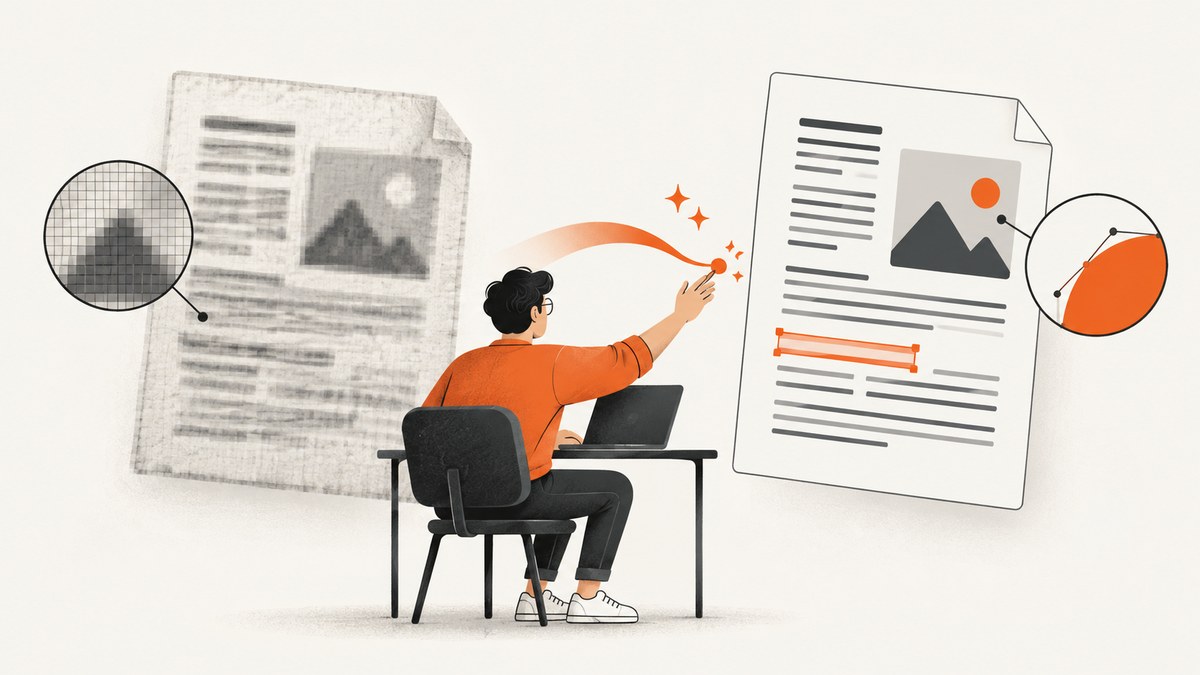
Blurry jsPDF text usually has one of two causes: the PDF contains a low-resolution image instead of real PDF text, or the document uses incorrect units, fonts, or scaling. The sharpest solution is to create text with jsPDF’s native doc.text() API. Native text remains selectable and searchable and stays clean when zoomed or printed.
If your page comes from html2canvas, addSvgAsImage, or a canvas data URL, the PDF contains raster pixels. In that case, increase the source canvas resolution, avoid enlarging a small canvas, and use a suitable font for every glyph. The techniques below cover both paths.
1. Determine whether your PDF has text or an image
Before changing settings, inspect the PDF at 100% and at the intended print size. Try selecting a word and searching for it:
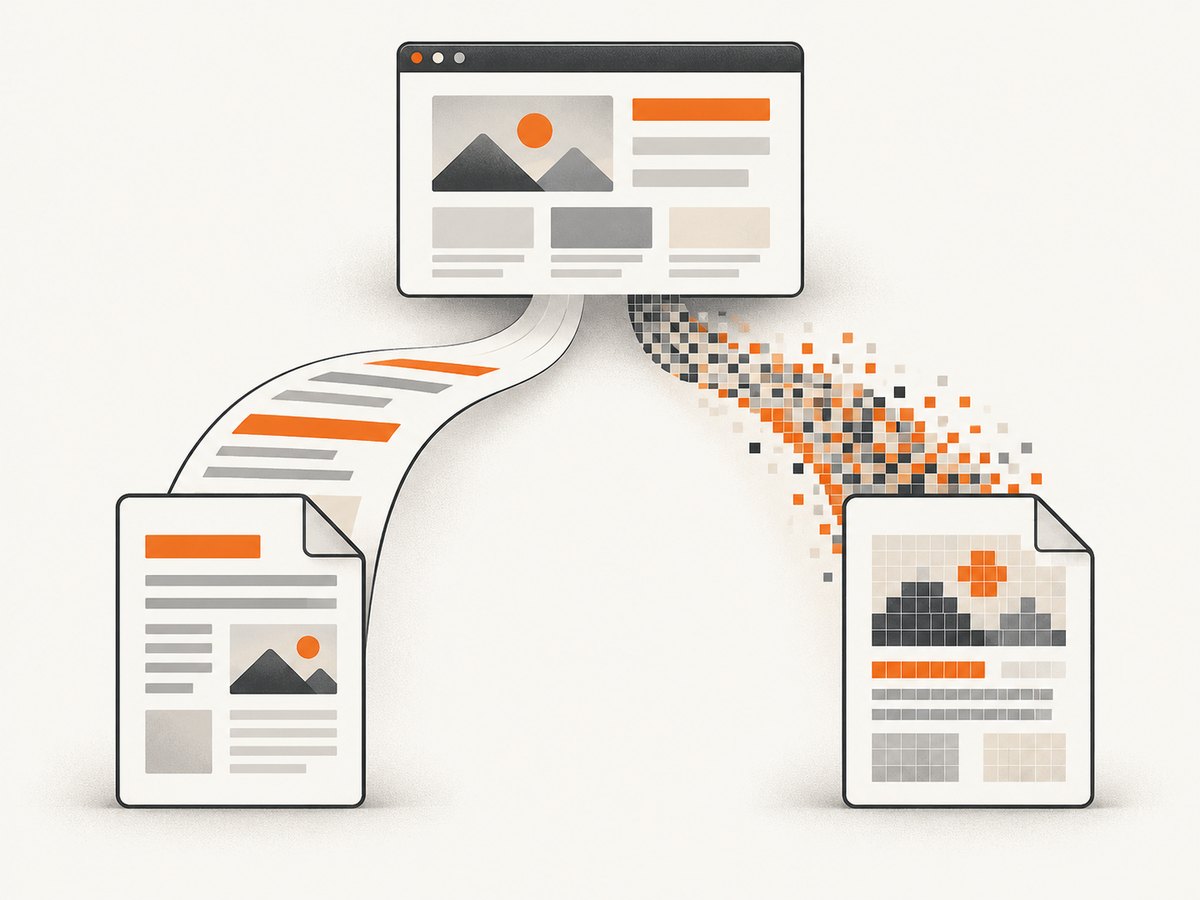
- Selectable characters and clean edges at any zoom: the page probably contains vector text.
- The whole page selects as one object, or letters become square pixels when zoomed: the page is probably one raster image.
- Text is selectable but the size or position is wrong: check units, especially when using CSS pixels.
- Only certain languages or symbols look wrong: check font embedding and glyph coverage.
This distinction matters. Increasing a canvas scale can add pixels, but it cannot turn an image into vector text. Conversely, changing floatPrecision cannot repair a low-resolution screenshot.
2. Prefer native jsPDF text
Use jsPDF drawing and font APIs for headings, labels, invoices, reports, and body copy whenever your layout allows it. This creates actual PDF text rather than a screenshot of text.
import { jsPDF } from 'jspdf';

const doc = new jsPDF({
  unit: 'pt',
  format: 'a4',
  putOnlyUsedFonts: true,
  floatPrecision: 16
});

doc.setFont('helvetica', 'normal');
doc.setFontSize(12);
doc.text('Sharp, selectable PDF text', 72, 72);
doc.setFontSize(20);
doc.text('Report heading', 72, 110);
doc.save('sharp-text.pdf');
Points (pt) are a practical choice for PDF layouts because they map naturally to print dimensions. Use splitTextToSize for paragraphs instead of rendering an entire HTML page to a bitmap:
const paragraph = 'This paragraph is written as PDF text, so it remains searchable and sharp.';
const lines = doc.splitTextToSize(paragraph, 450);
doc.text(lines, 72, 150, { lineHeightFactor: 1.4 });
Native text requires more layout work than a screenshot. CSS features such as complex flex layouts, filters, and browser-only line breaking may need to be reproduced with explicit coordinates. The trade-off is predictable, selectable output.
3. Correct CSS pixel units with the px_scaling hotfix
If your application uses CSS pixel coordinates, construct jsPDF with unit: 'px' and enable the documented px_scaling hotfix:
import { jsPDF } from 'jspdf';

const doc = new jsPDF({
  unit: 'px',
  hotfixes: ['px_scaling']
});

doc.setFontSize(16);
doc.text('Coordinates measured in CSS pixels', 40, 60);
doc.save('pixel-layout.pdf');
The official jsPDF hotfix documentation explains that the internal scaling factor was miscalculated when px was supplied as the unit; px_scaling corrects that calculation. See the jsPDF hotfix documentation.
Without the hotfix, objects can appear larger than expected, which often leads to text being stretched, wrapped differently, or positioned outside the intended area. Do not mix coordinate systems casually. If your measurements are in points, use pt; if they are in CSS pixels, use px with the hotfix. Convert once at the boundary rather than rounding every coordinate.
4. Increase resolution when rasterization is required
Some documents genuinely need browser rendering: a complex dashboard, CSS effects, embedded charts, or a visual snapshot. In that case, increase the physical pixel dimensions of the canvas before calling toDataURL() and addImage().
import html2canvas from 'html2canvas';
import { jsPDF } from 'jspdf';

const element = document.querySelector('#invoice');
const canvas = await html2canvas(element, {
  scale: Math.max(2, window.devicePixelRatio || 1),
  useCORS: true,
  backgroundColor: '#ffffff'
});

const image = canvas.toDataURL('image/png');
const pdf = new jsPDF({ unit: 'pt', format: 'a4' });
pdf.addImage(image, 'PNG', 0, 0, 595.28, 841.89);
pdf.save('rasterized-page.pdf');
scale: 2 is a starting point, not a universal guarantee. Choose it from the target PDF size, desired print resolution, available memory, and the amount of text. A larger scale creates more pixels and usually sharper letters, but it also increases canvas memory, encoding time, and PDF size. The html2canvas configuration documentation describes the scale option and related rendering controls.
Keep the display size honest. If a canvas is 1200 pixels wide, do not stretch it to a physical size that requires 2400 pixels of detail. For text-heavy raster pages, PNG preserves hard edges and avoids JPEG compression artifacts. JPEG can reduce file size for photographic content, but its ringing and block artifacts are especially visible around small type.
5. Avoid turning SVG or HTML into one giant image by default
addSvgAsImage, canvas exports, and HTML screenshot workflows are useful when browser fidelity matters, but their text sharpness is bounded by the raster dimensions produced before insertion. Raising the source scale helps; it does not make the resulting text vector text.
For a mixed document, combine approaches: use native jsPDF text for titles, labels, and paragraphs, and use images only for charts, photos, or portions that cannot be reproduced with PDF primitives. This also improves searchability and can reduce file size.
6. Embed a font that contains every glyph
The 14 standard PDF fonts are limited to the ASCII code page. Accented characters, Cyrillic, Arabic, CJK text, emoji, and many symbols require an integrated TrueType font containing those glyphs. The jsPDF project documents loading a TTF into its virtual file system, registering it, and selecting it before writing text. See the jsPDF project documentation.
// The exact binary-loading mechanism depends on your bundler.
// fontBytes must contain the TTF file as a base64 string.
doc.addFileToVFS('NotoSans-Regular.ttf', fontBytes);
doc.addFont('NotoSans-Regular.ttf', 'NotoSans', 'normal');
doc.setFont('NotoSans', 'normal');
doc.setFontSize(12);
doc.text('Résumé — Ελληνικά — العربية — 日本語', 72, 72);
Confirm that the selected font actually contains every character. A fallback font in the browser does not automatically become an embedded PDF font. Missing glyphs may appear as blank boxes or substitution characters, which can be mistaken for blur.
7. Use precision and transforms deliberately
jsPDF exposes precision, userUnit, and floatPrecision. Keep their defaults unless you have measured a problem. Repeatedly rounding coordinates in application code can create uneven baselines and spacing; retain full numeric values until drawing.
Do not use non-uniform text transforms as the first sharpness fix. A horizontal scale matrix can make type look distorted, and an issue in the project reports a matrix intended to scale text horizontally having no visible effect. Choose an appropriate font size, adjust the layout, or use a different font before depending on a transform.
8. A practical debugging checklist
- Open the PDF and test text selection and search.
- If it is an image, inspect the source canvas width and height in physical pixels.
- Increase
html2canvasscalegradually and watch memory use. - Ensure the image is not being enlarged beyond its intended print dimensions.
- If coordinates are CSS pixels, add
hotfixes: ['px_scaling']. - Use native
doc.text()for content that must stay selectable. - Embed a TTF for non-ASCII characters and verify glyph coverage.
- Inspect at 100% and at the final print size, not only at an arbitrary browser zoom.
9. Troubleshooting common blurry-text errors
| Symptom | Likely cause | Fix |
|---|---|---|
| The entire page is fuzzy | HTML was flattened into a small canvas | Use native text, or raise the canvas scale and keep the image at a sensible size. |
| Text is the wrong size or position | CSS pixels used without the scaling hotfix | Use unit: 'px' with hotfixes: ['px_scaling'], or convert to points. |
| Letters look compressed or stretched | Non-uniform transform or incorrect unit conversion | Remove the transform, select a font size directly, and convert coordinates once. |
| Only photographs look acceptable | JPEG compression is damaging text edges | Use PNG for text-heavy raster content. |
| Accents or symbols are boxes | Standard font lacks the glyphs | Embed a TTF with addFileToVFS/addFont and select it. |
| Output becomes slow or crashes | Canvas scale is consuming too much memory | Reduce scale, split long pages, render native text, or process pages separately. |
| Cross-origin images are missing | Browser security or CORS configuration | Serve assets with suitable CORS headers and use useCORS: true where supported. |
10. Performance, reliability, and file-size trade-offs
Native text is usually the most efficient option for text-heavy reports: it avoids a large bitmap and remains searchable. Raster output costs memory in proportion to canvas width, height, and scale; doubling both dimensions creates roughly four times as many pixels before encoding. Test the largest page your users will export, especially on mobile devices.
High scale does not repair missing content. Wait for fonts, images, and data before capturing. For multi-page HTML, render one page or section at a time instead of creating one enormous canvas. Keep image dimensions tied to the PDF’s actual physical size. If you need deterministic output, fix the font, units, viewport, and rendering scale in configuration rather than relying on each device’s pixel ratio.
11. Or skip the browser setup
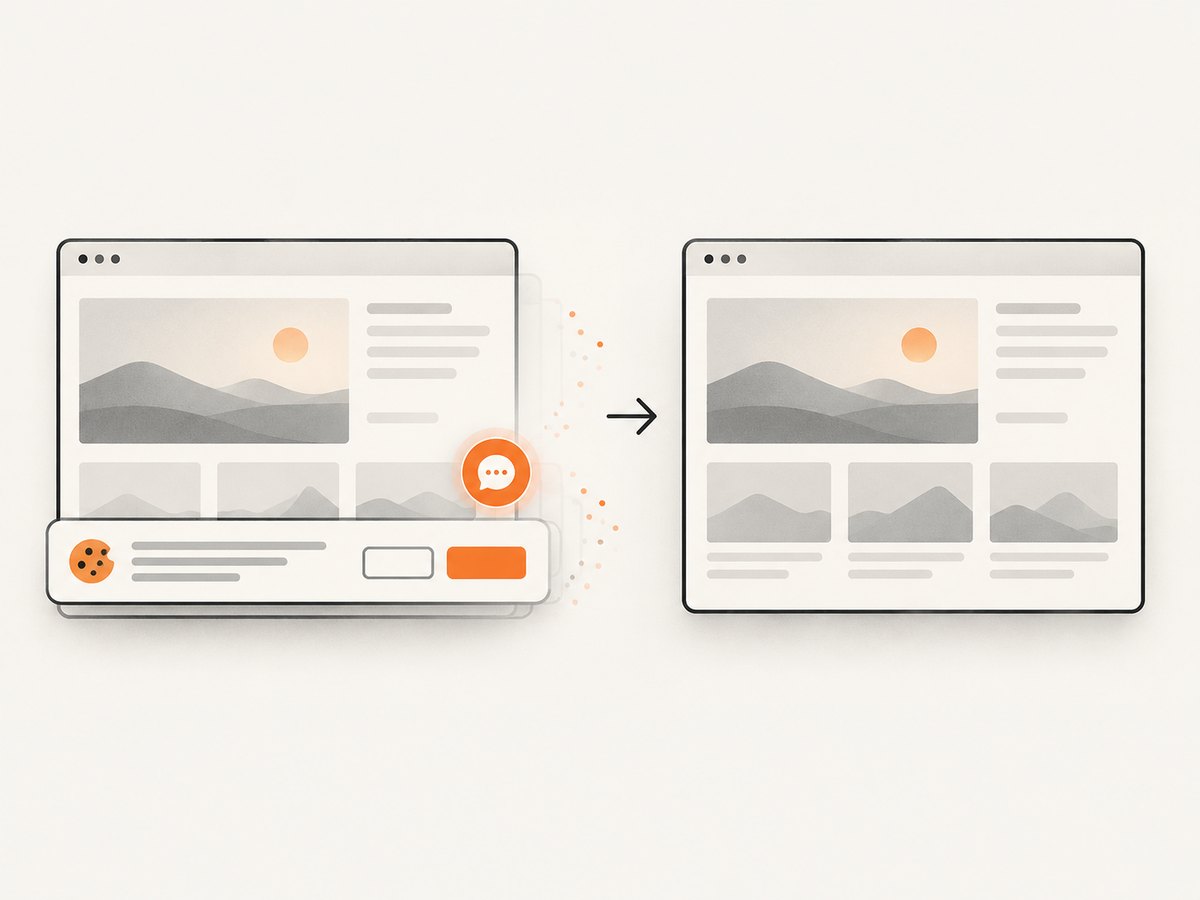
If your goal is a clean screenshot or PDF of a web page rather than a custom jsPDF layout, ScreenshotNeo provides a single-request website screenshot API. It accepts the cookie or consent banner like a visitor, removes more than 60 known consent platforms plus newsletter popups and chat widgets, and lets each step be turned off. Bot checks, CAPTCHAs, blank pages, timeouts, failed loads, and cache hits are not billed; response headers identify the page verdict and whether the request was billed.
See the ScreenshotNeo API documentation for the complete option list, including full-page capture with lazy images loaded, CSS selector element capture, dark mode, device presets, retina scale, PDF paper size and margins, custom CSS and JavaScript, waits, request blocking, headers, cookies, user agents, authorization, timezone, geolocation, transparent backgrounds, resizing, caching, signed links, asynchronous jobs, bulk capture, usage, and the OpenAPI specification.
cURL
curl -G "https://api.screenshotneo.com/v1/shot" \
  -d access_key=YOUR_API_KEY \
  --data-urlencode url=https://stripe.com \
  -o shot.webp
Python
import requests

r = requests.get(
    "https://api.screenshotneo.com/v1/shot",
    params={"access_key": "YOUR_API_KEY", "url": "https://stripe.com"},
    timeout=90,
)
r.raise_for_status()
open("shot.webp", "wb").write(r.content)
Node.js
const q = new URLSearchParams({
  access_key: 'YOUR_API_KEY',
  url: 'https://stripe.com'
});
const res = await fetch(`https://api.screenshotneo.com/v1/shot?${q}`);
if (!res.ok) throw new Error(`Screenshot failed: ${res.status}`);
const file = Buffer.from(await res.arrayBuffer());
require('fs').writeFileSync('shot.webp', file);
An MCP server also exposes take_screenshot, get_page_info, and capture_pdf to Claude, Cursor, and other MCP clients. The free plan includes 1,000 screenshots each month with no card. Paid plans start at $5 for 3,000 shots, and every feature is available on every plan. Create a free ScreenshotNeo account.
12. FAQ
Does increasing jsPDF quality make text vector?
No. Quality settings cannot change an image into PDF text. Use doc.text() for vector text, or increase the source canvas resolution when rasterization is required.
What scale should html2canvas use?
Start around 2 or the device pixel ratio, then adjust for target print size, memory, and text density. There is no single value that guarantees sharp output for every document.
Should I use PNG or JPEG?
PNG is generally safer for screenshots and small type because it preserves hard edges. JPEG is useful when photographic content and smaller files matter more than lossless text edges.
Why is text searchable in one export but not another?
The searchable export used native PDF text, while the other flattened HTML or SVG into an image. Keep important copy in jsPDF text APIs.
Can a custom font alone fix blur?
A correctly embedded font fixes missing glyphs and some rendering differences, but it cannot restore detail lost by a low-resolution raster image.


