How to Fix browser.keys() on Firefox with WebdriverIO
Diagnose browser.keys() failures in Firefox with WebdriverIO: key constants, focus checks, element methods, and geckodriver setup.
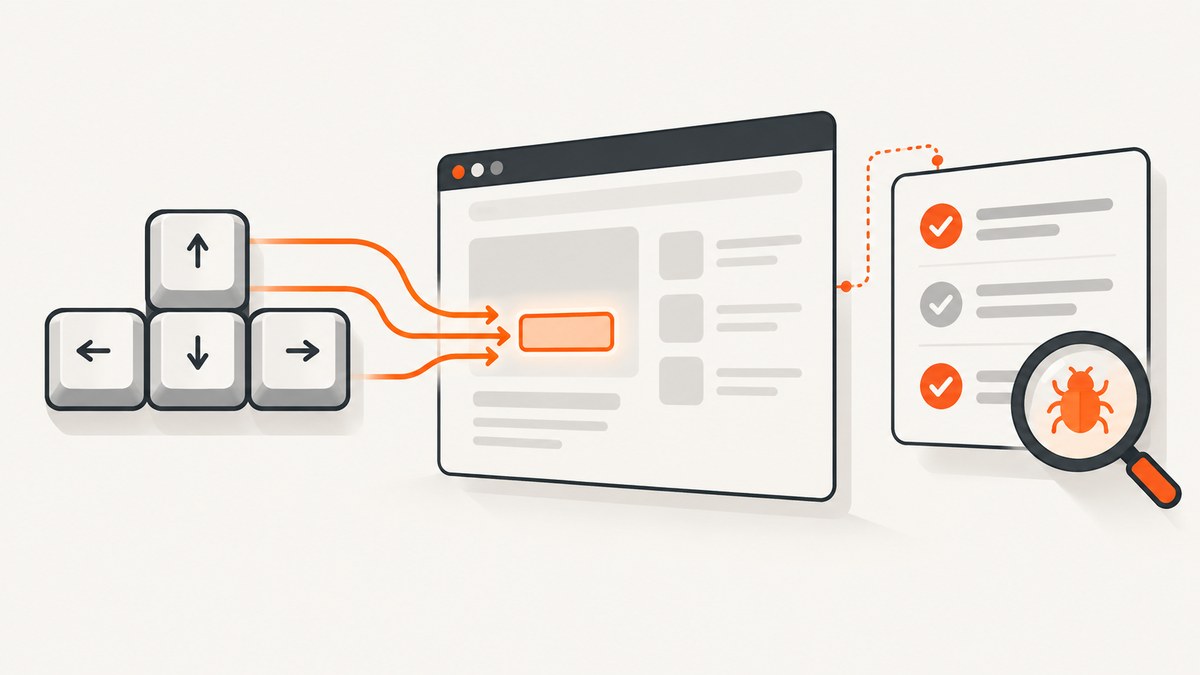
Direct answer: Fix browser.keys() failures on Firefox by checking, in order, the key value, the active element, the current window and frame, element interactability, and the Firefox/geckodriver versions. Use WebdriverIO’s Key constants for special keys, use setValue() or addValue() for text in a known input, and only change driver capabilities after you have captured a reproducible error and version set.
The title alone does not identify one Firefox bug. The correct remedy depends on whether you are sending printable text, a modifier chord, or navigation; whether the command targets the focused element or a specific control; and whether Firefox can focus that control. This guide gives a diagnostic sequence you can run in a new test.
1. Use the current WebdriverIO key API
Import Key from webdriverio and pass constants for special keys. The API documents cross-platform modifier behavior: Key.Ctrl maps to Command on macOS and Control on Windows and Linux. Printable characters can be strings.
import { Key } from 'webdriverio'

describe('keyboard input', () => {
  it('submits with Enter', async () => {
    await browser.url('https://example.test/search')
    await $('#search').click()
    await browser.keys(Key.Enter)
  })

  it('selects all text', async () => {
    await $('#query').click()
    await browser.keys([Key.Ctrl, 'a'])
  })

  it('moves through a menu', async () => {
    await $('#menu').click()
    await browser.keys([Key.ArrowDown, Key.ArrowDown, Key.Enter])
  })
})
These examples follow WebdriverIO’s documented module and browser.keys() patterns. See the Key constants and browser.keys API for the complete list of named keys and sequences.
2. Decide whether browser-level keys are the right command
browser.keys() sends a sequence to the element that currently owns focus. It is appropriate for keyboard navigation, shortcuts, and actions whose target is deliberately the active element. It is not a reliable replacement for filling a particular input when focus may have changed.
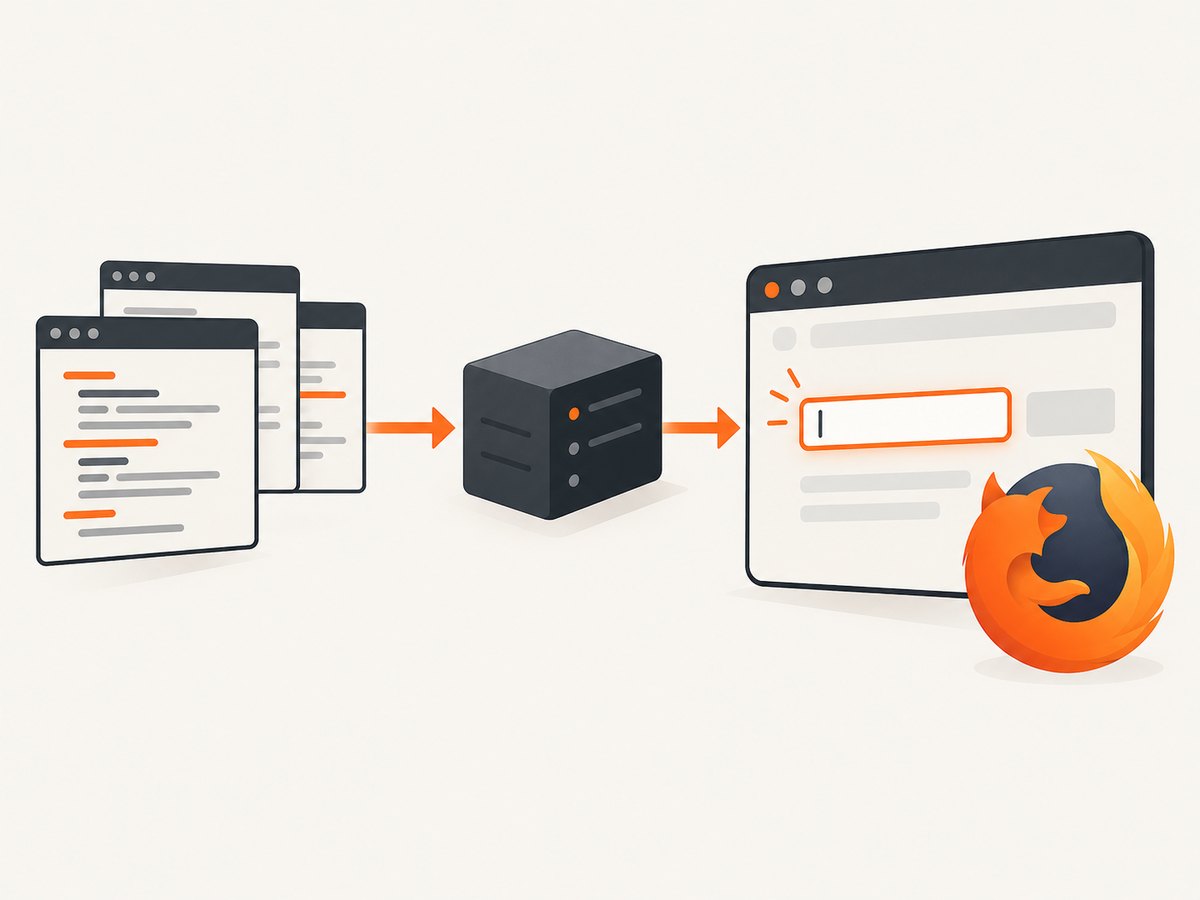
For a known form control, use the element methods:
const email = await $('#email')
await email.waitForDisplayed()
await email.setValue('dev@example.com') // replaces existing content
await email.addValue('.test')           // appends to existing content
WebdriverIO documents setValue() and addValue() as higher-level element operations. Element-level sending is also exposed by the WebDriver protocol, but the higher-level methods handle common value-entry details. Use browser.keys() when the action belongs to the focused control; use setValue() when the requirement is “make this field contain this exact text.”
3. Verify focus, visibility, and page state
Firefox’s geckodriver checks that an element is focusable when it receives keys. A key mapping can therefore be correct while the command still fails because the target is hidden, disabled, covered, detached, or outside the active frame.
- Wait for the expected page and element.
- Switch to the correct window or tab.
- Switch into the iframe that contains the control.
- Confirm the control is displayed and enabled.
- Click or focus it, then send the key sequence.
await browser.waitUntil(
  async () => (await browser.getTitle()).includes('Checkout'),
  { timeout: 10000, timeoutMsg: 'Checkout page did not load' }
)

const frame = await $('iframe[name="payment"]')
await frame.waitForExist()
await browser.switchFrame(frame)

const card = await $('#card-number')
await card.waitForDisplayed()
await card.waitForEnabled()
await card.click()
await browser.keys([Key.Ctrl, 'a'])
await card.addValue('4242424242424242')

await browser.switchFrame(null)
If an overlay intercepts the click, close the overlay through the page’s own control or wait for it to disappear. Do not “fix” an interactability error by sending keys repeatedly; retries can type duplicate characters or trigger a shortcut twice.
Check the actual active element
When a test reports that keys do nothing, inspect focus from the browser context:
const active = await browser.execute(() => {
  const el = document.activeElement
  return el ? {
    tag: el.tagName,
    id: el.id,
    name: el.getAttribute('name'),
    disabled: el.matches(':disabled'),
    editable: el.matches('input, textarea, [contenteditable="true"]')
  } : null
})
console.log(active)
If the active element is BODY, a hidden input, or a different control, correct the page interaction before changing capabilities.
4. Handle contenteditable and special controls
Rich editors often use a contenteditable element rather than an input. Click the editable surface and verify that focus remains there after any toolbar action.
const editor = await $('[contenteditable="true"]')
await editor.waitForDisplayed()
await editor.click()
await browser.keys([Key.Ctrl, 'a'])
await editor.addValue('Updated text')
For file inputs, date pickers, custom comboboxes, and shadow-DOM widgets, the visible control may not be the keyboard target. Prefer the component’s documented interaction or locate the actual editable node. If the component opens a popup in another DOM context, wait for that popup before sending arrow or Enter keys.
5. Confirm window and iframe context
A correct selector in the wrong browsing context behaves like a broken keyboard command. Record window handles and switch explicitly when tests open a new tab.
const original = await browser.getWindowHandle()
await $('#open-help').click()
await browser.waitUntil(async () => (await browser.getWindowHandles()).length === 2)
const handles = await browser.getWindowHandles()
const help = handles.find(handle => handle !== original)
await browser.switchToWindow(help)
await browser.keys(Key.Escape)
await browser.switchToWindow(original)
For iframes, use switchFrame() before locating or focusing the control, and switchFrame(null) to return to the top document. A frame reload can invalidate the old element reference, so locate the element again after navigation.
6. Capture versions before changing configuration
geckodriver is a separate WebDriver-facing proxy between WebdriverIO and Firefox. Firefox and geckodriver use different version schemes, so record all relevant versions in a failing run:
npx wdio --version
firefox --version
geckodriver --version
node --version
npm ls webdriverio
WebdriverIO documents pinning the driver independently with wdio:geckodriverOptions.geckoDriverVersion. Pin a compatible driver in CI when an unplanned browser update changes behavior:
export default {
  capabilities: [{
    browserName: 'firefox',
    'wdio:geckodriverOptions': {
      geckoDriverVersion: 'REPLACE_WITH_YOUR_APPROVED_VERSION'
    }
  }]
}
Use a version that your project has approved and record the browser binary version beside it. Do not infer incompatibility from the key failure alone; first compare the recorded versions with a known-good run.
7. Treat moz:webdriverClick as a narrow diagnostic
Mozilla documents the moz:webdriverClick capability as changing interactability checks for clicks and sending keys. Setting it to false temporarily disables conformant checks, but Mozilla also describes the capability as temporary and intended for removal after stabilization. It is therefore a version-sensitive diagnostic, not a routine fix.
export default {
  capabilities: [{
    browserName: 'firefox',
    'moz:webdriverClick': false
  }]
}
Only try this in a controlled reproduction to determine whether strict interactability checks explain the failure. If it changes the result, fix the underlying focus, visibility, overlay, frame, or enabled-state problem and remove the capability. If a minimal test still fails with a current compatible setup, keep the complete error and version report for a geckodriver issue.
8. A minimal diagnostic test
This test separates key mapping, focus, and element-level entry:
import { Key } from 'webdriverio'

describe('Firefox keyboard diagnosis', () => {
  it('checks focused and targeted input paths', async () => {
    await browser.url('data:text/html,' + encodeURIComponent(`
      <input id="one"><button id="submit">Submit</button>
      <script>document.querySelector('#one').focus()</script>`))

    const one = await $('#one')
    await one.waitForDisplayed()
    await one.waitForEnabled()

    await browser.keys('abc')
    const afterKeys = await one.getValue()

    await one.setValue('reset')
    await browser.keys([Key.Ctrl, 'a'])
    await browser.keys('xyz')
    const afterChord = await one.getValue()

    console.log({ afterKeys, afterChord })
  })
})
If element methods work but browser-level keys do not, focus is the first suspect. If both fail, inspect the element, frame, page state, and driver setup. Keep this test independent of your application so the failure is reproducible.
9. Troubleshooting table
| Symptom | Likely cause | Fix |
|---|---|---|
element not interactable |
Hidden, disabled, covered, or non-focusable target | Wait for displayed/enabled state, remove the overlay, and focus the real control. |
| Keys go to the wrong field | Focus changed after a click, wait, or navigation | Inspect document.activeElement; click the intended element immediately before the command. |
| Enter or arrows do nothing | Wrong key representation or widget context | Use Key.Enter/Key.ArrowDown and wait for the widget popup. |
| Works outside an iframe, fails inside | Top-level browsing context is active | Call switchFrame() and locate the element again. |
| Works locally, fails in CI | Different Firefox/geckodriver versions, viewport, or timing | Log versions, pin geckodriver, and replace fixed sleeps with state-based waits. |
| Stale element reference | Frame or page reloaded after the element was found | Wait for the reload to finish and query the element again. |
| Modifier remains active | Sequence interrupted before release | Use a complete array sequence and ensure the test reaches cleanup before retrying. |
10. Performance and reliability practices
- Use one focused action per assertion. Long key arrays are harder to diagnose than short sequences.
- Prefer condition waits such as
waitForDisplayed()andwaitUntil()over arbitrary sleeps. - Keep browser, geckodriver, WebdriverIO, and Node versions visible in CI logs.
- Use a stable viewport and disable unrelated animations when visual state affects focus.
- Retry only idempotent setup steps. Retrying text entry can duplicate data.
- Run a minimal Firefox smoke test after dependency updates before the full suite.
Keyboard commands are cheap compared with starting a browser, but repeated retries and unnecessary navigation increase suite time. A deterministic focus check usually saves more time than changing driver flags.
11. Or skip the browser setup with ScreenshotNeo
If your goal is a clean image of a page rather than interactive keyboard testing, ScreenshotNeo provides a single HTTP request. It accepts consent banners before capture and removes more than 60 known consent platforms, newsletter popups, and chat widgets. Bot checks, blank pages, timeouts, failed loads, and cache hits are not billed, and each response reports its verdict in X-Page-Verdict and X-Billed headers.
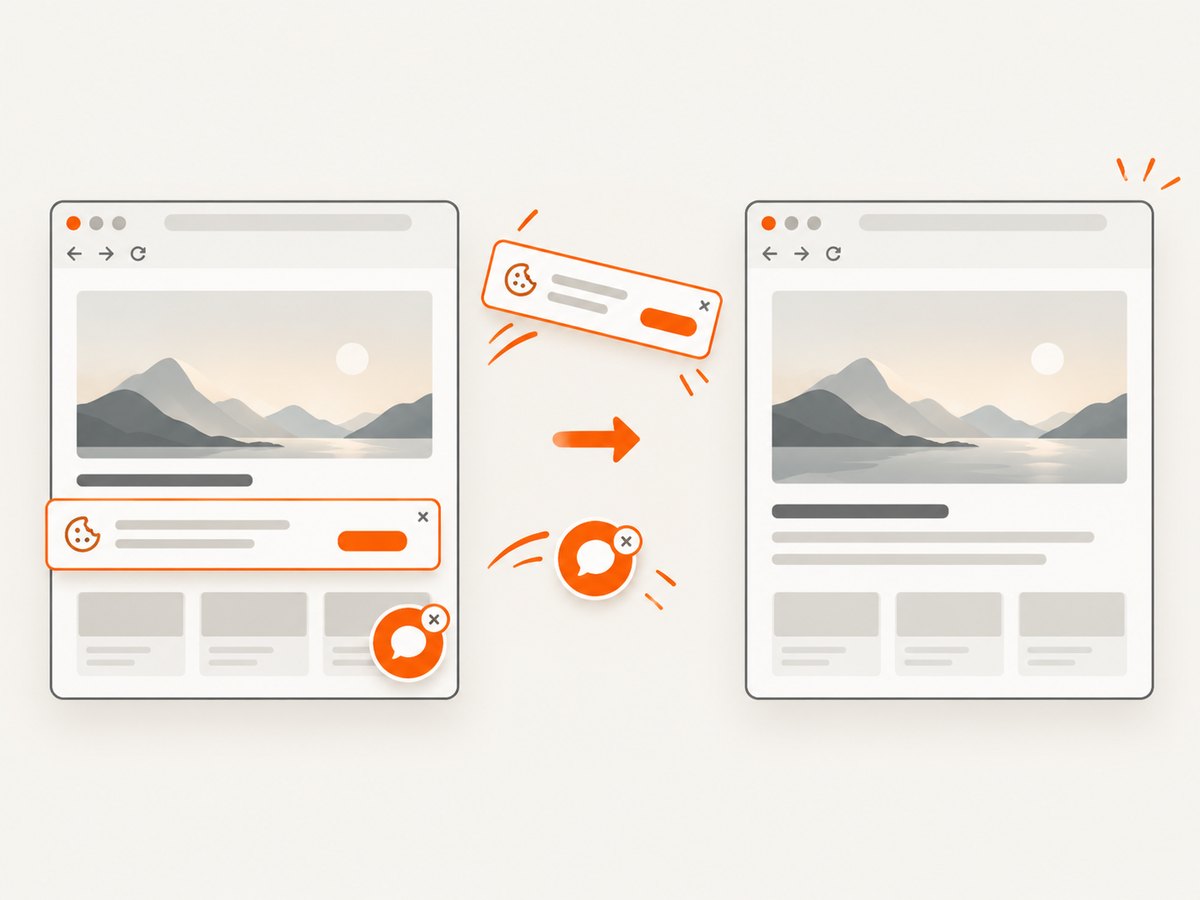
See the ScreenshotNeo API documentation for all options. A basic request:
curl -G 'https://api.screenshotneo.com/v1/shot' -d access_key=YOUR_API_KEY --data-urlencode url=https://stripe.com -o shot.webpimport requests
r = requests.get('https://api.screenshotneo.com/v1/shot', params={'access_key': 'YOUR_API_KEY', 'url': 'https://stripe.com'}, timeout=90)
r.raise_for_status()
open('shot.webp', 'wb').write(r.content)const q = new URLSearchParams({ access_key: 'YOUR_API_KEY', url: 'https://stripe.com' });
const res = await fetch(`https://api.screenshotneo.com/v1/shot?${q}`);
if (!res.ok) throw new Error(`HTTP ${res.status}`);
const fs = await import('node:fs/promises');
await fs.writeFile('shot.webp', Buffer.from(await res.arrayBuffer()));You can request PNG, JPEG, WebP, or PDF; full-page captures load lazy images; and options cover CSS element capture, dark mode, device presets, custom headers and cookies, JavaScript, selector waits, delays, network idle, blocked resources, geolocation, timezone, resizing, caching, signed links, asynchronous jobs, webhooks, bulk capture, and usage reporting. An MCP server exposes take_screenshot, get_page_info, and capture_pdf to Claude, Cursor, and other MCP clients.
Free accounts include 1,000 screenshots each month with no card. Paid plans start at $5 for 3,000 shots, and every feature is available on every plan. Create a free ScreenshotNeo account.
12. FAQ
Should I always click before browser.keys()?
Click when the command must target a specific control and focus is uncertain. For deliberate global shortcuts, first verify that the intended element or document owns focus.
Is Key.Ctrl valid on macOS?
Yes. WebdriverIO documents Key.Ctrl as mapping to Command on macOS and Control on Windows and Linux.
Can I solve every failure by pinning geckodriver?
No. Pinning makes the environment reproducible, but hidden or unfocused elements still fail. Check interactability first.
When should I report a geckodriver bug?
Report it after reproducing the issue in a minimal test with the exact WebdriverIO, Firefox, geckodriver, Node, operating-system, error, window/frame, and element-state details.
Where are the official protocol details?
Use Mozilla’s Firefox capabilities documentation, the geckodriver overview, WebdriverIO’s WebDriver protocol commands, and its driver binary guidance.


