How to Fix Browsershot After Reinstalling Node.js with NVM
Fix Browsershot after an NVM reinstall by verifying the service user, setting absolute Node paths, repairing Puppeteer, and resolving Chrome and sandbox errors.
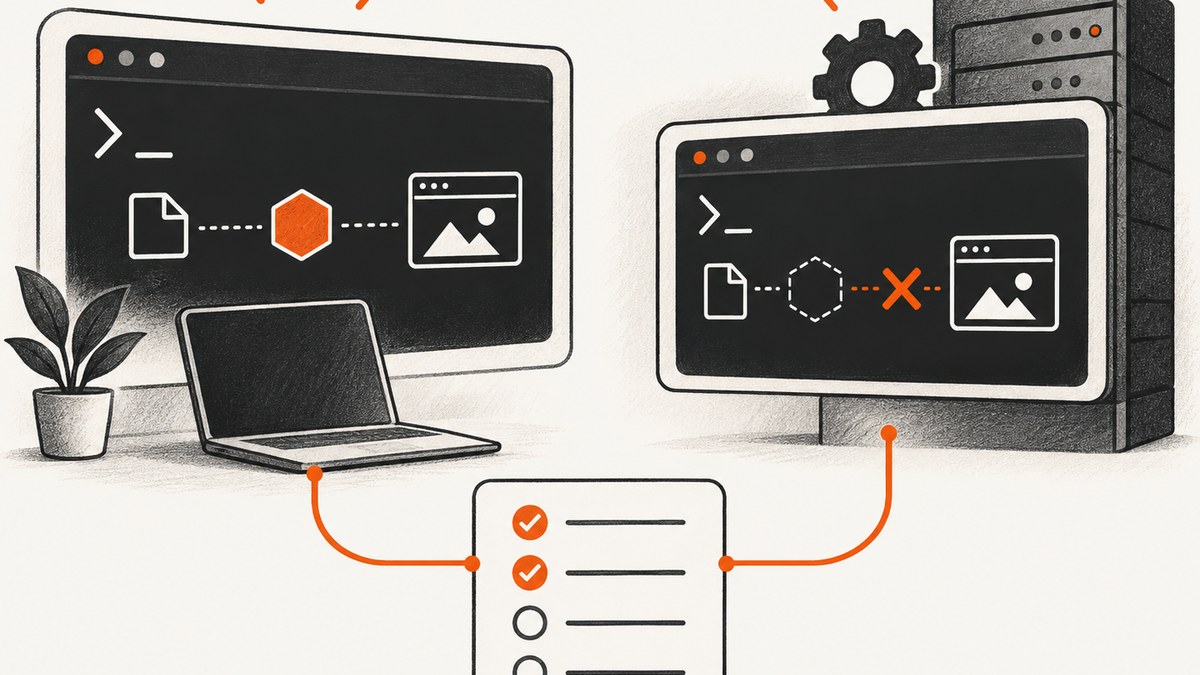
Browsershot commonly breaks after reinstalling Node.js with nvm because the process that runs Laravel does not use the same shell, user, or environment as your terminal. Your login shell may find Node, npm, Puppeteer, and Chrome while PHP-FPM, a queue worker, cron, or a container cannot.
The reliable repair is to identify the runtime user, verify the binaries in that exact context, configure Browsershot with absolute paths when needed, then check Puppeteer and Chrome separately. Treat sandbox errors as an operating-system policy problem rather than a PATH problem.
Quick repair checklist
- Identify whether the failing job runs under PHP-FPM, a queue worker, cron, a supervisor process, or a container.
- Run Node and npm checks as that OS user.
- Compare
node -v,npm -v,nvm current, andnvm which current. - Configure
setNodeBinary(),setNpmBinary(), and, if necessary,setIncludePath()with paths from the affected installation. - Install the declared JavaScript dependencies in the application directory and under the same runtime user.
- Resolve Chrome discovery independently with Puppeteer’s matching installation procedure or
setChromePath(). - Only after those checks, investigate sandbox and AppArmor errors.
- Render a tiny test page before retrying the complete PDF or image job.
nvm is “designed to be installed per-user, and invoked per-shell,” according to the nvm project README. That design explains why an interactive terminal test can pass while a service still reports “node not found.”
1. Identify the process that actually runs Browsershot
Start with the failing execution context, not your own login account. Common contexts include:
| Context | What can differ | How to inspect it |
|---|---|---|
| PHP-FPM | User, home directory, PATH, profile files, permissions | Inspect the pool’s user, group, and environment configuration |
| Queue worker | Supervisor environment and long-lived process state | Check the supervisor program user and restart workers after changes |
| Cron | Minimal PATH and non-interactive shell | Run a diagnostic command from the same crontab |
| Container | Different filesystem, HOME, shell startup, and installed browser | Open a shell inside the running image as the application user |
Record the OS user, working directory, HOME value, and command line. A useful temporary diagnostic writes these values to a log from the application process:
<?php
logger()->info('browsershot runtime', [
    'user' => get_current_user(),
    'uid' => function_exists('posix_geteuid') ? posix_geteuid() : null,
    'cwd' => getcwd(),
    'path' => getenv('PATH'),
    'home' => getenv('HOME'),
]);
get_current_user() can describe the script owner rather than the effective process user, so confirm the account in your service manager as well. The important result is the account that must be able to execute Node, read the project, access the Puppeteer cache, and launch Chrome.
2. Verify Node and npm after the NVM reinstall
Run these commands as the runtime user and from the application directory:
whoami
printf 'HOME=%s\n' "$HOME"
printf 'PATH=%s\n' "$PATH"
command -v node
command -v npm
node -v
npm -v
nvm current
nvm which current
If nvm is unavailable, that does not prove Node is absent. It usually means the process did not load the shell script that defines the nvm function. Find the installation and source it explicitly in a diagnostic shell:
export NVM_DIR="$HOME/.nvm"
[ -s "$NVM_DIR/nvm.sh" ] && . "$NVM_DIR/nvm.sh"
nvm current
nvm which current
node -v
npm -v
For non-interactive Bash, the nvm documentation describes using BASH_ENV so startup files are loaded. In PHP-FPM and queue systems, absolute paths are often easier to reason about than relying on profile loading.
Save the exact output of nvm which current. If it returns a path such as /home/app/.nvm/versions/node/v20.*/bin/node, do not copy the wildcard; use the complete versioned path on that host.
3. Configure Browsershot with deterministic binary paths
Spatie notes that “Depending on your setup, node or npm might be not directly available to Browsershot,” and that Browsershot uses node and npm by default. Configure the paths when PATH inheritance is uncertain.
use Spatie\Browsershot\Browsershot;

Browsershot::html('<h1>Smoke test</h1>')
    ->setNodeBinary('/home/app/.nvm/versions/node/v20.x/bin/node')
    ->setNpmBinary('/home/app/.nvm/versions/node/v20.x/bin/npm')
    ->save('/var/www/app/storage/app/smoke.png');
Replace both examples with the paths returned by your own checks. The npm binary should belong to the same Node installation. If a service has a restricted PATH and Browsershot needs additional executables, configure its include path as documented by your installed Browsershot version:
Browsershot::url('https://example.com')
    ->setNodeBinary('/home/app/.nvm/versions/node/v20.x/bin/node')
    ->setNpmBinary('/home/app/.nvm/versions/node/v20.x/bin/npm')
    ->setIncludePath('/home/app/.nvm/versions/node/v20.x/bin')
    ->save('/var/www/app/storage/app/example.png');
Restart PHP-FPM, queue workers, and supervisor-managed processes after changing environment variables. Long-lived workers keep their old PATH until restarted.
4. Repair Puppeteer in the dependency context
Node being available does not mean the Puppeteer package is available. Browsershot’s browser script must resolve Puppeteer from the dependency context it uses. From the application directory, as the runtime user, inspect the declared dependency:

pwd
npm ls puppeteer
node -p "require.resolve('puppeteer/package.json')"
cat package.json
If resolution fails, install the dependency declared by your project, then verify it again:
npm install
npm ls puppeteer
node -p "require.resolve('puppeteer/package.json')"
A community compatibility report describes removing node_modules and rerunning npm install as a fix in one environment. Treat that as a version-specific recovery step, not a universal command. Before deleting anything, preserve the lockfile and confirm you can reinstall in a controlled deployment:
cp package-lock.json /tmp/package-lock.json.backup 2>/dev/null || true
rm -rf node_modules
npm ci
Use npm ci when a valid lockfile is committed. Use npm install when the project does not have a lockfile or intentionally updates dependency versions. Ensure the service user can read the resulting directory; installing as root can create files that PHP-FPM cannot access.
5. Fix Chrome or Chromium discovery separately
“Could not find Chrome” is a browser discovery failure, not evidence that Node is missing. Puppeteer can manage a browser download, or you can supply a system Chrome or Chromium binary. Keep the choice consistent with the Puppeteer version in your lockfile.
First inspect what the runtime user can see:
node -p "process.env.PUPPETEER_CACHE_DIR || ''"
find "$HOME" -maxdepth 5 -type f \( -name chrome -o -name chromium -o -name 'chrome-*' \) 2>/dev/null | head
command -v google-chrome || true
command -v chromium || true
command -v chromium-browser || true
If Puppeteer’s managed browser is expected, follow the installation procedure for the exact Puppeteer dependency version and make its cache readable and executable by the service user. If the operating system supplies Chrome, configure its absolute path in Browsershot:
Browsershot::url('https://example.com')
    ->setNodeBinary('/home/app/.nvm/versions/node/v20.x/bin/node')
    ->setNpmBinary('/home/app/.nvm/versions/node/v20.x/bin/npm')
    ->setChromePath('/usr/bin/google-chrome')
    ->save('/var/www/app/storage/app/example.png');
The path must exist inside the same host or container where the job runs. Check execute permission on the binary and search the service logs for cache permission errors. A Browsershot deployment discussion reports that changing the cache directory and setting an explicit Chrome path resolved a launch failure; the exact paths depend on that deployment.
6. Separate sandbox and AppArmor failures
Errors such as No usable sandbox! indicate an operating-system policy or kernel configuration problem. Do not fix them by randomly changing PATH or reinstalling Node. Confirm the exact platform and error first, then follow the sandbox settings documented by Spatie Browsershot for affected Ubuntu/AppArmor configurations.
Keep sandbox changes narrow and documented. A setting that allows a browser to launch in one container may be inappropriate on another host. Retest under the same unprivileged service user after every change.
7. Retest with a minimal render, then the real job
Use a small HTML document or stable URL to reduce variables:
Browsershot::html('<!doctype html><html><body><p>Browsershot OK</p></body></html>')
    ->setNodeBinary('/home/app/.nvm/versions/node/v20.x/bin/node')
    ->setNpmBinary('/home/app/.nvm/versions/node/v20.x/bin/npm')
    ->setChromePath('/usr/bin/google-chrome')
    ->windowSize(800, 600)
    ->save('/tmp/browsershot-smoke.png');
Once that works, test the production URL, then PDFs, fonts, authenticated pages, and JavaScript-heavy pages. Record these values with the deployment:
- Runtime OS user and service type
- Node and npm versions
- Browsershot and Puppeteer versions
- Node binary and Chrome paths
- Puppeteer cache directory
- Application working directory and lockfile revision
Common errors and precise fixes
| Error | Likely cause | Fix |
|---|---|---|
node: not found |
Service did not load nvm or has a restricted PATH | Use an absolute setNodeBinary() path or configure service startup to source nvm |
npm: not found |
npm belongs to an NVM installation unavailable to the worker | Set the matching absolute setNpmBinary() path and restart workers |
Cannot find module puppeteer |
Dependency installed in another directory or for another user | Run npm installation in the project directory as the runtime user; verify require.resolve() |
Could not find Chrome |
Browser cache is missing, unreadable, or not installed | Install the browser for the locked Puppeteer version or set an absolute Chrome path |
Permission denied |
Root-owned node_modules, cache, or output directory | Grant the service user read/execute access and write access to the output directory |
No usable sandbox! |
Kernel or AppArmor policy | Follow platform-specific sandbox guidance after confirming the exact error |
| Works in SSH, fails in queue | Different user, HOME, PATH, or stale worker process | Log the queue environment, use absolute paths, and restart workers |
| Works until an NVM upgrade | Versioned binary path changed | Update the configured path from nvm which current and redeploy consistently |
Performance, reliability, and maintenance
Browser startup, page JavaScript, remote assets, fonts, and image loading usually dominate render time. Keep a worker alive when your queue design permits it, but restart workers after Node or Chrome changes so they do not retain stale environment variables. Use a stable lockfile and upgrade Node, Puppeteer, Browsershot, and Chrome deliberately rather than changing all four during an incident.
For reliability, keep the browser cache on storage that survives routine deploys, ensure the service user can read it, and avoid sharing a per-user nvm or Puppeteer cache with accounts that should not access it. Test a simple local HTML page first; then add network access, authentication, custom fonts, and large pages one at a time.
There is no universal Node, Puppeteer, Chrome, or Browsershot version combination established by the available evidence. Pin the versions your application supports and verify them on the affected operating system before prescribing an upgrade.
Or skip the browser setup
ScreenshotNeo provides a website screenshot API when you do not want to maintain Node, Puppeteer, Chrome, service users, and browser caches. One GET request returns PNG, JPEG, WebP, or PDF. The same request can use full-page capture, an element selector, custom CSS and JavaScript, device presets, dark mode, waits, headers, cookies, user agents, geolocation, blocking rules, resizing, caching, signed links, asynchronous jobs, bulk capture, and other options documented at the ScreenshotNeo API documentation.
curl -G "https://api.screenshotneo.com/v1/shot" -d access_key=YOUR_API_KEY --data-urlencode url=https://stripe.com -o shot.webpimport requests
r = requests.get("https://api.screenshotneo.com/v1/shot", params={"access_key": "YOUR_API_KEY", "url": "https://stripe.com"}, timeout=90)
open("shot.webp", "wb").write(r.content)const q = new URLSearchParams({ access_key: 'YOUR_API_KEY', url: 'https://stripe.com' });
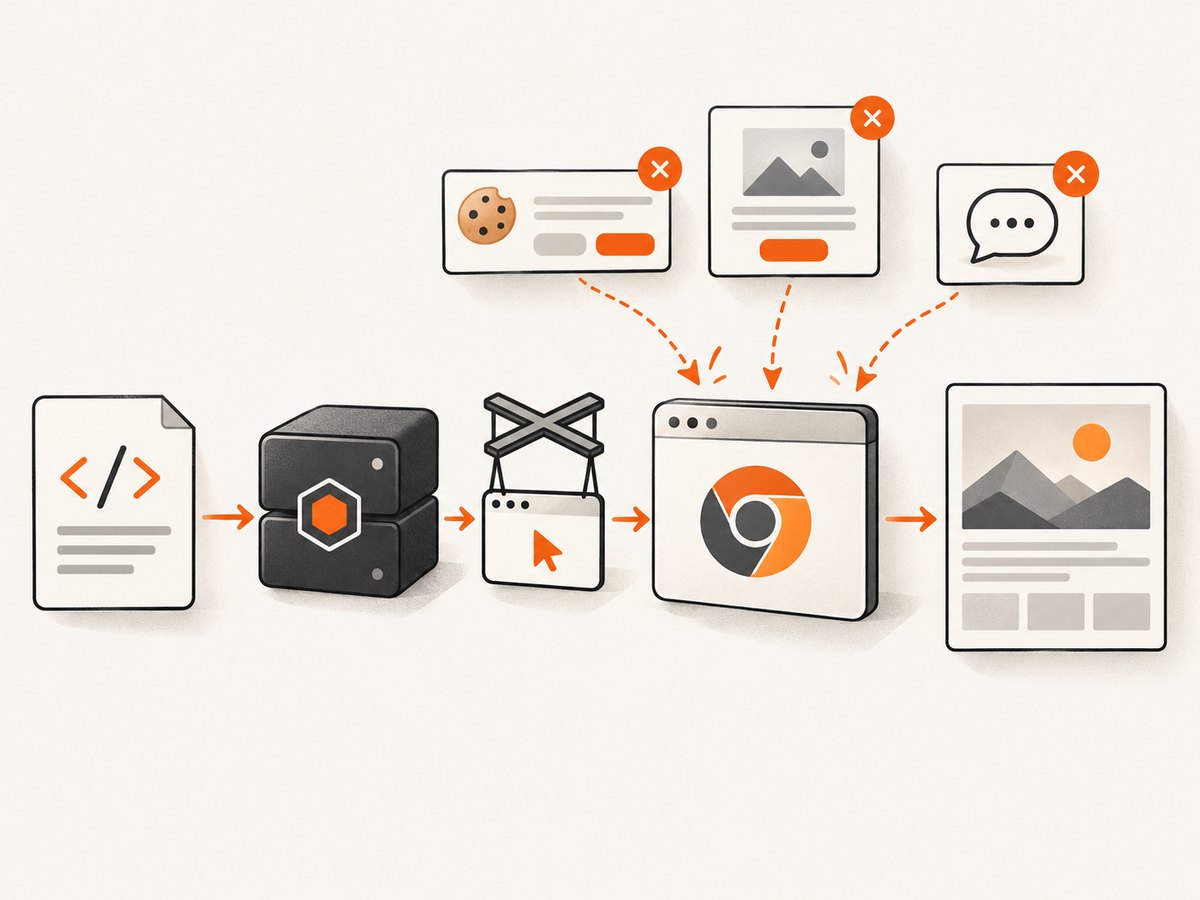
const res = await fetch(`https://api.screenshotneo.com/v1/shot?${q}`);Cookie banners, newsletter popups, and chat widgets are removed before the shot; bot checks, blank pages, failed loads, timeouts, and cache hits are not billed, and response headers identify the page verdict and billing status. Its MCP server lets Claude, Cursor, and other MCP clients call take_screenshot, get_page_info, and capture_pdf. The free plan includes 1,000 screenshots per month with no card; paid plans start at $5 for 3,000 shots. Create a free ScreenshotNeo account.
FAQ
Should I install nvm for the web server user?
Only if that fits your deployment model. A service-specific absolute Node path is often simpler and more reproducible than loading an interactive profile.
Do Node and Chrome need to be installed by the same user?
They must be usable by the runtime user. The files can come from a system package or a per-user cache as long as permissions and paths are correct.
Why did changing Node also break Puppeteer?
An NVM reinstall can change the active npm installation, project dependency resolution, or Puppeteer cache location. Verify all three separately.
What should I capture for a support ticket?
Include the runtime user, service type, Node/npm versions, Browsershot/Puppeteer versions, exact binary paths, Chrome path, cache path, and complete error text with secrets removed.


