How to Fix Spatie Browsershot Errors on Windows with XAMPP
Trace Browsershot failures through PHP, Node, Puppeteer, and Chrome. Fix missing executables, modules, browser downloads, and Windows permissions based on the exact error.
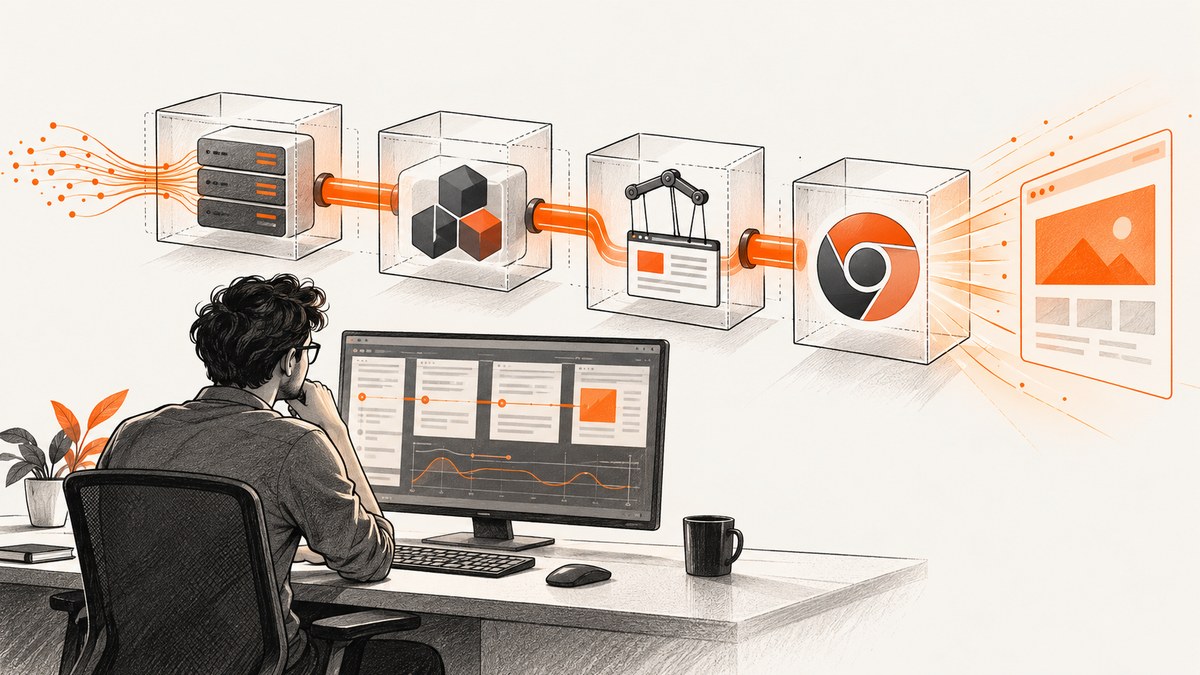
When Spatie Browsershot fails under Windows and XAMPP, start with the exact exception and identify which part of the rendering chain failed. Browsershot is a PHP package that delegates browser work to Puppeteer, a Node.js library that controls headless Chrome. A working Composer installation alone does not establish that the PHP process serving your XAMPP request can find Node, resolve Puppeteer, launch Chrome, and access its files.
There is no substantiated universal XAMPP setting that fixes every Browsershot error. Use the error-led checks below, configure the specific missing path or permission, and retest through the same Apache/PHP request that originally failed.
1. Map the error to the rendering chain
Browsershot can render a URL, an HTML string, or a local HTML file to an image or PDF. A typical request crosses these components:
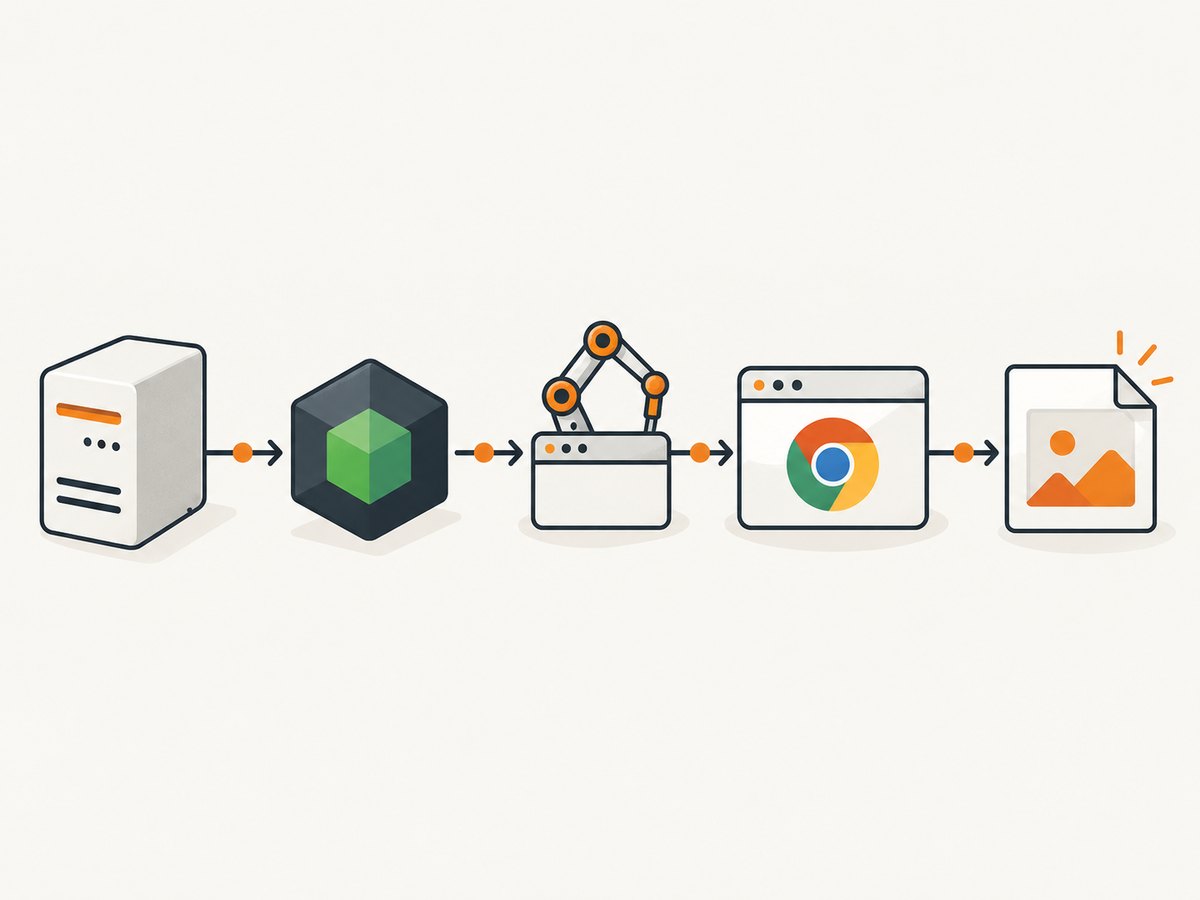
- PHP and Browsershot: your Laravel or PHP code starts the rendering job.
- Node.js: PHP invokes the Node executable.
- Puppeteer: the Node script resolves the Puppeteer module.
- Chrome: Puppeteer launches a usable browser executable and writes the result.
A failure at one step does not prove the next step is broken. For example, Cannot find module 'puppeteer' is a module-resolution error; it does not by itself mean Node or Chrome is missing. Spatie documents separate controls for executable paths, module paths, and Chrome paths in its Browsershot v4 requirements.
2. Record the failing context before changing anything
Capture the full exception, including the command Browsershot attempted to run, exit code, standard error, and working directory if available. Also record whether the failure happens in CLI PHP, in a request handled by XAMPP Apache, or in both.
- In the project directory, inspect the installed Browsershot version with
composer show spatie/browsershot. - In the same Windows account used for development, record
node --versionandnpm --version. - Check the Puppeteer package version in the project dependencies or lockfile.
- Reproduce the failure through the original Laravel route, controller, queue worker, or PHP entry point.
- Keep the exact error text and note the process account and execution context for each attempt.
Do not assume that a terminal command working means Apache can run the same executable. A command launched interactively and a request handled by an Apache process can have different executable paths, environment variables, working directories, and Windows account access. This is a practical diagnostic inference for process-specific errors, not an official XAMPP recipe.
3. Check version requirements and installation
The current official Browsershot v4 requirements specify Node 22.0 LTS or higher and Puppeteer 23.0 or higher. Those are requirements for v4; check your installed major version before changing dependencies. Older Browsershot releases may have different requirements.
Browsershot is installed through Composer, but Puppeteer is a separate Node dependency. Follow Spatie’s installation and setup guide for your installed version. Puppeteer normally downloads a compatible Chrome for Testing build and a chrome-headless-shell during installation. Its installation guide warns that package managers that block install scripts can skip the browser download.
Choose deliberately between two browser provisioning approaches:
| Approach | Check | Tradeoff |
|---|---|---|
| Puppeteer-managed download | Confirm the installation script ran and the browser files exist in the cache used by the process. | Puppeteer provisions its expected browser; the Windows account running Node must be able to access it. |
| Separately managed Chrome or Chromium | Find the exact executable on the machine where Node runs and configure that path. | You manage browser installation and updates, and must keep the configured path valid. |
Use the option that matches the error. Reinstalling PHP or XAMPP does not correct an unresolved JavaScript module path, a skipped browser download, or a Chrome permission problem.
4. Fix Node or npm that PHP cannot discover
If the exception indicates that Node or npm could not be found, use the absolute executable paths for the installation intended to run the job. Spatie documents setNodeBinary, setNpmBinary, and setIncludePath. In a Laravel project, configure these on the Browsershot instance that generates the output:
<?php

use Spatie\Browsershot\Browsershot;

Browsershot::url('https://example.com')
    ->setNodeBinary('C:\\Program Files\\nodejs\\node.exe')
    ->setNpmBinary('C:\\Program Files\\nodejs\\npm.cmd')
    ->setIncludePath('C:\\Program Files\\nodejs')
    ->save('storage\\app\\example.png');
Replace these sample paths with the paths that exist on your machine. Windows command and executable locations vary. Confirm the paths while logged in as the account that runs Apache or the relevant worker. If you use a different Node installation for the service and terminal, configure the intended one explicitly.
Some setups also require Node environment variables or a custom Browsershot script path. Spatie documents setNodeEnv and setBinPath alongside the other configuration methods. Apply them only when the exception or project layout points to that setting.
5. Fix Cannot find module 'puppeteer'
This message means Node started but could not resolve the Puppeteer module from the script’s resolution context. First check whether puppeteer is installed in the project’s node_modules directory and whether that directory is the one the Browsershot script can resolve. Installing Puppeteer globally does not ensure a project script can find it.
Spatie provides setNodeModulePath to set an alternate module directory. For example:
<?php

use Spatie\Browsershot\Browsershot;

Browsershot::url('https://example.com')
    ->setNodeBinary('C:\\Program Files\\nodejs\\node.exe')
    ->setNodeModulePath('C:\\path\\to\\your\\project\\node_modules')
    ->save('storage\\app\\example.png');
Substitute the real absolute path. Check that the directory contains the Puppeteer package expected by your Browsershot version, and that the Apache or worker account can read it. A 2024 Windows 11 report describes this error despite a global Puppeteer installation; it illustrates a possible resolution-context mismatch, but is an individual report, not proof that all global installations fail or a confirmed XAMPP fix. See the Windows issue discussion.
6. Fix a missing or incorrect Chrome executable
If the exception says Chrome or a browser cannot be found, determine whether Puppeteer’s installation download completed. If install scripts were blocked, the expected downloaded browser may not exist. If you use a separately installed browser, provide its actual path to Browsershot with setChromePath:
<?php

use Spatie\Browsershot\Browsershot;

Browsershot::url('https://example.com')
    ->setChromePath('C:\\path\\to\\chrome.exe')
    ->save('storage\\app\\example.png');
Use the precise executable path present on the Windows machine that runs Node. Do not copy a path from another account’s browser profile or another computer. The Puppeteer installation documentation covers its managed browser downloads and use of a separately available browser; Spatie documents the corresponding executable-path option.
7. Resolve Windows sandbox permission errors
If Chrome fails with a Windows sandbox permission message, inspect the browser directory and the account running the failing process. Puppeteer’s troubleshooting guide says that starting with Puppeteer v22.14.0, installation attempts to configure the needed permissions using Chrome’s setup tool. Older versions, skipped installation steps, or continued errors may need additional investigation.

The guide includes an icacls example for granting read and execute access to the downloaded Chrome tree. Do not paste a cache path blindly. Identify the actual Windows user profile, Puppeteer browser cache, and service account first; grant only the access appropriate to the installation. Then retry under that same account. The command and required path depend on your machine and permissions, so there is no safe universal path to substitute here.
8. Retest through the same XAMPP route
After correcting the specific path, module, browser download, or permission problem, rerun the capture through the same context that failed. For a Laravel web request, use the same XAMPP Apache site and PHP configuration. For a queue job, test through the worker account and launch method. A successful test in an interactive terminal is useful, but it does not establish that Apache has the same environment or file access.
If CLI PHP succeeds and Apache fails, compare executable lookup, environment variables, working directory, and account permissions. If both fail with the same Puppeteer or Chrome error, focus on the shared Node dependency or browser installation. These comparisons narrow the problem; they are diagnostic inferences based on process-specific errors, not a claim that XAMPP has a single documented Browsershot configuration.
9. Common errors and fixes
| Observed error | Likely failing link | What to check |
|---|---|---|
| Node or npm executable not found | PHP to Node/npm | Set the explicit executable path or include path; verify it from the request’s process context. |
Cannot find module 'puppeteer' |
Node module resolution | Confirm the project module exists and set setNodeModulePath to its actual directory if needed. |
| Chrome/browser executable missing | Puppeteer to Chrome | Check whether Puppeteer’s browser download completed, or set the real separate browser path. |
| Windows sandbox or access denied | Chrome file permissions | Check the browser cache path and permissions for the Windows account running Node; follow Puppeteer’s version-aware guidance. |
| Works in terminal, fails in Apache | Process environment or account | Compare executable paths, environment, working directory, and file access in the two contexts. |
| Unclear launch failure or nonzero exit code | Any link in the chain | Read the complete exception, command, exit code, and standard error before changing configuration. |
10. Reliability, performance, and cost considerations
Every capture depends on a PHP process invoking Node, resolving the right Puppeteer installation, launching an available browser, and writing output to an accessible location. Keep those versions and paths consistent across development, Apache, and any queue workers that render in production. A browser update or changed account can expose a path or permission mismatch.
For reliability, make a small capture through the real request path after dependency or browser updates. Preserve the full error output in application logs so a failure can be assigned to executable discovery, module resolution, browser discovery, permissions, or another launch issue. Avoid assuming a timeout or failed page load has the same cause as a missing executable.
Rendering locally uses the resources of the machine that runs Chrome. Large pages, PDFs, and concurrent jobs can take more time and memory than a small page, so size worker concurrency to the host and workload. No authoritative Windows/XAMPP benchmark or failure-rate statistic was found in the reviewed sources; treat performance as workload-dependent. The package and browser are self-managed, so account for installation and maintenance of those dependencies in operational cost.
Or skip the browser setup
If your goal is to obtain a website screenshot rather than manage a local Chrome/Puppeteer chain, ScreenshotNeo is a website screenshot API and MCP server from Yorker Media. One GET request returns a PNG, JPEG, WebP, or PDF. See the API documentation for request options.
curl -G "https://api.screenshotneo.com/v1/shot" -d access_key=YOUR_API_KEY --data-urlencode url=https://stripe.com -o shot.webpimport requests
r = requests.get(
"https://api.screenshotneo.com/v1/shot",
params={"access_key": "YOUR_API_KEY", "url": "https://stripe.com"},
timeout=90,
)
open("shot.webp", "wb").write(r.content)const q = new URLSearchParams({ access_key: 'YOUR_API_KEY', url: 'https://stripe.com' });
const res = await fetch(`https://api.screenshotneo.com/v1/shot?${q}`);
if (!res.ok) throw new Error(`Screenshot request failed: ${res.status}`);
await Bun.write('shot.webp', res);In Node environments without Bun, write the response bytes using that runtime’s file API. The request shown is the documented fetch call; the response handling is included to make the example save a file in Bun.
- Cookie and consent banners are accepted like a visitor, and 60+ known consent platforms, newsletter popups, and chat widgets are removed before the shot; each step can be turned off.
- Bot checks/CAPTCHAs, blank pages, timeouts, failed loads, and cache hits cost nothing; response headers identify the page verdict and whether it was billed.
- An MCP server provides
take_screenshot,get_page_info, andcapture_pdffor Claude, Cursor, and other MCP clients. - The free plan includes 1,000 screenshots a month with no card. Paid plans start at $5 for 3,000; every feature is on every plan.
Sign up free for 1,000 screenshots a month, with no card required.
FAQ
Does installing Browsershot with Composer install Puppeteer and Chrome?
No. Browsershot is a PHP package; Puppeteer is a separate Node dependency, and Puppeteer’s install process normally downloads browser binaries. Verify each part independently.
Should I install Puppeteer globally?
A global installation alone does not establish that the Browsershot script can resolve it. Check the module directory used by the script and configure it explicitly if necessary.
Is there one official XAMPP fix for Browsershot?
The reviewed sources do not establish a universal XAMPP fix. A Windows/Laravel discussion mentions XAMPP alongside varied reports and guesses, not a controlled reproduction with an authoritative resolution. See the discussion and diagnose the specific error.
What information helps diagnose an unresolved failure?
Share the exact exception and whether it occurs in CLI PHP, XAMPP Apache, or both. Include the command, exit code, standard error, Browsershot major version, Node and Puppeteer versions, and the process account when available.


