How to Fix Canvas Screenshots That Are Not Working
Fix Canvas screenshot problems by checking submission type, browser settings, file access, and URL captures with this step-by-step guide.

Canvas screenshot problems usually come from one of four different workflows: the screenshot cannot be captured, the image cannot be selected, the upload fails, or Canvas is expected to generate a screenshot from a submitted URL. Identify which workflow is failing first.
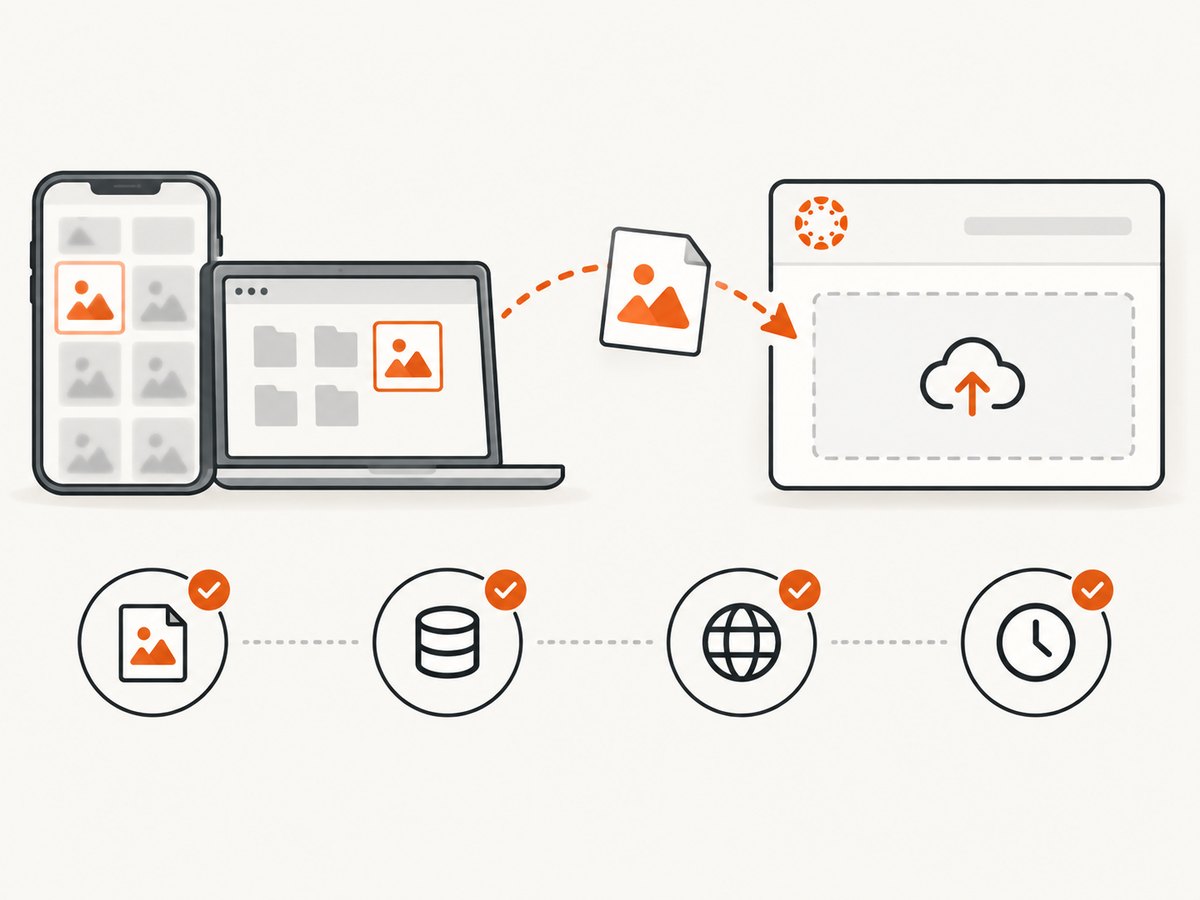
For a normal image submission, confirm that the assignment accepts file uploads and is still available. Use a current supported browser with cookies and JavaScript enabled, then try a private window or another browser. On Canvas Student for iOS, choose the image from Camera, Library, Files, or Scanner. If the assignment asks for a website URL, Canvas captures that page when the URL is submitted; this is different from uploading a screenshot file.
1. Identify what “screenshot not working” means
| Symptom | Likely workflow | First check |
|---|---|---|
| You cannot take the screenshot | Device or browser capture | Check operating-system permissions and whether the page is visible. |
| The image is missing from the picker | File selection | Look in Photos, Files, or the scanner source and verify file access. |
| The upload starts and fails | File submission | Confirm the assignment accepts uploads, then check browser, connection, file details, and course storage. |
| There is no Submit Assignment button | Assignment configuration | Check availability dates and whether online submission is enabled. |
| Canvas shows the wrong page for a URL | URL submission | Verify the submitted URL and the page state visible when it was submitted. |
2. Check the assignment before changing your device
- Open the assignment instructions and read the accepted submission type. Canvas assignments may allow a file upload, a URL, text entry, or another method.
- Check whether the assignment is currently available. A missing submission control can mean the availability window has passed or online submission is disabled.
- Confirm that a screenshot is actually required. If the assignment requests a URL, submit the URL rather than an image file.
- If the instructions and controls disagree, ask the instructor which submission type to use. Assignment configuration is controlled by the course.
Canvas documentation explains that a URL submission causes Canvas to take a screenshot of the submitted web page at submission time. That behavior does not apply to an ordinary image upload. See the Canvas assignment documentation and your institution’s current Canvas Student guide.
3. Fix browser problems on a computer
Canvas’s browser guidance recommends a current or previous major release of Chrome, Firefox, Edge, or Safari. Cookies and JavaScript should be enabled. If Canvas still displays a browser warning after updating, log out and clear cache and cookies.
- Update your browser to a current supported release.
- Enable cookies and JavaScript for your Canvas site.
- Sign out of Canvas, close all Canvas tabs, and sign in again.
- Clear cached files and cookies for the Canvas site.
- Open the assignment in a private or incognito window.
- Try another supported browser.
- Temporarily disable extensions, especially ad blockers, privacy tools, script blockers, and file-upload managers.
A private window is a useful diagnostic: if the upload works there, cached data or an extension is a likely cause. Re-enable extensions one at a time to find the conflict.
4. Select a screenshot in Canvas Student for iOS
In the Canvas Student iOS app, open the assignment’s submission flow and use the file picker. Depending on your device and app version, the available sources include:
- Camera: capture the work now.
- Library: select an existing screenshot or photo.
- Files: select an image saved to local storage or a connected cloud provider.
- Scanner: scan a paper page and attach the result.
If an existing screenshot does not appear, check whether it was saved to Photos or Files. Grant Canvas access to the relevant library when iOS asks. If the picker closes immediately, force-close the app, reopen it, and retry; then test the same assignment in a browser to separate an app issue from an assignment issue.
5. Check the file before uploading
- Open the screenshot outside Canvas to confirm that it is not blank or corrupted.
- Use a common image format accepted by the assignment, such as PNG or JPEG, when the instructions specify formats.
- Check the file size against any limit shown by the assignment or institution.
- Use a short filename with letters, numbers, hyphens, or underscores. Avoid unusual punctuation while troubleshooting.
- Save a local copy before retrying so you do not lose the original capture.
Do not assume that changing the extension fixes an unsupported file. Export the image to the required format instead.
6. Diagnose upload failures
“There was an error submitting your attempt”
First verify the assignment’s submission type, availability, file format, and file size. Then try a private window, another supported browser, and a different network if available. If several students in the course have the same problem, ask the instructor or administrator whether course storage or assignment configuration is affected.
The upload stays at zero percent
This commonly points to a connection, extension, or browser-session problem. Reload the assignment, sign in again, disable extensions, and retry from a stable connection. Keep the original file so you can retry without recapturing it.
The file uploads but is not visible
Wait for the submission confirmation, refresh the assignment, and check the submission details. If the assignment allows multiple attempts, verify which attempt is displayed. If the file is still absent, record the time, filename, format, and size before contacting support.
The Submit Assignment control is missing
Online submission may not be enabled, or the assignment may be outside its availability dates. Read the instructions and ask the instructor to confirm the configuration.
7. When Canvas’s URL screenshot is wrong
For a URL assignment, Canvas takes a screenshot of the submitted web page at the time the URL is submitted. Check these items:
- Submit the complete URL, including the correct path.
- Open the URL in a private window to confirm that it is publicly reachable without your login session.
- Make sure the page shows the expected content at submission time.
- Wait for important page content to load before copying the URL if the page is still changing.
- Ask the instructor whether the assignment expects a URL or an uploaded image.
A URL capture is not the same as attaching a screenshot file. If the page requires authentication, blocks automated browsers, or changes after submission, the resulting image may differ from what you see locally.
8. Capture a reliable screenshot yourself
If you need to create the file before submitting it, use the capture method built into your operating system or browser, then open the saved image and inspect it before uploading.
Desktop checklist
- Display the exact page or assignment evidence required.
- Wait for images and dynamic content to finish loading.
- Capture the relevant window or region.
- Save as PNG or JPEG according to the assignment instructions.
- Open the saved file and confirm that text is readable and no private information is exposed.
- Upload the file through the assignment’s supported submission route.
Mobile checklist
- Capture the screen with your device’s screenshot gesture or button combination.
- Confirm the image appears in Photos or Files.
- Crop only if the assignment permits it and keep the original.
- Use Camera, Library, Files, or Scanner in Canvas Student for iOS.
9. Or skip the browser setup
If you are generating a screenshot of a public page for documentation or a URL-based workflow, ScreenshotNeo provides a single HTTP request. Its capture process accepts cookie and consent banners and removes more than 60 known consent platforms, newsletter popups, and chat widgets before the shot. Bot checks, blank pages, timeouts, failed loads, and cache hits are not billed, and response headers identify the page verdict and billing result.

See the ScreenshotNeo API documentation for all options. This example captures a Canvas page as WebP:
curl -G "https://api.screenshotneo.com/v1/shot" -d access_key=YOUR_API_KEY --data-urlencode url=https://example.instructure.com/courses/123/pages/example -o shot.webpPython
import requests

r = requests.get(
    "https://api.screenshotneo.com/v1/shot",
    params={
        "access_key": "YOUR_API_KEY",
        "url": "https://example.instructure.com/courses/123/pages/example",
    },
    timeout=90,
)
r.raise_for_status()
open("shot.webp", "wb").write(r.content)
Node.js
const q = new URLSearchParams({
  access_key: 'YOUR_API_KEY',
  url: 'https://example.instructure.com/courses/123/pages/example'
});
const res = await fetch(`https://api.screenshotneo.com/v1/shot?${q}`);
if (!res.ok) throw new Error(`Screenshot failed: ${res.status}`);
const buffer = Buffer.from(await res.arrayBuffer());
require('fs').writeFileSync('shot.webp', buffer);
ScreenshotNeo also supports full-page capture with lazy images loaded, element capture by CSS selector, dark mode, device presets or custom viewports, retina scale, custom CSS and JavaScript, click and wait actions, hidden selectors, blocked resources, headers, cookies, user agents, authorization, timezone, geolocation, transparent backgrounds, resizing, caching with a chosen TTL, signed links, asynchronous jobs with signed webhooks, bulk capture of up to 100 URLs per call, PDFs, HTML/CSS rendering, usage reporting, and an OpenAPI specification. Each step can be turned off.
An MCP server provides take_screenshot, get_page_info, and capture_pdf tools for Claude, Cursor, and other MCP clients. The Free plan includes 1,000 shots per month with no card; paid plans start at $5 for 3,000 shots. Create a free ScreenshotNeo account.
10. Performance, reliability, and cost considerations
- Wait strategy: For dynamic Canvas pages, use a selector wait, a delay, or network-idle behavior so the content is present before capture.
- Page size: Full-page captures and lazy-loaded images take more time and memory than a viewport capture. Capture one element when the assignment needs only a specific region.
- Repeat work: Choose a cache TTL for stable pages. Cache hits are not billed by ScreenshotNeo.
- Failure handling: Inspect HTTP status and the
X-Page-VerdictandX-Billedheaders. Retry transient network failures with a limit and preserve the original request. - Privacy: Do not place student names, grades, access tokens, or private course URLs in a public signed link. Use custom headers or cookies only when you are authorized to access the page.
- Canvas authentication: A page behind an institutional login may not be publicly capturable. Use an authorized authenticated workflow or submit the image through Canvas itself.
- Billing: Only clean shots are billed. Bot checks, blank pages, timeouts, failed loads, and cache hits cost nothing.
11. Troubleshooting checklist
- Is the assignment available now?
- Does it accept an image file, a URL, or another submission type?
- Are cookies and JavaScript enabled?
- Are you using a current Chrome, Firefox, Edge, or Safari release?
- Did you test a private window or another browser?
- Did you disable extensions that can block scripts or uploads?
- Is the screenshot present in Photos or Files?
- Is the file readable, supported, and within the stated size limit?
- Did you try another connection?
- Could course storage or assignment configuration affect multiple students?
- Did you record the exact error and time before contacting support?
12. When to contact Canvas support
Escalate when the problem remains after the browser, file, and assignment checks. Contact your institution’s Canvas help desk or Canvas Support with:
- Device and operating system
- Canvas Student app or browser name and version
- Assignment URL or course identifier, without sharing credentials
- Submission type, filename, format, and file size
- Exact error message and time of failure
- A screenshot of the error, if possible
- Whether private-window and alternate-browser tests changed the result
FAQ
Why won’t my screenshot upload to Canvas?
Check that the assignment accepts file uploads, is available, and accepts the file type and size. Then use a supported browser with cookies and JavaScript enabled, or select the file through Camera, Library, Files, or Scanner in Canvas Student for iOS.
Does Canvas automatically screenshot every assignment URL?
Canvas takes a screenshot when an assignment is configured for a URL submission and that URL is submitted. An uploaded image follows the file-submission workflow.
Can I submit a screenshot from my phone?
Yes. Save the capture to Photos or Files, then choose the matching source in Canvas Student for iOS, provided the assignment allows file uploads.
What should I send support?
Send your device, browser or app version, file details, assignment submission type, exact error, time of failure, and an error screenshot.
Will ScreenshotNeo capture a private Canvas course?
Only when the request has an authorized way to access the page, such as permitted headers or cookies. A public screenshot API cannot bypass an institutional login or CAPTCHA.


