How to Fix CAPTCHA Images Not Showing
A blank CAPTCHA can come from your browser, an extension, a blocked provider script, or the site’s integration. Use this checklist to find the failing layer and fix it.

A CAPTCHA image or widget that does not appear usually points to a loading problem somewhere between your browser and the website: JavaScript may be disabled or blocked, an extension or cookie setting may interfere, a network filter may block the provider, or the site may have an integration or Content Security Policy (CSP) problem. Start by checking whether the entire widget is missing or only its challenge image is blank. Then work through the steps below, changing one thing at a time.
If you are trying to sign in or submit a form, do not keep retrying rapidly. Reload once, request a fresh challenge if one is visible, and continue with the browser and network checks. A difficult challenge and an unusual-traffic warning are different problems from a challenge image that failed to load.
1. Identify what is missing
Look at the area where the CAPTCHA should appear and classify the symptom before troubleshooting:
- No widget or checkbox: The provider script may not have loaded, JavaScript may be disabled, or the site may not be rendering the widget correctly.
- Widget frame appears, but the challenge is blank or incomplete: A challenge image or another provider resource may be blocked, still loading, or failing to load.
- A spinner never finishes: Check the connection, extensions, firewall, and provider requests. A stalled widget alone does not identify which layer failed.
- The CAPTCHA appears but is hard to solve: This is a challenge usability issue rather than an image-loading failure. For Google reCAPTCHA, its help recommends using the reload button to get a new challenge.
- An unusual-traffic warning appears: This can be related to activity on a shared network, an IP address assigned by an ISP, or heavy attack on the destination site. It is not necessarily a missing-image problem.
Also note whether the failure occurs on one website or several. If other CAPTCHA-protected sites work, the affected site’s integration or policy becomes more likely. If several sites fail, look first at the browser, extensions, device, or network.
2. Try the quick fixes as a visitor
- Reload the page once. Wait for the page to finish loading before trying the widget again. If a challenge is visible but stale or difficult, use its reload control to request another one.
- Update your browser. Old browser versions can have compatibility problems. Google lists the two newest major versions of desktop Chrome, Firefox, Safari, and Chromium Edge, along with mobile Chrome, Safari, and the Android native browser, as its supported-browser baseline. Other CAPTCHA providers may publish different support requirements.
- Confirm JavaScript is enabled. CAPTCHA widgets commonly depend on scripts. If you manage strict browser settings, check that JavaScript is allowed for the affected site and the CAPTCHA provider.
- Temporarily test without extensions that alter pages or requests. Privacy tools, ad blockers, script blockers, and other add-ons can prevent a widget or one of its resources from loading. Disable one likely extension for the affected site, reload, and see whether the symptom changes. Restore the setting if it does not help.
- Review cookie restrictions. For hCaptcha, aggressive blockers and cross-site cookie settings can interfere with its accessibility cookie. Its guidance recommends allowing
hcaptcha.comwhere relevant. Test only the affected provider or site, then restore your usual setting if the CAPTCHA still fails. - Try a current browser or another network, if practical. A second browser helps distinguish browser-specific interference from a site issue. A different network can help reveal filtering on a managed network, but is not required to complete the checks.
- Contact the website if only that site still fails. Include the browser and version, the time of the failure, the CAPTCHA provider if known, and whether another browser or network changed the result. Google specifically advises contacting the webmaster when a site’s reCAPTCHA is incorrectly integrated.
For Google reCAPTCHA, the official end-user guidance covers refreshing a challenge, updating the browser, checking JavaScript, and temporarily disabling conflicting plugins. For hCaptcha, cookie and network restrictions are also documented causes to consider. These are scoped diagnostic steps: they help narrow the cause but do not prove it without checking the failing page or requests.
3. Check whether the network blocks CAPTCHA resources
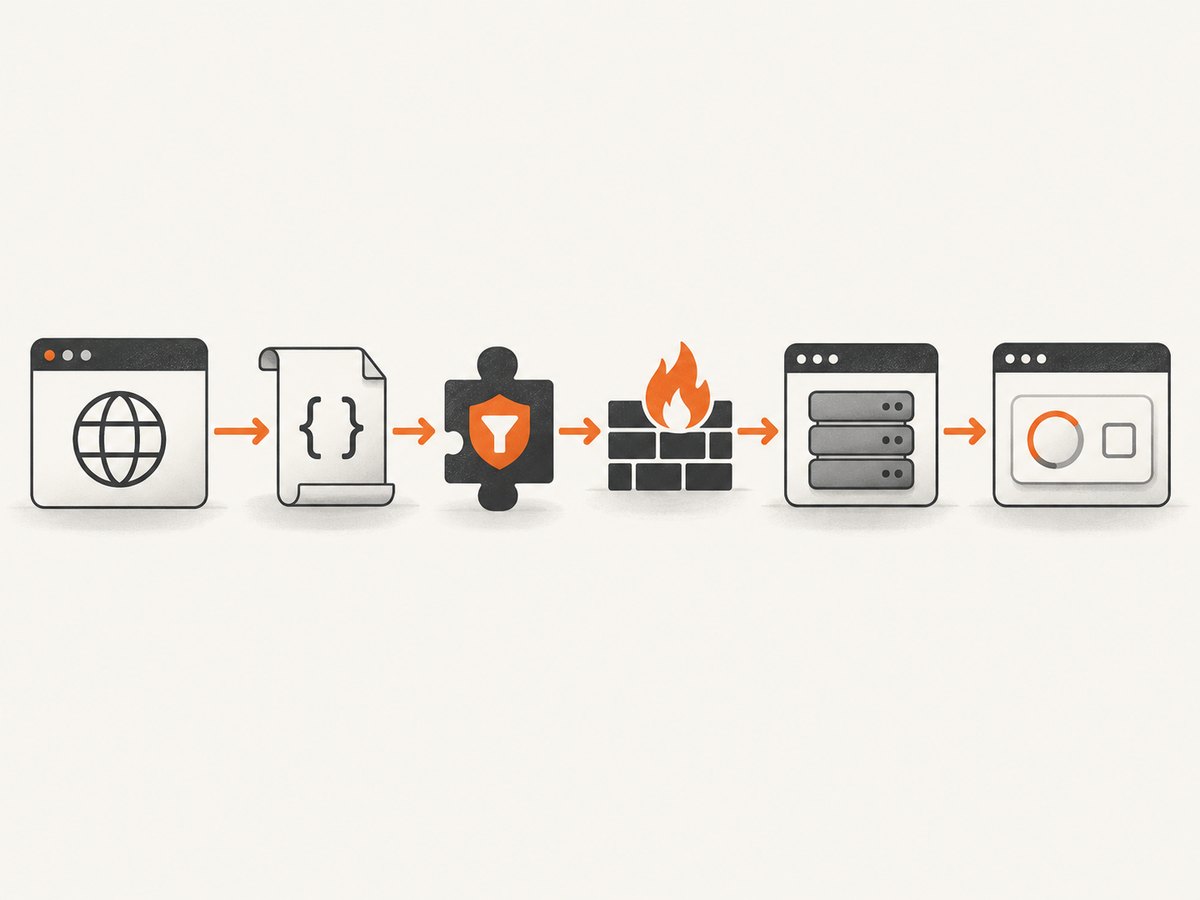
CAPTCHA pages load scripts, frames, images, and other resources from provider domains. A firewall, managed proxy, DNS filter, or content-blocking extension can allow the main website while blocking one of those provider requests. The page may then show a missing checkbox, a blank challenge, or a spinner.
If you are on a work, school, or managed network, ask its administrator whether CAPTCHA provider resources are filtered. Do not ask them to disable protections broadly; provide the affected website and the provider hostname or failed request if you can identify it. hCaptcha documents a network error and notes that a script error may occur when a firewall blocks api.js.
When Google reCAPTCHA’s www.google.com host is inaccessible, Google’s developer FAQ documents www.recaptcha.net as an alternative. A site owner must update the host consistently in the reCAPTCHA references; changing a visitor’s browser setting is not a substitute for a correct site integration.
4. For site owners: inspect scripts, requests, and CSP
If you maintain the affected website, reproduce the issue in a current browser and inspect the developer tools. These checks are diagnostic steps based on provider requirements; they do not identify a cause until you inspect the affected site’s actual configuration and network results.

- Open the Console and Network panels. Reload the page and look for script errors, blocked requests, failed frames, or requests that remain pending. Filter for the provider hostname or script filename.
- Verify the provider script URL and HTTPS. Confirm that the expected provider script is present, served over HTTPS, and not accidentally rewritten or blocked by a proxy or content filter. Google’s v2 display guide requires loading the API resource over HTTPS.
- Check the widget markup and rendering mode. Confirm that the expected container exists, the site key is correct for the environment, and automatic or explicit rendering follows the provider’s documented setup. For hCaptcha’s standard widget, the developer guide requires its script and a container with the
h-captchaclass and a public site key. - Review CSP violations. A restrictive
script-src,frame-src,style-src, orconnect-srccan prevent part of a widget from loading. Compare your policy with the provider’s current CSP guidance. Google documents nonce-based and origin-based approaches; hCaptcha lists provider origins for relevant directives. - Check every environment. A policy or hostname may differ between local, staging, and production. Verify the configured site key and allowed domains for the page where the failure happens.
- Test after changing one setting. Reload with the Console and Network panels open. Confirm that the missing resource now loads and that the widget renders; do not infer success solely because a console message disappeared.
hCaptcha advises against hard-coding particular asset subdomains because they can vary over time or by region. Use its current integration and CSP documentation rather than copying a fixed asset hostname from an old example.
Example: load a standard hCaptcha widget
This minimal markup illustrates the script and container arrangement in hCaptcha’s developer guide. Replace the placeholder with your public site key and follow the provider’s current setup instructions for your application.
<script src="https://js.hcaptcha.com/1/api.js" async defer></script>

<form action="/submit" method="POST">
  <div class="h-captcha" data-sitekey="YOUR_PUBLIC_SITE_KEY"></div>
  <button type="submit">Submit</button>
</form>
If this widget is absent, inspect whether the script request succeeds and whether the container is present after the page renders. If the container appears but the challenge asset does not, inspect subsequent provider requests and CSP errors too. This sample is not a complete server-side verification flow; a CAPTCHA integration also requires validating the submitted response according to the provider’s documentation.
5. Troubleshooting table
| Symptom | Likely layer | What to check or do |
|---|---|---|
| Checkbox and widget are both missing | Browser script, site rendering, or CSP | Enable JavaScript, reload, inspect the provider script request, and check Console CSP errors. If you are a visitor and other sites work, contact the site operator. |
| Frame appears but challenge image is blank | Provider resource, extension, network filter, or provider-side response | Temporarily test with a relevant blocker disabled, inspect failed resource requests if you own the site, and check firewall or proxy filtering. |
| Widget spins indefinitely | Network, blocked script/API call, or integration error | Check whether the provider script and follow-up requests complete. Try a different browser or network if available; give the site owner the failing request details. |
| hCaptcha reports a network or script error | Connection or firewall | Check connectivity and whether a firewall blocks provider resources, including api.js. |
| Only one site fails | Site configuration or site-specific filtering | Test a second browser, then report the issue to that site’s support team. The owner should verify site key, rendering, HTTPS, and CSP. |
| Several sites fail in one browser | Browser settings or extensions | Update the browser, confirm JavaScript, and test one extension or cookie restriction at a time. |
| Several devices fail on one network | Network or managed filtering | Ask the network administrator to check provider resource filtering. Supply the affected host and timestamp. |
| Google shows unusual traffic instead of a blank image | Traffic or IP reputation issue | Follow Google’s unusual-traffic guidance and retry later. This warning is distinct from a resource that failed to load. |
6. Capture useful evidence for the site owner
A screenshot can show whether the whole widget is absent, a frame is empty, or the page displays an error. It cannot show which network request failed, so pair it with the browser, time, page URL, and any Console or Network error text you can safely share. Avoid sending cookies, authorization headers, CAPTCHA response tokens, or other secrets in a bug report.
For a site owner, compare a screenshot of the failure with the Console and Network panels from the same attempt. If the challenge is blank only in a particular browser profile, test extensions and cookie restrictions. If the provider request is blocked across profiles on the same network, ask its administrator to inspect filtering. If the requests succeed but the widget is still absent, review the markup, key configuration, rendering mode, and CSP against the official provider documentation.
7. Or skip the browser setup
If your goal is to capture a page for visual debugging or documentation, ScreenshotNeo can return a screenshot or PDF from one API request. It is a website screenshot API and MCP server for developers. It does not solve CAPTCHAs or grant access to protected content; bot checks and CAPTCHA pages are identified as such and are not billed. See the ScreenshotNeo API documentation for request options.
curl -G "https://api.screenshotneo.com/v1/shot" -d access_key=YOUR_API_KEY --data-urlencode url=https://stripe.com -o shot.webpimport requests
r = requests.get(
"https://api.screenshotneo.com/v1/shot",
params={"access_key": "YOUR_API_KEY", "url": "https://stripe.com"},
timeout=90,
)
open("shot.webp", "wb").write(r.content)const q = new URLSearchParams({ access_key: 'YOUR_API_KEY', url: 'https://stripe.com' });
const res = await fetch(`https://api.screenshotneo.com/v1/shot?${q}`);- Cookie banners are accepted and removed before the shot, along with 60+ known consent platforms, newsletter popups, and chat widgets; each cleanup step can be turned off.
- Bot checks, CAPTCHA pages, blank pages, timeouts, failed loads, and cache hits are not billed. Response headers report the page verdict and billing status.
- An MCP server gives AI agents tools to take screenshots, get page information, and capture PDFs.
- The Free plan includes 1,000 screenshots per month with no card. Paid plans start at $5 for 3,000 screenshots.
Sign up for 1,000 free screenshots a month, with no card required.
8. Reliability, performance, and cost considerations
For a visitor, repeatedly refreshing a broken widget is unlikely to fix a blocked script or a site policy error. One reload is a useful first check; after that, change one variable at a time so you can tell whether browser settings, an extension, or the network affected the result. If a shared or managed network is involved, its filtering may affect multiple users, so pass the evidence to its administrator or the site owner.
For site owners, avoid treating a successful render on one machine as proof that every browser and network can reach the provider. Check the actual failing environment and keep CSP and integration settings aligned with the provider’s current guidance. Google publishes a browser baseline, but browser support can change and other providers set their own requirements.
For screenshots used in debugging, capture the same page state and record when it was captured. A screenshot service can help preserve visual evidence, but it cannot tell you whether a request was blocked by a visitor’s extension or firewall, and a CAPTCHA challenge may be intentionally inaccessible to automated capture. Do not use screenshot capture as a substitute for the browser’s Network panel or the provider’s verification flow.
9. FAQ
Why does the CAPTCHA show on my phone but not my computer?
The two devices may use different browsers, extensions, cookie settings, or networks. Compare them on the same network first, then change one browser setting at a time. If only one site is affected on the computer, send the site owner the browser and error details.
Can I fix a CAPTCHA image by clearing all browser data?
That is not the best first step. Start with a reload, browser update, JavaScript check, and a scoped test of extensions or cookie restrictions. Broadly clearing data can sign you out of websites and does not address a blocked provider script or a site’s CSP.
Does a screenshot API make a CAPTCHA appear?
No. A screenshot API captures the page response it can access; it does not repair a CAPTCHA integration or bypass a challenge. Use browser diagnostics to find why the widget or image failed.
What should I send support?
Send the page URL, approximate time, browser and version, whether the entire widget or only the image is missing, and whether another browser or network changes the result. Site owners can add relevant Console errors and failed request URLs after removing private tokens and credentials.
Official references
- Google Support: Not seeing the checkbox and want an easier challenge?
- Google Support: reCAPTCHA Help and browser guidance
- Google for Developers: reCAPTCHA FAQ, CSP, and alternate host guidance
- Google for Developers: reCAPTCHA v2 display
- hCaptcha: Configuration and troubleshooting
- hCaptcha: Accessibility troubleshooting
- Google Support: My computer is sending automated queries


