How to Fix captureVisibleTab() Permission Errors in Chrome Extensions
Fix captureVisibleTab permission errors by choosing activeTab or all_urls, calling from the right context, and handling restricted pages and rate limits.
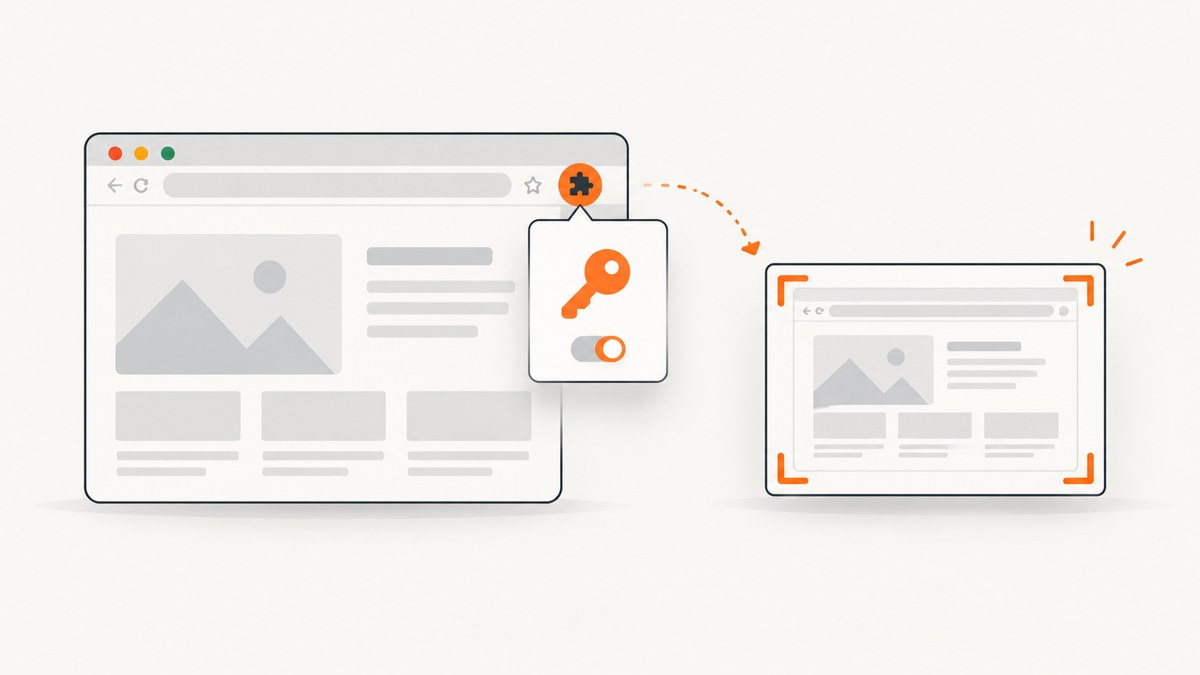
chrome.tabs.captureVisibleTab() requires either the activeTab permission or <all_urls>. For a screenshot started by a user action, add activeTab to your Manifest V3 extension and call the API from an extension page or service worker after that action. The separate tabs permission is not required for this method.
If you still receive a permission error, check the invocation path, the page type, the extension context, file access settings, and the two-calls-per-second capture limit. The sections below walk through each case with runnable code.
1. Choose the permission that matches your extension
| Permission | Scope | Best fit | Trade-off |
|---|---|---|---|
activeTab |
Temporary access to the tab the user invokes your extension on | Toolbar button, context menu, keyboard shortcut, or similar user-triggered capture | Access ends when the user navigates to a different origin or closes the tab |
<all_urls> |
Broad host access across URLs covered by the pattern | Features that must capture without a direct user invocation or across many hosts | Broader install-time access and a larger permission scope |
Chrome documents both routes for captureVisibleTab(). Use the narrowest permission that supports the feature. Chrome’s permission guidance also recommends optional permissions when the product can request them later.
Chrome tabs API: captureVisibleTab() · Chrome activeTab guide · Declare permissions
2. Minimal Manifest V3 example with activeTab
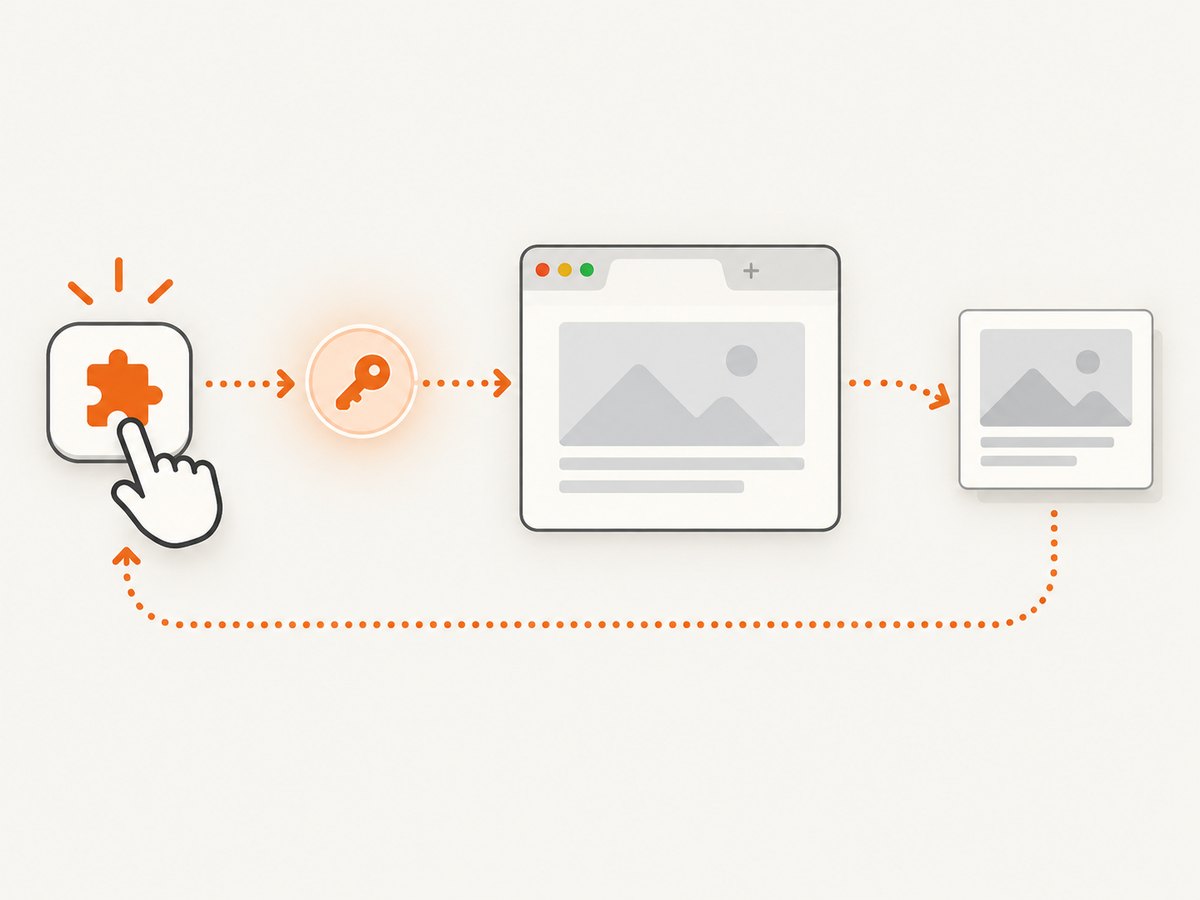
For a toolbar-button screenshot flow, use this manifest:
{
  "manifest_version": 3,
  "name": "Visible Tab Capture",
  "version": "1.0.0",
  "permissions": ["activeTab", "scripting"],
  "background": {
    "service_worker": "service-worker.js"
  },
  "action": {
    "default_title": "Capture this tab"
  }
}
scripting is included only if the extension also injects scripts. It is not the permission that authorizes captureVisibleTab(). If your extension only captures and downloads the image, you can omit it.
3. Call captureVisibleTab from the service worker
The tabs API is available to extension contexts such as service workers and extension pages. It is not available directly from a content script. This complete example captures the active tab when the user clicks the extension action and downloads a PNG.
chrome.action.onClicked.addListener(async (tab) => {
  if (!tab.id) {
    console.error("The active tab has no usable tab ID");
    return;
  }

  try {
    const dataUrl = await chrome.tabs.captureVisibleTab(tab.windowId, {
      format: "png"
    });

    await chrome.downloads.download({
      url: dataUrl,
      filename: "visible-tab.png",
      saveAs: true
    });
  } catch (error) {
    console.error("captureVisibleTab failed", error);
  }
});
If you use the Downloads API in this example, add "downloads" to permissions:
"permissions": ["activeTab", "downloads"]The API returns a data URL. You can put that URL in an <img>, send it to an extension page, or convert it to a Blob for storage.
Capture JPEG or set quality
const dataUrl = await chrome.tabs.captureVisibleTab(tab.windowId, {
  format: "jpeg",
  quality: 85
});
Quality applies to JPEG output. PNG does not use a quality setting.
4. Why the error says permission denied
The manifest does not declare activeTab or all_urls
Confirm the loaded extension’s manifest contains one of these declarations:
"permissions": ["activeTab"]or:
"permissions": ["<all_urls>"]Reload the unpacked extension after editing manifest.json. Check the manifest shown on chrome://extensions; editing a different copy of the project is a common cause of confusion.
The call happens outside the user invocation
activeTab is granted in response to a user invocation, such as an action click, context-menu command, keyboard shortcut, or omnibox suggestion. Start the capture from that event or pass a message to the service worker while the grant is valid.
The temporary grant is tied to the tab and origin. It ends when the user navigates to a different origin or closes the tab. A delayed alarm, unrelated network callback, or later scheduled job should not assume the grant still exists.
You added tabs instead of activeTab
"tabs" and "activeTab" solve different problems. The tabs permission exposes sensitive fields on tabs.Tab, including URL, title, and favicon. It does not replace the documented authorization for captureVisibleTab(). Add activeTab or <all_urls> as appropriate.
The call originates in a content script
A content script cannot call chrome.tabs.captureVisibleTab() directly. Have the content script message the service worker, then capture there:
// content-script.js
chrome.runtime.sendMessage({ type: "capture-visible-tab" });

// service-worker.js
chrome.runtime.onMessage.addListener((message, sender) => {
  if (message.type !== "capture-visible-tab" || !sender.tab) return;

  chrome.tabs.captureVisibleTab(sender.tab.windowId, { format: "png" })
    .then((dataUrl) => {
      // Store it, send it to an extension page, or respond through messaging.
      console.log("Captured", dataUrl.slice(0, 32));
    })
    .catch((error) => console.error(error));
});
For a user-triggered flow, the original action click is the safest place to initiate the message and capture sequence, because that is when activeTab is granted.
5. Restricted pages, file URLs, and special schemes
Can an extension capture a chrome:// page?
Do not promise capture of every browser-internal page. Chrome treats restricted pages, including chrome:// pages, differently from ordinary websites, and the activeTab documentation says access is not granted to restricted pages such as chrome://. Detect these URLs and show a useful message instead of retrying indefinitely.

function isRestricted(url = "") {
  return /^(chrome|edge|about|chrome-extension):\/\//i.test(url);
}

chrome.action.onClicked.addListener(async (tab) => {
  if (isRestricted(tab.url)) {
    console.warn("This browser page cannot be captured by this extension.");
    return;
  }

  try {
    const image = await chrome.tabs.captureVisibleTab(tab.windowId, {
      format: "png"
    });
    console.log(image);
  } catch (error) {
    console.error(error);
  }
});
Chrome’s tabs reference also discusses special schemes such as data: and other extension pages. Treat any nonstandard scheme as a separate compatibility case and handle the rejected promise.
File URLs
Capturing a file: URL additionally depends on the user enabling Allow access to file URLs in the extension’s details on chrome://extensions. A manifest permission alone cannot silently enable that setting.
6. A reliable capture flow
- Declare
activeTabfor a user-invoked feature, or<all_urls>only when broad access is required. - Start from an action click, context menu, shortcut, or another documented user invocation.
- Pass the tab’s
windowIdtocaptureVisibleTab(). - Call the API in the service worker or an extension page, never in a content script.
- Reject restricted schemes and explain file-URL settings to users.
- Catch the rejected promise and log the tab URL, permission path, and error message during development.
- Throttle capture loops to no more than two calls per second.
Checking permissions at runtime
const hasActiveTab = await chrome.permissions.contains({
  permissions: ["activeTab"]
});

const hasAllUrls = await chrome.permissions.contains({
  origins: ["<all_urls>"]
});

console.log({ hasActiveTab, hasAllUrls });
activeTab is a temporary grant, so a successful manifest check does not mean the current tab is capturable at every later time. The invocation and navigation rules still apply.
7. Performance and rate limits
Chrome documents a maximum of two captureVisibleTab() calls per second and notes that capture is expensive. Avoid tight polling loops, parallel bursts, and retry storms.
let lastCaptureAt = 0;

async function captureAtMostTwicePerSecond(windowId) {
  const now = Date.now();
  const wait = Math.max(0, 500 - (now - lastCaptureAt));
  if (wait) await new Promise((resolve) => setTimeout(resolve, wait));

  lastCaptureAt = Date.now();
  return chrome.tabs.captureVisibleTab(windowId, { format: "png" });
}
Capture only when the result is needed. For repeated monitoring, compare a lower-cost signal first, queue requests, and discard stale jobs when the user changes tabs.
8. Troubleshooting checklist
| Symptom | Likely cause | Fix |
|---|---|---|
Cannot access contents of the page |
No activeTab/<all_urls>, or the temporary grant expired |
Declare the correct permission and call immediately from a user invocation |
Adding tabs did not help |
tabs exposes tab metadata; it is not the capture authorization |
Use activeTab or <all_urls> |
| Works from the toolbar but not from an alarm | The alarm is outside the activeTab grant |
Use a broader, justified host permission or redesign around a user action |
Fails only on chrome:// |
Restricted browser page | Explain that the page is unsupported and skip the call |
| Fails only on local files | File access is disabled by the user | Enable Allow access to file URLs in extension details |
| Content script reports an unavailable method | Tabs API call is in the wrong context | Message the service worker or extension page |
| Intermittent failures during a gallery or recorder | More than two calls per second | Queue and throttle captures |
9. Or skip the browser setup
If you need screenshots from a backend, build pipeline, or AI workflow rather than the current browser tab, ScreenshotNeo provides a website screenshot API and MCP server. It accepts one GET request and returns PNG, JPEG, WebP, or PDF.
See the ScreenshotNeo API documentation for the complete option list.
cURL
curl -G "https://api.screenshotneo.com/v1/shot" -d access_key=YOUR_API_KEY --data-urlencode url=https://stripe.com -o shot.webpPython
import requests
r = requests.get("https://api.screenshotneo.com/v1/shot", params={"access_key": "YOUR_API_KEY", "url": "https://stripe.com"}, timeout=90)
open("shot.webp", "wb").write(r.content)
Node.js
const q = new URLSearchParams({ access_key: 'YOUR_API_KEY', url: 'https://stripe.com' });
const res = await fetch(`https://api.screenshotneo.com/v1/shot?${q}`);
ScreenshotNeo removes cookie banners, newsletter popups, and chat widgets before the shot. Bot checks, blank pages, failed loads, timeouts, and cache hits are not billed, and response headers identify the page verdict and billing status. Its MCP server includes take_screenshot, get_page_info, and capture_pdf for Claude, Cursor, and other MCP clients. The free plan includes 1,000 screenshots per month with no card; paid plans start at $5 for 3,000.
Create a free ScreenshotNeo account.
10. FAQ
Do I need the tabs permission or activeTab?
For captureVisibleTab(), use activeTab or <all_urls>. Add tabs only if you need its sensitive tab fields.
Does activeTab grant permanent access?
No. It is temporary, tied to the invoked tab and origin, and ends after navigation to another origin or tab closure.
Can a content script take the screenshot?
No. Send a message to the service worker or an extension page and call the tabs API there.
Why does a capture loop fail after a few screenshots?
Chrome documents a ceiling of two calls per second. Throttle and queue capture requests.
Why does my extension work on websites but not local files?
The user must enable Allow access to file URLs in the extension’s details page.


