How to Fix CasperJS captureSelector Screenshot Save Failures
Fix CasperJS captureSelector save errors by checking selectors, page readiness, paths, formats, viewport geometry, and PhantomJS limitations.
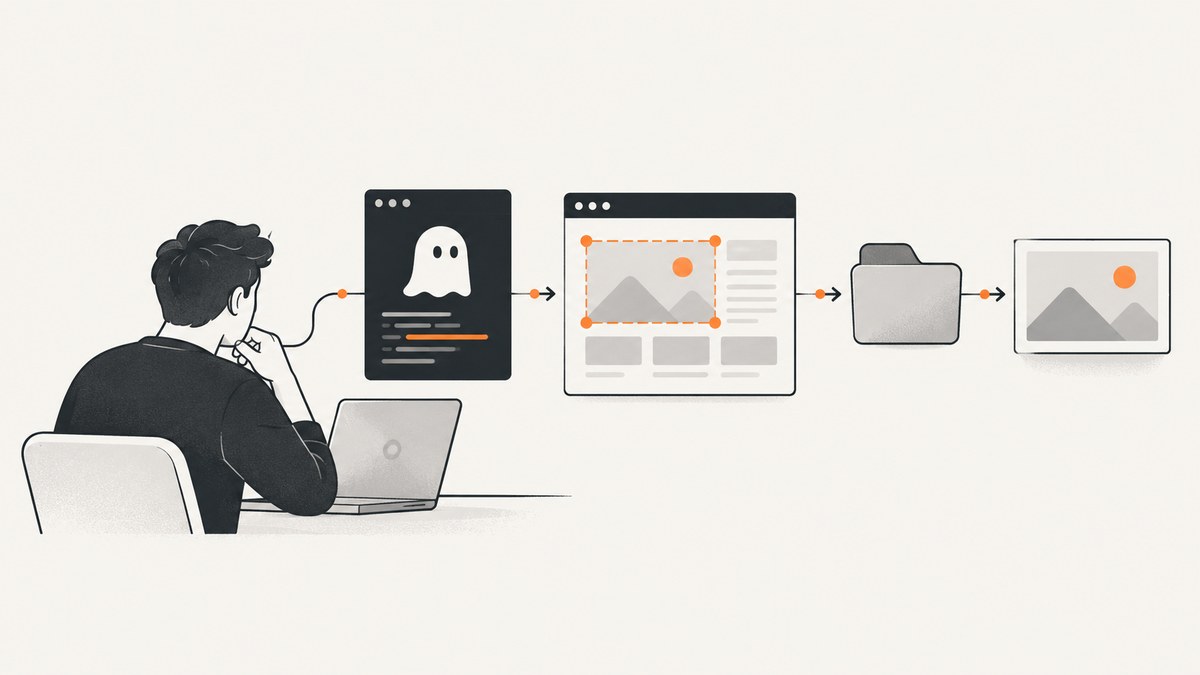
Direct answer: CasperJS captureSelector() usually fails for one of four reasons: the selector does not match a real element when the capture runs, the page is still navigating or rendering, the destination path or image format is invalid, or the matched element has unusable geometry. Wait for the selector, capture in a later CasperJS step after navigation settles, use an absolute writable path with a supported extension, and test html or body to separate page-state problems from file problems.
captureSelector(targetFile, selector, imgOptions) renders the area containing the matching DOM element and writes it to targetFile. The selector must match an element at capture time. See the CasperJS captureSelector documentation.
Use a readiness-gated capture
The smallest reliable pattern is to start navigation, wait for the target, set a known viewport, and then capture to an absolute path:

var casper = require('casper').create();
var url = 'https://example.com/dashboard';
var output = '/absolute/writable/path/dashboard.png';

casper.start(url);

casper.waitForSelector('#target', function () {
    this.viewport(1280, 900);
    this.captureSelector(output, '#target', {
        format: 'png'
    });
    this.echo('Saved ' + output);
}, function () {
    this.die('Target selector did not appear before timeout');
}, 10000);

casper.run();
waitForSelector() is the documented way to wait for an element before calling captureSelector(); review the CasperJS waitForSelector documentation. Create the output directory before running this script and confirm that the user running PhantomJS can write there.
What the error message really means
Messages such as Failed to save screenshot to <path>; please check permissions point at the output operation, but they do not prove that Unix or Windows permissions are the only cause. PhantomJS also needs a valid filename, a supported format, and a page state that can be rendered. A narrow selector can fail while html or body succeeds, which indicates selector, layout, frame, or timing problems rather than only filesystem access.
Check the selector in the page context
casper.then(function () {
    var found = this.evaluate(function () {
        var el = document.querySelector('#target');
        if (!el) {
            return { exists: false };
        }
        var rect = el.getBoundingClientRect();
        return {
            exists: true,
            width: rect.width,
            height: rect.height,
            text: el.textContent.slice(0, 80)
        };
    });
    this.echo(JSON.stringify(found));
});
An element can exist but still have zero width or height, be hidden, be covered while a transition runs, or be replaced by a client-side render immediately before capture.
Use a broad selector as a diagnostic
casper.waitForSelector('body', function () {
    this.captureSelector('/absolute/writable/path/body.png', 'body', {
        format: 'png'
    });
});
If body works but #target does not, inspect the target’s existence, dimensions, visibility, parent layout, and whether it is inside an iframe. This is a diagnostic workaround, not a guarantee that every page or selector will behave the same way.
Verify the output path and image format
Use an absolute path while diagnosing. Relative paths depend on the process working directory, which can differ when CasperJS runs from cron, a service, Docker, or a CI runner.
mkdir -p /var/tmp/casper-shots
# Check the directory and the effective user:
ls -ld /var/tmp/casper-shots
id
# A simple write test:
touch /var/tmp/casper-shots/write-test && rm /var/tmp/casper-shots/write-test
PhantomJS infers the render format from the filename extension. PNG, JPEG, PDF, BMP, and PPM are supported; GIF support depends on the build. Use an extension that matches the intended output, or pass format explicitly where your CasperJS version supports it. Do not save PNG bytes to a file named .jpg and then diagnose the result as a selector failure.
Permissions that commonly fail
- The directory exists on your shell account but not inside the container or service environment.
- The directory is owned by another user and lacks write permission for the PhantomJS process.
- A parent directory has no execute permission, preventing traversal.
- A security profile, read-only mount, or sandbox blocks writes even when mode bits look correct.
- The path contains a missing directory or an invalid filename for the operating system.
Fix the directory and ownership under the actual runtime user. Avoid making an entire filesystem world-writable just to test a screenshot.
Capture after navigation, redirects, and form submission
Navigation and form submission can leave the page in a transient state. A capture placed immediately after click(), fill(), or submit() may run before the destination document or its target component exists. CasperJS queues steps, so put the capture in a later step and wait for a destination selector.
var casper = require('casper').create({
    waitTimeout: 15000,
    stepTimeout: 30000
});

casper.start('https://example.com/login');
casper.then(function () {
    this.fill('form#login', {
        username: 'user@example.com',
        password: 'secret'
    }, true);
});

casper.waitForSelector('#account-home', function () {
    this.captureSelector('/absolute/writable/path/account.png', '#account-home', {
        format: 'png'
    });
}, function () {
    this.die('The post-login page did not become ready');
}, 15000);

casper.run();
For sites that update content after the initial load, wait for the component that proves the data is present. A fixed delay can help with a known animation, but a selector or state check is usually more deterministic.
Viewport, clip rectangles, and selector geometry
viewportSize controls the browser layout: responsive breakpoints, wrapping, and which lazy content is requested. A clipRect controls the rectangle rasterized by the lower-level page renderer. Without a clip rectangle, PhantomJS renders the whole page. captureSelector() derives its region from the selected DOM element; capture() can render a fixed rectangle.

casper.start('https://example.com');
casper.then(function () {
    this.viewport(1440, 1000);
    this.capture('/absolute/writable/path/region.png', {
        top: 120,
        left: 80,
        width: 900,
        height: 600,
        format: 'png'
    });
});
casper.run();
Use captureSelector() when the DOM element is the source of truth. Use a clip rectangle when the element is unstable but its coordinates are known. If a target is below a collapsed container, outside the viewport, transformed, or has zero dimensions, fix the page state first or capture a stable ancestor.
Frames, lazy content, and dynamic pages
Frames
document.querySelector() in the top page does not search inside an iframe. Switch to the frame or capture an element in the frame’s page context according to your CasperJS and PhantomJS version. If the frame is cross-origin, browser security rules may prevent inspection altogether.
Lazy-loaded images
Scrolling can trigger images or components that are not present when the selector first appears. Wait for the image’s complete state, a loaded class, or a page-specific marker. If the target is a full page, consider scrolling through it before capture and then wait for the final layout.
Animations and replacement nodes
CSS transitions and virtual-DOM updates can move or replace the selected node between the existence check and the render. Wait for a stable class, disable transitions with injected CSS, or capture an ancestor that remains mounted. Re-querying the selector immediately before capture can reveal replacement behavior.
A complete diagnostic script
var casper = require('casper').create({
    verbose: true,
    logLevel: 'debug',
    waitTimeout: 10000,
    stepTimeout: 30000
});

var url = 'https://example.com';
var output = '/absolute/writable/path/diagnostic.png';

casper.start(url, function () {
    this.viewport(1280, 900);
    this.echo('Loaded: ' + this.getCurrentUrl());
});

casper.waitForSelector('#target', function () {
    var info = this.evaluate(function () {
        var el = document.querySelector('#target');
        var r = el.getBoundingClientRect();
        return { width: r.width, height: r.height, ready: document.readyState };
    });
    this.echo(JSON.stringify(info));
    this.captureSelector(output, '#target', { format: 'png' });
}, function () {
    this.capture('/absolute/writable/path/fallback-body.png', {
        top: 0, left: 0, width: 1280, height: 900, format: 'png'
    });
    this.die('Target was not found; wrote a fallback diagnostic');
}, 10000);

casper.run(function () {
    this.echo('Finished with status ' + (this.test && this.test.currentTestResult));
    this.exit();
});
Common errors and fixes
| Symptom | Likely cause | Fix |
|---|---|---|
| Permission error for every selector | Missing directory, wrong owner, read-only mount, or relative path | Create the directory, test a simple write as the runtime user, and use an absolute path. |
html works but a component fails |
Selector mismatch, zero geometry, hidden state, iframe, or replacement node | Inspect with querySelector and getBoundingClientRect(); wait for a stable state. |
| Capture after login is blank or old | Redirect or client-side navigation has not settled | Capture in a later step after a destination selector appears. |
| Output cannot be opened | Extension and bytes disagree, or the format is unsupported | Use .png, .jpg, or another supported extension and set format explicitly. |
| Target exists but image is empty | Zero dimensions, collapsed parent, off-state component, or unfinished layout | Log the bounding rectangle, set the viewport, wait for content, and capture a visible ancestor if needed. |
| Works locally, fails in CI | Different working directory, user, filesystem, viewport, or PhantomJS build | Log versions and current URL, use absolute paths, create the directory in the job, and compare viewport settings. |
| Modern site behaves inconsistently | PhantomJS lacks current browser features and is suspended | Reproduce with a maintained browser automation tool and plan migration. |
Reliability, performance, and cost considerations
Readiness checks improve reliability because they wait for the state you need instead of guessing with a delay. They can increase elapsed time on slow pages, so choose a selector that represents meaningful readiness and set a bounded timeout. A smaller selector capture usually requires less raster work than a full-page render, while a large viewport and high-resolution page increase memory use.
Keep captures deterministic: set the viewport before navigation when responsive layout matters, use a fixed user agent if the page varies by browser, and record the URL, selector, output path, CasperJS version, and PhantomJS version in CI logs. Retry only transient navigation failures; repeated retries will not fix a selector that never exists or a directory that is not writable.
CasperJS is no longer actively maintained and PhantomJS development is suspended. That creates compatibility and security maintenance costs for new sites. Treat a successful legacy workaround as a short-term containment measure and schedule migration to a maintained browser automation stack.
Or skip the browser setup
If you need an image rather than a legacy PhantomJS runtime, ScreenshotNeo provides a GET endpoint that returns PNG, JPEG, WebP, or PDF. It accepts the URL directly and includes options for full-page capture, CSS element selection, viewport and device settings, waiting for a selector or network idle, custom JavaScript and CSS, headers, cookies, authentication, blocking resource types, caching, and more. See the ScreenshotNeo API documentation for the complete parameter list.
curl -G "https://api.screenshotneo.com/v1/shot" -d access_key=YOUR_API_KEY --data-urlencode url=https://stripe.com -o shot.webpimport requests
r = requests.get("https://api.screenshotneo.com/v1/shot", params={"access_key": "YOUR_API_KEY", "url": "https://stripe.com"}, timeout=90)
open("shot.webp", "wb").write(r.content)const q = new URLSearchParams({ access_key: 'YOUR_API_KEY', url: 'https://stripe.com' });
const res = await fetch(`https://api.screenshotneo.com/v1/shot?${q}`);Cookie banners, newsletter popups, and chat widgets can be removed before the shot. Bot checks, blank pages, timeouts, failed loads, and cache hits are not billed, and response headers identify the page verdict and billing result. ScreenshotNeo also provides an MCP server with take_screenshot, get_page_info, and capture_pdf tools for Claude, Cursor, and other MCP clients. The Free plan includes 1,000 screenshots per month with no card; paid plans start at $5 for 3,000 screenshots. Create a free ScreenshotNeo account.
Migration checklist
- Record the current URL, selector, viewport, output format, and expected dimensions.
- Make the existing CasperJS capture deterministic with
waitForSelector()and an absolute path. - Test
htmlorbodyto isolate page-state issues. - Check frames, lazy loading, animations, redirects, and zero-size geometry.
- Record CasperJS and PhantomJS versions and reproduce with a minimal page.
- Move new production work to a maintained browser or a screenshot API, then compare the resulting crop and format.
FAQ
Why does capture() work while captureSelector() fails?
capture() can render the page or a fixed rectangle without resolving a DOM selector. A selector capture additionally needs a matching, renderable element with usable geometry at that exact step.
Should I always capture body?
No. Use it as a diagnostic or when a full page region is genuinely what you need. For a component, fix the selector and readiness state so the output remains stable.
Does a longer timeout solve the problem?
Only when the page is legitimately slow. It cannot fix a misspelled selector, a cross-origin iframe, a zero-size element, or an unwritable directory.
Can PhantomJS capture PDF?
PhantomJS render output supports PDF along with image formats, subject to the build and platform. Use a matching extension and explicit format where available.
Is CasperJS suitable for a new screenshot service?
It is a legacy option. CasperJS is no longer actively maintained and PhantomJS development is suspended, so a maintained browser automation tool or screenshot API is the safer long-term foundation.


