How to Fix CasperJS Screenshot Permission Errors
Fix CasperJS screenshot write errors by checking the exact path, parent directories, permissions, runtime user, and PhantomJS installation.

CasperJS screenshot permission errors usually come from the destination path, not from the page being captured. The path passed to capture() or captureSelector() must resolve to a location whose parent directories exist and are writable by the user running CasperJS. Start with an absolute path to a known-writable directory, then check ownership, directory traversal permissions, mounts, security software, and which PhantomJS binary is actually running.
This guide gives a diagnostic sequence, runnable CasperJS examples, checks for common environments, and ways to distinguish a filesystem problem from a legacy PhantomJS runtime issue.
1. Confirm the exact destination path
CasperJS writes the screenshot to the target filepath you provide. The API documents capture(String targetFilepath, ...) and captureSelector(String targetFile, String selector, ...). A relative path is interpreted from the process working directory, which may differ from the directory you expect when a script is started by a scheduler, service, test runner, or container.
Print the working directory and target before capture. Prefer an absolute path during diagnosis so there is no ambiguity:
var fs = require('fs');
var casper = require('casper').create();

var target = '/tmp/casperjs-debug/example.png';
casper.echo('Working directory: ' + fs.workingDirectory);
casper.echo('Screenshot target: ' + target);

casper.start('https://example.com', function () {
    this.capture(target);
});

casper.run();
Choose a destination appropriate to your operating system and execution environment. The example path is for a Unix-like system; on Windows, use a valid absolute path such as C:\\Users\\yourname\\project\\screenshots\\example.png, with escaping appropriate to JavaScript strings. A project-owned output folder is usually easier to manage than a system directory.
2. Create the parent directory and check it is writable
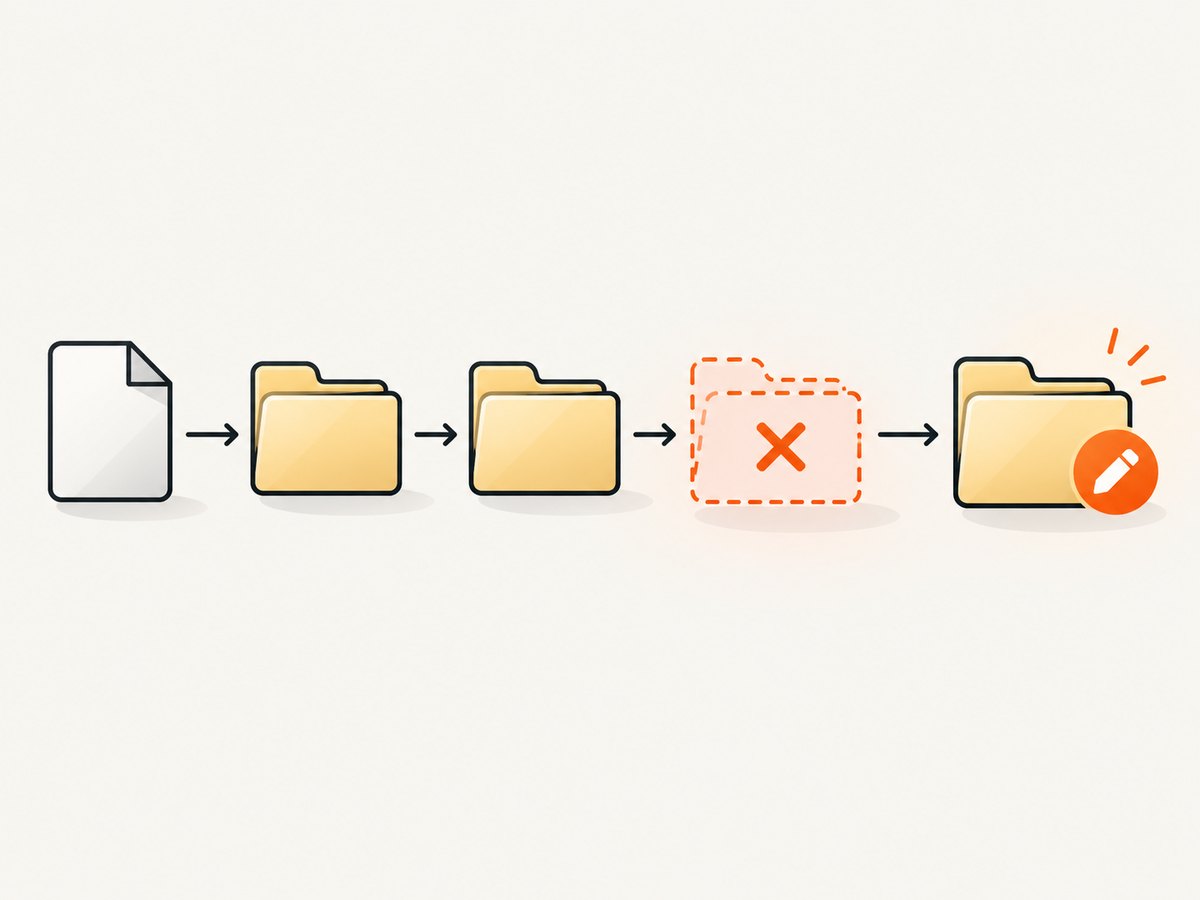
Screenshot capture does not make a missing tree of parent directories for you. Create the output directory before running the script, then verify that the account executing CasperJS can write there. On Unix-like systems, that account also needs execute (traverse) permission on every parent directory in the path.
mkdir -p screenshots
ls -ld . screenshots
id
Run these checks in the same environment and as the same user that starts CasperJS. A directory writable from your interactive shell may not be writable by a CI runner, web service, scheduled task, or container process.
For a quick write check on Unix-like systems:
touch screenshots/write-check.tmp
rm screenshots/write-check.tmp
If this fails, resolve the directory ownership, permissions, mount configuration, or runtime identity before debugging CasperJS. Avoid changing permissions broadly or writing into protected system locations. Give the process access only to the intended output directory.
3. Run a minimal capture with diagnostics
Use a simple page and a simple filename to reduce variables. CasperJS documents the capture.saved event, which reports the target file, and general error handling. This example prints the destination and reports capture or script errors:
var casper = require('casper').create();
var target = '/tmp/casperjs-debug/example.png';

casper.on('capture.saved', function (targetFile) {
    this.echo('Screenshot saved: ' + targetFile);
});

casper.on('error', function (msg, backtrace) {
    this.echo('Casper error: ' + msg);
    this.echo(backtrace);
});

casper.start('https://example.com', function () {
    this.echo('Capturing to: ' + target);
    this.capture(target);
});

casper.run();
Make sure /tmp/casperjs-debug exists and is writable before using this Unix-like example. The saved event is useful for confirming that the capture completed and which target CasperJS reports. If the process exits before the event or prints an error, keep the full output and backtrace for the next checks.
4. Check the path, directory, and filesystem
A path can look plausible while pointing somewhere unusable. Check these conditions in order:
- The parent exists. Create the directory first; check every path component, not only the final folder.
- The target is a file path. The destination should name the output file, not a directory that happens to exist. Conversely, ensure no regular file occupies a component that should be a directory.
- The process can traverse and write. Verify the runtime account and directory permissions, including all parent directories.
- The filesystem is writable. A read-only mount, full or restricted volume, or inaccessible network-mounted directory can prevent writes even if local permissions appear permissive.
- The path syntax matches the host. Check drive letters, separators, escaping, and whether a container sees the same path as the host.
- The path is not unexpectedly relative. Resolve relative output against the actual working directory printed by the running process.
Use a dedicated output folder such as screenshots/ within a project or a temporary directory intended for this kind of output. Do not assume that a path writable on your workstation will exist or be writable in production.
5. Check the runtime user and environment
Permission depends on the identity of the process, not just the person who edited the script. If a command works in a terminal but fails under a CI job or service, compare the user, current directory, environment, and mounted paths. In containers, confirm that the output directory is mounted into the container and that its permissions permit writes for the container’s runtime user.
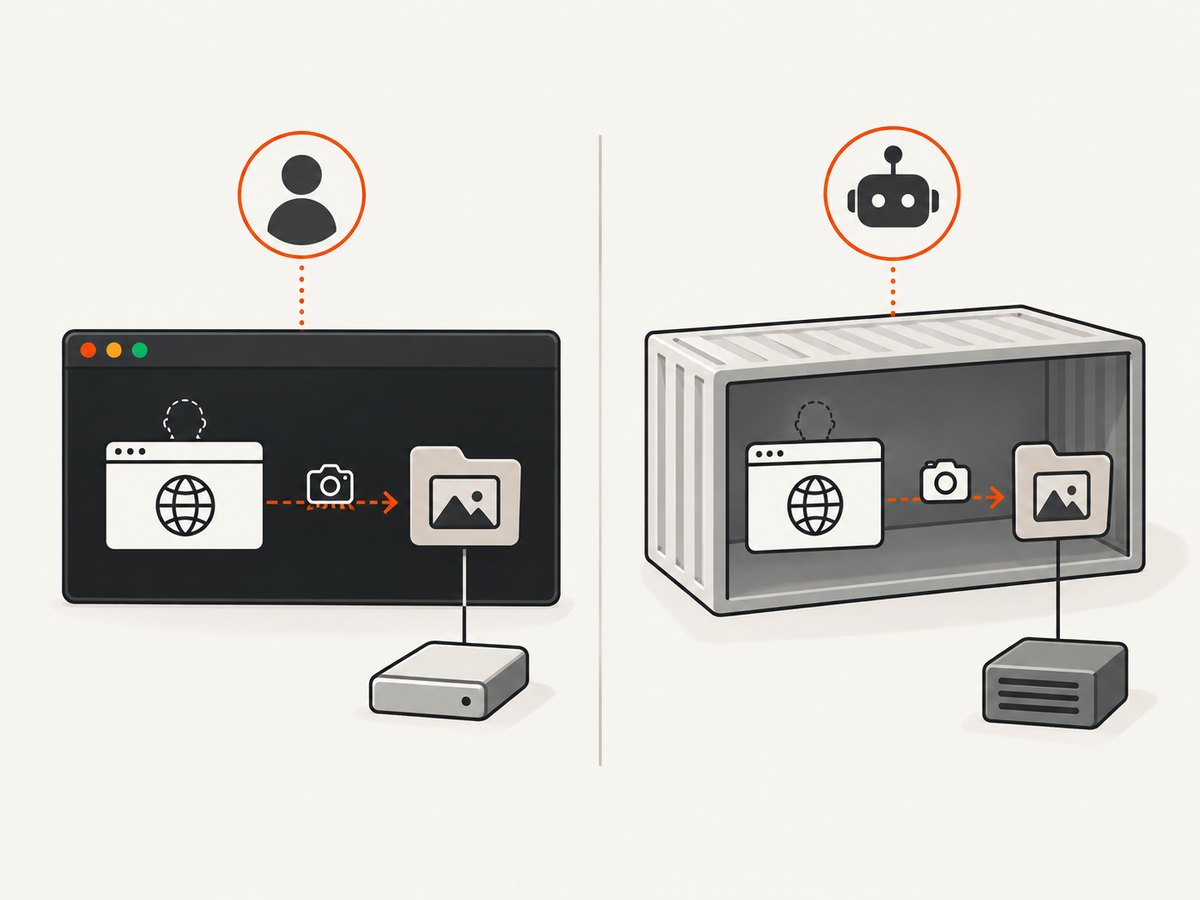
Do not solve the problem by running the whole browser process as an administrator or root unless that is required by a controlled environment. Prefer adjusting the output directory or the service’s narrowly scoped access. This keeps screenshot output predictable and avoids granting unnecessary filesystem access.
6. Check security controls and sandbox restrictions
Antivirus and endpoint security software can block filesystem writes. PhantomJS package documentation lists over-zealous antivirus among possible causes of permission-denied failures, along with lack of write access and other filesystem blockers. If the path, user, and directory checks are sound, review security logs or test an approved writable directory under your organization’s policy.
Sandboxing can also constrain where a process may write. Confirm that the path is permitted by the runner, container, or operating-system policy. Do not disable security software as a general fix; use its logs and approved configuration to identify whether it blocked the specific write.
7. Verify the PhantomJS executable and version
CasperJS depends on PhantomJS. If multiple installations exist, the script may invoke a different binary from the one you checked. Inspect the version and executable path in the same shell or job that runs the capture:
phantomjs --version
which phantomjs
On Windows, use where phantomjs to list matching executables. Compare the result with the binary your CasperJS installation is configured to use. PhantomJS troubleshooting guidance warns that multiple versions can conflict, so remove PATH ambiguity before concluding that a filesystem issue is caused by CasperJS itself.
8. Isolate CasperJS from PhantomJS
If a minimal capture still fails despite a confirmed writable destination, reproduce the write with a minimal native-PhantomJS script. The CasperJS FAQ recommends comparing native PhantomJS behavior when investigating runtime problems. If both fail in the same way, focus on PhantomJS, the operating system, filesystem, or security controls. If only the CasperJS run fails, retain the minimal script and runtime details as evidence of a CasperJS-specific issue.
Keep the reproduction small: one URL, one destination, no selectors, no custom page logic, and no additional output. This makes it easier to compare the process identity and write behavior between runtimes.
9. Common errors and fixes
| Symptom | Likely cause | What to check or change |
|---|---|---|
Permission denied at capture time |
The process cannot write to the target directory or traverse a parent. | Check the runtime user and directory ownership/mode; use a known-writable output folder. |
| Capture fails only in CI or a service | The job runs as another user, has another working directory, or lacks a mounted writable volume. | Print the runtime user, working directory, and absolute destination from inside the job; configure its output directory. |
| Relative path works locally but not in automation | The process working directory changed. | Log the working directory and use an absolute path or construct the path from a known project directory. |
| Error says path or file cannot be opened | Missing parent directory, invalid component, destination points to a directory, or a directory component is actually a file. | Inspect each path component and create the parent folder before capture. |
| Only mounted or shared storage fails | Read-only mount, host/container ownership mismatch, or inaccessible volume. | Confirm the mount is writable and that the process UID/GID has access; reproduce in a local writable directory. |
| Intermittent failure on a managed workstation | Endpoint protection may be blocking the write. | Check security logs and use the approved exception or output location if policy permits. |
| Behavior changes between machines | Different PhantomJS binaries or versions are being invoked. | Check phantomjs --version and resolve the executable path in each environment. |
| Minimal native PhantomJS capture fails too | The issue may be below CasperJS: PhantomJS runtime, OS, mount, or security policy. | Compare the same user and path in native PhantomJS and investigate that layer. |
10. Reliability, performance, and maintenance
Filesystem permission checks are usually cheaper and more reliable than repeated full browser runs. Validate the output directory once when a job starts, then capture to a controlled absolute directory. For batches, make sure the process can write the entire expected output set and that filenames are unique; otherwise, a later capture can overwrite an earlier one or fail on a conflicting path.
Keep screenshots on a filesystem designed for the workload. Slow or remote mounts can add write latency, and temporary storage may be cleared when a job ends. If downstream steps consume the images, check that the capture process has completed and the file exists before starting those steps. Handle failed captures explicitly rather than treating a missing file as a valid screenshot.
CasperJS is no longer actively maintained, and its project guidance recommends it mainly for older production tests that still need PhantomJS 1.9. If correct permissions do not resolve a persistent failure, consider whether the runtime itself is the limiting factor and plan a separate migration assessment. A permission error alone does not prove that migration is necessary, but legacy-runtime failures may be harder to diagnose and resolve.
11. Cost and operational notes
CasperJS and PhantomJS do not provide a screenshot API billing model in this workflow; the operational cost is your time maintaining the runtime, browser environment, writable storage, and any retry logic. Avoid blind retries for a deterministic permission error: they repeat the same failure. Retry only after a transient condition such as a temporary mount issue has been identified and corrected.
When screenshots are part of a recurring pipeline, account for output storage and cleanup. Define a retention policy for generated files, especially when captures contain private or user-specific page content. Ensure the destination permissions are appropriate for the sensitivity of the captured pages.
Or skip the browser setup
If you need a screenshot without maintaining CasperJS and PhantomJS, ScreenshotNeo is a website screenshot API and MCP server. Make one GET request with the target URL. See the ScreenshotNeo API documentation for request options and configuration.
curl -G "https://api.screenshotneo.com/v1/shot" -d access_key=YOUR_API_KEY --data-urlencode url=https://example.com -o shot.webpimport requests
r = requests.get(
"https://api.screenshotneo.com/v1/shot",
params={"access_key": "YOUR_API_KEY", "url": "https://example.com"},
timeout=90,
)
open("shot.webp", "wb").write(r.content)const q = new URLSearchParams({ access_key: 'YOUR_API_KEY', url: 'https://example.com' });
const res = await fetch(`https://api.screenshotneo.com/v1/shot?${q}`);
if (!res.ok) throw new Error(`Screenshot request failed: ${res.status}`);
await Bun.write('shot.webp', res);ScreenshotNeo accepts cookie and consent banners like a visitor and removes more than 60 known consent platforms, newsletter popups, and chat widgets before the shot; each step can be turned off. Bot checks or CAPTCHAs, blank pages, timeouts, failed loads, and cache hits cost nothing, and the response identifies page verdict and billing status in headers. Its MCP server provides take_screenshot, get_page_info, and capture_pdf for Claude, Cursor, and other MCP clients. The Free plan includes 1,000 screenshots a month with no card; paid plans start at $5 for 3,000. Every feature is available on every plan.
Sign up free for 1,000 screenshots a month, no card required.
FAQ
Does captureSelector() use different permission rules?
No. It also writes to the target filepath you pass. Check its parent directory, runtime user, and resolved path the same way as for capture().
Can I save directly into the current directory?
Yes, if the process working directory is what you expect and the runtime user can write there. During diagnosis, an absolute path makes the destination easier to verify.
Should I use chmod 777?
That grants broad access and usually hides the real issue. Check the process identity and grant the needed access to the intended output directory instead.
What if the file exists but CasperJS reports an error?
Confirm that it is the expected new output, inspect its timestamp and size, and use the capture.saved event and full error output to determine whether the write completed. Do not treat an old file as proof that the current capture succeeded.


