How to Fix Broken Character Encoding in Test Automation Screenshots
Fix garbled, missing, or inconsistent Unicode in automated screenshots by tracing bytes, DOM text, fonts, and rendering environments.
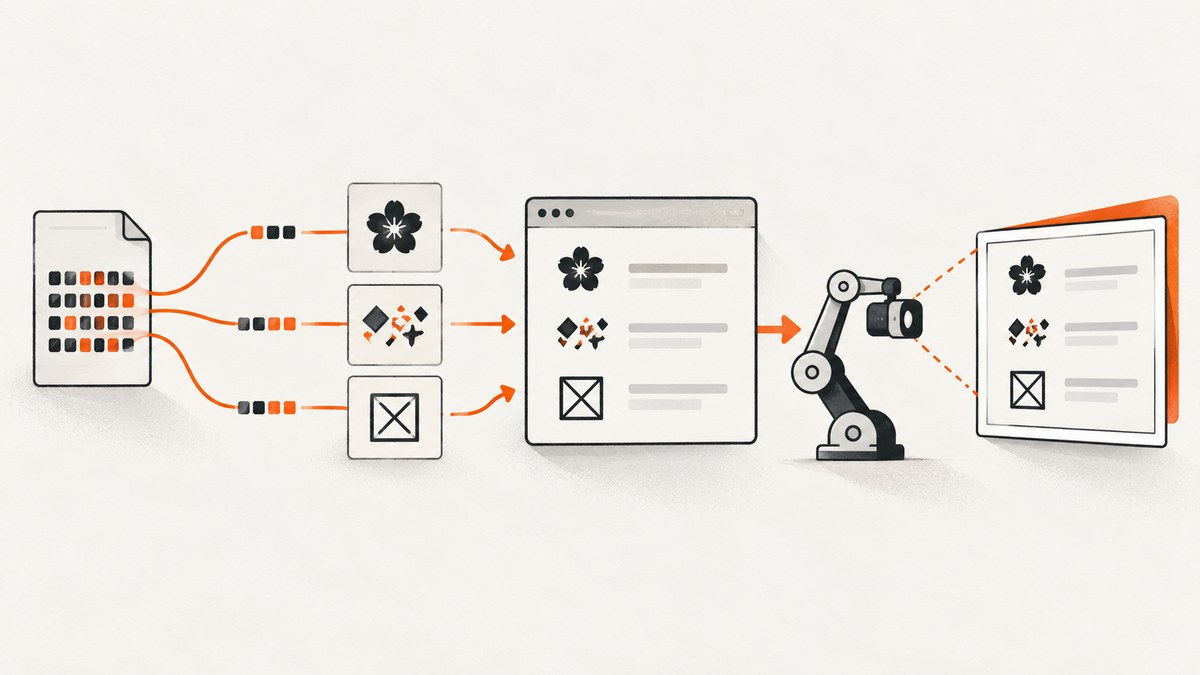
Broken characters in an automated screenshot usually come from one of three layers: the bytes were decoded with the wrong encoding, the browser has the right text but no glyph for it, or the capture environment renders inconsistently. Fix the first layer where the defect appears. Changing PNG or JPEG settings cannot repair text that was already corrupted before rendering.
This guide gives a repeatable workflow for Selenium, Playwright, and other browser runners. It starts with the DOM and bytes, then covers HTML metadata, fixtures and APIs, fonts, deterministic capture, CI troubleshooting, and a managed screenshot option.
1. Classify the symptom before changing code
| What you see | Check first | Likely repair |
|---|---|---|
| é, — or other wrong letters | Response bytes, charset, and DOM text | Make serialization and decoding UTF-8 end to end |
| □, tofu, �, or an empty mark while the DOM is correct | Font coverage and font loading | Load a font that contains the code point and wait for it |
| Different glyphs or line breaks between runs | Browser, OS, fonts, headless mode, and timing | Pin the environment and stabilize capture |
Use code points when two characters look similar. For example, an em dash (U+2014) and a hyphen (U+002D) are different values. A replacement character (U+FFFD) often means a decoder already encountered invalid bytes; it is evidence of an upstream conversion problem, not a screenshot-format problem.
2. Inspect the DOM before inspecting pixels
Read the exact text that the browser has. If it is wrong in the DOM, stop visual debugging and trace the producer, fixture, API response, or byte-to-string conversion. If it is right in the DOM but wrong in the image, investigate fonts and rendering.
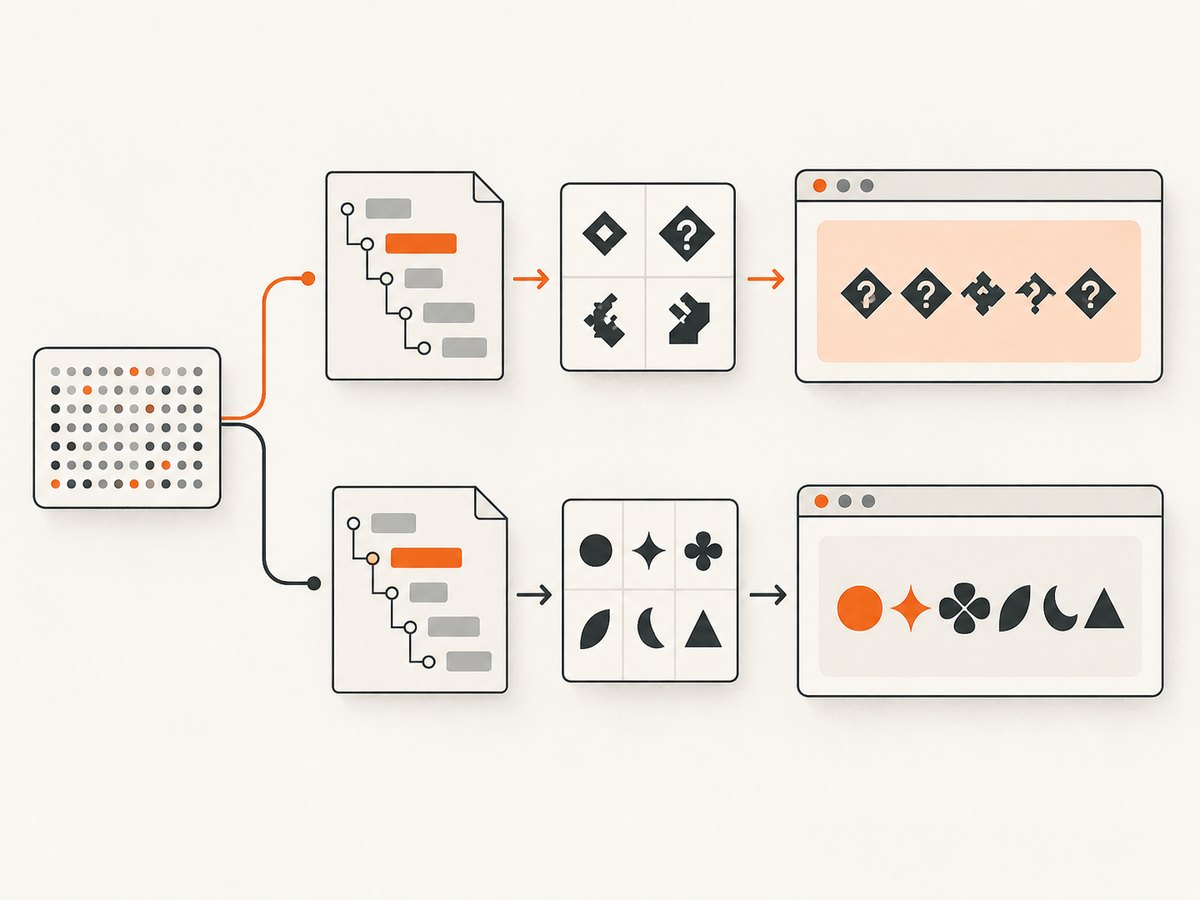
Playwright check
import { test, expect } from '@playwright/test';

test('unicode reaches the DOM', async ({ page }) => {
  await page.goto('http://localhost:3000/unicode');
  const text = await page.locator('#sample').textContent();
  console.log([...text].map(ch => `U+${ch.codePointAt(0).toString(16).toUpperCase()}`));
  await expect(page.locator('#sample')).toHaveText('café — 東京 — Привет — مرحبًا — 😀');
  await expect(page).toHaveScreenshot('unicode.png');
});
Playwright documents accessibility snapshots and text assertions as ways to inspect page structure, while screenshots provide visual evidence. Its screenshot assertion waits for two consecutive captures to match before comparing; that helps with transient rendering changes but cannot repair bad source text or missing glyphs. See the Playwright screenshot testing documentation.
Selenium check
from selenium import webdriver
from selenium.webdriver.common.by import By

options = webdriver.ChromeOptions()
options.add_argument('--headless=new')
driver = webdriver.Chrome(options=options)
try:
    driver.get('http://localhost:3000/unicode')
    value = driver.find_element(By.ID, 'sample').get_attribute('textContent')
    print(value)
    print([f'U+{ord(ch):04X}' for ch in value])
    driver.save_screenshot('unicode.png')
finally:
    driver.quit()
3. Make HTML metadata match the bytes
HTML’s conformant character encoding is UTF-8. The HTTP response should describe the bytes actually sent, normally with Content-Type: text/html; charset=utf-8. If you cannot set the header, put an early declaration in the document:
<!doctype html>
<html lang="en">
<head>
  <meta charset="UTF-8">
  <title>Unicode rendering check</title>
</head>
<body>
  <p id="sample">café — 東京 — Привет — مرحبًا — 😀</p>
</body>
</html>
The declaration must be early enough to be recognized: when it is needed, the HTML Standard requires the meta declaration to fit entirely within the first 1024 bytes. A label does not convert data. Do not declare UTF-8 for bytes that were written in Windows-1252, ISO-8859-1, or another encoding; re-encode the source correctly first. The WHATWG HTML specification and its encoding-sniffing rules define these requirements. WHATWG’s encoding FAQ states that UTF-8 is the only conformant HTML character encoding.
Check the response and file bytes
# Show response headers
curl -I http://localhost:3000/unicode

# Inspect the beginning of a saved HTML file
xxd -l 256 page.html

# Python: decode explicitly at an I/O boundary
from pathlib import Path
html = Path('fixture.html').read_text(encoding='utf-8')
print(html)
For XML served with an XML media type, follow XML declaration and transport rules; an HTML meta element does not determine XML encoding. Keep application text as Unicode strings and encode or decode only at explicit I/O boundaries.
4. Trace non-HTML boundaries
- Fixture files: save test data as UTF-8 and open it with an explicit encoding.
- Source code: ensure the repository and editor agree on UTF-8; avoid implicit locale decoding.
- API responses: inspect the raw bytes and the declared media type before converting to a string.
- Databases: verify connection, table, and column encodings, then compare the value before templating.
- Template or JSON conversion: avoid decoding bytes twice. A UTF-8 string passed through a Latin-1 decoder can produce mojibake.
Capture the same sample at each boundary: serialized fixture, HTTP response, DOM textContent, and pixels. The first mismatch identifies the layer to fix.
5. Distinguish missing glyphs from bad encoding
If the DOM contains the expected code point but the screenshot shows a box, replacement-looking mark, or blank space, check fonts. Confirm that the selected font covers the script or symbol and that the web font has finished loading before capture.
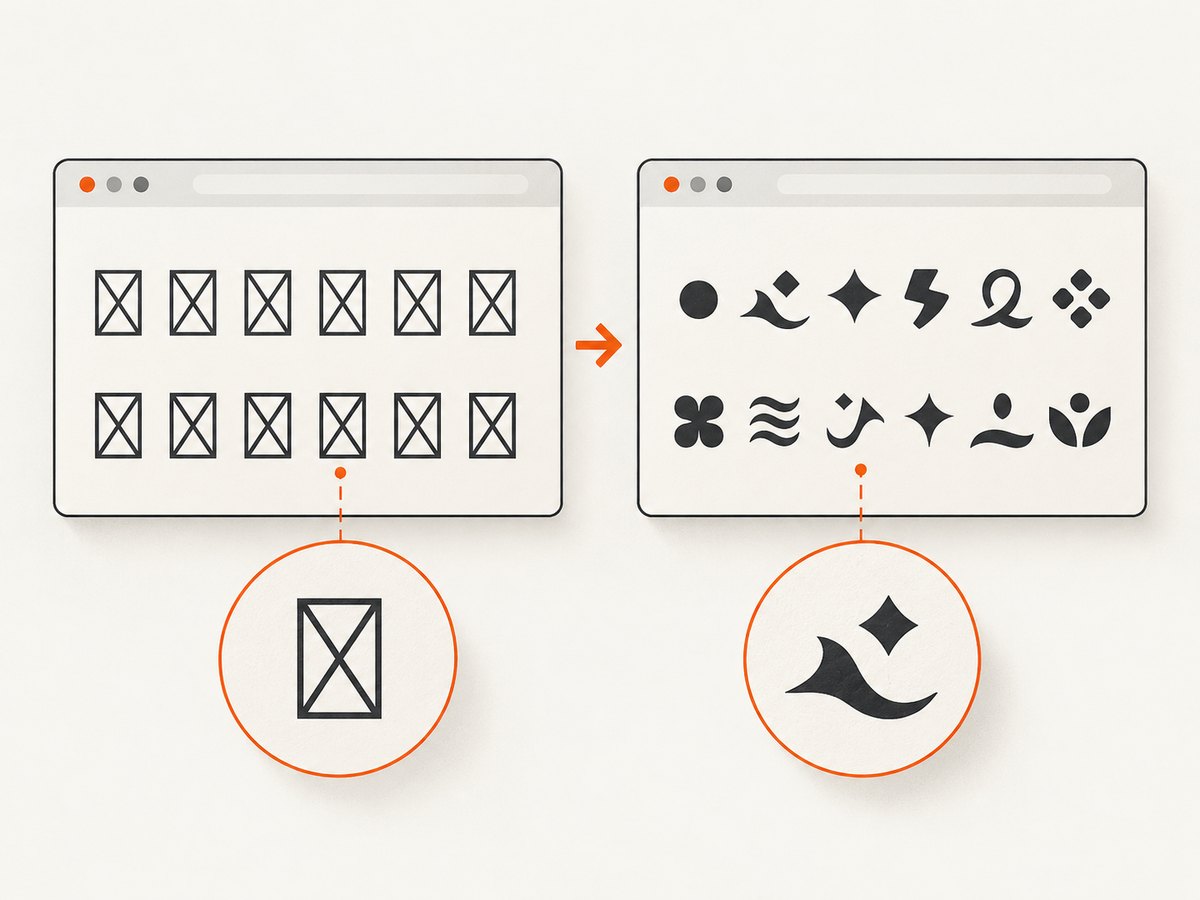
await page.goto('http://localhost:3000/unicode');
await page.evaluate(() => document.fonts.ready);
const fontState = await page.evaluate(() => ({
  status: document.fonts.status,
  hasSymbol: document.fonts.check('16px "Test Font"', '😀'),
  hasJapanese: document.fonts.check('16px "Test Font"', '東京')
}));
console.log(fontState);
A correct DOM plus a failed document.fonts.check points to coverage or loading. A successful check does not prove every glyph is identical across operating systems, so keep the browser and font files pinned in CI. Font installation commands differ by OS and container image; use the package and licensing process appropriate to your runner instead of assuming a universal command.
6. Stabilize automated screenshot comparisons
Host OS, browser version, browser settings, hardware, power source, and headless mode can all affect rendering. Pin the browser image and installed fonts, use the same viewport and device scale factor, and capture after the page is ready.
await page.goto(url, { waitUntil: 'networkidle' });
await page.evaluate(() => document.fonts.ready);
await page.locator('#sample').waitFor();
await page.screenshot({ path: 'unicode.png', animations: 'disabled' });
Use a fixed locale, timezone, and reduced-motion policy when those change text or layout. Rebaseline only after confirming that a changed glyph is intended. Screenshot retries make capture repeatable; they do not make two different operating systems render identically.
7. Minimal reproduction checklist
- Include the literal failing character and a plain Latin control string.
- Record browser and version, OS or container image, headless mode, viewport, device scale factor, and font files.
- Save response headers and the first bytes of the HTML.
- Log DOM
textContentand code points. - Record
document.fonts.statusand whether the relevant font reports coverage. - Run twice in the same pinned environment and compare the images.
This evidence separates a data defect from a rendering defect and makes an intermittent report actionable. An individual issue report can show that a symbol failed in one CI setup, but it does not establish a universal browser bug or a universal fix.
8. Troubleshooting common errors
| Symptom or error | Cause | Fix |
|---|---|---|
é instead of é |
UTF-8 bytes decoded as a single-byte encoding | Set UTF-8 at the writer, response header, and reader; remove a second decode. |
Everything becomes � |
Invalid byte sequence or replacement during decoding | Inspect raw bytes; fail loudly on decode errors and repair the producer. |
| Japanese or emoji appear as boxes | Font lacks glyphs or did not load | Use a covering web/system font and await document.fonts.ready. |
| Works locally, fails in CI | Different fonts, browser, OS, or headless settings | Pin the runner image and browser; install the same font files; compare environment details. |
| Only the first run is wrong | Capture races font or network loading | Wait for the target selector, fonts, and required network state before capture. |
| Changing PNG options does nothing | PNG stores rendered pixels, not a repairable source charset | Fix the bytes, DOM, or font layer first. |
9. Performance, reliability, and cost considerations
Inspecting textContent and response headers is cheap and should run before expensive visual retries. Keep a small Unicode smoke page in CI instead of adding every script to every visual test. Cache or reuse browser contexts only when that does not leak cookies, fonts, or locale between tests. For reliability, pin versions and retain the failing HTML, headers, DOM text, and screenshot as one diagnostic bundle.
Cloud capture adds network and browser startup time, while local capture adds maintenance for browsers, fonts, sandboxing, and CI images. Budget for retries when pages load web fonts or third-party content. A screenshot that times out or returns a bot-check page is not evidence that encoding is fixed; verify the page verdict and the DOM content.
Or skip the browser setup
ScreenshotNeo provides a website screenshot API and MCP server. It still makes sense to fix corrupt source text in your application, but it removes much of the browser-runner plumbing for a clean capture:
- Cookie and consent banners are accepted and 60+ known consent platforms, newsletter popups, and chat widgets are removed before capture; each step can be turned off.
- Bot checks or CAPTCHAs, blank pages, timeouts, failed loads, and cache hits are not billed. Response headers identify the page verdict and whether it was billed.
- An MCP server exposes
take_screenshot,get_page_info, andcapture_pdfto Claude, Cursor, and other MCP clients. - The Free plan includes 1,000 shots per month with no card. Paid plans start at $5 for 3,000 shots; every feature is on every plan.
See the ScreenshotNeo API documentation for all options, including custom CSS and JavaScript, font and network waits, device presets, headers and cookies, caching, signed links, async jobs, bulk capture, and PDF output.
One-call examples
curl -G "https://api.screenshotneo.com/v1/shot" -d access_key=YOUR_API_KEY --data-urlencode url=https://example.com/unicode -o shot.webpimport requests
r = requests.get("https://api.screenshotneo.com/v1/shot", params={"access_key": "YOUR_API_KEY", "url": "https://example.com/unicode"}, timeout=90)
open("shot.webp", "wb").write(r.content)const q = new URLSearchParams({ access_key: 'YOUR_API_KEY', url: 'https://example.com/unicode' });
const res = await fetch(`https://api.screenshotneo.com/v1/shot?${q}`);Start with the free ScreenshotNeo account: 1,000 screenshots a month, no card required.
10. Short FAQ
Does UTF-8 guarantee every character will display?
No. UTF-8 fixes byte interpretation. The chosen font still needs a glyph, and the browser must load it.
Should I compare screenshots or text assertions?
Use both: text or accessibility checks locate data corruption; screenshots catch layout and rasterization defects.
Can a screenshot service correct mojibake?
No service can infer the intended original bytes reliably. Fix the page’s response, data, or template first, then capture it.
Why do identical tests differ across runners?
Browser and OS rendering depend on versions, fonts, settings, hardware, and timing. Pin those inputs and wait for fonts and content.
What should I attach to a bug report?
Provide the URL or fixture, response headers, raw bytes, DOM text and code points, browser and OS details, font information, and two screenshots from the same run.


