How to Fix Chart.js Canvas Rendering in Headless Chrome PDFs
Fix missing, clipped, blurry, or differently styled Chart.js canvases in Puppeteer PDFs with deterministic sizing, media, readiness, and DPI controls.
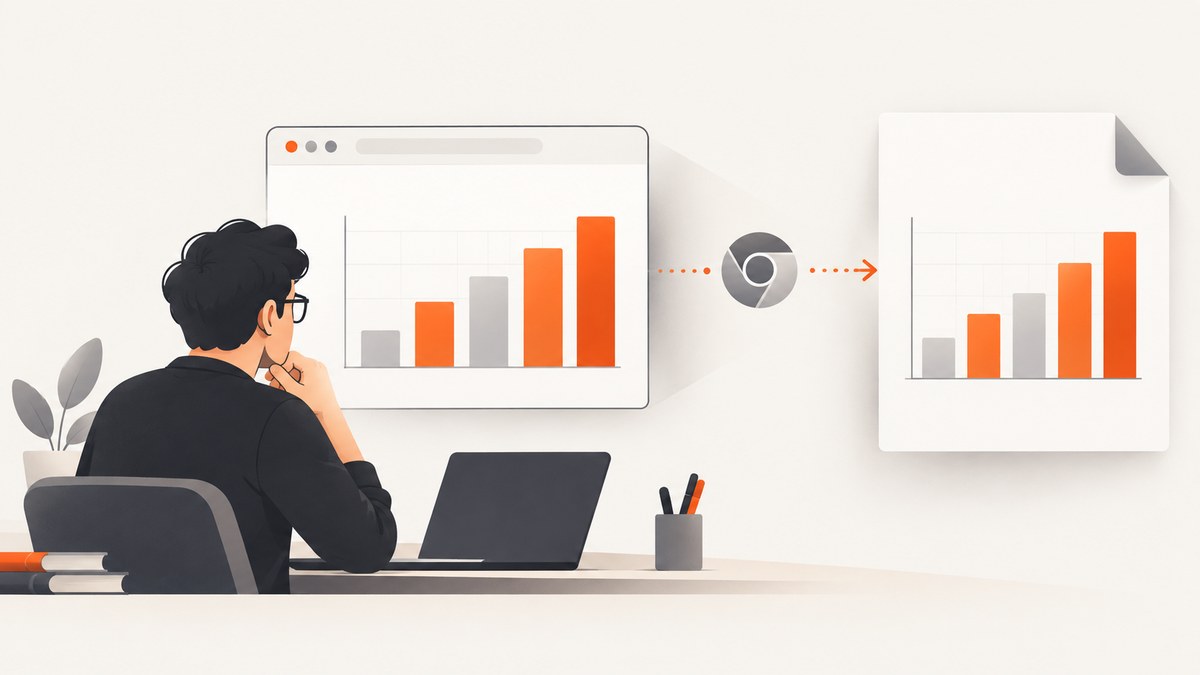
Chart.js canvases disappear in headless Chrome PDFs for several different reasons. A canvas can be missing because the chart was never initialized, clipped because its print container has the wrong dimensions, soft because its backing resolution is too low, or different from the browser because Puppeteer switched the page to print media. Fix the failure mode that matches your symptom, then make the capture wait for your application’s chart-ready signal.
The reliable sequence is:
- Give the canvas a dedicated, relatively positioned container with an explicit height.
- Choose print or screen media deliberately.
- Resize the chart after the final PDF layout is active.
- Disable animation on the capture path.
- Wait for data loading and chart drawing, rather than only waiting for navigation or fonts.
- Raise
devicePixelRatioonly after the geometry is correct.
1. Separate the four common symptoms
| Symptom | Likely cause | First check |
|---|---|---|
| No chart at all | Chart.js was not loaded, data failed, the canvas has zero dimensions, or PDF capture happened before drawing. | Inspect browser errors, verify the data request, and expose a readiness flag after chart.update(). |
| Chart clipped or oddly sized | The parent container changes under print CSS, has no stable height, or responsive sizing runs before the final layout exists. | Give the parent an explicit height and call chart.resize(width, height) after print layout is applied. |
| Chart visible but blurry | The canvas backing store is too small for the output resolution. | Set an appropriate devicePixelRatio after sizing is correct. |
| PDF differs from the browser | Puppeteer uses print media by default, changing CSS, colors, page breaks, and dimensions. | Use print styles intentionally, or call page.emulateMediaType('screen') before creating the PDF. |
2. Build a stable Chart.js layout
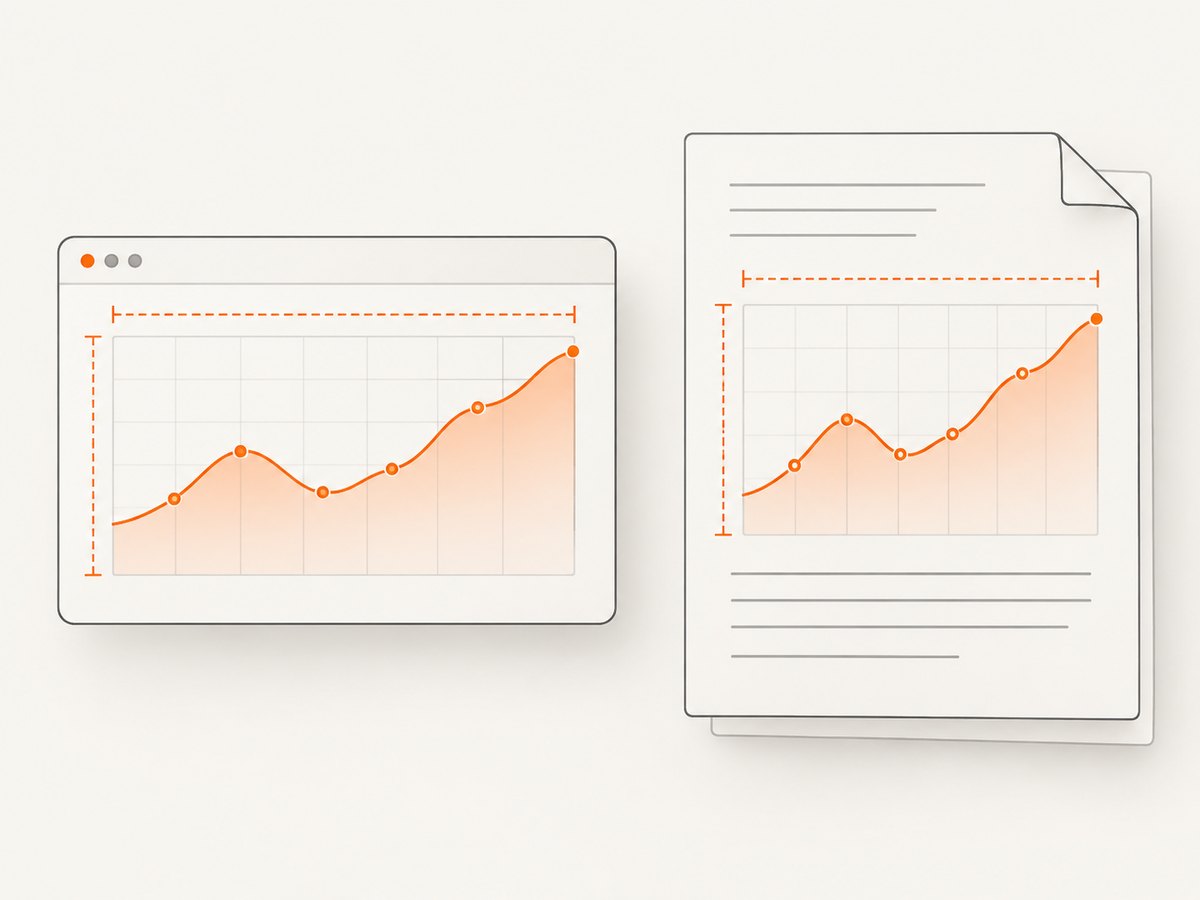
Chart.js uses the parent container to update the canvas display and render sizes. The canvas element itself is not a reliable layout box for responsive charts. Use a container dedicated to the chart, position it relatively, and give it a height that fits the PDF content area. See the Chart.js responsive configuration documentation.
<div class="chart-container">
  <canvas id="report-chart" aria-label="Revenue by quarter"></canvas>
</div>

<style>
.chart-container {
  position: relative;
  width: 100%;
  height: 320px;
}
</style>
Do not depend on 100vh, an unconstrained flex item, or a percentage height whose ancestor has no explicit height. Those values can resolve differently when Chrome lays out a page for paper. Match the container height to the usable PDF content box, including margins and any heading or legend above it.
Initialize for deterministic capture
const canvas = document.getElementById('report-chart');
const chart = new Chart(canvas, {
  type: 'bar',
  data: {
    labels: ['Q1', 'Q2', 'Q3', 'Q4'],
    datasets: [{
      label: 'Revenue',
      data: [12, 19, 15, 24],
      backgroundColor: '#3b82f6'
    }]
  },
  options: {
    responsive: true,
    maintainAspectRatio: false,
    animation: false
  }
});

window.reportChart = chart;
maintainAspectRatio: false allows the dedicated container height to control the chart. animation: false removes a timing variable from a capture path; it is useful for deterministic output but does not repair a missing data request or a zero-sized container.
3. Choose print media or screen media
Puppeteer’s page.pdf() generates the page with the print CSS media type by default. Print rules can alter chart dimensions, visibility, colors, and surrounding layout. If the PDF should use the same styles as the interactive page, explicitly select screen media before printing:
await page.emulateMediaType('screen');
await page.pdf({
  path: 'report.pdf',
  format: 'A4',
  printBackground: true,
  margin: {
    top: '16mm',
    right: '16mm',
    bottom: '16mm',
    left: '16mm'
  }
});
Use print media when your print stylesheet defines the intended paper layout. Use screen media when preserving the screen composition is the goal. Compare both against the actual generated PDF, especially page breaks, chart width, legends, and color contrast. Avoid assuming that screen media is always better: screen-oriented layouts can overflow a paper page.
4. Resize after the PDF layout exists
Responsive charts react to resize events, but print layout changes can occur at a time when no useful resize event reaches Chart.js. Chart.js supports explicit dimensions through resize(width, height). Run it after the selected media type and all print CSS have taken effect.
function prepareChartForPdf() {
  const chart = window.reportChart;
  if (!chart) throw new Error('reportChart was not initialized');

  // Pick dimensions that match the PDF content box.
  chart.resize(700, 320);
  chart.update('none');
  window.chartReady = true;
}

// Call this only after data is loaded and the final layout is active.
prepareChartForPdf();
The exact width depends on the paper size, margins, and page content. If the chart is inside a column, use that column’s content width instead of the full page width. Run the resize after fonts and data are ready; otherwise a later layout shift can invalidate the dimensions.
Handling print events inside the page
For pages that can be printed interactively as well as by Puppeteer, use a beforeprint handler to select print dimensions and restore automatic sizing afterward:
window.addEventListener('beforeprint', () => {
  if (window.reportChart) window.reportChart.resize(700, 320);
});

window.addEventListener('afterprint', () => {
  if (window.reportChart) window.reportChart.resize();
});
For a server-side PDF route, an explicit call immediately before capture is usually easier to reason about because it ties the dimensions to the known paper layout.
5. Wait for the chart, not just the page
Puppeteer’s PDF guide says PDF generation waits for fonts by default. That does not mean arbitrary API requests, application initialization, or Chart.js drawing have completed. Your application should set a flag only after data has arrived and the chart has drawn.
async function loadAndDraw() {
  const response = await fetch('/api/report');
  if (!response.ok) throw new Error(`Report request failed: ${response.status}`);
  const data = await response.json();

  window.reportChart.data = data;
  window.reportChart.update('none');
  window.reportChart.resize(700, 320);
  window.chartReady = true;
}

loadAndDraw().catch(error => {
  window.chartError = String(error);
});
Then wait for that application-owned state in Puppeteer:
import puppeteer from 'puppeteer';

const browser = await puppeteer.launch({
  headless: true
});

try {
  const page = await browser.newPage();
  await page.goto('https://example.com/report', {
    waitUntil: 'networkidle0'
  });

  await page.waitForFunction(() => window.chartReady === true, {
    timeout: 30000
  });

  const chartError = await page.evaluate(() => window.chartError || null);
  if (chartError) throw new Error(chartError);

  await page.pdf({
    path: 'report.pdf',
    format: 'A4',
    printBackground: true
  });
} finally {
  await browser.close();
}
networkidle0 is useful when the page has no long-lived connections, but it is not a substitute for an application readiness condition. A page can become network-idle before a chart’s data transformation or draw callback runs. Conversely, analytics or a websocket can prevent network idle forever, so use a bounded readiness signal and timeout.
6. Improve sharpness with device pixel ratio
Chart.js defaults devicePixelRatio to window.devicePixelRatio. A higher value can increase pixel density when printing or converting to a bitmap. It cannot fix a chart that was never initialized or whose container has the wrong dimensions. See the Chart.js device pixel ratio documentation.
const chart = new Chart(canvas, {
  type: 'line',
  data,
  options: {
    responsive: true,
    maintainAspectRatio: false,
    animation: false,
    devicePixelRatio: 2
  }
});
Higher density increases memory use, render work, and often PDF size. Start with a value appropriate to the output and compare readability, file size, and render time. Fix sizing first, then tune density.
7. Complete Puppeteer example
The following pattern combines navigation, media selection, readiness, explicit resize, and PDF output. Adapt the page-side readiness hook to your application.
import puppeteer from 'puppeteer';

const browser = await puppeteer.launch({ headless: true });
try {
  const page = await browser.newPage();
  await page.setViewport({ width: 1200, height: 900, deviceScaleFactor: 1 });
  await page.goto('https://example.com/report', { waitUntil: 'networkidle0' });

  // Use this when screen CSS is the intended PDF design.
  await page.emulateMediaType('screen');

  await page.waitForFunction(() => window.chartReady === true, {
    timeout: 30000
  });

  await page.evaluate(() => {
    const chart = window.reportChart;
    if (!chart) throw new Error('Chart instance is unavailable');
    chart.resize(700, 320);
    chart.update('none');
  });

  await page.pdf({
    path: 'chart-report.pdf',
    format: 'A4',
    printBackground: true,
    preferCSSPageSize: true,
    margin: { top: '16mm', right: '16mm', bottom: '16mm', left: '16mm' }
  });
} finally {
  await browser.close();
}
If your stylesheet is designed for print, remove the emulateMediaType('screen') call and validate the print layout instead.
8. Troubleshooting checklist
| Error or symptom | Cause | Fix |
|---|---|---|
window.chartReady never becomes true |
Data request failed or the success path does not set the flag. | Log the request status, set chartError on failure, and set readiness only after update('none'). |
| Canvas has width or height zero | Parent has no explicit height, a hidden ancestor is being measured, or print CSS collapses it. | Inspect computed sizes, add a dedicated container, and resize after the container is visible in the final layout. |
| Only part of the chart appears | Container width exceeds the PDF content box or overflow/page breaks cut it. | Use the content-box width, set a print-specific height, and control page breaks around the chart. |
| Browser screenshot is correct, PDF is wrong | PDF uses print media by default. | Inspect print rules or explicitly emulate screen media. |
| Chart is blank intermittently | Capture races data loading, animation, or a late resize. | Disable animation, wait for an application-owned readiness condition, then resize and update. |
| Chart is sharp on screen but soft in PDF | Backing canvas resolution is insufficient. | Increase devicePixelRatio and check the resulting file size and render time. |
| Colors are missing | Backgrounds are excluded or print color adjustment changes output. | Use printBackground: true and review print color CSS. |
| PDF generation times out | Waiting for network idle on a page with persistent requests. | Wait for a bounded, app-specific readiness flag instead of relying only on network idle. |
9. Performance, reliability, and cost considerations
- Geometry first: A smaller, correctly sized chart is cheaper to render than repeatedly retrying a page with unstable layout.
- Animation off: Disabling animation removes capture races and usually shortens the critical path.
- DPI restraint: A higher device pixel ratio improves density but consumes more memory and can enlarge the PDF. Choose it from the required print size.
- Bounded waits: Use a timeout for readiness and return a useful error containing the failed request or missing state.
- Browser reuse: For a service generating many PDFs, reuse a controlled browser process while creating isolated pages, and close pages in a finally block.
- Version awareness: The guidance applies to the documented Chart.js and Puppeteer behavior; check the installed versions when debugging a project-specific difference.
10. Or skip the browser setup
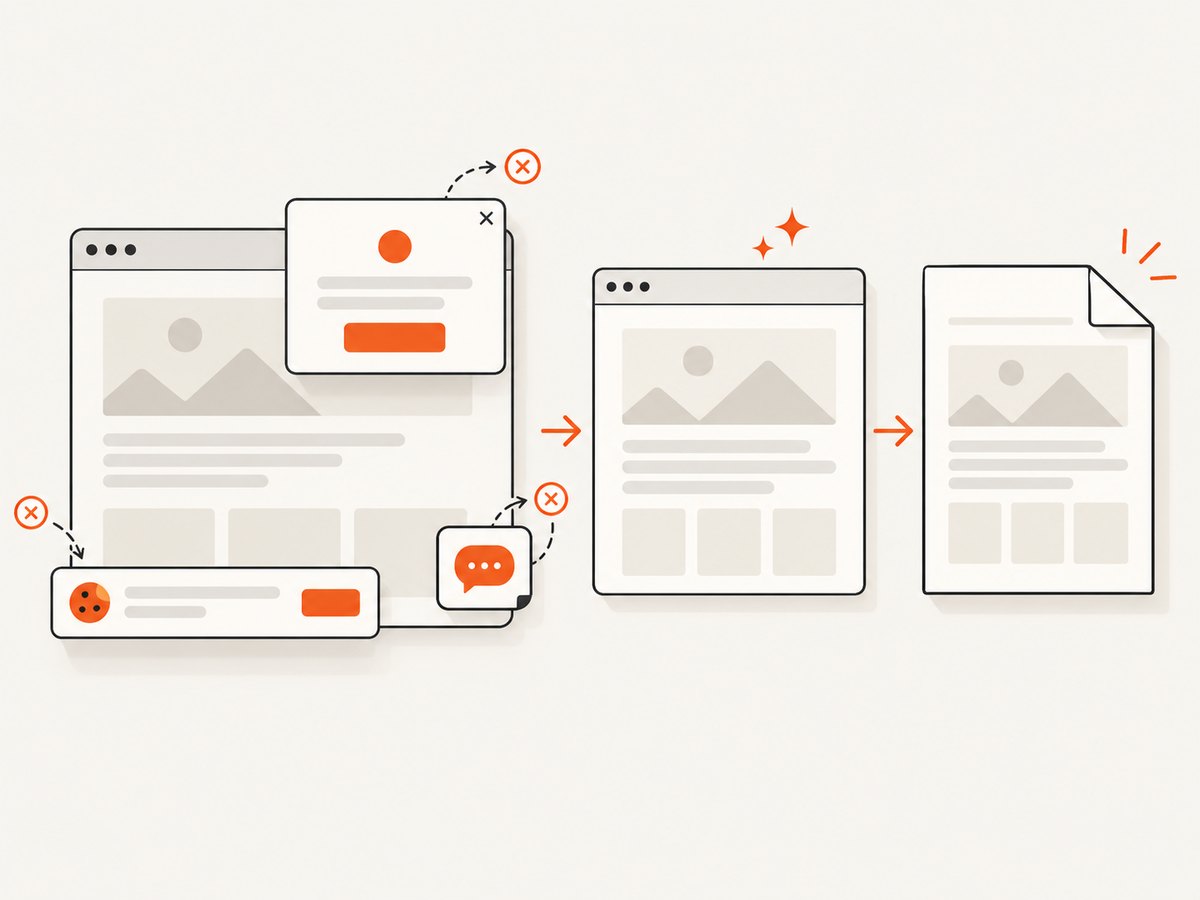
ScreenshotNeo provides a website screenshot API and MCP server when you need a clean capture without maintaining a browser pipeline. It can accept consent banners before capture and remove more than 60 known consent platforms, newsletter popups, and chat widgets. Bot checks, blank pages, timeouts, failed loads, and cache hits are not billed; response headers identify the page verdict and billing result. Its PDF options include paper size, margins, landscape mode, and page ranges.
Use the API with the same URL you would open in Puppeteer. Full options and parameter details are in the ScreenshotNeo API documentation.
cURL
curl -G "https://api.screenshotneo.com/v1/shot" \
  -d access_key=YOUR_API_KEY \
  --data-urlencode url=https://stripe.com \
  -o shot.webp
Python
import requests

r = requests.get(
    "https://api.screenshotneo.com/v1/shot",
    params={"access_key": "YOUR_API_KEY", "url": "https://stripe.com"},
    timeout=90,
)
r.raise_for_status()
open("shot.webp", "wb").write(r.content)
Node.js
const q = new URLSearchParams({
  access_key: 'YOUR_API_KEY',
  url: 'https://stripe.com'
});
const res = await fetch(`https://api.screenshotneo.com/v1/shot?${q}`);
if (!res.ok) throw new Error(`Screenshot failed: ${res.status}`);
const data = Buffer.from(await res.arrayBuffer());
require('fs').writeFileSync('shot.webp', data);
ScreenshotNeo also supports full-page captures with lazy images loaded, element capture by CSS selector, custom CSS and JavaScript, click and wait actions, request blocking, headers and cookies, user agents, authorization, timezone and geolocation, transparent backgrounds, resizing, caching with a chosen TTL, signed image links, asynchronous jobs with signed webhooks, bulk capture of up to 100 URLs per call, a usage API, and an OpenAPI specification. An MCP server exposes take_screenshot, get_page_info, and capture_pdf to Claude, Cursor, and other MCP clients.
There are no browser dependencies to install for the one-call path. Free usage includes 1,000 screenshots each month with no card; paid plans start at $5 for 3,000 screenshots. Create a free ScreenshotNeo account.
11. FAQ
Should I use page.emulateMediaType('screen') for every PDF?
No. Use it when screen styles are the intended design. Otherwise keep print media and fix the print layout.
Does increasing device pixel ratio fix a blank canvas?
No. Confirm initialization, data, container dimensions, and readiness first. Pixel ratio changes density after the chart exists.
Why does waiting for networkidle0 fail on my dashboard?
Persistent analytics, websockets, or polling can prevent network idle. Wait for a bounded application signal that means the chart data and draw are complete.
Can I let Chart.js choose the PDF size automatically?
Yes, when the parent container has stable dimensions. Explicit resize(width, height) is more predictable when print layout or page dimensions vary.
Will ScreenshotNeo execute my Chart.js application?
ScreenshotNeo captures the rendered webpage. Use its custom JavaScript, wait, selector, viewport, and PDF options when your page needs capture-time preparation; otherwise keep the Puppeteer method for full control over application internals.


