How to Fix the Address Bar Not Working in Chrome
Find the right fix for a Chrome address bar that will not accept typing, show suggestions, run a search, or open a URL.
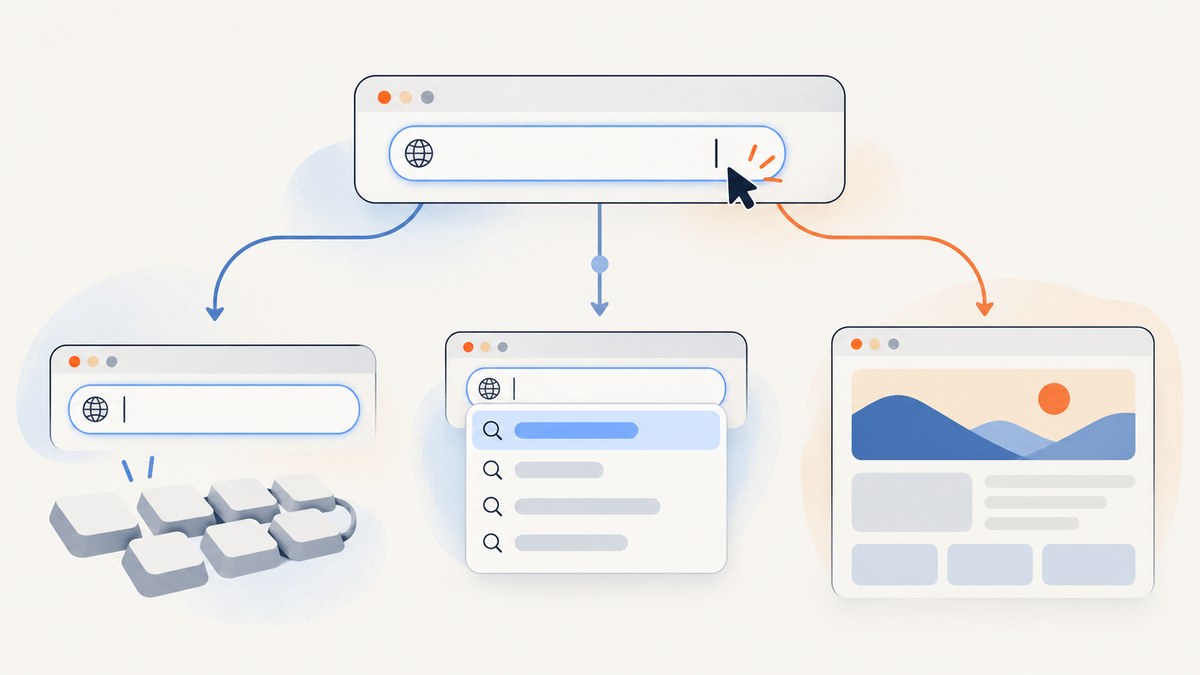
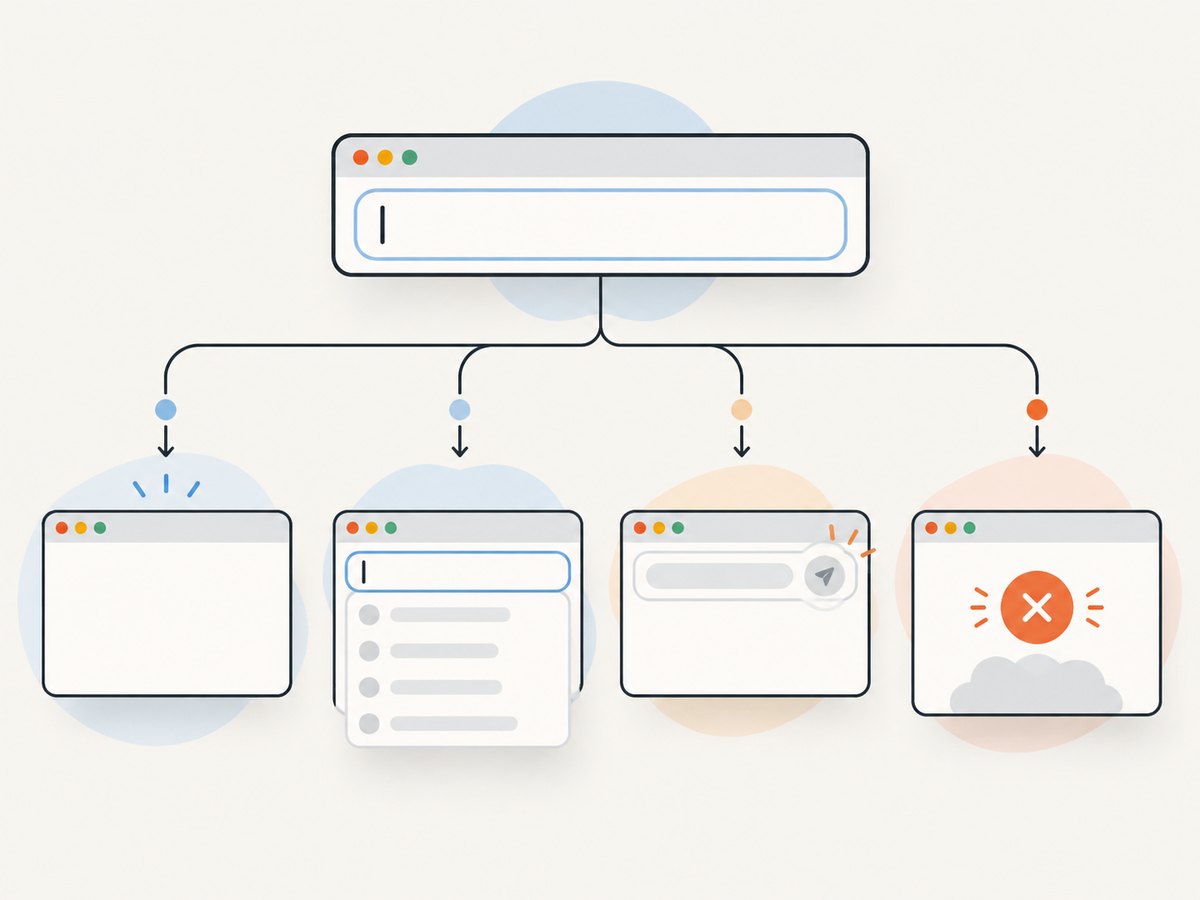
If Chrome’s address bar is “not working,” first identify what fails: can you focus the field, type, see suggestions, select one, press Enter, and load the resulting page? Those are different problems. A missing suggestion is not the same as text you cannot enter, and a URL that submits but will not load may point to a connection or website issue rather than the address bar.
Try the least disruptive checks first: focus and typing, search provider and suggestion settings, an Incognito comparison, and an extension test. Reset Chrome settings only after those checks. Google’s guidance covers search behavior and general connection and loading errors; it does not name one universal cause or an address-bar-specific fix. See Google’s instructions for searching in Chrome and its general troubleshooting steps for connection and loading errors.
1. Identify what “address bar not working” means
Test these actions in order. On desktop, click the address bar or press Ctrl+L on Windows/Linux or Command+L on Mac. Type a short word, then a complete URL such as https://example.com. Note exactly where the process stops.
| What you see | Likely area to check |
|---|---|
| The field will not focus or accept typing | Chrome responsiveness, focus, keyboard input, or an extension conflict |
| Typing works, but no suggestions appear | Suggestion settings, search provider support, or history/search data |
| Suggestions appear, but choosing one does nothing | Chrome responsiveness, extension interference, or a selection/input issue |
| Pressing Enter in Chrome’s address bar does nothing | Check whether Chrome submitted the text; compare a complete URL and a search |
| The URL submits, but a page does not load | Network connectivity, the URL, Chrome loading, security software, or the site |
Chrome combines web addresses and searches in one field. A search uses the default search engine; suggestions can draw on browsing history and the search engine’s data. Search-engine support and feature availability can vary. A lack of suggestions does not, by itself, mean that typing a website address should fail. Google explains address-bar search and suggestions here; its privacy guidance describes URL and search data.
2. Check focus, typing, and whether Chrome is responsive
- Open a new tab and click the address bar. Try Ctrl+L or Command+L to focus it from the keyboard.
- Type a few characters, then use Backspace and select the text. This helps distinguish a focus problem from a submission problem.
- Type a complete URL with its scheme, such as
https://example.com, and press Enter. Then try a plain search phrase. - If Chrome is frozen or unresponsive, close and reopen it. If it remains stuck, restart the computer and retry.
If focus and typing work but navigation fails, note whether one site or every site is affected. Check that the URL is spelled correctly. For several sites, check whether other apps can access the internet and whether the device is online. Google treats multiple-site loading failures as a reason to check the connection, while a single affected site may have a site-specific problem. This step diagnoses the symptom; it does not establish a single cause.
3. Fix “address bar suggestions not working”
Suggestions and submitted searches rely on Chrome’s search configuration and the selected provider. When text appears normally but suggestions are missing or searches behave unexpectedly, check the default search engine and the settings that control search suggestions. The precise labels and available providers can vary by Chrome version, region, and account configuration.
- In Chrome, open the three-dot menu, then Settings.
- Open the search engine settings and confirm the intended default search engine.
- Look for the setting that offers search suggestions as you type. If it is off and you want suggestions, turn it on.
- Open a new tab and test both a search phrase and a full URL.
Changing the search engine is relevant to web searches and features that depend on the provider. It is not a prerequisite for entering a website address. If searches submit but return no results, compare with a known full URL and check the connection separately. Google notes that a Chrome search feature may not be available when a provider does not support it. Read the official search instructions.
4. Compare normal mode with Incognito
Open an Incognito window from Chrome’s menu and repeat the same action that fails. This comparison is a diagnostic clue, not proof of a particular cause. If the address bar works there but not in a normal window, an extension or profile-specific setting may be involved. If the failure happens in both, continue with the connection and Chrome checks.
Do not infer that Incognito guarantees extensions are disabled: Chrome can allow an extension in Incognito if it has been configured to do so. Use the extension manager for a controlled test. Incognito also does not repair a network problem or a failing destination website.
5. Test extensions one at a time
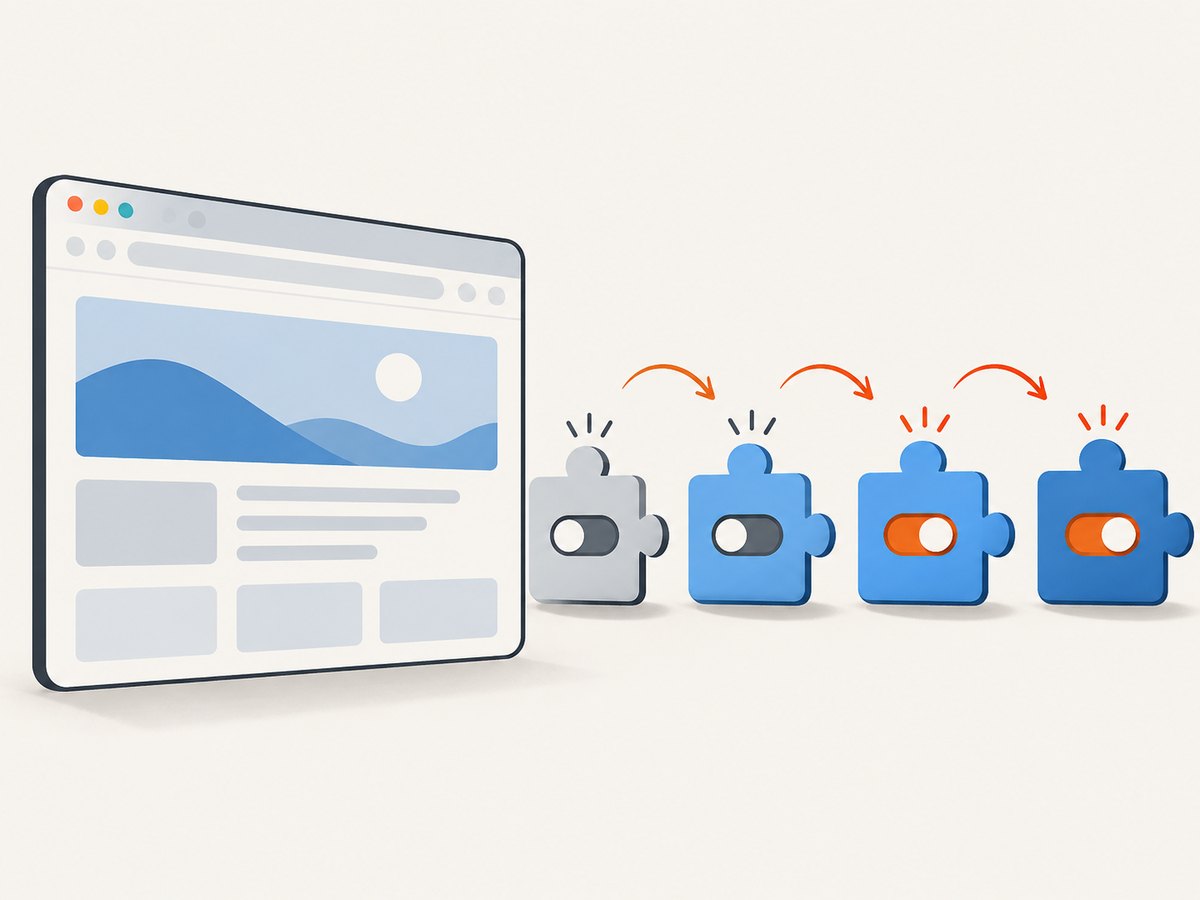
An extension can affect browser behavior, but the fact that an address bar is failing does not identify any particular extension as the culprit. Google’s general troubleshooting method is to disable extensions and, if the problem clears, turn them back on one at a time to isolate a possible conflict.
- Open Chrome’s menu and choose Extensions → Manage extensions. You can also enter
chrome://extensionsif the bar accepts input. - Switch extensions off temporarily, then test a search and a full URL in a normal window.
- If the issue clears, re-enable extensions one at a time. After each change, repeat the same test.
- When the behavior returns, note the extension and its version. Update it, check its options, or leave it disabled if you do not need it.
For a useful test, change one thing at a time and keep the test phrase or URL the same. If turning extensions off makes no difference, turn them back on and move on. Google recommends this general extension isolation step for connection and loading problems; it does not establish a specific extension as the usual cause. See Google’s troubleshooting sequence.
6. If the address bar accepts a URL but the page will not load
This is a navigation or loading symptom, not necessarily an input failure. Reload the page, check for a typo, and try another site. If only one destination fails, the site may be unavailable or have a site-specific problem. If multiple unrelated sites fail, check the device’s internet connection and try restarting Chrome.
Google lists several possible categories for Chrome connection and loading errors: network conditions, device settings, firewall or antivirus software, browser issues such as extensions or memory use, and problems with a website. These are possibilities to investigate, not a diagnosis based on the address bar alone. Avoid turning off security software as a first step; if you suspect it, follow the software provider’s guidance or ask your administrator. Google’s connection and loading guide gives a broader sequence.
7. Reset Chrome settings after simpler checks
Resetting Chrome settings is more disruptive than checking suggestions or testing extensions. It can restore the default search engine, homepage and startup behavior, new tab page, content settings, cookies and site data, extensions, and themes. Review those effects before continuing. Google says saved bookmarks and passwords are not deleted or changed by this reset. It is not a full reset: some settings, including fonts and accessibility settings, remain.
- Open Chrome’s menu and select Settings.
- Open Reset settings.
- Choose Restore settings to their original defaults, then confirm Reset settings.
- Test the address bar again before changing settings or re-enabling extensions.
This can help when a changed setting is involved, but it does not tell you which setting caused the symptom. Read Google’s explanation of what a settings reset changes first. The reset may affect settings on devices where you are signed in; check the official page for the current scope.
8. Check Chrome flags only if you changed one
Flags are experimental controls, not ordinary Chrome settings. Do not change random flags in an attempt to repair the address bar; the reviewed guidance does not identify a particular flag as a fix. If this began after you changed a flag, open chrome://flags, select Reset all, and relaunch Chrome.
Google cautions that flags are temporary and can change, break, or be removed. Its guidance says enterprise administrators should not use flags in production. If resetting flags does not help, return to the regular troubleshooting steps and consider Chrome’s settings reset. Read Google’s Chrome flags guidance.
9. Troubleshooting by exact error
| Symptom | What to try | What the result tells you |
|---|---|---|
| Address bar not working: cannot focus or type | Try Ctrl+L/Command+L, a new tab, and a Chrome restart. | If Chrome is generally unresponsive, address-bar settings are unlikely to be the only issue. |
| Can’t search from the address bar | Try a complete URL; check the default search engine and internet connection. | If URLs work but searches fail, inspect search configuration/provider. If neither loads, investigate connectivity. |
| Address bar suggestions not working | Check suggestion settings and provider; compare a normal window with Incognito. | Suggestions are separate from basic URL entry and may depend on provider or history data. |
| Pressing Enter in Chrome’s address bar does nothing | Try a full URL, then test after disabling extensions temporarily. | If the page submits but does not open, follow loading-error checks. If no submission occurs, focus on Chrome responsiveness and extensions. |
| One website fails; others open | Check the URL and retry later. | The problem may be with that destination, rather than address-bar input. |
| Several sites fail | Check network access, restart Chrome, and try the extension test. | This points toward a broader loading or connection path. |
| Settings will not open | Restart Chrome. If Chrome remains broadly broken, use Google’s reinstall guidance. | Reinstallation is an escalation, not a targeted address-bar repair. |
10. Performance, reliability, and data considerations
For a reliable diagnosis, reproduce the same symptom after each change and record what changed: whether the field accepts input, suggestions appear, Enter submits, and a page loads. Avoid changing the search provider, disabling extensions, and resetting settings all at once; otherwise you cannot tell which check mattered. Make a note of the current search provider and any extensions you switch off so you can restore the configuration.
The low-impact checks are focus, a known URL, connection, suggestion settings, and a temporary extension test. A settings reset changes more of the browsing environment and may reset cookies/site data, extensions, and themes. A flags reset is conditional on having changed flags. Reinstalling Chrome is a last escalation when Chrome itself or Settings is broadly broken. Follow Google’s instructions for your operating system and understand the effect of each step before proceeding.
11. Or skip the browser setup
If your goal is to capture a website for documentation or inspection, ScreenshotNeo can return a screenshot or PDF from one API request, without setting up browser automation. It is a website screenshot API and MCP server for developers. See ScreenshotNeo and the API documentation.
curl -G "https://api.screenshotneo.com/v1/shot" -d access_key=YOUR_API_KEY --data-urlencode url=https://example.com -o shot.webpimport requests
r = requests.get(
"https://api.screenshotneo.com/v1/shot",
params={"access_key": "YOUR_API_KEY", "url": "https://example.com"},
timeout=90,
)
open("shot.webp", "wb").write(r.content)const q = new URLSearchParams({ access_key: 'YOUR_API_KEY', url: 'https://example.com' });
const res = await fetch(`https://api.screenshotneo.com/v1/shot?${q}`);
if (!res.ok) throw new Error(`ScreenshotNeo returned ${res.status}`);
const bytes = new Uint8Array(await res.arrayBuffer());
await import('node:fs/promises').then(fs => fs.writeFile('shot.webp', bytes));Replace the example URL and use your API key. Cookie banners, newsletter popups, and chat widgets are removed before the shot; each cleanup step can be turned off. Bot checks, blank pages, and failed loads are never billed, and response headers identify the page verdict and billing status. An MCP server lets AI agents use screenshot, page-info, and PDF tools. The free plan includes 1,000 screenshots a month with no card; paid plans start at $5 for 3,000. Sign up for 1,000 free screenshots a month, no card required.
12. Frequently asked questions
Can I use Chrome’s address bar without suggestions?
Yes. Suggestions are a convenience; you can type a complete website address and submit it. If the URL does not open, troubleshoot loading or connectivity separately.
Does resetting Chrome delete bookmarks and passwords?
Google says its settings reset does not delete or change saved bookmarks and passwords. It does restore several other settings, including extensions, themes, cookies and site data. Consult the official reset guide for the full list.
Should I change a Chrome flag to fix the address bar?
No specific flag is established as an address-bar fix in the official material cited here. Reset flags only if the issue began after you changed one.
What details should I collect if it still fails?
Record your Chrome version, operating system, whether the failure affects typing, suggestions, submission, or page loading, whether one or several sites are affected, and whether Incognito or the extension test changes the result. Those details make the next troubleshooting step more targeted.


