How to Fix Google Chrome Failing to Run on CentOS 7
CentOS 7 is outside Chrome’s current Linux support list. Learn how to identify install, dependency, and launch failures and choose a supported fix.

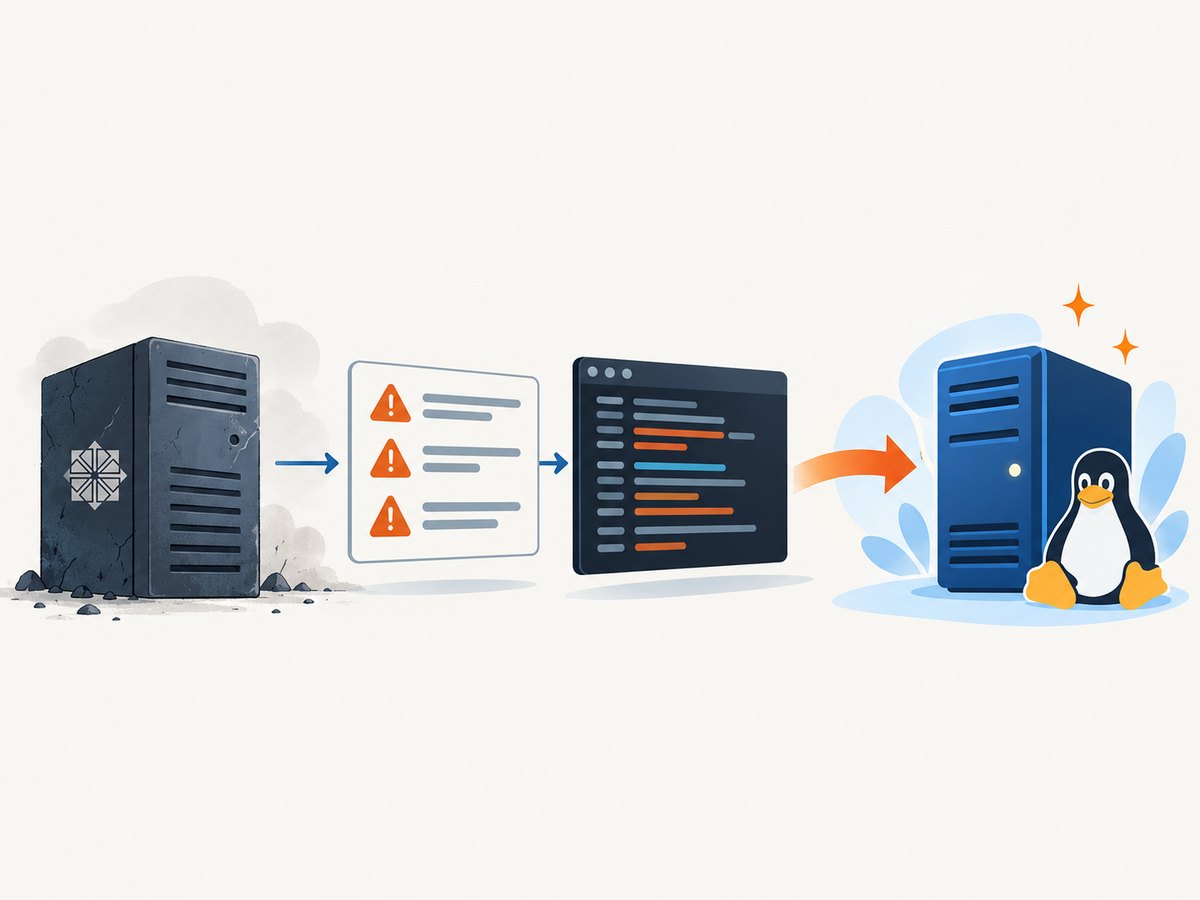
Short answer: Google Chrome failing on CentOS 7 is often a platform compatibility problem, not a broken download. Google’s current Linux requirements list 64-bit Ubuntu 18.04 or later, Debian 10 or later, openSUSE 15.5 or later, and Fedora Linux 39 or later; CentOS 7 is not listed. Reinstalling the same Chrome package cannot be guaranteed to fix a dependency mismatch on an unsupported operating system.
First determine which failure you have: the package will not install or update, Chrome installs but exits immediately, or an installed browser crashes. Each case needs different evidence and a different remedy.
1. Confirm the operating system and architecture
Run these commands as the affected user:
cat /etc/centos-release
uname -m
getconf GNU_LIBC_VERSION
rpm -q glibc
which google-chrome || which google-chrome-stable
google-chrome --version 2>&1
Chrome’s published Linux requirements are maintained in Google’s system requirements documentation. Compare your distribution, release, and architecture with that list. CentOS 7 normally reports an older userspace than current Chrome packages expect, and its 64-bit glibc is commonly version 2.17. Do not assume that a version mentioned in an old report is the cause on your machine; capture the exact error first.
2. Classify the failure before changing anything
| Symptom | What to collect | Likely direction |
|---|---|---|
| RPM or repository refuses installation/update | Complete transaction output, Chrome package version, missing library or symbol | Unsupported package dependency or repository problem |
| Chrome installs, then exits immediately | Terminal output from launching Chrome, running processes, profile location | Launch, sandbox, profile, or graphics issue |
| Chrome opens but crashes or renders incorrectly | Crash output, graphics/session details, extensions and flags | Runtime, display-server, extension, or profile issue |
Save the exact output before retrying. A message such as “GLIBC_2.18 not found” identifies a specific binary compatibility problem; a generic “failed” message does not.
3. If installation or updating fails
Retry the official installer once
Google’s general installation guidance says to download the installation file again and try the offline installer if the normal installation fails. Follow the current instructions in Google’s Chrome installation guide. This may repair a damaged download or a repository transfer problem, but it does not make CentOS 7 a supported platform.
Inspect the dependency error
sudo rpm -Uvh ./google-chrome-stable_current_x86_64.rpm
# If the package is already installed:
rpm -q --requires google-chrome-stable | sort
ldd /opt/google/chrome/google-chrome | grep 'not found'
Use the missing library name and symbol in your diagnosis. Do not replace the system glibc with an unrelated build, force RPM dependencies, or copy libraries from another distribution. Those actions can break core system programs and are not an official CentOS 7 compatibility fix.
Understand historical GLIBC reports
Google Chrome Community users reported Chrome 95 installation errors involving GLIBC_2.18 on CentOS 7 systems that reported glibc 2.17. A June 2024 user report mentioned Chrome 126 and a reported GLIBC_2.25 requirement. These are unverified, historical community reports, not current Google requirements or a diagnosis of your host. Treat them as examples of why the exact package version and missing symbol matter.
4. If Chrome installs but will not launch
Separate a launch failure from an installation failure. Google’s general troubleshooting advice is to check whether Chrome is already running, restart the computer, and reinstall only after simpler checks fail. The official “Chrome won’t open” guidance contains platform-specific sections; do not copy Windows or macOS commands onto CentOS.
Check for a leftover process
pgrep -a -f 'google-chrome|chrome'
# Stop only processes owned by your account, after closing your browser:
pkill -u "$USER" -f 'google-chrome|chrome'
The separate profile test distinguishes a damaged profile or extension from a system-wide problem. If the temporary profile works, close Chrome and inspect the original profile. Back up bookmarks and other needed data before removing or changing profile files.
Capture terminal diagnostics
google-chrome --enable-logging=stderr --v=1 2> ~/chrome-startup.log
cat ~/chrome-startup.log
Record whether the session is X11 or Wayland, whether you are using a remote display, and whether the failure occurs only for one user. Avoid adding random flags permanently. A flag that bypasses a security feature can hide the underlying problem.
5. Common errors and fixes
| Error or symptom | Cause to investigate | Safe next step |
|---|---|---|
GLIBC_2.xx not found |
The Chrome binary needs a newer glibc than the host provides. | Confirm versions and package release; move to a distribution on Google’s supported list. |
| RPM dependency transaction fails | Required libraries are absent or incompatible. | Keep the complete RPM output; do not force installation. |
| Command returns immediately with no window | Existing process, profile lock, display/session issue, or crash. | Check pgrep, try a temporary profile, and capture stderr. |
| Browser crashes after an update | New package requirements or a profile/extension conflict. | Compare the package version with the error; plan migration rather than relying on an old browser. |
| Blank window or rendering failure | Graphics stack, remote session, or display configuration. | Collect launch logs and session details; avoid treating this as a package-install fix. |
6. The durable fix: use a supported Linux distribution
If you need a current, maintained Chrome installation, plan a move to a distribution and release listed in Google’s requirements. Choose among Ubuntu, Debian, openSUSE, or Fedora based on your organization’s support lifecycle, package-management standards, application compatibility, and migration effort. The dossier does not establish one universally best choice.
- Inventory applications, services, browser profiles, certificates, scheduled jobs, and automation.
- Test the replacement distribution on representative hardware or a virtual machine.
- Back up user data and configuration, including browser profiles and automation credentials.
- Install the supported distribution and verify Chrome, display access, printing, downloads, and required extensions.
- Keep the CentOS 7 system available for rollback until the workload is verified.
CentOS 7’s lifecycle and your application requirements may require a broader migration plan. If you cannot change the operating system yourself, involve the team that owns the image or infrastructure rather than weakening system libraries.
7. If your real goal is automated screenshots
A full Chrome installation is unnecessary when the goal is to capture a URL for documentation, monitoring, previews, or an AI workflow. ScreenshotNeo is a website screenshot API and MCP server. It returns PNG, JPEG, WebP, or PDF from one request and handles the browser environment for you.
Or skip the browser setup
Use the API documented at screenshotneo.com/docs/:
curl -G "https://api.screenshotneo.com/v1/shot" -d access_key=YOUR_API_KEY --data-urlencode url=https://stripe.com -o shot.webpimport requests
r = requests.get("https://api.screenshotneo.com/v1/shot", params={"access_key": "YOUR_API_KEY", "url": "https://stripe.com"}, timeout=90)
open("shot.webp", "wb").write(r.content)const q = new URLSearchParams({ access_key: 'YOUR_API_KEY', url: 'https://stripe.com' });
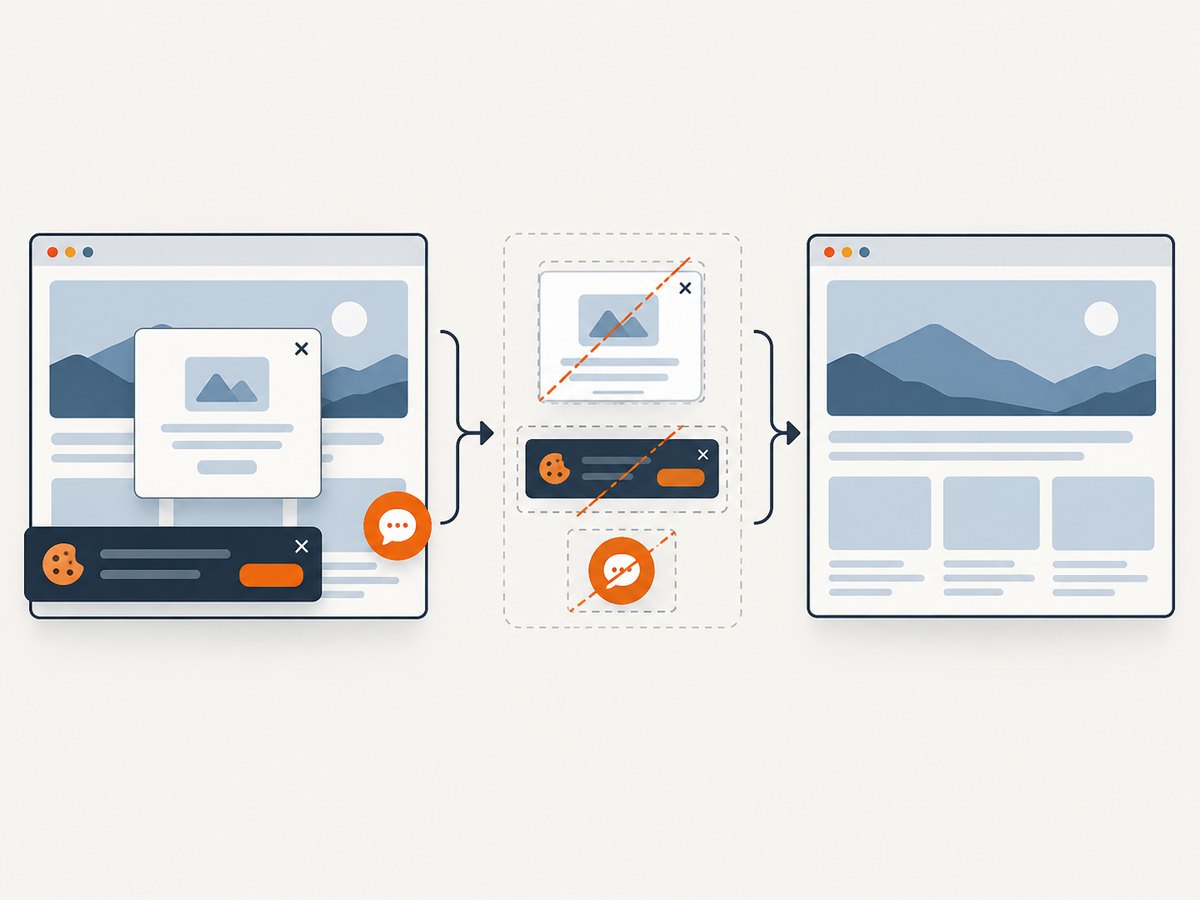
const res = await fetch(`https://api.screenshotneo.com/v1/shot?${q}`);ScreenshotNeo accepts cookie and consent banners before capture and removes more than 60 known consent platforms, newsletter popups, and chat widgets; each step can be turned off. Bot checks, blank pages, timeouts, failed loads, and cache hits are not billed, and response headers report the page verdict and whether the shot was billed. Its MCP server provides take_screenshot, get_page_info, and capture_pdf for Claude, Cursor, and other MCP clients. One thousand screenshots per month are free with no card; paid plans start at $5 for 3,000 shots.
Create a free ScreenshotNeo account and get 1,000 screenshots each month without a card.
8. Performance, reliability, and cost considerations
- Local Chrome: performance depends on CPU, memory, graphics, disk, profile size, extensions, and the target site. A CentOS 7 workaround can consume more maintenance time than the capture itself.
- Dependency reliability: forcing incompatible packages creates an unmaintainable runtime and can affect unrelated programs.
- Migration reliability: test the complete workload, not only whether the browser window opens.
- Screenshot API cost: ScreenshotNeo bills only clean shots; failed loads and cache hits cost nothing. Choose a cache TTL, viewport, wait condition, image format, and full-page or element capture that match the job.
FAQ
Can I install an older Chrome release on CentOS 7?
Old community reports exist, but they do not establish a secure or supported current solution. Do not treat an old package as a durable fix.
Is CentOS 7 officially supported by current Chrome?
It is absent from Google’s current published Linux requirements.
Should I upgrade glibc manually?
No. Replacing the system glibc from an unrelated source can damage the operating system and is not an official compatibility workaround.
What information should I include when asking for help?
Include the CentOS release, architecture, Chrome package version, complete error output, glibc version, and whether the failure occurs during installation or launch.
Can ScreenshotNeo capture PDFs as well as images?
Yes. Its API and MCP server support PDF capture, including paper size, margins, landscape mode, and page ranges.


