How to Fix Chrome Command-Line Screenshots That Fail
Fix missing, blank, or incomplete Chrome CLI screenshots by checking the command, working directory, viewport, timeout, and Headless version.
When a Chrome command-line screenshot fails, first verify four things: the exact Chrome executable, the arguments actually passed, the process working directory, and the installed Chrome version. Chrome’s documented --screenshot flag saves screenshot.png in the process’s current working directory. --window-size=WIDTH,HEIGHT sets the viewport, and --timeout=MILLISECONDS limits how long Chrome waits before capturing.
Run a known-good command, then inspect the directory where it ran:
google-chrome --headless --screenshot --window-size=1280,800 --timeout=10000 https://example.com
pwd
ls -l screenshot.png
These behaviors are documented in the Chrome Headless command-line reference. If the file is missing, diagnose launch and filesystem details before changing flags.
1. Run a minimal command for your operating system
Linux
google-chrome --headless --screenshot --window-size=1280,800 --timeout=10000 https://example.comSome Linux installations expose the binary as google-chrome-stable or chromium. Confirm the path before troubleshooting:
command -v google-chrome
command -v google-chrome-stable
command -v chromium
which google-chrome
macOS
"/Applications/Google Chrome.app/Contents/MacOS/Google Chrome" --headless --screenshot --window-size=1280,800 --timeout=10000 https://example.comIf Chrome is installed elsewhere, use that executable path. Keep the path quoted when it contains spaces.
Windows PowerShell
& "C:\Program Files\Google\Chrome\Application\chrome.exe" --headless --screenshot --window-size=1280,800 --timeout=10000 https://example.com
Get-Location
Get-Item .\screenshot.png
Chrome writes the default file relative to the process’s current working directory. A terminal, IDE task, scheduler, service, or container can start Chrome in a different directory than the one you later inspect.
2. Confirm where Chrome saved the image
The default output is screenshot.png in the current working directory, not necessarily beside the Chrome executable or your script. Print the directory immediately before launching Chrome:
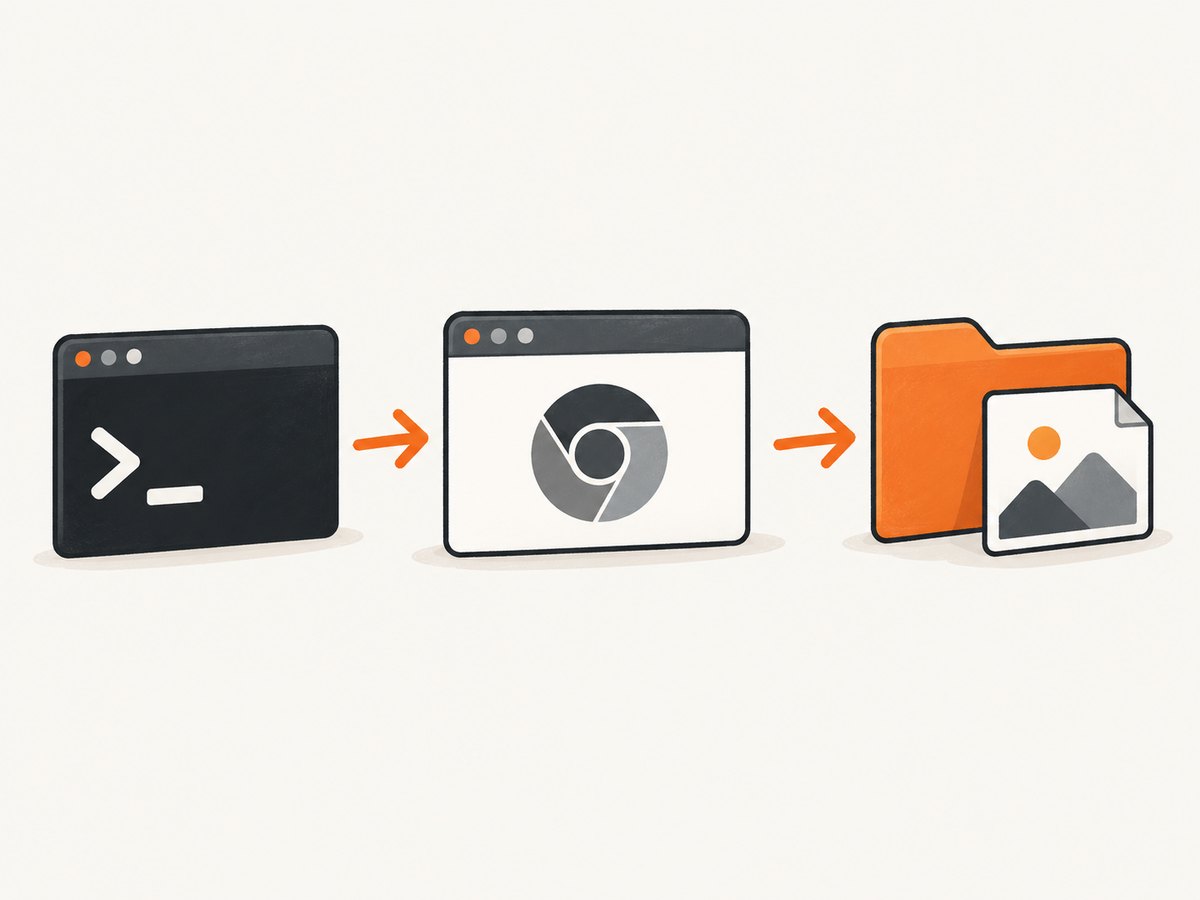
# Linux or macOS
pwd
ls -ld .

# Windows PowerShell
Get-Location
Get-Acl .
Then check for the file in that same process context:
# Linux or macOS
ls -l ./screenshot.png
file ./screenshot.png

# Windows PowerShell
Get-Item .\screenshot.png
[System.IO.File]::ReadAllBytes(".\screenshot.png").Length
If a service or script launches Chrome, log its working directory and verify that its user can write there. The official reference documents the default filename and location; do not assume every Chrome build supports a universal custom output-path switch.
3. Verify the arguments Chrome actually received
Check the executable and command syntax for your platform. The Chromium switch guide recommends inspecting chrome://version to see the effective command line used by the current instance: Run Chromium with command-line switches.
- Close any existing Chrome process if it may be reusing a running instance.
- Run the command with an explicit executable path.
- Open
chrome://versionin the relevant Chrome instance. - Compare the displayed command line with the arguments in your script or shell history.
Switches can be developmental and may change or be removed, so record the Chrome version with every report.
4. Set viewport and capture timing deliberately
Viewport size
Use --window-size=WIDTH,HEIGHT when the image is unexpectedly small, cropped, or laid out at a mobile-like width:
google-chrome --headless --screenshot --window-size=1440,900 https://example.comThe dimensions describe the viewport used for the capture. They do not guarantee that a responsive page will finish loading every asset.
Timeout
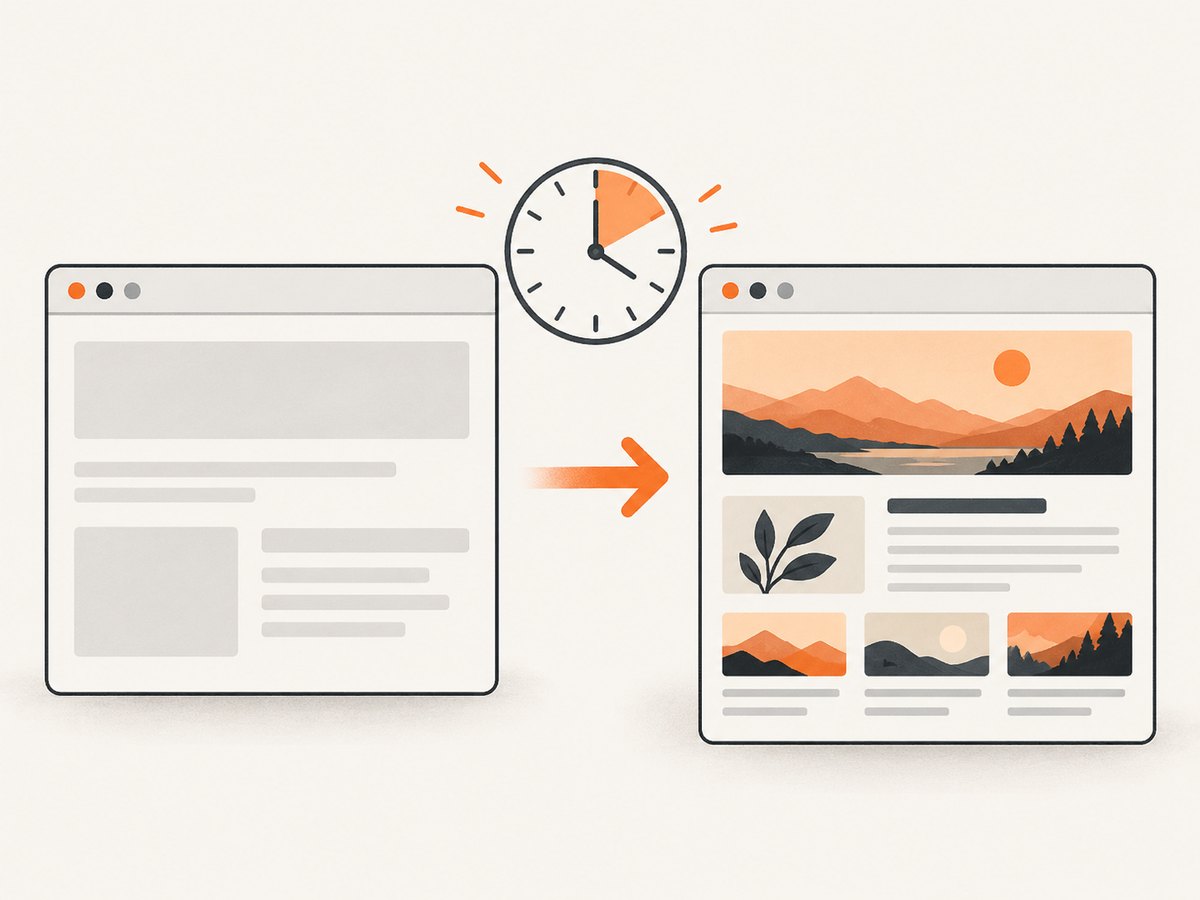
--timeout=MILLISECONDS sets a maximum wait before capture. Chrome captures when that limit is reached even if the page is still loading:
google-chrome --headless --screenshot --window-size=1440,900 --timeout=30000 https://example.comA longer timeout helps pages that need more time, but it cannot guarantee that asynchronous rendering, client-side data, animations, or lazy content has completed. If the page renders after the timeout, identify the page-specific readiness condition rather than endlessly increasing the value.
5. Account for Headless version changes
Headless behavior is version-sensitive. Chrome’s current documentation notes that the implementation changed in Chrome 112: Chrome can create platform windows without displaying them while retaining other browser functionality. Older tutorials may describe a separate Headless implementation or use obsolete flags. Start with the current Chrome Headless documentation and record:
- Chrome or Chromium version
- Operating system and architecture
- Exact executable path
- Complete command line
- Working directory
- Console output and exit status
Do not copy an old command unchanged when your installed version differs substantially.
6. Diagnose blank, incomplete, or different images
| Symptom | Likely area | What to check |
|---|---|---|
| No file appears | Launch or filesystem | Executable path, exit status, current directory, and write permission |
| File exists elsewhere | Working directory | The directory of the process that launched Chrome, especially in an IDE, service, or container |
| Image is too small | Viewport | --window-size=WIDTH,HEIGHT and responsive breakpoints |
| Page is cut off or unfinished | Timing | --timeout and whether the page renders asynchronously |
| Command behaves differently than expected | Version or process reuse | Chrome version and the effective command in chrome://version |
| Container launch fails | Runtime user and sandbox | Container user configuration and the exact error; do not add --no-sandbox reflexively |
The available official guidance does not establish one universal cause for a blank page. A reliable diagnosis needs the URL type, command, Chrome version, operating system, runtime context, and observed output.
7. Containers and sandbox configuration
When Chrome runs in a container, inspect the user and runtime setup first. The Headless Chrome shell documentation says --no-sandbox is unnecessary when the container is properly configured with a user: Headless Chrome shell.
Check the container’s effective user, current directory, executable, and write permissions. Treat disabling the sandbox as a deliberate environment decision, not a general screenshot repair.
8. A repeatable troubleshooting checklist
- Run the minimal command against
https://example.com. - Print the current directory before and after the command.
- Check the process exit status and terminal output.
- Verify that
screenshot.pngexists and is non-empty. - Confirm the Chrome executable path with
command -v, an explicit path, or PowerShell inspection. - Record the Chrome version.
- Inspect
chrome://versionfor the effective command line. - Add
--window-sizeif the viewport is wrong. - Increase
--timeoutwhen the page needs more time, while recognizing that it is only a maximum wait. - For containers, verify the configured user and writable directory before considering security-related flags.
9. Performance, reliability, and cost considerations
A local CLI capture uses your machine or container, so runtime depends on browser startup, network conditions, page complexity, and the timeout you choose. Reusing a controlled runtime can reduce startup overhead, while a fresh process makes arguments and working-directory behavior easier to audit.
For reliability, pin and record the Chrome version, use an explicit executable path, log the working directory, preserve stderr and exit codes, and validate that the output file is non-empty before publishing it. A timeout limits waiting; it is not a readiness test.
Chrome itself has no per-screenshot API charge in this workflow, but you still pay for compute, bandwidth, storage, and operational maintenance. If a page must be captured repeatedly, account for browser processes, retries, and failures in your own infrastructure.
10. Or skip the browser setup
ScreenshotNeo provides a website screenshot API and MCP server. One GET request returns PNG, JPEG, WebP, or PDF, while the service accepts consent banners before capture and removes more than 60 known consent platforms, newsletter popups, and chat widgets. Bot checks, blank pages, timeouts, failed loads, and cache hits are not billed; response headers identify the page verdict and whether the request was billed.
See the ScreenshotNeo API documentation for all options. A direct request looks like this:
cURL
curl -G "https://api.screenshotneo.com/v1/shot" -d access_key=YOUR_API_KEY --data-urlencode url=https://stripe.com -o shot.webpPython
import requests
r = requests.get("https://api.screenshotneo.com/v1/shot", params={"access_key": "YOUR_API_KEY", "url": "https://stripe.com"}, timeout=90)
open("shot.webp", "wb").write(r.content)
Node.js
const q = new URLSearchParams({ access_key: 'YOUR_API_KEY', url: 'https://stripe.com' });
const res = await fetch(`https://api.screenshotneo.com/v1/shot?${q}`);
ScreenshotNeo includes full-page and element capture, device presets and custom viewports, retina scale, dark mode, custom CSS and JavaScript, clicks, selector hiding, selector or network-idle waits, request blocking, headers, cookies, user agents, authorization, timezone, geolocation, transparent backgrounds, resizing, configurable caching, signed links, asynchronous jobs with signed webhooks, bulk capture for up to 100 URLs per call, usage reporting, and an OpenAPI specification. Its MCP server lets Claude, Cursor, and other MCP clients call take_screenshot, get_page_info, and capture_pdf.
There is a free plan with 1,000 screenshots per month and no card. Paid plans start at $5 for 3,000 screenshots; every feature is available on every plan. Create a free ScreenshotNeo account.
11. FAQ
Where does Chrome save a command-line screenshot?
By default, --screenshot saves screenshot.png in the process’s current working directory.
Does --timeout wait for every JavaScript request?
No. It sets a maximum wait before capture. A page can still be rendering when the limit is reached.
Why does an old Headless command stop working?
Headless behavior and supported switches vary by Chrome version. Chrome 112 changed the implementation, so compare older instructions with the current official documentation.
Should I always add --no-sandbox?
No. Check the container user and runtime configuration first; official Headless shell guidance says it is unnecessary when a user is properly configured.
What information should I include when asking for help?
Include the exact command, executable path, operating system, Chrome version, working directory, console output, exit status, URL type, and the resulting file or error.


