How to Fix Chrome Extension Background Page Load Errors in Headless Selenium
Fix Chrome extension load errors in headless Selenium by checking new headless mode, paths, versions, and Manifest V3 workers.
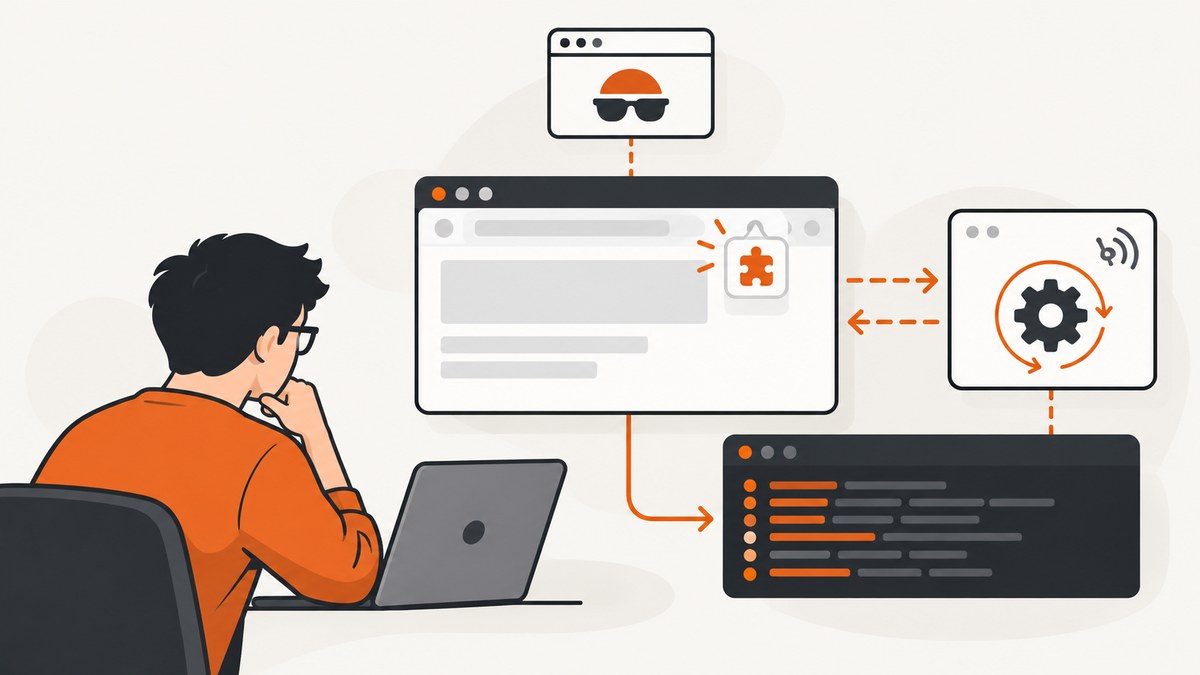
Use Chrome’s new headless mode first: add --headless=new to Selenium’s Chrome options. Chrome’s extension testing guidance says the old headless mode does not support loading extensions. Then verify that Selenium points to an unpacked extension directory containing manifest.json, confirm Chrome and ChromeDriver versions, and determine whether the extension uses a Manifest V2 background page or a Manifest V3 service worker.
A message such as “background page failed to load” is not a diagnosis by itself. It can indicate an unsupported headless mode, an incorrect extension path, a browser/driver startup mismatch, invalid manifest data, or a test that is observing a service worker incorrectly. Capture the complete error, exact Chrome and ChromeDriver versions, Selenium version, manifest version, extension directory, and every Chrome launch argument before changing several variables at once.
1. Start Chrome with the supported headless mode
Chrome’s official end-to-end extension testing guide says to start Chrome with --headless=new; the older headless implementation does not support loading extensions. Add the flag through Selenium’s Chrome options and check that a CI wrapper, Docker image, or shared fixture is not replacing it. See Chrome’s extension testing documentation.
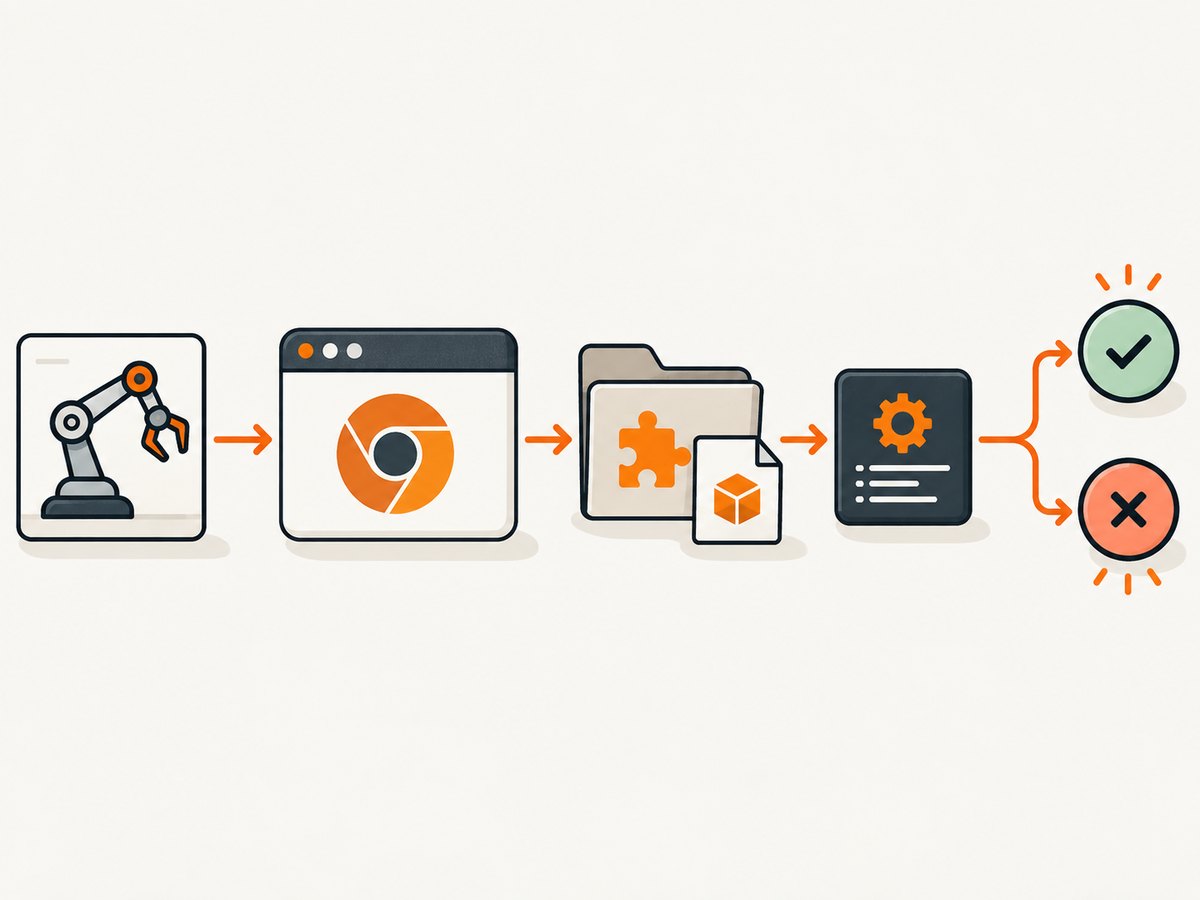
Python smoke test
from selenium import webdriver
from selenium.webdriver.chrome.options import Options

options = Options()
options.add_argument("--headless=new")
options.add_argument("--no-sandbox")
options.add_argument("--disable-dev-shm-usage")
options.add_argument("--load-extension=/absolute/path/to/unpacked-extension")

driver = webdriver.Chrome(options=options)
try:
    driver.get("https://example.com")
    print(driver.title)
finally:
    driver.quit()
--no-sandbox is commonly needed in restricted containers, while --disable-dev-shm-usage can help when a container has a small shared-memory mount. They do not repair an extension manifest or a version mismatch, so treat them as environment controls rather than a universal fix.
Java example
ChromeOptions options = new ChromeOptions();
options.addArguments("--headless=new");
options.addArguments("--load-extension=/absolute/path/to/unpacked-extension");
WebDriver driver = new ChromeDriver(options);
try {
    driver.get("https://example.com");
    System.out.println(driver.getTitle());
} finally {
    driver.quit();
}
Do not add both old and new headless flags. A base image or test framework may append --headless after your options. Print the final command line or inspect the driver capabilities to confirm which arguments are actually used.
2. Load the unpacked extension from the correct directory
Selenium documents Chrome’s load-extension argument for unpacked extensions. The value must be the extension root, not its parent directory, a ZIP file, or a nested build folder. The root should contain manifest.json directly.
extension-root/
├── manifest.json
├── background.js
├── popup.html
└── popup.js
Resolve an absolute path before launching. Relative paths can point somewhere different in a CI working directory. On Linux, check permissions and case-sensitive names. In a container, verify that the extension was copied into the same filesystem namespace as Chrome.
from pathlib import Path
extension = Path("extension-root").resolve()
manifest = extension / "manifest.json"
if not manifest.is_file():
    raise RuntimeError(f"Missing manifest: {manifest}")
options.add_argument(f"--load-extension={extension}")
If you use a custom Chrome profile, ensure the profile is writable and that another Chrome process is not holding its lock. For isolation, create a temporary profile per test run with --user-data-dir; never reuse a profile concurrently across workers.
3. Check Chrome, ChromeDriver, and Selenium versions
Selenium’s Chrome documentation states that ChromeDriver and Chrome browser versions should match; a mismatch causes driver errors. Record exact versions rather than labels such as “latest.” This check catches browser startup incompatibility, but a successful session does not prove that the extension itself loaded.
google-chrome --version
chromedriver --version
python -c "import selenium; print(selenium.__version__)"
With Selenium Manager, inspect the driver selected for the browser and preserve the browser image and driver resolution in CI logs. Upgrade or pin the browser and driver together. If the browser auto-updates while the driver remains cached, failures can appear suddenly between otherwise identical jobs. Read Selenium’s Chrome-specific documentation for the current options and compatibility guidance.
4. Determine whether the extension is Manifest V2 or V3
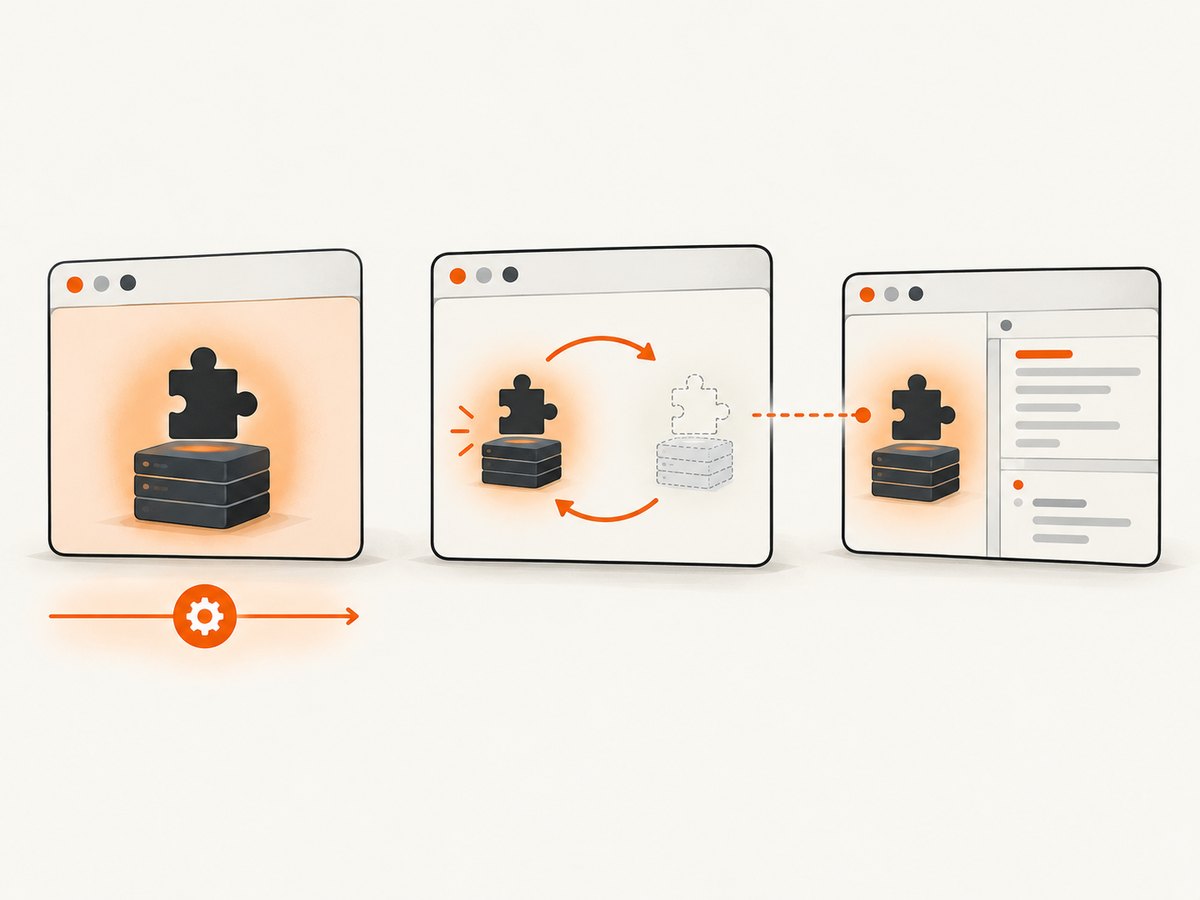
Manifest V3 replaces a persistent background page with an extension service worker. Chrome’s migration guide states: “In Manifest V3, background pages are replaced by a service worker.” The declaration is a single worker filename:
{
  "manifest_version": 3,
  "name": "Example extension",
  "version": "1.0.0",
  "background": {
    "service_worker": "background.js"
  },
  "action": {
    "default_popup": "popup.html"
  }
}
Do not carry the Manifest V2 pattern into V3:
{
  "background": {
    "scripts": ["background.js"],
    "persistent": true
  }
}
That older structure describes a background page and is not the MV3 declaration. Check the manifest syntax, ensure the worker file exists at the stated path, and remove unsupported keys according to Chrome’s service-worker migration guide and migration checklist.
Service-worker constraints that look like load failures
- A service worker has no DOM or
window. Move DOM work to a popup, content script, or an offscreen document when appropriate. - Register listeners synchronously at top level. Registering them after an asynchronous initialization can miss events.
- Use
fetchinstead ofXMLHttpRequest. - Persist state in extension storage. Globals disappear when the worker stops.
- Use alarms for work that must survive worker shutdown instead of relying on long timers.
- Expect the worker to stop when idle. “Background page” wording in a log may be generic and misleading for an MV3 extension.
These lifecycle differences are documented in Chrome’s MV3 material. A worker that becomes idle is not automatically an extension load error.
5. Prove that the extension loaded before testing its behavior
Separate three questions: did Chrome start, did the extension register, and did the extension perform the expected action? Add a minimal page-level assertion before testing network interception or UI behavior.
Chrome’s testing guide explains that Selenium cannot access a service worker through the direct approach shown for Puppeteer. Instead, navigate to an extension page such as chrome-extension://<id>/popup.html and execute code there when the extension exposes a suitable page.
driver.get("chrome-extension://EXTENSION_ID/popup.html")
assert "Expected marker" in driver.page_source
For an extension without a popup, expose a small diagnostic page only in test builds, or verify an observable side effect from a normal tab. Do not infer failure merely because a worker is not directly inspectable.
Chrome also notes that ChromeDriver attaches a debugger to service workers. That attachment can prevent workers from stopping as they normally would, so Selenium may observe a different lifecycle from ordinary browsing. Treat worker persistence during a test as an observation detail, not proof that production behavior is broken.
6. A repeatable troubleshooting sequence
- Save the evidence. Copy the full stack trace and ChromeDriver log. Record Chrome, ChromeDriver, Selenium, operating system, container image, manifest version, extension path, and complete arguments.
- Reduce the launch. Run one test with a fresh temporary profile,
--headless=new, and only--load-extension. Add other flags back one at a time. - Validate files. Confirm a readable root-level
manifest.json, every referenced script, and valid JSON. - Validate the manifest model. Check that MV2 uses its background-page declaration and MV3 uses one
background.service_workerstring. - Test headed mode as a diagnostic control. Run the same extension under a virtual display if your environment supports it. If behavior differs, report that as an observation from your reproduction; it does not establish a general cause.
- Test a blank extension. Load a minimal extension with a valid manifest and no worker logic. If it fails, focus on Chrome, driver, path, permissions, and flags. If it loads, reintroduce worker code incrementally.
- Inspect extension-page state. Use a popup or diagnostic page rather than assuming Selenium can attach directly to an MV3 worker.
7. Common errors, causes, and fixes
| Symptom | Likely area | Fix |
|---|---|---|
| Extension is ignored in headless CI | Old headless mode | Use --headless=new and verify no wrapper overrides it. |
| “Manifest file is missing” | Wrong path | Pass the absolute unpacked root containing manifest.json. |
| ChromeDriver session fails immediately | Browser/driver mismatch | Pin compatible Chrome and ChromeDriver versions and log both. |
| Worker script cannot start | MV3 declaration or JavaScript error | Use background.service_worker, verify the file path, and inspect browser logs. |
Code references window or the DOM |
Worker-only context | Move that code to a page, content script, or suitable offscreen document. |
| State disappears between events | Worker suspension | Persist state in extension storage and design for restart. |
| Test waits forever for a background page | MV3 lifecycle or wrong observation method | Use an extension page or an observable tab-side effect; do not wait for a persistent page. |
| Works locally, fails in CI | Path, permissions, profile, shared memory, or flags | Log the working directory and arguments, use a fresh profile, check file permissions, and review container resources. |
8. Reliability and performance practices
Use one browser process per isolated test profile when running in parallel. Reusing a profile can create extension locks and cross-test state. Keep the extension directory immutable during a run so a rebuild cannot replace files after Chrome starts.
Minimize startup flags and wait for a concrete readiness signal, such as a popup marker or a page-side effect, instead of sleeping for an arbitrary duration. For worker events, make handlers idempotent because a service worker can restart. Capture browser and driver logs on failure, and retain the exact manifest used by the failed job.
Headless mode usually reduces display overhead, but extension startup still adds work. Measure your own suite if startup time matters; the provided sources do not establish a universal speed difference. A virtual display is useful as a comparison environment, not as a documented replacement for --headless=new.
9. Or skip the browser setup
If your goal is a clean screenshot rather than testing extension behavior, ScreenshotNeo provides a website screenshot API and MCP server. The one-call request returns PNG, JPEG, WebP, or PDF. See the ScreenshotNeo documentation for all options.
curl -G "https://api.screenshotneo.com/v1/shot" -d access_key=YOUR_API_KEY --data-urlencode url=https://stripe.com -o shot.webpimport requests
r = requests.get("https://api.screenshotneo.com/v1/shot", params={"access_key": "YOUR_API_KEY", "url": "https://stripe.com"}, timeout=90)
open("shot.webp", "wb").write(r.content)const q = new URLSearchParams({ access_key: 'YOUR_API_KEY', url: 'https://stripe.com' });
const res = await fetch(`https://api.screenshotneo.com/v1/shot?${q}`);Before capture, ScreenshotNeo accepts cookie and consent banners and removes more than 60 known consent platforms, newsletter popups, and chat widgets; each step can be disabled. Bot checks, blank pages, timeouts, failed loads, and cache hits are not billed, and response headers identify the page verdict and billing result. Its MCP server provides take_screenshot, get_page_info, and capture_pdf for Claude, Cursor, and other MCP clients. One thousand screenshots per month are free with no card; paid plans start at $5 for 3,000 shots. Create a free ScreenshotNeo account.
10. FAQ
Does --headless=new fix every extension error?
No. It is the required headless mode for extension loading, but paths, versions, manifests, permissions, and worker code can still fail.
Can I use a ZIP file with load-extension?
Use an unpacked directory. Extract the archive and point the argument at the directory containing manifest.json.
Is an idle MV3 worker broken?
Not necessarily. MV3 workers can stop when idle and restart for events. Test restart-safe behavior rather than expecting a persistent background page.
Why can Selenium not inspect my worker directly?
Chrome’s extension testing guidance uses an extension page for Selenium and describes direct service-worker inspection for another tooling approach. Navigate to a popup or diagnostic page when available.
Should I switch to headed Chrome?
Use headed Chrome under a virtual display as a diagnostic comparison when needed. Keep --headless=new for the documented headless extension test path.


