How to Fix a Chrome Extension Scrolling Screenshot That Fails Silently
Fix silent scrolling screenshot failures in Chrome extensions: permissions, nested scrollers, throttling, lazy loading, stitching, limits, and reliable alternatives.
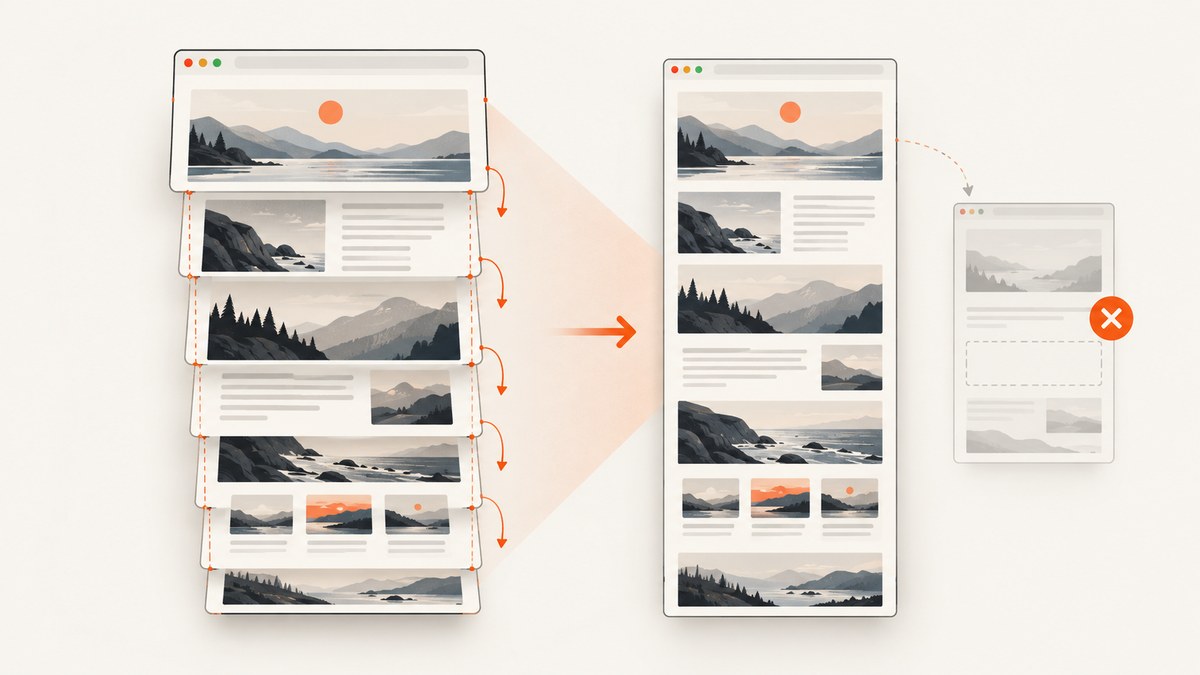
Most silent failures happen because chrome.tabs.captureVisibleTab() captures only the currently visible area. A full-page extension must identify the real scrolling element, scroll it in measured steps, wait for rendering and lazy loading, capture each viewport, and stitch the strips. Chrome also limits this API to two calls per second, so an unthrottled loop can fail or return incomplete output.
This guide shows a reliable Manifest V3 approach, explains the browser restrictions that cannot be bypassed, and gives a hosted option when you do not want to maintain extension capture code.
1. Confirm what the API actually captures
Chrome documents tabs.captureVisibleTab() as capturing “the visible area of the currently active tab in the specified window.” It is not a full-page screenshot API. The extension also needs activeTab for a user-invoked capture or all_urls for broader access.
Start by checking these conditions:
- The call runs in an extension context such as a service worker, not arbitrary page JavaScript.
- The tab is active when you call
captureVisibleTab. - Your manifest contains the permission required by your workflow.
- You handle rejected promises and
chrome.runtime.lastError. - You wait between captures and do not capture directly from every scroll event.
2. Use a minimal Manifest V3 extension
{
  "manifest_version": 3,
  "name": "Reliable Scrolling Screenshot",
  "version": "1.0.0",
  "permissions": ["activeTab", "scripting"],
  "background": {"service_worker": "service-worker.js", "type": "module"},
  "action": {"default_title": "Capture page"},
  "commands": {
    "capture-page": {
      "suggested_key": {"default": "Ctrl+Shift+Y"},
      "description": "Capture the page"
    }
  }
}
Use all_urls instead of activeTab only when the extension genuinely needs access to arbitrary pages without a user gesture. For local files, the user must enable Allow access to file URLs on the extension details page.
3. Find the real scrolling container
document.body is often not the scroller. Dashboards, editors, mail clients, and document viewers commonly place the scroll position on a nested element. Inject this detector and inspect the returned candidates:
function getScrollableCandidates() {
  const result = [];
  for (const el of document.querySelectorAll('*')) {
    const style = getComputedStyle(el);
    const canScroll = /(auto|scroll)/.test(style.overflowY) &&
      el.scrollHeight > el.clientHeight + 4;
    if (canScroll) {
      result.push({
        element: el,
        tag: el.tagName,
        id: el.id,
        className: el.className,
        scrollTop: el.scrollTop,
        scrollHeight: el.scrollHeight,
        clientHeight: el.clientHeight
      });
    }
  }

  const root = document.scrollingElement;
  if (root && root.scrollHeight > root.clientHeight + 4) {
    result.unshift({
      element: root,
      tag: root.tagName,
      id: root.id,
      className: root.className,
      scrollTop: root.scrollTop,
      scrollHeight: root.scrollHeight,
      clientHeight: root.clientHeight
    });
  }
  return result;
}

console.table(getScrollableCandidates().map(({element, ...info}) => info));
Choose the candidate whose scrollTop changes when you scroll the page. If several containers move, capture the one containing the content you need. An iframe requires separate handling: inject code into the frame only when the frame is accessible and your host permissions allow it.
4. Scroll, settle, capture, and repeat
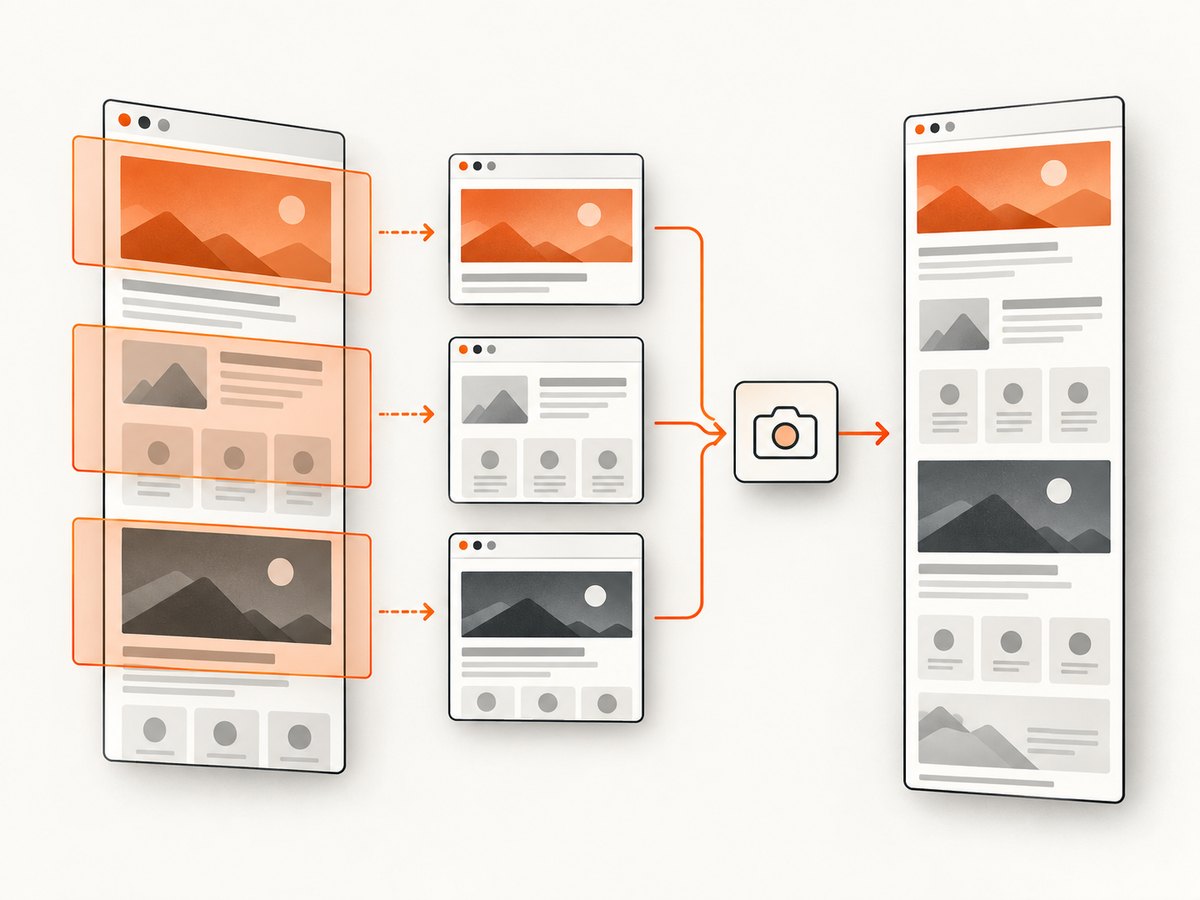
The following content-script function scrolls a selected container and reports exact positions. It leaves the actual screenshot call to the service worker so the extension uses the API from the correct context.
function wait(ms) {
  return new Promise(resolve => setTimeout(resolve, ms));
}

async function waitForImages(root, timeoutMs = 5000) {
  const images = [...root.querySelectorAll('img')].filter(img => !img.complete);
  if (!images.length) return;
  await Promise.race([
    Promise.all(images.map(img => new Promise(resolve => {
      img.addEventListener('load', resolve, {once: true});
      img.addEventListener('error', resolve, {once: true});
    }))),
    wait(timeoutMs)
  ]);
}

async function collectScrollPositions(scroller) {
  const viewport = scroller.clientHeight;
  const maxTop = Math.max(0, scroller.scrollHeight - viewport);
  const overlap = Math.min(80, Math.floor(viewport * 0.1));
  const step = Math.max(1, viewport - overlap);
  const positions = [];
  for (let top = 0; top <= maxTop; top += step) positions.push(Math.min(top, maxTop));
  if (positions.at(-1) !== maxTop) positions.push(maxTop);

  const strips = [];
  for (const top of [...new Set(positions)]) {
    scroller.scrollTop = top;
    await wait(150); // allow layout and paint
    await waitForImages(scroller);
    await wait(150); // allow lazy rows and animations to settle
    strips.push({top, viewport, maxTop});
  }
  return strips;
}
For a page scroller, use document.scrollingElement. For an inner scroller, pass the matching element. Virtualized lists may unload earlier rows as you move; in that case, capture immediately after each render and use a larger settle delay or a page-specific readiness selector.
5. Capture from the service worker and surface every error
async function captureVisible(windowId) {
  try {
    const dataUrl = await chrome.tabs.captureVisibleTab(windowId, {
      format: 'png'
    });
    return dataUrl;
  } catch (error) {
    const message = chrome.runtime.lastError?.message || error?.message || String(error);
    throw new Error(`captureVisibleTab failed: ${message}`);
  }
}

chrome.runtime.onMessage.addListener((message, sender, sendResponse) => {
  if (message.type !== 'capture-visible') return;
  captureVisible(sender.tab.windowId)
    .then(dataUrl => sendResponse({ok: true, dataUrl}))
    .catch(error => sendResponse({ok: false, error: error.message}));
  return true;
});
From the content script, request one capture only after the scroll position has settled:
function captureVisible() {
  return new Promise((resolve, reject) => {
    chrome.runtime.sendMessage({type: 'capture-visible'}, response => {
      const runtimeError = chrome.runtime.lastError;
      if (runtimeError) return reject(new Error(runtimeError.message));
      if (!response?.ok) return reject(new Error(response?.error || 'Unknown capture error'));
      resolve(response.dataUrl);
    });
  });
}
6. Throttle to Chrome’s two-calls-per-second limit
Chrome labels MAX_CAPTURE_VISIBLE_TAB_CALLS_PER_SECOND as 2 because capture is expensive. A 600 ms delay gives the browser additional room for rendering:
async function captureWithThrottle(windowId, minInterval = 600) {
  const now = Date.now();
  const waitFor = Math.max(0, (captureWithThrottle.last || 0) + minInterval - now);
  if (waitFor) await new Promise(resolve => setTimeout(resolve, waitFor));
  try {
    return await chrome.tabs.captureVisibleTab(windowId, {format: 'png'});
  } finally {
    captureWithThrottle.last = Date.now();
  }
}
Do not start a second capture while the first promise is pending. Queue requests and process them serially.
7. Stitch overlapping strips correctly
Each screenshot is a viewport-sized strip. Stitching should remove the overlap, use CSS coordinates consistently, and multiply canvas dimensions by the device-pixel ratio when the captured bitmap is larger than the CSS viewport.
async function loadImage(dataUrl) {
  const image = new Image();
  image.src = dataUrl;
  await image.decode();
  return image;
}

async function stitch(strips, overlapCss = 80) {
  const images = await Promise.all(strips.map(s => loadImage(s.dataUrl)));
  if (!images.length) throw new Error('No strips to stitch');

  const scale = images[0].width / strips[0].viewport;
  const width = images[0].width;
  const totalCssHeight = strips.at(-1).maxTop + strips.at(-1).viewport;
  const canvas = new OffscreenCanvas(width, Math.ceil(totalCssHeight * scale));
  const ctx = canvas.getContext('2d');

  for (let i = 0; i < images.length; i++) {
    const strip = strips[i];
    const image = images[i];
    const sourceY = i === 0 ? 0 : Math.round(overlapCss * scale);
    const destinationY = Math.round(strip.top * scale);
    const sourceHeight = image.height - sourceY;
    ctx.drawImage(image, 0, sourceY, image.width, sourceHeight,
      0, destinationY, width, sourceHeight);
  }
  return canvas.convertToBlob({type: 'image/png'});
}
Fixed headers, sticky toolbars, parallax effects, and animations can appear in every strip. Before capture, inject temporary CSS that disables transitions and animations, and hide or make fixed elements static. Restore the original styles after the final capture. For a page with a sticky header, either subtract its height from every later strip or hide it during capture.
8. Browser pages and output limits
- Chrome settings, the Web Store, and New Tab are protected browser pages. Extensions cannot capture them.
file://pages require the user to enable file URL access in extension settings.- Cross-origin iframes cannot be inspected like same-origin content. Capture the visible tab or use permissions and frame-specific injection where allowed.
- FullPage Capture’s help documentation reports a single-image limit of 28,800 pixels per side or about 259 million pixels of area. Split very long pages into parts or export a paginated PDF when your canvas would exceed that limit.
- Use JPEG when file size matters and the page has few sharp edges; use PNG for text, diagrams, and transparency.
9. A dependable end-to-end capture sequence
- Validate the tab URL and permissions.
- Inject a script that identifies the correct scroller.
- Freeze animations and record the original scroll position.
- Scroll to each position with overlap.
- Wait for paint, images, virtualized content, and the page-specific readiness signal.
- Capture serially, waiting at least 500 ms between calls.
- Stitch strips using device-pixel-ratio aware coordinates.
- Restore the scroll position and page styles.
- Save metadata such as URL, viewport size, scale, positions, and errors with the output.
10. Troubleshooting silent failures
| Symptom | Likely cause | Fix |
|---|---|---|
| Nothing happens and no error is shown | Rejected promise or runtime.lastError was ignored |
Use try/catch, inspect chrome.runtime.lastError, and return an explicit response. |
| Only the first viewport is captured | captureVisibleTab was treated as a full-page API |
Scroll, wait, capture each strip, then stitch. |
| Every strip looks identical | The wrong element was scrolled, or the page ignored programmatic scrolling | Measure scrollTop before and after scrolling; select the nested scroller and verify its content changes. |
| Blank or partially rendered strips | Capture happened before paint, image loading, or virtualized rows completed | Add a settle delay, wait for images or a selector, and disable animations. |
| “Tabs cannot be captured” or permission errors | Missing activeTab/all_urls, inactive tab, or protected page |
Use a user gesture, add the needed permission, activate the tab, and skip protected browser pages. |
| Intermittent quota errors | More than two capture calls per second or overlapping requests | Serialize calls and throttle to 500 ms or slower. |
| Repeated headers or toolbars | Sticky or fixed elements remain visible in every strip | Temporarily hide or neutralize them, or crop the overlap during stitching. |
| Missing lazy-loaded content | The page loads content only after scrolling and the delay is too short | Wait after each scroll, wait for a readiness selector, and verify the DOM or image state. |
| Canvas export fails | Canvas dimensions exceed browser or product limits | Split the capture, lower scale, use JPEG, or generate a paginated PDF. |
11. Performance, reliability, and cost considerations
- Performance: fewer, larger scroll steps reduce API calls, but too little overlap creates seams. Measure the viewport and choose an overlap around 10% as a starting point.
- Reliability: wait on observable conditions rather than a single fixed delay when possible. Record each scroll position and capture error so a failed strip can be retried.
- Memory: very tall PNG canvases consume substantial memory. Stitch in sections or export pages when the output is unusually large.
- Privacy: extension capture keeps the page in the browser, but any upload, sync, or remote processing that you add becomes part of your data handling.
- Cost: local extension capture has no API charge, while hosted capture trades browser maintenance for a per-shot service cost. Estimate calls from page height, viewport height, overlap, retries, and scheduled runs.
12. One-off and extension alternatives
For a single manual image, open DevTools, use the Command Menu, and choose Capture full size screenshot. For repeated captures that need inner-scroll support, annotation, or PDF export, a dedicated full-page screenshot extension such as FullPage Capture can be considered after checking its current limits and permissions.
13. Or skip the browser setup
ScreenshotNeo provides a website screenshot API and MCP server. One GET request returns PNG, JPEG, WebP, or PDF, so your application does not need to manage an active Chrome tab, scrolling loop, canvas stitching, or extension permissions. Its capture flow accepts cookie and consent banners before the shot and removes more than 60 known consent platforms, newsletter popups, and chat widgets. Bot checks, blank pages, timeouts, failed loads, and cache hits are not billed, and response headers identify the page verdict and billing result.

See the ScreenshotNeo API documentation for the full option set, including full-page capture, CSS-element capture, device presets, retina scale, PDF paper and margin settings, custom CSS and JavaScript, click and wait actions, request blocking, headers, cookies, user agents, authorization, timezone, geolocation, transparent backgrounds, resizing, caching, signed links, async webhooks, bulk capture, usage reporting, and MCP tools for AI clients.
cURL
curl -G "https://api.screenshotneo.com/v1/shot" \
  -d access_key=YOUR_API_KEY \
  --data-urlencode url=https://stripe.com \
  -o shot.webp
Python
import requests

r = requests.get(
    "https://api.screenshotneo.com/v1/shot",
    params={"access_key": "YOUR_API_KEY", "url": "https://stripe.com"},
    timeout=90,
)
r.raise_for_status()
open("shot.webp", "wb").write(r.content)
Node.js
const q = new URLSearchParams({
  access_key: 'YOUR_API_KEY',
  url: 'https://stripe.com'
});
const res = await fetch(`https://api.screenshotneo.com/v1/shot?${q}`);
if (!res.ok) throw new Error(`Screenshot failed: ${res.status}`);
const buffer = Buffer.from(await res.arrayBuffer());
require('node:fs').writeFileSync('shot.webp', buffer);
ScreenshotNeo has an MCP server with take_screenshot, get_page_info, and capture_pdf tools for Claude, Cursor, and other MCP clients. The Free plan includes 1,000 shots each month with no card; paid plans start at $5 for 3,000 shots, and every feature is available on every plan.
Create a free ScreenshotNeo account and get 1,000 screenshots a month with no card.
14. FAQ
Can captureVisibleTab capture a hidden or inactive tab?
It captures the visible area of the active tab in the specified window. Activate the tab and design the workflow around that restriction.
Why does scrolling the window do nothing?
The page probably uses a nested scrolling element. Find the element whose scrollTop changes and scroll that element.
Should I use a screenshot on every scroll event?
No. Debounce scrolling, wait for layout and lazy content, then capture from a serialized queue that respects Chrome’s two-per-second limit.
When is PDF a better output?
Use a paginated PDF for extremely tall documents or when a single raster canvas would exceed browser or image-size limits.


