How to Fix “Chrome Failed to Start: Crashed” in Headless Mode
Diagnose Chrome headless crashes with version checks, logs, minimal launch tests, container fixes, and safer alternatives.
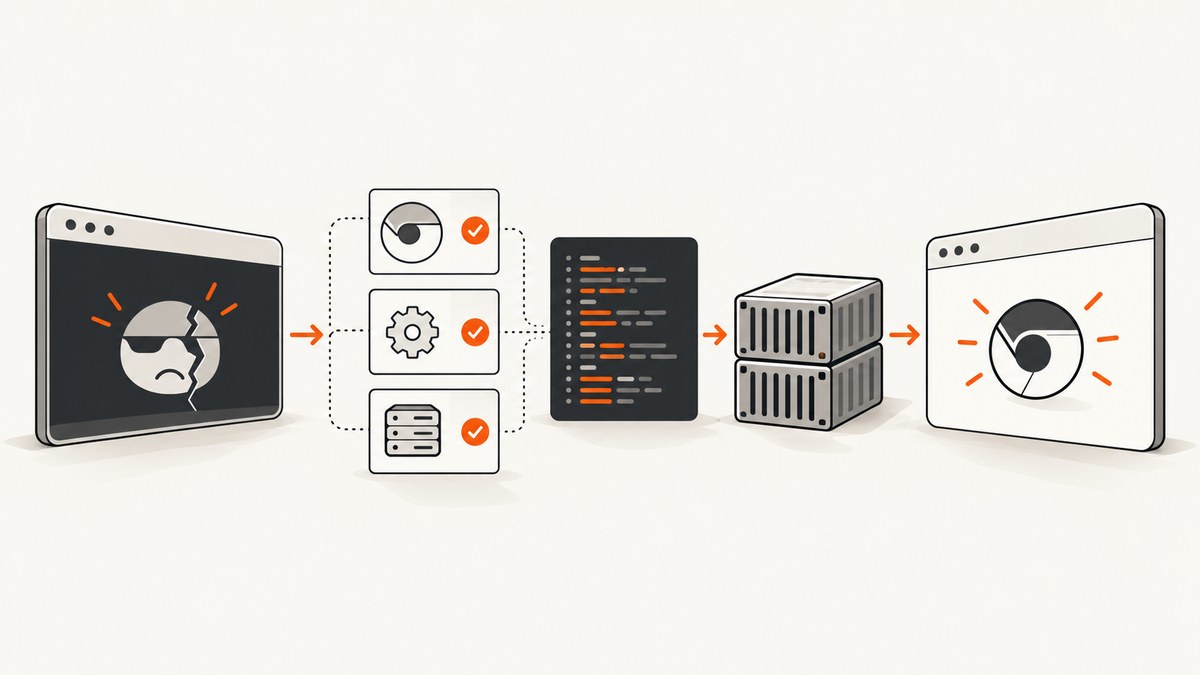
“Chrome failed to start: crashed” is a startup symptom, not a diagnosis. The dependable fix is to identify the browser binary, ChromeDriver version, operating environment, and full startup log, then change one relevant condition at a time. A copied collection of flags may hide the cause and still fail.
Use this order:
- Record the operating system, container or CI runner, automation framework, Chrome path and version, ChromeDriver version, and complete logs.
- Verify that Chrome and ChromeDriver are compatible.
- Confirm that your framework launches the intended binary.
- Compare a minimal headed launch with a minimal
--headlesslaunch. - Apply environment-specific changes, such as a sandbox adjustment in a constrained container, only when the logs support them.
- Retest with the smallest change and preserve the before-and-after output.
What the error means
ChromeDriver starts a Chrome process and waits for it to become ready. If Chrome exits before the debugging endpoint is available, ChromeDriver reports a generic crash. Some environments also show DevToolsActivePort file doesn't exist. That message often accompanies an early exit, but it does not identify one universal cause.
Headless mode runs Chrome without visible UI. Chrome’s official documentation describes it as running “in an unattended environment, without any visible UI.” Modern Chrome uses the unified browser implementation for headed and headless operation; Chrome 112 changed how headless windows are created, and since Chrome 132 the old implementation is available only through the separate chrome-headless-shell binary. If a framework explicitly requests that old shell, verify that the binary is installed and configured.
Start with evidence rather than adding flags. Chrome’s Headless mode guide and ChromeDriver version-selection guide are the primary references for launch behavior and version matching.
Step 1: Capture the environment and logs
Save this information from the failing machine or CI job:
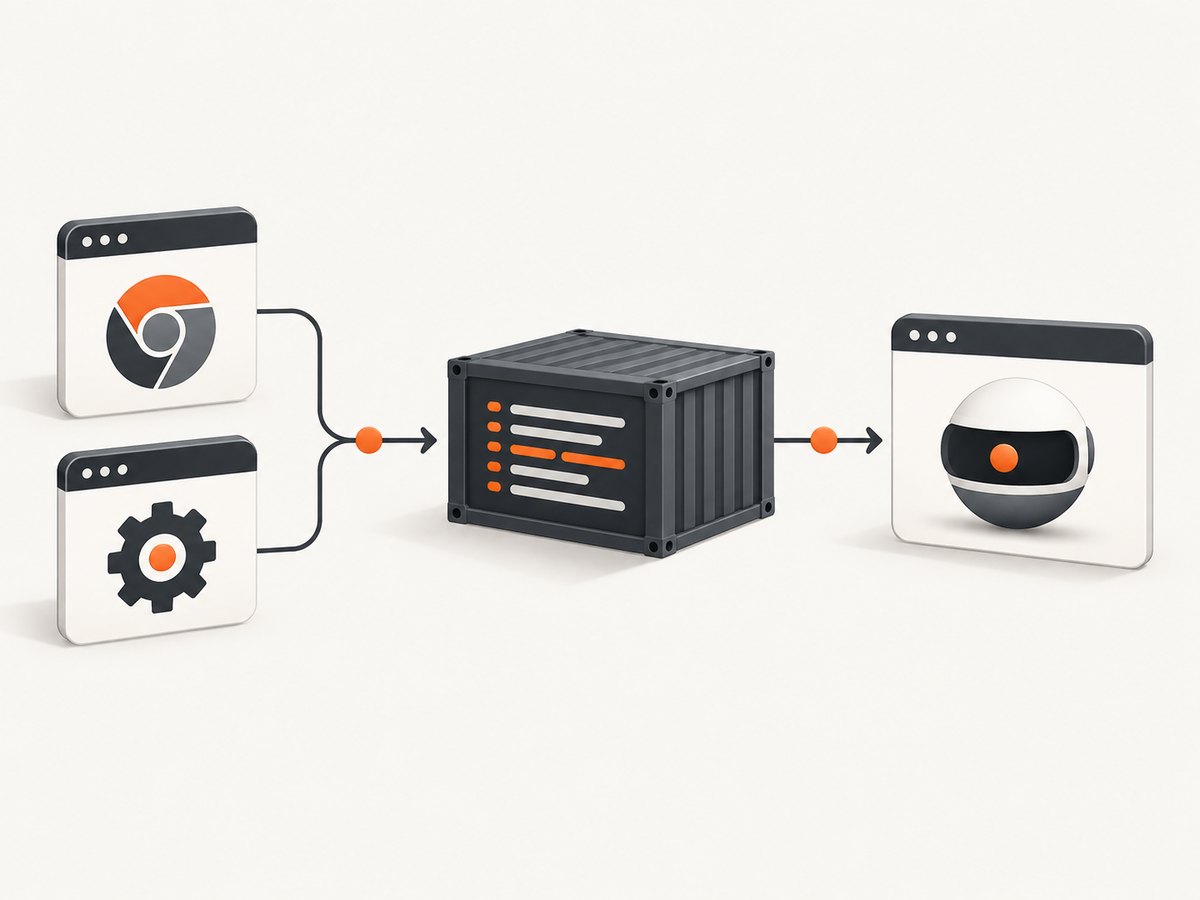
- Operating system and architecture.
- Container image, CI provider, or local desktop context.
- Automation framework and version.
- Chrome executable path and complete version.
- ChromeDriver executable path and complete version.
- Every argument passed to Chrome.
- ChromeDriver service log and Chrome stderr output.
- Whether headed mode works with the same binary and profile settings.
# Linux examples
which google-chrome || which google-chrome-stable || which chromium
which chromedriver
google-chrome --version 2>&1 || google-chrome-stable --version 2>&1
chromedriver --version
uname -a

# Check common container limits
cat /etc/os-release
 df -h /dev/shm
 id
Do not infer a root cause from the text of the exception alone. The same message appears with incompatible versions, an incorrect executable path, missing permissions, sandbox restrictions, resource limits, and framework-specific launch settings.
Step 2: Match Chrome and ChromeDriver
For Chrome 115 and newer, use the corresponding Chrome for Testing releases and artifacts documented by Google. If you use a non-CfT Chrome installation, use the documented milestone and build JSON endpoints to select a matching driver. Earlier Chrome releases use older version-selection rules.
Matching versions is necessary but not sufficient. A compatible pair can still fail because the process cannot read its profile, cannot create temporary files, lacks shared memory, or is pointed at a different binary than the one you inspected. Print the paths that your framework actually passes to ChromeDriver and Chrome.
Step 3: Run a minimal launch test
Remove extensions, custom profiles, proxy settings, experimental options, and unrelated flags. Test the smallest configuration that your framework supports. Then add your production options back one at a time.
Python with Selenium
from selenium import webdriver
from selenium.webdriver.chrome.options import Options
from selenium.webdriver.chrome.service import Service

options = Options()
options.add_argument('--headless')
options.add_argument('--window-size=1280,900')
# Set this only when Chrome is not on PATH:
# options.binary_location = '/usr/bin/google-chrome'

service = Service(log_output='chromedriver.log')
driver = webdriver.Chrome(service=service, options=options)
try:
    driver.get('https://example.com')
    print(driver.title)
finally:
    driver.quit()
First remove --headless and run the same script. If headed mode fails too, investigate the binary, permissions, profile, and environment before treating this as a headless-specific issue. If only headless fails, compare the logs and Chrome version behavior before changing flags.
Node.js with Puppeteer
import puppeteer from 'puppeteer';

const browser = await puppeteer.launch({
  headless: true,
  dumpio: true,
  args: ['--window-size=1280,900']
});

try {
  const page = await browser.newPage();
  await page.goto('https://example.com', { waitUntil: 'domcontentloaded' });
  console.log(await page.title());
} finally {
  await browser.close();
}
Puppeteer normally manages a compatible browser revision. If you set executablePath, confirm that it points to the intended Chrome and that the binary can run as the service user.
Step 4: Check the launch environment
Executable path and permissions
A frequent failure is inspecting one Chrome installation while the framework launches another. Print the resolved path, make sure it is executable, and run that exact binary under the same account as the automation process. Avoid sharing a locked or partially initialized user profile between parallel jobs; use a fresh temporary profile per session.
Sandbox restrictions
Chrome’s sandbox protects the host. In some constrained container environments, the sandbox cannot initialize. Travis CI documents a container case that produces the exact “Chrome failed to start: crashed” message and recommends --no-sandbox for that environment. This is a conditional workaround, not a universal fix. Disabling the sandbox lowers isolation, so first investigate user permissions, kernel settings, container security policy, and the Chrome stderr log.
options.add_argument('--no-sandbox')
Use this only when your environment matches the documented limitation or your logs clearly show a sandbox initialization failure. Do not add it merely because a forum post lists it.
Shared memory and temporary storage
Containers commonly provide a small /dev/shm. Chrome can exit when shared-memory allocation fails. Measure the mount and increase it in the container runtime when possible. Some teams use --disable-dev-shm-usage to make Chrome use temporary files instead; that can avoid a small shared-memory mount but may be slower and shifts pressure to the filesystem.
# Docker example: prefer a larger shared-memory mount
 docker run --shm-size=1g your-image
Treat this as an environment choice. Test the smallest change and inspect resource metrics rather than adding both memory workarounds automatically.
Display and headless selection
Headless Chrome does not require an X server. If you are using headed mode in Linux CI, you need a display or a virtual display such as Xvfb. Conversely, forcing an old headless shell can fail if chrome-headless-shell is not installed. Check your framework’s headless setting and whether it selects the current Chrome binary or the separate shell.
Step 5: Compare fixes by evidence
| Observed evidence | Likely branch | Next action | Security or reliability note |
|---|---|---|---|
| Chrome and driver milestones differ | Compatibility | Install a corresponding release using Google’s version-selection guidance | Pin versions in CI so dynamic updates do not silently change the pair |
| Chrome path differs from the inspected binary | Launch configuration | Print and correct the executable path | Use an explicit path only when needed |
| Sandbox errors in a constrained container | Environment policy | Fix container permissions or conditionally use --no-sandbox |
Sandbox disabling reduces isolation |
| Shared-memory or filesystem errors | Resource limit | Increase /dev/shm or evaluate --disable-dev-shm-usage |
Filesystem fallback can be slower |
| Only old headless mode fails | Binary selection | Use current headless mode or install/configure chrome-headless-shell |
Keep the selected implementation explicit |
| Failure follows a large flag list | Conflicting configuration | Reduce to a minimal launch and add arguments individually | Each change remains attributable |
Common errors and fixes
“DevToolsActivePort file doesn’t exist”
This usually means Chrome exited before ChromeDriver could connect. Check the Chrome stderr log, profile directory permissions, executable path, sandbox status, and temporary storage. Do not assume that adding --remote-debugging-port or a long list of flags fixes it.
Headless fails but headed works
Confirm the Chrome version and headless implementation. Remove custom window, profile, extension, and GPU settings, then retest with only --headless. A historical Selenium report on Ubuntu found a version-specific failure that disappeared when the headless argument was removed; that report is evidence about that old setup, not proof that current headless Chrome is generally broken.
Both modes fail after a browser update
Compare the newly installed Chrome milestone with ChromeDriver, inspect the actual executable path, and pin a known-compatible pair while you investigate. CI systems that install “stable” dynamically can change behavior between runs.
It works locally but fails in Docker or CI
Compare the service user, filesystem permissions, sandbox policy, /dev/shm size, CPU and memory limits, and installed libraries. Capture the same version and startup data in both environments. Travis CI notes that browser channels can change as Google publishes updates, so record the resolved versions in every build.
A copied flag list still crashes
A Selenium Docker issue documents a crash despite many commonly recommended arguments, including headless, shared-memory, and sandbox flags. The lesson is diagnostic: common flags do not establish a cause. Remove them, reproduce with a minimal launch, and add only the option supported by your logs.
Reliability and performance practices
- Pin browser and driver versions. Rebuild deliberately when upgrading rather than downloading an unpinned “latest” binary during every job.
- Use one temporary profile per session. This avoids lock files and cross-test state.
- Set explicit timeouts. Separate process-start timeout, navigation timeout, and script timeout so a slow page is distinguishable from a crash.
- Collect logs on failure. Keep ChromeDriver output, Chrome stderr, container limits, and resolved versions as CI artifacts.
- Limit parallelism to available resources. More browser processes increase memory, shared-memory, and file-descriptor pressure.
- Prefer a larger
/dev/shmmount. Filesystem fallback may work but can reduce throughput. - Retest after each change. A single-variable experiment makes rollback and incident review possible.
There is no reliable universal success rate or single best flag for this error. The available documentation and issue reports cover different Chrome versions and environments, so your logs determine the remedy.
Or skip the browser setup
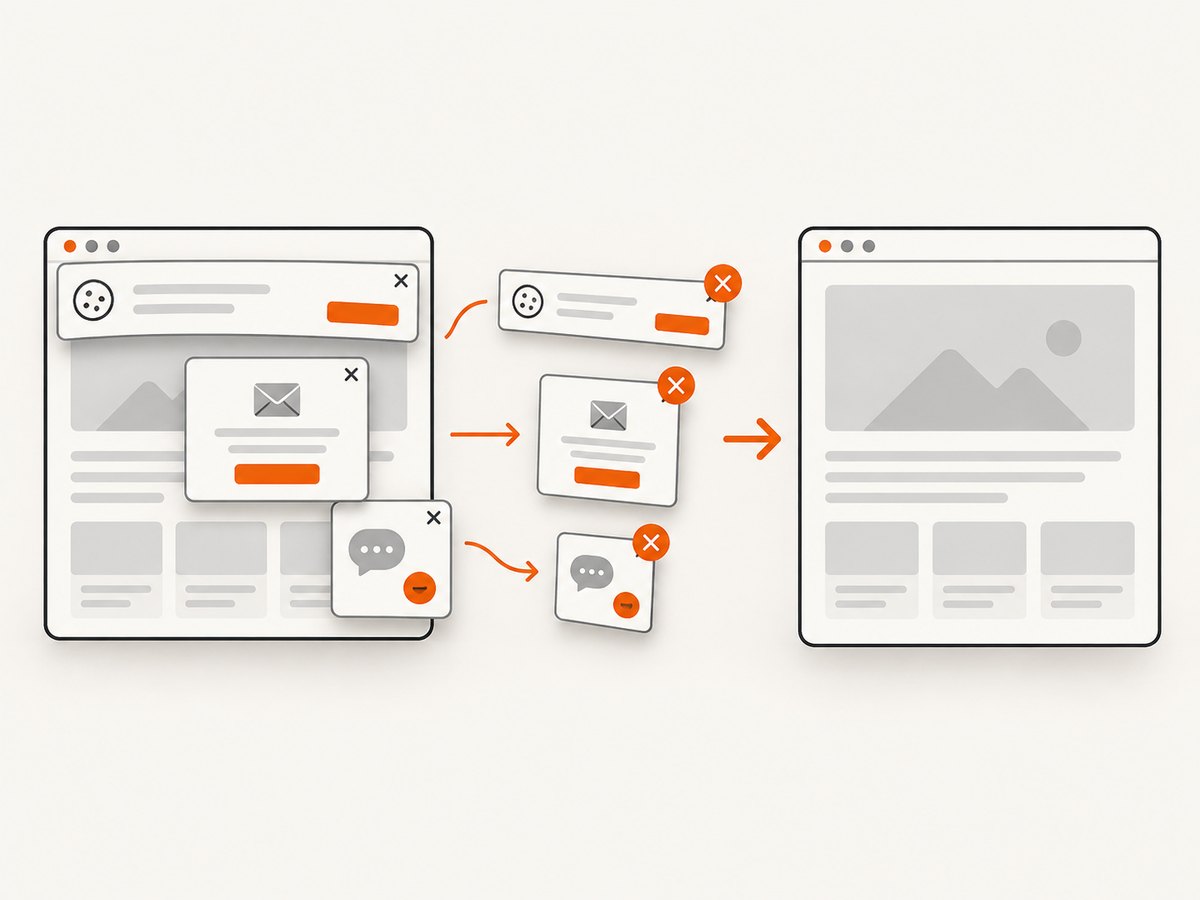
If your goal is a rendered image or PDF rather than controlling Chrome itself, ScreenshotNeo provides a single website screenshot API request. Its capture service accepts cookie and consent banners like a visitor, then removes more than 60 known consent platforms, newsletter popups, and chat widgets before the shot; each cleanup step can be turned off. Bot checks or CAPTCHAs, blank pages, timeouts, failed loads, and cache hits are not billed, and the response identifies the result with X-Page-Verdict and X-Billed headers.
See the ScreenshotNeo API documentation for the complete option list. The basic call returns PNG, JPEG, WebP, or PDF:
cURL
curl -G 'https://api.screenshotneo.com/v1/shot' \
  -d access_key=YOUR_API_KEY \
  --data-urlencode url=https://stripe.com \
  -o shot.webp
Python
import requests

r = requests.get(
    'https://api.screenshotneo.com/v1/shot',
    params={'access_key': 'YOUR_API_KEY', 'url': 'https://stripe.com'},
    timeout=90,
)
r.raise_for_status()
open('shot.webp', 'wb').write(r.content)
Node.js
const q = new URLSearchParams({ access_key: 'YOUR_API_KEY', url: 'https://stripe.com' });
const res = await fetch(`https://api.screenshotneo.com/v1/shot?${q}`);
if (!res.ok) throw new Error(`HTTP ${res.status}`);
const data = Buffer.from(await res.arrayBuffer());
await Bun.write('shot.webp', data);
ScreenshotNeo also supports full-page capture with lazy images loaded, CSS-element capture, dark mode, 12 device presets or custom viewports, retina scale, PDF paper size and page ranges, HTML/CSS rendering, custom CSS and JavaScript, clicks, selector or network-idle waits, request and resource blocking, headers, cookies, user agents, Authorization, timezone, geolocation, transparent backgrounds, resizing, cache TTLs, signed links, asynchronous jobs with signed webhooks, bulk capture of up to 100 URLs per call, a usage API, and an OpenAPI specification. An MCP server exposes take_screenshot, get_page_info, and capture_pdf for Claude, Cursor, and other MCP clients.
There are 1,000 screenshots per month free with no card. Paid plans start at $5 for 3,000 shots, and yearly billing gives two months free. Create a free ScreenshotNeo account.
FAQ
Should I always add --no-sandbox?
No. Use it only when the container or security policy prevents Chrome’s sandbox from starting and you understand the isolation tradeoff. Otherwise fix the environment or permissions.
Does a matching ChromeDriver guarantee success?
No. It removes one compatibility failure mode. Paths, profiles, permissions, resource limits, sandbox policy, and missing dependencies can still stop Chrome before startup.
Is --headless=new required?
Do not assume so. Current Chrome has unified headless and headful implementations. Follow your framework and Chrome version documentation, and verify whether an old headless shell is being selected.
What should I attach to a bug report?
Include the exact error, Chrome and ChromeDriver versions, executable paths, framework version, operating environment, complete startup logs, arguments, and whether a minimal headed launch succeeds.
Can I avoid maintaining ChromeDriver?
Yes, by using a service such as ScreenshotNeo for screenshot or PDF output, or a framework that manages its own browser revision. You still need browser automation when you require arbitrary interaction beyond capture.


