How to Fix Chrome GPU Process Crashes in Headless Mode with ChromeDriver
Diagnose ChromeDriver, Chrome startup, and GPU subprocess crashes with evidence-led checks for versions, flags, drivers, sandboxing, and headless mode.
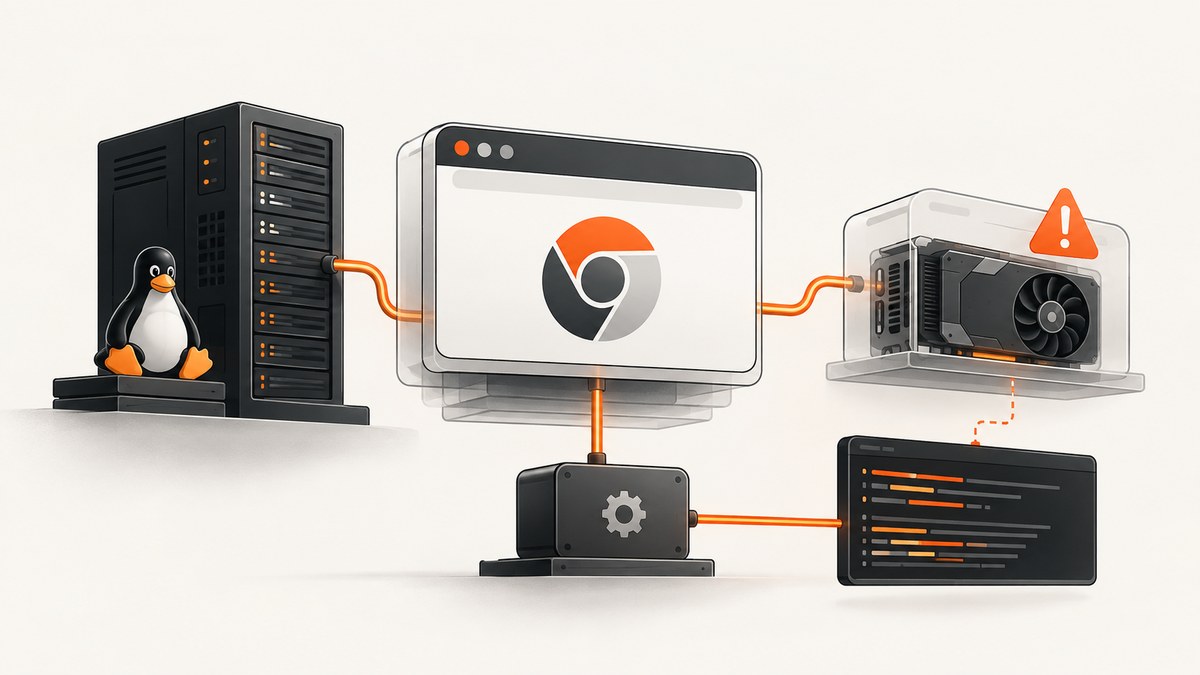
Headless Chrome GPU failures are easier to fix when you first identify which process failed. A ChromeDriver executable crash, Chrome failing to start, Chrome closing after startup, and a child process named --type=gpu-process repeatedly exiting are different problems. They can produce similar Selenium errors but require different evidence and remedies.
This guide gives you a diagnostic workflow for ChromeDriver and modern Headless Chrome. It covers direct reproduction, command-line inspection, chrome://gpu, Linux users and sandboxes, driver and renderer issues, version-specific flags, reproducible Selenium launches, and bug reports. The sources do not support one universal flag that fixes every GPU crash.
1. Identify the process that actually crashed
Start with the process name in the log, operating-system event, container output, or test runner exception. Record the exact timestamp and the last successful browser action.
| Observed failure | What it means | First check |
|---|---|---|
| ChromeDriver executable exits | The WebDriver server crashed or could not manage a session. | ChromeDriver log, executable version, and direct driver launch. |
| Chrome never starts | Chrome failed during startup, often because of the binary, user profile, permissions, or sandbox context. | Launch the same Chrome binary manually with the same arguments. |
| Chrome starts then closes | The browser process exited after session creation. | Chrome stderr, crash timing, profile directory, and launch flags. |
--type=gpu-process exits |
The GPU subprocess failed or was restarted. | chrome://gpu, renderer, graphics features, driver stack, and software-rendering libraries. |
ChromeDriver’s troubleshooting guidance explicitly separates a ChromeDriver crash from Chrome crashing or closing. Do not label every session-creation error a “ChromeDriver crash.”
2. Capture a reproducible baseline
- Write down the operating system, distribution and kernel, container or virtual-machine runtime, CPU architecture, Chrome version, ChromeDriver version, and the path of the Chrome binary.
- Save the complete command line passed by your framework, including every switch, profile path, proxy, user-data directory, and environment variable that affects graphics.
- Record whether the test runs as root, as a regular user, in a CI worker, or inside a container.
- Save Chrome and ChromeDriver logs with timestamps. Increase logging only after you can reproduce the failure so that the comparison remains clear.
- Note whether the workload requires GPU acceleration, WebGL, WebGPU, video decode, or only a static screenshot.
Chrome’s current Headless mode is Chrome itself running without visible UI. Since Chrome 112, it creates platform windows but does not display them; the older Headless implementation was separate. This matters because advice written for the old headless shell may not match the browser you are running. See the Chrome Headless documentation.
3. Reproduce outside Selenium or your test harness
Find the binary that the test really selected. Then run that binary from a normal shell as the same operating-system user, with the same headless mode and relevant switches. If it fails directly, fix the installation or runtime environment before changing Selenium code. If it works directly but fails through the harness, compare the harness’s environment, working directory, profile, permissions, and command line.
/usr/bin/google-chrome \
  --headless=new \
  --remote-debugging-port=9222 \
  --user-data-dir=/tmp/chrome-repro \
  https://example.com
Use a fresh, writable user-data directory for each reproduction. A locked or corrupted profile can look like a graphics crash. Remove the temporary directory between runs only after collecting the logs you need.
Minimal Selenium reproduction in Python
from selenium import webdriver
from selenium.webdriver.chrome.options import Options
from selenium.webdriver.chrome.service import Service

options = Options()
options.binary_location = "/usr/bin/google-chrome"
options.add_argument("--headless=new")
options.add_argument("--user-data-dir=/tmp/chrome-selenium-repro")
options.add_argument("--enable-logging=stderr")
options.add_argument("--v=1")

service = Service(
    executable_path="/usr/local/bin/chromedriver",
    service_args=["--verbose", "--log-path=/tmp/chromedriver.log"],
)

driver = webdriver.Chrome(service=service, options=options)
try:
    driver.get("https://example.com")
    print(driver.title)
finally:
    driver.quit()
Keep this reproducer small. Add your application flags one at a time so you can identify the switch or environmental change that introduces the failure.
4. Inspect the active command line and graphics state
Open chrome://version in the same browser configuration and copy the complete command line. Chromium warns that chrome://flags may not accurately show whether a command-line switch is active; the command line is the authoritative record for this check. Also open chrome://gpu and save the page or copy its text.
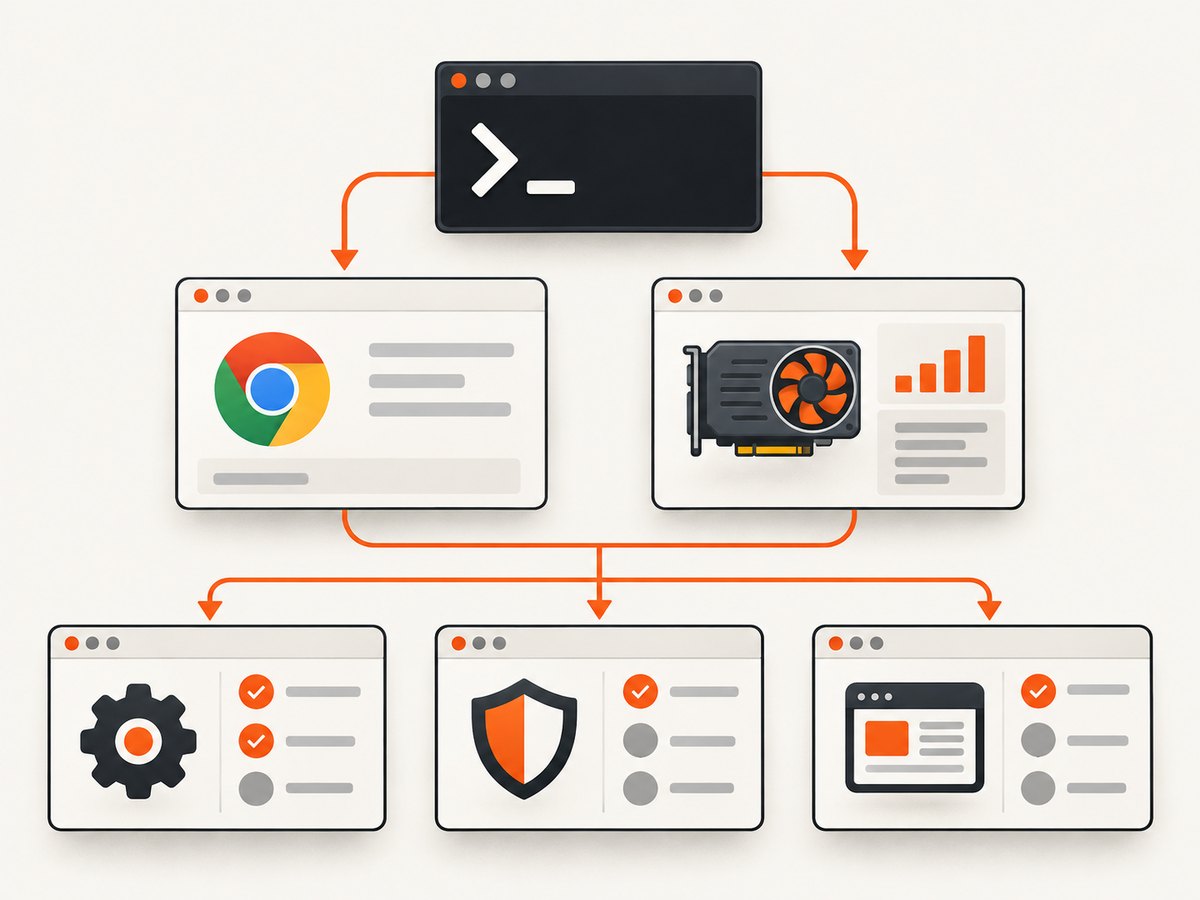
Pay particular attention to:
- the detected GPU and renderer;
- graphics feature status, including disabled or software-only features;
- problems detected by Chrome;
- the ANGLE backend and Vulkan or OpenGL status;
- whether the report says SwiftShader, lavapipe, or another software renderer;
- driver versions and GPU device access.
The Chrome GPU guidance shows that compatible drivers can change whether a GPU is detected. Its Linux example is about enabling and detecting acceleration, not proof that installing a driver fixes every GPU-process crash. Treat it as evidence to compare against your own renderer and driver stack.
5. Check Linux users, permissions, and the sandbox
Running Chrome as root is a common startup-crash cause in ChromeDriver environments. Prefer a dedicated regular user with a writable home directory, temporary directory, and profile directory. Ensure the user can access the required device nodes and shared-memory mount for your container or VM.
ChromeDriver documents --no-sandbox as unsupported and highly discouraged. It may appear in copied CI snippets because it bypasses a startup obstacle, but it weakens an important security boundary and can hide the real permission problem. Fix the user and container setup first. Do not treat --no-sandbox as a general GPU repair.
# Check the identity and writable locations used by the test
id
printf 'HOME=%s\\n' "$HOME"
test -w "$HOME" && echo home-writable
test -w /tmp && echo tmp-writable

# Inspect common device access when a real GPU is required
ls -l /dev/dri 2>/dev/null || true
ls -l /dev/nvidia* 2>/dev/null || true
In containers, compare the failing worker with a host reproduction. Differences in device mounts, seccomp or user namespaces, shared memory, Mesa libraries, and Vulkan ICD files can explain why the same Chrome version behaves differently.
6. Match the remedy to the observed failure
When GPU acceleration is required
Validate the vendor or Mesa driver, GPU visibility, Vulkan libraries, and ANGLE backend for the target platform. If chrome://gpu reports software-only rendering, resolve compatibility and device detection before tuning Chrome flags. Chrome’s Web AI testing article demonstrates a Linux GPU-enabled configuration using:
--headless=new
--use-angle=vulkan
--enable-features=Vulkan
--disable-vulkan-surface
This is an example configuration for a particular GPU-enabled setup, not a generic crash workaround. Apply it only when your Chrome version and workload need that path, then verify the resulting chrome://gpu report.
When GPU acceleration is not required
Test a GPU-disabled configuration as a controlled diagnostic:
--headless=new
--disable-gpu
Do not promise that --disable-gpu prevents all GPU subprocess crashes. A recent Chromium issue describes a Linux M151 software-rendering failure involving Mesa lavapipe and LLVM where this flag did not stop the reported crash. The issue is version- and environment-specific, and its status can change. Use it to compare behavior on your exact build, not as a universal production setting.
Do not make --disable-gpu-sandbox the default
The same issue mentions --disable-gpu-sandbox as a diagnostic workaround for one LLVM loader failure in a specific software Vulkan setup. That report does not establish it as a generally supported fix. If you test it, isolate the experiment, document the security impact, and remove it unless the platform owner has a reviewed reason to keep it.
Historical Windows guidance
An older Headless guide said --disable-gpu was temporarily needed on Windows and that other platforms no longer required it. Preserve that platform and time context when reading old examples. Modern Chrome versions and current drivers may behave differently. Prefer the current browser’s diagnostics over a copied historical flag list.
7. Compare versions and launch environments
Chrome and ChromeDriver must be compatible, but matching versions alone does not explain a GPU subprocess failure. Compare stable and known-good builds while keeping the command line and operating-system image constant. Then compare the renderer and driver stack while keeping Chrome constant.
| Variable | Controlled comparison |
|---|---|
| Chrome version | Same OS image, same flags, alternate Chrome build. |
| ChromeDriver version | Same Chrome binary and command line, alternate driver. |
| Renderer | Same browser, compare hardware path with software path and save chrome://gpu. |
| Container | Run the identical command on host and container with matching user and profile settings. |
| Harness | Run direct Chrome, then Selenium, then the full test runner. |
8. Troubleshooting checklist
| Symptom | Likely cause to investigate | Action |
|---|---|---|
| Immediate exit as root | User or sandbox setup. | Run as a regular user; use a writable profile; avoid --no-sandbox. |
| Driver starts but Chrome does not | Wrong binary, permissions, profile, or incompatible arguments. | Launch the selected binary directly with the same command line. |
| GPU process loops and renderer is software-only | Driver, Vulkan, Mesa, or device-access problem. | Save chrome://gpu; inspect libraries and device visibility. |
--disable-gpu changes nothing |
The failure may be in software rendering or another process. | Identify the child process and compare the version-specific issue data. |
| Only CI fails | Different user, kernel, container, shared memory, device mounts, or flags. | Diff the complete environment and command line against a local run. |
| Works with one profile only | Corrupt or locked profile. | Use a fresh temporary profile and check profile ownership. |
9. Improve reliability for screenshot and automation jobs
- Pin Chrome and ChromeDriver versions in the same image and update them deliberately.
- Log the complete launch command, browser stderr, driver log, and renderer report for failed jobs.
- Use unique temporary profile directories for parallel sessions.
- Set explicit timeouts and cleanly call
quit()so orphaned processes do not consume resources. - Separate GPU-required tests from ordinary page capture. A static screenshot pipeline can use a controlled software-rendering configuration, while WebGPU tests need validated device access.
- Retry only after collecting evidence. Repeatedly restarting a failing GPU process can conceal a deterministic driver or library fault.
10. Build a useful bug report
If the crash remains reproducible, include the exact Chrome and ChromeDriver versions, OS and kernel, container or VM details, full launch command, Chrome and ChromeDriver logs, crash timing, chrome://gpu output, and a minimal reproducer. State whether launching Chrome directly reproduces it and whether the failure is ChromeDriver, Chrome startup, or the GPU child process. ChromeDriver’s official guidance recommends a reproducer and filing a bug when the failure persists.
Primary references: ChromeDriver startup and crash troubleshooting, Chrome GPU diagnostics and Linux setup, Chromium command-line switches, Chromium issue 536977900, and the historical Headless Chrome shell note.
11. Or skip the browser setup
If your goal is a clean website image rather than GPU or WebGPU testing, ScreenshotNeo provides a website screenshot API. One GET request returns PNG, JPEG, WebP, or PDF, so your application does not need to maintain ChromeDriver, browser binaries, GPU libraries, or a headless runtime.

See the ScreenshotNeo API documentation for all options. This runnable request captures a page as WebP:
curl -G "https://api.screenshotneo.com/v1/shot" -d access_key=YOUR_API_KEY --data-urlencode url=https://stripe.com -o shot.webpimport requests
r = requests.get("https://api.screenshotneo.com/v1/shot", params={"access_key": "YOUR_API_KEY", "url": "https://stripe.com"}, timeout=90)
open("shot.webp", "wb").write(r.content)const q = new URLSearchParams({ access_key: 'YOUR_API_KEY', url: 'https://stripe.com' });
const res = await fetch(`https://api.screenshotneo.com/v1/shot?${q}`);ScreenshotNeo accepts the parameter names used by other screenshot APIs, which can simplify a migration. Its capture options include full-page screenshots with lazy images loaded, CSS element capture, dark mode, device presets and custom viewports, retina scale, PDF paper and page controls, custom CSS and JavaScript, clicks, waits, blocked requests, headers, cookies, user agents, authorization, timezone, geolocation, transparent backgrounds, resizing, caching with a chosen TTL, signed image links, asynchronous jobs with signed webhooks, bulk capture for up to 100 URLs per call, usage reporting, and an OpenAPI specification.
Before capture, cookie and consent banners, newsletter popups, and chat widgets from more than 60 known platforms are removed; each cleanup step can be disabled. Bot checks or CAPTCHAs, blank pages, timeouts, failed loads, and cache hits are not billed, and response headers identify the page verdict and billing status. An MCP server provides take_screenshot, get_page_info, and capture_pdf tools for Claude, Cursor, and other MCP clients.
The Free plan includes 1,000 screenshots per month without a card. Paid plans start at $5 for 3,000 shots; every feature is available on every plan, and yearly billing provides two months free. Create a free ScreenshotNeo account.
12. Frequently asked questions
Is every headless GPU crash fixed by --disable-gpu?
No. It is a controlled diagnostic whose result depends on Chrome version, platform, renderer, and drivers. A recent Linux software-rendering report describes a case where it was insufficient.
Should I use --no-sandbox in Docker?
ChromeDriver calls it unsupported and highly discouraged. Prefer a regular user and a correctly configured container, then investigate device, profile, and permission errors.
How do I know whether ChromeDriver or Chrome crashed?
Use process logs and direct reproduction. ChromeDriver’s executable, the Chrome browser process, and the --type=gpu-process child have different failure signatures.
What evidence should accompany a Chromium bug?
Provide versions, OS and container details, the complete command line, logs, chrome://gpu, timing, and a minimal reproducer, plus whether direct Chrome launch reproduces the issue.


