How to Fix Chrome Headless –dump-dom Producing No Output
Diagnose empty Chrome Headless --dump-dom output by checking stdout, timing, scripts, URLs, binaries, versions, and exit codes.
Chrome Headless --dump-dom prints the page’s serialized DOM to standard output. If your command appears to produce nothing, first verify that you are running the intended Chrome binary, that the URL is the final argument, and that stdout is not being hidden by shell redirection or a wrapper. Then inspect stderr and the process exit code separately.
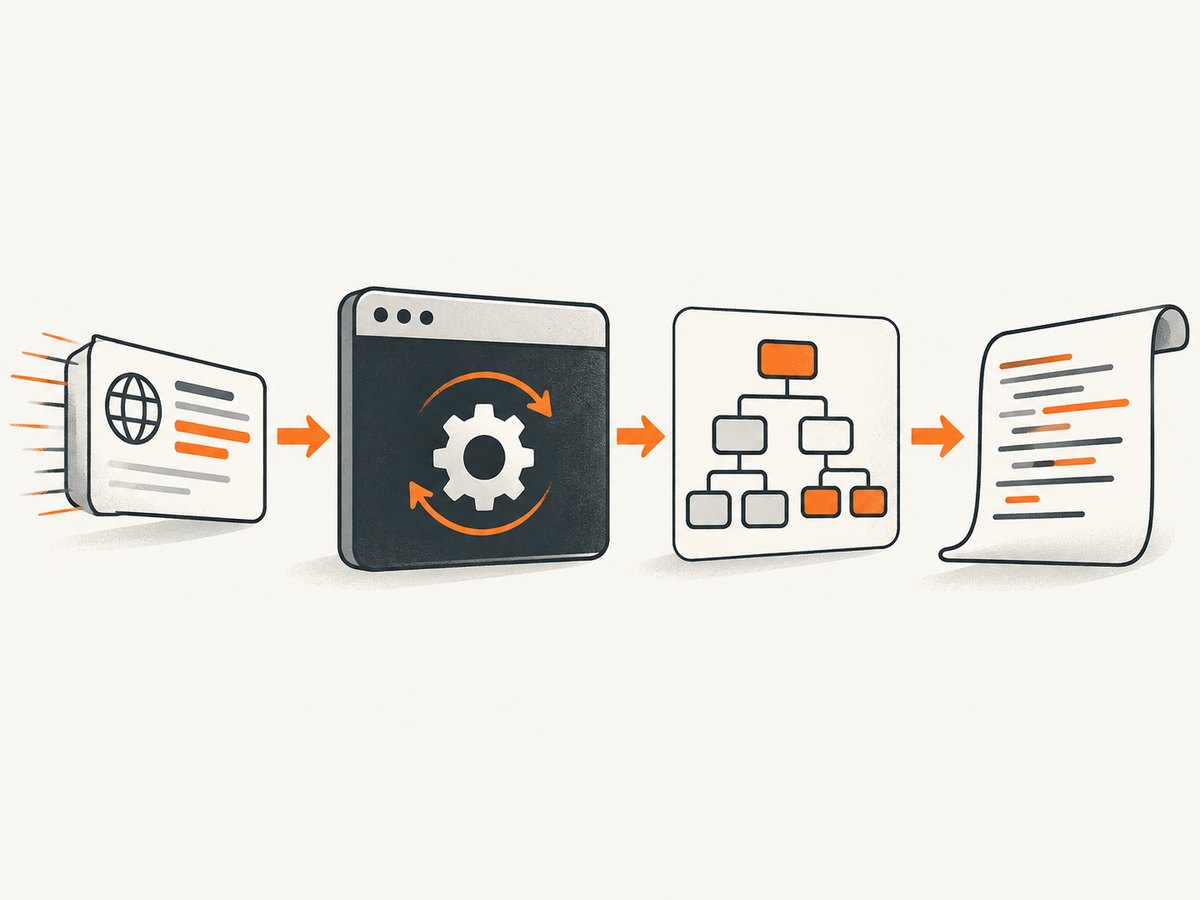
The flag does not print the original HTTP response verbatim. Chrome parses the response into a DOM, runs scripts that can change it, and serializes the resulting DOM. A page whose useful content appears only after asynchronous work may therefore need a longer capture window. Chrome documents --timeout=<milliseconds> for this case. The following sequence isolates each likely source of an empty result without assuming a single cause.
1. Run the smallest useful command
Start with a simple public page and an explicit executable. Put the URL at the end of the command:
google-chrome --headless --dump-dom https://example.comDepending on your installation, the executable may be named google-chrome-stable, chromium, or chromium-browser. The exact binary matters because different installations can have different versions and command-line behavior.
To preserve the DOM in a file while keeping diagnostics visible, redirect only stdout:
google-chrome --headless --dump-dom https://example.com > dom.htmlTo capture the two streams separately and retain the status code:
set -o pipefail
google-chrome --headless --dump-dom https://example.com >dom.html 2>chrome.stderr
status=$?
printf 'exit status: %s\n' "$status"
printf 'DOM bytes: '
wc -c < dom.html
printf 'Diagnostics:\n'
cat chrome.stderr
An empty dom.html and a non-zero exit status point to process, URL, profile, sandbox, or binary problems. A zero status with a small document can be a valid result: the page may genuinely have little markup, or its application content may be inserted later.
2. Confirm the executable and version
Check what your shell resolves and which version it launches:
command -v google-chrome
command -v google-chrome-stable
command -v chromium

google-chrome --version
chromium --version
Run the version command on the same path used by your script or container. A globally installed browser and a bundled browser can behave differently even when both are called “Chrome.” Also check whether a wrapper replaces your arguments, changes the working directory, or suppresses stdout.
Chrome’s current Headless mode and the standalone Headless shell are separate concerns. Chromium’s Headless documentation says precompiled headless_shell binaries have been available through Chrome for Testing since M118. It also says that, as of M132, old Headless shell functionality is no longer part of the Chrome binary and that --headless=old has no effect. If your workflow specifically depends on old Headless behavior, verify whether you intentionally need the chrome-headless-shell executable rather than assuming a normal Chrome binary provides it. See the Chromium Headless README.
3. Separate stdout, stderr, and the exit code
The Chrome command-line reference states that “The --dump-dom flag prints the serialized DOM of the target page to stdout.” That means the DOM is not automatically written to a file and should not be expected in stderr. Read the official Chrome Headless command-line reference for the flag’s documented behavior.
Use explicit files when diagnosing:
google-chrome --headless --dump-dom https://example.com \
  > /tmp/page.dom.html \
  2> /tmp/chrome.diagnostics

printf 'exit=%s\n' "$?"
ls -l /tmp/page.dom.html /tmp/chrome.diagnostics
sed -n '1,80p' /tmp/chrome.diagnostics
Common mistakes include redirecting the wrong stream, piping output into a command that exits early, or checking a file before the browser process has finished. If you use a shell pipeline, inspect the browser’s status with PIPESTATUS in Bash:
google-chrome --headless --dump-dom https://example.com | tee dom.html
printf 'chrome status: %s\n' "${PIPESTATUS[0]}"
Do not interpret browser diagnostics as the DOM. Keep them in a separate file while you inspect the actual HTML output.
4. Understand what Chrome is serializing
--dump-dom serializes the DOM after parsing and script execution. It is therefore different from fetching a URL with curl:
curl -L https://example.com -o response.html
google-chrome --headless --dump-dom https://example.com -o dom.html
The first file is the HTTP response body. The second is Chrome’s representation after it has created a document and allowed scripts to modify it. Compare the two when debugging:
diff -u response.html dom.html | lessIf text exists in the original response but not in the dumped document, inspect redirects, parsing errors, frame boundaries, and scripts that remove or replace nodes. If text exists only after an API request or client-side render, an immediate capture may occur before that request finishes.
5. Adjust capture timing deliberately
Chrome documents --timeout as the maximum wait, in milliseconds, before capturing page content, including while the page is still loading. If neither --timeout nor --virtual-time-budget is specified, capture occurs when the page is loaded. See the Chrome Headless timing documentation for the virtual-time context.

Try a bounded delay when the target is known to render shortly after load:
google-chrome --headless --dump-dom --timeout=10000 https://example.comUse a value appropriate for the page and your environment. A longer timeout cannot supply information that requires a click, login, consent action, or application-specific synchronization. It only gives the page more time before serialization.
When you need virtual time for animation or timer-driven work, test it separately and document why it is needed:
google-chrome --headless --dump-dom --virtual-time-budget=10000 https://example.comDo not add both timing controls blindly. First establish whether the content is delayed, then choose one bounded strategy and compare the output.
6. Check URL, redirects, and page access
Use a known public URL before testing an internal application. Quote URLs that contain shell metacharacters:
google-chrome --headless --dump-dom 'https://example.com/search?q=headless&mode=full'Confirm that the URL includes a scheme such as https://. Check redirects and TLS behavior with a normal HTTP client, then compare that result with Chrome’s diagnostics. A URL that needs authentication, a client certificate, a VPN, or a private DNS name may load differently inside a container or CI runner.
For a local file, use an absolute path and confirm it exists:
test -f /tmp/page.html && google-chrome --headless --dump-dom file:///tmp/page.htmlPages inside iframes are another boundary: the top-level dump contains the document Chrome serialized, not an automatic merged snapshot of every frame’s contents.
7. Test script-rendered applications without guessing
Look for a stable marker in the dumped output:
google-chrome --headless --dump-dom --timeout=10000 https://example.com \
  | grep -F 'expected text'
If the marker is absent, inspect the HTML for an application root such as <div id="app"> and script references. The root alone does not prove that rendering completed. Compare captures at two timeouts and record whether the serialized DOM changes.
For content that needs an interaction, this CLI flag is the wrong abstraction by itself. A longer timeout does not click buttons, dismiss consent, submit forms, or provide credentials. Use an automation tool that can perform those actions, or capture an already accessible URL.
8. Troubleshooting table
| Symptom | Likely area | What to check | Fix or next step |
|---|---|---|---|
| Output file is empty, exit code is non-zero | Process or invocation | stderr, executable path, permissions, sandbox, profile lock | Run the exact binary directly, use a temporary user-data directory, and preserve stderr. |
| No terminal output, but command succeeds | stdout handling | redirection, pipeline, wrapper logs | Write stdout to a file and inspect its byte count; keep stderr separate. |
| Only a small skeleton document appears | Rendering timing | initial HTML, script requests, delayed marker | Compare with the response body and try a bounded --timeout. |
| Expected text never appears | Application behavior | authentication, consent, click requirement, iframe, bot check | Provide the required state through an automation workflow or use an accessible page. |
| Works locally, fails in CI | Environment | browser version, OS image, URL reachability, sandbox and user permissions | Log version, command, URL, stdout, stderr, and exit status from CI. |
--headless=old changes nothing |
Version transition | Chrome version and whether a shell binary is installed | Review the M132 guidance and use chrome-headless-shell only when that old behavior is required. |
| Intermittent empty output | Race or resource pressure | parallel jobs, profile reuse, timeouts, network failures | Use isolated temporary profiles, bounded retries, and capture diagnostics for every attempt. |
9. Reproducible diagnostic wrappers
Shell
#!/usr/bin/env bash
set -u
browser="${BROWSER:-google-chrome}"
url="${1:?usage: $0 URL}"
out="${2:-dom.html}"
err="${out}.stderr"

"$browser" --headless --dump-dom "$url" >"$out" 2>"$err"
status=$?
printf 'browser=%s\n' "$browser"
"$browser" --version
printf 'url=%s\nexit=%s\nbytes=' "$url" "$status"
wc -c < "$out"
printf 'stderr=%s\n' "$err"
exit "$status"
Python
import subprocess
import sys

url = sys.argv[1]
result = subprocess.run(
    ["google-chrome", "--headless", "--dump-dom", url],
    text=True,
    capture_output=True,
    timeout=90,
)
print(f"exit={result.returncode}", file=sys.stderr)
print(result.stderr, file=sys.stderr, end="")
sys.stdout.write(result.stdout)
Node.js
import { spawn } from "node:child_process";

const url = process.argv[2];
if (!url) throw new Error("usage: node dump-dom.mjs URL");
const child = spawn("google-chrome", ["--headless", "--dump-dom", url]);
let out = "";
let err = "";
child.stdout.on("data", chunk => { out += chunk; });
child.stderr.on("data", chunk => { err += chunk; });
child.on("close", code => {
  process.stdout.write(out);
  process.stderr.write(`exit=${code}\n${err}`);
});
These wrappers make the three facts you need visible together: serialized output, diagnostics, and the exit status. Add version output and the container or operating-system identifier to CI logs.
10. Performance, reliability, and cost considerations
- Performance: A dump waits for page loading and script work, so pages with heavy JavaScript or slow dependencies take longer. Keep timeouts bounded and avoid loading unnecessary pages in parallel until one invocation is reliable.
- Reliability: Use a fresh temporary profile for concurrent jobs, pin the browser image when reproducibility matters, and record the executable version. Retry only transient failures; repeating an authentication or application-state problem will not fix it.
- Output size: A full serialized DOM can be large. Stream to a file instead of storing many results in terminal logs.
- Cost: The CLI itself has no ScreenshotNeo charge, but your runner still consumes CPU, memory, network bandwidth, and build minutes. Measure those resources in the environment where the command runs.
11. Or skip the browser setup
If your real goal is a clean image or PDF rather than debugging Chrome’s DOM output, ScreenshotNeo provides a single screenshot API request. Its capture flow accepts cookie and consent banners like a visitor, then removes more than 60 known consent platforms, newsletter popups, and chat widgets before the shot; each cleanup step can be turned off. Bot checks and CAPTCHAs, blank pages, timeouts, failed loads, and cache hits are not billed, and the response identifies the result with X-Page-Verdict and X-Billed headers. An MCP server provides take_screenshot, get_page_info, and capture_pdf tools for Claude, Cursor, and other MCP clients.
See the ScreenshotNeo API documentation for all options, including full-page capture with lazy images, CSS selectors, device presets, retina scale, dark mode, PDF settings, custom CSS and JavaScript, clicks, waits, request blocking, headers, cookies, user agents, authorization, timezone, geolocation, transparent backgrounds, resizing, TTL caching, signed links, asynchronous jobs, webhooks, bulk capture, usage, and the OpenAPI specification.
cURL
curl -G "https://api.screenshotneo.com/v1/shot" -d access_key=YOUR_API_KEY --data-urlencode url=https://stripe.com -o shot.webpPython
import requests
r = requests.get("https://api.screenshotneo.com/v1/shot", params={"access_key": "YOUR_API_KEY", "url": "https://stripe.com"}, timeout=90)
open("shot.webp", "wb").write(r.content)
Node.js
const q = new URLSearchParams({ access_key: 'YOUR_API_KEY', url: 'https://stripe.com' }); const res = await fetch(`https://api.screenshotneo.com/v1/shot?${q}`);The Free plan includes 1,000 shots each month with no card. Paid plans start at $5 for 3,000 shots; yearly billing gives two months free, and every feature is included on every plan. Create a free ScreenshotNeo account.
12. A concise diagnostic checklist
- Run the intended Chrome executable with
--headless --dump-domand a known public URL. - Confirm stdout is being captured and stderr is separate.
- Record the exit code, executable path, and browser version.
- Compare the serialized DOM with the original response body.
- Determine whether scripts add the missing content.
- Use a bounded
--timeoutonly when delayed loading explains the symptom. - Check authentication, redirects, frames, consent, bot checks, and CI network access.
- Verify whether your version requires the standalone
chrome-headless-shellfor old Headless behavior. - Report the exact command, binary and version, platform, URL, stdout, stderr, and exit code when escalating.
13. FAQ
Does --dump-dom save a file automatically?
No. It writes the serialized DOM to stdout. Redirect stdout with > file.html when you need a file.
Is the output identical to curl?
No. Chrome parses the response and runs scripts before serializing the DOM, while curl normally returns the response body.
Will increasing --timeout fix every empty result?
No. It helps only when the desired content appears during additional loading time. It cannot perform clicks, authenticate, solve bot checks, or satisfy application-specific state.
Do I need Xvfb for ordinary Headless CLI use?
Do not assume so. Chromium documents Xvfb and --ozone-platform=headless in its testing guidance; that context does not establish Xvfb as a general requirement for ordinary Headless CLI use.
What information should I include in a bug report?
Include the exact command, executable path and version, operating system or container image, URL, separate stdout and stderr, exit code, and whether the page requires scripts, authentication, or interaction.


