How to Fix the “Chrome Not Reachable” Error in Headless Chrome
Diagnose “Chrome not reachable” in headless Chrome with a version checklist, minimal Selenium tests, logs, fixes, and a browser-free API option.
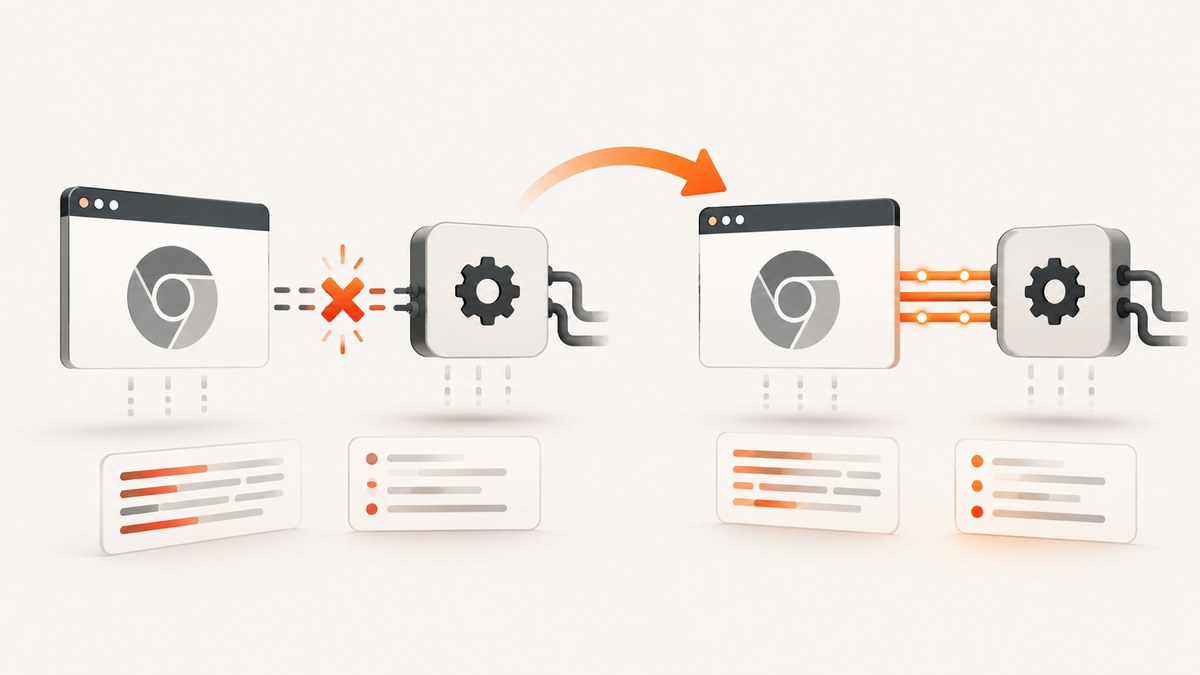
“Chrome not reachable” is a ChromeDriver connection-status message, not a diagnosis. It means ChromeDriver could not establish or keep its connection to the Chrome process. The underlying cause may be a browser and driver mismatch, an inaccessible executable, operating-system restrictions, an incorrect Chrome binary, or a headless launch configuration that does not fit the installed Chrome version.
Start with the complete exception and Chrome startup logs. Record your platform, architecture, Chrome or Chromium version, ChromeDriver version, automation framework version, selected browser binary, and every launch argument. Then reproduce the failure with the smallest possible startup script, changing one condition at a time.
1. Read the complete error before changing flags
The short message is easy to search for, but it hides the evidence you need. Chromium’s ChromeDriver source maps its kChromeNotReachable status to the text chrome not reachable; the status itself does not identify a unique fault. Read the status mapping in Chromium.
Save the first failure and the lines immediately before it. These details distinguish a session-creation failure from a browser that starts and then exits:
Chrome failed to startsuggests the process exited during startup.The process started from chrome location ... is no longer runningsuggests ChromeDriver launched a process that then stopped.- A version warning points toward browser-driver compatibility.
- An access, permission, or “file not found” error points toward the executable or operating system.
- A timeout with no process output can indicate a profile, port, sandbox, or environment problem.
Selenium’s session-creation guidance lists incompatible versions, system-level restrictions, and configuration problems among the possible categories. Treat a Selenium issue report as an example of one environment, not proof that the same cause applies everywhere. See Selenium’s official troubleshooting guidance.
2. Capture a diagnostic record
Before changing your setup, write down this checklist:
| Item | What to record | Why it matters |
|---|---|---|
| Operating system | Distribution or Windows/macOS version, architecture, container or VM status | Executable permissions and system restrictions differ by environment |
| Browser | Chrome or Chromium version and exact binary path | Driver selection depends on the browser release family |
| Driver | ChromeDriver version and path | The driver must support the browser you launch |
| Framework | Selenium or another client library version | Client defaults and APIs change over time |
| Arguments | Headless mode, profile, debugging port, proxy, extensions, and custom flags | One argument can prevent startup or cause an early exit |
| Runtime user | The account that starts the process | Desktop permissions may not exist in a service or container |
Keep the original command and environment variables with the record. If the problem is intermittent, include timestamps and whether another Chrome process was already running.
3. Verify that Chrome and ChromeDriver match
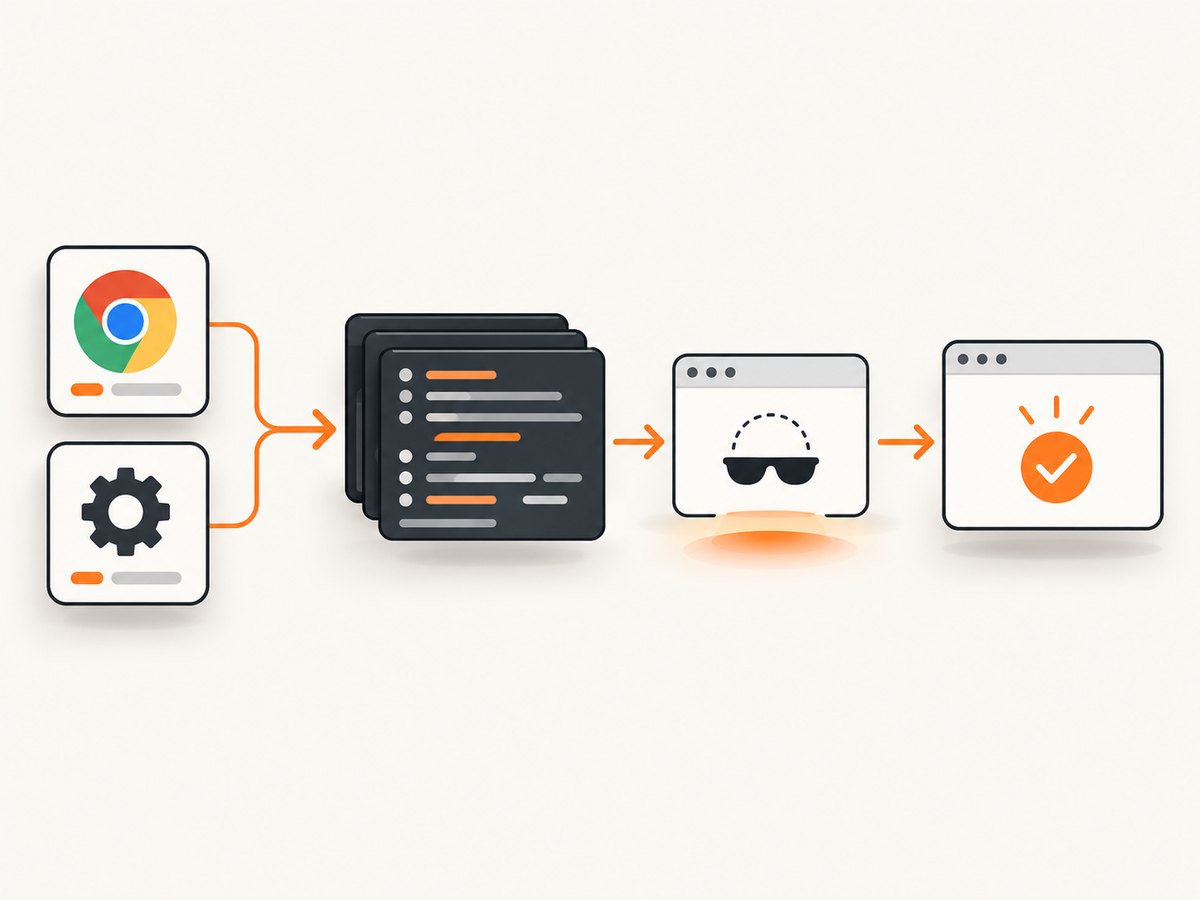
Version incompatibility is a common session-creation category. Identify the browser version first, then use the official selection process for that release family.
Chrome 115 and newer
For milestone 115 and newer, Google says the ChromeDriver release process is integrated with Chrome. Use the Chrome for Testing dashboard and its JSON endpoints to obtain corresponding Chrome and ChromeDriver releases. Follow Google’s ChromeDriver version-selection instructions.
Chrome 114 and older
Older releases use the version-component matching guidance on the same Google page. Do not copy an old download URL or assume that a rule for an earlier milestone applies to a current installation.
Check the actual binary
A frequent mistake is checking one browser version while Selenium launches another. Print or inspect the configured binary path. On a machine with both Chrome and Chromium, explicitly select the intended executable during diagnosis. Also check that the binary exists inside the runtime where the test runs; a path valid on your laptop may not exist in a container or CI worker.
4. Verify driver execution and operating-system restrictions
ChromeDriver must be present and executable by the account running the test. Check the file path, ownership, permissions, and architecture. A driver downloaded on one platform cannot run on another, and a file mounted with restrictive permissions can fail even when it is visible.
- Confirm the driver path is the one your framework uses.
- Run the driver binary in the same user context as the test process.
- Inspect service logs for “permission denied,” “no such file,” or architecture errors.
- In a container, verify that Chrome, the driver, shared libraries, fonts, and the runtime user are all present in that image.
- Check security tooling or service policies that can block child processes.
Do not assume a desktop launch proves that a scheduled job, web service, or container has the same permissions. Selenium specifically calls out inaccessible drivers and system restrictions as session-creation causes.
5. Confirm the headless mode for your Chrome version
Google describes headless Chrome as running without visible UI. Chrome 112 updated headless so Chrome creates platform windows without displaying them, while retaining normal Chrome functionality. Google also documents unified headless and headful modes. Since Chrome 132.0.6793.0, the old headless implementation is available only as the standalone chrome-headless-shell binary. Read the current Chrome headless documentation.
Use the headless option supported by the browser you actually installed. Do not switch to the legacy shell merely because an old blog post recommends it. Use that shell only when your test specifically depends on the old implementation and you have installed the matching standalone binary.
6. Reduce the launch to a minimal Selenium test
Remove unrelated complexity temporarily: stale profile reuse, custom debugging ports, extensions, proxies, and extra flags. Keep only the browser selection, the supported headless option, navigation to a simple page, and a clean shutdown. Reintroduce options individually after the minimal test succeeds.
Python: minimal Selenium startup
from selenium import webdriver
from selenium.webdriver.chrome.options import Options

options = Options()
options.add_argument("--headless")
# Set this only when Chrome is not on the normal PATH:
# options.binary_location = "/path/to/chrome"

# Set this only when the driver is not discoverable by your Selenium setup:
# service = Service("/path/to/chromedriver")
driver = webdriver.Chrome(options=options)
try:
    driver.get("https://example.com")
    print(driver.title)
finally:
    driver.quit()
Use the headless argument documented for your installed Chrome and Selenium versions. If this script fails, preserve its complete exception and service output. If it succeeds, add your original options one by one until the failing condition is identified.
Java: minimal Selenium startup
import org.openqa.selenium.WebDriver;
import org.openqa.selenium.chrome.ChromeOptions;
import org.openqa.selenium.chrome.ChromeDriver;

public class HeadlessSmokeTest {
  public static void main(String[] args) {
    ChromeOptions options = new ChromeOptions();
    options.addArguments("--headless");

    WebDriver driver = new ChromeDriver(options);
    try {
      driver.get("https://example.com");
      System.out.println(driver.getTitle());
    } finally {
      driver.quit();
    }
  }
}
Enable driver logging
Use your framework’s service-log option and retain the log around the first failure. The exact API differs by Selenium language and version, so consult the versioned Selenium documentation for the service builder you use. The useful record is the complete command line, the selected binary, the first Chrome output, and the point at which the driver loses the connection.
7. Isolate common configuration traps
Profiles and locks
Reusing a profile can fail when another Chrome process owns its lock or when the profile is not writable. Remove custom profile arguments for the smoke test. If a profile is required, give each concurrent job its own temporary directory and ensure the runtime user can write it.
Custom debugging ports
A hard-coded remote-debugging port can already be occupied, blocked, or inaccessible from the driver process. Remove the custom port while isolating the failure. Add it back only after confirming that the port is free and reachable within the same network namespace.
Extra flags
Flags such as --no-sandbox or --disable-dev-shm-usage are often suggested online, but the supplied evidence does not support either as a universal fix. They change security or resource behavior and may conceal the real problem. Add a flag only when the environment and logs point to the condition it addresses, then document why it is present.
Resource pressure
A process can exit when the host or container cannot provide required memory, shared memory, libraries, or file descriptors. Check the operating system and container logs at the same timestamp as the ChromeDriver failure. Fix the resource limit or image dependency before adding launch flags.
8. Troubleshooting table
| Symptom | Likely category | Next action |
|---|---|---|
| Driver reports an incompatible browser version | Browser-driver mismatch | Record the exact browser version and obtain the corresponding driver through Google’s version-selection guidance. |
| “Chrome failed to start” followed by “chrome not reachable” | Chrome exited during startup | Inspect the first Chrome log lines; verify binary path, profile, permissions, libraries, and headless mode. |
| “Permission denied” or “file not found” | Driver or browser execution | Check existence, executable permissions, architecture, ownership, and the service user. |
| Works locally but fails in CI | Environment difference | Compare OS image, runtime user, installed binaries, libraries, fonts, limits, and arguments. |
| Fails only with a custom profile | Profile lock or unwritable directory | Use a unique writable temporary profile for each job. |
| Fails only with a custom port | Port collision or namespace access | Remove the port for the smoke test, then choose a free reachable port. |
| Starts, then disconnects during navigation | Process exit, resource pressure, or unstable configuration | Check Chrome output and host logs; add navigation and options back incrementally. |
9. A repeatable recovery procedure
- Save the full exception, driver log, Chrome log, command line, and environment details.
- Confirm the selected Chrome binary and print its version from the same runtime.
- Confirm ChromeDriver’s version, permissions, architecture, and path.
- Use Google’s current version-selection guidance for the browser milestone.
- Run the smallest headless Selenium script against a simple URL.
- Remove profile, port, extension, proxy, and experimental arguments.
- Compare local and service/container users and operating-system restrictions.
- Reintroduce one setting at a time and keep the first setting that reproduces the failure.
- Run the same smoke test repeatedly before restoring the full workload.
10. Performance, reliability, and cost considerations
A minimal startup test is faster and produces cleaner evidence than repeatedly running a full crawl. Reuse a known-good browser and driver pair, avoid sharing a writable profile across parallel jobs, and monitor process exits and host resource limits. For reliability, keep browser, driver, framework, and container image versions pinned and update them deliberately using the official release guidance.
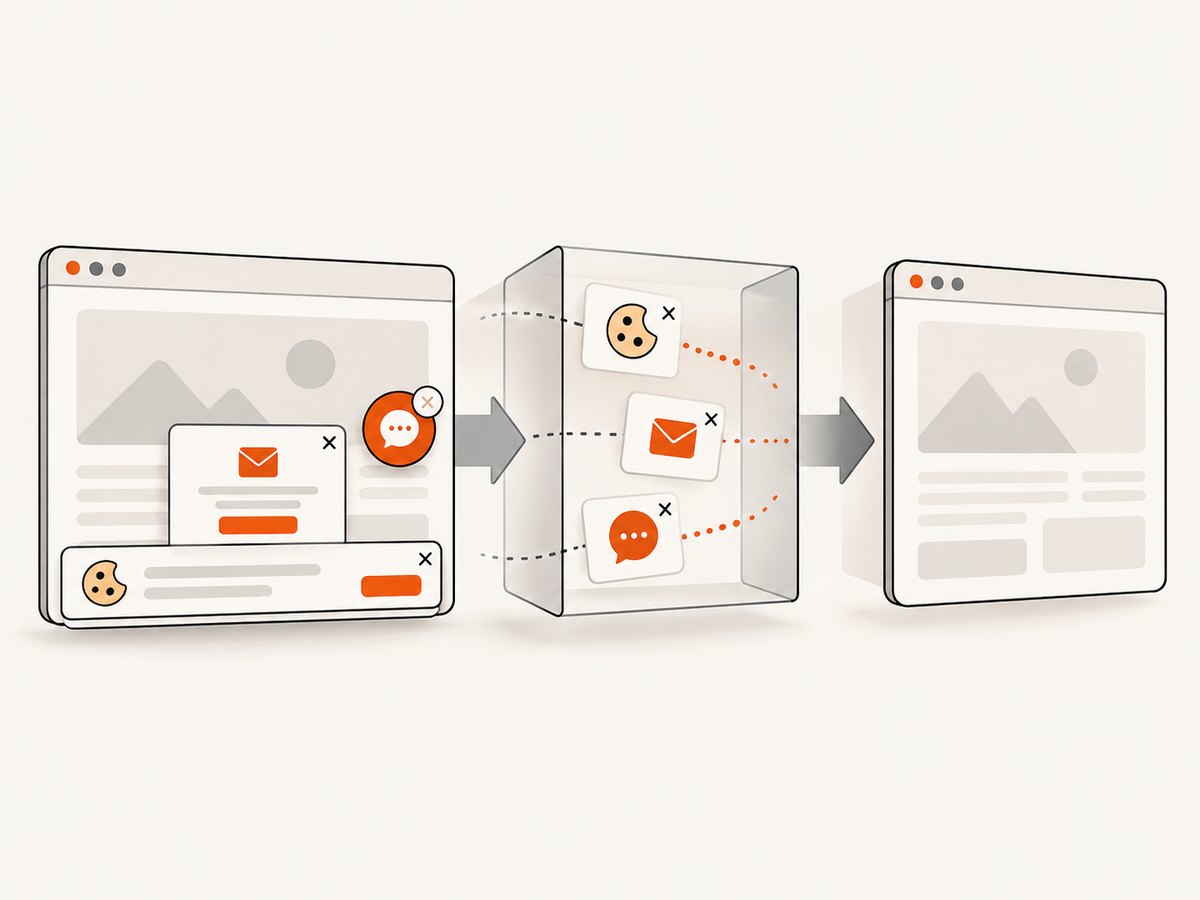
Headless Chrome still performs browser startup, page loading, JavaScript execution, and rendering. If your workload only needs an image or PDF and does not require maintaining browser infrastructure, a screenshot API can remove driver installation, binary matching, and process supervision from your application.
Or skip the browser setup
ScreenshotNeo provides a website screenshot API and MCP server. One GET request returns a PNG, JPEG, WebP, or PDF. It removes cookie and consent banners, newsletter popups, and chat widgets before capture; each cleanup step can be turned off. Bot checks, blank pages, timeouts, failed loads, and cache hits cost nothing, and the response identifies the result with X-Page-Verdict and X-Billed headers.
Here is a complete request. See the ScreenshotNeo API documentation for the available options.
cURL
curl -G "https://api.screenshotneo.com/v1/shot" -d access_key=YOUR_API_KEY --data-urlencode url=https://stripe.com -o shot.webpPython
import requests
r = requests.get("https://api.screenshotneo.com/v1/shot", params={"access_key": "YOUR_API_KEY", "url": "https://stripe.com"}, timeout=90)
open("shot.webp", "wb").write(r.content)
Node.js
const q = new URLSearchParams({ access_key: 'YOUR_API_KEY', url: 'https://stripe.com' });
const res = await fetch(`https://api.screenshotneo.com/v1/shot?${q}`);
ScreenshotNeo supports full-page capture with lazy images loaded, CSS-element capture, dark mode, device presets, custom viewports, retina scale, PDF paper sizes and page ranges, HTML/CSS rendering, custom CSS and JavaScript, clicks, waits, request blocking, headers, cookies, user agents, authorization, timezone, geolocation, transparent backgrounds, resizing, TTL caching, signed links, asynchronous jobs with signed webhooks, bulk capture of up to 100 URLs per call, a usage API, and an OpenAPI specification. Its MCP server exposes take_screenshot, get_page_info, and capture_pdf to Claude, Cursor, and other MCP clients.
There is a free plan with 1,000 screenshots per month and no card. Paid plans start at $5 for 3,000 shots; yearly billing gives two months free, and every feature is available on every plan. Create a free ScreenshotNeo account.
FAQ
Is “Chrome not reachable” always a version problem?
No. Version mismatch is one category. Permissions, binary selection, system restrictions, profiles, ports, resources, and headless configuration can produce the same status.
Should I always add --no-sandbox?
No. The evidence does not support it as a universal fix. Investigate the environment and logs first, and add configuration only for a diagnosed requirement.
Should I install chrome-headless-shell?
Only when your test specifically requires the legacy headless implementation. Current Chrome uses unified headless and headful behavior; the old implementation is a standalone shell from Chrome 132 onward.
Why does the test pass on my laptop but fail in a container?
The container may have a different browser binary, driver, runtime user, permissions, libraries, resource limits, or security policy. Compare those items using the diagnostic checklist.
Can I avoid ChromeDriver entirely for screenshots?
Yes. An API such as ScreenshotNeo can perform capture without your application installing and supervising a local Chrome and ChromeDriver pair.


