How to Fix Chrome Screenshot Capture in Node.js
Diagnose Node.js screenshot failures by stage: Chrome launch, page rendering, capture protocol, or file output. Includes runnable Puppeteer code and targeted fixes.
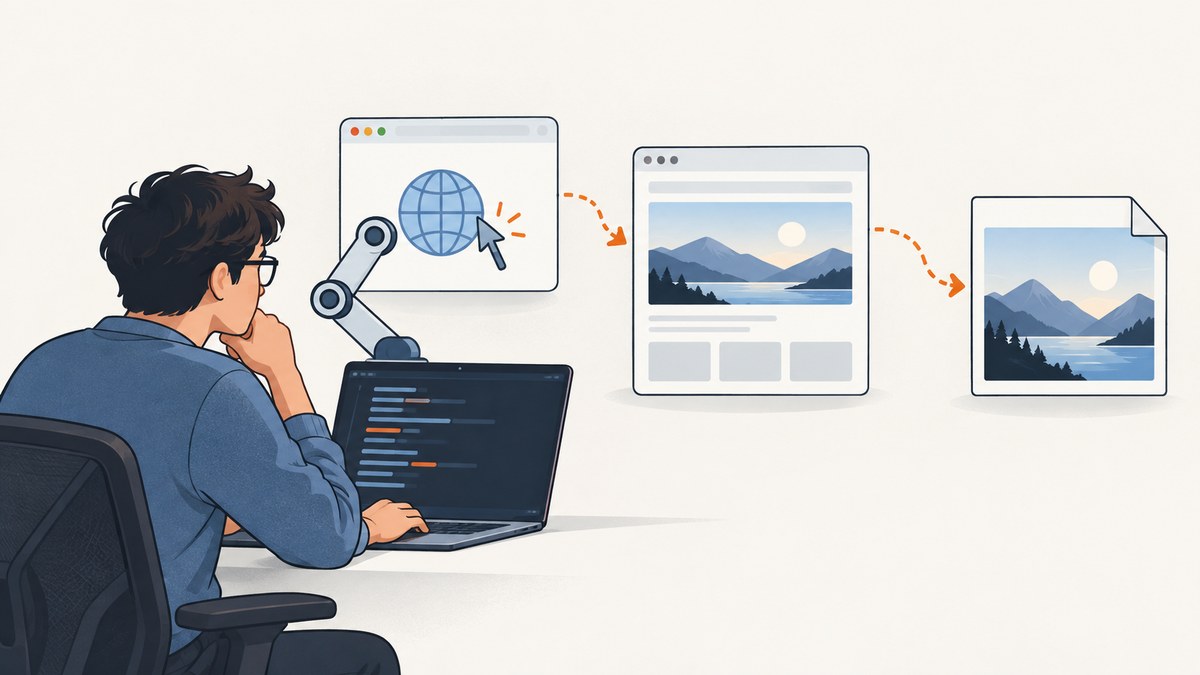
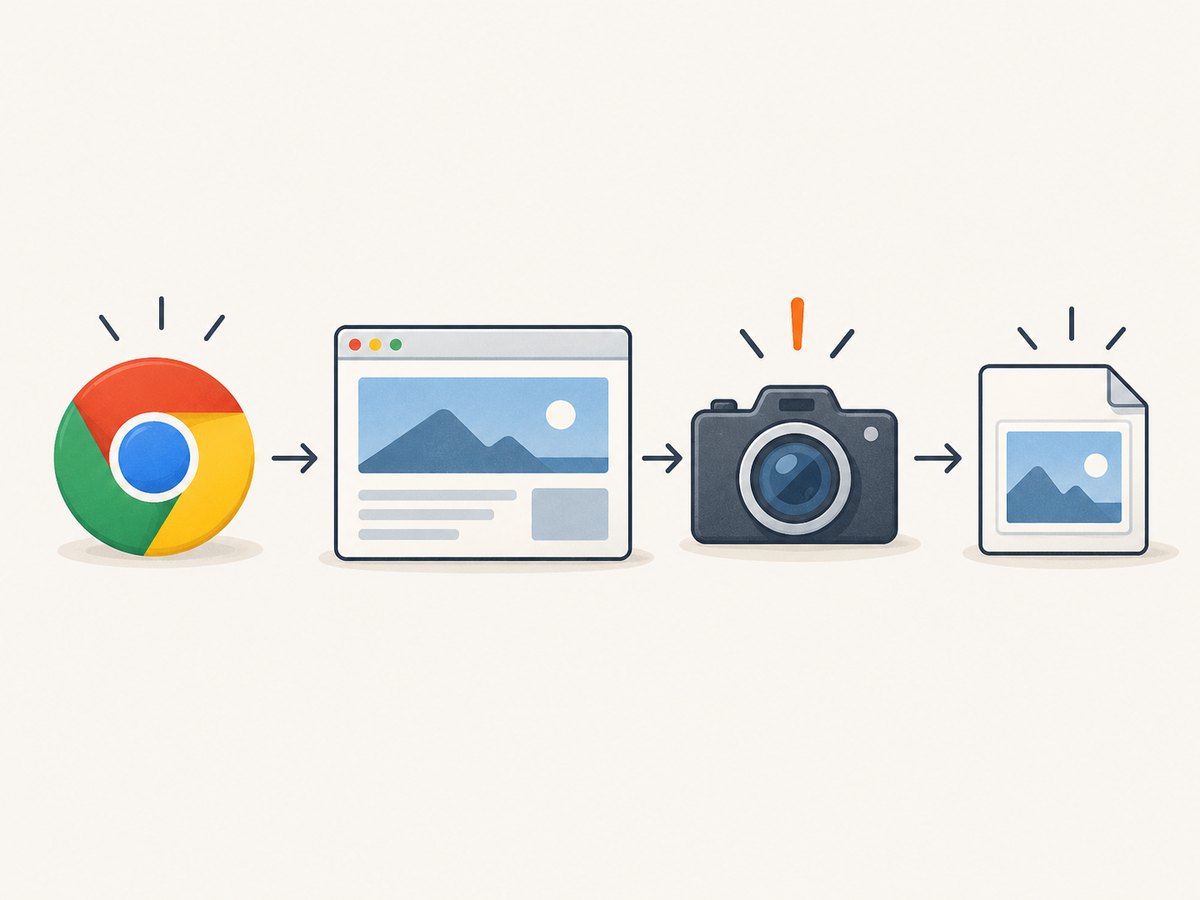
Fix a Chrome screenshot failure in Node.js by finding which stage fails: launching Chrome, navigating and rendering the page, calling the screenshot API, or writing the resulting image. Those stages produce different errors and need different fixes. This guide uses Puppeteer, the JavaScript browser automation library with screenshot and debugging APIs. If you do not yet know the failure stage, first run the minimal script below and record the complete error, Node.js and Puppeteer versions, Chrome version, operating system, and whether the process runs in a container.
1. Start with a minimal, observable capture
Use one page and one screenshot to establish a baseline. This script logs browser output, navigation status, page errors, and the final URL. It writes to an explicit path and checks that the output exists and is non-empty.
const fs = require('node:fs/promises');
const path = require('node:path');
const puppeteer = require('puppeteer');

async function main() {
  let browser;
  try {
    browser = await puppeteer.launch({
      headless: true,
      dumpio: true,
      // Set executablePath only if you intentionally manage Chrome yourself.
      // executablePath: '/path/to/chrome',
      // Add launch arguments only when the error and environment justify them.
    });

    const page = await browser.newPage();
    page.on('console', message => console.log('[page console]', message.type(), message.text()));
    page.on('pageerror', error => console.error('[page error]', error));

    await page.setViewport({ width: 1365, height: 900, deviceScaleFactor: 1 });
    const response = await page.goto('https://example.com', {
      waitUntil: 'networkidle2',
      timeout: 30000,
    });

    console.log('HTTP status:', response?.status());
    console.log('Final URL:', page.url());
    console.log('Title:', await page.title());

    const output = path.resolve(process.cwd(), 'shot.png');
    await page.screenshot({ path: output, type: 'png', fullPage: true });
    const stat = await fs.stat(output);
    if (stat.size === 0) throw new Error(`Screenshot is empty: ${output}`);
    console.log(`Saved ${stat.size} bytes to ${output}`);
  } finally {
    if (browser) await browser.close();
  }
}

main().catch(error => {
  console.error(error);
  process.exitCode = 1;
});
Install Puppeteer with npm install puppeteer. The package normally manages a compatible browser for its use; if your deployment deliberately supplies Chrome separately, verify the executable path and compatibility rather than assuming the system browser is discovered automatically. See the Puppeteer debugging guide for debugging options and Puppeteer troubleshooting for environment-specific launch issues.
2. Identify the failing stage
| Stage | Clues | First checks |
|---|---|---|
| Browser launch | puppeteer.launch() rejects; “Could not find Chrome”; process exits immediately |
Executable discovery, permissions, browser logs, sandbox configuration |
| Navigation or rendering | Launch works, but screenshot is blank, incomplete, or shows an error page | HTTP status, final URL, page console/errors, viewport, readiness condition |
| Screenshot protocol | page.screenshot() rejects, hangs, or reports a protocol timeout |
Minimal one-page reproduction, renderer readiness, protocol diagnostics |
| File output | Capture appears to finish, but expected file is absent or unusable | Absolute path, current working directory, permissions, file size and format |
Do not treat “Page.captureScreenshot timed out” and “Could not find Chrome” as equivalent. The first points toward capture/protocol work after a browser is available; the second points toward launch and executable setup. Capture the full stack trace and exact message before changing flags.
3. Fix browser launch failures
“Could not find Chrome” or executable errors
Check which Puppeteer package you installed, whether its browser download completed, and whether the runtime can read and execute the browser binary. Log the relevant Puppeteer and Node versions, and confirm the same dependency installation is present in the deployed image. If you specify executablePath, make it an absolute path to the intended Chrome executable. A path that exists on a developer laptop may not exist in a container.
With Puppeteer-managed browser installation, do not point at an unrelated system Chrome as an unverified workaround. If managing Chrome yourself is required, install it as part of the deployment and keep the browser/Puppeteer pairing deliberate. Use dumpio: true to forward browser process logs to Node’s output; those messages often expose missing libraries, permission errors, or startup problems.
Linux sandbox errors
On Linux, Chrome requires a usable sandbox. Puppeteer documents the “No usable sandbox!” class of launch error when the host is not configured appropriately. The right remedy is to configure a supported sandbox for the host or container and its security policy. Puppeteer mentions --no-sandbox only for situations where the operator absolutely trusts the content. Disabling the sandbox removes an important browser isolation boundary, so do not use that flag as a routine production fix for a generic launch failure. Diagnose the actual sandbox error and deployment constraints first. See Puppeteer’s sandbox troubleshooting notes.
Compare headless with visible mode
When launch succeeds but rendering is suspect, run a local diagnostic with headless: false so you can inspect the page. This is a debugging comparison, not necessarily a production setting. If visible mode renders correctly and headless does not, record the browser build and mode, then reduce the case to one URL and one screenshot. Chrome also documents command-line headless capture, which can help distinguish a Puppeteer call issue from browser or host behavior.
4. Fix navigation and rendering problems
A successful page.goto() does not prove that the content you expect is ready. Log the response status and page.url(); redirects, access-denied pages, bot checks, and application error states can all produce a technically valid screenshot. Listen for console and pageerror events, then verify the target element before capture.
await page.goto(targetUrl, { waitUntil: 'domcontentloaded', timeout: 30000 });
await page.waitForSelector('#report-ready', { timeout: 15000 });
await page.screenshot({ path: 'report.png', fullPage: true });
Choose a readiness condition that matches the page. Puppeteer navigation options include waiting for document commit, DOM content loaded, load, or network quiet states. Network-idle waits can be unreliable on pages with polling, analytics, streaming, or persistent connections. A selector that represents the actual content is often more useful than waiting an arbitrary number of seconds. If the page uses lazy-loaded images, full-page capture may change what becomes visible; inspect the result and use the page’s own loading behavior when a complete image matters.
Set the viewport before navigation if responsive layout depends on it. Make dimensions and deviceScaleFactor explicit when reproducing a mismatch. The screenshot can be viewport-only or full-page, and Puppeteer also supports capturing a particular element. Check the Puppeteer screenshot API for the current options for your installed version.
5. Fix screenshot-call and protocol timeouts
If navigation completes but the screenshot promise rejects, preserve the precise error and reduce the job: one browser, one page, one navigation, one capture, no concurrent tasks. Confirm the page has settled and the renderer is initialized. The DevTools Protocol documents Page.captureScreenshot and notes that capture can fail, for example during renderer initialization. This describes a possible failure point; it does not diagnose an unspecified timeout by itself.
Puppeteer’s debugging material covers protocol logging and inspection of pending protocol errors. Use that evidence to see whether the command is sent and where it stalls. Also compare a viewport screenshot with a full-page screenshot: very long pages can require substantially more rendering and image memory. Reduce the page height or capture a target element to see whether size is part of the problem.
An individual Puppeteer issue report describes one multi-page timeout reproduction and reports different results under protocol/headless changes. Treat it as a reproduction lead, not a universal fix. Do not change protocol mode or launch flags unless a minimal reproduction demonstrates that the change addresses your environment. Record the browser version, Puppeteer version, headless mode, page count, and exact capture options when filing or investigating a case.
6. Fix missing or invalid output files
When the screenshot call resolves, make the path explicit. Relative paths are resolved from the Node process’s current working directory, which may differ between a shell, an IDE, a service manager, and a container. Log process.cwd(), use path.resolve(), and ensure the directory exists and is writable.
const fs = require('node:fs/promises');
const path = require('node:path');

const dir = path.resolve(process.cwd(), 'captures');
await fs.mkdir(dir, { recursive: true });
const file = path.join(dir, 'page.webp');
await page.screenshot({ path: file, type: 'webp', quality: 80 });
const { size } = await fs.stat(file);
console.log({ file, size });
Chrome’s headless command-line example writes screenshot.png in the current working directory. If the file is missing, inspect the process directory and permissions before blaming Chrome. If it exists but another tool cannot open it, verify that the chosen format and file extension agree, and check the file size. See Chrome Headless documentation.
7. Use Chrome’s command line as a comparison
A direct Chrome capture is useful when you need to isolate Puppeteer from browser startup and screenshot behavior. Run this from a terminal where Chrome is installed and the URL is reachable:
chrome --headless --window-size=1365,900 --screenshot="/absolute/path/screenshot.png" "https://example.com"The exact executable command differs by operating system and installation. Chrome documents the window-size option and says the example screenshot is written to the current working directory when no output path is specified. If the CLI capture also fails, investigate Chrome, the host, the page, or the output location. If it succeeds while Puppeteer fails, compare executable selection, launch arguments, timing, and Puppeteer/browser versions. These are diagnostic branches, not interchangeable fixes.
8. Reliability, performance, and cost
- Reuse browser processes thoughtfully. Starting Chrome for every image adds startup work. Long-running workers can reuse a browser, but should create isolated pages, close pages after use, and recycle the browser when it becomes unhealthy.
- Bound concurrency. Each page consumes memory and renderer resources. Start with low concurrency, observe memory and capture latency in your own environment, then increase gradually. No universal throughput number applies across pages and hosts.
- Set timeouts by stage. Navigation and screenshot timeouts represent different failure conditions. Report them separately and make retries bounded; repeated retries do not repair a deterministic sandbox, selector, or path error.
- Keep output and cleanup explicit. Close pages and browsers in
finallyblocks. For persistent workers, ensure failed tasks do not leave pages accumulating. Write to a temporary file and rename it after a successful capture if consumers must never observe partial output. - Control image size. Full-page images, high device scale factors, and large dimensions increase memory and storage. Capture only the required area, use a reasonable viewport, and choose PNG when lossless output matters or JPEG/WebP when smaller files suit the use.
- Budget for your own runtime. A self-hosted workflow uses compute, memory, storage, and engineering time. Track successful output size and browser resource use in your deployment; the dossier provides no benchmark that can predict your workload.
9. Troubleshooting checklist
| Symptom | Likely layer | Action |
|---|---|---|
| “Could not find Chrome” | Launch | Verify installed browser, Puppeteer package, executable path, and deployment contents. |
| “No usable sandbox!” | Host security | Configure a usable sandbox for Linux/container; avoid disabling it as a blanket fix. |
| Browser logs show startup failures | Launch/runtime | Enable dumpio: true; inspect permissions, dependencies, and host logs. |
| Screenshot shows blank/error page | Navigation/rendering | Check status, final URL, console/page errors, selector readiness, and viewport. |
| Screenshot omits dynamic content | Readiness | Wait for a meaningful selector or app-ready signal, not an arbitrary sleep alone. |
Page.captureScreenshot timeout |
Protocol/renderer | Reduce to one page, log protocol diagnostics, test viewport capture, and preserve versions and full error. |
| File not found after capture | Output | Resolve an absolute path, log process.cwd(), create the directory, check permissions. |
Only chrome-headless-shell lacks GPU acceleration |
Specific browser shell | Puppeteer docs specify --enable-gpu for GPU acceleration with that shell; use it only when this exact behavior matters. |
10. Or skip the browser setup
If you need a screenshot endpoint instead of managing Chrome, ScreenshotNeo takes a URL in one GET request and returns an image or PDF. Its pre-capture cleanup accepts the cookie or consent banner like a visitor and removes 60+ known consent platforms, newsletter popups, and chat widgets; each cleanup step can be turned off. Bot checks/CAPTCHAs, blank pages, timeouts, failed loads, and cache hits are not billed, and the response identifies the page verdict and billing status in headers. Its MCP server gives AI agents tools for screenshots, page information, and PDF capture. The free plan includes 1,000 shots per month without a card; paid plans start at $5 for 3,000 shots. See the API documentation for parameters and options.

curl -G "https://api.screenshotneo.com/v1/shot" -d access_key=YOUR_API_KEY --data-urlencode url=https://example.com -o shot.webpimport requests
r = requests.get(
"https://api.screenshotneo.com/v1/shot",
params={"access_key": "YOUR_API_KEY", "url": "https://example.com"},
timeout=90,
)
r.raise_for_status()
open("shot.webp", "wb").write(r.content)const q = new URLSearchParams({ access_key: 'YOUR_API_KEY', url: 'https://example.com' });
const res = await fetch(`https://api.screenshotneo.com/v1/shot?${q}`);
if (!res.ok) throw new Error(`Screenshot request failed: ${res.status}`);
await require('node:fs/promises').writeFile('shot.webp', Buffer.from(await res.arrayBuffer()));Get 1,000 screenshots a month free, with no card.
11. Frequently asked questions
Should I always set waitUntil: 'networkidle2'?
No. Pages with ongoing requests may never become idle, while an idle network does not guarantee the specific content you need is rendered. Wait for a page-specific selector or readiness signal when possible.
Does a blank screenshot prove Chrome failed?
No. Chrome may have captured an error page, an empty app shell, or content before it became ready. Check the final URL, status, console, and a visible content selector.
When should I enable GPU?
The cited Puppeteer guidance is specific to GPU acceleration in chrome-headless-shell. First establish that this shell and GPU behavior are relevant; it is not a general screenshot repair flag.
What details should I include when asking for help?
Provide the full exception, minimal script, Node.js/Puppeteer/Chrome versions, OS or container base, headless mode, and whether launch, navigation, capture, or saving fails. Redact credentials and sensitive page content.


