How to Fix Chrome Startup Failures with chrome-headless-render-pdf
Diagnose whether Chrome, its selected binary and flags, or the runtime environment is causing chrome-headless-render-pdf startup failures.
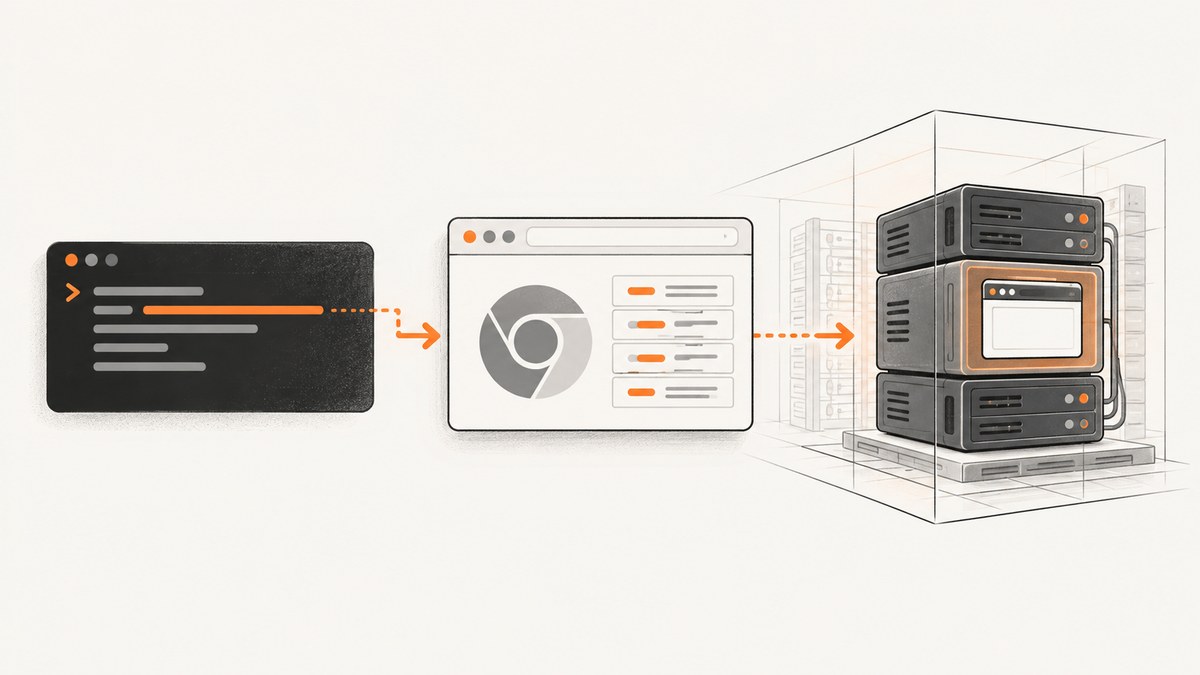
When chrome-headless-render-pdf fails to start Chrome, first run the same Chrome executable with the same arguments outside the package and outside the service or test harness. If that direct launch fails, investigate the browser installation, binary path, launch flags, or execution context. If it works, investigate how the package or environment launches it. The title alone does not identify the cause; the operating system, Chrome version, exact command, and full startup error are needed to narrow it down.
chrome-headless-render-pdf is a Node.js package that launches Chrome to render PDFs. Its README documents command-line and programmatic use, including --chrome-binary for selecting a browser and --chrome-option for passing Chrome arguments. This guide starts with a reproducible isolation check, then covers package configuration, Linux user context, Headless version changes, and failures that occur after startup. Package-specific options should be checked against the project’s README before use; the supplied research describes its options but does not establish a current Chrome compatibility matrix.
1. Reproduce the launch with Chrome by itself
Capture the exact executable and arguments used by the failing job. Run them as the same operating-system user, in the same container or machine, with the same environment where practical, but without the complicated harness. This is the fastest way to distinguish a browser launch problem from a package, CI, IDE, or service problem.
- Record the full Chrome executable path, every switch, the working directory, and the user identity.
- Run the binary directly with those switches. If the package provides a debug log or prints its launch command, use that command as the starting point.
- Save standard output, standard error, and the exit status. Note whether a Chrome process appears and whether it exits immediately.
- Repeat as a normal user if the current process runs under an elevated account, especially on Linux.
ChromeDriver’s troubleshooting guide recommends testing Chrome from a normal user’s command prompt and checking the binary recorded in the driver log. Its advice is useful for the isolation method even when the failing application is not ChromeDriver. A direct failure points toward the browser installation or launch configuration. A successful direct run points toward the package’s selection of Chrome, its arguments, or the environment that starts the process.
# Linux/macOS example: replace the path and switches with the ones from your job
/path/to/chrome --headless --disable-gpu --dump-dom about:blank

# Record the exit status in a shell
/path/to/chrome --headless --disable-gpu --dump-dom about:blank
status=$?
printf 'Chrome exit status: %s\n' "$status"
This is an isolation example, not a universal launch command. Use the switches your package actually supplies. A simplified command that succeeds does not prove the original launch is healthy if it omitted a required flag or ran under another account.
2. Confirm which Chrome binary and arguments the package uses
Do not assume autodetection selected the installation you intended. The package README documents --chrome-binary to provide an explicit executable when autodetection fails, and --chrome-option to pass Chrome arguments. Check the actual resolved path and argument list in logs or process information before changing either value.
# Inspect the package's documented CLI first
chrome-headless-render-pdf --help

# Example shape; confirm option syntax against the installed package version
chrome-headless-render-pdf \
  --chrome-binary /usr/bin/google-chrome \
  --chrome-option "--headless" \
  https://example.com output.pdf
The positional input and output syntax above is illustrative: use the exact invocation documented by the version you installed. The research dossier confirms the two option names but does not provide a complete CLI grammar or a versioned release reference. Avoid copying a guessed command into production. Check --help and the README for the installed version, then copy its documented syntax.
Programmatic use: make the input and executable explicit
The README documents programmatic use as well as the CLI. Because the dossier does not specify the current module export names or function signature, a purported complete package API snippet would risk inventing an interface. Start from the README’s programmatic example for your installed version, then explicitly set the Chrome binary using the API it documents. Confirm that the resulting process uses the expected executable and arguments.
When autodetection fails, check whether the executable exists, is executable by the job’s user, and has the expected architecture and dependencies for the host. In containers, a path that exists on the host may not exist inside the container. A locally installed browser can also differ from the one present in CI. These are environment checks, not claims that any one condition caused the failure.
3. Reduce the harness one layer at a time
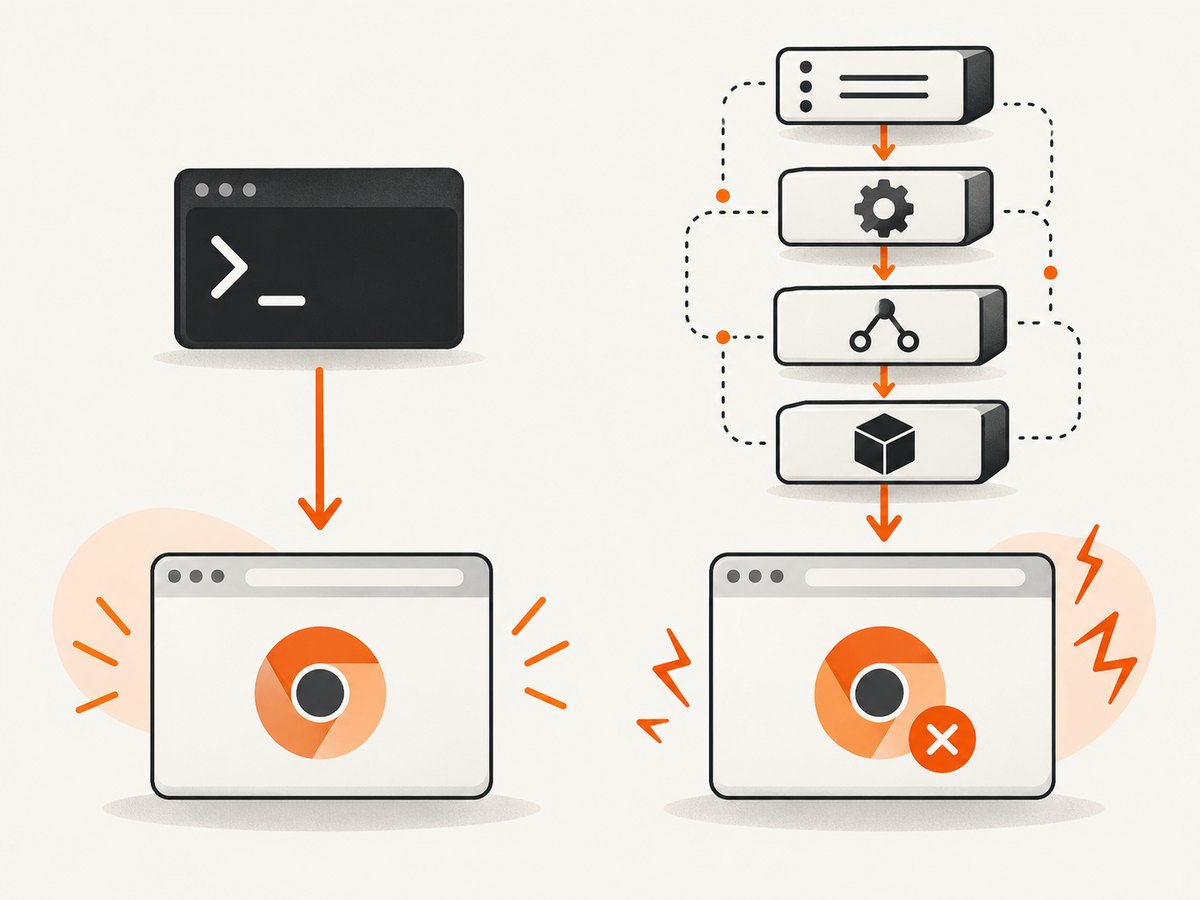
If direct Chrome startup works, add the package back in a small script or command under the same user account. Only after that works should you add the service manager, CI runner, IDE, test framework, or other wrapper. Keep the executable and arguments fixed during this comparison so you can see whether a harness changes the result.
- Run direct Chrome in the failing environment.
- Run the package from a terminal as the same user.
- Run the same package invocation from the service or test harness.
- Compare environment variables, current directory, permissions, temporary directories, process limits, and the selected binary across the successful and failing cases.
ChromeDriver’s official troubleshooting guide recommends separating failures in a special environment from failures in the browser installation. That distinction matters because a browser that starts from an interactive shell may still fail under a service account with different permissions or runtime settings.
4. Check whether Linux is launching Chrome as root
On Linux, check the effective user of the process that starts Chrome. ChromeDriver’s troubleshooting documentation says, “A common cause for Chrome to crash during startup is running Chrome as root user (administrator) on Linux.” It recommends running as a regular user. Follow that recommendation where possible rather than treating --no-sandbox as a routine startup fix.
The same documentation describes using --no-sandbox to work around root execution as “unsupported and highly discouraged.” Do not add it blindly to a launch command: it changes Chrome’s security posture and can conceal the actual execution-context problem. If a container or service currently runs as root, configure it to run under a regular, appropriately permissioned user and retest the original command. If you cannot change that setup, assess the constraints with the maintainers responsible for the environment rather than relying on a blanket flag.
5. Check the Chrome Headless version and distribution
Headless behavior and packaging have changed across Chrome versions. Chromium’s Headless overview dates the newer Headless mode to Chrome 112. Chromium’s documentation says that as of M132, headless shell is no longer part of the Chrome binary; users of the old Headless functionality should migrate to chrome-headless-shell. These version milestones are useful clues, not proof that a version transition caused a particular crash.
Record the installed version and identify the actual executable distribution before changing packages or launch modes:
/path/to/chrome --version

# If present, inspect the separate shell binary too
/path/to/chrome-headless-shell --version
If a setup depends on former Headless shell behavior, check whether it expects the separate chrome-headless-shell binary. Do not migrate based on a generic startup error alone. First match the version, binary, launch mode, and error to the relevant Chromium guidance. The package README inspected for this article does not establish a current compatibility matrix or a release-tested Chrome range.
6. Separate Chrome startup from PDF rendering
A failure after Chrome starts is a different diagnostic branch from a process that crashes immediately. The package exposes PDF controls such as margins, page size, page range, scale, JavaScript budget, and animation budget. Chrome’s command-line reference also documents print-to-PDF behavior, header and footer suppression, and a timeout option. These settings affect output or capture timing; they do not by themselves explain why Chrome cannot launch.
Once you can confirm that Chrome stays up, test a minimal page and the smallest PDF configuration first. Then restore page-specific scripts and PDF options gradually. A blank or incomplete PDF, a timeout while loading a page, and an immediate Chrome startup crash are different symptoms and should be logged separately.
7. Troubleshooting common startup failures
| Symptom | Likely area to inspect | Next step |
|---|---|---|
| Chrome crashes immediately when run directly | Browser installation, selected binary, launch switches, or user context | Run the exact executable and arguments directly; capture its output and exit status. |
| Direct Chrome works, package launch fails | Binary autodetection or package arguments | Check the resolved executable and flags; try the documented --chrome-binary control. |
| Terminal run works, CI or service run fails | Harness, service account, permissions, or environment | Reproduce as the service user and compare the binary, arguments, and execution context. |
| Linux launch crashes under an administrator account | Root execution | Run Chrome as a regular user. ChromeDriver discourages --no-sandbox as a workaround. |
| Failure began after a Chrome update | Version or Headless distribution assumptions | Check the version and whether the setup expects chrome-headless-shell, especially around M132. |
| Chrome launches but the PDF is empty, late, or formatted incorrectly | Page rendering and PDF options | Investigate page load and output settings separately from startup. |
These are diagnostic directions, not a promise that the symptom has only one cause. If the first checks do not isolate the issue, gather four details before changing more settings: operating system and environment, Chrome version, full command including arguments, and the complete startup error or log. That information makes it possible to compare the failing launch with a direct reproduction.
8. Reliability, speed, and cost considerations
For a PDF job, startup and page rendering contribute different parts of the elapsed time. Reusing a stable browser installation and removing unnecessary harness layers from the diagnostic path can make failures easier to reproduce, but the dossier provides no startup-time benchmarks or performance guarantees. Measure your own workload with the same browser version, page set, and runtime context that production uses.
For reliability, log the Chrome version, resolved binary path, launch arguments, execution user, exit status, and whether startup completed. Keep the browser version controlled across development and deployment when consistency matters, and validate version changes before rolling them into an automated rendering job. The supplied sources do not establish a supported version matrix for this package, so consult its current README and release information when choosing a version.
For cost, self-hosted Chrome rendering uses your compute environment; the dossier gives no package license or infrastructure pricing details from which to calculate a per-PDF cost. Account for the machine or container time consumed by browser startup, page loading, and PDF generation in your own environment. If maintaining a Chrome installation and launch configuration is the operational burden, a hosted screenshot API can remove browser setup from the capture request.
9. Or skip the browser setup
If the job is to capture a page as an image, ScreenshotNeo is a website screenshot API and MCP server for developers. One GET request returns a PNG, JPEG, WebP, or PDF. See the API documentation for request parameters and formats.
curl -G "https://api.screenshotneo.com/v1/shot" \
  -d access_key=YOUR_API_KEY \
  --data-urlencode url=https://stripe.com \
  -o shot.webp
import requests
r = requests.get(
"https://api.screenshotneo.com/v1/shot",
params={"access_key": "YOUR_API_KEY", "url": "https://stripe.com"},
timeout=90,
)
r.raise_for_status()
with open("shot.webp", "wb") as f:
f.write(r.content)const q = new URLSearchParams({
access_key: 'YOUR_API_KEY',
url: 'https://stripe.com'
});
const res = await fetch(`https://api.screenshotneo.com/v1/shot?${q}`);
if (!res.ok) throw new Error(`Screenshot request failed: ${res.status}`);
await import('node:fs/promises').then(fs => fs.writeFile('shot.webp', Buffer.from(await res.arrayBuffer())));The Node.js example uses built-in fetch and writes the response bytes to a file. Keep the access key on the server; do not expose it in client-side code. ScreenshotNeo accepts cookie and consent banners and removes more than 60 known consent platforms, newsletter popups, and chat widgets before capture; each of those steps can be turned off. Bot checks or CAPTCHAs, blank pages, timeouts, failed loads, and cache hits cost nothing, and each response identifies the page verdict and billing status in X-Page-Verdict and X-Billed headers. An MCP server provides take_screenshot, get_page_info, and capture_pdf tools for Claude, Cursor, and other MCP clients.
The Free plan includes 1,000 shots a month with no card; paid plans start at $5 for 3,000 shots. Higher listed plans are Growth at $15 for 15,000, Pro at $39 for 60,000, Scale at $99 for 250,000, and Business at $249 for 1,000,000; yearly billing gives two months free. Every feature is on every plan. Sign up for 1,000 free screenshots a month, with no card.
10. Frequently asked questions
Does a startup error prove Chrome itself is broken?
No. First run the same binary with the same switches outside the package and harness. A failure there points toward the browser or launch configuration; success shifts attention to the environment that invokes it.
Should I always add --no-sandbox on Linux?
No. ChromeDriver’s guidance recommends running Chrome as a regular user and calls the root plus --no-sandbox workaround unsupported and highly discouraged.
Did Chrome M132 remove Headless mode?
Chromium says the headless shell stopped being part of the Chrome binary as of M132. Its documentation identifies chrome-headless-shell as the migration path for old Headless functionality; this does not mean all newer Headless mode was removed.
What information should I include when asking for help?
Include the operating system and runtime environment, Chrome version, full command and arguments, and the complete startup error or log. Also say whether the exact Chrome command succeeds when run directly as the same user.


