How to Fix Chrome Timeouts in Headless Docker Selenium
Diagnose Chrome, Grid, navigation and wait timeouts in Docker Selenium, then apply the right fix with runnable configuration and code.
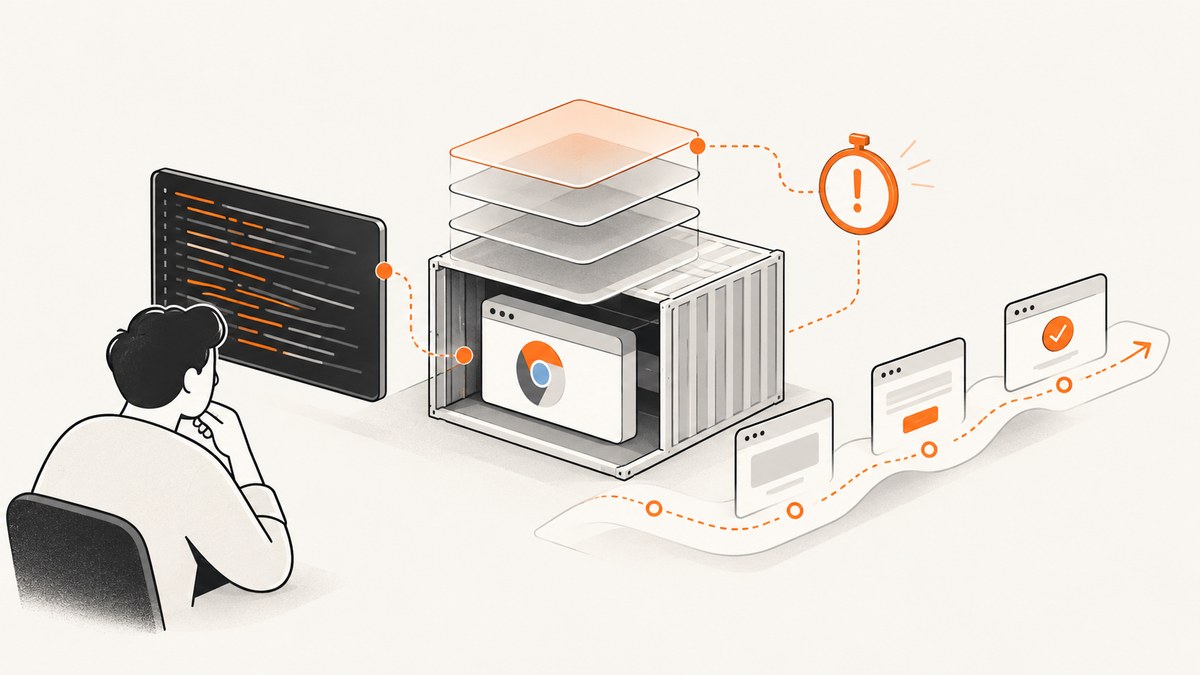
Chrome timeouts in Docker Selenium have several different causes. First classify the failure: Chrome session startup, Selenium Grid readiness, page navigation, asynchronous script execution, or an explicit element wait. Then fix the matching layer. Increasing a timeout value cannot repair a crashed browser, an unready Grid, a version mismatch, exhausted shared memory, or a selector that never appears.
This guide gives a diagnostic workflow, pinned Docker examples, Selenium code, timeout configuration, troubleshooting steps, and operational guidance for reliable headless runs.
1. Identify which timeout you are seeing
| Failure | Typical evidence | First checks |
|---|---|---|
| Chrome startup or session creation | Chrome failed to start: exited abnormally or Chrome failed to start: exited normally (chrome not reachable) |
Container logs, shared memory, Chrome/driver versions, headless and Xvfb settings |
| Grid connection or session request | Client cannot create a session, connection timeout, or connection refused | Application readiness, Grid status, container logs, network and port mapping |
| Navigation/page load | TimeoutException while calling get() |
Target URL, page-load strategy, slow resources, deliberate page-load timeout |
| Explicit element wait | Wait expires after navigation succeeds | Selector, frame, application state, JavaScript rendering, explicit condition |
| Asynchronous script | Script timeout while executing an async callback | Callback completion, script timeout, browser console and page state |
Capture the complete exception, timestamp, Selenium binding and version, Docker image tag, Chrome and ChromeDriver versions, Docker resource limits, capabilities, and the command that starts the browser. This information usually narrows the problem faster than changing timeout values.
2. Make the Docker Selenium service ready before creating sessions
A running container only proves that its main process exists. Selenium may still be starting the Grid, downloading a driver, launching Xvfb, or preparing a browser. Poll an application-level readiness endpoint before your test worker calls RemoteWebDriver.
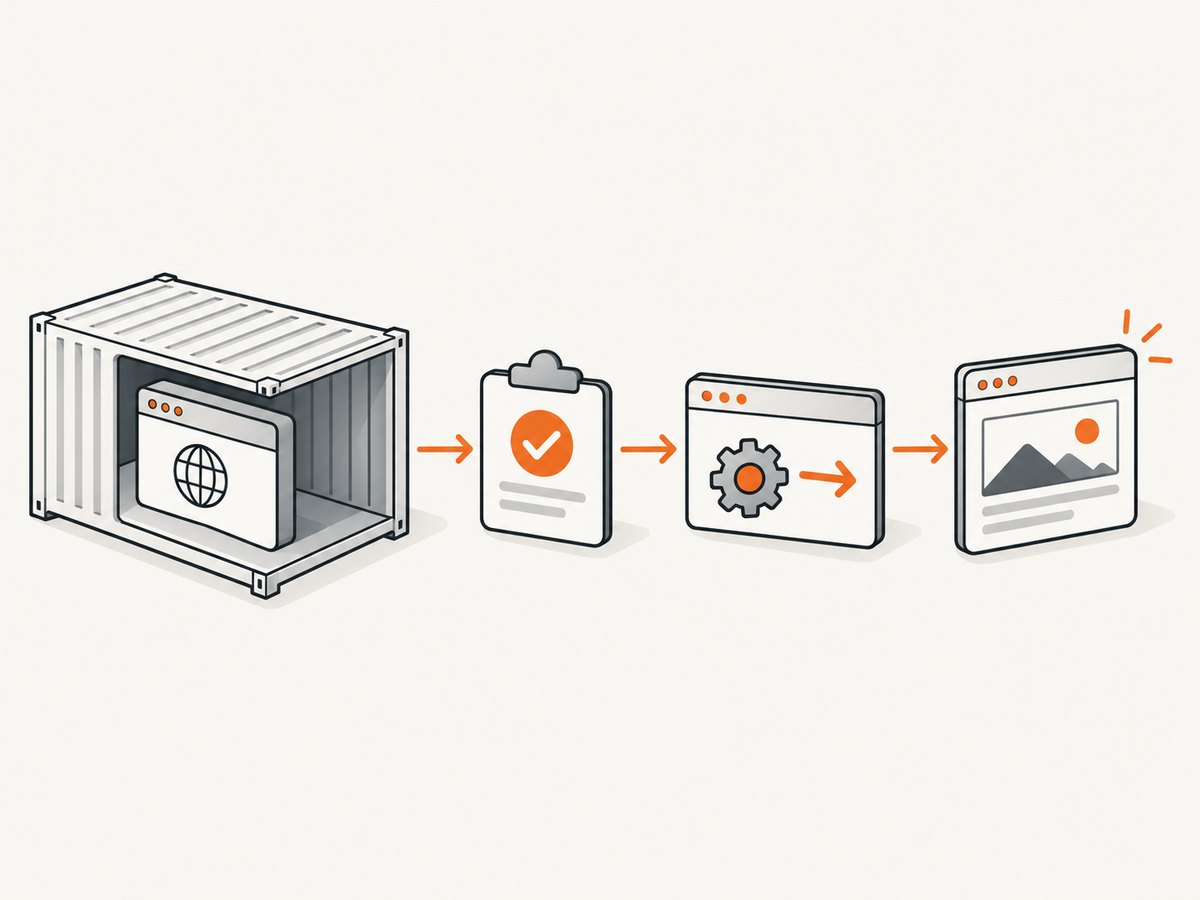
Use a fully tagged image so browser and Grid changes do not arrive unexpectedly. The Docker Selenium documentation describes image tags, readiness, logging, shared memory, and headless configuration. Record the exact tag in CI logs.
docker run --rm -d \
  --name selenium \
  --shm-size=2g \
  -p 4444:4444 \
  selenium/standalone-chrome:4.33.0-20250520
--shm-size=2g is a commonly documented starting point for Selenium’s browser images, not a universal Chrome requirement. The project calls the amount arbitrary; tune it to the page complexity and concurrency of your workload. Low shared memory can make Chrome crash or become unreachable, which surfaces as a timeout in the client.
Wait for the service from the host or test runner:
until curl --fail --silent http://localhost:4444/status | \
  jq -e '.value.ready == true' >/dev/null; do
  sleep 1
done

# Only now create WebDriver sessions
pytest
If your deployment uses a Grid router, poll the router or the documented health endpoint that your environment exposes. Do not treat an open TCP port as proof that a session can be created.
3. Inspect logs before changing configuration
Read both Docker and Selenium logs around the failure:
docker logs --timestamps selenium

docker inspect selenium --format '{{json .HostConfig.ShmSize}}'

docker stats selenium
Look for Chrome crash messages, “not reachable” errors, out-of-memory events, Xvfb failures, driver version errors, and repeated session retries. For more Selenium detail, configure the container’s documented log option:
docker run --rm -d \
  --name selenium \
  --shm-size=2g \
  -e SE_OPTS="--log-level FINE" \
  -p 4444:4444 \
  selenium/standalone-chrome:4.33.0-20250520
Keep verbose logging for diagnosis and reduce it when the failure is understood. Logs should include a correlation ID from the test so a timed-out request can be matched to the server-side session.
4. Verify Chrome, ChromeDriver and Selenium versions
Pin the image and inspect the versions that are actually installed inside it. A locally installed Chrome or driver on the host does not control a browser inside a Selenium container.
docker exec selenium google-chrome --version
docker exec selenium chromedriver --version
docker exec selenium java -jar /opt/selenium/selenium-server.jar --version
Use current Chrome and ChromeDriver releases and follow ChromeDriver’s security guidance. Do not assume a version pair from a blog post still applies. If a custom image installs Chrome separately, verify that the driver resolves to that browser and that your Selenium binding is compatible.
When reporting a bug, include:
- Docker Selenium image tag and digest, if available.
- Chrome and ChromeDriver version output.
- Selenium server and language binding versions.
- Docker Engine or Kubernetes runtime version.
- CPU, memory, shared-memory and concurrency limits.
- Chrome arguments, page-load strategy and timeout settings.
5. Configure headless Chrome and Xvfb for the image you use
Chrome can run through Selenium in Headless mode; see the Chrome Headless documentation. Docker Selenium images may also start Xvfb. Follow the instructions for the exact image tag instead of copying flags from an older image.
from selenium import webdriver
from selenium.webdriver.chrome.options import Options

options = Options()
options.add_argument("--headless=new")
options.add_argument("--no-sandbox")
options.add_argument("--disable-dev-shm-usage")
options.add_argument("--window-size=1440,1000")

driver = webdriver.Chrome(options=options)
--disable-dev-shm-usage makes Chrome use a file-backed temporary directory instead of shared memory. It can avoid a crash when shared memory is constrained, but increasing and properly sizing --shm-size is usually preferable for browser workloads. Use only the flags required by your image and security model.
If Xvfb is disabled while Chrome is not truly headless, startup can fail. Check the image's SE_START_XVFB setting, the headless argument, and the Chrome version together. Newer headless behavior is version-sensitive.
6. Set the timeout that matches the operation
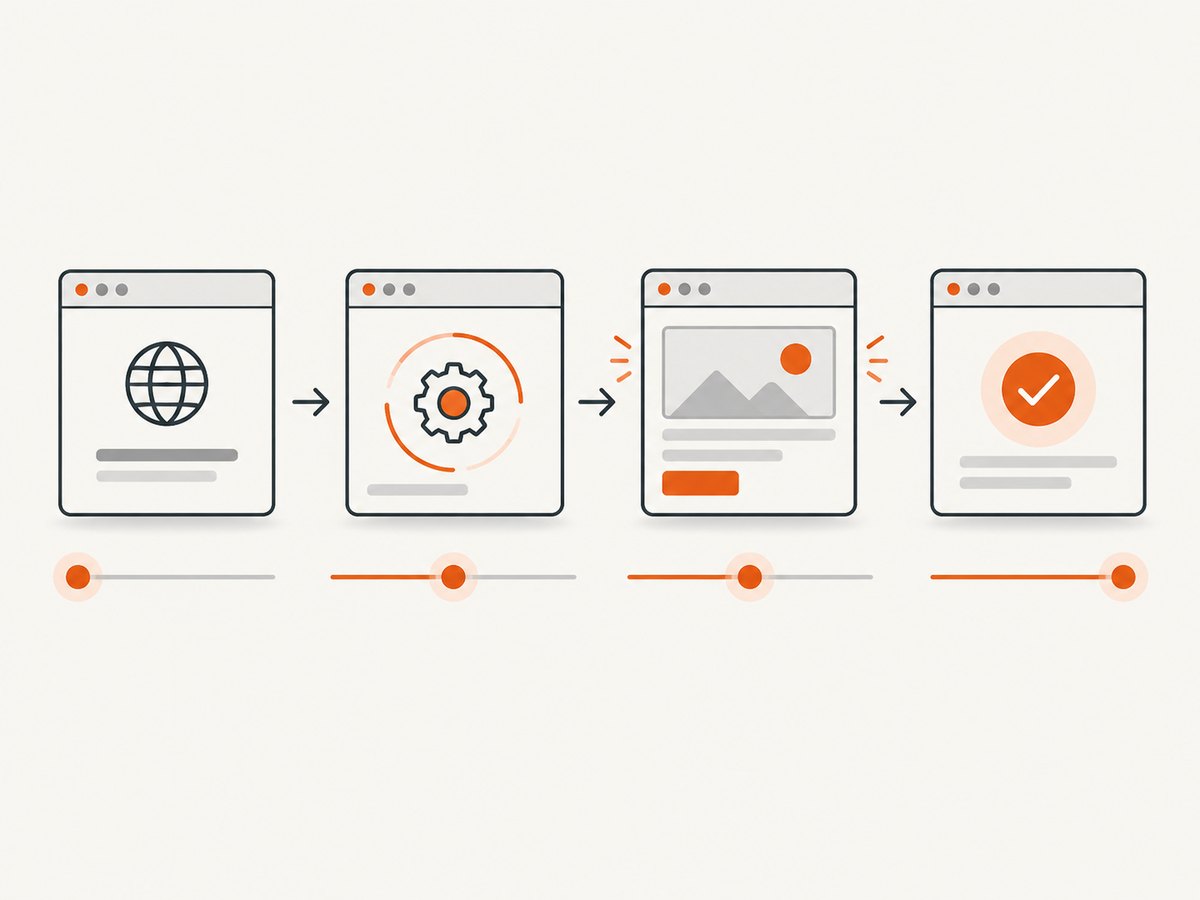
Selenium has separate page-load, script, and element-wait concepts. The Python API exposes set_page_load_timeout() for navigation; its documentation is at Selenium's Python Chrome WebDriver API.
from selenium import webdriver
from selenium.webdriver.chrome.options import Options
from selenium.webdriver.common.by import By
from selenium.webdriver.support.ui import WebDriverWait
from selenium.webdriver.support import expected_conditions as EC
from selenium.common.exceptions import TimeoutException

options = Options()
options.add_argument("--headless=new")
options.add_argument("--window-size=1440,1000")

driver = webdriver.Chrome(options=options)
driver.set_page_load_timeout(45)
driver.set_script_timeout(30)

try:
    driver.get("https://example.com/dashboard")
    wait = WebDriverWait(driver, 20, poll_frequency=0.25)
    panel = wait.until(
        EC.visibility_of_element_located((By.CSS_SELECTOR, "[data-testid='dashboard']"))
    )
    print(panel.text)
except TimeoutException:
    print("The page or required element did not become ready")
    print("Current URL:", driver.current_url)
    print("Title:", driver.title)
finally:
    driver.quit()
Navigation normally waits for a document readiness state. The Selenium waiting strategies documentation explains that this does not guarantee JavaScript-generated content is ready. Wait for the application condition your test needs: a visible element, a populated table, a URL change, or a framework-specific readiness marker.
Avoid mixing implicit and explicit waits. Selenium warns that combining them can produce unpredictable total durations. Set the implicit wait to zero when using explicit waits:
driver.implicitly_wait(0)
wait = WebDriverWait(driver, 20)
Use a deliberate page-load strategy when appropriate. For pages that keep connections open, eager may return after the document is interactive, but your test must still wait for its actual target state. A more permissive strategy is not a substitute for a correct explicit wait.
7. Handle frames, redirects and dynamic applications
An element wait can time out even when the element exists if it is inside an iframe, shadow root, or a different tab. Check the page state before changing the timeout:
print(driver.current_url)
print(driver.title)
print(len(driver.window_handles))
print(len(driver.find_elements(By.TAG_NAME, "iframe")))
Switch to the correct frame before waiting:
frame = WebDriverWait(driver, 10).until(
    EC.presence_of_element_located((By.CSS_SELECTOR, "iframe.payment"))
)
driver.switch_to.frame(frame)
WebDriverWait(driver, 20).until(
    EC.visibility_of_element_located((By.CSS_SELECTOR, "button.submit"))
)
For single-page applications, wait on a stable application signal rather than a guessed sleep. A fixed delay can be useful for a known animation, but it is slower on fast runs and still flaky on slow ones.
8. Troubleshooting checklist
“Chrome failed to start: exited abnormally”
- Cause: shared-memory pressure, missing display/headless configuration, permissions, or a browser crash.
- Fix: inspect logs, raise or tune
--shm-size, verify headless/Xvfb settings, and test with the image's documented flags.
“Chrome failed to start: exited normally (chrome not reachable)”
- Cause: the browser process ended before the driver connected, often because of a crash or incompatible startup configuration.
- Fix: record Chrome and driver versions, remove stale flags, confirm the container has CPU and memory, and reproduce with a pinned image.
Connection refused or session request timeout
- Cause: the Grid is still initializing, the wrong host or port is used, or the container is restarting.
- Fix: poll the readiness endpoint, inspect restart counts and logs, verify port mapping and Docker network names.
Navigation timeout
- Cause: a slow or unreachable URL, a hanging resource, redirect loop, or page-load strategy waiting for a state the page never reaches.
- Fix: test the URL from inside the container, inspect redirects and network errors, set a deliberate page-load timeout, and wait separately for application content.
Element wait timeout after a successful navigation
- Cause: wrong selector, iframe, shadow DOM, authentication redirect, or JavaScript failure.
- Fix: save a screenshot and page source on failure, print URL and title, inspect frames, and wait for a stable application condition.
Works locally but fails in Docker
- Cause: different browser versions, fonts, locale, viewport, network access, resources, or shared memory.
- Fix: reproduce inside the same image, pin versions, set the viewport and timezone explicitly, and compare logs from both environments.
9. Make runs reliable and affordable
Concurrency multiplies browser memory, shared-memory and CPU use. Start with one session, measure resource consumption, then increase parallelism gradually. A larger timeout can hide saturation and create a queue of doomed sessions.
Reuse a driver only when test isolation permits it. Otherwise create and quit sessions predictably so crashed browsers do not accumulate. Always call quit() in a finally block.
Keep diagnostic artifacts for failures: browser and Selenium logs, screenshot, HTML source, URL, title, versions and timing for session creation, navigation and element readiness. These artifacts distinguish infrastructure failures from application failures.
Use retries only for classified transient faults such as a container becoming ready. Do not retry selector errors indefinitely; that increases runtime and can overload the Grid. Cap retries and record the original exception.
10. Or skip the browser setup
If your goal is a clean screenshot rather than interactive browser testing, ScreenshotNeo provides a website screenshot API. It accepts a URL with one GET request and returns PNG, JPEG, WebP or PDF. The API handles the browser service and capture lifecycle for you.
See the ScreenshotNeo API documentation for all parameters. These examples are runnable:
cURL
curl -G "https://api.screenshotneo.com/v1/shot" \
  -d access_key=YOUR_API_KEY \
  --data-urlencode url=https://stripe.com \
  -o shot.webp
Python
import requests

r = requests.get(
    "https://api.screenshotneo.com/v1/shot",
    params={"access_key": "YOUR_API_KEY", "url": "https://stripe.com"},
    timeout=90,
)
r.raise_for_status()
open("shot.webp", "wb").write(r.content)
Node.js
const q = new URLSearchParams({
  access_key: 'YOUR_API_KEY',
  url: 'https://stripe.com'
});
const res = await fetch(`https://api.screenshotneo.com/v1/shot?${q}`);
if (!res.ok) throw new Error(`HTTP ${res.status}`);
const image = Buffer.from(await res.arrayBuffer());
await import('node:fs/promises').then(fs => fs.writeFile('shot.webp', image));
ScreenshotNeo removes cookie and consent banners, newsletter popups and chat widgets before capture. Bot checks, blank pages, failed loads, timeouts and cache hits are not billed; response headers identify the page verdict and whether the shot was billed. Its MCP server exposes take_screenshot, get_page_info and capture_pdf for Claude, Cursor and other MCP clients.
You can also configure full-page capture with lazy images, CSS-element capture, dark mode, device presets or custom viewports, retina scale, PDF paper and margins, custom CSS and JavaScript, clicks, waits, blocked requests, headers, cookies, user agents, authorization, timezone, geolocation, transparent backgrounds, resizing, chosen cache TTLs, signed links, asynchronous jobs with signed webhooks, bulk capture of up to 100 URLs per call, usage data and OpenAPI access. Existing parameter names used by other screenshot APIs also work, which helps when migrating.
There is a free allowance of 1,000 screenshots per month with no card. Paid plans start at $5 for 3,000 screenshots; yearly billing gives two months free. Create a free ScreenshotNeo account and start with the no-card plan.
FAQ
Should I always set --shm-size=2g?
No. It is a documented starting point for Docker Selenium, and the project says the amount is arbitrary. Measure your workload and tune it.
Why does a page-load timeout remain after the page appears?
The configured page-load strategy may be waiting for a document readiness state or resource that has not completed. Set a deliberate page-load timeout and use an explicit wait for the application element you need.
Can a longer explicit wait fix a crashed Chrome process?
No. A crashed or unreachable browser requires log, resource, startup and version diagnosis. An explicit wait only helps when the session is healthy and the page is still becoming ready.
Should I use implicit waits for every test?
Use one waiting strategy consistently. Selenium warns that mixing implicit and explicit waits makes total timing unpredictable; explicit, condition-based waits are usually easier to reason about for dynamic pages.
What should I attach to a bug report?
Include the full exception, timestamps, image tag, Chrome and ChromeDriver versions, Selenium version, Docker limits, startup arguments, readiness result, server logs and the page URL or reduced reproduction.


