How to Fix “Cannot Execute Binary File” for Chromium in AWS Lambda
A Chromium launch error in Lambda often points to an architecture mismatch. Check the function, deployed binary, and package version before changing configuration.
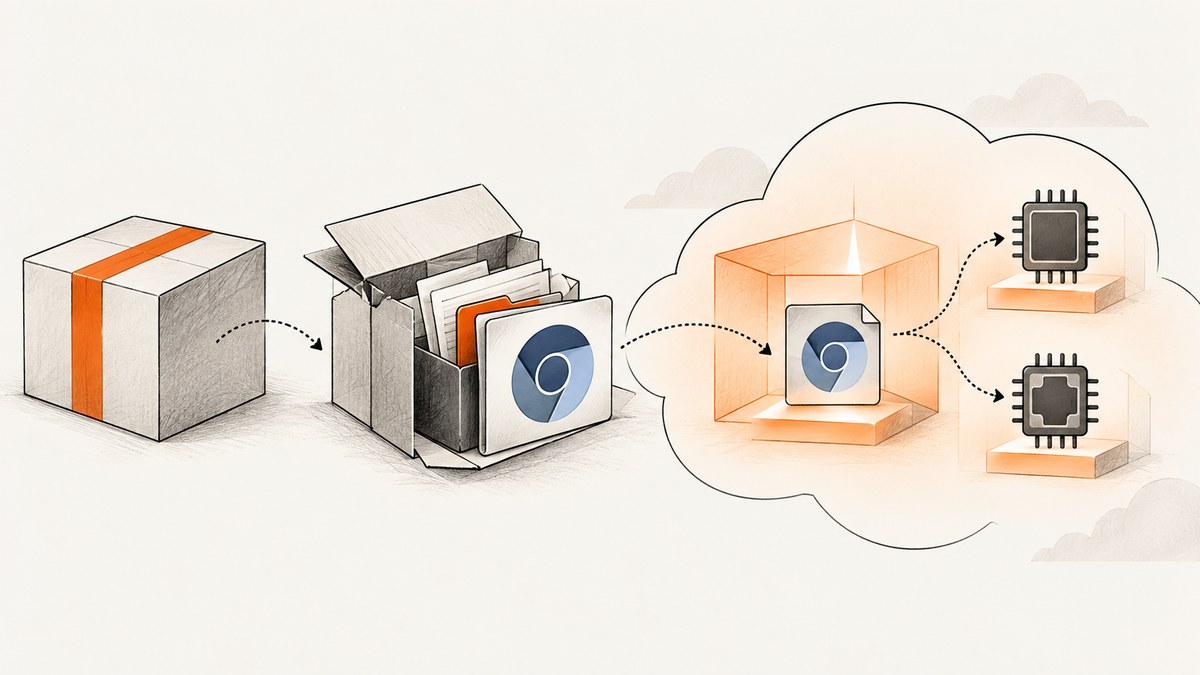
If Puppeteer reports /tmp/chromium: /tmp/chromium: cannot execute binary file in AWS Lambda, first compare the function’s configured architecture with the architecture supported by the exact Chromium binary and package version you deployed. A file can exist at /tmp/chromium and still be impossible for that Lambda environment to execute. If those architectures match, inspect where the binary came from and how the deployment artifact was assembled.
A historical @sparticuz/chromium report describes this error and says changing that reporter’s Lambda architecture from arm64 to x86_64 resolved it. Treat it as a report about a particular setup, not a rule that all current Chromium packages require x86_64. The available reports do not establish a current compatibility matrix. The repository has a separate execution-format report; it reinforces that local and deployed environments can differ, but does not establish current Lambda compatibility. General Linux troubleshooting guidance also identifies an executable built for a different architecture as a common cause of this error. AWS re:Post discussion.
1. Check the Lambda architecture and the binary
Start with the architecture configured for the function, then identify the artifact that supplied Chromium. The function’s setting, the package version, and the binary all need to agree. A path such as /tmp/chromium tells you where the executable was extracted; it does not tell you its processor architecture or whether it is compatible with the runtime.

- In the Lambda console, open the function’s runtime settings and record its instruction-set architecture. You can also inspect the function configuration through your deployment tooling or AWS CLI.
- Record the precise Chromium provider: npm package and version, Lambda layer and version, or custom archive/image. Check the documentation for that exact release for its supported targets.
- Confirm the deployed executable came from that package or layer version. Check your lockfile, build output, and deployment configuration for stale or duplicate artifacts.
- Compare the binary’s intended target with the function architecture. If the package’s current documentation does not say whether the combination is supported, do not infer support from a successful local install.
- If the targets conflict, deploy a compatible package/binary or select a function architecture supported by the package version you intend to use. Rebuild and redeploy the whole artifact, then invoke the function again.
For example, if your function is arm64 and the deployed Chromium executable targets x86_64, changing file permissions will not convert the executable. You need a compatible artifact or a function architecture that the artifact supports. The reverse mismatch has the same basic problem.
2. Inspect the deployment path
Chromium may arrive inside the function bundle, through a Lambda layer, or as an archive extracted to /tmp at runtime. Whichever route you use, trace the actual deployed file back to its source. The diagnostic question is not simply “Did the build install Chromium?” It is “Which exact binary did this invocation extract, and for what target was it built?”
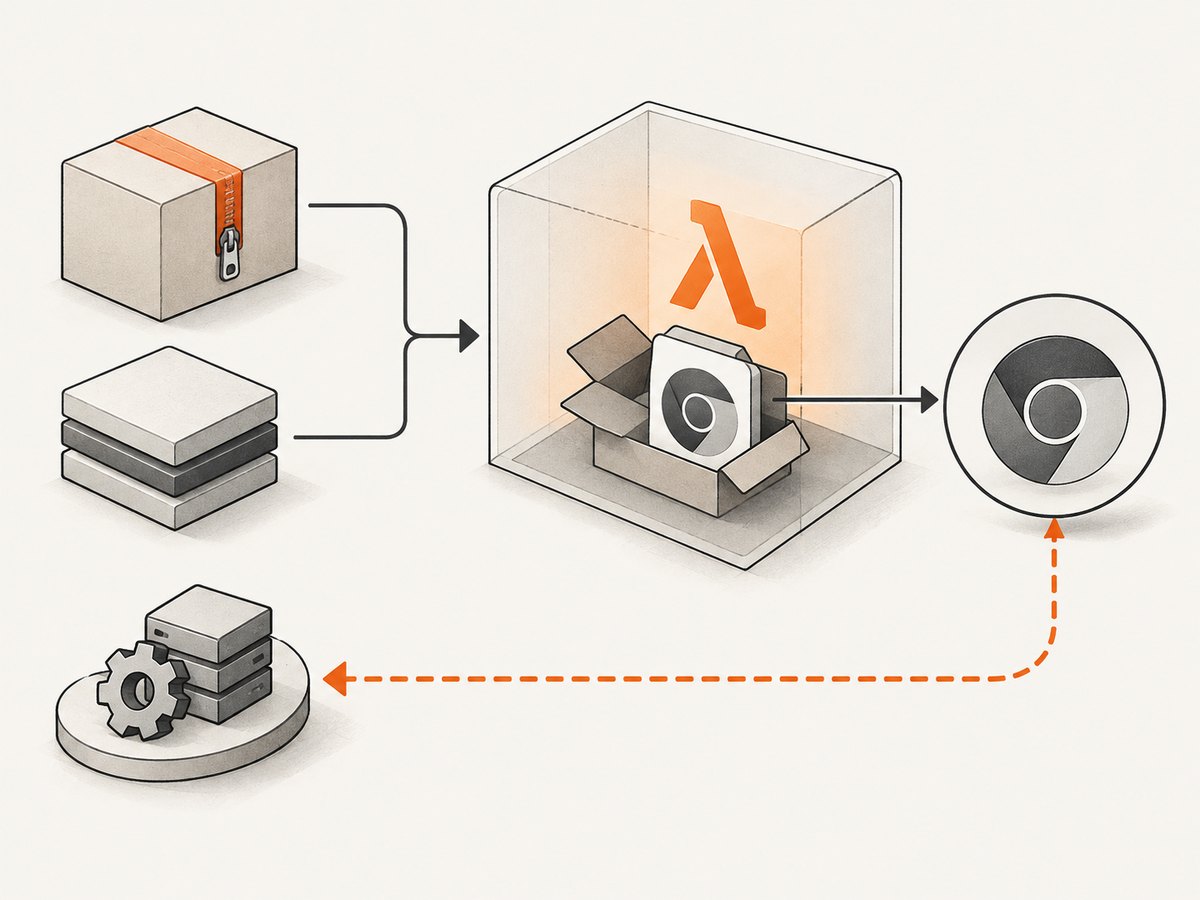
Things to verify
- Package version: Check the version in the lockfile and confirm the build installed the locked version rather than resolving another version.
- Layer and bundle: Ensure the layer version attached to the function is the one you reviewed. Check whether the function bundle also contains a second Chromium copy.
- Build machine: A local development machine may have a different architecture from Lambda. Do not assume a locally downloaded or extracted binary is suitable for deployment.
- Archive contents: Confirm the packaged archive contains the expected Chromium artifact and that deployment did not substitute, truncate, or omit it.
- Runtime extraction: Log the executable path and package version. Confirm that the file at that path was extracted from the artifact you expect.
A repository issue documents a local development failure alongside a Lambda configuration, illustrating why the execution environment matters when reproducing a launch error. Its details are historical and do not act as a current compatibility specification. Review the report and its environment notes.
3. Minimal Puppeteer launch with diagnostic logging
The following Node.js example uses the commonly paired @sparticuz/chromium and puppeteer-core packages. Pin versions that are documented to work together for your chosen Lambda runtime and architecture. The sample shows how to record useful context and guarantee browser cleanup; it cannot make an incompatible binary executable.
const chromium = require('@sparticuz/chromium');
const puppeteer = require('puppeteer-core');

exports.handler = async () => {
  let browser;
  try {
    const executablePath = await chromium.executablePath();
    console.log(JSON.stringify({
      node: process.version,
      platform: process.platform,
      arch: process.arch,
      executablePath,
      chromiumPackage: require('@sparticuz/chromium/package.json').version,
      puppeteerPackage: require('puppeteer-core/package.json').version,
    }));

    browser = await puppeteer.launch({
      args: chromium.args,
      defaultViewport: chromium.defaultViewport,
      executablePath,
      headless: chromium.headless,
    });

    const page = await browser.newPage();
    await page.goto('https://example.com', { waitUntil: 'domcontentloaded' });
    return {
      statusCode: 200,
      headers: { 'content-type': 'text/plain' },
      body: await page.title(),
    };
  } catch (error) {
    console.error('Chromium launch or page capture failed', error);
    throw error;
  } finally {
    if (browser) await browser.close();
  }
};
Check the package’s release documentation for the version you use before copying its launch settings. The example’s logging gives you runtime and package context; process.arch describes the Node process and is a useful clue, but verify the Lambda function configuration and Chromium artifact as well.
4. Verify the fix without masking the cause
- Deploy the corrected architecture/package combination to a non-production alias or test function using the same artifact construction path as production.
- Invoke it and check the logs for the function architecture, package versions, executable path, and full error output.
- Confirm Chromium launches, a page loads, and the expected output is returned.
- Promote the same built artifact after verification. Avoid rebuilding through a different local path between validation and deployment.
- If the error persists despite a documented architecture match, compare the deployed artifact with the one you inspected. Then review package-specific launch instructions and runtime compatibility notes.
Do not respond to this particular message by changing unrelated settings at random. The message points first toward a file-format or execution compatibility problem. Other launch failures can have other causes, but the available evidence does not show that permissions, network access, or a timeout caused this specific error.
5. Common errors and fixes
| Symptom | Likely interpretation | What to check or change |
|---|---|---|
cannot execute binary file or Exec format error |
The environment cannot execute the file as packaged; a target architecture mismatch is a common cause. | Compare Lambda architecture to the exact Chromium binary/package target. Replace the artifact or choose a documented compatible function architecture. |
| The error appears only in Lambda, not on a developer machine | The local and deployed environments or artifacts may differ. | Log the package version and extracted path in Lambda. Inspect the deployed layer/bundle and build target rather than relying on the local result. |
| The error appears only in local emulation | The local host may not match the architecture or environment for which the binary was packaged. | Check the local machine’s architecture and the package’s local-development guidance. Test the deployment artifact in an environment matching its target. |
/tmp/chromium exists, but launch still fails |
Existence and path are not proof of executable compatibility. | Identify which artifact extracted it, its version and target. Rebuild/redeploy if the file is stale or incompatible. |
| Changing permissions does not help | Permissions do not correct a binary format or architecture mismatch. | Check the binary target and file provenance. Investigate permissions only when the observed error actually indicates a permission denial. |
| Architecture appears to match, but failure continues | The package, layer, extracted file, or local/deployment packaging path may differ from what you expect. | Verify the exact release and artifact contents. Follow that release’s instructions and capture the full launch error before changing other settings. |
6. Performance, reliability, and cost considerations
Architecture compatibility is a correctness gate: a mismatched executable will fail before browser performance tuning can help. Resolve the artifact issue first. After launch succeeds, measure cold and warm invocations in your own function because this research provides no verified runtime benchmarks or cost figures for a particular Chromium/Lambda setup.
For reliability, make the deployment repeatable: pin the Chromium and Puppeteer package versions, keep the lockfile with the code, track the layer or archive version, and test the built artifact rather than only a developer installation. Log enough version and path information to trace future failures without exposing credentials. On failure, close a browser if it was created and preserve the original error in the function logs.
Cost depends on your Lambda configuration and invocation pattern; no numeric estimate is established here. A failed browser launch still consumes the invocation and any configured resources used before it exits, so fix repeated failures promptly. Once functional, measure the actual workload and tune the function based on observed duration and memory use rather than assuming that switching architecture or package versions will improve performance.
7. If screenshot generation is the actual goal
If the job is simply to capture pages, you can avoid maintaining a Chromium binary and Puppeteer deployment yourself. ScreenshotNeo is a website screenshot API and MCP server from Yorker Media. Its one-call API accepts a URL and returns an image or PDF. See the ScreenshotNeo API documentation for parameters and response details.
Or skip the browser setup
curl -G "https://api.screenshotneo.com/v1/shot" \
  -d access_key=YOUR_API_KEY \
  --data-urlencode url=https://stripe.com \
  -o shot.webp
Equivalent Python request:
import requests

r = requests.get(
    "https://api.screenshotneo.com/v1/shot",
    params={"access_key": "YOUR_API_KEY", "url": "https://stripe.com"},
    timeout=90,
)
open("shot.webp", "wb").write(r.content)
Equivalent Node.js request:
const q = new URLSearchParams({
  access_key: 'YOUR_API_KEY',
  url: 'https://stripe.com',
});
const res = await fetch(`https://api.screenshotneo.com/v1/shot?${q}`);
if (!res.ok) throw new Error(`ScreenshotNeo returned ${res.status}`);
await require('node:fs/promises').writeFile('shot.webp', Buffer.from(await res.arrayBuffer()));
Cookie banners, newsletter popups, and chat widgets are removed before the shot; each cleanup step can be turned off. Bot checks, blank pages, timeouts, failed loads, and cache hits are not billed, and the response identifies the page verdict and billing status. An MCP server lets AI agents, including Claude and Cursor, take screenshots. The free plan includes 1,000 shots a month with no card; paid plans start at $5 for 3,000 shots.
Sign up for 1,000 free screenshots a month with no card.
FAQ
Does this error prove Lambda is using the wrong architecture?
No. Architecture mismatch is a strong first check and a common explanation, but the error alone does not identify the exact cause. Verify the binary and deployment artifact too.
Does the historical arm64-to-x86_64 fix mean Sparticuz Chromium never supports arm64?
No. It records one setup and does not establish current support. Check the release documentation for the exact package version you plan to deploy.
Should I change the function architecture before checking the package?
First identify the package version and its supported target. Then choose a compatible binary or function architecture. Changing the function blindly can leave the same mismatch in place.
Can I use a screenshot API if I still need browser automation?
An API is suitable when the required output is a screenshot or PDF. If your application needs interactive browser control or page-specific automation, retain a browser deployment and resolve its compatibility issue.


