How to Fix “chromium.executablePath Is Not a Function” in AWS CDK
Fix @sparticuz/chromium executablePath errors in AWS CDK by matching the package API, bundling correctly, and using the right Lambda architecture.

Direct answer: the error usually means your code uses the wrong executablePath shape for the installed @sparticuz/chromium release. Current releases expose executablePath(location?) as a function that returns a promise, so use await chromium.executablePath(). Older releases exposed executablePath as a getter that already returned a promise, so use await chromium.executablePath without parentheses.
Start by checking the package that is actually deployed, then make your AWS CDK bundling model, Lambda layer layout, architecture, and Puppeteer launch options agree with it. A local build can succeed while Lambda runs a stale layer, duplicate package, wrong architecture, or different export shape.
1. Identify which API your package provides
Run these commands from the application that owns the Lambda function:

npm ls @sparticuz/chromium
npm explain @sparticuz/chromium
cat package-lock.json | rg -n '"@sparticuz/chromium"|node_modules/@sparticuz/chromium'
Then inspect the README and TypeScript declarations for that exact version. The current API table documents executablePath(location?: string) returning Promise<string>: the function extracts Chromium and returns its executable path. Older versions used a property that returned a promise directly. The syntax is therefore version-dependent:
Current function-style API
import chromium from '@sparticuz/chromium';
import puppeteer from 'puppeteer-core';

const executablePath = await chromium.executablePath();

const browser = await puppeteer.launch({
  args: chromium.args,
  defaultViewport: chromium.defaultViewport,
  executablePath,
  headless: chromium.headless,
});
Older getter-style API
import chromium from '@sparticuz/chromium';
import puppeteer from 'puppeteer-core';

const executablePath = await chromium.executablePath;

const browser = await puppeteer.launch({
  args: chromium.args,
  defaultViewport: chromium.defaultViewport,
  executablePath,
  headless: chromium.headless,
});
Do not choose between these forms based on a blog snippet. Check the installed release, declarations, and generated deployment asset. If esbuild changes the import shape, inspect the emitted code and the value at runtime in a diagnostic deployment.
2. Use a defensive diagnostic before launching Puppeteer
A small diagnostic makes the mismatch obvious without guessing. This example supports both API shapes while you confirm the version:
import chromium from '@sparticuz/chromium';

export async function resolveChromiumPath(): Promise<string> {
  const candidate = (chromium as any).executablePath;

  if (typeof candidate === 'function') {
    return await candidate();
  }

  if (candidate && typeof candidate.then === 'function') {
    return await candidate;
  }

  throw new Error(`Unexpected chromium.executablePath export: ${typeof candidate}`);
}

export async function logChromiumDiagnostics() {
  const executablePath = await resolveChromiumPath();
  console.log({
    executablePath,
    argsCount: chromium.args.length,
    headless: chromium.headless,
    defaultViewport: chromium.defaultViewport,
  });
  return executablePath;
}
Use this only while diagnosing. Once you know the release, prefer its documented, typed syntax so a package upgrade produces a compile-time review point.
3. Choose one CDK packaging model
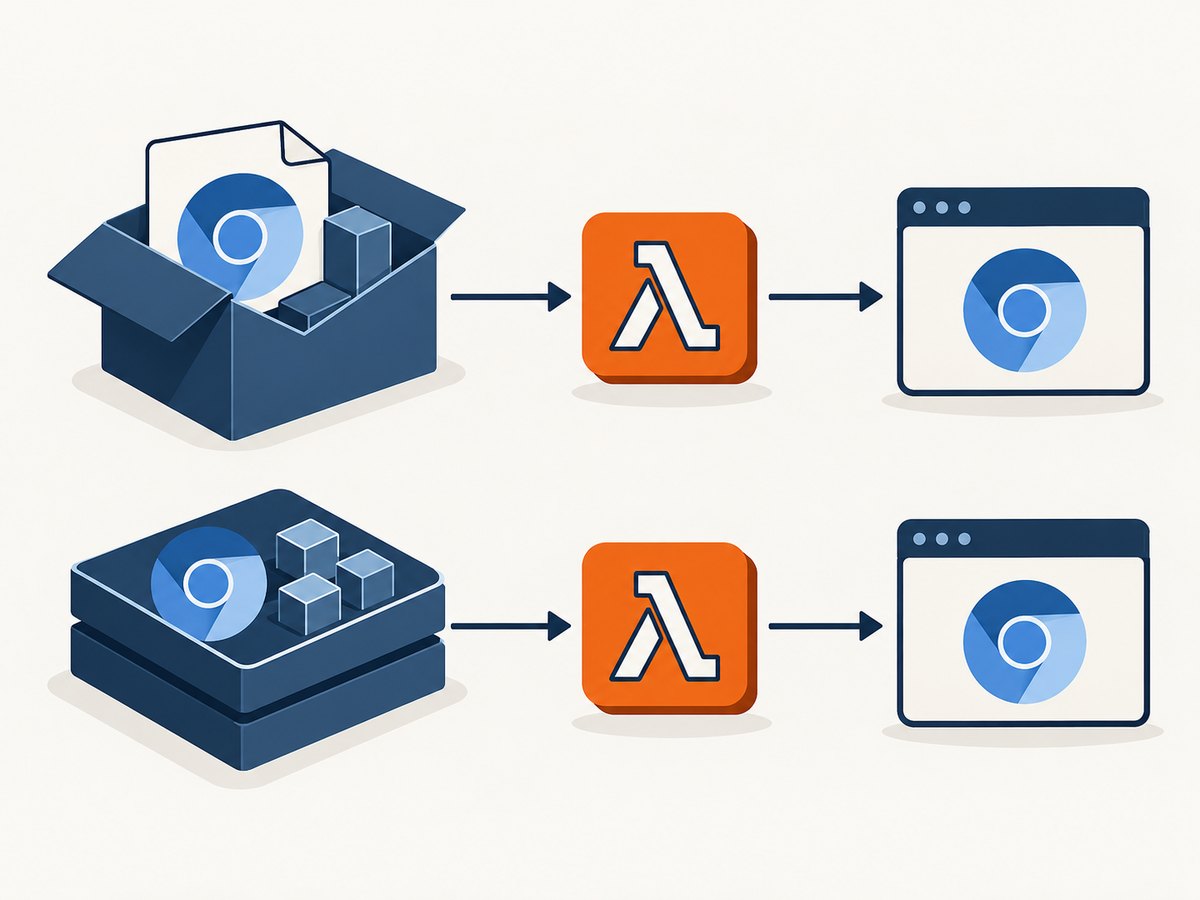
AWS CDK NodejsFunction bundles referenced modules with esbuild by default. You must decide whether Chromium is included in the function asset or supplied by a Lambda layer. Mixing both models accidentally creates duplicate copies and confusing runtime behavior.
| Approach | CDK setting | Best fit | Main trade-off |
|---|---|---|---|
| Bundle with function | Do not externalize the module | One function or simple deployments | Larger function asset and independent copies |
| Provide a layer | externalModules: ['@sparticuz/chromium'] |
Several functions sharing one Chromium build | Layer version and function code must stay synchronized |
Option A: bundle @sparticuz/chromium with the function
Keep @sparticuz/chromium in dependencies, not only devDependencies. Let CDK and esbuild include the module:
import * as cdk from 'aws-cdk-lib';
import * as lambda from 'aws-cdk-lib/aws-lambda';
import * as nodejs from 'aws-cdk-lib/aws-lambda-nodejs';

export class BrowserStack extends cdk.Stack {
  constructor(scope: cdk.App, id: string, props?: cdk.StackProps) {
    super(scope, id, props);

    new nodejs.NodejsFunction(this, 'ScreenshotFunction', {
      entry: 'src/handler.ts',
      runtime: lambda.Runtime.NODEJS_20_X,
      architecture: lambda.Architecture.X86_64,
      bundling: {
        // No externalModules entry for @sparticuz/chromium.
        minify: true,
        sourceMap: true,
      },
    });
  }
}
Option B: provide Chromium through a layer
The layer must use Lambda’s Node.js layout, for example nodejs/node_modules/@sparticuz/chromium. Lambda exposes those modules under /opt/nodejs/node_modules. Since the layer supplies the package, externalize it from the function bundle:
import * as path from 'node:path';
import * as cdk from 'aws-cdk-lib';
import * as lambda from 'aws-cdk-lib/aws-lambda';
import * as nodejs from 'aws-cdk-lib/aws-lambda-nodejs';

export class BrowserStack extends cdk.Stack {
  constructor(scope: cdk.App, id: string, props?: cdk.StackProps) {
    super(scope, id, props);

    const chromiumLayer = new lambda.LayerVersion(this, 'ChromiumLayer', {
      code: lambda.Code.fromAsset(path.join(__dirname, '../layer')),
      compatibleRuntimes: [lambda.Runtime.NODEJS_20_X],
      compatibleArchitectures: [lambda.Architecture.X86_64],
    });

    new nodejs.NodejsFunction(this, 'ScreenshotFunction', {
      entry: 'src/handler.ts',
      runtime: lambda.Runtime.NODEJS_20_X,
      architecture: lambda.Architecture.X86_64,
      layers: [chromiumLayer],
      bundling: {
        externalModules: ['@sparticuz/chromium'],
      },
    });
  }
}
For a layer supplied from a custom extraction directory, pass that directory to the function-style API when the package documentation for your release requires it:
const executablePath = await chromium.executablePath('/opt/chromium');An error mentioning an input directory such as /var/task/bin commonly points to failed externalization, a wrong layer layout, or a package expecting a different extraction location.
4. Verify the layer asset and deployed bundle
- Inspect the layer archive before deployment.
- Confirm the path is
nodejs/node_modules/@sparticuz/chromium, including the package’s binary files. - Confirm the layer is attached to the exact function version being invoked.
- Inspect the synthesized CDK template and generated asset to ensure the module is externalized only when the layer supplies it.
- Remove old layers and duplicate package copies during troubleshooting.
unzip -l chromium-layer.zip | rg 'nodejs/node_modules/@sparticuz/chromium'
cdk synth
npm ls @sparticuz/chromium
Keep the runtime package in dependencies when your source imports it. A dev dependency can disappear from a function-bundled deployment.
5. Set the Lambda architecture explicitly
The documented Chromium build does not support ARM for the affected releases. An ARM64 function can therefore fail with an execution-format error even when the JavaScript code is correct. Set Architecture.X86_64 in CDK and build the layer for the same architecture:
new nodejs.NodejsFunction(this, 'BrowserFunction', {
  entry: 'src/handler.ts',
  runtime: lambda.Runtime.NODEJS_20_X,
  architecture: lambda.Architecture.X86_64,
});
Do not switch to ARM merely to reduce cost or change startup behavior unless the exact @sparticuz/chromium release documents ARM support and you have rebuilt every native and binary dependency for it.
6. Separate local browser testing from Lambda testing
The serverless Chromium build is intended for a headless Lambda environment. Local headful testing can fail for reasons unrelated to CDK packaging. Use a locally installed Chrome or a Puppeteer-managed browser when developing locally, and use @sparticuz/chromium in Lambda:
import puppeteer from 'puppeteer-core';
import chromium from '@sparticuz/chromium';

const isLocal = process.env.IS_LOCAL === '1';
const executablePath = isLocal
  ? process.env.LOCAL_CHROME_PATH
  : await chromium.executablePath();

const browser = await puppeteer.launch({
  executablePath,
  args: isLocal ? [] : chromium.args,
  defaultViewport: isLocal ? { width: 1280, height: 800 } : chromium.defaultViewport,
  headless: true,
});

try {
  const page = await browser.newPage();
  await page.goto('https://example.com', { waitUntil: 'networkidle2' });
  console.log(await page.title());
} finally {
  await browser.close();
}
7. Common errors and fixes
| Error or symptom | Likely cause | Fix |
|---|---|---|
chromium.executablePath is not a function |
Getter-style package called with parentheses | Use await chromium.executablePath, or upgrade and use the documented function API. |
Cannot read properties of undefined |
Import interop differs after bundling | Inspect the generated export, verify default versus namespace import, and test the deployed asset. |
/var/task/bin or input-directory errors |
Wrong extraction directory, bad layer layout, or failed externalization | Use the documented extraction location, verify nodejs/node_modules, and externalize only a layer-supplied copy. |
Exec format error |
ARM64 function running an x86_64 Chromium binary | Set both function and layer to X86_64. |
| Works locally, module missing in Lambda | Package is a dev dependency or was omitted by bundling | Move it to runtime dependencies, bundle it, or attach a correctly built layer. |
| Two different Chromium versions appear | Layer and function bundle both contain the package | Choose one source and remove the duplicate. |
| Browser starts but pages fail | Local executable, launch flags, memory, or network behavior differs | Log the resolved path, use the package’s args, increase Lambda memory if necessary, and test the deployed environment. |
8. A reliable deployment checklist
- Run
npm ls @sparticuz/chromiumand record the exact version. - Read that release’s README and declarations for the
executablePathshape. - Use parentheses only for function-style releases.
- Keep one source of the package: bundle or layer.
- For a layer, use
nodejs/node_modules/@sparticuz/chromium. - Set
externalModulesonly when the layer supplies the module. - Keep runtime imports in
dependencies. - Deploy x86_64 unless your exact release documents another architecture.
- Log the resolved executable path once in a diagnostic deployment.
- Close every browser in a
finallyblock. - Retest after changing package, layer, architecture, or bundler settings.
9. Performance, reliability, and cost considerations
Bundling gives each function its own package and can simplify version control. A layer can reduce repeated packaging across several functions, but every function must use a compatible layer version. Chromium extraction and browser startup contribute to cold-start latency; reuse a browser only within the lifecycle of a warm invocation and always close pages and browsers when finished.
Keep deployment assets as small as your chosen package permits, set Lambda memory according to the workload, and avoid downloading a second browser at runtime. For reliability, pin the Chromium package version, deploy the layer and function together, and log the package version and resolved executable path during controlled diagnostics. Cost depends on Lambda duration, memory, invocations, and any surrounding services; the API-shape fix itself does not change those variables.
10. Or skip the browser setup
If your goal is to produce website screenshots rather than operate Chromium in Lambda, ScreenshotNeo provides a single HTTP endpoint. Its clean-shot pipeline accepts cookie and consent banners before capture and removes more than 60 known consent platforms, newsletter popups, and chat widgets. Bot checks, blank pages, timeouts, failed loads, and cache hits are not billed, and response headers identify the page verdict and billing result. It also provides an MCP server for Claude, Cursor, and other MCP clients.
See the ScreenshotNeo API documentation for all options. A basic request is:
curl -G "https://api.screenshotneo.com/v1/shot" -d access_key=YOUR_API_KEY --data-urlencode url=https://stripe.com -o shot.webpPython
import requests

r = requests.get(
    "https://api.screenshotneo.com/v1/shot",
    params={"access_key": "YOUR_API_KEY", "url": "https://stripe.com"},
    timeout=90,
)
r.raise_for_status()
open("shot.webp", "wb").write(r.content)
Node.js
const q = new URLSearchParams({ access_key: 'YOUR_API_KEY', url: 'https://stripe.com' });
const res = await fetch(`https://api.screenshotneo.com/v1/shot?${q}`);
if (!res.ok) throw new Error(`${res.status} ${await res.text()}`);
const buffer = Buffer.from(await res.arrayBuffer());
await import('node:fs/promises').then(fs => fs.writeFile('shot.webp', buffer));
ScreenshotNeo supports full-page capture with lazy images loaded, CSS-selector element capture, dark mode, device presets and custom viewports, retina scale, PDF output, custom CSS and JavaScript, clicks, waits, request blocking, headers, cookies, user agents, authorization, timezone, geolocation, transparent backgrounds, resizing, selectable cache TTLs, signed image links, asynchronous jobs with signed webhooks, bulk capture for up to 100 URLs per call, a usage API, and an OpenAPI specification. Existing parameter names used by other screenshot APIs also work to ease migration.
There is a free plan with 1,000 screenshots per month and no card. Paid plans start at $5 for 3,000 shots; every feature is available on every plan. Create a free ScreenshotNeo account to try the API without setting up a browser layer.
11. FAQ
Should I upgrade or change the syntax?
Match the syntax to the installed package first. Upgrade only when you intentionally want the newer API and have tested the resulting bundle and layer.
Can I use a layer and still bundle Puppeteer?
Yes. Bundle your Puppeteer code as needed, but externalize @sparticuz/chromium when that specific module is supplied by the layer.
Why does a TypeScript compile pass not prove Lambda will work?
Compilation checks your local declarations. Lambda can still receive a stale layer, a different package copy, a transformed import, an incorrect directory, or an incompatible binary architecture.
Where should I look first after a failed deployment?
Check the deployed package version, resolved executable path, layer contents, CDK externalModules, and function architecture in that order.


