How to Fix Chromium Fonts Not Loading in Production with Playwright
Diagnose missing production fonts in Playwright by checking runtime dependencies, installed fonts, web-font requests, and capture timing.
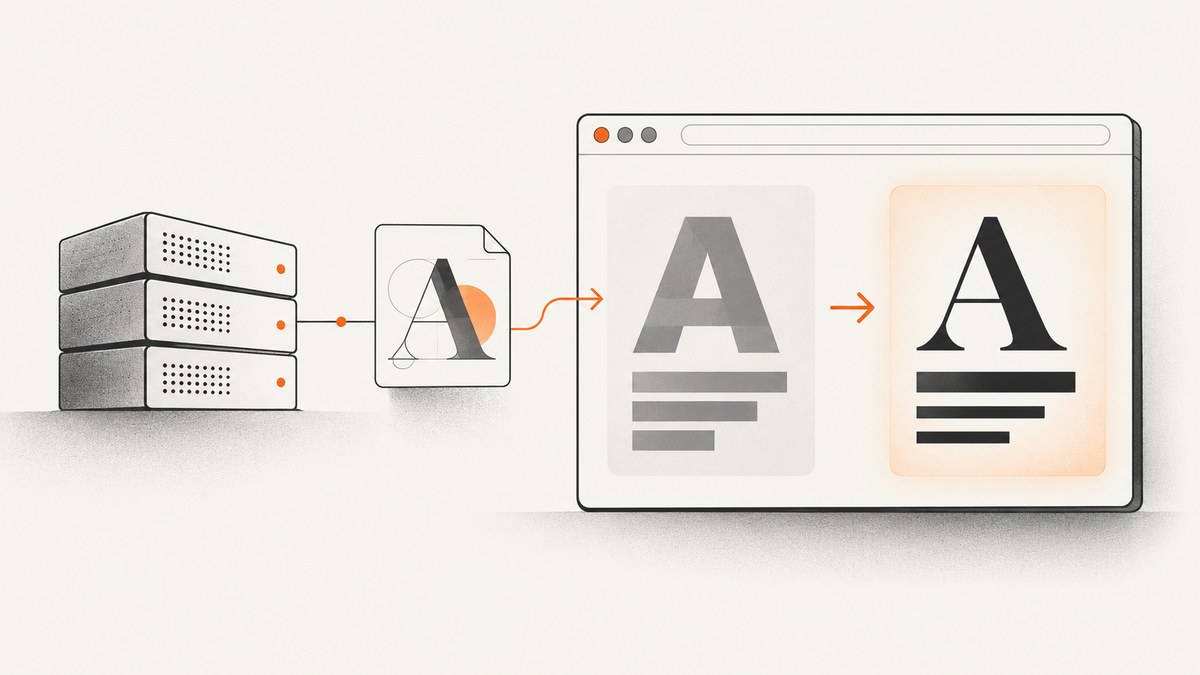
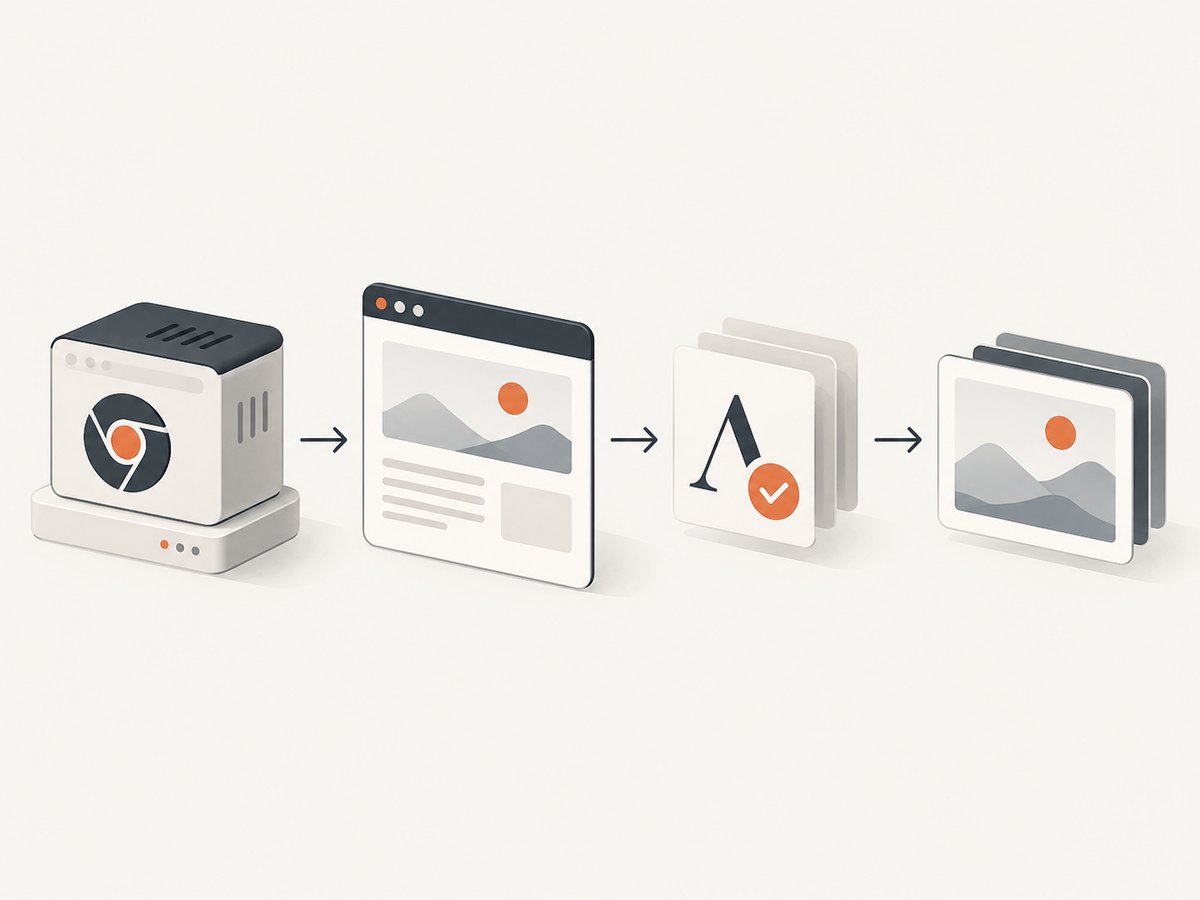
When Chromium renders the wrong font in production, check four layers separately: the browser and Linux dependencies, fonts installed in the runtime, delivery of remote web-font files, and whether Playwright waits for fonts before it captures or asserts. There is no universal fix: the title does not identify your operating system, container, font, or error. Start by recording those details, then follow the checks below.
For a typical Playwright screenshot, install the browser and its system dependencies using the same Playwright version as your project, make sure any required system font exists, and wait for document.fonts.ready after the page has rendered the content whose appearance matters. Confirm the expected face’s status and inspect font requests if it still falls back. A browser launch failure is a different problem from a font that fails to load after the page opens.
1. Identify which font layer is failing
Before changing a container or adding packages, capture the facts that distinguish the likely causes. Chromium rendering depends on the platform, so a screenshot can differ between a developer’s machine and a production Linux image even when both load the same page. [Chromium: How Chromium Displays Web Pages]
| Symptom | Likely layer to investigate | First useful check |
|---|---|---|
| Chromium does not start | Browser binary or Linux system dependencies | Verify Playwright and browser versions; enable browser launch logging. |
| Text appears, but in a different typeface | System font availability, web-font delivery, or capture timing | Check the expected face status and font-file requests. |
| Some characters appear as boxes or missing glyphs | The selected face may not contain those glyphs, or a fallback face may be unavailable | Check the face used for the affected text and compare the runtime’s fonts. |
| Only the screenshot is wrong; the page later looks correct | Capture happened before font loading or after a different page state | Wait for fonts after the relevant content and styles are present. |
Record the production OS or base image, whether the process runs in a container, Playwright package version, Chromium version, the font family expected, and whether it is a system font or a remote web font. Keep the local and production observations side by side. Without these details, installing a particular font package or blaming a CDN would be guesswork.
2. Install the matching browser and Linux dependencies
Playwright versions expect specific browser binaries. Install the browser through the Playwright package version pinned by your project, and include the system dependencies in the environment where the browser actually runs. The documented Chromium installation command is:
npx playwright install --with-deps chromiumRun it as part of your CI or image build, using the project’s locked Playwright version. If the application installs one Playwright version but the deployment image contains a browser installed for another, align them instead of assuming any system Chromium will work. Playwright documents both browser installation and the version relationship. [Playwright: Browsers, Playwright: Continuous Integration]
A Docker image provided by Playwright includes browsers and system dependencies. Choose an image tag compatible with the Playwright version in the project and pin it where practical. The Playwright Python image, for example, does not include the Playwright Python package itself; install the package in your application environment too. [Playwright: Docker]
These steps address missing browser dependencies. They do not guarantee that a particular font is installed or that a remote font file can be reached. Treat those as separate checks. Add a system font only after confirming that the page expects a local font and that it is absent in the runtime; the available facts do not identify which font package your application needs.
3. Wait for used web fonts before capture
Page navigation completing does not itself establish that the font used by visible text is ready for a screenshot. In Playwright JavaScript, wait for the browser’s font set after navigation:
import { chromium } from 'playwright';

const browser = await chromium.launch();
const page = await browser.newPage();

await page.goto('https://example.com', { waitUntil: 'load' });
await page.evaluate(() => document.fonts.ready);
await page.screenshot({ path: 'page.png', fullPage: true });

await browser.close();
document.fonts.ready resolves when loading and layout operations for all used fonts have completed. It does not force every CSS-declared font to load: an unused face can remain unloaded, and an optional face may not arrive in time. If your application adds content, styles, or font declarations after navigation, wait after that state is in place. [MDN: Document.fonts]
To inspect font-face state from the page, return a small diagnostic snapshot. This reports declared faces and statuses; use it together with the computed style on the affected text because a loaded face may not be the face that element actually uses.
const fontReport = await page.evaluate(() => ({
  status: document.fonts.status,
  faces: [...document.fonts].map(face => ({
    family: face.family,
    style: face.style,
    weight: face.weight,
    status: face.status,
  })),
}));

console.log(fontReport);
For an element-specific check, inspect its computed family after the content exists:
const typography = await page.locator('h1').evaluate(element => {
  const style = getComputedStyle(element);
  return {
    family: style.fontFamily,
    weight: style.fontWeight,
    text: element.textContent,
  };
});
console.log(typography);
A computed font-family is the CSS family list, not proof that the first family was successfully loaded or contains the needed glyph. Combine it with the face statuses and request evidence.
4. Check remote font requests and deployment behavior
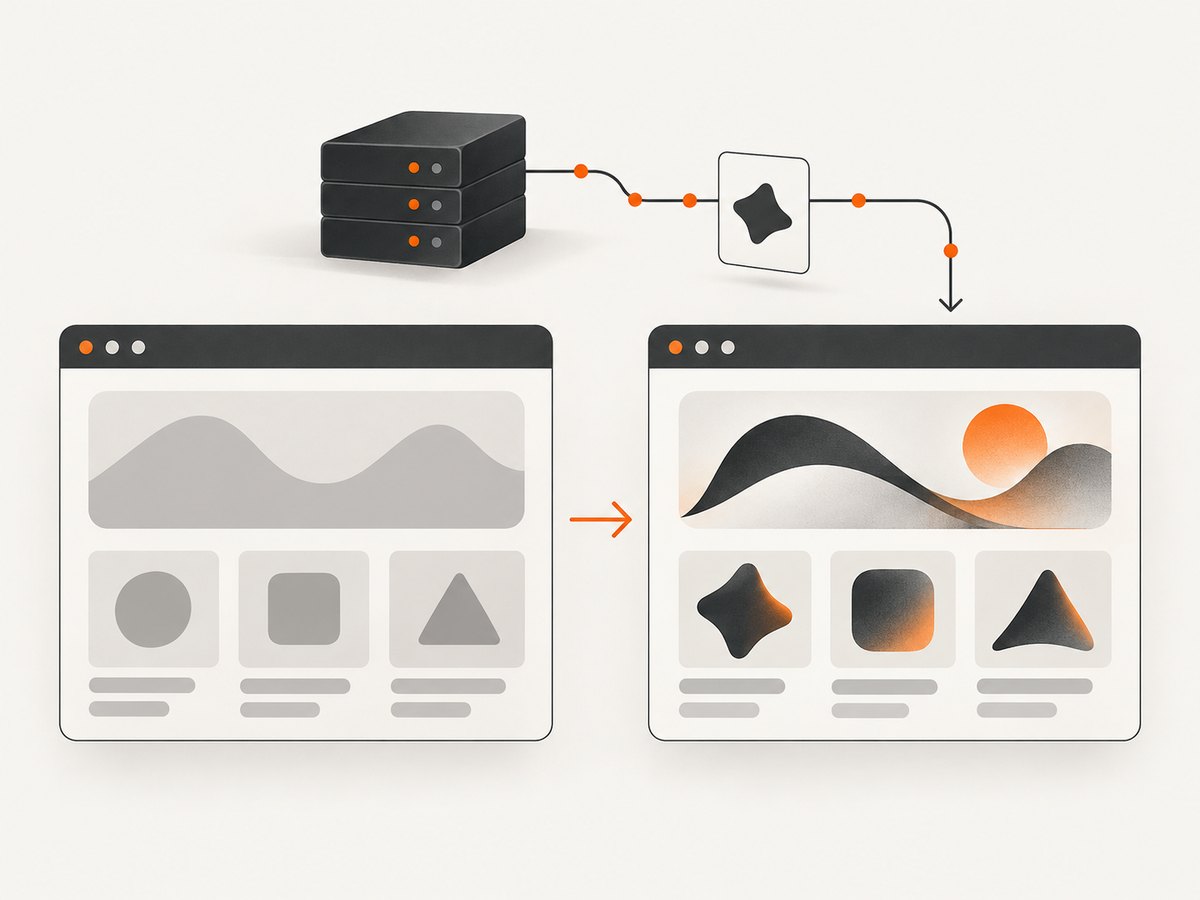
If the expected face is a web font, determine whether production requests the CSS and font assets and whether those requests succeed. Playwright can log request failures and responses for the page:
page.on('requestfailed', request => {
  console.error('Request failed:', request.url(), request.failure()?.errorText);
});

page.on('response', response => {
  if (/\.(woff2?|ttf|otf)(\?|$)/i.test(response.url())) {
    console.log('Font response:', response.status(), response.url());
  }
});

await page.goto('https://example.com', { waitUntil: 'load' });
await page.evaluate(() => document.fonts.ready);
Use the logs to follow the evidence. A missing request points you toward the stylesheet, page state, or font declaration. A failed request or unsuccessful response gives you an asset-delivery path to investigate. Verify the URL in the deployed page and the policy under which the production page serves the asset. The provided information does not establish a particular CORS, CSP, CDN, or URL failure, so check the actual request and response before changing policy.
If the asset loads successfully but the result still differs, compare the production operating system and container image with local. Font rendering is platform-specific; a pixel difference does not by itself prove a failed font request. [Chromium rendering overview]
5. Use a production-ready diagnostic sequence
- Reproduce in the deployment environment. Use the same image, Playwright package, browser binary, and launch options as the production job.
- Confirm browser installation. Run
npx playwright install --with-deps chromiumin the image or CI setup associated with the pinned project dependency. - Load the target page and relevant state. Do not check font status before the element or route that uses the face has appeared.
- Wait for used fonts. Evaluate
document.fonts.ready, then inspect the relevant face statuses and element’s computed typography. - Trace remote assets if applicable. Record font-file request failures and response statuses; check the production asset URL and deployment policy against those observations.
- Compare platforms. If requests succeed, compare OS/image and available system fonts before changing CSS or adding packages.
- Separate launch diagnostics. If Chromium will not launch, investigate the browser binary and dependencies before diagnosing page fonts.
For browser launch errors, Playwright documents DEBUG=pw:browser as a useful diagnostic setting. For example:
DEBUG=pw:browser npx playwright testThis logging helps with browser launch failures; it does not by itself diagnose a web-font request. Use page request and font-state evidence for that. [Playwright CI debugging]
6. Troubleshooting common failures
| What you see | Possible cause | What to do |
|---|---|---|
Error: Failed to launch browser |
Missing browser binary, missing system dependency, or a Playwright/browser version mismatch. | Install Chromium and dependencies with the project’s Playwright version. Check the image tag and package lock; use DEBUG=pw:browser for launch logs. |
| Fallback font appears in the screenshot | The intended face did not load, was not used, or the screenshot ran before it was ready. | Wait for the relevant state and document.fonts.ready; check face status and font requests. |
document.fonts.ready resolves, but a face is absent |
The face may be unused, optional, or not successfully loaded. Readiness covers used fonts and their loading/layout work, not every declaration. | Inspect the face list after the target content is present. Confirm the element’s computed CSS and request for its font asset. |
| Remote font request fails in production only | The deployed URL or asset-serving behavior differs from local, or production policy prevents the request. | Use request logs to establish the failing URL and response, then verify the deployed stylesheet, asset location, and relevant policy. |
| Only some characters are missing | The selected face may not provide those glyphs, or the expected fallback is unavailable. | Inspect the exact text and faces involved. Compare rendering and installed fonts in the production runtime before changing the font stack. |
| Local and production look different despite successful requests | Chromium uses platform-specific font rendering; the operating system or runtime fonts can differ. | Compare the OS/base image and font inventory. Decide whether the requirement is a specific family or pixel-identical rendering across platforms. |
A Fedora-specific Chromium font-cache corruption report was filed on July 6, 2026. It is a report about a particular platform and symptom, not evidence that font-cache corruption explains production failures generally. Consider it only if the environment is Fedora-based and the observed symptoms match. [Chromium issue tracker report]
7. Reliability, performance, and cost considerations
Waiting on document.fonts.ready makes screenshot timing dependent on the used fonts’ loading and layout work. That wait is useful when typography is part of the result; it can also expose slow or stalled font delivery as capture latency. Avoid replacing it with an arbitrary short delay when the requirement is that a specific font be ready. If you use a timeout or a fallback path in your application, make the resulting screenshot behavior explicit: either fail the capture/assertion or knowingly accept the fallback.
For repeatable deployments, keep the Playwright package and browser installation aligned, use a pinned compatible container image when using Playwright’s image, and diagnose against the same runtime as production. This reduces environment drift; it does not make different operating systems render fonts identically.
Cost depends on your own runtime and font delivery setup; the research sources provide no benchmark or price comparison for these approaches. Account for the time spent waiting on font resources and the resources used by your browser jobs, then measure in your environment rather than assuming a universal capture speed.
Or skip the browser setup
If your goal is a clean website screenshot rather than managing Chromium in your own runtime, ScreenshotNeo provides a website screenshot API and MCP server. One GET request returns an image or PDF. Its capture flow accepts cookie and consent banners and removes more than 60 known consent platforms, newsletter popups, and chat widgets before the shot; each step can be turned off. Bot checks, blank pages, timeouts, failed loads, and cache hits cost nothing, and response headers identify the page verdict and billing status. AI agents can use its MCP tools to take screenshots, get page information, and capture PDFs.
See the ScreenshotNeo API documentation. This runnable cURL example saves a WebP screenshot:
curl -G "https://api.screenshotneo.com/v1/shot" \
  -d access_key=YOUR_API_KEY \
  --data-urlencode url=https://stripe.com \
  -o shot.webp
Python and Node.js examples are available alongside the same API configuration in the API docs. The free plan includes 1,000 screenshots a month with no card; paid plans start at $5 for 3,000. Sign up for 1,000 free screenshots a month, with no card required.
FAQ
Does document.fonts.ready mean every declared font loaded?
No. It resolves after loading and layout operations for used fonts are done. An unused declaration may remain unloaded, so inspect the face relevant to the visible content.
Should I install a font package in the production image?
Only if you establish that the page needs a system font that is missing from that runtime. For a web font, first inspect the font request and response. The title alone does not identify a needed package.
Can Chromium screenshots match exactly across operating systems?
Not necessarily. Chromium’s font rendering is platform-specific. If exact visual comparison matters, keep the screenshot runtime consistent with the reference environment.
Does DEBUG=pw:browser show why a web font failed?
It is documented for browser launch debugging. Use page-level request and response logs, plus font-face state, to investigate web-font loading.
Is Fedora font-cache corruption the general cause?
No. The cited report is platform-specific. Use it as a lead only when the runtime and symptoms match that report.


