How to Fix Chromium Headless –screenshot and –print-to-pdf on Ubuntu
Fix missing Chromium screenshots and PDFs on Ubuntu with verified flags, writable paths, timing controls, sandbox guidance, and version checks.
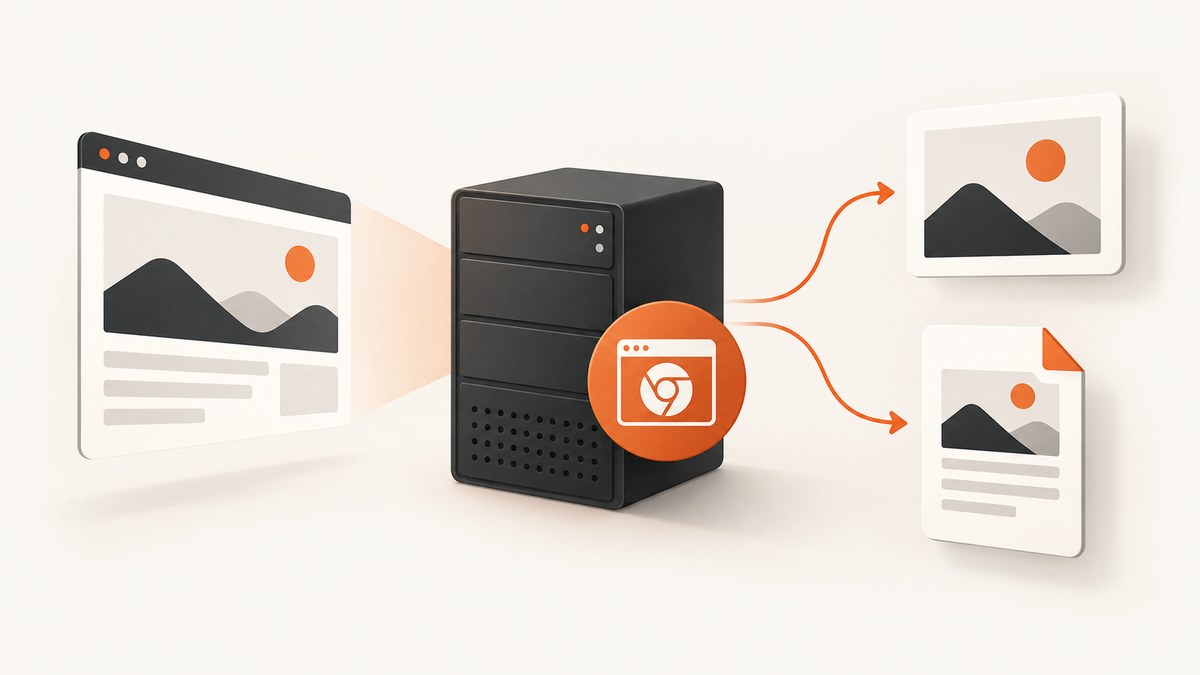
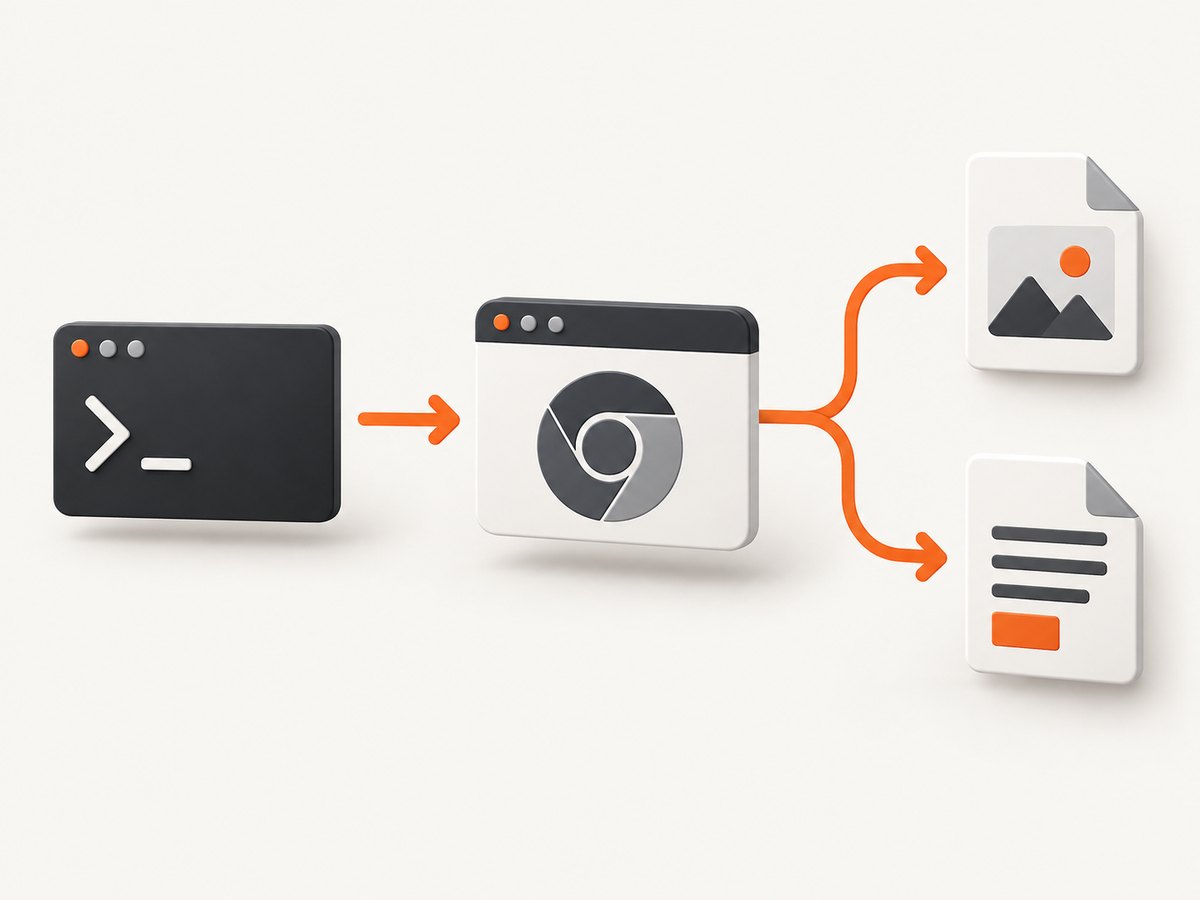
Chromium’s supported headless command-line capture uses --screenshot for PNG output and --print-to-pdf for PDF output. When no file appears on Ubuntu, the cause is usually a non-writable working directory, a different executable or package than expected, a page that has not finished loading, sandbox setup, or a browser version change.
This guide starts with a minimal reproducible capture, then covers output paths, timing, PDF headers, sandbox errors, Chromium version changes, CI reliability, and alternatives. The commands work without a graphical display.
1. Run a minimal capture in a writable directory
First identify the binary and create a directory that the current runtime user can write:
chromium --version
mkdir -p /tmp/chromium-capture
cd /tmp/chromium-capture

chromium --headless --screenshot=shot.png \
  --window-size=1280,800 \
  --timeout=5000 \
  https://example.com

chromium --headless --print-to-pdf=example.pdf \
  --no-pdf-header-footer \
  --timeout=5000 \
  https://example.com

ls -lh shot.png example.pdf
The documented defaults are screenshot.png and output.pdf in the current working directory when you do not provide an output filename. In automation, use an explicit absolute path and create the directory before starting Chromium. See the Chromium headless documentation for the command-line behavior.
2. Check the executable, package, and version
Ubuntu systems may have distro Chromium, a Google Chrome package, a snap, a container image, or the separate chrome-headless-shell artifact. Their executable names and supported flags can differ. Print the version from the exact binary used by your job:
command -v chromium || true
command -v chromium-browser || true
command -v google-chrome || true
command -v chrome-headless-shell || true

chromium --version
# or:
# google-chrome --version
# chrome-headless-shell --version
From milestone M132, old Headless is no longer part of the Chrome binary. Workflows that depended on the old implementation should migrate to the supported chrome-headless-shell artifact. The Chromium project documents this change in its Headless README. The old --headless=old switch is therefore not a durable fix on current Chrome builds.
3. Make output paths explicit
A surprisingly common failure is a successful browser process writing into a directory that your service, container, or CI user does not inspect. Use an absolute path:
capture_dir=/tmp/chromium-capture
mkdir -p "$capture_dir"
test -w "$capture_dir" || { echo "Directory is not writable"; exit 1; }

chromium --headless \
  --screenshot="$capture_dir/page.png" \
  --window-size=1440,900 \
  https://example.com

chromium --headless \
  --print-to-pdf="$capture_dir/page.pdf" \
  --no-pdf-header-footer \
  https://example.com

file "$capture_dir/page.png" "$capture_dir/page.pdf"
Check all four signals when debugging: the process exit status, standard error, the current directory, and filesystem permissions. A shell command can return before your surrounding script notices that it is looking in the wrong directory.
4. Control screenshot size and page loading
Viewport dimensions
--window-size=WIDTH,HEIGHT controls the screenshot viewport. It is useful for deterministic desktop captures and for avoiding the small default viewport:
chromium --headless \
  --screenshot=desktop.png \
  --window-size=1920,1080 \
  https://example.com
For a page that must be captured as one tall image, current Chromium command-line behavior is still tied to the browser’s headless implementation and page layout. If a full-page image is a hard requirement, validate the exact browser build and consider a DevTools Protocol tool such as Puppeteer, which can request a full-page screenshot explicitly.
Late content and JavaScript timers
Two timing flags address different problems:
--timeout=millisecondswaits for late-loading content before capture.--virtual-time-budget=millisecondsadvances virtual time so timer-driven page code can run before capture.
chromium --headless \
  --screenshot=late-content.png \
  --window-size=1280,800 \
  --timeout=15000 \
  --virtual-time-budget=5000 \
  https://example.com
These flags do not guarantee that every external API, font, image, or client-side application will finish. Confirm that the Ubuntu host or container has network access, DNS resolution, and permission to reach the target site.
5. Produce clean PDFs without generated furniture
Chromium can add a generated date, URL, and page-number header or footer to a PDF. Use:
chromium --headless \
  --print-to-pdf=/tmp/chromium-capture/report.pdf \
  --no-pdf-header-footer \
  --timeout=10000 \
  https://example.com
Older browser versions used --print-to-pdf-no-header instead. If Chromium reports an unknown switch, check the installed version and use the spelling supported by that build.
6. Diagnose sandbox and container failures safely
Errors mentioning the sandbox, namespaces, setuid, or user-data directories usually indicate a runtime or package setup problem. The preferred sequence is:
- Run Chromium as a non-root user.
- Use an Ubuntu or container package with its sandbox prerequisites intact.
- Give the runtime a writable temporary directory and output directory.
- Inspect stderr for namespace, permission, and profile errors.
- Only use
--no-sandboxbriefly as an isolated diagnostic.
# Diagnostic only; do not make this the normal production command
chromium --headless --no-sandbox \
  --screenshot=/tmp/chromium-capture/diagnostic.png \
  https://example.com
Disabling the sandbox removes a security boundary. Chromium’s guidance treats this switch as temporary. If the diagnostic command works but the sandboxed command does not, repair the container user, namespace support, package installation, or sandbox permissions instead of permanently carrying the flag.
7. Understand failures after a Chrome update
When a previously working PDF or screenshot job stops after an upgrade, record the old and new browser milestones and compare the command-line flags. A historical 2024 Chromium issue documented a regression where headless PDF output stopped after an update and was temporarily worked around with --headless=old; that issue is marked fixed. Treat it as a version-diagnosis clue, not a universal current solution.
For old-headless-dependent automation on modern releases, install the supported chrome-headless-shell artifact. For reproducible builds, pin the browser package or container image, record its version in logs, and run a small capture smoke test after every image update.
8. Troubleshooting checklist
| Symptom | Likely cause | Fix |
|---|---|---|
| No file appears | Wrong working directory or unwritable path | Use an absolute output filename, create the directory, check pwd, permissions, exit status, and stderr. |
| Screenshot is tiny or cropped | Unexpected viewport | Set --window-size=WIDTH,HEIGHT and verify the resulting image dimensions. |
| Blank page | Page still loading, blocked network, or client-side rendering not complete | Increase --timeout, add --virtual-time-budget, and test DNS/network access from the same runtime. |
| Missing fonts or images | Late resources, blocked requests, or missing system packages | Increase the timeout, inspect stderr, confirm outbound access, and install required font packages in the image. |
| PDF has date, URL, or page numbers | Generated header/footer enabled | Use --no-pdf-header-footer; on older versions try --print-to-pdf-no-header. |
| Unknown flag | Browser version uses different spelling or implementation | Run --version, check that build’s documentation, and avoid copying flags between milestones without verification. |
| Sandbox or namespace error | Root user, container permissions, or missing sandbox prerequisites | Run as a non-root user and repair the image. Use --no-sandbox only for a short diagnostic. |
| PDF stopped after update | Regression or old-headless removal | Compare milestones, consult the fixed regression report, and migrate old-headless workflows to chrome-headless-shell. |
9. CLI versus automation libraries
The direct CLI is small and convenient for one URL, smoke tests, and simple cron jobs. Puppeteer or another DevTools Protocol client is a better fit when you need to wait for a selector, click controls, set cookies, emulate devices, capture one element, or coordinate several pages. The tradeoff is a larger dependency and a browser lifecycle that you must manage.
For either approach, make these operational choices explicit:
- Pin the browser: floating updates can change flags and headless behavior.
- Use a dedicated writable directory: keep outputs and temporary profile data away from source trees.
- Capture stderr: it is often the only record of a sandbox, network, or rendering failure.
- Set a bounded timeout: prevent a stalled origin from occupying a worker indefinitely.
- Run a smoke test: save one known-good PNG and PDF after package changes.
- Archive artifacts: retain the browser version, command, stderr, and generated files for failed jobs.
10. Performance, reliability, and cost considerations
Longer timeouts improve completeness for slow pages but increase worker occupancy. Virtual time helps pages driven by timers, yet it does not repair a blocked API or missing font. Reusing a browser process can reduce startup overhead in a service, while isolated one-shot processes are simpler to reason about in CI. Whichever model you choose, cap concurrency so the machine has enough CPU, memory, and temporary disk space for several renderer processes.
Chromium itself has no per-capture charge. Your costs are the Ubuntu or container compute, storage, network egress, and engineering time required to maintain browser versions and sandbox prerequisites. A hosted screenshot API can shift those operations to a service and give you a usage-based bill, so compare the value of maintenance time with the volume and determinism you need.
11. Or skip the browser setup
ScreenshotNeo provides a website screenshot API and MCP server. One GET request returns a PNG, JPEG, WebP, or PDF, so your application does not need to package Chromium, manage a display, or repair sandbox settings. The API supports full-page captures with lazy images loaded, CSS-selector element shots, device presets and custom viewports, retina scale, PDF paper and margin options, custom CSS and JavaScript, waits, cookies, headers, user agents, authorization, timezone and geolocation, blocking controls, caching, signed links, asynchronous jobs, bulk capture, and a usage API. See the ScreenshotNeo API documentation for parameter details.
cURL
curl -G "https://api.screenshotneo.com/v1/shot" \
  -d access_key=YOUR_API_KEY \
  --data-urlencode url=https://stripe.com \
  -o shot.webp
Python
import requests

r = requests.get(
    "https://api.screenshotneo.com/v1/shot",
    params={"access_key": "YOUR_API_KEY", "url": "https://stripe.com"},
    timeout=90,
)
r.raise_for_status()
open("shot.webp", "wb").write(r.content)
Node.js
const q = new URLSearchParams({
  access_key: 'YOUR_API_KEY',
  url: 'https://stripe.com'
});
const res = await fetch(`https://api.screenshotneo.com/v1/shot?${q}`);
if (!res.ok) throw new Error(`HTTP ${res.status}`);
const buffer = Buffer.from(await res.arrayBuffer());
require('fs').writeFileSync('shot.webp', buffer);
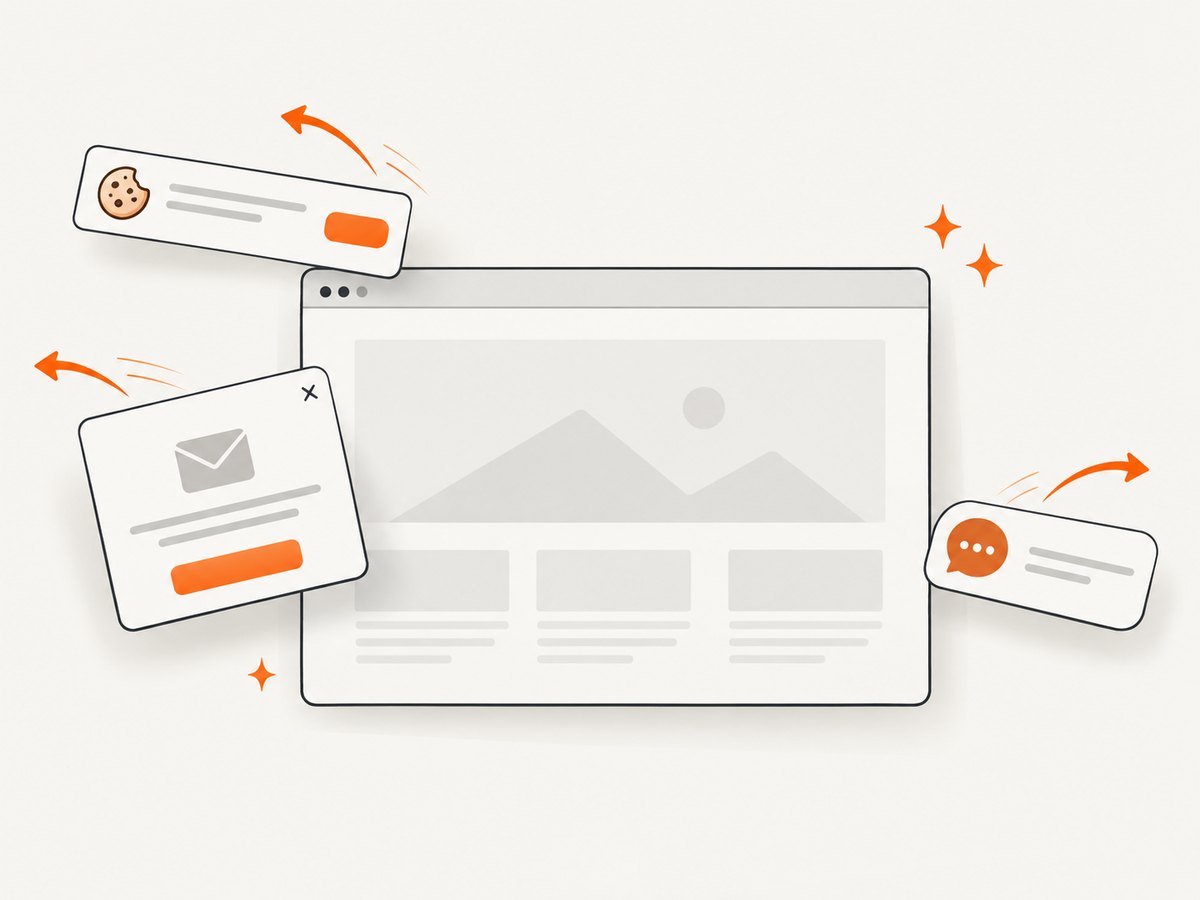
ScreenshotNeo accepts consent banners like a visitor and removes more than 60 known consent platforms, newsletter popups, and chat widgets before capture; each step can be disabled. Bot checks or CAPTCHAs, blank pages, timeouts, failed loads, and cache hits cost nothing, and the response identifies the result with X-Page-Verdict and X-Billed headers. Its MCP server exposes take_screenshot, get_page_info, and capture_pdf for Claude, Cursor, and other MCP clients.
The Free plan includes 1,000 shots each month with no card. Paid plans start at $5 for 3,000 shots; yearly billing gives two months free, and every feature is available on every plan. Create a free ScreenshotNeo account and start with the included monthly shots.
12. FAQ
Can I run Chromium headless without X11?
Yes. The --headless mode is designed to run without a graphical display. Display errors usually indicate that headless mode was omitted or that a wrapper is launching a headed browser.
Why does changing only the URL change the output?
Pages can render different content by viewport, user agent, location, cookies, authentication state, time, or network availability. Record those inputs when comparing captures.
Should I always use --no-sandbox in Docker?
No. First run as a non-root user and repair the image’s sandbox prerequisites. Keep --no-sandbox limited to an isolated diagnostic.
Is --headless=old the fix for current Chrome?
No. Since M132, old Headless is no longer part of the Chrome binary. Use the supported headless implementation or migrate old-headless workflows to chrome-headless-shell.
How do I remove PDF headers on an older package?
Try the flag supported by that version: current builds use --no-pdf-header-footer; older versions may require --print-to-pdf-no-header.


