How to Fix Headless Chromium Segfaults in ARM Docker
A Chromium “segfault” is a symptom, not a diagnosis. Check architecture, headless mode and sandbox startup first, then collect a matching crash trace before changing runtime settings.
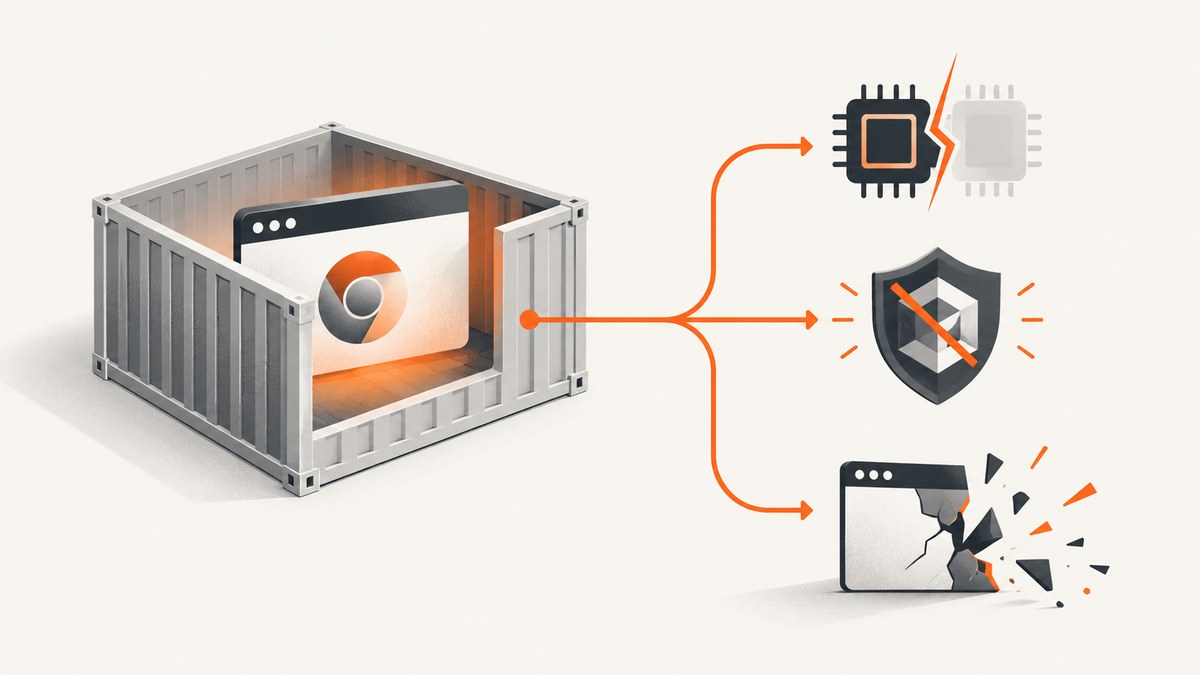
A headless Chromium process that exits with a segmentation fault in an ARM Docker container needs evidence before it needs a flag change. Start by checking that the container and Chromium executable use compatible architectures, record the Chromium version and headless mode, and preserve stderr, the exit status, and the exact launch command. A sandbox startup error is a different failure from a process crash. If the process really crashes, collect a dump or core and inspect it with symbols for that exact Chromium build.
There is no universal ARM-specific fix supported by the available Chromium and Docker documentation. The steps below narrow the problem to a targeted change instead of treating settings such as --no-sandbox or shared-memory adjustments as cures for every failure.
1. Record the failure before changing anything
Reproduce the failure once with the same image, command, user, and environment that produced it. Save standard output and standard error, the numeric exit status, and whether the process was terminated by a signal. Keep the container image name and tag, base distribution, host OS and kernel, Docker mode, and whether the process runs as root or an unprivileged user.
For example, run Chromium directly and retain its output and status:
set +e
chromium --headless --disable-gpu --dump-dom https://example.com \
  >chromium.stdout 2>chromium.stderr
status=$?
printf 'exit_status=%s\n' "$status"
printf '%s\n' '--- stderr ---'
cat chromium.stderr
Replace chromium with the executable name installed in your image. Some images expose chromium-browser or google-chrome instead. Do not discard stderr by redirecting it to /dev/null; startup messages often distinguish a sandbox problem from a crash.
A status commonly associated with a signal can be a clue, but it does not identify the cause on its own. Preserve the shell’s reported status and the Chromium output. If a wrapper, supervisor, or application launches the browser, capture that layer’s logs too: it may replace or hide the browser’s original exit information.
2. Verify the container and browser architectures
An ARM host does not guarantee that every image layer or downloaded browser binary is ARM-compatible. Docker multi-platform tags, buildx, emulation, and copying a browser from another build stage can leave the running container and executable with different architectures. Compare the container’s reported machine with the browser file’s architecture.
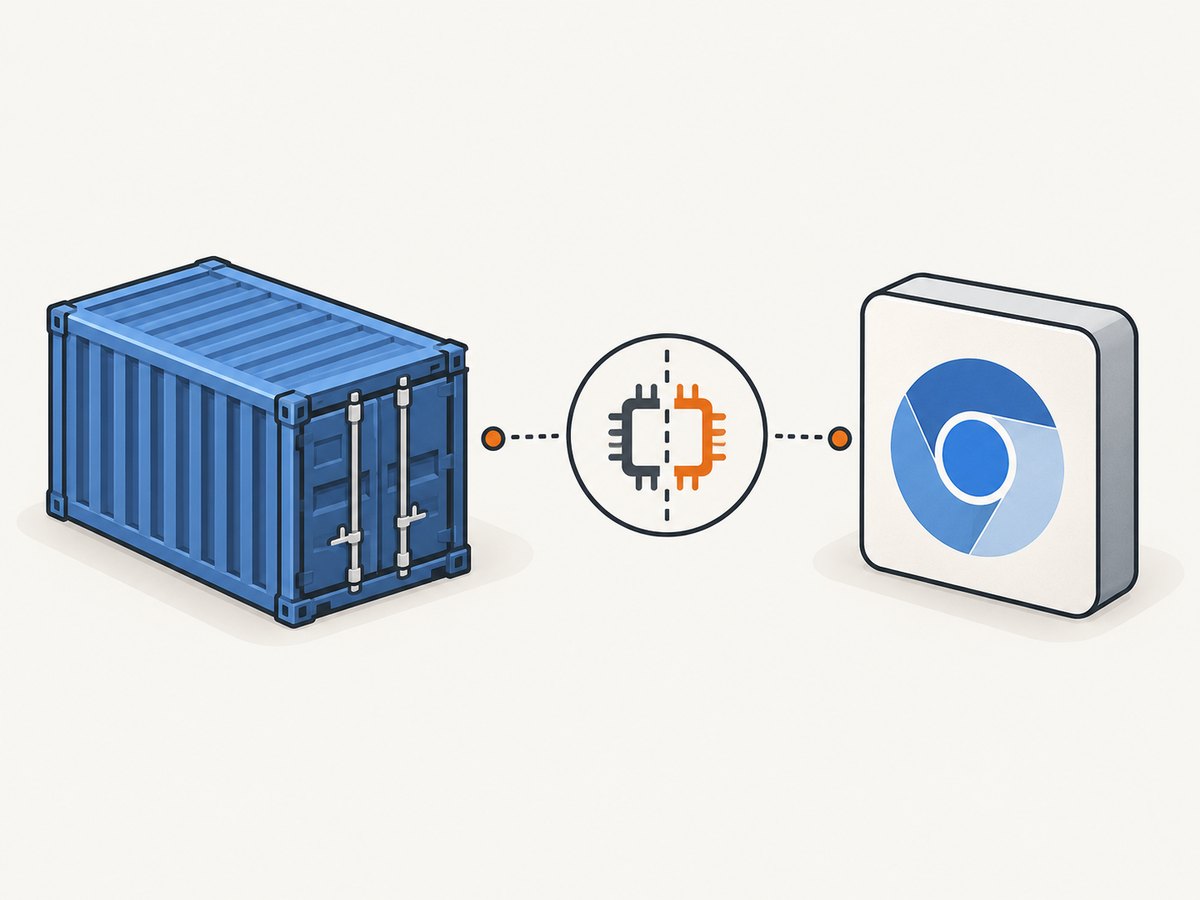
uname -m
command -v chromium || command -v chromium-browser || command -v google-chrome
file "$(command -v chromium)"
chromium --version
If the executable has another name, use that name in the final two commands. If file is not installed, use an architecture inspection tool available in the image, or inspect the browser package metadata before adding diagnostic utilities to a production image. Common architecture names include x86_64 for Intel/AMD and ARM-family forms such as arm, armv7l, and aarch64. Those names help interpret the output; they do not certify a particular Docker image.
Check the build stage and runtime stage in the Dockerfile. A browser copied from a different platform stage can be wrong even when the final container itself reports ARM. Also check how the image was built and pulled. Record the exact image digest when possible so that a later comparison is repeatable.
Architecture check checklist
- Record
uname -mfrom inside the failing container. - Inspect the installed Chromium executable, not just the host machine or image tag.
- Record the package version and Chromium’s own version output.
- Check each Docker build stage that installs or copies the browser.
- Repeat the same check in any working container and compare the results.
3. Confirm which headless Chromium you are running
Record the Chromium version and the exact headless arguments. Current headless behavior and the older Headless implementation are not interchangeable assumptions. Chromium’s Headless README says that precompiled headless_shell binaries became available through Chrome for Testing infrastructure under the name chrome-headless-shell. It also says that from M132, old Headless functionality is no longer part of the Chrome binary, and --headless=old has no effect. Users relying on old Headless should migrate to chrome-headless-shell. See the Chromium Headless Chromium documentation.
Do not assume that adding an old headless flag repairs a crash, or that a shell binary downloaded for another platform can run in the container. First establish the browser version, the source of the binary, its architecture, and which headless mode the command actually requests. Then make a version or binary change only if those details support it.
4. Distinguish sandbox startup errors from segmentation faults
Read the complete stderr from process start. A fatal message such as “No usable sandbox” or a namespace permission error points to sandbox initialization or container policy. It is not, by itself, evidence of a segmentation fault. Record whether the process runs as root, whether the container is rootless, and which host distribution and kernel are involved.
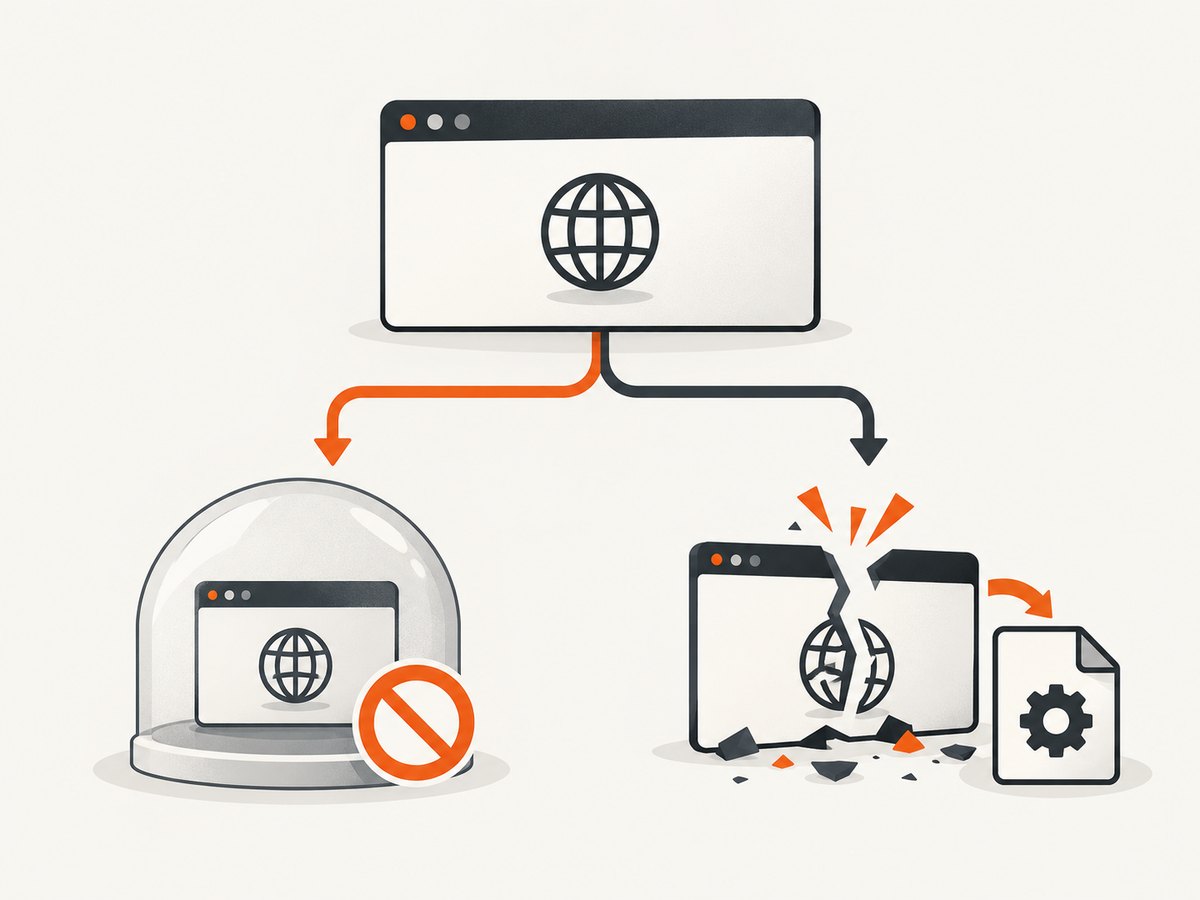
Docker documents a platform-specific case: Ubuntu 24.04 and later restrict unprivileged user namespaces by default unless an AppArmor profile permits them. The result depends on the host distribution, Docker mode, kernel policy, and container configuration. This is not an ARM-only cause. See Docker’s rootless mode troubleshooting guide.
To test whether sandbox interference is involved, make a controlled diagnostic run with the same browser, URL, image, and user, changing only the sandbox setting:
chromium --headless --no-sandbox --dump-dom https://example.comChromium’s Linux debugging guidance describes --no-sandbox as a temporary way to work around sandbox interference during debugging. If this changes the result, investigate the relevant namespace, AppArmor, or container policy. Do not treat the flag as a routine production fix: it disables a browser security boundary. Do not grant broad container privileges just to silence an unexplained startup message. See Chromium’s Linux debugging tips.
5. Collect evidence for a genuine browser crash
If stderr and the exit details show that Chromium actually crashes, preserve the build information and obtain a crash artifact. Chromium’s Crashpad documentation describes reports containing exception state, call stacks, stack memory, and loaded modules in a minidump; Chromium crash reports are stored locally. Keep the dump together with the browser version, image details, and exact command. See Chromium crash reports.
For an operating-system core dump, availability depends on the host, container limits, and core-dump configuration. Check the host’s core-dump handling and whether the container can write a dump to a mounted diagnostic location. Preserve the original artifact before rebuilding or removing the container. If Crashpad is configured for the browser build, use its available dump collection path and record where the dump was written.
Analyze a dump with symbols matching the exact Chromium build. A symbol file from another release can produce misleading function names or fail to resolve addresses. Chromium’s Linux debugging guide also warns that old GDB versions can fail to resolve symbols or crash, and that sandboxing can interfere with its internal symbolizer. It describes external symbolization and temporarily disabling the sandbox for debugging. An unsymbolized address is not a root-cause diagnosis.
Minimum incident bundle
- The complete command line, including all browser flags and environment variables relevant to launch.
- Chromium version, package source, executable architecture, container architecture, and image tag or digest.
- Base distribution, host distribution and kernel, Docker mode, and process user.
- Unedited stdout and stderr, exit status or signal, and whether the failure is repeatable.
- A Crashpad dump or core, plus matching symbols if available.
6. Apply one change tied to the evidence
Once the failure is classified, change one relevant input and rerun the same reproduction. This makes the result interpretable.
| Evidence | Targeted next step | What to compare |
|---|---|---|
| Container and executable architectures differ | Use a browser build compatible with the runtime architecture; inspect build stages and downloaded artifacts. | Architecture output, browser version, and the same launch command. |
| Old Headless assumptions or unsupported old flag | Use the supported current headless path, or migrate old-Headless use to chrome-headless-shell as Chromium documents. |
Binary provenance, version, requested mode, and stderr. |
| “No usable sandbox” or namespace permission error | Investigate host and container namespace or AppArmor policy, taking Docker mode and process user into account. | Exact stderr and behavior under a controlled temporary diagnostic run. |
| Reproducible crash with a dump | Symbolize using artifacts for the exact build and investigate the failing stack. | Resolved stack, loaded modules, and the matching build identifiers. |
Do not change shared memory, GPU settings, privilege levels, and browser versions all at once. The supplied official sources do not establish any of those generic tweaks as a universal ARM segfault fix. A change without matching evidence can hide the original failure or introduce a security and reliability problem.
Or skip the browser setup
If the task is to capture a website screenshot rather than debug a browser you operate, ScreenshotNeo provides a website screenshot API and MCP server for developers. It accepts one GET request and returns an image or PDF. Cookie banners, popups, and chat widgets are removed before the shot; bot checks, blank pages, and failed loads are never billed. Its MCP server lets AI agents take screenshots. The free plan includes 1,000 screenshots a month with no card, and paid plans start at $5 for 3,000. Learn more at ScreenshotNeo; the API documentation has the request details.
curl -G "https://api.screenshotneo.com/v1/shot" -d access_key=YOUR_API_KEY --data-urlencode url=https://stripe.com -o shot.webpimport requests
r = requests.get(
"https://api.screenshotneo.com/v1/shot",
params={"access_key": "YOUR_API_KEY", "url": "https://stripe.com"},
timeout=90,
)
open("shot.webp", "wb").write(r.content)const q = new URLSearchParams({ access_key: 'YOUR_API_KEY', url: 'https://stripe.com' });
const res = await fetch(`https://api.screenshotneo.com/v1/shot?${q}`);Sign up for 1,000 free screenshots a month with no card.
Performance, reliability, and cost considerations
During diagnosis, prioritize a repeatable minimal command over throughput. Keep the URL, browser build, container image, user, and relevant launch flags fixed while you compare runs. If a change makes the crash disappear, repeat the reproduction enough to confirm the result and retain both the failing and working logs. A single successful launch does not prove that an intermittent crash is fixed.
For a service that launches browsers, measure startup and capture behavior in the actual deployment environment, and record failures separately from successful captures. Keep diagnostic output and dumps outside ephemeral container storage if they need to survive container replacement. Avoid adding large debugging packages to a production image without a reason; a separate diagnostic build can preserve the production configuration while making inspection tools available.
Cost is workload-specific: this dossier contains no substantiated benchmark or prevalence figure for ARM Chromium crashes. Account for the time to reproduce and analyze the incident, any compute consumed by retries, and the operational cost of running a browser service. Do not infer a performance or cost advantage from an architecture label alone.
Troubleshooting common outcomes
Chromium reports “No usable sandbox”
Likely category: sandbox initialization or container policy. Next step: retain the full stderr and inspect user namespaces, host policy, Docker mode, and process user. Use --no-sandbox only as a temporary diagnostic comparison. If the result changes, fix the policy that the logs implicate and restore the sandbox.
The container says ARM, but Chromium will not start
Likely category: architecture or binary provenance mismatch. Next step: inspect the executable itself with file or an equivalent tool, check every build stage, and verify the downloaded package targets the runtime architecture. The host architecture alone is not enough.
--headless=old has no effect
Likely category: obsolete Headless assumption. Next step: check the Chromium version and follow the current Headless documentation. From M132, old Headless functionality is no longer part of the Chrome binary; old-Headless users should migrate to chrome-headless-shell.
The process exits with a crash signal but there is no useful stack
Likely category: unclassified crash. Next step: collect a Crashpad dump or core, retain the exact build, and symbolize it with matching symbols. Do not guess from an address or replace several runtime settings at once.
The failure disappears with --no-sandbox
Interpretation: this points toward sandbox interaction; it does not make the flag a safe permanent fix. Next step: investigate namespace and AppArmor policy for the particular host and container, then test with the sandbox enabled again.
The crash is intermittent
Next step: capture logs and artifacts for each failed run, and record the inputs that vary between runs. Keep the image, browser build, URL, and command stable while checking whether the failure follows a particular request or environment. Do not claim a fix based only on one clean run.
Frequently asked questions
Is every Chromium “segfault” a real segmentation fault?
No. The word may be used loosely for any browser launch failure. Check stderr and the process exit details to distinguish sandbox initialization messages from an actual crash, then collect a dump or core when there is a reproducible crash.
Does ARM itself explain the crash?
No. ARM is a useful clue when checking binary compatibility, but the architecture label does not identify the failing component or establish a universal fix.
Can I use an x86 Chromium binary in an ARM container?
Do not assume it will run because the host is ARM or because Docker can use emulation. Verify the executable, runtime setup, and image build path; use a browser binary compatible with the intended runtime.
What information should I share when asking for help?
Provide the image and base distribution, host kernel and Docker mode, container and executable architectures, Chromium version, exact command, full stderr, exit status or signal, process user, and a dump or symbolized trace if available. Redact credentials and sensitive request data before sharing logs.
Sources
- Chromium Headless Chromium README for current headless modes and the M132 migration note.
- Chromium Linux debugging tips for symbolization and sandbox debugging cautions.
- Chromium Crash Reports for Crashpad and local dump details.
- Docker rootless troubleshooting for the user-namespace and AppArmor note.
- Chromium architecture guidance for architecture naming; its page concerns ChromeOS containers and is not a guarantee about Docker images.


