How to Fix Cloudflare Verification Not Working in Automated Browsers
Cloudflare production challenges do not support automated browsers. Learn the supported fixes for visitors and the correct Turnstile test workflow for site owners.
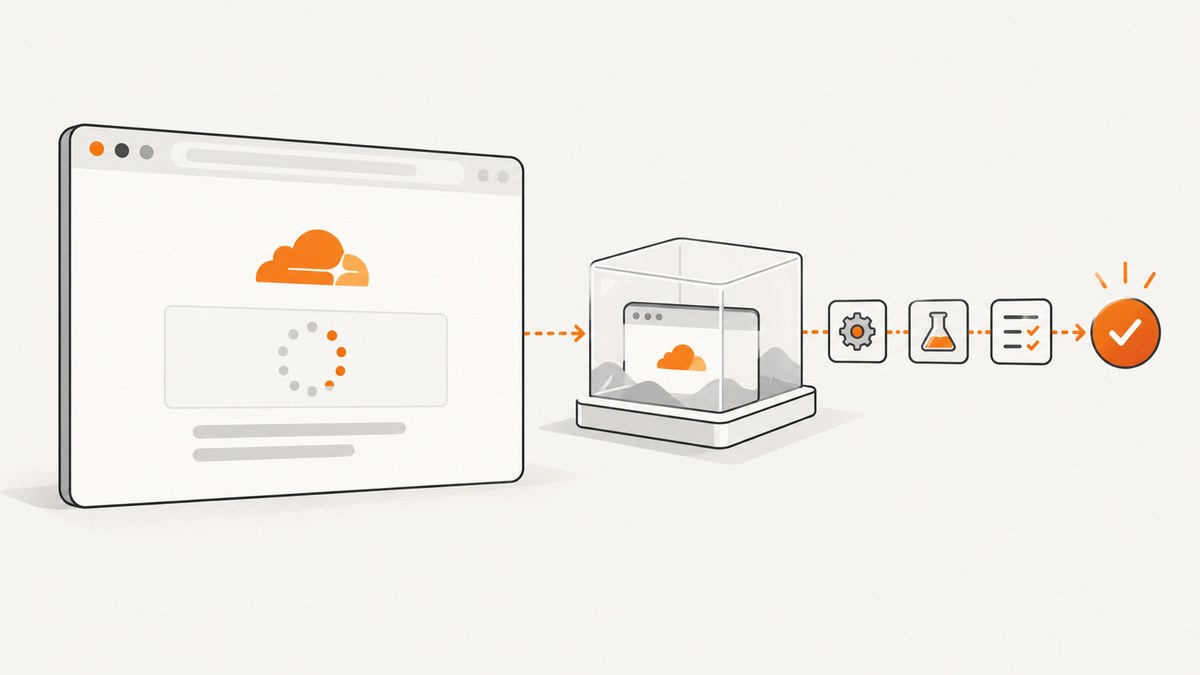
Short answer: Cloudflare does not support using Selenium, Playwright, Puppeteer, Cypress, or another automated browser to solve a production challenge. If you own the site and are testing Turnstile, use Cloudflare’s official test sitekeys and secret keys. If you are a legitimate visitor stuck in a challenge loop, troubleshoot your browser, extensions, network, clock, and VPN or proxy, then give the site owner the Ray ID, error code, HAR, and console log.
This distinction matters. A real production challenge is a security decision made for live traffic; an automated test should use a predictable test fixture. Trying to make a bot pass a live challenge by changing fingerprints, rotating IPs, or imitating a human is unsupported and can violate the site owner’s policy.
What “Cloudflare verification not working” can mean
Several Cloudflare products can produce a similar symptom. WAF rules, Bot Management, Bot Fight Mode or Super Bot Fight Mode, HTTP DDoS protection, Under Attack Mode, JavaScript Detection, challenge pages, and Turnstile can all interrupt a request. A challenge page usually interrupts navigation to a requested page; Turnstile is embedded in a page and commonly gates a form or other action. They use the same underlying Challenge Platform, but the troubleshooting path depends on which feature issued the challenge.
| Situation | Supported action | Do not do |
|---|---|---|
| You are visiting someone else’s production site | Use a current supported browser and troubleshoot JavaScript, extensions, network, and time settings. | Do not automate a production solve or spoof fingerprints. |
| You own a Turnstile integration | Use Cloudflare’s documented dummy sitekeys and secret keys in test environments. | Do not make CI depend on clearing a real production challenge. |
| You are capturing pages for documentation or monitoring | Use a permitted capture route such as an API and respect the site’s access policy. | Do not use screenshots as a way to defeat access controls. |
Fixes for a legitimate visitor stuck in a Cloudflare challenge loop
- Update the browser. Use a current Chrome, Firefox, Safari, or Edge release. Internet Explorer, command-line clients without JavaScript, and automated browsers are not supported for production challenge solving. Custom or heavily modified browser engines can have limited support. See Cloudflare’s challenge documentation.
- Confirm JavaScript and cookies are enabled. The challenge needs to run scripts and communicate with Cloudflare. A disabled script engine, blocked cookies, or a strict privacy mode can leave the page refreshing indefinitely.
- Temporarily disable blockers. Ad blockers, script blockers, fingerprinting protection, canvas blockers, and aggressive content filters can block the challenge iframe or its validation request. Test in a private window first; if that works, re-enable extensions one at a time to identify the conflict.
- Try another browser or device. This separates a browser profile problem from an account, IP, or site policy problem. Keep the test controlled: use the same URL and record whether the challenge completes.
- Test without a VPN or proxy. VPNs, corporate proxies, filtering gateways, and changing egress IPs can interfere with the challenge. Try a trusted direct connection or a different network. Cloudflare can also reject a solve request when it comes from a different IP than the one that received the original challenge.
- Check the system clock. An incorrect date, time, or timezone can invalidate time-sensitive challenge data. Set the clock automatically and retry.
- Clear only the affected site’s data. Remove cookies and cached data for the site, reopen the browser, and reproduce the issue. A private window is a faster first check.
- Do not overinterpret a 401 in developer tools. A 401 from a Private Access Token request can be expected when the browser, device, or network cannot issue that token. Cloudflare falls back to a standard challenge. Judge the result by whether the challenge completes and the page receives the expected token, not by that request alone.
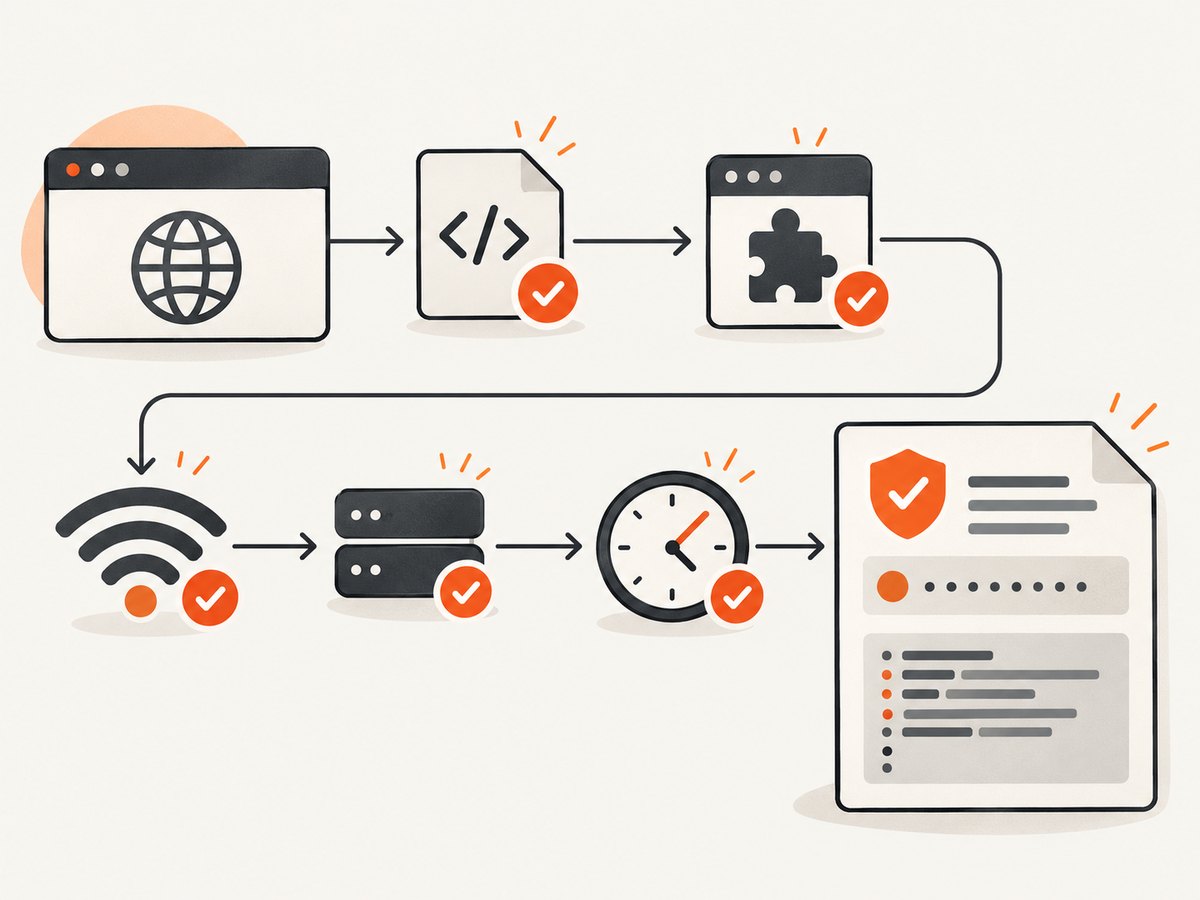
Collect diagnostics before contacting the site owner
If the loop continues after the checks above, collect evidence from one reproduction. Record the full URL, UTC time, browser and version, operating system, whether a VPN or proxy was enabled, the visible error code, and the Cloudflare Ray ID. The Ray ID is normally shown on the challenge or error page.
- Open developer tools and select the Network panel.
- Enable Preserve log, reproduce the challenge, and export a HAR file.
- Open the Console panel, reproduce once more, and save the console output.
- Send the HAR, console log, Ray ID, error code, and reproduction time to the website administrator. Cloudflare’s challenge feedback flow can also be useful.
A HAR can contain cookies, authorization headers, and form data. Review it and remove secrets before sharing it outside the site’s support team.
How site owners should test Turnstile
For an owned integration, the reliable approach is to substitute Cloudflare’s test credentials in a test environment. Cloudflare documents visible test sitekeys that always pass or fail, invisible widget keys with predictable outcomes, and a key that forces an interactive challenge. It also documents test secret keys for server-side validation, including pass, fail, and duplicate-token behavior. Copy the current values from Cloudflare’s Turnstile testing documentation instead of hard-coding values from a blog post.
Playwright: exercise your own test widget
import { test, expect } from '@playwright/test';

test('Turnstile test integration passes', async ({ page }) => {
  await page.goto(process.env.TEST_URL);
  await page.getByRole('button', { name: 'Submit' }).click();
  await expect(page.getByText('Success')).toBeVisible();
});
The test URL must point to your test deployment, where the widget uses a Cloudflare test sitekey. The test should assert your application’s behavior after server-side verification; it should not attempt to solve a production challenge.
Selenium: keep the browser test focused on your application
from selenium import webdriver
from selenium.webdriver.common.by import By
from selenium.webdriver.support.ui import WebDriverWait

browser = webdriver.Chrome()
try:
    browser.get("http://localhost:3000/turnstile-test")
    browser.find_element(By.CSS_SELECTOR, "button[type='submit']").click()
    WebDriverWait(browser, 10).until(
        lambda d: "Success" in d.find_element(By.TAG_NAME, "body").text
    )
finally:
    browser.quit()
Use the test sitekey in the page configuration and a matching test secret on the server. Never point this test at a third-party production site or make CI depend on a real challenge being solved.
Server-side validation is mandatory
Turnstile runs in the browser and returns a token, but your server must send that token to Siteverify before performing the protected action. Tokens can be invalid, expired, or already redeemed. A passing browser assertion without server validation does not prove that the integration is safe.
const response = await fetch('https://challenges.cloudflare.com/turnstile/v0/siteverify', {
  method: 'POST',
  headers: { 'Content-Type': 'application/json' },
  body: JSON.stringify({
    secret: process.env.TURNSTILE_SECRET,
    response: req.body['cf-turnstile-response'],
    remoteip: req.ip
  })
});
const result = await response.json();
if (!result.success) {
  return res.status(400).json({ error: 'Turnstile verification failed' });
}
return next();
Use the exact endpoint and current request requirements from Cloudflare’s server-side validation documentation. Keep the secret on the server and rotate it if it is exposed.
Cloudflare error codes and the next action
| Code or symptom | Likely meaning | Next action |
|---|---|---|
| 401 on Private Access Token | The browser or network could not issue a token; fallback may still work. | Check whether the challenge completes before treating it as an error. |
| 200500 iframe load error | challenges.cloudflare.com may be blocked. |
Check extensions, DNS filtering, firewall rules, and corporate content filters. |
| 110600 or 110620 timeout | The challenge or interaction timed out. | Retry, check network stability and clock, and inspect interactivity timing. |
| 200100 clock/cache | The device clock is wrong or an intermediary cached challenge content. | Correct the clock and bypass the caching intermediary. |
| 110100, 110110, or 400020 | Sitekey configuration problem. | The site owner should verify the configured sitekey. |
| 110200, 400021, or 400070 | Unauthorized domain, hostname mismatch, or disabled widget. | The site owner should inspect hostname, region, and widget status. |
| 300* or 600* | Generic bot behavior detected. | Follow the browser and network checks; do not assume a browser tweak can override site policy. |
Common automation mistakes
- Trying to “fix” production with stealth settings: Cloudflare does not support automated browsers solving production challenges. Change the test design or use a permitted integration route.
- Using a real sitekey in CI: Production policy, IP reputation, and challenge behavior can change. Use dummy credentials for deterministic tests.
- Validating only in JavaScript: The server must call Siteverify and reject missing, expired, invalid, or reused tokens.
- Changing IP between challenge and solve: Keep the request context consistent for legitimate traffic.
- Blaming every console warning: A Private Access Token 401 can be normal. Correlate the warning with the final challenge result.
- Ignoring the embedding site: A blocked iframe, incorrect hostname, disabled widget, or cached intermediary is a site or network configuration issue, not a browser automation bug.
Or skip the browser setup
If your legitimate goal is to obtain a clean image of a page you are allowed to capture, ScreenshotNeo provides a single HTTP request instead of maintaining a browser runner. See the ScreenshotNeo API documentation for the current options.
curl -G "https://api.screenshotneo.com/v1/shot" -d access_key=YOUR_API_KEY --data-urlencode url=https://stripe.com -o shot.webpimport requests
r = requests.get("https://api.screenshotneo.com/v1/shot", params={"access_key": "YOUR_API_KEY", "url": "https://stripe.com"}, timeout=90)
open("shot.webp", "wb").write(r.content)const q = new URLSearchParams({ access_key: 'YOUR_API_KEY', url: 'https://stripe.com' });
const res = await fetch(`https://api.screenshotneo.com/v1/shot?${q}`);ScreenshotNeo accepts consent banners before capture and removes more than 60 known consent platforms, newsletter popups, and chat widgets; each cleanup step can be disabled. Bot checks or CAPTCHAs, blank pages, timeouts, failed loads, and cache hits are not billed, and response headers identify the page verdict and billing result. Its MCP server gives Claude, Cursor, and other MCP clients take_screenshot, get_page_info, and capture_pdf tools. The Free plan includes 1,000 screenshots per month with no card; paid plans start at $5 for 3,000 shots. These capabilities do not bypass a site’s access policy, so use the service only for pages you are authorized to capture.
Create a free ScreenshotNeo account and start with 1,000 screenshots per month at no charge.
Performance, reliability, and cost notes
- Browser tests: Keep CI deterministic by using local or staging URLs, fixed test keys, stable fixtures, and a controlled network. Save traces only for failures so routine runs stay small.
- Retries: Retry transient timeouts after checking the clock and network. Do not retry indefinitely; a repeated bot decision is a policy result, not a transport failure.
- Diagnostics: Preserve the first failing HAR and console log. Reproducing through several VPN exits can change the signal and make the report harder to interpret.
- API capture: For ScreenshotNeo, choose the output format and capture options that match the job, use caching when an acceptable TTL exists, and inspect
X-Page-VerdictandX-Billedwhen accounting matters. - Cost: Cloudflare’s supported Turnstile testing path uses test credentials. ScreenshotNeo charges only for clean shots; its free tier and published plans let you estimate usage without paying for failed loads or bot checks.

FAQ
Can Playwright solve a Cloudflare production challenge?
No. Cloudflare explicitly says automated browsers are not supported for solving production challenges. Use a supported human browser for legitimate access or test your own Turnstile integration with test keys.
Why does Turnstile work manually but fail in Selenium?
The automated browser is outside Cloudflare’s supported production-solving path, or your test is using production credentials. Move the test to a controlled environment with the documented dummy sitekey and secret.
Is a 401 request proof that Cloudflare is broken?
No. A Private Access Token request can return 401 and Cloudflare can continue with a standard challenge. Check the final outcome and the challenge error code.
What should I send a website administrator?
Send the URL, UTC reproduction time, browser and version, network or VPN details, Ray ID, visible error code, HAR, and console log after removing secrets.
Can a screenshot API remove a Cloudflare challenge?
No service should be treated as a production challenge bypass. ScreenshotNeo is useful for authorized page capture and reports whether a page was clean, blocked, blank, timed out, failed, or served from cache.


