How to Fix Cloudflare Verification Failures in Browser Automation
Diagnose Cloudflare verification loops safely: fix browser and network issues, test Turnstile with official keys, and avoid unsupported production challenge automation.

Short answer: Cloudflare does not support Selenium, Puppeteer, Playwright, or Cypress for solving production challenges. For a legitimate visitor, update the browser, enable JavaScript, isolate extensions, keep the network and IP stable, and give the site owner the error code and Ray ID if the loop continues. For automated tests on a site you own, use Cloudflare Turnstile’s documented test sitekeys and secret keys, then validate every token server-side with Siteverify.
A verification failure can indicate a broken browser or network, but it can also be an intentional bot decision. Treat those cases differently. The supported fix for production access is diagnosis and escalation; the supported fix for owned-site QA is deterministic Turnstile test configuration.
1. Identify which situation you have
| Situation | Supported action | Do not do |
|---|---|---|
| You are a human visiting another site | Use a current supported browser, working JavaScript, a stable connection, and one consistent session. Report the error code and Ray ID to the site owner. | Do not attempt to automate or defeat the production challenge. |
| You are testing a site you control | Use Turnstile’s official test sitekeys and secret keys in a test environment. Exercise your server-side validation path with predictable pass and fail outcomes. | Do not use a real production challenge as an end-to-end test fixture. |
| You are collecting screenshots of public pages | Use a screenshot service that reports failed loads and bot checks clearly, or capture pages that you are authorized to access. | Do not treat a CAPTCHA or challenge as a rendering bug. |
2. Why Cloudflare keeps asking you to verify
Cloudflare lists unstable networks, unsupported or modified browsers, disabled JavaScript, extensions that alter scripts or browser signals, and bot-like signals among possible causes. A modern browser being supported does not make browser automation supported for solving production challenges. Cloudflare’s supported-browsers documentation explicitly says: “Browser automation frameworks, such as Selenium, Puppeteer, Playwright, and Cypress, are not supported for solving production challenges.”
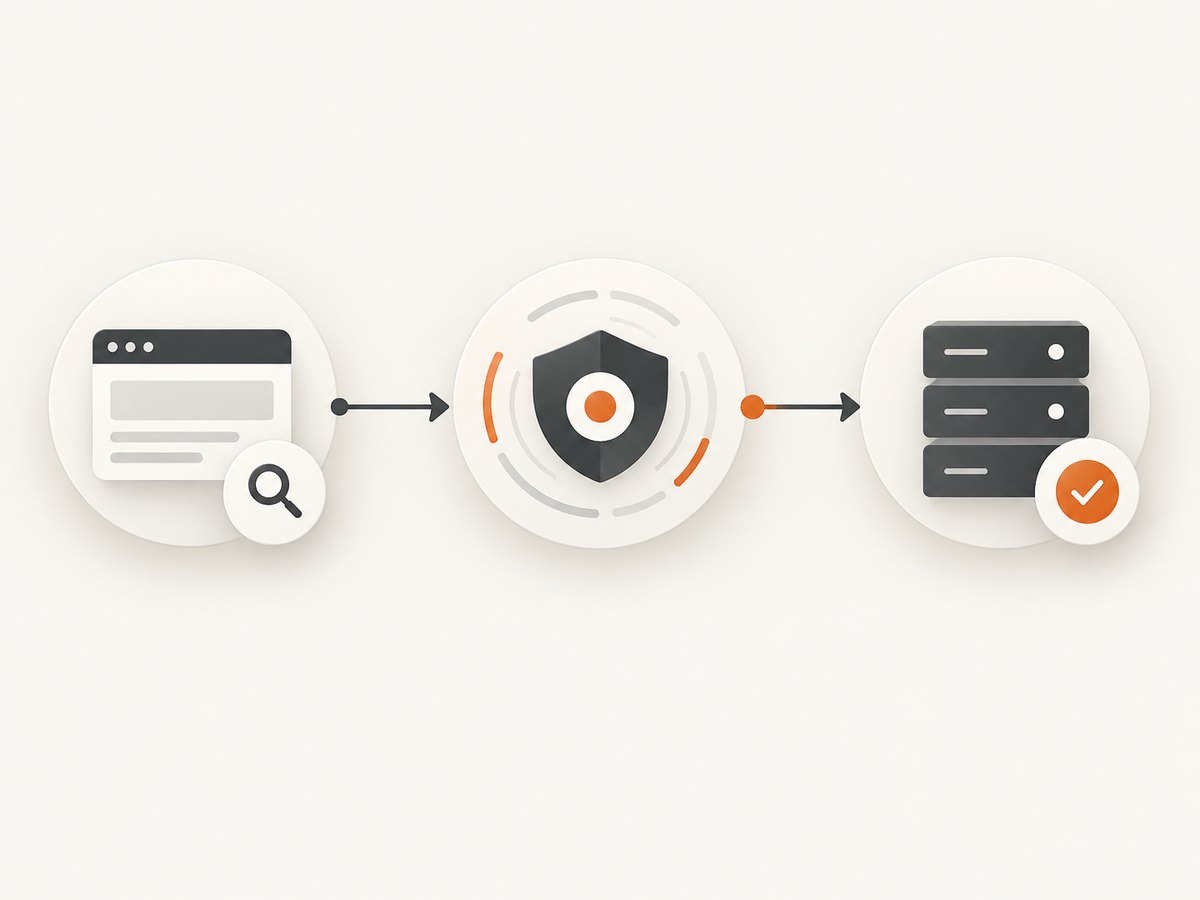
A challenge can also be tied to the request context. If the IP changes between challenge issuance and solve, Cloudflare may reject the solve or start another challenge. A Private Access Token request returning HTTP 401 can be expected and is not, by itself, proof that Turnstile failed.
See Cloudflare’s challenge troubleshooting guidance and supported browser documentation for the current browser and challenge requirements.
3. Fixes for legitimate visitors
3.1 Update the browser and enable JavaScript
- Update Chrome, Edge, Firefox, or Safari to a current release.
- Confirm JavaScript is enabled for the site.
- Avoid Internet Explorer and heavily modified browser builds.
- Reload in a normal window after updating.
3.2 Isolate extensions and cached state
Content blockers, privacy extensions, script managers, and tools that modify browser fingerprints can prevent challenge scripts from loading or can change the signals Cloudflare evaluates.
- Open a private window with extensions disabled where possible.
- Try the page again.
- If it works, re-enable extensions one at a time to identify the conflict.
- Clear the site’s cookies and storage if a stale challenge state may be cached.
3.3 Keep the network consistent
- Test on a stable connection.
- As a diagnostic, try another network.
- Temporarily test without a VPN or proxy if practical and allowed by your policy.
- Keep the same network path from challenge issuance through completion.
3.4 Preserve evidence before escalating
Record the visible error code, Ray ID, time, browser version, and network conditions. If the administrator requests it, export a HAR file and the browser developer-tools console log. Do not repeatedly refresh while changing networks; that makes the evidence harder to interpret.
3.5 Contact the site owner
If the challenge loops after these checks, send the site owner the error code and Ray ID. Cloudflare’s visitor guidance provides diagnostic and feedback paths, but it does not provide an approved automation method for passing production challenges.
4. Why verification fails in Playwright, Puppeteer, Selenium, or Cypress
These frameworks can drive a browser, but Cloudflare does not support them for solving production challenges. Failures commonly come from automation-specific browser signals, modified launch flags, blocked challenge resources, changing IP addresses, or a test that assumes a production challenge will be deterministic.
Use automation for your own application’s surrounding behavior, such as form submission, error handling, and server-side token validation. Substitute Turnstile’s test keys for the production widget during automated QA.
5. Test Turnstile correctly on a site you own
5.1 Configure separate test credentials
Cloudflare’s Turnstile testing documentation says to use dummy sitekeys and secret keys so automated suites do not trigger real challenges. Keep test credentials and production widget configuration separate. Store them as environment variables in CI rather than committing them.
# Example CI variables (replace with the values from Cloudflare’s test-key table)
TURNSTILE_SITEKEY=your-test-sitekey
TURNSTILE_SECRET=your-test-secret
5.2 Exercise the browser widget with Playwright
import { test, expect } from '@playwright/test';

test('Turnstile test flow reaches the application', async ({ page }) => {
  await page.goto(process.env.TEST_URL);
  await page.locator('input[name="email"]').fill('qa@example.test');
  await page.locator('button[type="submit"]').click();

  // Assert your application result, not a production Cloudflare challenge.
  await expect(page.locator('[data-test="result"]')).toBeVisible();
});
Your test page should render the widget with the test sitekey. The expected result (success, failure, invisible, or interactive behavior) comes from the specific key pair documented by Cloudflare.
5.3 Exercise the same flow with Selenium in Python
import os
from selenium import webdriver
from selenium.webdriver.common.by import By
from selenium.webdriver.support.ui import WebDriverWait
from selenium.webdriver.support import expected_conditions as EC

options = webdriver.ChromeOptions()
# Use a normal, supported browser configuration for your test environment.
driver = webdriver.Chrome(options=options)
try:
    driver.get(os.environ['TEST_URL'])
    driver.find_element(By.NAME, 'email').send_keys('qa@example.test')
    driver.find_element(By.CSS_SELECTOR, 'button[type="submit"]').click()
    WebDriverWait(driver, 20).until(
        EC.visibility_of_element_located((By.CSS_SELECTOR, '[data-test="result"]'))
    )
finally:
    driver.quit()
5.4 Validate the token on your server
Client-side widget activity is not the complete integration. Your server must send each token to Cloudflare Siteverify. Tokens can be invalid, expired, or already redeemed.
import os
import requests
from flask import Flask, request, jsonify

app = Flask(__name__)

@app.post('/verify-turnstile')
def verify_turnstile():
    token = request.form.get('cf-turnstile-response', '')
    result = requests.post(
        'https://challenges.cloudflare.com/turnstile/v0/siteverify',
        data={
            'secret': os.environ['TURNSTILE_SECRET'],
            'response': token,
            # Include the client IP when your integration collects it.
            'remoteip': request.remote_addr,
        },
        timeout=10,
    )
    data = result.json()
    if not data.get('success'):
        return jsonify({'ok': False, 'errors': data.get('error-codes', [])}), 400
    return jsonify({'ok': True})
Use the exact endpoint and fields from Cloudflare’s server-side validation documentation. Never authorize an action solely because the browser rendered a widget or produced a client-side callback.
6. Turnstile error codes as a troubleshooting branch
| Code or symptom | Likely meaning | Action |
|---|---|---|
110200 |
Unauthorized domain | Check the hostname configured for the sitekey and the hostname serving the widget. |
110600 or 110620 |
Timeout | Check network reachability, script loading, and test-environment timeouts. |
200100 |
Clock or cache problem | Synchronize the system clock and clear stale cached widget state. |
200500 |
Iframe load error | Inspect Content Security Policy, blocked third-party resources, and console errors. |
Generic 300* or 600* |
Bot behavior detected | Retry only in an authorized test setup; do not use it as a production challenge-solving signal. |
Private Access Token request returns 401 |
Can be expected and non-fatal | Check whether the widget still resolves and your server receives a token before treating it as a failure. |
Use the official error-code reference as a branching aid. An error code narrows the investigation; it does not prove a single root cause.
7. Common errors and fixes
| Error | Cause | Fix |
|---|---|---|
| “Verify you are human” repeats forever | Unstable IP, blocked scripts, stale cookies, or unsupported automation | Try a current browser in private mode, disable conflicting extensions, keep one network path, then contact the site owner. |
| Playwright never receives a token | Production challenge used in an unsupported automation flow | Switch the owned-site test to Turnstile test keys and assert your application’s server response. |
| Widget shows an iframe error | CSP, ad blocking, DNS, or network filtering blocks a required resource | Inspect the console and Network panel, allow required Turnstile resources in the test environment, and retest. |
| Token works once, then fails | Token expired or was already redeemed | Request a fresh token for each action and validate it immediately on the server. |
| Challenge fails after switching VPNs | IP changed between issuance and solve | Keep the session on one network while diagnosing. |
| CI passes locally but fails in CI | Different browser version, clock, proxy, extensions, or outbound filtering | Log versions and environment details, use the documented test keys, and compare network access. |
8. Performance, reliability, and cost considerations
- Performance: Challenge pages add script and network work. In QA, measure your application after replacing real challenges with deterministic test keys; otherwise challenge variance can dominate the result.
- Reliability: Keep browser versions, clocks, credentials, and network policy stable in CI. Treat challenge outcomes as external dependencies, not as a reliable assertion of application behavior.
- Security: Verify every token server-side, protect the secret key, and separate test and production configuration.
- Cost: Cloudflare’s test keys avoid consuming production challenge capacity during automated QA. For screenshot pipelines, also account for failed loads, bot checks, retries, and cache behavior.
9. Or skip the browser setup
If your goal is a page image or PDF rather than testing a Cloudflare integration, ScreenshotNeo provides a single screenshot request. It removes cookie banners, newsletter popups, and chat widgets before capture. Bot checks, blank pages, failed loads, timeouts, and cache hits are not billed, and response headers identify the page verdict and billing status. Its MCP server lets Claude, Cursor, and other MCP clients call take_screenshot, get_page_info, and capture_pdf.

Read the ScreenshotNeo API documentation for the available capture options.
cURL
curl -G "https://api.screenshotneo.com/v1/shot" -d access_key=YOUR_API_KEY --data-urlencode url=https://stripe.com -o shot.webpPython
import requests
r = requests.get("https://api.screenshotneo.com/v1/shot", params={"access_key": "YOUR_API_KEY", "url": "https://stripe.com"}, timeout=90)
open("shot.webp", "wb").write(r.content)
Node.js
const q = new URLSearchParams({ access_key: 'YOUR_API_KEY', url: 'https://stripe.com' });
const res = await fetch(`https://api.screenshotneo.com/v1/shot?${q}`);
ScreenshotNeo includes full-page capture with lazy images loaded, element capture by CSS selector, device presets, custom viewports, retina scale, PDF output, custom CSS and JavaScript, click and wait controls, request blocking, headers, cookies, user agents, authorization, timezone and geolocation, transparent backgrounds, resizing, TTL-based caching, signed links, asynchronous webhooks, bulk capture, usage data, and an OpenAPI specification. Every feature is available on every plan. The Free plan includes 1,000 shots per month with no card; paid plans start at $5 for 3,000 shots.
Sign up for 1,000 free ScreenshotNeo screenshots a month with no card.
10. FAQ
Why does Cloudflare verification fail in Playwright?
Because Cloudflare does not support browser automation frameworks for solving production challenges. Use Turnstile test keys for an owned-site test, or diagnose the issue as a legitimate visitor.
How do I test Turnstile with Selenium?
Configure the page with Cloudflare’s documented test sitekey, run Selenium against that test environment, and validate the resulting token with the test secret through Siteverify.
Should I ignore a 401 in the browser console?
A 401 from a Private Access Token request can be expected. Check whether the widget completes and your server receives a valid token before classifying it as a failure.
Can I automate a Cloudflare challenge on a site I do not own?
Cloudflare does not provide a supported automation method for solving production challenges. Contact the site administrator with the error code and Ray ID.
Is a challenge loop always a Cloudflare outage?
No. Browser configuration, extensions, JavaScript, network instability, changing IP addresses, and blocked resources can all cause loops.


