How to Fix Broken Screenshots in CloudWatch Synthetics
Diagnose missing, blank, stale, or failed CloudWatch Synthetics screenshots using run artifacts, logs, IAM, timeouts, and visual baselines.
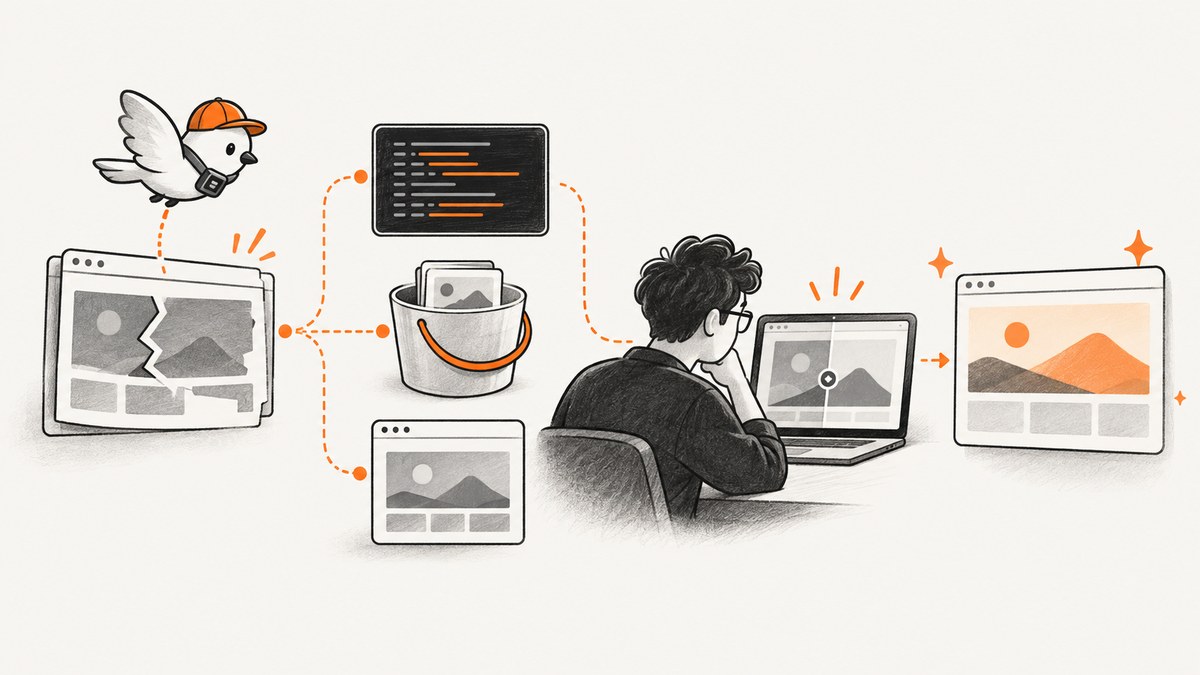
A broken CloudWatch Synthetics screenshot usually falls into one of four groups: capture was disabled, the canary timed out before artifacts were written, artifact storage rejected the upload, or the screenshot is valid but the page or visual baseline is wrong. Start with the failed run’s evidence before changing the script.
1. Inspect the failed run before changing code
Open the canary in the CloudWatch console, select Availability, and open the failed data point. Review the screenshot, step report, CloudWatch Logs, and HAR file when available. Compare each artifact with a successful run. AWS documents this as the first troubleshooting step because it separates a browser or application failure from a screenshot-storage failure.
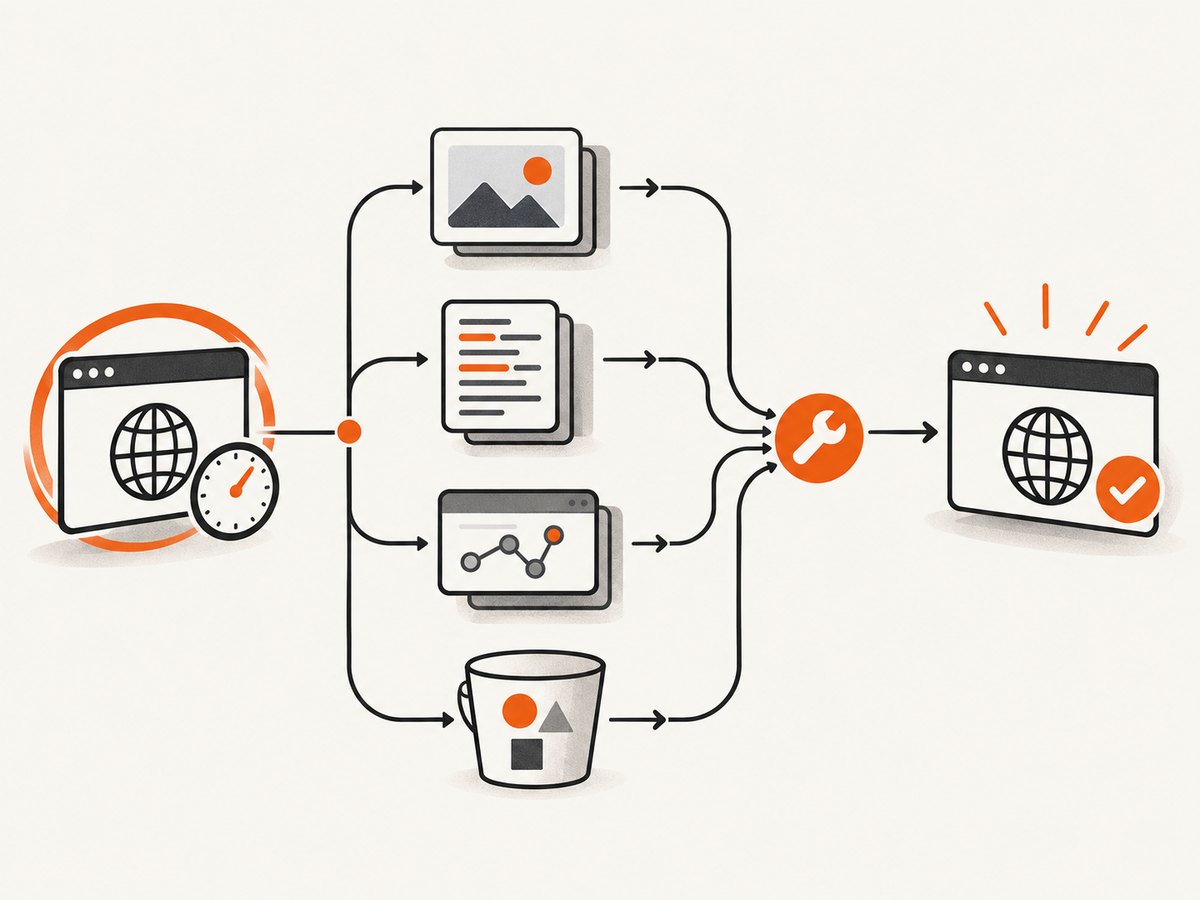
Record these facts:
- Whether the screenshot is missing, blank, stale, or shows a real page error.
- The run status and exact error text.
- The step at which the failure occurred.
- Whether logs mention S3, KMS, a timeout, permissions, or visual comparison.
- Whether a recent application deployment changed the page.
If the screenshot accurately shows a page that failed to load, repair the monitored application or its network path first. If the page works manually but the artifact is absent, continue with the capture and storage checks below.
2. Identify the failure class
| Observed result | Most likely branch | First check |
|---|---|---|
| No screenshot at all | Capture disabled, timeout, or artifact upload failure | UI-step screenshot setting, logs, and run timeout |
| Blank or stale image | Page-load behavior, timing, cache, or an unchanged artifact | Step report, HAR, successful-run comparison, and logs |
| S3 or access-denied error | IAM, bucket policy, VPC endpoint, or KMS configuration | Canary role and destination-bucket permissions |
| Visual comparison failure | Baseline, boundaries, or unsupported runtime | Blueprint configuration and runtime |
| Run timed out | Execution ended before metrics or artifacts were published | CloudWatch Logs and timeout value |
3. Restore screenshot capture
CloudWatch Synthetics UI canaries capture screenshots for each step by default, but the script can disable that behavior. Inspect every UI step for a screenshot setting that was turned off. Re-enable screenshots while diagnosing the canary, then run it again and confirm that a new data point contains the expected artifact.
Do not infer that a missing image means the browser never reached the page. A timeout or upload failure can remove the artifact after the browser step completed. Use the logs and step report to distinguish those cases.
4. Fix timeout-related missing artifacts
A run that exceeds its timeout can stop before publishing metrics or updating artifacts such as screenshots, HAR files, and logs. Check CloudWatch Logs for the timeout message even when the console does not show the expected run artifacts.
AWS recommends a canary timeout of at least 15 seconds so Lambda cold starts and Synthetics instrumentation can start. Increase the timeout when the page, network path, or startup work needs more time, then run the canary again. Also inspect whether a recent page change added a slow request or a blocking third-party resource.
- Open the canary configuration and note the current timeout.
- Review the timed-out run’s logs for the last completed step and request.
- Set a timeout of 15 seconds or more, with additional headroom for the observed page behavior.
- Run the canary and compare its artifacts with a successful run.
5. Resolve S3 artifact upload errors
When logs mention S3, access denied, or artifact upload failure, inspect the canary execution role and every policy between the canary and the artifact bucket. AWS specifically identifies these permissions for the relevant bucket:
| Permission | Why it matters |
|---|---|
s3:ListAllMyBuckets |
Allows the canary service to list buckets as required by the documented artifact path. |
s3:GetBucketLocation |
Allows discovery of the destination bucket’s region. |
s3:PutObject |
Allows screenshots, logs, and other generated artifacts to be written. |
s3:GetObject |
Required for visual monitoring to read comparison material. |
Check the following in order:
- Confirm the canary execution role has the required actions on the correct bucket and object path.
- If the canary uses an S3 VPC endpoint, inspect the endpoint policy for the same access.
- If the bucket uses a customer-managed KMS key, grant the canary role the required encrypt and decrypt access.
- If the bucket policy requires server-side encryption, make the canary’s encryption mode satisfy that condition.
- Run the canary again and verify that a newly generated object appears.
A successful browser step with an EXECUTION_FAILURE often points to this persistence path rather than to the page itself.
6. Understand CloudWatch run statuses
The API distinguishes a canary failure from a debug-artifact failure. AWS defines CANARY_FAILURE as a script failure or fatal Synthetics error. EXECUTION_FAILURE indicates a non-critical failure such as being unable to save generated debug artifacts, including screenshots or HAR files. Use that distinction to decide whether to debug browser code or storage configuration.
Read the status together with the logs. A status alone does not identify which request, step, or policy failed.
7. Repair visual monitoring and baselines
Visual monitoring compares a canary screenshot with a baseline. The first successful run after comparison is enabled supplies the baseline; later runs are compared with it. Verify that the baseline represents the intended page state and that configured boundaries do not exclude or include the wrong region.
AWS’s blueprint documentation supports visual monitoring with syn-puppeteer-node-3.2 and later. It states that this blueprint does not support Python/Selenium or Playwright runtimes. If the canary uses one of those unsupported runtimes, use a supported runtime for this visual-monitoring workflow before investigating image differences.
- Confirm the canary uses a supported runtime.
- Check which successful run established the baseline.
- Review comparison boundaries and viewport assumptions.
- Decide whether the page change is expected. If it is, establish the correct new baseline according to your change process.
- Run again and inspect both the captured image and comparison result.
8. Reproduce ordinary canary behavior locally
AWS documents local testing with a SAM container that emulates a Lambda function. Local reproduction can help debug ordinary script behavior and page timing. If the local run must save screenshots or HAR files, configure an S3 bucket; without one, local execution can continue but those artifacts are unavailable.
Local runs do not retain the canary history needed for practical visual-monitoring baseline debugging, so use the CloudWatch canary for baseline and comparison investigations.
9. Troubleshooting checklist
- Screenshot missing: re-enable screenshot capture, then check timeout and artifact-upload logs.
- Screenshot blank: inspect the step report and HAR to determine whether the page itself was blank or the capture happened before content loaded.
- Screenshot stale: compare timestamps and object names with a successful run; verify that the current run completed and uploaded a new artifact.
- No datapoint and timeout error: inspect CloudWatch Logs and raise the timeout to at least 15 seconds.
- Unable to upload artifacts to S3: verify
s3:ListAllMyBuckets,s3:GetBucketLocation, ands3:PutObject, then check VPC endpoint, KMS, and encryption requirements. - Visual comparison fails: verify the baseline, boundaries, and supported runtime.
- Run status is
CANARY_FAILURE: debug the script or fatal Synthetics error. - Run status is
EXECUTION_FAILURE: inspect artifact persistence, especially S3 and encryption access.
10. Performance, reliability, and cost considerations
Long page startup, Lambda cold starts, third-party requests, and restrictive timeouts can make screenshots appear unreliable. Give the canary enough timeout headroom, inspect HAR files for slow or failed requests, and compare successful and failed runs before changing waits in the script.

Artifact reliability depends on the complete storage path: execution role, bucket policy, VPC endpoint policy, KMS permissions, and encryption requirements. A browser can finish successfully while artifact publication still fails.
CloudWatch Synthetics charges are separate from the screenshot file itself. The troubleshooting actions above change configuration and storage behavior; check your AWS billing and retention settings before increasing run frequency or retaining more artifacts.
Or skip the browser setup
If you need a clean screenshot outside a CloudWatch canary, ScreenshotNeo provides a single HTTP request for PNG, JPEG, WebP, or PDF output. Its capture flow accepts cookie and consent banners and removes more than 60 known consent platforms, newsletter popups, and chat widgets before the shot. Bot checks, blank pages, failed loads, timeouts, and cache hits cost nothing, and the response identifies the result with X-Page-Verdict and X-Billed headers. It also provides an MCP server for AI agents with take_screenshot, get_page_info, and capture_pdf.
See the ScreenshotNeo API documentation for the available options.
cURL
curl -G "https://api.screenshotneo.com/v1/shot" \
  -d access_key=YOUR_API_KEY \
  --data-urlencode url=https://stripe.com \
  -o shot.webp
Python
import requests

r = requests.get(
    "https://api.screenshotneo.com/v1/shot",
    params={"access_key": "YOUR_API_KEY", "url": "https://stripe.com"},
    timeout=90,
)
r.raise_for_status()
open("shot.webp", "wb").write(r.content)
Node.js
const q = new URLSearchParams({
  access_key: 'YOUR_API_KEY',
  url: 'https://stripe.com'
});
const res = await fetch(`https://api.screenshotneo.com/v1/shot?${q}`);
if (!res.ok) throw new Error(`HTTP ${res.status}`);
const fs = await import('node:fs/promises');
await fs.writeFile('shot.webp', Buffer.from(await res.arrayBuffer()));
ScreenshotNeo includes full-page capture, lazy-image loading, CSS-element capture, device presets, custom viewports, retina scale, waits, request blocking, headers, cookies, user agents, authorization, timezone, geolocation, custom CSS and JavaScript, caching, signed links, asynchronous jobs, webhooks, bulk capture, usage reporting, and PDF options. The Free plan includes 1,000 screenshots each month with no card; paid plans start at $5 for 3,000 screenshots. Create a free ScreenshotNeo account.
FAQ
Why is the screenshot missing but the canary is marked failed?
The run may have timed out before publishing artifacts, or the artifact upload may have failed. Check logs and the run status before changing browser code.
Does enabling screenshots fix S3 permission errors?
No. Capture configuration controls generation; IAM, bucket, endpoint, KMS, and encryption policies control whether the generated artifact can be stored.
Can I debug visual monitoring entirely on my laptop?
You can reproduce ordinary canary behavior locally, but AWS says local iterations do not retain the run history needed for practical visual-monitoring baseline debugging.
What should I compare first?
Compare the failed screenshot, step report, logs, and HAR with a successful run from the same canary. That usually reveals whether the problem is page behavior, timing, capture configuration, or artifact persistence.


