How to Fix “Could Not Attach to MCP Server Elementor-MCP”
Resolve Elementor-MCP attachment failures by checking versions, permissions, generated setup prompts, transport, and client logs.

Start here: the exact message “Could Not Attach to MCP Server Elementor-MCP” has no documented single cause. Work through Elementor’s supported setup in order: verify versions and permissions, enable MCP in WordPress, generate a fresh client-specific setup prompt, then inspect the AI client’s connection status and logs. The correct fix depends on the AI client, its version, and whether it is using a local or remote MCP connection.
1. What the error tells you
The message means the AI client did not establish a usable MCP connection to Elementor. It does not identify whether the failure happened during authentication, transport setup, server discovery, or tool initialization. Do not assume that reinstalling Elementor, changing a firewall rule, or editing a particular configuration file will fix it without client logs that point there.
Record these details before changing settings:
- AI client name and version
- Operating system
- WordPress version
- Elementor Core and Elementor Pro versions
- Whether the client is configured for a local or remote MCP connection
- The complete error text and any connection log entry
2. Verify Elementor’s documented requirements
Elementor’s current connection guide lists WordPress 6.8 or newer and Elementor Core and Pro 4.3.0 or newer. Check the official Elementor setup guide before relying on these requirements, because software versions can change.
- In WordPress, open Dashboard → Updates and note the WordPress version.
- Open Plugins and check both Elementor Core and Elementor Pro versions.
- Update only through your normal WordPress maintenance process, then confirm that both plugins are active and compatible.
- Sign in with the WordPress account that should control the connection.
Elementor says the connected tool inherits the logged-in WordPress user’s permissions. Its MCP overview describes MCP access as limited to site administrators. A user without the required role or capabilities may connect unsuccessfully or see fewer permitted actions. Confirm the account is a site admin and has the intended access before diagnosing the client.
3. Generate a fresh, client-specific setup prompt
Do not copy an old prompt from another machine or user. Elementor’s supported flow generates instructions for the specific AI client and creates an application password that the client uses to authenticate.
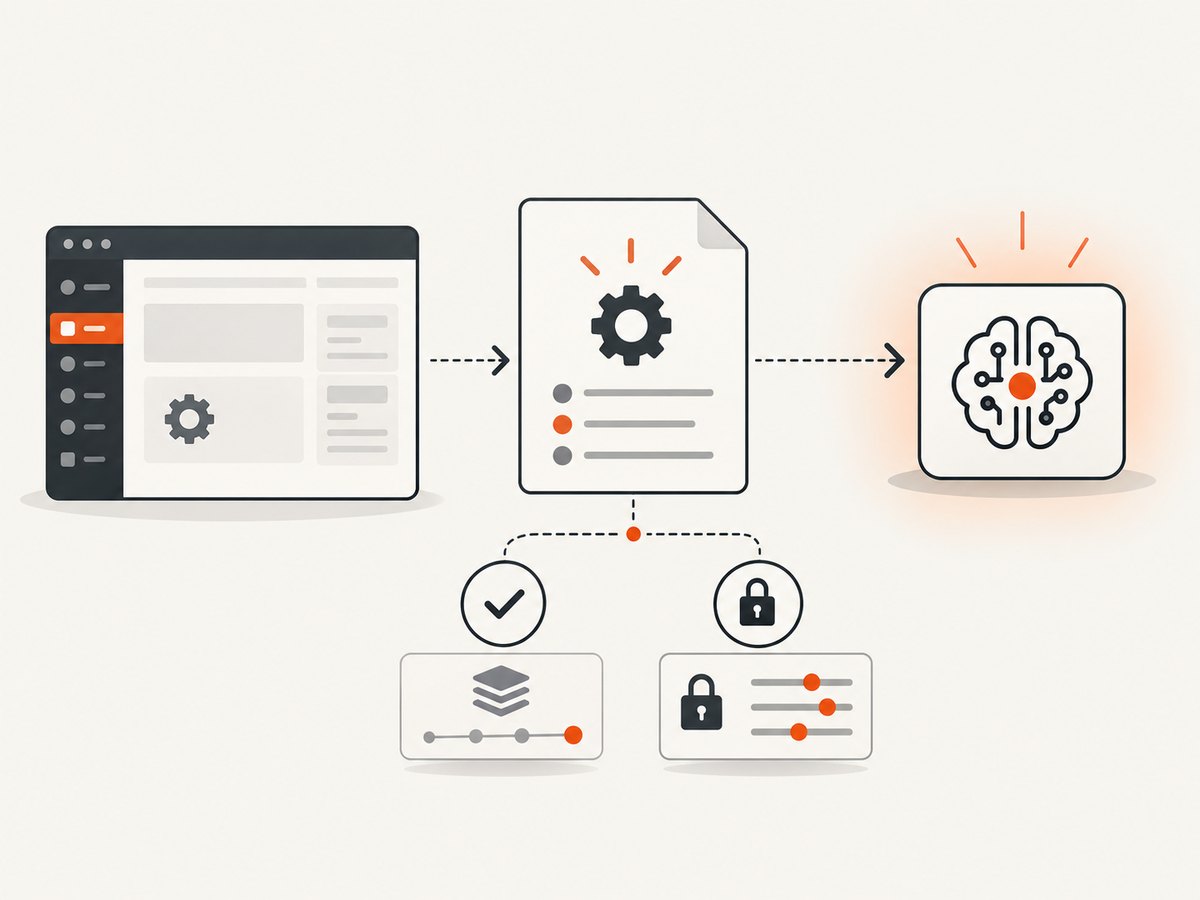
- In WordPress, open Elementor → Elementor MCP. In some editor views the path is Elementor → Editor → Elementor MCP.
- Enable MCP access.
- Select the AI client you are actually configuring.
- Acknowledge the application-password step.
- Generate the setup prompt.
- Copy the generated instructions into that client’s MCP setup area exactly as provided.
- Reconnect or restart the client according to its own instructions.
The generated prompt contains an application password. Treat it like a credential: do not paste it into a public issue, commit it to source control, or share it in screenshots. If you suspect exposure, revoke it from Users → Profile and generate a new connection. You can also disable MCP access from the Elementor MCP settings page.
4. Check the AI client’s status and logs
After pasting the generated prompt, use the client’s own MCP diagnostics. Look for a connection state, server name, authentication error, timeout, or tool-discovery failure. The error may be in the client even when WordPress appears configured correctly.
Claude Desktop
For local Claude Desktop servers, Anthropic recommends checking the configuration and credentials, restarting Desktop when the server is installed but tools are missing, and reviewing the developer connection status and logs. Follow the current Anthropic local MCP guidance for the version of Desktop you use.
- Confirm the generated values were pasted into the intended account and profile.
- Check the developer or connection status view for the server name and error details.
- Restart Desktop after changing configuration.
- Compare the timestamp of the failure with the client log so you diagnose the same attempt.
Other clients expose different settings and log locations. Identify the client before applying instructions written for Claude Desktop.
5. Do not mix up local and remote MCP connections
Local and remote connections have different requirements. A local configuration starts or reaches a server from the client machine. A remote connector reaches a publicly reachable server from the provider’s infrastructure. Anthropic documents this distinction for Claude: remote connectors require a publicly reachable server, while local Claude Desktop configuration is a separate mechanism. That documentation does not prove which transport Elementor uses in every client, so use the connection mode shown by your client and Elementor’s generated prompt.
| Question | What to verify |
|---|---|
| Where is the MCP server running? | On the local computer or at a remote, reachable address. |
| Where is configuration managed? | Inside the desktop client, a hosted connector page, or another client-specific settings view. |
| Which logs apply? | The client’s local developer logs for local mode; the hosted connector status and logs for remote mode. |
| What network path is required? | Local process access for local mode; public reachability and valid authentication for remote mode. |
6. A safe reset sequence
- Disable Elementor MCP access temporarily.
- Revoke the related application password under Users → Profile.
- Confirm the intended account is a site administrator.
- Re-enable MCP and generate a new prompt for the exact client.
- Paste it into a clean client configuration and restart that client.
- Check the client’s status and logs immediately after the connection attempt.
This sequence removes stale credentials without changing unrelated WordPress settings. If the new attempt fails, preserve the new log entry and report the client, versions, transport, and timestamp when asking for support.
7. Or skip the browser setup
If your automation only needs screenshots, ScreenshotNeo provides a direct website screenshot API and an MCP server for Claude, Cursor, and other MCP clients. A GET request returns PNG, JPEG, WebP, or PDF output. See the ScreenshotNeo API documentation for all options.

curl -G "https://api.screenshotneo.com/v1/shot" -d access_key=YOUR_API_KEY --data-urlencode url=https://stripe.com -o shot.webpimport requests
r = requests.get("https://api.screenshotneo.com/v1/shot", params={"access_key": "YOUR_API_KEY", "url": "https://stripe.com"}, timeout=90)
open("shot.webp", "wb").write(r.content)const q = new URLSearchParams({ access_key: 'YOUR_API_KEY', url: 'https://stripe.com' });
const res = await fetch(`https://api.screenshotneo.com/v1/shot?${q}`);ScreenshotNeo removes cookie and consent banners, newsletter popups, and chat widgets before capture. Bot checks, blank pages, failed loads, timeouts, and cache hits are not billed, and response headers identify the page verdict and billing result. Its MCP server exposes take_screenshot, get_page_info, and capture_pdf. The free plan includes 1,000 screenshots per month with no card; paid plans start at $5 for 3,000 shots. Create a free ScreenshotNeo account.
8. Troubleshooting by symptom
| Symptom | Likely area | Action |
|---|---|---|
| Server is not listed | Client configuration or stale prompt | Generate a new Elementor prompt for the selected client and paste it into the correct profile. |
| Authentication or unauthorized error | Application password, account, or role | Confirm the WordPress account, verify site-admin access, revoke the old password, and generate a new one. |
| Tools are missing after installation | Client initialization | Restart the client and inspect its developer connection status and logs. |
| Connection works but actions are denied | WordPress permissions | Check the connected user’s role and capabilities; the AI agent cannot exceed that user’s permissions. |
| Remote connection times out | Transport or reachability | Confirm whether the client expects a public remote endpoint and use the client’s remote-connector diagnostics. |
| Error returns after changing sites | Wrong site or stale credentials | Generate a prompt from the target WordPress site and replace the previous client entry. |
9. Reliability, security, and maintenance notes
- Keep a record of the client, WordPress, and Elementor versions whenever you change the connection.
- Use one application password per connection where practical so you can revoke a single credential.
- Disable MCP access when the integration is no longer needed.
- Review logs after updates because client configuration formats and Elementor requirements can change.
- Do not grant a broader WordPress role just to hide an attachment error; first identify the denied capability.
10. FAQ
Is this always caused by Elementor?
No. The exact error string is not documented with a confirmed root cause. The client, transport, credentials, versions, and permissions can all affect attachment.
Do I need to edit a JSON file?
Only if the AI client’s official instructions require it. Elementor’s documented flow is to generate a client-specific setup prompt and use it in the chosen client.
Can a non-admin connect?
Elementor says the connected tool inherits the logged-in user’s permissions, and its MCP overview limits access to site administrators. Use an account with the required role and capabilities.
What should I include in a support request?
Include the AI client and version, operating system, WordPress and Elementor versions, local or remote mode, the exact error, and the relevant log lines. Remove application passwords and other secrets first.


