How to Fix “Could Not Attach to MCP Server Mcp_Docker”
This message alone doesn’t identify the cause. Check your MCP client, Docker command, and server output in order, then apply the fix that matches the evidence.
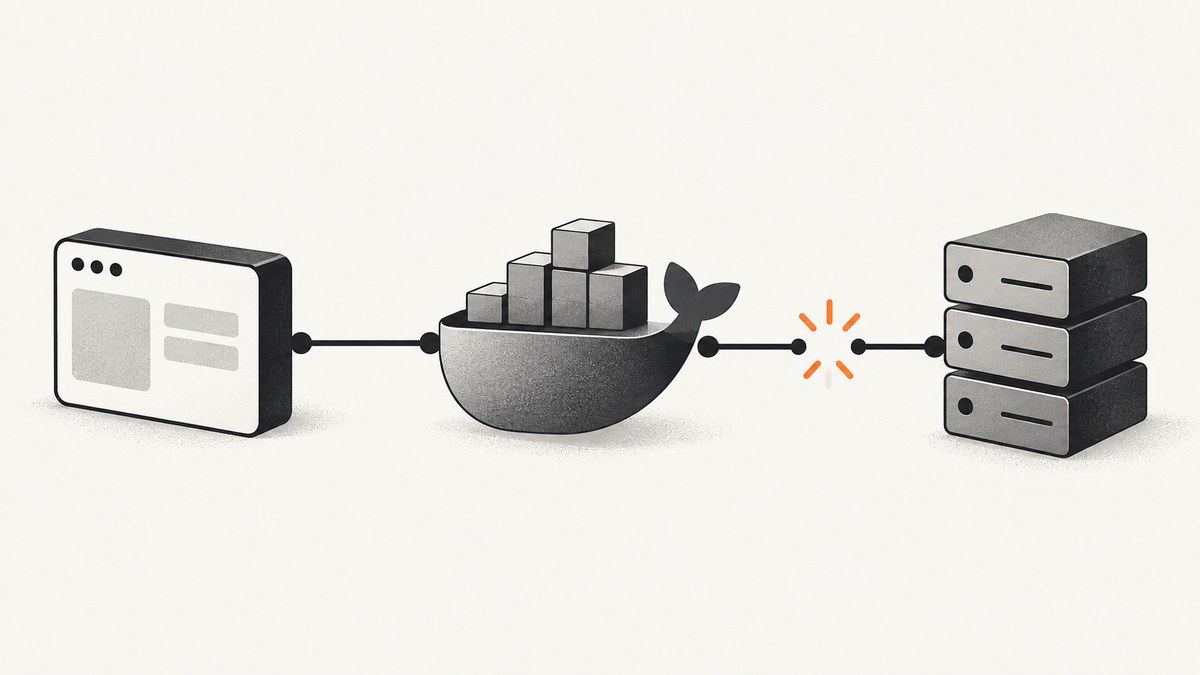
If your MCP client says it “Could Not Attach to MCP Server Mcp_Docker,” first identify which client displayed the message and inspect that client’s MCP output. Then verify that it can run Docker and that the server entry launches the documented stdio command: docker mcp gateway run. The exact message in this title was not found in the sources reviewed, so it does not point to one confirmed cause or universal fix. Similar connection errors can result from a bad command or arguments, Docker being unavailable to the app, or a server process that did not start correctly.
Work through the checks below in order. Keep the client, operating system, configuration entry, and first useful error line together: those details determine which branch applies.
1. Identify the client and how it was launched
“MCP_DOCKER” is a server name used in Docker examples; the attach message may be phrased by a particular MCP host. Docker documents client-specific setup and verification, so a configuration snippet for one host should not be copied into another without checking its format.
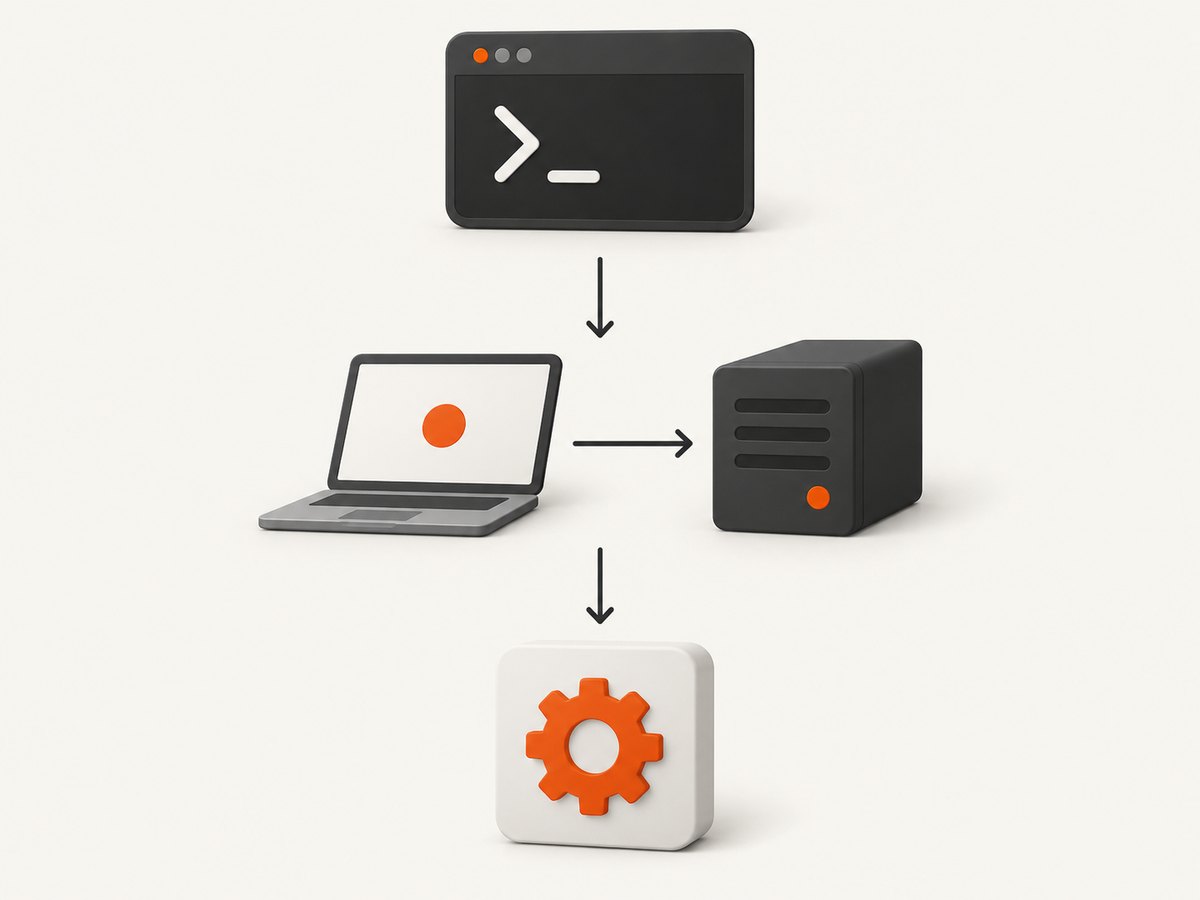
Record these details before changing the configuration:
- Which host shows the error: Claude Code, Claude Desktop, VS Code, Codex, or another MCP client?
- Which operating system and Docker installation are involved?
- Does the same Docker command work in a terminal?
- Was the server added through Docker’s client-connect command, the application UI, or a hand-edited configuration file?
- Did the failure begin after an application, Docker, or configuration update?
Also distinguish “the server is listed but disconnected” from “the client cannot attach at all.” These statuses can describe different failure points. Capture the exact status text and the first relevant log line rather than treating the title wording as a diagnosis.
2. Check that Docker runs from the client’s environment
Open a terminal in the same user account that runs the MCP client and try:
docker --versionIf the shell reports that the command is missing, Docker may not be installed, may not be on that shell’s PATH, or may not be available to that account. Resolve that before troubleshooting MCP. If it prints a version, continue: a graphical app can have a different environment from your interactive terminal, so this result alone does not prove that the app can find Docker.
If the application log specifically says that docker cannot be found, compare how the GUI client was launched with the terminal environment. On Windows, one March 2026 Docker Desktop Feedback issue describes a particular Claude Code VS Code extension setup where the extension could not find Docker through PATH although the CLI worked; the reporter used the Docker executable’s absolute path as a workaround. That report is a lead for a matching environment, not an official universal cause. Verify the local installation path and the client’s configuration rules before using an absolute path.
3. Verify the server command and arguments
Docker’s Toolkit setup documents the stdio server command as docker mcp gateway run. In a client configuration that represents a server using a command and an argument list, the corresponding values are typically the executable docker and arguments mcp, gateway, run. Match the exact structure to the host’s configuration schema; don’t assume every client uses the same JSON or UI fields.
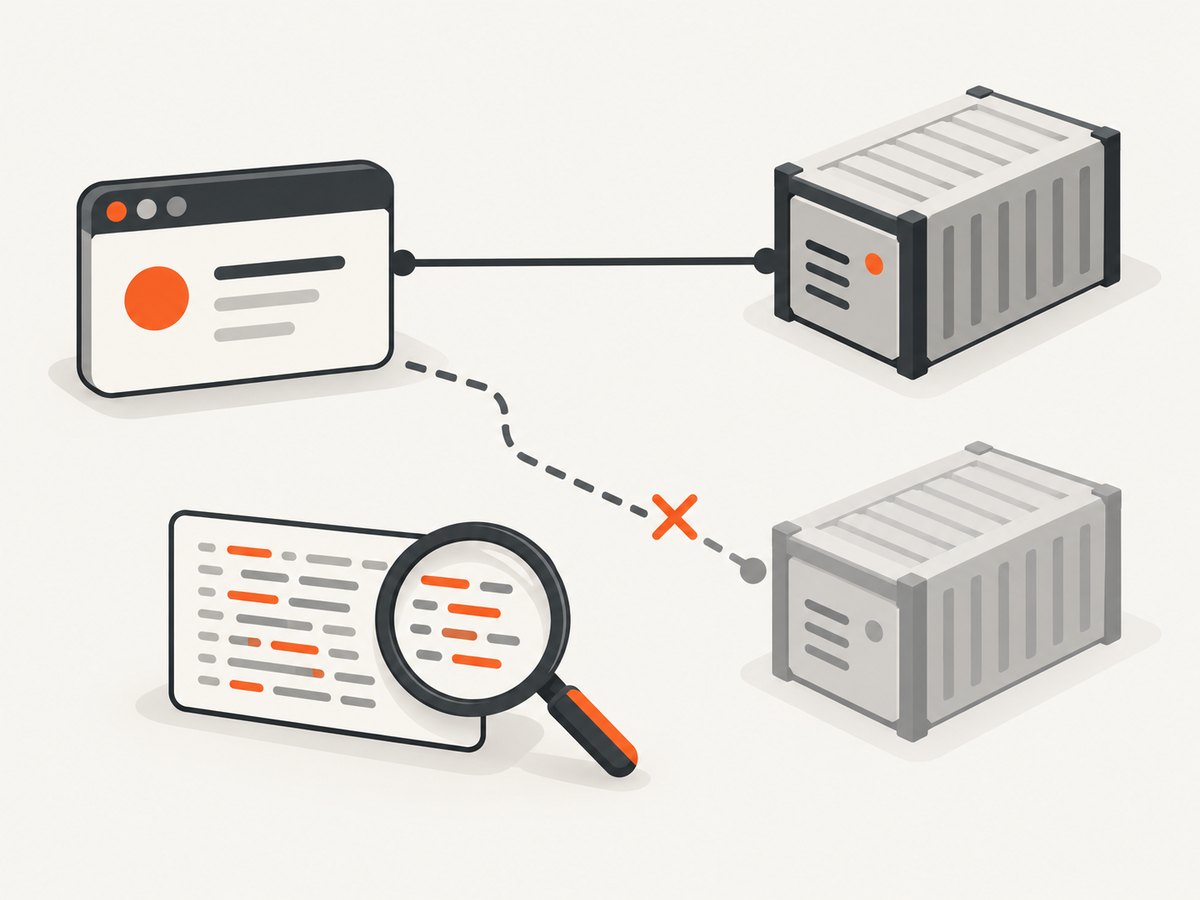
docker mcp gateway runUse this as a direct startup check where appropriate. If it exits immediately or prints an error, fix that error before asking the client to attach. If the command remains running because it is serving over stdio, stop it only after observing the startup behavior; a stdio server is normally launched and managed by the MCP host itself. Do not configure a client to launch an unrelated detached container when the intended integration expects a process connected through stdio.
Prefer Docker’s client connection workflow when supported
Docker documents a client connection command for supported hosts:
docker mcp client connect <mcp-client>Replace <mcp-client> with the client identifier Docker supports for your setup. Docker also documents profile and global options, so decide whether the integration should apply to one profile or globally by consulting the command’s help and Docker’s current instructions. Avoid guessing the identifier or applying a global change when a profile-specific setup is intended.
docker mcp client connect --helpAfter connecting, follow Docker’s client-specific verification step. Its setup guide lists checks including claude mcp list for Claude Code and codex mcp list for Codex. These commands verify what those clients report; they do not replace reading the host’s startup output.
4. Read the MCP server output
A status badge often says only that a connection failed. The output normally gives the actionable clue: missing executable, invalid arguments, immediate process exit, or another startup problem.
In VS Code, select the MCP error and show its output, or run MCP: List Servers and choose Show Output. VS Code’s Docker-related troubleshooting specifically points to incorrect command arguments, detached containers, and server output logs. Confirm that the command and argument list match your intended launch method, then inspect the earliest error around startup; later “connection closed” messages may only report the consequence.
For other clients, use that client’s MCP output or server log view. Note the timestamp, server name, command, exit status, and first stderr message. Redact API keys, cookies, authorization headers, and other credentials before sharing logs. If you change one setting, restart or reconnect the server and compare the new output so you know which change affected the result.
5. Apply the fix indicated by the evidence
| What you observe | Likely area to inspect | Next action |
|---|---|---|
| “docker” not found | Executable availability or GUI app PATH | Check Docker installation and whether the launching context can find it. For a matching Windows setup, verify the actual executable path and the client’s supported command format. |
| Unknown subcommand or invalid arguments | Command or argument list | Compare with docker mcp gateway run and correct the client entry’s executable/arguments according to that client’s schema. |
| Process exits before the client connects | Startup failure | Run the command directly where appropriate and fix the first startup error shown in output. |
| Container starts but client still disconnects | Launch mode or transport mismatch | Check whether the integration expects a stdio process and whether a container was mistakenly detached. |
| Works in one host but not another | Client-specific configuration | Use the failing host’s configuration format and its own output view; do not transplant another client’s entry unchanged. |
| Server appears connected, but expected tools are absent | Client verification or server setup | Refresh/list MCP servers using that client’s documented check and inspect server output for initialization details. |
6. Confirm recovery
- Save the corrected configuration, using the client’s supported format.
- Restart or reconnect the MCP server from the host. If Docker’s connection command is supported for your client, use its documented workflow.
- Check the server output for a successful startup and no immediate process exit.
- Use the client’s list or status command to confirm it sees the server. Docker documents
claude mcp listandcodex mcp listfor those clients. - Try a small operation that exercises one of the server’s tools. If the server connects but a tool call fails, preserve that tool error separately; it may not be an attach problem.
If the issue remains, collect the host and version, OS, Docker version, installation method, redacted server entry, whether the direct command works, and the first relevant output line. Those facts allow someone to distinguish a client configuration issue from an unavailable executable or server startup failure.
Common errors and fixes
“Connection closed” or a disconnected server
This is a symptom, not a root cause by itself. Find the server’s preceding output: the process may have failed to start, exited, or been launched with an incompatible command. Fix the earliest concrete error and reconnect.
The terminal works, but the desktop client cannot find Docker
The application may not inherit the same PATH as the interactive shell. Confirm the log actually reports a missing executable, then compare launch contexts. The reported Windows extension case used an absolute path, but use that workaround only if it fits the client’s documented configuration and the verified local path.
“Unknown command” or usage text appears
The executable may be right while its arguments are wrong, or the installed Docker setup may not provide the expected command. Check the exact command line and the installed Docker MCP Toolkit setup; avoid adding shell quoting or wrapper commands unless the client requires them.
The container runs, but the MCP host cannot attach
Check whether the host expects a stdio server process and whether the server was started detached. VS Code’s guidance calls out detached containers as a troubleshooting point for Docker MCP servers. Use the launch method the host expects.
One configuration example does not work in another app
Client configuration shapes and connection workflows differ. Retain the command and arguments that describe the server, but express them using the target host’s own schema and setup instructions.
Reliability and operational notes
- Keep the launch path stable. If using an absolute executable path, confirm it remains valid after Docker updates or installation changes.
- Change one thing at a time. Record the original server entry, then make one correction and inspect new output. This makes it easier to identify the effective fix.
- Preserve diagnostic evidence. Save the relevant startup output and client status, with secrets removed. A generic attach label alone is not enough to choose a platform-specific remedy.
- Check the right layer. A successful Docker CLI check tests the shell; the MCP output tests the client launch; a tool call tests the connected server. Success at one layer does not establish success at the next.
The sources for this issue do not establish a benchmark, universal cause, or special cost implication for this error. Avoid repeated blind restarts or configuration changes: inspect the first failure line and make the smallest change that addresses it.
Or skip the browser setup
If your goal is to get a screenshot for a developer workflow, you can call ScreenshotNeo’s API directly instead of configuring a browser capture stack. ScreenshotNeo is a website screenshot API and MCP server from Yorker Media; one GET request returns an image or PDF. See the ScreenshotNeo API docs for request options.
curl -G "https://api.screenshotneo.com/v1/shot" -d access_key=YOUR_API_KEY --data-urlencode url=https://stripe.com -o shot.webpimport requests
r = requests.get("https://api.screenshotneo.com/v1/shot", params={"access_key": "YOUR_API_KEY", "url": "https://stripe.com"}, timeout=90)
open("shot.webp", "wb").write(r.content)const q = new URLSearchParams({ access_key: 'YOUR_API_KEY', url: 'https://stripe.com' });
const res = await fetch(`https://api.screenshotneo.com/v1/shot?${q}`);ScreenshotNeo accepts cookie and consent banners like a visitor and removes more than 60 known consent platforms, newsletter popups, and chat widgets before capture; each step can be turned off. Bot checks, blank pages, timeouts, failed loads, and cache hits cost nothing, and the response identifies page verdict and billing status in headers. Its MCP server provides take_screenshot, get_page_info, and capture_pdf tools for Claude, Cursor, and other MCP clients. The free plan includes 1,000 shots per month with no card; paid plans start at $5 for 3,000 shots. See ScreenshotNeo for the service and the docs for options.
Sign up free for 1,000 screenshots a month—no card required.
FAQ
Does “Mcp_Docker” mean Docker is definitely the cause?
No. It identifies a server name in Docker examples, but the exact title message was not found in the sources reviewed. The client output and startup command are needed to locate the failing layer.
Should I reinstall Docker?
Only if the evidence points to a broken or missing installation. First check whether Docker runs in the relevant context and whether the client reports a missing executable or a different startup error.
Can I use the same MCP configuration in Claude, VS Code, and Codex?
Do not assume so. Docker documents client-specific setup and checks; follow the target host’s configuration and connection instructions.
What information should I include when asking for help?
Include the MCP host, OS, Docker version, how the server was configured, whether the command runs directly, and a redacted excerpt of the first relevant output line.
Sources
- Docker Docs: Get started with Docker MCP Toolkit — setup, stdio command, and client verification.
- Docker Docs: docker mcp client connect — supported client connection command and options.
- Visual Studio Code: Add and manage MCP servers — output logs and Docker startup troubleshooting.
- Docker Desktop Feedback issue #215 — one Windows PATH report, not a general diagnosis.
- Docker: Generate Docker Compose Files with Claude Code and Docker MCP Toolkit — Claude Code connection and verification steps.


