How to Fix “Could Not Attach to MCP Server” in Filesystem
Diagnose the generic Filesystem MCP attach error by checking allowed directories, startup commands, environment variables, logs, and timeouts.

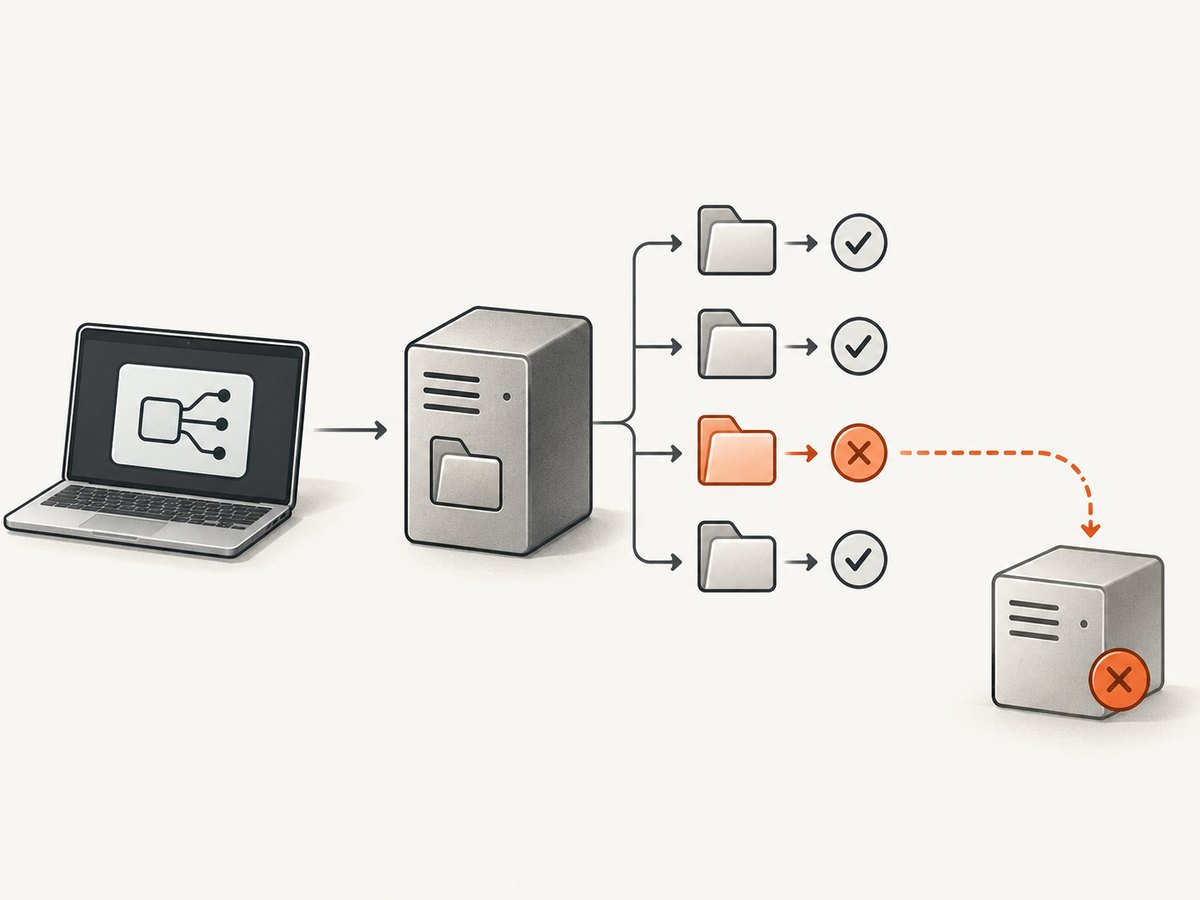
Start by checking every directory configured for the Filesystem MCP server. A renamed, deleted, unmounted, misspelled, or inaccessible allowed directory can make the server start, receive initialize, and then exit before it provides tools/list. Remove or restore only the invalid entry, keep at least one valid directory, and restart the MCP host.
That is one documented cause, not a universal explanation. “Could not attach to MCP server Filesystem” is a host-level symptom. The same message can also mean that the process never spawned, the command used the wrong environment, initialization timed out, or the server disconnected for another reason.
1. Confirm what is actually failing
Record when the message appears and inspect the host logs. The useful distinction is the process state:
- Process never spawns: check the executable, command, arguments, permissions, and
PATH. - Process starts and exits during initialization: validate every configured root and read server stderr.
- Initialization times out: compare the host timeout, startup command, environment, and server logs.
- Tools appear and then disappear: inspect later disconnects, crashes, resource access, and host restarts.
An upstream report describes Windows 11 with Claude Desktop’s bundled secure-filesystem-server v0.2.0 accepting initialization and exiting within roughly one to two seconds when an allowed directory had been renamed or deleted. Those are details from that report, not a general timing guarantee or a statement about every release.
2. Validate every allowed directory
Find the effective configuration
Open the MCP configuration used by the application that displays the error. Do not inspect only a project-level file if the host also has a user-level configuration. List every path passed to the Filesystem server and check it using the same operating-system account that launches the host.
{
  "mcpServers": {
    "filesystem": {
      "command": "npx",
      "args": [
        "-y",
        "@modelcontextprotocol/server-filesystem",
        "/Users/alex/Documents",
        "/Volumes/Archive/project"
      ]
    }
  }
}
Check each path directly
Test the exact spelling, capitalization where relevant, mount state, and permissions. Removable drives and network shares can disappear between sessions. A GUI-launched process can also see a different home directory or environment from your terminal.
# macOS or Linux
ls -ld "/Users/alex/Documents"
ls -ld "/Volumes/Archive/project"
test -d "/Users/alex/Documents" && echo "valid" || echo "missing"

# Windows PowerShell
Get-Item "C:\Users\Alex\Documents"
Test-Path "D:\Projects\client"
Fix the configuration using this order:
- Restore or remount the intended directory.
- Correct a typo, stale home-directory reference, or wrong drive letter.
- Remove only the stale entry if it is no longer intended to be exposed.
- Keep at least one valid allowed directory.
- Save the file and fully restart the MCP host so it reloads startup arguments.
Do not edit the server source code as the ordinary user fix. Suggestions such as validating paths individually, reporting the failing path, and continuing with valid paths are implementation proposals from the issue report, not confirmed upstream behavior.
3. Read logs instead of relying on the toast
Look in both the host’s MCP log and the Filesystem process’s stderr. Search for:
- spawn failures, “command not found,” or permission-denied messages;
- the exact command and arguments passed to the server;
initializefollowed by an immediate exit;- “transport closed unexpectedly,” broken pipes, or process exit codes;
- request timeout messages and the elapsed timeout value.
Copy the relevant lines into a temporary text file and remove usernames, tokens, cookies, and private paths before sharing them. The log sequence tells you which branch of the diagnosis to follow; the toast alone does not.
4. Run the configured command manually
After copying the command and arguments from the host configuration, run them in a terminal with the same account. This separates a broken server invocation from a host integration problem.
# Example pattern; use your configured command and paths
npx -y @modelcontextprotocol/server-filesystem "/Users/alex/Documents"
If the command works in a terminal but fails in the application, compare the environments. GUI applications may have a shorter PATH, a different working directory, a different home directory, or missing variables. A cross-project troubleshooting guide documents this kind of macOS uvx PATH discrepancy; it is useful diagnostic guidance, not proof that PATH is the cause of your Filesystem failure.
Use an absolute executable path when the host supports it, or configure the host’s environment explicitly. Avoid changing unrelated system files until the logs show an environment problem.
5. Check initialization and timeout behavior
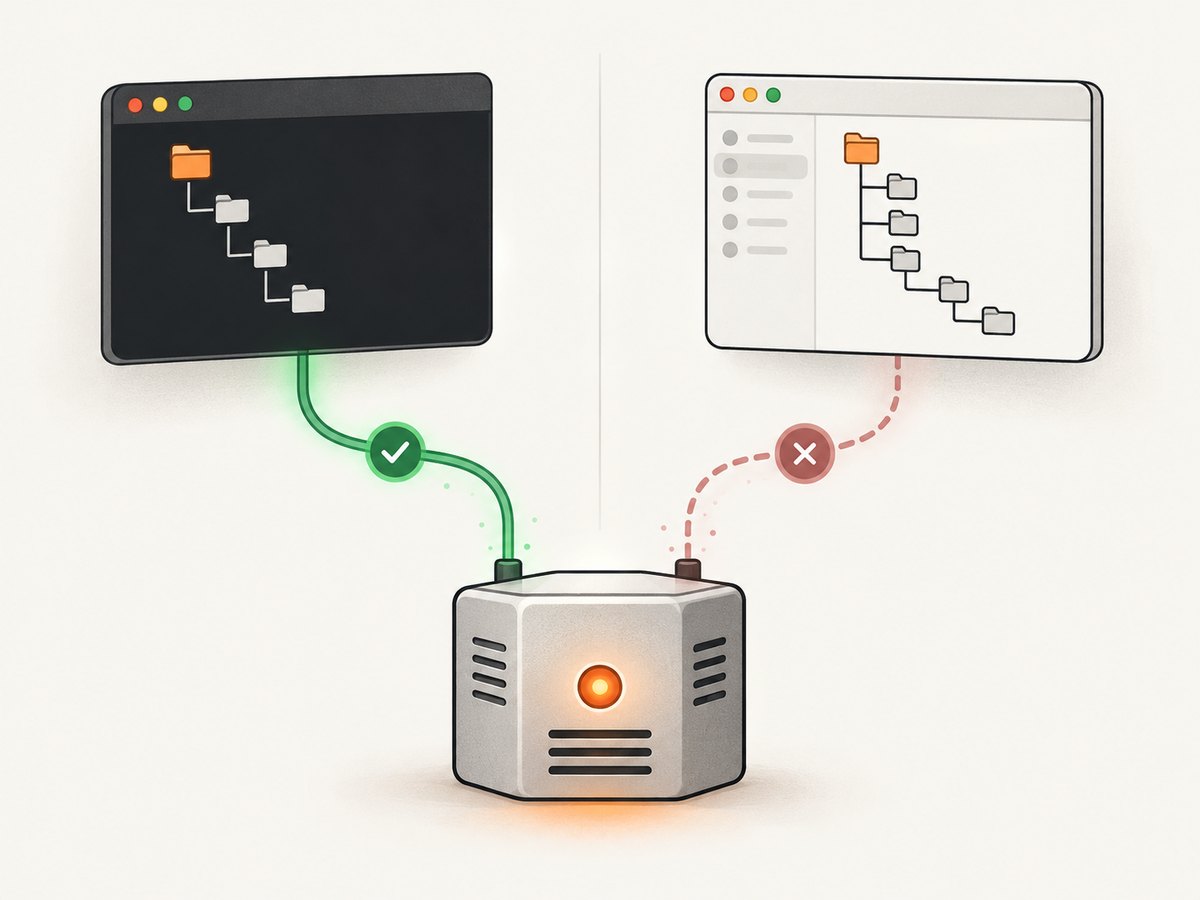
A separate report used the same generic attach wording with MCP error -2: Request timed out. Its author reported that MCP Inspector could connect. That contrast means an Inspector success does not prove that the host’s command, environment, timeout, or startup configuration is correct.
Compare these values:
| Check | What to compare | Typical correction |
|---|---|---|
| Command | Host command versus the command that works manually | Fix executable path, package name, or arguments |
| Roots | Every configured path versus paths that exist now | Restore, remount, correct, or remove stale entries |
| Environment | GUI variables versus terminal variables | Use absolute paths or configure required variables |
| Timeout | Host startup timeout versus server startup time | Remove startup delays and use the host’s supported timeout setting |
| Version | Host, bundled server, and package versions | Record versions before changing packages |
6. Restart and verify recovery
- Close the host application completely, including background processes.
- Correct the path, command, or environment issue.
- Start the host again and wait for MCP initialization to finish.
- Confirm logs show a successful connection and no immediate process exit.
- Open the tool list and call a harmless Filesystem operation against a known valid root.
If the host caches server state, a full restart is required after configuration changes. If the error remains, capture the operating system, host and server versions, exact command and arguments, sanitized configuration, and the initialization log sequence.
7. Common errors and fixes
| Observed message or symptom | Likely evidence | Action |
|---|---|---|
| Could not attach; process exits immediately | Initialization appears, then stderr or exit | Validate every allowed directory first; then inspect server stderr. |
| Server disconnected | Transport closes after startup | Check crashes, permissions, invalid roots, and host logs after initialization. |
| Request timed out | No completed initialization before the host deadline | Run the command manually and compare host environment and timeout settings. |
| Command not found | Spawn log names a missing executable | Use an installed absolute path or fix the host’s PATH. |
| Works in Inspector, fails in host | Different clients produce different results | Compare command, arguments, environment, working directory, and timeout. |
| Tools are missing after connection | Connection succeeds but tools/list is absent or fails |
Inspect subsequent server logs and verify the host loaded the intended server. |
8. Reliability and security checks
- Expose only directories the MCP client needs; remove obsolete roots.
- Prefer stable local paths for startup-critical roots. Treat removable and network locations as dependencies that can disappear.
- Keep a copy of the working configuration before changing package versions.
- After an upgrade, recheck the actual bundled server command and version instead of assuming the old command remains valid.
- Never paste API keys, authorization headers, cookies, or private file paths into public issue reports.
9. Or skip the browser setup
If your larger task is taking website screenshots through an AI agent, you do not need to repair a browser automation stack for that job. ScreenshotNeo provides an MCP server with take_screenshot, get_page_info, and capture_pdf tools for Claude, Cursor, and other MCP clients. For direct API use, see the ScreenshotNeo documentation.
# cURL
curl -G "https://api.screenshotneo.com/v1/shot" -d access_key=YOUR_API_KEY --data-urlencode url=https://stripe.com -o shot.webp

# Python
import requests
r = requests.get("https://api.screenshotneo.com/v1/shot", params={"access_key": "YOUR_API_KEY", "url": "https://stripe.com"}, timeout=90)
open("shot.webp", "wb").write(r.content)

// Node.js
const q = new URLSearchParams({ access_key: 'YOUR_API_KEY', url: 'https://stripe.com' });
const res = await fetch(`https://api.screenshotneo.com/v1/shot?${q}`);
ScreenshotNeo accepts cookie and consent banners before capture and removes more than 60 known consent platforms, newsletter popups, and chat widgets. Bot checks, blank pages, failed loads, timeouts, and cache hits are not billed; response headers identify the page verdict and billing status. It supports PNG, JPEG, WebP, and PDF output, and every plan includes its features. The free plan includes 1,000 screenshots per month without a card; paid plans start at $5 for 3,000 shots.
Create a free ScreenshotNeo account to get started.
FAQ
Does this message always mean a missing folder?
No. A stale allowed directory is a documented startup-exit pattern, but the same banner can represent spawn errors, environment differences, initialization timeouts, or later disconnects.
Should I delete the whole Filesystem server configuration?
No. Remove only an invalid root, preserve the valid directories you intend to expose, and restart the host.
Why can another MCP client connect successfully?
Clients can use different commands, environments, working directories, and timeout settings. Successful Inspector connection does not validate the host application’s setup.
Has the upstream issue been fixed?
The referenced issue was shown as closed as “not planned.” That status is not a released correction. Check the versions installed in your environment and verify current behavior.
What should I include when escalating?
Provide the OS, host and server versions, sanitized command and arguments, configured roots, and the log lines covering process spawn through initialization or disconnect.


