How to Fix Could Not Attach to an MCP Server
“Could not attach to MCP server” has no single cause. Use the client log to tell whether the server failed to launch or cannot reach its upstream service.
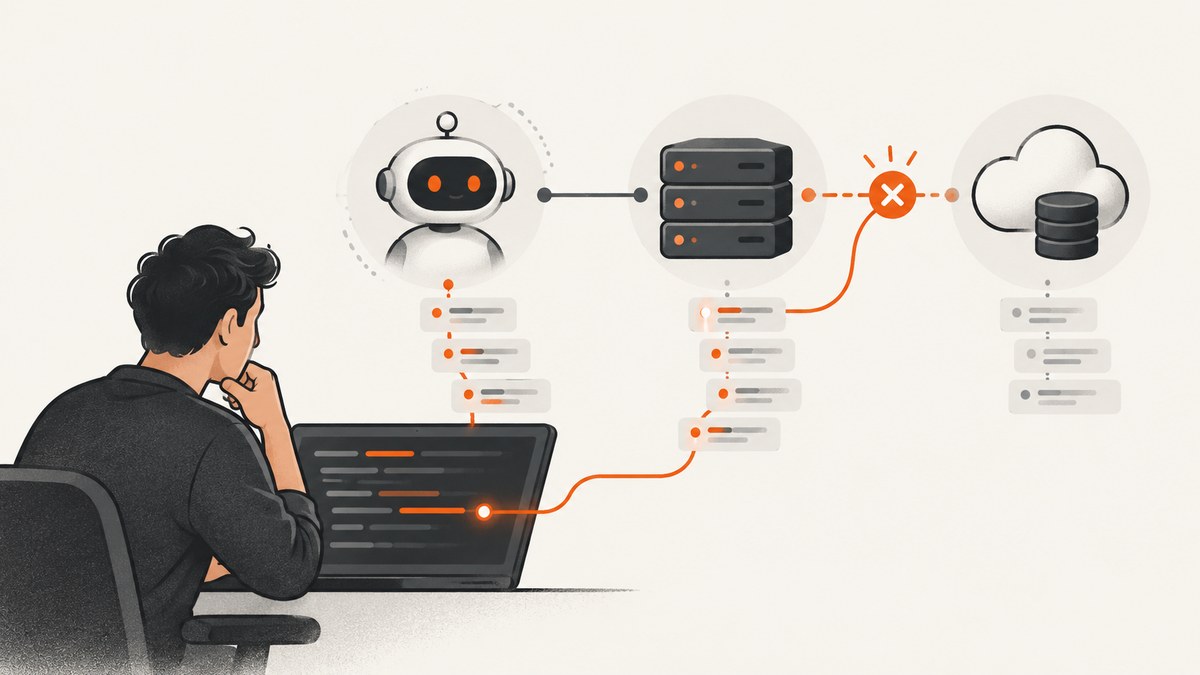
“Could not attach to MCP server” does not point to one universal fault. Start with the affected server’s log and determine whether its process failed to launch or launched but could not communicate with its upstream service. Then fix the specific cause shown in the log: for example, a wrong credential, an unavailable endpoint, an invalid launch command, or a missing configured directory. The error wording and the right fix depend on the client, server, and connection setup.
This guide gives you a repeatable way to diagnose the error without changing unrelated settings. The examples distinguish Home Assistant’s documented HTTP errors from other server-specific cases; they are not universal MCP diagnoses.
1. Record the setup and find the log
Before changing configuration, write down the details that make the failure reproducible:
- Which client displays the error, and its version.
- The exact MCP server name and version.
- Whether the server uses a local process, a remote connector, or another transport.
- The exact error text and when it appears: client startup, server selection, tool call, or after a delay.
- Recent changes to credentials, URLs, runtime versions, launch arguments, or allowed filesystem paths.
Open the log for the affected server from the client’s developer or settings area. For Claude Desktop’s Home Assistant integration, the documented path is Settings → Developer → select the Home Assistant MCP server → Open Logs Folder; inspect mcp-server-Home Assistant.log. Other clients expose logs differently, so use the client’s own server settings or documentation rather than assuming this path applies everywhere. The official MCP debugging guide also describes general debugging practices: MCP debugging documentation.
Capture the first useful error around the failure time. A later “disconnected” message can be a consequence of an earlier startup exception or rejected upstream request. The earliest specific error is usually more actionable than the final status line.
2. Decide whether launch failed or attachment failed
These are different failure stages, and they point to different checks.
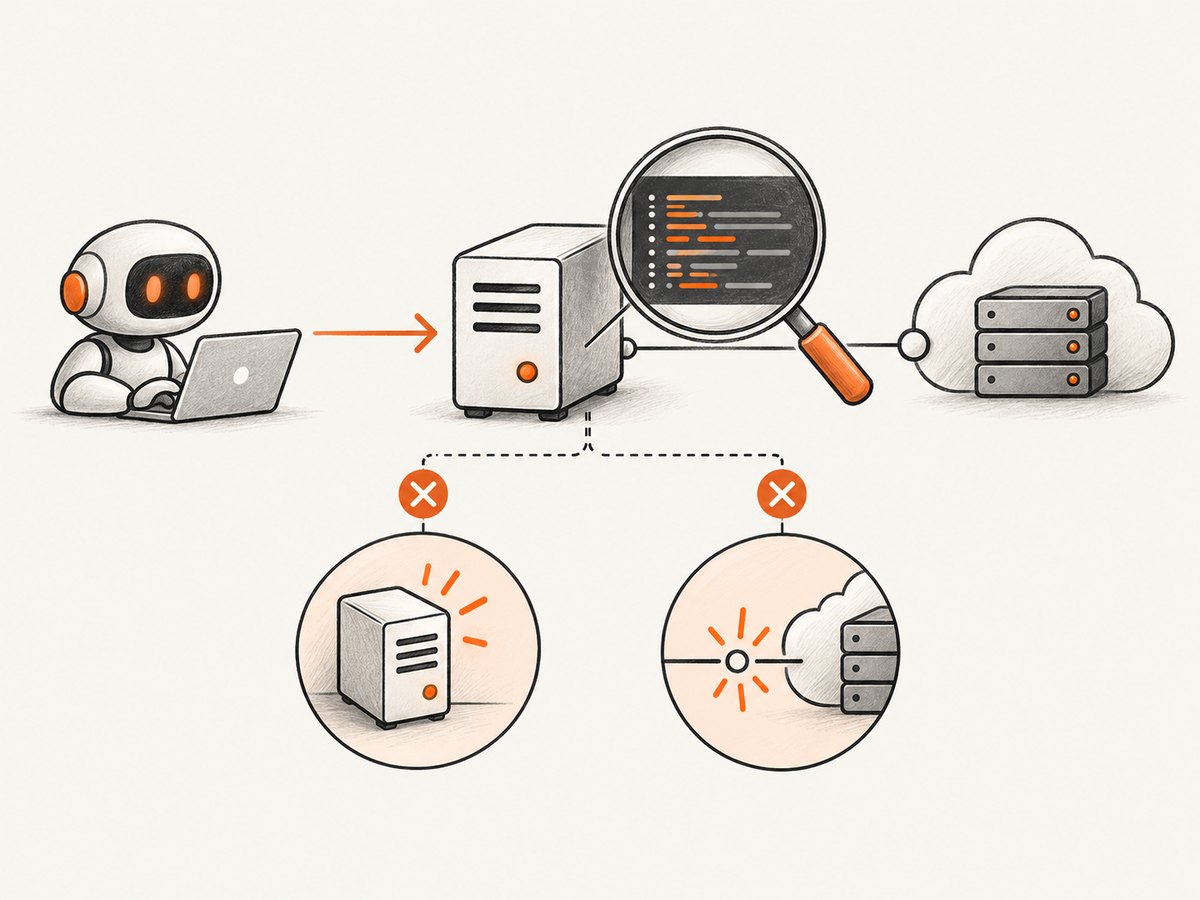
| What you see | What it suggests | First check |
|---|---|---|
| “Could not start MCP server” or an executable/process error | The client could not launch the configured local process. | Executable path, command arguments, environment, runtime, and permissions. |
| “Could not attach,” “server disconnected,” or a server that starts then exits | The process may have started, but communication, server configuration, or an upstream dependency may have failed. | Server log, endpoint reachability, credentials, and server-specific settings. |
Home Assistant’s guide makes this distinction for its Claude Desktop setups: a local mcp-proxy startup failure differs from a server that starts but cannot communicate with Home Assistant. Treat that distinction as a diagnostic model, not proof that every client uses identical messages.
3. Check the local launch configuration
For a server launched as a local process, inspect the client’s configuration entry and compare its command and arguments with the server’s official setup instructions. Check that:
- The executable or command exists and is available to the client process.
- Each argument is separate and correctly quoted for the client’s configuration format.
- Required environment variables are present in the client’s environment. A terminal shell and a desktop app may not inherit the same PATH or variables.
- Paths use the syntax and permissions expected by the operating system.
- The process can read required configuration files and access its working directory.
Home Assistant specifically recommends verifying the arguments in claude_desktop_config.json and manually checking that the configured command can be found. A useful diagnostic is to run the same executable and arguments in a terminal, with required environment values supplied. If it fails there too, fix that process-level error before changing client settings. If it runs in a terminal but not in the desktop client, check the desktop app’s PATH, environment, path quoting, and permissions.
After editing the configuration, restart the client if that setup requires it. Some clients only read server configuration at startup; repeatedly selecting the server without restarting may keep using stale settings.
4. Follow the upstream response code
If the server launches and its log records an HTTP response, diagnose the endpoint and credential that response identifies. In Home Assistant’s documented MCP setup, the following mappings are specific and useful:
| Log evidence | Documented interpretation for Home Assistant | Next action |
|---|---|---|
404 from /api/mcp |
The MCP Server integration is not configured. | Enable or configure the MCP Server integration in Home Assistant, then retry. |
401 |
The long-lived access token is incorrect. | Create or copy the intended token again, update the connector configuration, and retry. |
These interpretations come from Home Assistant’s integration documentation and should not be applied automatically to other servers or endpoints. A 404 elsewhere can mean a wrong path or route; a 401 elsewhere can indicate a missing, expired, or invalid credential. Check that server’s documentation and log context before deciding.
For a credential problem, verify that the token is copied without extra spaces or quote characters and is sent to the intended Home Assistant instance. Do not paste secrets into issue reports or logs you share publicly. If you have reason to believe a token was exposed, replace it and update the client configuration.
5. Verify the connection path and server-specific inputs
For a remote server, confirm the configured host and path, and determine which machine or service must be able to reach it. A URL reachable from your browser is not necessarily reachable from a cloud-hosted connector, a local proxy, or a container.
Home Assistant documents two connection patterns that can help narrow this down:
- Remote connector: the connection is brokered through Anthropic’s cloud infrastructure and requires a publicly accessible Home Assistant URL. Check that the configured public URL is correct and reachable along that path.
- Local MCP proxy: the proxy connects from your computer, which suits an instance available only on a local network or behind a VPN. Check reachability from that computer and confirm the configured internal URL is the right one.
Do not switch connection patterns as a first guess. First establish where the connection is made and compare the configured URL with what that connection point can reach.
Also inspect inputs the specific server uses. For a filesystem server configured with allowed directories, confirm that each path still exists and is readable by the process. A reported Claude Desktop filesystem-server failure followed a renamed or missing configured directory; that is an example of one server-specific cause, not a general explanation for attach errors. Fix a path only when the server’s configuration or log points to it.
6. Check the runtime only when the log points there
A server may launch with a runtime that lacks an API the server expects. For example, Apollo’s Claude setup tutorial describes ReferenceError: TransformStream is not defined as a possible sign that Claude used an older Node installation in that example, and recommends Node v18 or later for that setup. Verify the runtime actually used by the client process; node --version in a terminal may report a different executable than the desktop app finds.
This is example-specific advice, not a blanket Node version requirement for all MCP servers. Follow the server’s own runtime requirements and the first runtime error in its log.
7. A practical troubleshooting checklist
- Note client, server, versions, transport/setup type, exact message, and when it occurs.
- Open the affected server’s client log and inspect the earliest relevant error.
- Classify the failure: local process did not launch, or process launched but communication/configuration failed.
- For a launch error, check the executable, arguments, PATH, environment, file paths, and permissions; run the command manually where practical.
- For a remote response, check the exact endpoint and credential. Apply documented status-code meanings only to the service that documents them.
- For a filesystem server, confirm configured allowed paths exist and are accessible when logs or behavior point to those paths.
- For runtime exceptions, check the runtime the client actually invokes against that server’s requirements.
- After changing configuration, restart the client when the setup requires a reload, then retry once and inspect the new log.
If you need to report the issue, include the client and server versions, operating system, setup pattern, sanitized configuration shape, exact error, and relevant log lines. Remove tokens, private URLs, and personal data first.
8. Troubleshooting common symptoms
| Symptom | Likely area to inspect | Fix |
|---|---|---|
| Executable “not found” or process never appears | Command name, absolute path, desktop-app PATH, or quoting. | Use the correct executable path and arguments; verify the command under the same account and environment. |
| Process starts then exits during initialization | Server startup exception, missing config, unavailable dependency, or invalid path. | Use the first exception in the server log to correct the named input or dependency. |
Home Assistant log reports 404 at /api/mcp |
Home Assistant MCP integration setup. | Configure the MCP Server integration as its official guide describes. |
| Home Assistant log reports 401 | Long-lived access token. | Replace the incorrect token in the connector configuration. |
TransformStream is undefined in the Apollo tutorial setup |
Runtime selected by that Claude setup. | Check for Node v18 or later in that example, and confirm the client invokes that runtime. |
| Filesystem server errors after a directory rename | Allowed directory path is stale or inaccessible. | Update the configured path to an existing accessible directory. |
| Works on local network but not through remote connector | Reachability differs between local machine and cloud-brokered connection. | Confirm the remote setup’s required public URL or use the documented local proxy for local/VPN-only access. |
Reference documentation: Home Assistant MCP Server integration, Apollo’s Claude connection tutorial, and the MCP debugging guide.
9. Or skip the browser setup
If the MCP problem is part of a workflow that needs website screenshots, ScreenshotNeo is a website screenshot API and MCP server for developers. Its MCP server offers take_screenshot, get_page_info, and capture_pdf for Claude, Cursor, and other MCP clients. It is a separate way to capture pages; it does not repair another MCP server’s configuration.
For a direct HTTP capture, see the ScreenshotNeo API documentation. This cURL request saves a WebP screenshot:
curl -G "https://api.screenshotneo.com/v1/shot" \
  -d access_key=YOUR_API_KEY \
  --data-urlencode url=https://stripe.com \
  -o shot.webp
Equivalent Python:
import requests

r = requests.get(
    "https://api.screenshotneo.com/v1/shot",
    params={"access_key": "YOUR_API_KEY", "url": "https://stripe.com"},
    timeout=90,
)
open("shot.webp", "wb").write(r.content)
Equivalent Node.js:
const q = new URLSearchParams({
  access_key: 'YOUR_API_KEY',
  url: 'https://stripe.com'
});
const res = await fetch(`https://api.screenshotneo.com/v1/shot?${q}`);
if (!res.ok) throw new Error(`Screenshot request failed: ${res.status}`);
await Bun.write('shot.webp', new Uint8Array(await res.arrayBuffer()));
With plain Node.js instead of Bun, write the returned bytes using Node’s node:fs/promises writeFile function. ScreenshotNeo removes cookie and consent banners, newsletter popups, and chat widgets before capture; each step can be disabled. Bot checks/CAPTCHAs, blank pages, timeouts, failed loads, and cache hits are not billed, and responses indicate page verdict and billing status in headers. Plans include 1,000 screenshots per month free with no card; paid plans start at $5 for 3,000 screenshots. Sign up for 1,000 free screenshots a month, no card required.
10. Performance, reliability, and cost notes
For MCP diagnosis, make one configuration change at a time and compare the next log with the previous one. That keeps cause and effect visible. Avoid repeated retries against a known bad credential or endpoint; fix the identified input first. If the setup includes a local proxy, consider whether a VPN disconnect, machine sleep, or changed network route coincides with the failure. The sources do not establish a general frequency for any cause, so these are checks, not prevalence claims.
Cost depends on the server and the service behind it; the cited troubleshooting material does not define a general MCP billing model. For screenshot capture, ScreenshotNeo’s stated billing policy charges only clean shots: failed loads, bot checks/CAPTCHAs, blank pages, timeouts, and cache hits cost nothing. The free plan includes 1,000 shots monthly; paid plans are Starter $5 for 3,000, Growth $15 for 15,000, Pro $39 for 60,000, Scale $99 for 250,000, and Business $249 for 1,000,000. Yearly billing gives two months free, and every feature is available on every plan.
FAQ
Is “Could not attach” an MCP protocol error with one standard meaning?
No. The wording is client-specific. The log and server context determine whether startup, transport, credentials, or upstream configuration failed.
Should I reinstall the MCP server or client first?
Use the log before reinstalling. A specific 401, 404, bad path, or runtime exception points to a narrower correction, while reinstalling may leave that configuration unchanged.
Does a successful process launch prove the server is healthy?
No. A process can start and then fail to connect to its upstream service or initialize its configured resources. Check the server log after launch as well as the client’s status.
Will ScreenshotNeo fix my Claude, Cursor, or other MCP attachment error?
No. It provides its own screenshot API and MCP server for screenshot workflows. Diagnose the affected server using its own client log and configuration.


