How to Fix “Could Not Connect to MCP Server” in the MCP Registry
Diagnose “Could not connect to MCP server mcp-registry” by tracing the client log, network path, DNS, and transport lifecycle.
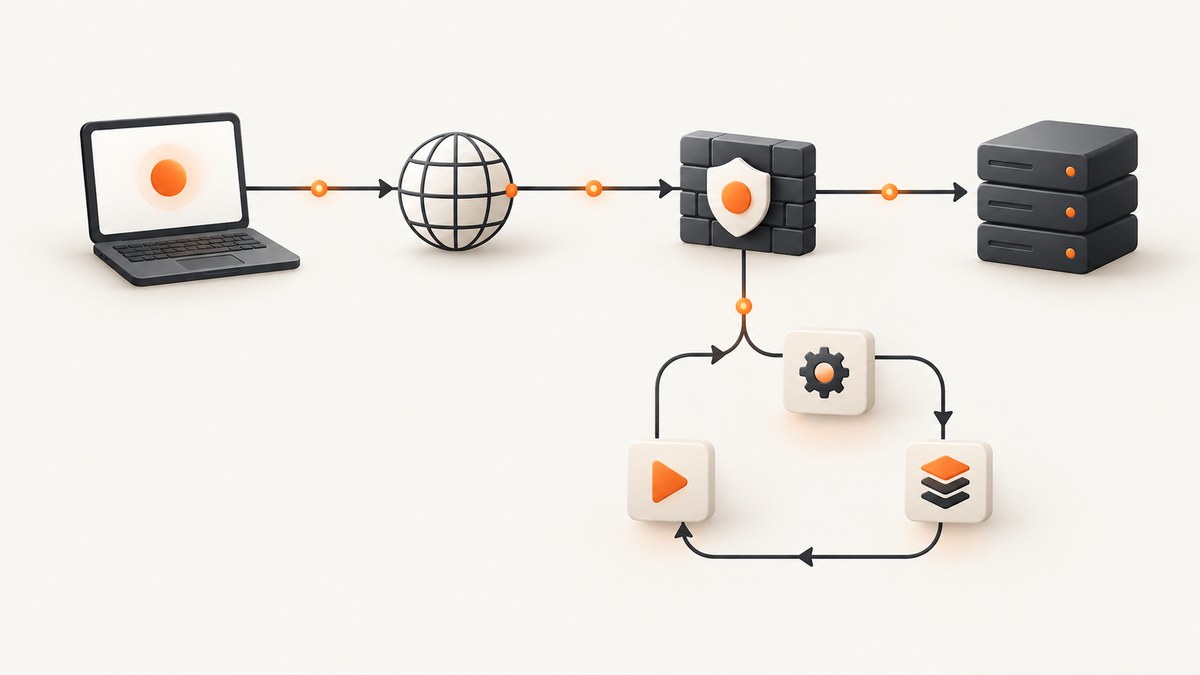
The message “Could not connect to MCP server mcp-registry” is a generic client error. It does not, by itself, prove that the official MCP Registry is down. Find the detailed log entry first, then classify the failure as a remote reachability problem or a client connection-lifecycle problem.
The official MCP Registry repository describes the Registry as a directory that gives MCP clients a list of servers. MCP itself is an open standard for connecting AI applications to external systems such as tools, data sources, and workflows, as explained in the official MCP documentation. A failed connection can therefore occur in your client, on your network, at the remote API, or during MCP transport startup.
What the error means
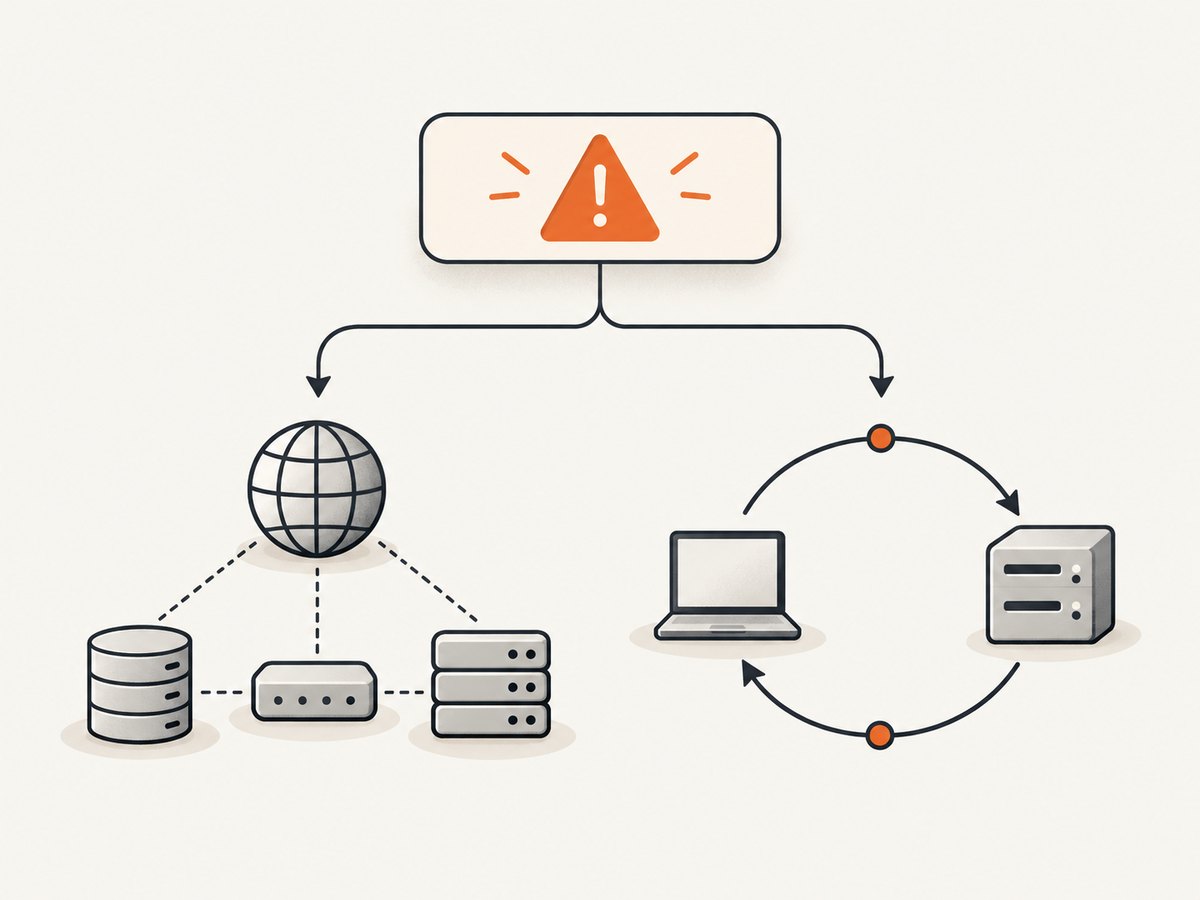
Two materially different failure patterns have been reported behind similar banners:
| Log clue | Likely fault layer | First checks | Evidence scope |
|---|---|---|---|
| DNS failure, timeout, connection refused, or remote API unreachable | Network or remote access | DNS, VPN, proxy, firewall, endpoint reachability | A reported pattern, not proof of a Registry outage |
Already connected to a transport |
Client connection lifecycle | Client build, concurrent startup behavior, duplicate connection handling | Reported for Claude Desktop 1.1.3918 on macOS; not a universal diagnosis |
Do not treat either pattern as guaranteed. The exact client version and the underlying log line determine the next step.
1. Record the client, version, and operating system
- Write down the application that displays the banner (Claude Desktop or another MCP client).
- Record its exact version or build number.
- Record your operating system and whether the failure occurs during startup, server discovery, or a later tool call.
- Note whether other MCP servers connect successfully.
A report involving Claude Desktop 1.1.3918 on macOS described transport-instance reuse during concurrent startup requests. That is a version-specific issue report, so the build number matters.
2. Find the detailed error behind the banner
The banner often hides the useful part of the failure. Open the client’s logs or developer diagnostics and search around the timestamp of the failed connection. Preserve the exact message, including error codes, hostnames, and transport names. Redact API keys, cookies, and private URLs before sharing logs.
Classify the first meaningful line:
- Reachability clues:
ENOTFOUND, DNS resolution errors, connection timeout, connection refused, TLS or proxy errors, HTTP 4xx/5xx, or “remote API unreachable”. - Lifecycle clues:
Already connected to a transport, duplicate session, protocol instance, or concurrent initialization errors. - Configuration clues: malformed server JSON, missing executable, permission denied, invalid command, or an incorrect endpoint.
3. Test the network path when logs indicate reachability
Run checks from the same computer and network as the MCP client. A browser test on another device does not prove that the desktop application can resolve or reach the endpoint.
Check DNS
nslookup YOUR_REGISTRY_HOST
# or
 dig YOUR_REGISTRY_HOST
If the name does not resolve, inspect VPN DNS settings, split-horizon DNS, local resolvers, and corporate filtering. Changing DNS can be a useful diagnostic, but do not assume it is the permanent fix without understanding your network policy.
Check HTTPS reachability
curl -v --connect-timeout 10 https://YOUR_REGISTRY_HOST/Look for the point of failure: name resolution, TCP connection, TLS negotiation, proxy authentication, or an HTTP response. An HTTP response proves the host is reachable; it does not prove that the MCP endpoint or authorization is correct.
Check VPN and proxy behavior
- Retry once with the expected VPN connected and once with it disconnected, if policy permits.
- Check whether the client inherits
HTTPS_PROXY,HTTP_PROXY, orNO_PROXYdifferently from your shell. - Ask your network administrator whether outbound HTTPS, WebSocket, or streaming connections are filtered.
- Check the system clock if TLS certificates appear invalid.
These checks follow a reported DNS/network explanation for one generic banner. They do not establish that the official Registry is currently unavailable.
4. Handle “Already connected to a transport” as a client-side clue
If the log contains Already connected to a transport, treat it as a connection-lifecycle problem first. A Claude Desktop issue report for macOS build 1.1.3918 attributed the failure to reusing a protocol instance while several connections were requested together.
- Capture the exact client build and the complete stack trace.
- Check whether multiple MCP servers start simultaneously or whether the same server is configured twice.
- Temporarily start only the affected server to see whether concurrent startup is involved.
- Retry after a meaningful configuration or client-version change, preserving the new log.
- If the error remains, send the redacted trace and version details to the client vendor.
Do not present that issue report as the root cause for every client or version. Reinstalling a server, signing out, disabling extensions, or changing unrelated configuration is not established by the available evidence as a reliable fix.
5. Check MCP server configuration only after classifying the failure
For a local server, verify that the configured command exists, is executable, and can run outside the client. For a remote server, verify the URL, transport type, authentication method, and required headers. A malformed configuration usually produces a command, JSON, authorization, or protocol error rather than a pure DNS timeout.

# Confirm a local executable is available
command -v YOUR_MCP_COMMAND
YOUR_MCP_COMMAND --help
Keep one change per retest. Record whether the failure moved from startup to authentication or tool execution; that change is useful evidence even when it is not a complete fix.
6. Use a decision flow
- Banner only? Open logs before changing configuration.
- DNS, timeout, proxy, or TLS clue? Test DNS and HTTPS from the same machine, then inspect VPN and proxy settings.
Already connected to a transport? Investigate client lifecycle, duplicate configuration, concurrent startup, and the exact build.- Command or JSON error? Validate the local executable and configuration syntax.
- Still failing? Escalate with the client version, operating system, timestamp, redacted log excerpt, and the changes already tried.
Common errors and fixes
| Symptom | Cause to investigate | Action |
|---|---|---|
ENOTFOUND or “could not resolve host” |
DNS, VPN, or split DNS | Run nslookup/dig; compare VPN states and resolver settings. |
| Connection timeout | Firewall, proxy, route, or unreachable host | Run verbose curl; inspect proxy and outbound HTTPS policy. |
| TLS or certificate error | Intercepting proxy, expired certificate, or incorrect system clock | Inspect the certificate chain and clock; involve the network administrator. |
| HTTP 401/403 | Missing, expired, or unauthorized credentials | Verify the configured token and required headers without exposing secrets. |
Already connected to a transport |
Client-side protocol-instance reuse | Check client build, duplicate entries, and concurrent startup; provide the trace to the vendor. |
| Only one server fails | That server’s endpoint or configuration | Compare its URL, transport, headers, and startup command with a known-good server. |
| All servers fail | Client, network, or shared proxy layer | Test a local server and inspect client-wide logs and network access. |
Reliability and performance considerations
- Keep the client and MCP servers on compatible, documented versions.
- Avoid launching duplicate instances of the same server or sharing one protocol object across independent connections.
- Prefer a stable network path for remote servers; VPN transitions can invalidate existing sockets.
- Use the client’s timestamps to correlate failures with sleep, wake, network changes, or concurrent startup.
- Retest after one controlled change so you can identify which layer improved.
Is the MCP Registry down?
This message alone cannot answer that question. The available reports describe individual client cases, including one remote-API reachability report and one client transport-lifecycle report. No authoritative live status or outage notice was established for this diagnosis. Check your own log and endpoint path before concluding that the Registry service is unavailable.
Or skip the browser setup
If your MCP workflow needs dependable page images for debugging or agent context, ScreenshotNeo provides an MCP server with take_screenshot, get_page_info, and capture_pdf tools. It removes cookie banners, newsletter popups, and chat widgets before capture. Bot checks, blank pages, timeouts, failed loads, and cache hits are not billed, and each response reports the page verdict and billing status.
One request returns a PNG, JPEG, WebP, or PDF:
cURL
curl -G "https://api.screenshotneo.com/v1/shot" -d access_key=YOUR_API_KEY --data-urlencode url=https://stripe.com -o shot.webpPython
import requests
r = requests.get("https://api.screenshotneo.com/v1/shot", params={"access_key": "YOUR_API_KEY", "url": "https://stripe.com"}, timeout=90)
open("shot.webp", "wb").write(r.content)
Node.js
const q = new URLSearchParams({ access_key: 'YOUR_API_KEY', url: 'https://stripe.com' });
const res = await fetch(`https://api.screenshotneo.com/v1/shot?${q}`);
See the ScreenshotNeo API documentation for request options. You get 1,000 screenshots a month free with no card; paid plans start at $5 for 3,000 shots. Create a free ScreenshotNeo account.
FAQ
Does this error mean my MCP server is deleted?
No. The banner does not distinguish a missing server from DNS, transport, authentication, or client lifecycle failures.
Should I reinstall Claude Desktop?
There is no evidence in the reviewed reports that reinstalling is a universal fix. Capture the detailed log and version first.
Why do other MCP servers work?
The failing server may use a different endpoint, transport, proxy path, or authentication requirement. Compare those details rather than assuming a client-wide outage.
What information should I include in a support report?
Include the client name and build, operating system, timestamp, affected server, exact redacted log line, and network conditions such as VPN or proxy use.


