How to Fix CSS Elements Not Appearing in Puppeteer
Find out why CSS elements are missing or unstyled in Puppeteer. Check the DOM, visibility, stylesheet requests, page readiness, and selector scope.
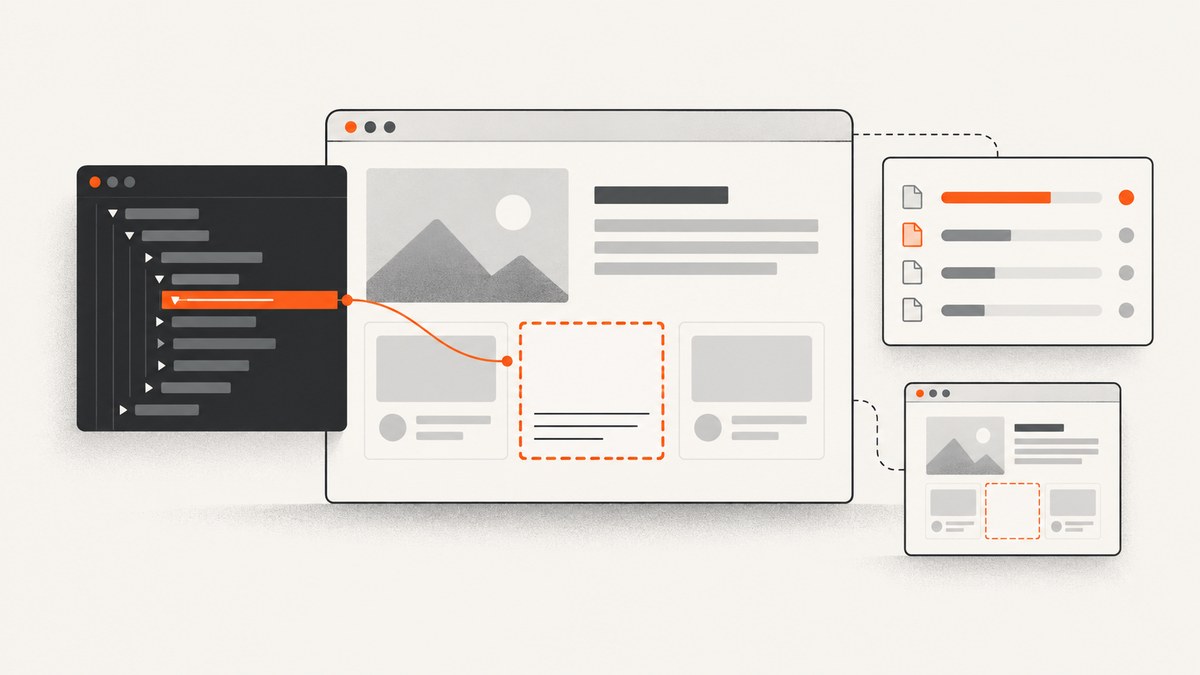
If a CSS element is missing or looks unstyled in Puppeteer, first separate five possible failure layers: is the element in the DOM, is it visible and laid out, did its stylesheet load, did Puppeteer wait for the page’s actual render condition, and are you querying the right frame or shadow root? A screenshot taken after checking those layers shows whether the problem is missing content, clipping, or styling.
The examples below use Puppeteer’s documented APIs. Run them with a current Puppeteer installation and your target URL or selector. Exact API details can vary by version, so consult the current Page API when adapting them.
1. Confirm the element exists and is visible
page.waitForSelector() waits for a matching selector to appear. By default, that means presence; it does not prove that the element is visibly rendered. The visible: true option additionally checks that it is not hidden by display: none or visibility: hidden. Even visibility is not the same as having useful dimensions or being inside the viewport.
const selector = '.target-element';

const handle = await page.waitForSelector(selector, {
  visible: true,
  timeout: 15000,
});

const details = await page.$eval(selector, (element) => {
  const style = getComputedStyle(element);
  const rect = element.getBoundingClientRect();
  return {
    tag: element.tagName,
    text: element.textContent?.trim(),
    display: style.display,
    visibility: style.visibility,
    opacity: style.opacity,
    color: style.color,
    backgroundColor: style.backgroundColor,
    width: rect.width,
    height: rect.height,
    top: rect.top,
    left: rect.left,
  };
});

console.log(details);
await handle?.dispose();
Interpret the result in layers. No match means the selector, navigation, app rendering, or selector scope needs checking. A match with zero width or height points to layout, a hidden ancestor, or content that has not been populated. A nonzero box with unexpected computed styles suggests an overriding rule, missing CSS resource, different media condition, or page-specific styling.
Check ancestors as well: a visible child can still be clipped by an ancestor’s overflow, covered by another element, or positioned outside the viewport. Inspect a parent chain and the screenshot before concluding that the child’s own CSS is at fault.
2. Make a minimal diagnostic script
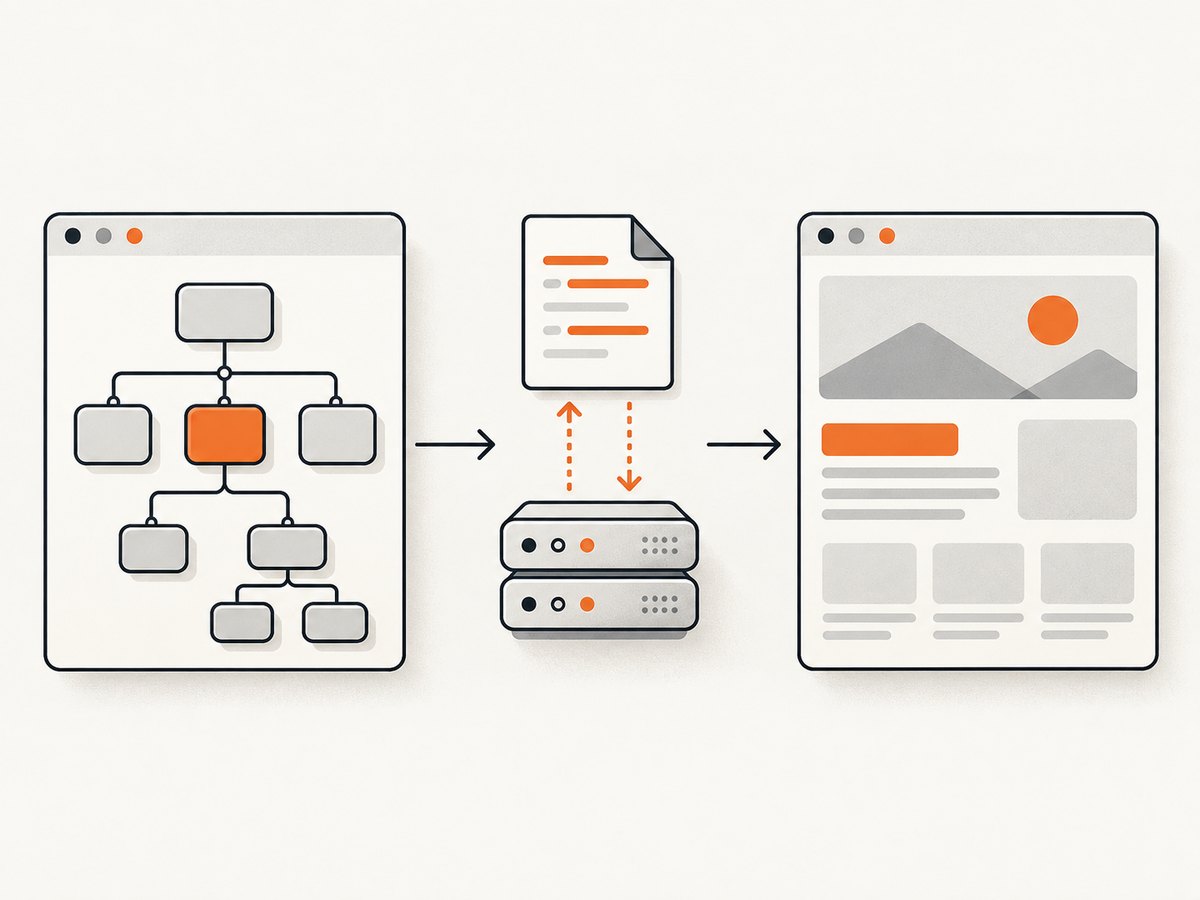
This complete Node.js example navigates to a page, waits for the target to be visible, reports its computed style and bounding box, and saves a screenshot. Replace the URL and selector with the failing page and element.
const puppeteer = require('puppeteer');

(async () => {
  const browser = await puppeteer.launch({ headless: true });
  try {
    const page = await browser.newPage();
    page.on('console', (message) => {
      console.log('PAGE CONSOLE:', message.type(), message.text());
    });
    page.on('pageerror', (error) => {
      console.error('PAGE ERROR:', error.message);
    });
    page.on('requestfailed', (request) => {
      console.error('REQUEST FAILED:', request.url(), request.failure()?.errorText);
    });
    page.on('response', (response) => {
      if (/\.css(?:[?#]|$)/i.test(response.url())) {
        console.log('CSS RESPONSE:', response.status(), response.url());
      }
    });

    await page.goto('https://example.com', { waitUntil: 'domcontentloaded' });
    const selector = 'h1';
    await page.waitForSelector(selector, { visible: true, timeout: 15000 });

    const info = await page.$eval(selector, (element) => {
      const style = getComputedStyle(element);
      const rect = element.getBoundingClientRect();
      return {
        text: element.textContent?.trim(),
        display: style.display,
        visibility: style.visibility,
        color: style.color,
        fontSize: style.fontSize,
        width: rect.width,
        height: rect.height,
      };
    });
    console.log('ELEMENT:', info);

    await page.screenshot({ path: 'debug.png', fullPage: true });
  } finally {
    await browser.close();
  }
})().catch((error) => {
  console.error(error);
  process.exitCode = 1;
});
Run it with node debug.js after installing Puppeteer in the project. The CSS response listener is a clue-gathering aid, not a complete stylesheet audit: CSS may be served from unusual URLs, imported by other stylesheets, or generated inline. Use browser network inspection to follow the actual failing resource.
3. Check stylesheet requests and request interception
If the page enables request interception, make sure every intercepted request is resolved. Puppeteer documents: “Once request interception is enabled, every request will stall unless it’s continued, responded or aborted.” A stylesheet request that stalls is one possible reason for missing styles, but inspect request events and responses before treating it as the cause.
await page.setRequestInterception(true);
page.on('request', (request) => {
  // Diagnostic pass: allow all requests through.
  request.continue().catch((error) => {
    console.error('Could not continue request:', request.url(), error.message);
  });
});
When your handler has filtering logic, log the URL and decision for stylesheet requests. Verify that each branch calls continue(), respond(), or abort(). Avoid resolving a request twice: if multiple handlers can act on the same request, coordinate them and check whether it has already been handled. For a short isolation test, disable interception entirely and compare the result.
Also inspect failed requests and HTTP responses. A response status, blocked resource, authorization failure, or inaccessible stylesheet can explain why rules did not arrive. Browser console and network details narrow the diagnosis; a screenshot alone cannot identify a failed resource.
4. Wait for the page’s real render condition
A successful navigation or a network-idle condition does not prove that a specific element exists, is visible, or has its final styles. Client-side applications may render after data arrives, update after hydration, or change the page in response to timers and user state. Wait for the condition that matters to your capture.
await page.goto('https://example.com/dashboard', {
  waitUntil: 'domcontentloaded',
});

// Prefer a meaningful app-specific target when you know one.
await page.waitForSelector('[data-ready="true"] .report-chart', {
  visible: true,
  timeout: 20000,
});

// Then collect evidence or capture.
await page.screenshot({ path: 'report.png', fullPage: true });
If there is no stable readiness selector, wait for an application-specific condition with page.waitForFunction(), such as a known global state or a change in the page. Use a bounded timeout and make the condition match the visible output you need.
page.setContent() is a different path: it sets the page markup from an HTML string and accepts wait options; its documented default is load. Confirm that the string actually includes the expected element and stylesheet link or inline CSS. A load event still does not establish that your application’s own rendering has completed.
await page.setContent(`
  <!doctype html>
  <html>
    <head>
      <style>.notice { color: rebeccapurple; }</style>
    </head>
    <body><div class="notice">Ready</div></body>
  </html>
`);
await page.waitForSelector('.notice', { visible: true });
5. Check frames, Shadow DOM, and selector scope
A normal CSS selector searches the document it is run against. It does not cross into Shadow DOM, and a page query does not automatically search an iframe’s document. First determine where the element lives.
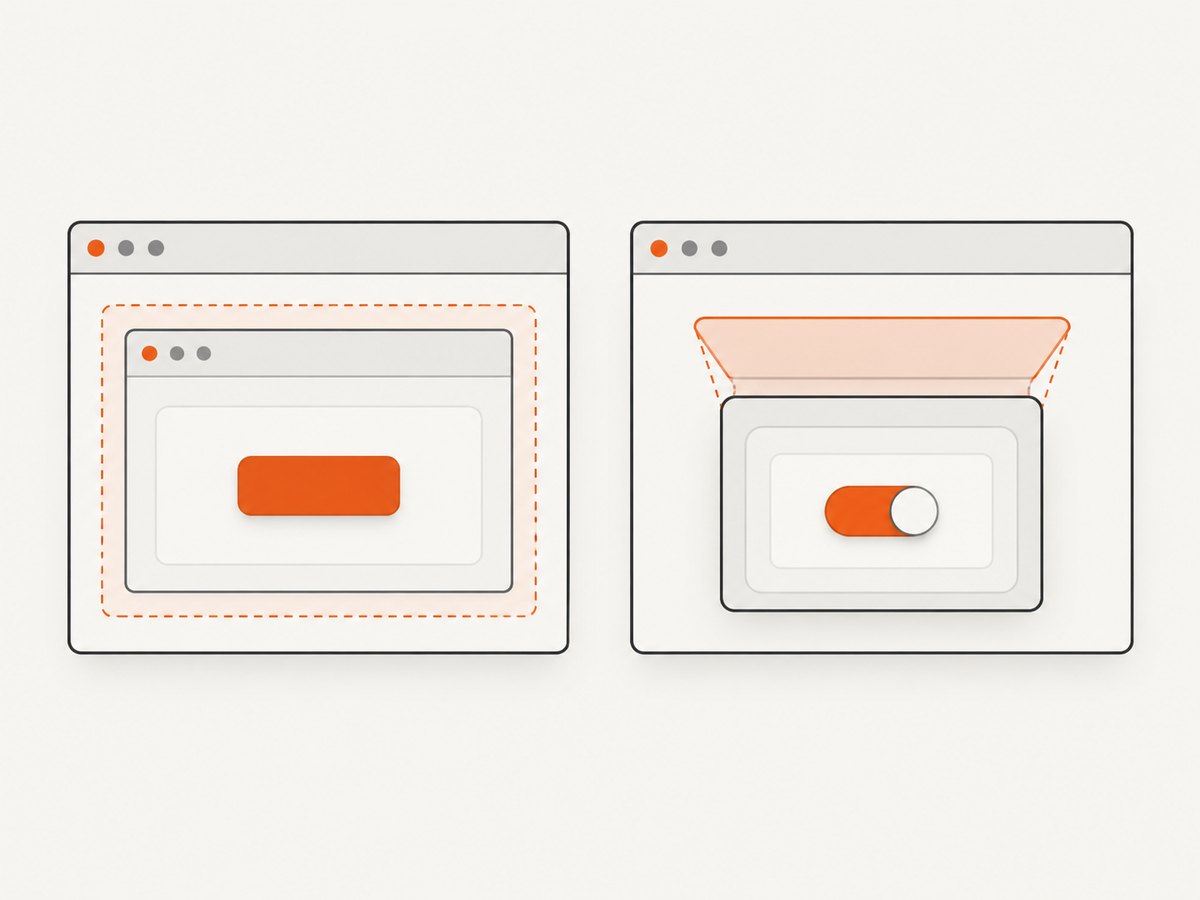
For an iframe, find the matching frame and query within it:
const frame = page.frames().find((candidate) =>
  candidate.url().includes('/embedded-widget')
);

if (!frame) throw new Error('Expected iframe was not found');
await frame.waitForSelector('.widget-title', { visible: true });
console.log(await frame.$eval('.widget-title', (el) => el.textContent));
For open shadow roots, Puppeteer provides deep combinators in its selector syntax. For example, query a host and a descendant inside an open shadow root using a deep-piercing selector supported by the installed version. Verify the current selector guide before relying on version-specific syntax. Closed shadow roots cannot be queried as ordinary document descendants.
Use a known frame URL, frame name, or frame relationship rather than choosing the first iframe when a page contains multiple embedded documents. If the content is cross-origin, page JavaScript restrictions still apply, but Puppeteer’s frame API lets you target the frame context directly.
6. Inspect the rendered result and debug in a browser
Save an element screenshot when the issue is local and a full-page screenshot when clipping, viewport position, or page layout could be involved. Puppeteer’s screenshot guide shows navigation followed by capture and includes an element screenshot example. Compare the image with the computed-style report: a present element with a visible box but no expected appearance is a different problem from an absent node.
For difficult cases, run headful and inspect the page in Chromium. Puppeteer’s debugging guide describes using a visible browser to step through execution; the dumpio launch option can forward browser-process logs. Use DevTools’ Elements, Computed, and Network panels to see which rule wins and what happened to the CSS requests.
const browser = await puppeteer.launch({
  headless: false,
  dumpio: true,
  devtools: true,
});
Keep headful debugging separate from production capture settings. A local browser may have a different viewport, cache, login state, fonts, or network access. Record those conditions when comparing outcomes.
7. Troubleshooting checklist
| Symptom | Likely layer to inspect | Next action |
|---|---|---|
waitForSelector times out |
Wrong selector, app not rendered, wrong frame or shadow root | Inspect the DOM, confirm the selector in the intended document, and wait for an app-specific readiness condition. |
| Selector resolves but screenshot omits it | Hidden ancestor, clipping, offscreen layout, overlay, or capture timing | Read computed styles and bounds, inspect ancestors, and save a full-page screenshot after a visibility wait. |
| Element is present but unstyled | Stylesheet unavailable, CSS cascade, media query, or wrong page state | Inspect computed styles, CSS network responses, console errors, and matching rules in DevTools. |
| Styles disappear only with interception enabled | An intercepted request was not resolved or was mishandled | Log every request branch; ensure it is continued, responded to, or aborted exactly once. |
| Works locally but fails in CI | Different browser environment, network access, viewport, or timing | Log failed requests and browser errors; pin down the viewport and wait for the same page condition. |
| Network idle occurs but app is incomplete | Network quiet is not the app’s completion signal | Wait for the target element or application state instead of relying on network idle alone. |
| Document query cannot find embedded content | Element is inside an iframe or shadow root | Query the matching frame or use Puppeteer’s supported deep selector for an open shadow root. |
8. Make captures more reliable and efficient
- Wait narrowly. A target selector or app-ready condition often provides a more useful guarantee than waiting for a broad page event. Give it a finite timeout so failures are visible.
- Keep diagnostics during development. Record page errors, failed requests, relevant stylesheet responses, selector results, and computed styles. Remove noisy logging once the failure is understood.
- Control the capture inputs. Set the viewport and page state deliberately. Responsive breakpoints can change which CSS applies. A different viewport can make an element move, wrap, or disappear behind a breakpoint.
- Capture evidence once ready. Save a screenshot alongside diagnostic output so later comparisons include both the page state and the browser’s rendered result.
- Use network-idle waits with care. They describe network quiet for a configured idle period, not visual correctness. Pages with long-lived connections or frequent traffic may also make network-based waiting unsuitable.
- Bound time and resource use. Avoid indefinite waits and unnecessary retries. On failure, preserve the URL, selector, timeout, request errors, and browser logs so the next attempt has a concrete starting point.
There is no single Puppeteer wait setting that fixes every missing-style problem. Reliability comes from checking the DOM, styles, requests, readiness, and scope separately and using the result to choose the next diagnostic step.
Or skip the browser setup
If the goal is a clean website capture rather than debugging Puppeteer itself, ScreenshotNeo is a website screenshot API and MCP server. One GET request returns an image or PDF; see the API documentation for parameters and formats.
curl -G "https://api.screenshotneo.com/v1/shot" -d access_key=YOUR_API_KEY --data-urlencode url=https://stripe.com -o shot.webpCookie banners, newsletter popups, and chat widgets are removed before the shot. Bot checks, blank pages, and failed loads are never billed. An MCP server lets AI agents use screenshot tools. The free plan includes 1,000 screenshots a month with no card; paid plans start at $5 for 3,000. Try it by creating a free ScreenshotNeo account.
FAQ
Does waitForSelector() guarantee an element is visible?
No. Its default is to wait for a matching element to be present. Set visible: true when hidden-state checks matter, then inspect dimensions and the screenshot for clipping or offscreen layout.
Should I always wait for network idle?
No. Network idle is a network condition. Use it when it fits the page, but wait for the specific element or application state that indicates the output you need is ready.
Can a normal CSS selector find an element in an iframe?
Not from the top-level page document. Locate the relevant Puppeteer frame and query within that frame’s context.
What evidence should I keep for a flaky failure?
Keep the target URL and selector, browser console and page errors, failed request details, computed styles and bounds, and a screenshot captured after the readiness condition.


