How to Fix CSS Locators That Cannot Find Elements in Selenium
Diagnose Selenium CSS locator failures by checking the exception, selector strategy, page state, search context, and element freshness.
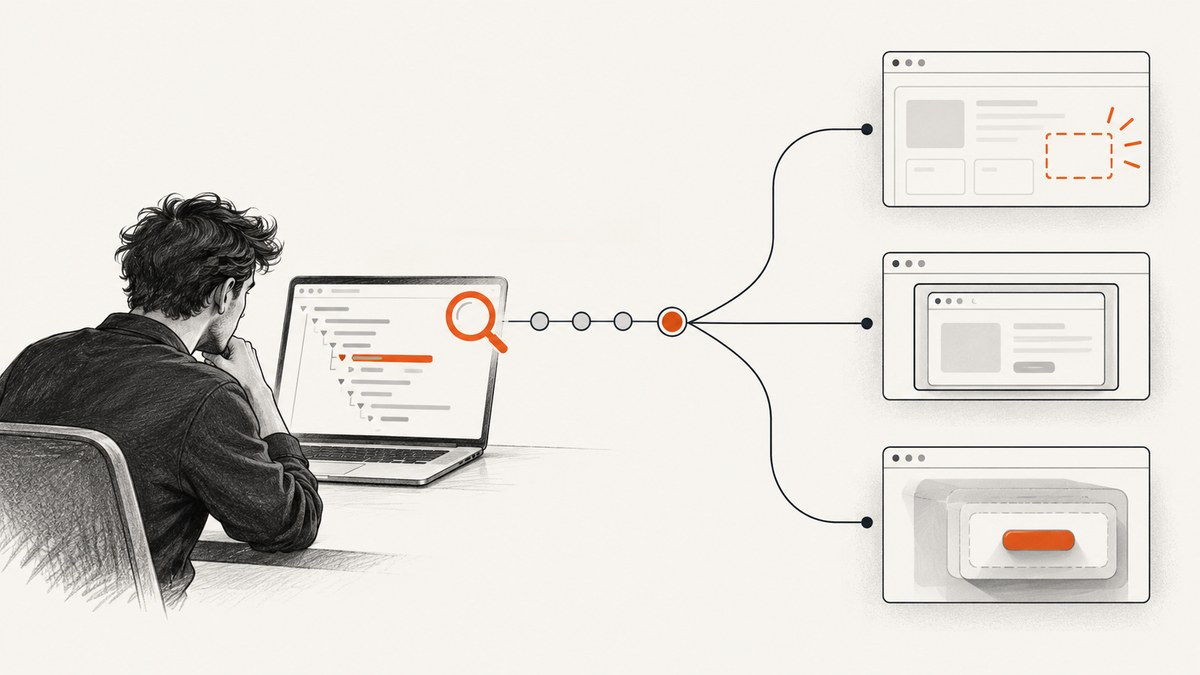
A Selenium CSS locator that cannot find an element usually points to one of five issues: invalid selector syntax, the wrong locator strategy, a lookup that happened too early, the wrong document context, or a stale element reference. Read the exception first: InvalidSelectorException means Selenium could not use the supplied selector; NoSuchElementException means the lookup found no match in the current context at that moment.
Use this order to debug it: validate the selector and By strategy, inspect the live page, wait for the required state, switch into the right frame or shadow root, then reacquire references after DOM changes. The examples below use Python; the same diagnosis applies across Selenium language bindings.
1. Read the exception before changing the locator
These exceptions describe different failures, so they call for different fixes.
| Exception | What it tells you | First check |
|---|---|---|
InvalidSelectorException |
The selector could not be parsed or used with the chosen locator strategy. | Selector syntax and whether the By strategy matches the selector. |
NoSuchElementException |
No matching element was available in the searched context at lookup time. | Current page, timing, lookup scope, and whether the element exists in the live DOM. |
StaleElementReferenceException |
A previously located element is no longer attached to the current DOM. | Whether navigation, refresh, or a re-render replaced the element. |
Selenium’s error guide lists malformed syntax, invalid characters, and a mismatch between selector text and locator strategy as causes of invalid selectors. For a missing element, it points to causes such as being on the wrong page, looking before an element exists, or using a locator that has changed. Start by matching your repair to the exception instead of rewriting a valid selector at random. See the Selenium error troubleshooting guide.
2. Match CSS syntax to Selenium’s locator strategy
Pass a CSS query with By.CSS_SELECTOR (Python). Do not pass CSS syntax to an ID, class-name, or XPath strategy. For example, this looks for an element with class information inside a form:
from selenium.webdriver.common.by import By

element = driver.find_element(By.CSS_SELECTOR, "form .information")
One common mistake is using By.CLASS_NAME with multiple classes separated by spaces. The class-name strategy accepts one class name. If the target has both card and selected classes, express that combination as a CSS selector:
# Incorrect: CLASS_NAME expects one class name.
# driver.find_element(By.CLASS_NAME, "card selected")

# Correct: both classes must be present on the same element.
element = driver.find_element(By.CSS_SELECTOR, ".card.selected")
CSS class selectors use a dot before each class. A space between selectors means a descendant, so .card .selected means an element with class selected somewhere inside an element with class card; it does not mean both classes on one element. For a direct child, use >, as in .card > .selected. Selenium’s locator guide shows the CSS selector strategy and its lookup behavior; the traditional locator reference also explains the class-name strategy.
When unsure how many elements match, use find_elements. It returns a list, including an empty list if nothing matches, and lets you distinguish zero, one, or several matches without immediately failing the test.
matches = driver.find_elements(By.CSS_SELECTOR, "form .information")
print(f"Matches in current context: {len(matches)}")
find_element returns the first match. If multiple elements fit, the lookup can succeed while selecting the wrong one. Tighten the selector or scope the search to a parent that uniquely identifies the intended section.
3. Check the actual page and live DOM
Before changing the selector, verify what Selenium has actually loaded. Print the current URL, inspect the page title, and examine the live DOM in browser developer tools. Compare the selector against the current markup, not a screenshot, old HTML, or an assumption about the page.
print("URL:", driver.current_url)
print("Title:", driver.title)

matches = driver.find_elements(By.CSS_SELECTOR, "form .information")
print("Matching elements:", len(matches))
If a click, form submission, tab switch, or other action should create or reveal the target, confirm that the action succeeded and that the page responded as expected. Check whether the target is hidden, conditionally rendered, or only added after a script runs. A selector can be perfectly valid and still return no match when the element has not yet appeared.
For browser-side inspection, use developer tools to query the current document with the same CSS expression. If the browser query finds nothing, examine the markup, spelling, class values, and nesting. If it finds an element but Selenium does not, look next at timing and context: Selenium may be searching before the update or in a different document.
4. Wait for the condition the next step needs
Page navigation reaching a document readyState does not guarantee that JavaScript-driven content is ready. A single-page application may update the DOM after navigation or after a click. Selenium’s default implicit wait is zero, so a lookup can run before that update finishes.
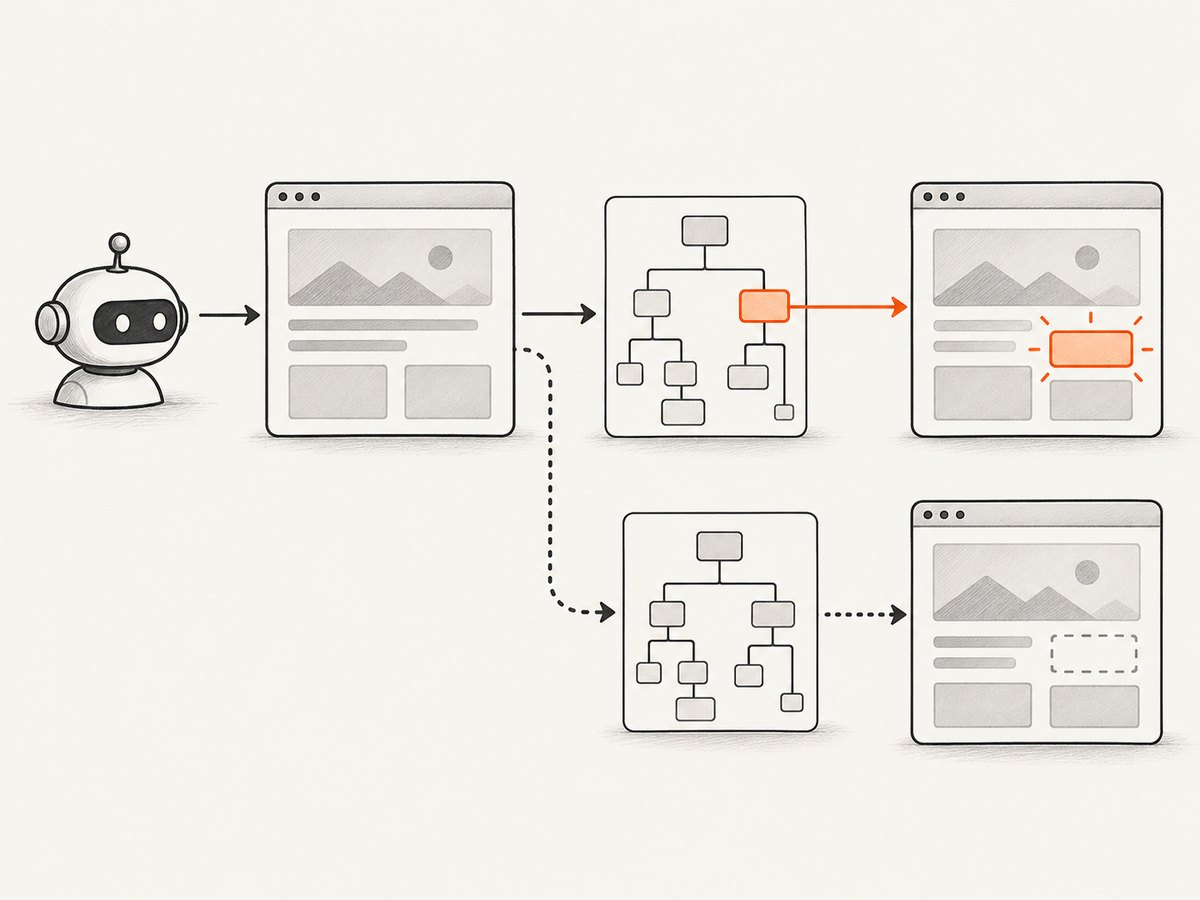
Use an explicit wait for the condition the next operation requires. The following runnable example waits for a dynamically added element to be present, then reads its text:
from selenium import webdriver
from selenium.webdriver.common.by import By
from selenium.webdriver.support.ui import WebDriverWait
from selenium.webdriver.support import expected_conditions as EC

# Assumes the application under test is reachable at this URL.
driver = webdriver.Chrome()
try:
    driver.get("https://example.com")
    element = WebDriverWait(driver, 10).until(
        EC.presence_of_element_located((By.CSS_SELECTOR, "form .information"))
    )
    print(element.text)
finally:
    driver.quit()
Choose the wait condition to match the next action:
- Presence: the element exists in the DOM; useful before reading an attribute or text when visibility is not required.
- Visibility: it exists and is displayed; useful before inspecting visible content.
- Clickability: it is visible and enabled; useful before clicking.
- A state change: wait for a known result of the preceding action, such as a status message, URL change, or old element becoming stale.
Set a timeout appropriate to the application and environment. There is no universal timeout that fits every page. Avoid using a fixed sleep as the general fix: it may still be too short, and it makes every run wait the full delay even when the page is ready earlier.
Selenium explicitly warns: “Do not mix implicit and explicit waits.” Combining them can make the actual wait duration unpredictable. Prefer one clear synchronization approach; for dynamic pages, explicit waits make the required condition visible in the test. See Selenium’s waiting strategies.
5. Search the right document context
A top-level lookup searches the current document. It will not cross into an iframe or into a shadow root automatically. If developer tools show the target but Selenium cannot find it, check whether the element is inside one of these contexts.
Switch into an iframe
Locate the iframe in the current document, switch to it, then locate its contents. Switch back to the top-level document before locating elements outside the frame.
from selenium.webdriver.common.by import By

frame = driver.find_element(By.CSS_SELECTOR, "#modal iframe")
driver.switch_to.frame(frame)
try:
    button = driver.find_element(By.CSS_SELECTOR, "button.submit")
    button.click()
finally:
    driver.switch_to.default_content()
If the iframe appears asynchronously, wait for the frame to be available and switch into it as part of the wait:
from selenium.webdriver.support.ui import WebDriverWait
from selenium.webdriver.support import expected_conditions as EC

wait = WebDriverWait(driver, 10)
wait.until(EC.frame_to_be_available_and_switch_to_it(
    (By.CSS_SELECTOR, "#modal iframe")
))
button = wait.until(EC.element_to_be_clickable(
    (By.CSS_SELECTOR, "button.submit")
))
button.click()
driver.switch_to.default_content()
Frame switching changes the active search context. If a later lookup unexpectedly stops finding elements that were previously available, check whether the driver is still inside the frame.
Search a shadow root
In Selenium 4 or later, locate the shadow host, get its shadow root, and perform the CSS lookup from that root:
host = driver.find_element(By.CSS_SELECTOR, "custom-checkbox-element")
shadow_root = host.shadow_root
checkbox = shadow_root.find_element(
    By.CSS_SELECTOR, "input[type='checkbox']"
)
The selector for custom-checkbox-element finds the host in the regular document. The second selector is evaluated inside the host’s shadow root. A query against the top-level document does not automatically pierce that boundary. See Selenium’s element finding guide for frames, scoped lookups, and shadow-root examples.
6. Scope searches carefully and refresh element references
A lookup from a WebElement searches within that element’s descendants. This can make a repeated component selector precise, but only if the intended target is actually inside that scope:
panel = driver.find_element(By.CSS_SELECTOR, "section#account")
email = panel.find_element(By.CSS_SELECTOR, "input[name='email']")
If the email input is not a descendant of that section, the scoped lookup will fail even if the same CSS selector finds it from the driver. When debugging scope, compare a page-level lookup with a scoped lookup and verify the DOM nesting.
An element reference represents an element Selenium already found; it is not a reusable locator. Navigation, refresh, or a JavaScript re-render may replace the node. If you then interact with the old reference, Selenium can raise StaleElementReferenceException. Re-run the locator in the current page and context:
# After the page update, obtain a fresh reference.
button = WebDriverWait(driver, 10).until(
    EC.element_to_be_clickable((By.CSS_SELECTOR, "button.submit"))
)
button.click()
When an update replaces an element, waiting for the old reference to become stale can help synchronize the next lookup. Keep the locator and context needed to reacquire the new reference.
7. Choose a stable, compact CSS locator
Once the lookup works, make it less likely to break on the next markup change. Selenium’s locator guidance recommends a unique, predictable ID when available; when one is not available, use a well-written CSS selector. Keep the query readable and tied to stable attributes or structure.
| Prefer | Use care with |
|---|---|
A unique, stable ID such as #checkout. |
Generated IDs that change between page loads. |
A meaningful attribute such as [name='email']. |
Long chains of positional selectors such as div:nth-child(4) > span. |
A compact class combination such as .dialog .submit. |
Classes that represent transient visual states or are frequently renamed. |
| A scoped lookup under a stable parent. | A broad selector that matches many repeated components. |
Before adopting a locator, check that it matches exactly the intended element in the current DOM and that its identifying attributes are part of the application’s stable contract. Avoid adding selector complexity to compensate for looking in the wrong frame, wrong state, or wrong page.
8. Troubleshooting checklist
- Read the full exception. Invalid selector, missing match, and stale reference require different fixes.
- Check strategy and syntax together. CSS goes with
By.CSS_SELECTOR; a class-name locator takes one class. - Count matches. Use
find_elementsto see whether there are zero or multiple results. - Confirm page and state. Check the URL and verify the action that should expose the element succeeded.
- Wait for the next required state. Presence, visibility, and clickability are different conditions.
- Check context. Switch into the right iframe or search the correct shadow root.
- Check scope. A lookup from a parent searches only its descendants.
- Refresh references after updates. Reacquire elements after navigation or re-rendering.
- Simplify the locator. Prefer a unique, stable ID or a short, readable CSS expression.
| Symptom | Likely cause | Repair |
|---|---|---|
InvalidSelectorException |
Malformed CSS or CSS passed to the wrong strategy. | Validate the query and use By.CSS_SELECTOR. |
| Zero results immediately after a click | DOM update has not completed or the action did not expose the target. | Confirm the action, then wait for the needed condition. |
| Browser dev tools find it, Selenium does not | Target is in an iframe or shadow root, or Selenium is in a different context. | Switch to the frame or search from the shadow root. |
| Lookup works globally but fails under a parent | Target is not a descendant of that parent. | Correct the scope or use a driver-level lookup. |
| Lookup worked earlier, then interaction fails | DOM replacement made the reference stale. | Wait for the update and locate a fresh element. |
| Test passes locally but intermittently fails elsewhere | Timing or environment differences expose a race. | Wait for an observable application state rather than adding an arbitrary delay. |
9. Performance and reliability notes
Every lookup and wait adds WebDriver commands, so avoid repeated polling for a condition that cannot become true until your test performs another action. Put the action first, then wait for its observable result. A scoped locator can make intent clearer and avoid ambiguous matches; it does not replace checking that the target belongs to the scope.
Short selectors based on stable identifiers are easier to maintain than long structural paths. Explicit waits improve reliability by aligning the test with page state, while fixed sleeps add a fixed delay and still leave timing risk. There is no Selenium-wide benchmark or guaranteed timeout that applies to all pages; actual run time depends on the application, browser, machine, and configured waits.
For failure diagnosis, capture useful evidence at the point of failure: current URL, exception class and message, selector string, match count, and a screenshot or DOM snapshot if your test setup supports it. Ensure this evidence is captured before teardown closes the browser. A screenshot can show what rendered visually, while DOM inspection helps determine whether an element exists but is hidden or in another context.
10. Capture a page screenshot when visual state matters
A Selenium screenshot is useful when the failure depends on what the browser rendered, such as an unexpected page, overlay, or modal. It does not prove that a selector is valid or that an element belongs to the current lookup context; pair it with the exception, URL, and DOM checks above.

# Save the current browser viewport for failure investigation.
driver.save_screenshot("selenium-failure.png")
For repeatable website captures outside a browser test, ScreenshotNeo is a website screenshot API and MCP server. It accepts a URL and returns an image or PDF; its capture options include full-page shots and CSS-selected element captures. Its browser capture is a separate workflow from Selenium locator debugging.
Or skip the browser setup
If you need a page image rather than an interactive Selenium session, ScreenshotNeo takes a screenshot with one GET request. See the ScreenshotNeo API documentation for options and response details.
curl -G "https://api.screenshotneo.com/v1/shot" -d access_key=YOUR_API_KEY --data-urlencode url=https://stripe.com -o shot.webpimport requests
r = requests.get(
"https://api.screenshotneo.com/v1/shot",
params={"access_key": "YOUR_API_KEY", "url": "https://stripe.com"},
timeout=90,
)
open("shot.webp", "wb").write(r.content)const q = new URLSearchParams({ access_key: 'YOUR_API_KEY', url: 'https://stripe.com' });
const res = await fetch(`https://api.screenshotneo.com/v1/shot?${q}`);- Cookie banners, popups, and chat widgets are removed before the shot.
- Bot checks, blank pages, and failed loads are never billed.
- An MCP server lets AI agents take screenshots.
- 1,000 screenshots a month are free with no card; paid plans start at $5 for 3,000.
Sign up for ScreenshotNeo and get 1,000 free screenshots a month, with no card.
FAQ
Does a CSS selector search inside an iframe automatically?
No. Switch into the iframe before locating its contents, then return to default content when you need the outer document.
Can I use multiple class names with Selenium’s class-name strategy?
No. Use a CSS selector such as .card.selected when the element must have both classes.
Why does the same selector sometimes work and sometimes fail?
The page may add or replace the target asynchronously. Wait for the condition required by the next step, and reacquire the element after a re-render.
Will a screenshot tell me why Selenium could not locate an element?
It can reveal the visible page state, but it cannot establish the selector’s validity or Selenium’s DOM context. Check the exception and live DOM as well.


