How to Fix CSS Not Applying in iTextSharp XMLWorker
Fix missing CSS in iTextSharp XMLWorker PDFs by checking the parser, XHTML, CSS resolver, supported rules, and legacy package limits.

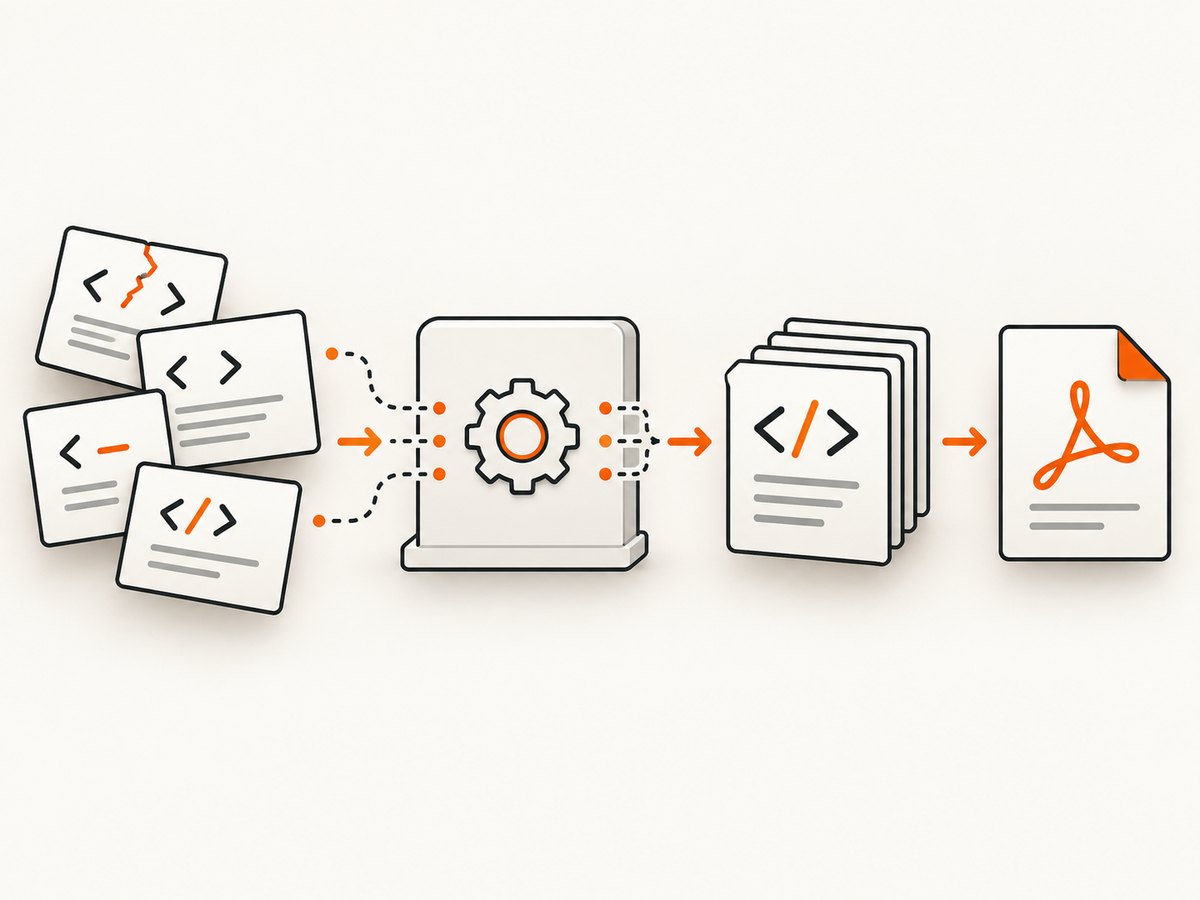
When CSS is missing from an iTextSharp PDF, check the conversion pipeline before rewriting the stylesheet. The usual fixes are to use XMLWorker instead of HTMLWorker, provide well-formed XHTML, pass the external stylesheet through a CSS resolver, and isolate rules that XMLWorker does not support.
Fast diagnostic checklist
- Confirm the parser. Your code must invoke XMLWorker. HTMLWorker does not provide CSS support.
- Verify the component. XMLWorker is a separate component from the core iTextSharp assembly and must be installed and referenced.
- Validate the markup. Repair unclosed tags, invalid nesting, duplicate attributes, and inconsistent table structure. Browser rendering can hide malformed HTML that XMLWorker cannot interpret.
- Attach CSS explicitly. Check the stylesheet path, stream contents, encoding, and resolver configuration in the running application.
- Reduce the example. Test one element and one declaration at a time. CSS support exists, but it is not equivalent to full browser CSS support.
- Check lifecycle constraints. iTextSharp is deprecated and replaced by iText 7; plan migration when the required styling cannot be expressed reliably in XMLWorker.
The iText project repository marks iTextSharp as end-of-life and says that only security fixes will be added. Treat archival XMLWorker examples as version-specific guidance and verify every API call against the DLL or NuGet package installed in your application. iTextSharp project repository
1. Use XMLWorker, not HTMLWorker
HTMLWorker and XMLWorker are different parsers. A common error is to keep an HTMLWorker call and expect a stylesheet to work. Replace that path with XMLWorker and include the XMLWorker assembly that matches your iTextSharp version.
using (var document = new Document(PageSize.A4))
using (var output = File.Create("output.pdf"))
{
    var writer = PdfWriter.GetInstance(document, output);
    document.Open();

    using (var html = File.OpenRead("input.xhtml"))
    using (var css = File.OpenRead("site.css"))
    {
        XMLWorkerHelper.GetInstance().ParseXHtml(writer, document, html, css);
    }

    document.Close();
}
The exact overloads vary by XMLWorker and iTextSharp release. If this call does not exist in your version, use the explicit pipeline shown below rather than guessing at an overload.
2. Make the input valid XHTML
XMLWorker parses XML-style input. A browser may repair malformed markup automatically, while XMLWorker may drop nodes or stop applying inherited styles. Start with a minimal document and make every element explicit.
<?xml version="1.0" encoding="UTF-8"?>
<!DOCTYPE html>
<html xmlns="http://www.w3.org/1999/xhtml">
  <head>
    <meta http-equiv="Content-Type" content="text/html; charset=UTF-8" />
    <title>Invoice</title>
  </head>
  <body>
    <h1 class="title">Invoice</h1>
    <p class="total">Total: $42.00</p>
  </body>
</html>
Check these details before investigating CSS:
- Close every element, including
img,br,meta, andinput. - Nest table rows and cells correctly. Do not place a
divdirectly inside atablewhere a row is required. - Use one root element and quote every attribute value.
- Remove browser-only constructs and scripts from the conversion input.
- Save HTML and CSS as UTF-8, then confirm the streams are opened with the intended encoding.
3. Pass external CSS through a resolver pipeline
For a custom pipeline, create a CSS resolver, parse the stylesheet into a CssFile, add it to the resolver, and connect the resolver to the HTML and PDF pipelines. The class names and constructors below follow the documented XMLWorker pattern; confirm namespaces and overloads against your installed version.
using iTextSharp.text;
using iTextSharp.text.pdf;
using iTextSharp.tool.xml;
using iTextSharp.tool.xml.css;
using iTextSharp.tool.xml.html;
using iTextSharp.tool.xml.pipeline;
using iTextSharp.tool.xml.pipeline.css;
using iTextSharp.tool.xml.pipeline.end;
using iTextSharp.tool.xml.pipeline.html;
using iTextSharp.tool.xml.parser;

using (var document = new Document(PageSize.A4))
using (var output = File.Create("output.pdf"))
{
    var writer = PdfWriter.GetInstance(document, output);
    document.Open();

    var cssResolver = XMLWorkerHelper.GetInstance().GetDefaultCssResolver(false);
    using (var cssStream = File.OpenRead("site.css"))
    {
        var cssFile = XMLWorkerHelper.GetInstance().GetCSS(cssStream);
        cssResolver.AddCss(cssFile);
    }

    var htmlPipelineContext = new HtmlPipelineContext(null);
    htmlPipelineContext.SetTagFactory(Tags.GetHtmlTagProcessorFactory());

    var pipeline = new CssResolverPipeline(
        cssResolver,
        new HtmlPipeline(htmlPipelineContext, new PdfWriterPipeline(document, writer)));

    var worker = new XMLWorker(pipeline, true);
    var parser = new XMLParser(worker);

    using (var htmlStream = File.OpenRead("input.xhtml"))
    {
        parser.Parse(htmlStream);
    }

    document.Close();
}
If your release exposes a different GetCSS signature, use the matching API reference for that release. The important sequence is unchanged: read CSS, create a CssFile, add it to a CSSResolver, then attach that resolver to the pipeline. The iText Knowledge Base documents both the resolver pipeline and the simpler parseXHtml overload. iText CSS and RowSpan troubleshooting
4. Check stylesheet loading, paths, and encoding
A correct CSS rule has no effect if the application reads an empty stream or the wrong file. Log the resolved path and byte count in development, and fail early when the file is missing.
var cssPath = Path.GetFullPath("site.css");
if (!File.Exists(cssPath))
    throw new FileNotFoundException("CSS file was not found", cssPath);

var cssBytes = File.ReadAllBytes(cssPath);
if (cssBytes.Length == 0)
    throw new InvalidOperationException("CSS file is empty");

using (var cssStream = new MemoryStream(cssBytes))
{
    // Pass cssStream to the XMLWorker overload or CSS resolver.
}
When CSS is embedded in a resource, load the resource by its manifest name rather than a deployment-relative path. When CSS is fetched remotely, download it yourself and pass a stream; do not assume XMLWorker will resolve every browser URL, import, font, or media query exactly as a browser does.
5. Isolate unsupported or partially supported CSS
XMLWorker supports CSS, but that does not mean every modern browser feature is implemented. Start with declarations that directly affect the symptom, then replace unsupported layout features with simpler markup.
| Symptom | Isolation step | Practical fallback |
|---|---|---|
| Text color or font size is missing | Move the declaration to an inline style on one element. | Use a simple selector and confirm the font is available. |
| Entire stylesheet appears ignored | Apply one inline declaration, then test the external stream. | Fix the resolver, path, or XHTML before changing selectors. |
| Table layout differs | Remove row and column spans, then add them back individually. | Use explicit rows and cells with simple widths. |
| Modern layout does not render | Replace the rule with a small block or table example. | Design a PDF-specific layout instead of relying on browser layout. |
| Background or image is absent | Test the resource URL and file permissions separately. | Use an accessible local path or embed the resource. |
Do not claim support for a property solely because a browser accepts it. The cited iText material does not provide a complete property-by-property compatibility matrix, so verify the installed XMLWorker version with a reduced reproduction.
6. Common errors and fixes
| Error or symptom | Cause | Fix |
|---|---|---|
HTMLWorker is still in the stack trace |
The CSS-capable parser was never selected. | Replace the HTMLWorker path with XMLWorker and reference the separate XMLWorker component. |
Compile error for XMLWorkerHelper |
The XMLWorker DLL/package is missing or version-mismatched. | Install a matching XMLWorker package and verify assembly versions. |
| PDF is created but has default styling | CSS stream was not supplied, was empty, or was not added to the resolver. | Check the file path, byte count, encoding, and resolver registration. |
| Malformed XML or parser exception | Unclosed tags, invalid nesting, or illegal characters. | Validate and repair the input as XHTML; escape ampersands in text and attributes. |
| Only some selectors work | The selector or declaration is outside the installed XMLWorker capability. | Reduce to one rule and use a simpler selector or PDF-specific markup. |
| Styles differ between machines | Different package versions, fonts, working directories, or resource permissions. | Pin package versions, use absolute resource resolution, and provision the same fonts. |
| External images or fonts disappear | The converter cannot access the URL or resource at render time. | Download or embed resources and verify permissions before parsing. |
7. A repeatable debugging workflow
- Save the exact HTML and CSS bytes used by the failing request.
- Run the smallest valid XHTML document with one visible style, such as a red heading.
- Confirm XMLWorker, the package versions, and the loaded assembly locations.
- Render with the simple
ParseXHtmloverload and then with the explicit resolver pipeline. - Add the real stylesheet, then add selectors and resources in small groups.
- Record the first declaration that changes the output. Replace it with a simpler equivalent if XMLWorker does not support it.
- Keep a PDF regression sample containing the rules your application depends on.

8. Reliability, performance, and maintenance
- Reuse static assets. Keep CSS templates and fonts local or cached so conversion does not depend on a remote site.
- Bound input size. Large HTML, huge tables, and high-resolution images increase memory and conversion time.
- Dispose streams. Close HTML, CSS, image, and output streams in every code path.
- Pin versions. A package update can change parser behavior; render a known fixture after upgrades.
- Separate browser CSS from PDF CSS. A small PDF stylesheet is easier to debug and less likely to depend on unsupported layout behavior.
- Plan migration. If the required CSS cannot be represented reliably, compare the cost of simplifying the document with moving to a maintained iText version. Review current licensing terms for your deployment before choosing a migration path.
Or skip the browser setup
If your actual goal is a clean image or PDF of a web page rather than server-side HTML-to-PDF conversion, ScreenshotNeo provides a single screenshot request. It accepts cookie and consent banners before capture and removes more than 60 known consent platforms, newsletter popups, and chat widgets. Bot checks, blank pages, timeouts, failed loads, and cache hits are not billed, and each response reports the result through X-Page-Verdict and X-Billed headers.
See the ScreenshotNeo API documentation for all options, including full-page capture, CSS selector element capture, dark mode, device presets, custom viewport and retina scale, PDF paper settings, custom CSS and JavaScript, waits, request blocking, headers, cookies, user agents, timezone, geolocation, transparent backgrounds, resizing, caching, signed links, asynchronous jobs, bulk capture, usage, and the OpenAPI specification.
cURL
curl -G "https://api.screenshotneo.com/v1/shot" \
  -d access_key=YOUR_API_KEY \
  --data-urlencode url=https://stripe.com \
  -o shot.webp
Python
import requests

r = requests.get(
    "https://api.screenshotneo.com/v1/shot",
    params={"access_key": "YOUR_API_KEY", "url": "https://stripe.com"},
    timeout=90,
)
r.raise_for_status()
open("shot.webp", "wb").write(r.content)
Node.js
const q = new URLSearchParams({
  access_key: 'YOUR_API_KEY',
  url: 'https://stripe.com'
});
const res = await fetch(`https://api.screenshotneo.com/v1/shot?${q}`);
if (!res.ok) throw new Error(`HTTP ${res.status}`);
const image = Buffer.from(await res.arrayBuffer());
require('fs').writeFileSync('shot.webp', image);
An MCP server also lets Claude, Cursor, and other MCP clients call take_screenshot, get_page_info, and capture_pdf. The Free plan includes 1,000 screenshots each month without a card; paid plans start at $5 for 3,000 shots, and every feature is available on every plan. Create a free ScreenshotNeo account.
FAQ
Does XMLWorker support CSS?
Yes, XMLWorker has CSS support. Its support is narrower than a browser’s, so individual declarations and layouts still need verification.
Can I keep using HTMLWorker and add a stylesheet?
No. The iText troubleshooting guidance identifies HTMLWorker as having no CSS support. Use XMLWorker for the documented CSS resolver flow.
Why does inline CSS work while my stylesheet does not?
That usually indicates a loading or resolver problem: wrong path, empty stream, encoding issue, or a stylesheet that was never added to the pipeline. Confirm those before changing selectors.
Should I migrate from iTextSharp?
iTextSharp is end-of-life and replaced by iText 7. Migration should be weighed against required CSS behavior, maintenance needs, and the licensing terms for your deployment.
Can a browser screenshot replace XMLWorker?
Only when your output is a rendered web page rather than a document assembled from application data. For a web-page capture, ScreenshotNeo can remove consent UI and report whether a response was billable.


