How to Fix CSS Overflow Hidden Not Working in Prince XML
Learn why overflow:hidden still affects Prince XML PDFs and how to fix clipping, page breaks, oversized images, and unexpected blank pages.
Short answer: Prince XML paginates content into fixed pages, so overflow: hidden clips painting but does not always remove the element’s influence on pagination, height calculations, or later content. Use a deliberate clipping height, verify the target page size, and choose between a fragmentable normal-flow layout and a positioned crop frame. For oversized images, a positioned wrapper with an absolutely positioned image is a commonly reported workaround.
Why overflow: hidden behaves differently in Prince
A browser lays out a continuous viewport. Prince lays out a paged document and must decide where every box fits before producing PDF pages. Prince’s help documentation states that an element with a fixed height or overflow: hidden cannot be split across pages. Clipping therefore controls what is painted outside the box, while pagination still considers the box as a non-fragmentable object.
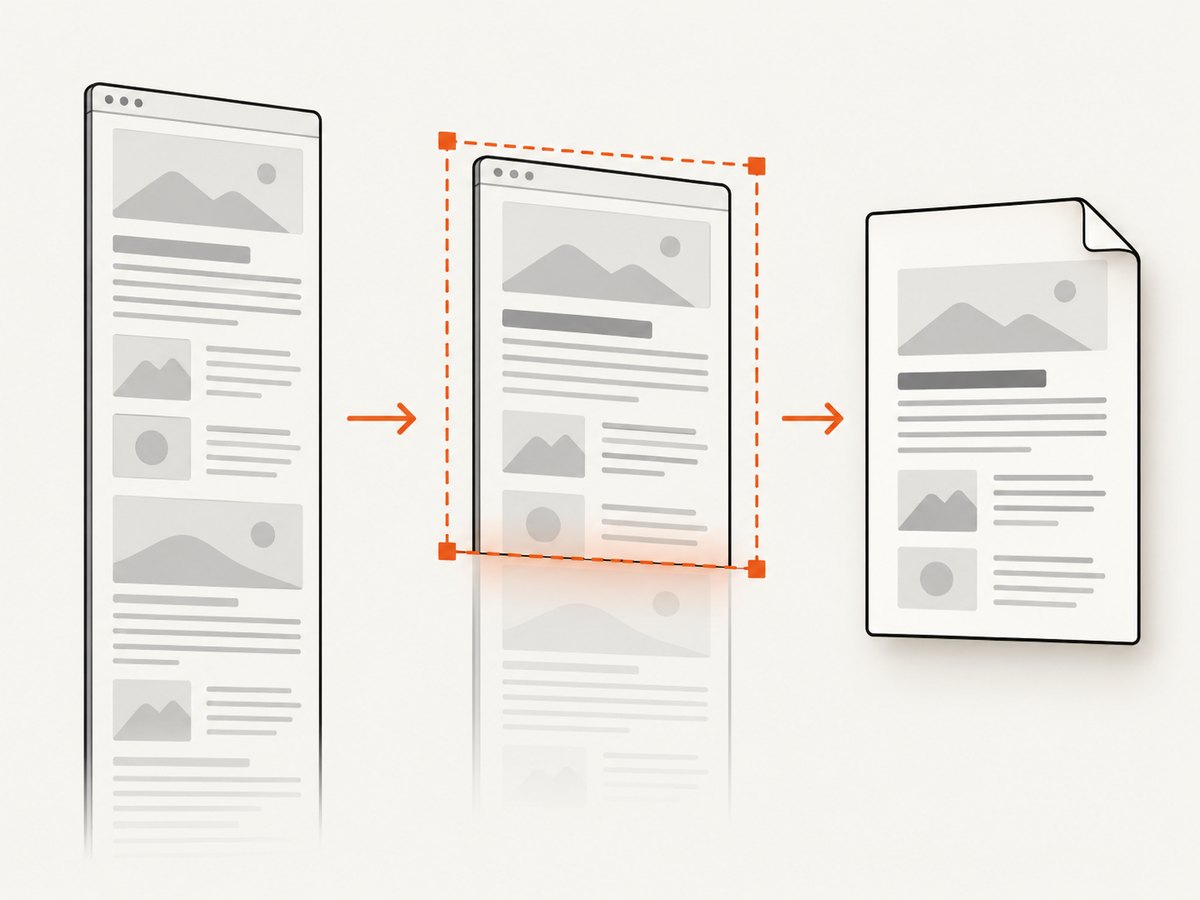
This explains several apparently contradictory symptoms:
- Text is invisible but still selectable in the PDF.
- A hidden block creates an extra page or pushes later content down.
- An image is clipped visually but its intrinsic height still affects page fitting.
- A blank-looking page appears because a non-fragmentable box cannot fit in the remaining space.
Start by identifying which symptom you have. “Visible overflow” needs a clipping fix; “hidden but selectable” may involve PDF text extraction; “extra page” is usually a fragmentation or sizing problem; an oversized image needs separate treatment.
Minimal reproduction
Reduce the document to one page, one clipping box, and one following paragraph. Record the Prince version, page size, margins, and command-line options before changing the CSS.
<!doctype html>
<html>
<head>
  <meta charset="utf-8">
  <style>
    @page { size: A4; margin: 18mm; }
    .clip {
      height: 35mm;
      overflow: hidden;
      border: 0.3mm solid #888;
    }
    .clip p { margin: 0; }
    .after { margin-top: 8mm; }
  </style>
</head>
<body>
  <div class="clip">
    <p>This content is intentionally taller than the clipping window.</p>
    <p>Additional content should be clipped inside the box.</p>
  </div>
  <p class="after">This paragraph follows the clipping box.</p>
</body>
</html>
Render the file with your normal Prince command and compare the PDF at the exact paper size used in production. A rule that appears correct on screen can still produce a different page break when the printable area changes.
Fix 1: Define the clipping window explicitly
A clipping window needs a deliberate height (or width) and a single overflow value:
.card {
  height: 42mm;
  overflow: hidden;
}
Do not rely on a percentage height unless every ancestor has a definite height. Check padding and borders: with the default content-box sizing, they add to the declared height. Use box-sizing: border-box when the outer dimensions must be exact.
.card {
  box-sizing: border-box;
  height: 42mm;
  padding: 4mm;
  border: 0.3mm solid #999;
  overflow: hidden;
}
Prince supports visible, hidden, clip, scroll, and auto for overflow. In Prince, scroll does not create a usable scrolling viewport; it establishes a new block formatting context and otherwise behaves like visible. Prince does not support separate overflow-x and overflow-y properties or the two-value overflow syntax, so use one value for both axes. See the Prince overflow property reference and CSS support documentation.
Fix 2: Choose fragmentation or intentional clipping
If long text should continue on later pages, remove the fixed-height clipping box. Let the text remain in normal flow and use page-break rules around the surrounding sections.
.article-body {
  height: auto;
  overflow: visible;
}
If the design requires a fixed card or thumbnail crop, keep the explicit height and accept that the box cannot fragment. Page-break avoidance cannot make content that is taller than the available page area fit on that page. For content that must stay together, reduce its size, set a sensible max-height, or move it to a page with enough room.
| Goal | Recommended layout | Trade-off |
|---|---|---|
| Read all text across pages | Normal flow, auto height, visible overflow | No fixed crop |
| Show a fixed-height card | Explicit height plus overflow:hidden |
Content is clipped and cannot fragment |
| Crop an oversized image | Positioned wrapper and absolute image | Requires careful anchoring |
| Keep a block together | Non-fragmentable box with constrained dimensions | May move to the next page or create whitespace |
Fix 3: Crop oversized images with positioning
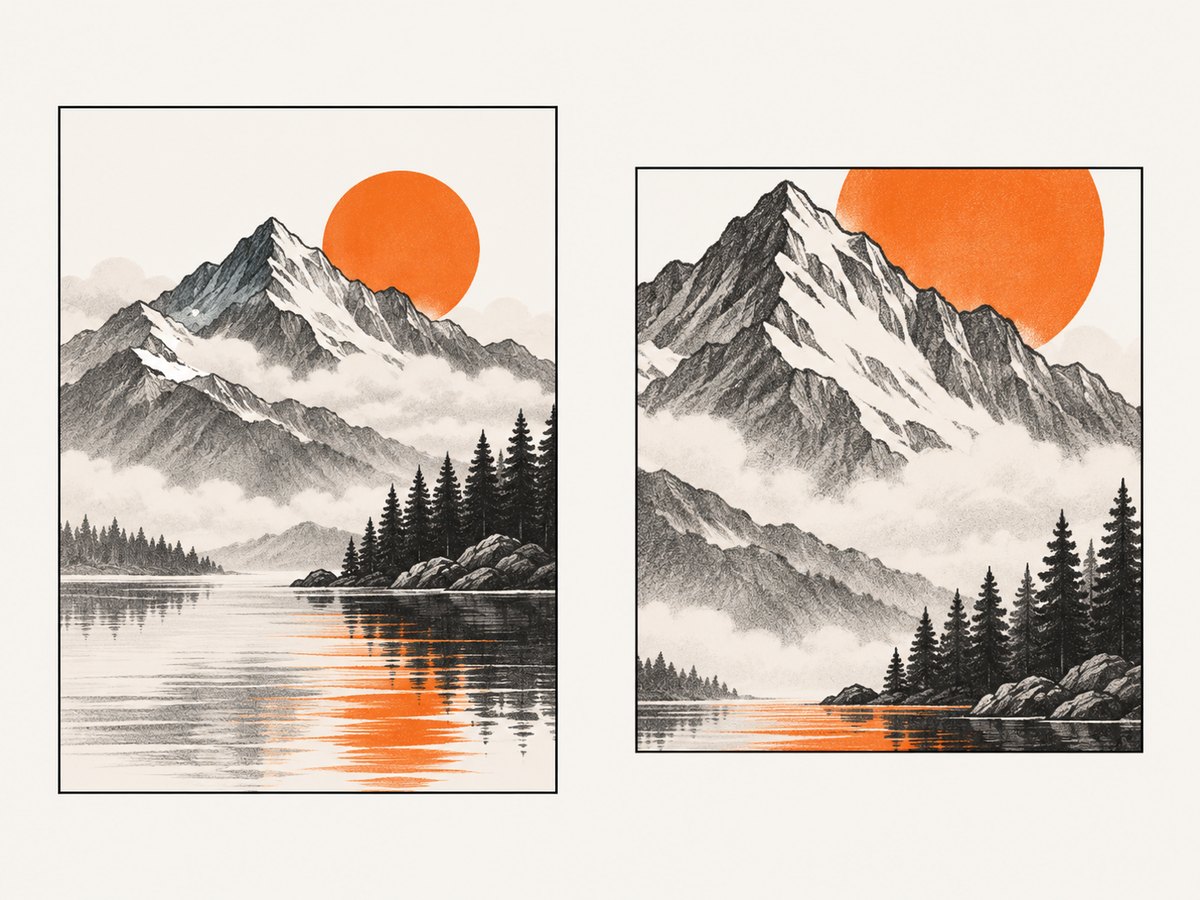
For an image in normal flow, Prince may use the image’s full height while calculating whether the non-fragmentable box fits, even when the excess is hidden. A reported workaround is a positioned wrapper and an absolutely positioned image.
.image-crop {
  position: relative;
  width: 160mm;
  height: 55mm;
  overflow: hidden;
}
.image-crop img {
  position: absolute;
  left: 0;
  top: 0;
  width: 160mm;
  height: auto;
}
Give the wrapper the dimensions that belong in the document flow. Set the image’s position explicitly, and verify that it does not overlap the next section. If the image must be centered, calculate the offset or use a tested positioning rule rather than assuming browser flexbox behavior will be identical in Prince.
Fix 4: Check page geometry and scaling
Many overflow reports are page-fit problems. Confirm @page size, margins, image dimensions, and the CSS pixel density used by your Prince build. Prince documents --css-dpi; its default is 96 dpi. For wide content, consider rotating the page or using -prince-shrink-to-fit only when necessary. Designing for the target paper with relative units is more predictable than routinely shrinking everything.
@page report {
  size: A4 landscape;
  margin: 12mm;
}
@page portrait {
  size: A4 portrait;
  margin: 18mm;
}
.landscape-table { page: report; }
For very tall content, constrain the component with max-height or redesign it so it can fragment. A hidden overflow rule cannot make a box physically fit in the remaining page area.
Positioning workaround: when and how to use it
Prince forum guidance for some clipping cases adds position: absolute to the clipping parent. This can prevent normal-flow height from pushing later content, but it changes anchoring and can cause overlap. Use a positioned containing block and reserve space deliberately:
.panel-slot {
  position: relative;
  height: 48mm;
}
.panel {
  position: absolute;
  inset: 0;
  overflow: hidden;
}
Test the result with content before and after the panel. Absolute positioning is a case-specific workaround, not a universal replacement for normal flow.
Troubleshooting checklist
| Symptom | Likely cause | Fix |
|---|---|---|
| Overflow is visibly painted | No definite clipping dimension, or unsupported axis-specific rule | Set an explicit height/width and one overflow:hidden value. |
| Hidden text remains selectable | Painting is clipped but PDF text objects remain in the output | Do not treat clipping as content removal; omit the content in the source or conditionally generate it. |
| Extra page appears | Non-fragmentable box does not fit in remaining page space | Reduce height, move the box, allow fragmentation, or use a deliberate positioned crop. |
| Image pushes later content | Normal-flow image height is used in page-fit calculations | Use a relative wrapper with an absolutely positioned image and fixed wrapper height. |
| Blank-looking page | Content exists outside the visible crop or a box moved as a unit | Inspect source bounds, margins, and box dimensions; remove unused content or let it fragment. |
overflow-x has no effect |
Prince does not support separate overflow axes | Use the single-value overflow property. |
| Two-value syntax is ignored | Prince does not support the two-value overflow form |
Choose one value that applies to both axes. |
| Fix works on screen but not PDF | Different viewport, page size, or DPI | Render a minimal reproduction with production page settings. |
Debugging process that scales
- Record the Prince version, command line, CSS, page size, and margins.
- Reduce the document to one failing component and one following element.
- Replace images and web fonts with fixed test assets to isolate layout from loading.
- Test normal flow first, then add clipping, then add positioning.
- Inspect every page at the production paper size; do not rely on browser preview.
- Keep the smallest reproduction with your build scripts so a Prince upgrade can be checked.
Forum fixes from older Prince releases are useful clues, but they are not guarantees for every current build. Validate the reduced example against the version you deploy.
Performance, reliability, and cost considerations
Clipping itself is inexpensive compared with loading large images, web fonts, and external resources. Fixed dimensions reduce layout ambiguity. Absolute positioning can reduce flow calculations for crop frames, but excessive positioned layers make maintenance and overlap bugs more likely. For reliable PDF generation, pin the Prince version, use deterministic assets, set explicit page geometry, and fail the build when the output page count changes unexpectedly.
When the document is generated by a hosted renderer, account for network timeouts, blocked resources, and font availability separately from CSS layout. Cache stable assets and keep a minimal fixture for regression checks.
Or skip the browser setup
If your goal is a clean screenshot or PDF of a rendered page rather than maintaining a Prince pipeline, ScreenshotNeo provides a single HTTP request. Its capture process accepts cookie and consent banners before the shot and removes more than 60 known consent platforms, newsletter popups, and chat widgets. Bot checks, blank pages, timeouts, failed loads, and cache hits are not billed, and response headers report the page verdict and billing status.
See the ScreenshotNeo API documentation for all options, including full-page capture, PDF paper size and margins, custom CSS and JavaScript, waits, blocked resources, headers, cookies, user agents, geolocation, caching, signed links, asynchronous jobs, webhooks, and bulk capture.
cURL
curl -G "https://api.screenshotneo.com/v1/shot" \
  -d access_key=YOUR_API_KEY \
  --data-urlencode url=https://stripe.com \
  -o shot.webp
Python
import requests

r = requests.get(
    "https://api.screenshotneo.com/v1/shot",
    params={"access_key": "YOUR_API_KEY", "url": "https://stripe.com"},
    timeout=90,
)
r.raise_for_status()
open("shot.webp", "wb").write(r.content)
Node.js
const q = new URLSearchParams({
  access_key: 'YOUR_API_KEY',
  url: 'https://stripe.com'
});
const res = await fetch(`https://api.screenshotneo.com/v1/shot?${q}`);
if (!res.ok) throw new Error(`HTTP ${res.status}`);
const buffer = Buffer.from(await res.arrayBuffer());
await import('node:fs/promises').then(fs => fs.writeFile('shot.webp', buffer));
ScreenshotNeo also has an MCP server with take_screenshot, get_page_info, and capture_pdf tools for Claude, Cursor, and other MCP clients. The Free plan includes 1,000 shots per month with no card; paid plans start at $5 for 3,000 shots. Create a free ScreenshotNeo account.
FAQ
Does overflow: hidden remove content from the PDF?
No. It clips painting within the box. Content can still affect layout, and hidden text may remain represented in PDF text objects.
Can I use overflow-x:hidden and overflow-y:visible?
Prince does not support separate overflow-axis properties. Use one overflow value.
Why does an image need absolute positioning?
A normal-flow image can contribute its full intrinsic height to page-fit calculations. A fixed-size wrapper with an absolutely positioned image makes the crop dimensions explicit.
Should I always use absolute positioning?
No. Use normal flow when content should continue across pages. Positioning is appropriate for intentional crop frames after checking anchoring and overlap.
Will page-break rules force an oversized clipped box onto a page?
No. A page-break rule cannot make a box that is too large fit. Reduce its dimensions, allow fragmentation, or move it to a page with enough space.


