How to Fix CSS Page Breaks in React jsPDF .html()
CSS page-break rules do not reliably control jsPDF .html(). Learn why, how autoPaging works, and how to force predictable React PDF breaks.

Short answer: CSS rules such as page-break-before, page-break-after, and break-before describe browser print pagination. React jsPDF .html() does not use the browser print engine. Its HTML module renders through html2canvas and then places the result into a jsPDF document, with pagination handled by jsPDF’s context2d pathway. The inspected source defaults autoPaging to true when you omit it, but it does not provide a general CSS page-break implementation. Treat CSS breaks as hints at most, then use explicit page construction or section-by-section rendering when a boundary must be guaranteed.
This distinction explains why a rule that works in Chrome’s print preview can be ignored, moved, or produce a different result in a PDF created by doc.html(). The exact behavior depends on your installed jsPDF and html2canvas versions, browser, device pixel ratio, fonts, assets, and markup. Check those values before adopting a workaround.
What jsPDF .html() actually does
The jsPDF project documents .html() as an HTML renderer that depends on html2canvas. When you pass an HTML string instead of an existing element, the README also identifies DOMPurify as an optional dependency. html2canvas paints the DOM into a canvas-like representation; jsPDF then writes that rendered content into PDF pages. This is a different pipeline from the browser’s print layout engine.
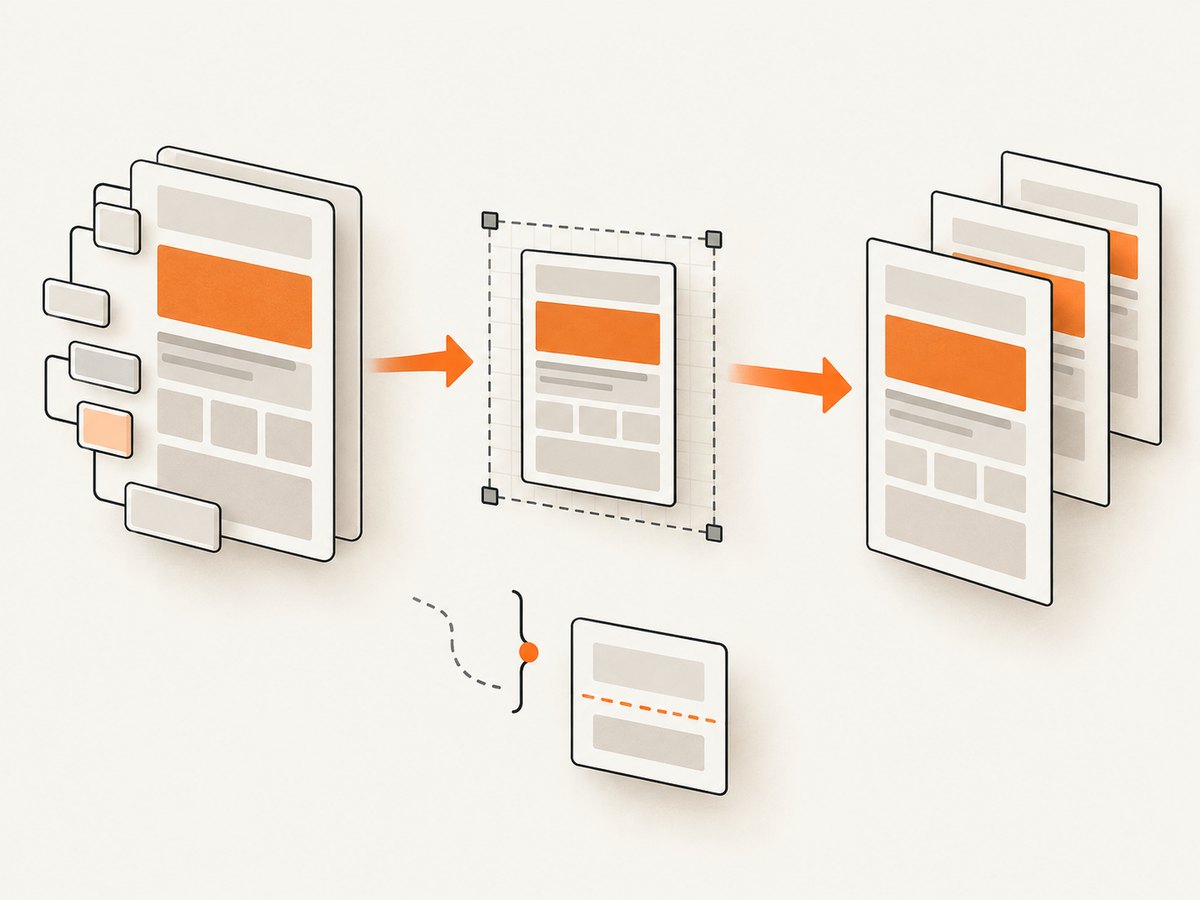
The current HTML module source routes rendering through context2d and assigns pdf.context2d.autoPaging from the autoPaging option. If the option is undefined, the inspected source sets it to true. That setting allows the renderer to place overflowing content on subsequent pages. It is not a promise that a CSS selector will create a clean boundary before a section.
Because the project’s master branch is moving documentation and implementation, match any conclusion to the version in your lockfile. Read the HTML module source documentation, record your package versions, and inspect the generated PDF with the exact browser and device used in production.
First, build a minimal React reproduction
Before changing pagination, reduce the document to two sections, one heading, a few paragraphs, and the suspected break rule. Confirm that the element you pass to .html() is the element containing both sections. A frequent mistake is styling a wrapper while rendering a child, or rendering a hidden clone whose dimensions differ from the visible layout.
import React, { useRef } from 'react';
import jsPDF from 'jspdf';

export default function Report() {
  const reportRef = useRef(null);

  const download = async () => {
    const pdf = new jsPDF({ unit: 'pt', format: 'a4' });

    await pdf.html(reportRef.current, {
      margin: [40, 40, 40, 40],
      autoPaging: 'text',
      html2canvas: {
        scale: 2,
        useCORS: true
      },
      callback: (document) => document.save('report.pdf')
    });
  };

  return (
    <>
      <button onClick={download}>Download PDF</button>
      <main ref={reportRef}>
        <section>
          <h1>Quarterly report</h1>
          <p>The first section contains variable-height content.</p>
        </section>
        <section className='new-page'>
          <h2>Appendix</h2>
          <p>This section is intended to start on a fresh PDF page.</p>
        </section>
      </main>
    </>
  );
}
Start with autoPaging: 'text' or the mode supported by your installed release, then inspect the output. If your version accepts only a boolean, use the documented option for that version. Do not copy an option from a different release without checking its type and behavior.
Why common CSS fixes fail
page-break-before: always
This rule targets paged media in a browser. jsPDF’s HTML renderer does not promise to interpret it as an instruction to call addPage(). It may have no visible effect, especially when the section is rendered as part of a canvas snapshot.
break-before: page and break-after: page
The modern break-* properties are useful in browser print stylesheets, but support in a third-party DOM-to-canvas pipeline is a separate question. Their presence in your CSS does not prove that the installed jsPDF HTML module reads them.
A spacer element with a large height
A fixed-height spacer can appear to work for one document and fail when fonts load, text wraps, images change size, or the viewport changes. A jsPDF issue contains an individual report that manually measuring rendered height was inaccurate for a spacer approach; that report is evidence of a case, not proof of a universal defect or fix. Treat spacer math as a layout-specific workaround that must be measured and verified.
Reliable ways to force a page boundary
Approach 1: render sections separately
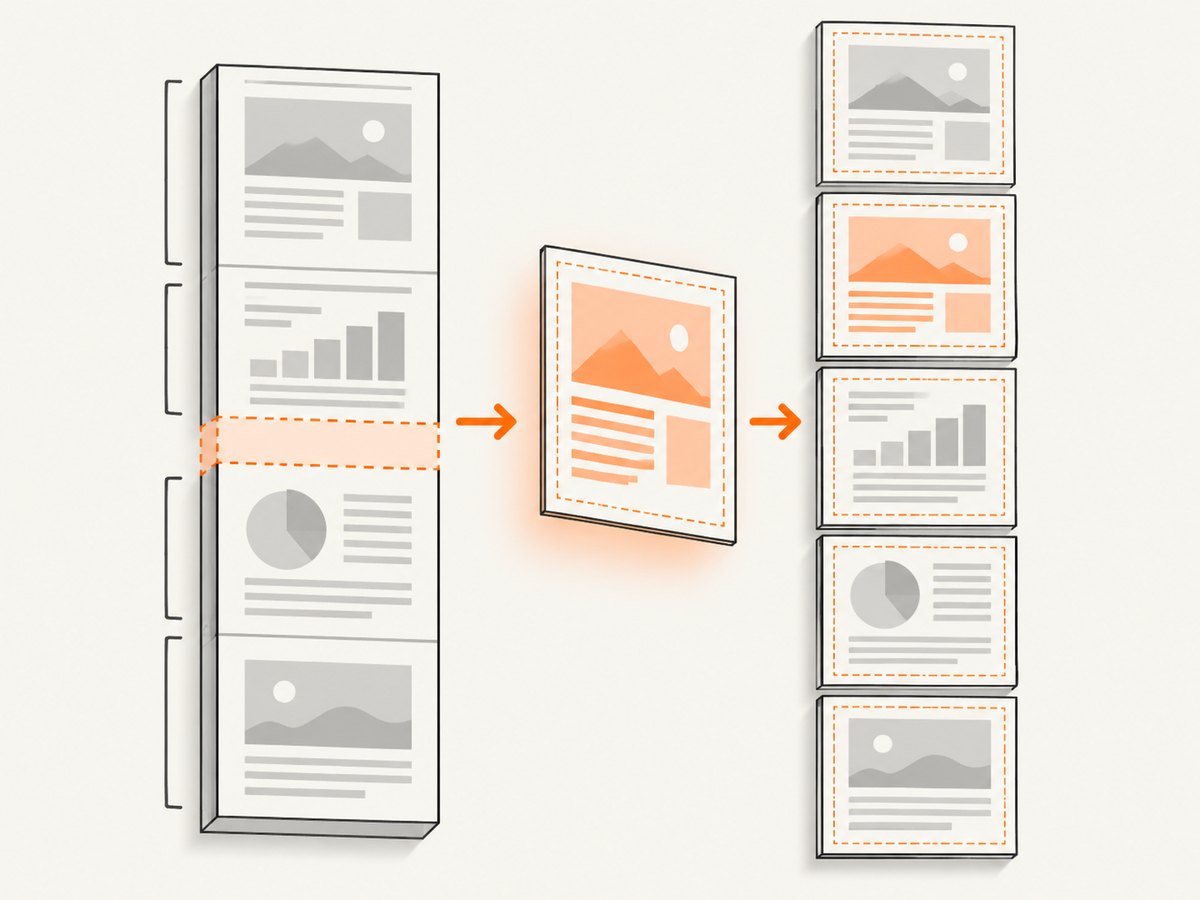
When a section must begin on a new page, render the preceding section, add a page, and render the next section at a known position. You must measure or constrain the first section so it does not overflow unexpectedly.
const pdf = new jsPDF({ unit: 'pt', format: 'a4' });
const page = pdf.internal.pageSize;
const margin = 40;
const usableWidth = page.getWidth() - margin * 2;

await pdf.html(firstSectionRef.current, {
  x: margin,
  y: margin,
  width: usableWidth,
  autoPaging: 'text',
  callback: () => {}
});

pdf.addPage();

await pdf.html(secondSectionRef.current, {
  x: margin,
  y: margin,
  width: usableWidth,
  autoPaging: 'text',
  callback: () => {}
});

pdf.save('report.pdf');
The exact callback and promise behavior varies by jsPDF release. If your version does not return a promise from html(), place the second render in the documented callback of the first render. Keep each section’s CSS width stable and wait until fonts and images have loaded.
Approach 2: explicit page construction for predictable blocks
If the content is known to fit, bypass HTML pagination for the boundary itself. Add a page explicitly, then draw text, images, tables, or a separately rendered section at a measured coordinate. This gives you direct control over the page transition but requires more layout code.
const pdf = new jsPDF({ unit: 'pt', format: 'a4' });
pdf.text('Summary', 40, 60);
pdf.text('This block is placed with explicit coordinates.', 40, 90);

pdf.addPage();
pdf.text('Appendix', 40, 60);
pdf.save('explicit-pages.pdf');
Use this method for invoices, certificates, or forms with fixed geometry. For long variable-height prose, combine explicit page creation with measured section rendering instead of assuming every block has a constant height.
Approach 3: constrain layout and let autoPaging flow
For ordinary reports, the simplest reliable strategy can be to remove the CSS force rule, set a stable width, load all assets, and let autoPaging flow content across pages. Add visual section headings and avoid placing a heading at the very bottom of a page by keeping heading-plus-first-paragraph groups together where your version supports that behavior.
Do not confuse jsPDF with html2pdf.js
html2pdf.js documents a dedicated html2pdf__page-break class. Its README explains that the element receives a calculated height intended to fill the remainder of the current PDF page, and React users write className='html2pdf__page-break'. That is an html2pdf.js feature. It is not evidence that standalone jsPDF .html() supports the same class or browser print rules.
If your project actually uses html2pdf.js, follow that library’s documented API and test its output. If it uses jsPDF directly, do not add the class expecting it to work. Switching libraries can change image scaling, fonts, page sizing, bundle size, and output quality, so compare the result against your project requirements before migrating.
Version and environment checklist
- Record the exact
jspdfversion from your lockfile. - Record the installed
html2canvasversion. jsPDF’s HTML rendering depends on it. - Record the browser, operating system, viewport width, device pixel ratio, and whether generation runs on mobile.
- Confirm whether you pass a DOM element or an HTML string. Strings introduce the DOMPurify dependency described by the jsPDF README.
- Wait for web fonts and images before calling
html(). - Inspect the generated PDF itself. Browser print preview is a different rendering path.
- Save the smallest reproduction and compare it after every package upgrade.
Handling images, fonts, and cross-origin assets
Rendering differences often come from dimensions changing before capture. Use document.fonts.ready where available, wait for image elements, and provide explicit image dimensions. For remote images, configure CORS on the image host and use the html2canvas options supported by your version, such as useCORS. A missing font can change line wrapping enough to move an entire section.
await document.fonts?.ready;
await Promise.all(
  Array.from(reportRef.current.querySelectorAll('img')).map((img) => {
    if (img.complete) return Promise.resolve();
    return new Promise((resolve) => {
      img.addEventListener('load', resolve, { once: true });
      img.addEventListener('error', resolve, { once: true });
    });
  })
);

await pdf.html(reportRef.current, {
  html2canvas: { useCORS: true, scale: 2 }
});
Do not assume that a CSS background image hosted on another origin will be available to html2canvas. Replace it with a same-origin asset or configure the server headers required by your deployment.
Performance and reliability considerations
- Scale: Increasing html2canvas
scaleimproves sharpness but increases canvas memory and rendering time. Start with the lowest value that produces acceptable text. - Document size: Very tall DOM trees create large intermediate canvases. Split long reports into sections when memory pressure or mobile failures appear.
- Layout stability: Freeze container width, wait for fonts, and avoid animations. A moving element can be captured at an unexpected position.
- Retries: A retry can reproduce a transient asset failure, but it cannot fix a deterministic layout mismatch. Log package versions and viewport data with failures.
- Mobile: A jsPDF issue opened on August 1, 2025 reports an individual’s mobile page-transition problem. It is anecdotal; reproduce on your target device before calling it a general mobile bug.
- Validation: Add a PDF review step to CI or manual release checks that looks for blank pages, clipped content, missing fonts, and headings stranded at page bottoms.
Troubleshooting common errors
| Symptom | Likely cause | Fix |
|---|---|---|
| CSS break is ignored | jsPDF HTML rendering is not browser print pagination. | Remove the assumption of CSS enforcement; use section renders plus addPage(), or verify the version’s documented behavior. |
| Everything appears on one enormous page | Pagination mode or option type does not match your jsPDF version. | Check the installed API and set the supported autoPaging value; confirm page format and margins. |
| Content overlaps the footer | Content height was measured in a different coordinate system or margins were omitted. | Use one unit system, calculate usable page height, and reserve footer space before rendering. |
| Images are blank | Cross-origin restrictions, unloaded images, or unsupported resources. | Wait for images, set server CORS headers, use useCORS where supported, and test with same-origin assets. |
| Text wraps differently after deployment | Different font, viewport, browser, or device pixel ratio. | Load the same fonts, set an explicit width, and reproduce with the production browser and device. |
| React class has no effect | html2pdf__page-break was copied from html2pdf.js into a jsPDF project. |
Use the API for the library you actually installed; the class is html2pdf.js-specific. |
| Manual spacer moves the break unpredictably | Rendered height changed after fonts, images, or wrapping settled. | Wait for assets, measure the final layout, or replace the spacer with explicit page construction. |
Or skip the browser setup
If your goal is a clean image or PDF of a URL rather than a client-side React PDF, ScreenshotNeo provides a single GET request. It handles the browser session for you and supports PNG, JPEG, WebP, and PDF output. The API can capture a full page, a CSS-selected element, a chosen viewport or device preset, dark mode, custom CSS and JavaScript, click actions, waits, blocked resource types, custom headers and cookies, timezone and geolocation, transparent backgrounds, resizing, caching, signed links, asynchronous jobs, bulk capture, and PDF paper, margin, orientation, and page-range options.
Example cURL request:
curl -G 'https://api.screenshotneo.com/v1/shot' -d access_key=YOUR_API_KEY --data-urlencode 'url=https://stripe.com' -o shot.webpPython:
import requests
r = requests.get('https://api.screenshotneo.com/v1/shot', params={'access_key': 'YOUR_API_KEY', 'url': 'https://stripe.com'}, timeout=90)
r.raise_for_status()
open('shot.webp', 'wb').write(r.content)
Node.js:
const q = new URLSearchParams({ access_key: 'YOUR_API_KEY', url: 'https://stripe.com' });
const res = await fetch(`https://api.screenshotneo.com/v1/shot?${q}`);
if (!res.ok) throw new Error(`Screenshot failed: ${res.status}`);
const body = Buffer.from(await res.arrayBuffer());
await import('node:fs/promises').then((fs) => fs.writeFile('shot.webp', body));
See the ScreenshotNeo API documentation for request parameters and response details. Cookie and consent banners are accepted and 60-plus known consent platforms, newsletter popups, and chat widgets are removed before the shot; each step can be turned off. Bot checks, blank pages, timeouts, failed loads, and cache hits cost nothing, and the response reports the page verdict and billing status in X-Page-Verdict and X-Billed headers. ScreenshotNeo also has an MCP server with take_screenshot, get_page_info, and capture_pdf tools for Claude, Cursor, and other MCP clients.
The Free plan includes 1,000 shots per month with no card. Paid plans start at $5 for 3,000 shots; yearly billing gives two months free, and every feature is available on every plan. Create a free ScreenshotNeo account.
FAQ
Does page-break-after: always work in jsPDF?
Do not rely on it as a guaranteed jsPDF .html() feature. Verify the exact release, then prefer explicit page construction for a required boundary.
Should I set autoPaging to false?
Only when you are taking over page placement yourself. With automatic pagination disabled, overflowing content can be clipped or overlap unless your code adds pages and coordinates every section.
Is html2pdf.js the same as jsPDF?
No. html2pdf.js documents its own html2pdf__page-break class. Standalone jsPDF’s HTML module has a different rendering path and option set.
Why does the PDF differ between desktop and mobile?
Viewport width, fonts, device pixel ratio, available memory, and browser implementations can all change the rendered dimensions. Reproduce on the target device and keep those values fixed in your test case.
What is the safest fix for a legal or invoice document?
Use explicit page construction or separate section renders with measured placement, then inspect representative PDFs after every dependency upgrade.


