How to Fix a Missing Cypress Binary in GitLab CI
Fix “A Cached Cypress Binary Could not be found” in GitLab CI by checking install hooks, matching cache paths, and separating missing binaries from Linux dependency failures.
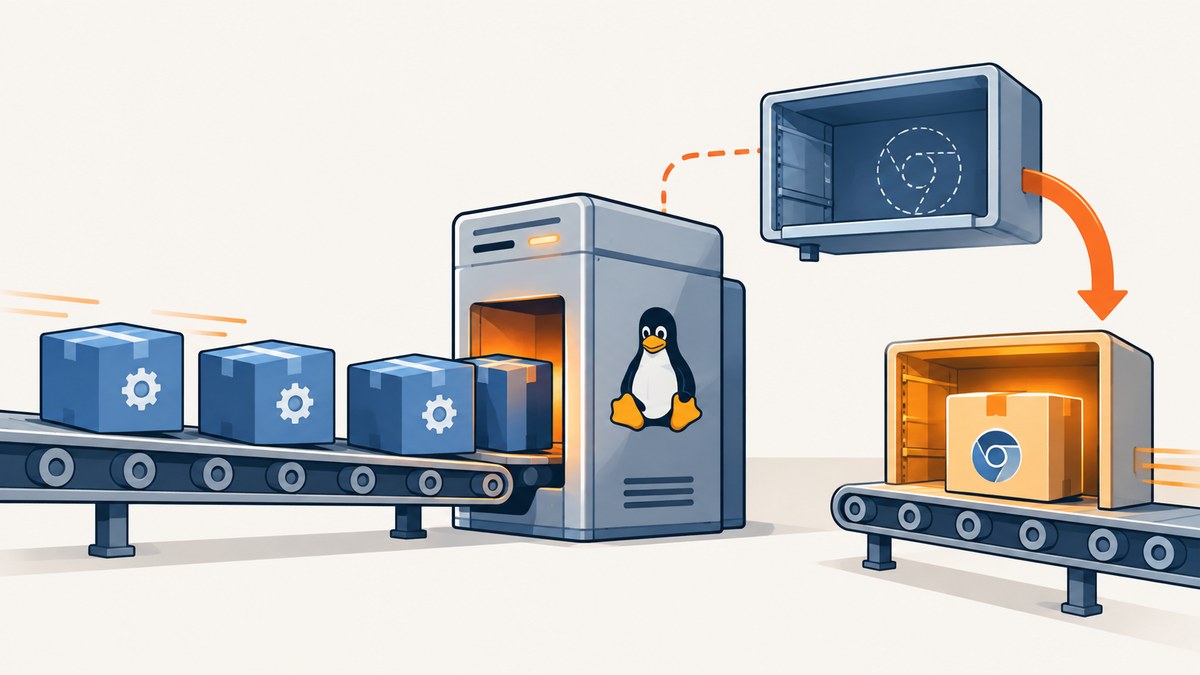
If GitLab CI reports “A Cached Cypress Binary Could not be found”, the usual problem is that the job has the Cypress npm package but cannot find the matching Cypress application binary in its cache. Check whether package-manager install scripts were disabled, confirm the cache path and binary version, explicitly run npx cypress install if needed, and persist the same binary cache path between jobs. If the binary is present but will not launch, investigate Linux runtime dependencies instead.
The npm package and the browser-testing application binary are separate pieces. Installing the package does not by itself prove the binary was downloaded, restored, or can launch in the runner. Cypress describes this error as a CI run or verify command being invoked without a valid binary cache. See the [Cypress error reference](https://docs.cypress.io/app/references/error-messages).
1. Identify which failure you have
Start with the first failing Cypress command in the job log. There are two broad cases:
| What you see | Likely problem | Next step |
|---|---|---|
| “A Cached Cypress Binary Could not be found” or Cypress says to install the binary | No usable binary is present in the cache Cypress is checking | Inspect the cache path and contents, then install or restore the binary |
| The binary is found but cannot start, exits early, or reports missing shared libraries | Host image or Linux runtime dependency problem | Inspect Cypress troubleshooting guidance and use ldd on the executable |
Do not treat these as the same problem. Repeatedly downloading a binary will not supply a missing operating-system library. Conversely, changing Linux libraries does not restore a binary that was never installed. Cypress has a separate [troubleshooting guide](https://docs.cypress.io/app/references/troubleshooting) for launch failures and shared-library checks.
2. Inspect the binary cache in the failing job
Add temporary diagnostics immediately before cypress run. They show which cache directory this job is using and which Cypress versions it contains:
npx cypress cache path
npx cypress cache list
npx cypress verify
On Linux, Cypress’s default cache directory is ~/.cache/Cypress. If the job sets CYPRESS_CACHE_FOLDER, the custom directory takes precedence. Compare the listed versions with the version of the installed Cypress package. A cache can exist and still be unusable if it contains a different version or if Cypress is looking in another directory. Cypress documents these commands and cache behavior in its [CI guide](https://docs.cypress.io/app/continuous-integration/overview) and [CLI reference](https://docs.cypress.io/app/references/command-line).
For a quick package-version check, use the package manager already used in the project:
# npm
npm ls cypress

# Yarn
 yarn why cypress

# pnpm
pnpm why cypress
Remove the leading space before yarn if pasting the snippet into a shell that treats leading whitespace unusually; standard shells accept it. If your repository uses a different package manager, use its equivalent dependency inspection command. The important comparison is the installed Cypress package version versus the binary versions reported by cache list.
3. Check whether the install hook was skipped
Cypress normally downloads its binary through the package’s install lifecycle hook. Package-manager policy, security controls, or an install flag can skip lifecycle scripts. An explicit CYPRESS_INSTALL_BINARY=0 also tells Cypress not to download the binary. This can leave a valid npm package in node_modules with no matching executable in the cache. The [Cypress installation guide](https://docs.cypress.io/app/get-started/install-cypress) explains package-manager installation and lifecycle-script behavior.
Look for these conditions in the job, project configuration, and CI variables:
--ignore-scriptsonnpm cior another package-manager install command.- Package-manager configuration that blocks or disables lifecycle scripts.
CYPRESS_INSTALL_BINARY=0set globally or for the job.- A package installation that happened in one job, while the Cypress binary installation was skipped or took place in another job with an isolated cache.
If you intentionally skip install scripts, explicitly install the binary after installing dependencies. If you did not mean to skip them, remove or correct the setting and make the install behavior consistent with the project’s package-manager policy.
4. Install the binary and expose download diagnostics
Run the explicit install command after the package install. Use the package-manager command runner appropriate to your project; npx is shown for npm here:
npx cypress install
npx cypress verify
If the install fails, enable Cypress CLI debug output so the job log includes download and extraction details:
DEBUG=cypress:cli* npx cypress installFor Yarn or pnpm projects, invoke the project-local Cypress CLI with that package manager (for example, yarn cypress install or pnpm exec cypress install). Then run verify in the same job environment. A successful install in a developer’s laptop or a different CI job does not establish that the failing job can see its binary.
5. Configure GitLab to persist the same cache path
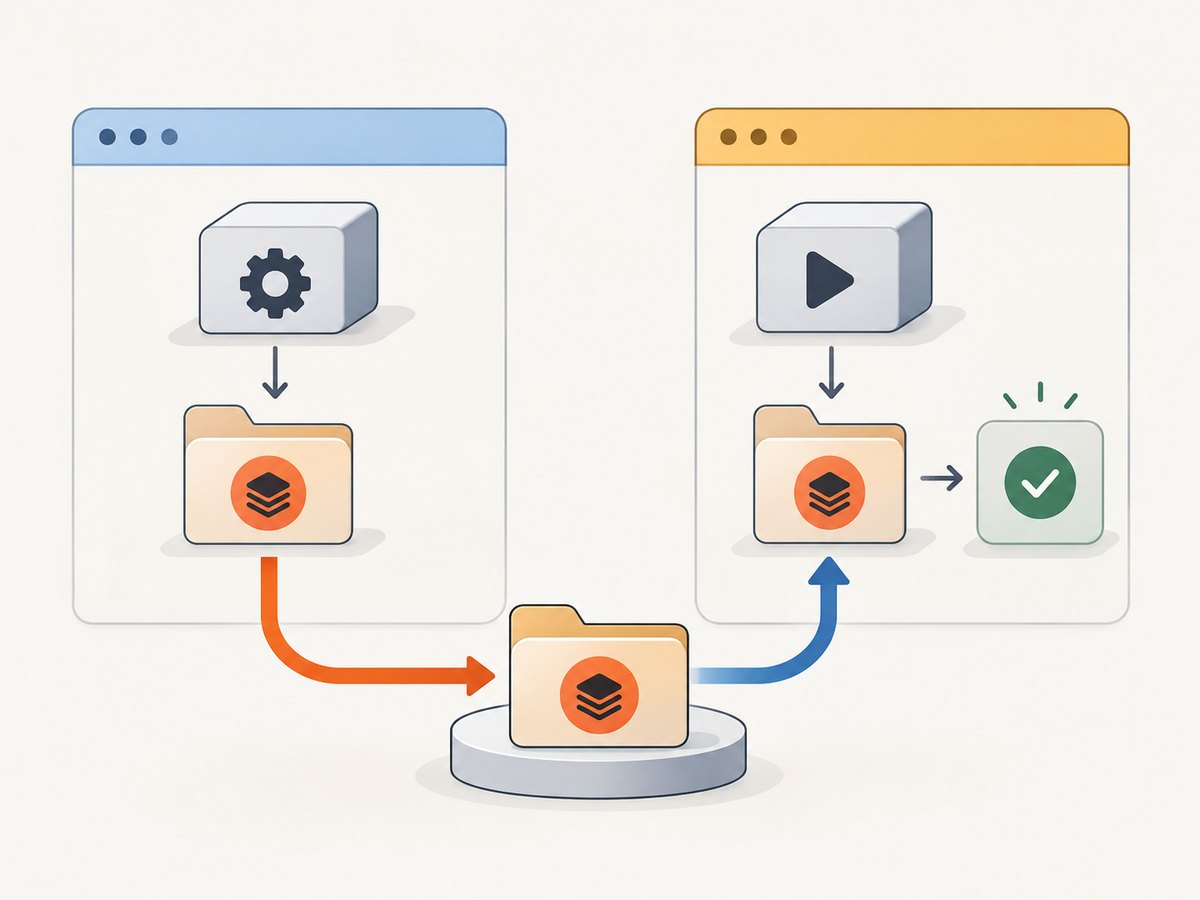
When an install job and a test job are separate, give Cypress a stable cache directory and include that directory in GitLab’s cache configuration. Set the environment variable for both install and test jobs so Cypress writes and reads the same location. Cypress’s [GitLab CI guide](https://docs.cypress.io/app/continuous-integration/gitlab-ci) demonstrates a project-local cache/Cypress folder and a cache shared with worker jobs.
Here is a minimal single-job pattern using npm. It installs the package, explicitly ensures the binary is installed, verifies it, and then runs Cypress. The cache declaration allows GitLab to save the binary folder for later pipelines according to the project’s GitLab cache behavior.
image: cypress/browsers:latest

variables:
  CYPRESS_CACHE_FOLDER: "$CI_PROJECT_DIR/cache/Cypress"

stages:
  - test

cypress:
  stage: test
  cache:
    key:
      files:
        - package-lock.json
    paths:
      - cache/Cypress/
    policy: pull-push
  script:
    - npm ci
    - npx cypress install
    - npx cypress verify
    - npx cypress run
The image line is an example of a Cypress browser image reference, not a claim that every project should use this exact image or tag. Choose an image compatible with your project’s browser and operating-system requirements. The cache configuration is the important part for this missing-binary issue: the install and run commands must resolve the same CYPRESS_CACHE_FOLDER, and GitLab must cache that folder. Adapt the cache key to your dependency lockfile and pipeline structure.
For separate install and test jobs, both jobs need the same variable and cache path. One common shape is:
variables:
  CYPRESS_CACHE_FOLDER: "$CI_PROJECT_DIR/cache/Cypress"

.install_cache:
  cache:
    key:
      files:
        - package-lock.json
    paths:
      - cache/Cypress/

install_dependencies:
  stage: install
  extends: .install_cache
  cache:
    key:
      files:
        - package-lock.json
    paths:
      - cache/Cypress/
    policy: pull-push
  script:
    - npm ci
    - npx cypress install
    - npx cypress verify

e2e:
  stage: test
  extends: .install_cache
  cache:
    key:
      files:
        - package-lock.json
    paths:
      - cache/Cypress/
    policy: pull
  script:
    - npm ci
    - npx cypress verify
    - npx cypress run
This is a starting point, not a universal GitLab pipeline. In particular, a cache is an optimization and its availability depends on how the project’s runners and cache backend are configured. Confirm in the job log that the test job actually restores the path saved by the install job. If jobs run on different runners or use different cache keys, ensure the configuration lets them access the same cache entry. For an installation command in every test job, the explicit install can recover from a cold cache; the persisted cache can avoid a fresh download when present.
6. Avoid using node_modules as the Cypress binary cache
Do not rely on a cached node_modules directory as a replacement for persisting Cypress’s binary cache. Cypress warns that restoring node_modules directly can bypass package-manager checks and can result in the binary’s postinstall being skipped. Prefer the package manager’s own dependency cache plus a distinct Cypress binary cache directory. See Cypress’s [CI guidance](https://docs.cypress.io/app/continuous-integration/overview) and [test performance guidance](https://docs.cypress.io/app/guides/test-performance).
If the project already caches node_modules, remove that as the mechanism intended to provide the Cypress executable. Keep dependency installation reproducible, and configure Cypress’s binary cache separately. This also makes the failure easier to diagnose: the package manager controls package installation, while the explicit Cypress cache controls the downloaded application binary.
7. Troubleshooting common causes
| Symptom | Cause to check | Fix |
|---|---|---|
| Package is installed, but Cypress says the binary is missing | Lifecycle scripts were blocked, or binary download was skipped | Check --ignore-scripts, package-manager policy, and CYPRESS_INSTALL_BINARY; run npx cypress install |
cache list is empty in the test job |
The cache was not restored, its path was omitted from GitLab cache paths, or the job uses a different path | Set one stable CYPRESS_CACHE_FOLDER in both jobs and include that directory in both cache configurations |
| Cache contains a version other than the project’s Cypress version | Cache key or contents are stale or shared across incompatible dependency states | Key the cache consistently with the project lockfile and install the binary for the installed package version |
| Install job works, test job reports missing binary | Jobs do not share the saved cache entry or test job points elsewhere | Compare cache key, path, policy, and job logs; explicitly install in the test job as a recovery path |
cypress verify finds the binary but it will not launch |
Linux shared library or runtime dependency is missing | Follow Cypress’s troubleshooting guide and inspect the executable with ldd |
| Explicit install fails or logs stop around a download | Download or extraction did not complete successfully | Run DEBUG=cypress:cli* npx cypress install and use the debug output to identify the failing step |
| Local run works, CI run does not | Local and CI environments may use different cache paths, versions, lifecycle policies, or Linux dependencies | Run cache path/list, install, and verify inside the failing CI job rather than inferring from the local environment |
For the runtime dependency case, identify the Cypress executable path using Cypress’s documented troubleshooting steps and run ldd against it. A missing library in that output points to the runner image or its dependencies, not to GitLab’s cache restore. Consult the official [Cypress troubleshooting reference](https://docs.cypress.io/app/references/troubleshooting) for the relevant platform guidance.
8. Performance, reliability, and cost considerations
Persisting the binary cache is mainly a way to avoid repeating its download in jobs where a usable cache is available. A cold runner, cache miss, changed cache key, or inaccessible cache backend can still require installation. Keep the explicit install and verify steps while diagnosing; once the pipeline is stable, decide whether to keep the install step as a safety check or rely on a known-good restored cache for that job.
A stable, project-local path is easier to cache consistently than a home directory whose location or persistence varies between runners. It also makes the GitLab cache path visible in the pipeline definition. Version-aware cache keys help avoid treating a binary for a different dependency state as current. Do not assume GitLab cache persistence is equivalent to guaranteed artifact delivery: validate restoration in the actual runner setup.
There is no single runtime or cost figure that applies to all GitLab installations in the source guidance. The practical tradeoff is between installation work on cache misses and the maintenance of a cache that jobs can reliably restore. Cypress’s CI recommendations are to persist the binary cache and avoid directly caching node_modules as a substitute.
Or skip the browser setup
If your task is to capture a page image while investigating a site or documenting a rendering issue, ScreenshotNeo provides a website screenshot API. One GET request returns an image or PDF, so there is no Cypress binary to install for that capture. See the [ScreenshotNeo API documentation](https://screenshotneo.com/docs/) for request options.
curl -G "https://api.screenshotneo.com/v1/shot" -d access_key=YOUR_API_KEY --data-urlencode url=https://stripe.com -o shot.webpimport requests
r = requests.get(
"https://api.screenshotneo.com/v1/shot",
params={"access_key": "YOUR_API_KEY", "url": "https://stripe.com"},
timeout=90,
)
open("shot.webp", "wb").write(r.content)const q = new URLSearchParams({ access_key: 'YOUR_API_KEY', url: 'https://stripe.com' });
const res = await fetch(`https://api.screenshotneo.com/v1/shot?${q}`);ScreenshotNeo accepts cookie or consent banners before capture and removes more than 60 known consent platforms, newsletter popups, and chat widgets; each step can be turned off. Bot checks, blank pages, timeouts, failed loads, and cache hits are not billed, and response headers identify the page verdict and billing status. Its MCP server gives AI agents tools for screenshots, page information, and PDF capture. The free plan includes 1,000 screenshots per month with no card; paid plans start at $5 for 3,000. Create a free account at [ScreenshotNeo](https://screenshotneo.com/account/sign-up/).
FAQ
Does npm ci guarantee the Cypress binary is installed?
No. The package install normally triggers the binary download through a lifecycle hook, but policy or configuration can suppress that hook. Confirm with the cache commands or run the explicit install command.
Should I set CYPRESS_CACHE_FOLDER on every job?
Yes, when you use a custom folder. Set it wherever Cypress installs, verifies, or runs so each command uses the same directory.
Can I use the default Cypress cache path?
Yes. On Linux the default is ~/.cache/Cypress. If your GitLab configuration can reliably persist and restore that location, it can be used; a project-local path is often simpler to declare in the repository cache paths.
What does npx cypress verify tell me?
It checks whether Cypress can locate and verify its binary in the current environment. It helps distinguish a missing or unusable binary from a later test failure.
Is this an application test failure?
Usually the missing-cache error occurs before the application’s end-to-end tests can run. First make Cypress’s binary available and launchable; then diagnose any test failures separately.


