How to Fix EPERM Errors When Changing the Cypress Screenshot Path
Diagnose Cypress EPERM screenshot errors by separating cleanup, folder creation, and write failures, then apply the right permissions and config fix.
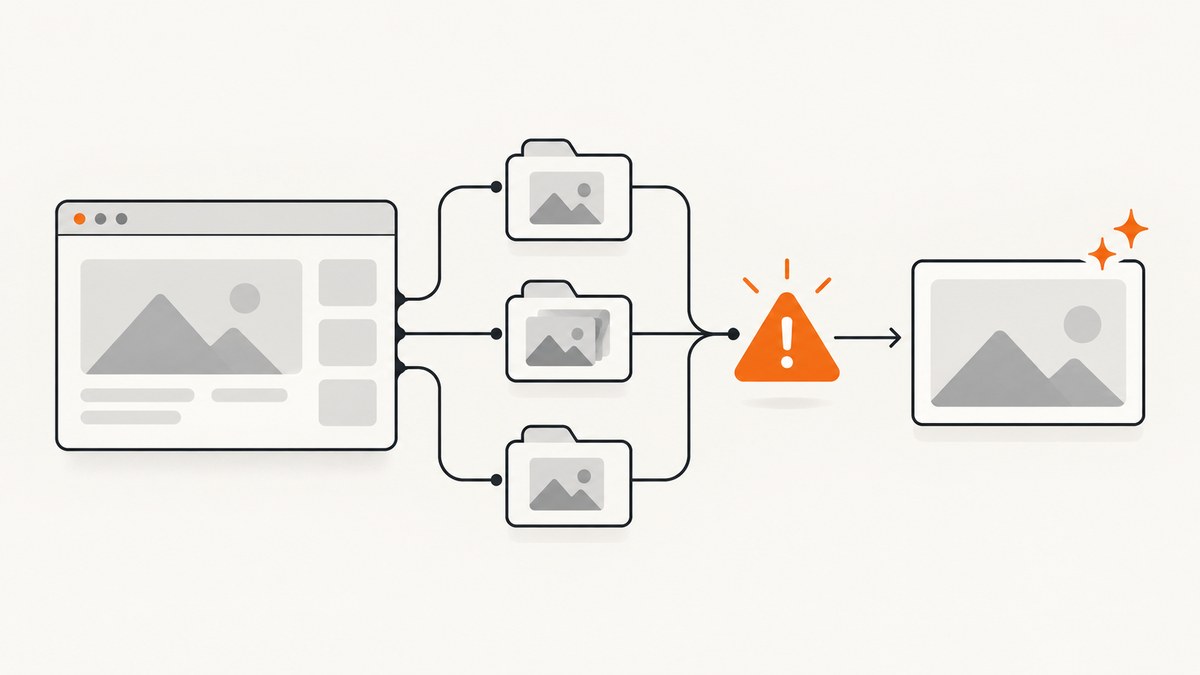
EPERM is a filesystem operation error, not a single Cypress diagnosis. Read the complete message first and identify whether Cypress failed to create a directory, write an image, delete an old screenshot, or rename a file. Then check the exact path, operating system, Cypress version, and process account.
Cypress stores screenshots under screenshotsFolder, which defaults to cypress/screenshots. During cypress run, Cypress also clears that folder by default because trashAssetsBeforeRuns is true. A permission problem during cleanup needs a different fix from a permission problem during capture.
1. Identify the failing operation
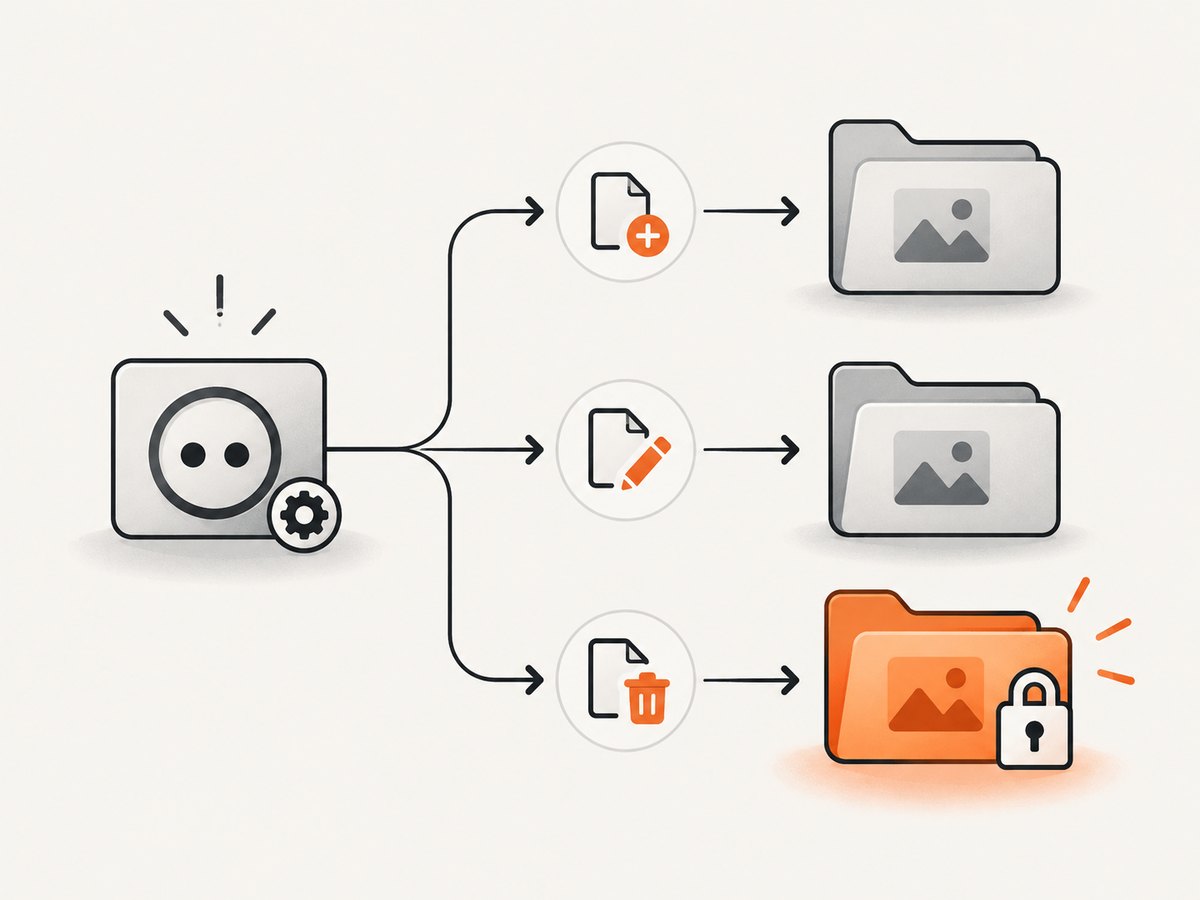
Copy the entire EPERM line, including the operation and path. These examples point to different investigations:
| Message shape | Likely operation | First check |
|---|---|---|
EPERM: operation not permitted, mkdir ... |
Creating the configured folder or a nested spec/filename folder | Parent-folder permissions and the configured destination |
EPERM: operation not permitted, open/write ... |
Writing the screenshot file | Write permission, read-only attributes, disk space, and locks |
EPERM: operation not permitted, unlink/rmdir ... |
Deleting old screenshots before a run | trashAssetsBeforeRuns and processes holding files open |
EPERM: operation not permitted, rename ... |
Moving a temporary file into its final location | Destination permissions, locks, and antivirus or sync tools |
The research for this specific title does not establish one universal cause. Treat the operation and path in your error as authoritative.
2. Configure a writable screenshot directory
Use a project-relative directory that the Cypress process can create and write. Cypress may add directories below this root based on the spec path, and a nested path in the screenshot name can create more subdirectories.
Cypress 10 and later: cypress.config.js
const { defineConfig } = require('cypress');

module.exports = defineConfig({
  screenshotsFolder: 'cypress/artifacts/screenshots',
  trashAssetsBeforeRuns: true,
  e2e: {
    setupNodeEvents(on, config) {
      return config;
    }
  }
});
Older Cypress projects: cypress.json
{
  "screenshotsFolder": "cypress/artifacts/screenshots",
  "trashAssetsBeforeRuns": true
}
Make sure the configuration file is the one loaded by the command you run. A different working directory, configuration file, or package script can make a correct-looking edit ineffective.
Create and inspect the directory
# macOS/Linux
mkdir -p cypress/artifacts/screenshots
ls -ld cypress cypress/artifacts cypress/artifacts/screenshots

# Windows PowerShell
New-Item -ItemType Directory -Force cypress/artifacts/screenshots
Get-Acl .\cypress\artifacts\screenshots
The account running Cypress must have write, create, and delete access. Check the CI service account separately; a directory writable from your terminal may not be writable by a runner service.
3. Understand automatic cleanup
Before cypress run, Cypress clears the contents of screenshotsFolder when trashAssetsBeforeRuns is enabled. Cleanup can remove nested directories as well as image files.
If startup fails while deleting an old screenshot tree, you can disable automatic cleanup:
const { defineConfig } = require('cypress');

module.exports = defineConfig({
  screenshotsFolder: 'cypress/artifacts/screenshots',
  trashAssetsBeforeRuns: false
});
This setting only stops Cypress from deleting the folder contents. It does not grant permissions, change the destination, or repair a locked file. If you disable cleanup, remove stale artifacts with a separate, deliberate cleanup step and keep unrelated files outside the configured folder.
4. Check Windows file locks
On Windows, stop Cypress, the development server, image viewers, file indexers, synchronization clients, and other processes that may hold files in the screenshot tree. Cypress issue #29404 records an intermittent Windows 11 nested-folder deletion failure where stopping the development process allowed deletion in that reproduction. Use it as a test lead, not as a guaranteed diagnosis.
Retry after closing the process, then remove only the affected screenshot directory if it contains disposable artifacts. If deletion still fails, identify the locking process with your organization’s approved Windows handle or process-inspection tool.
5. Verify the path Cypress actually uses
The configured root is not always the complete output path. Cypress derives directories from the spec path, and cy.screenshot() supports nested paths in its name. For example:
cy.screenshot('checkout/payment/declined');That call can create nested folders below screenshotsFolder. Cypress 10 also changed generated paths to strip common ancestor paths shared by specs; issue #22159 discusses output differences based on the selected specs. Confirm the real path on disk for the Cypress version and spec set you are running.
6. Do not change the destination inside a test
Set screenshotsFolder in the configuration used to start Cypress. A runtime Cypress.config() change inside an individual test is not a reliable way to redirect screenshot output; the behavior discussed in issue #6407 shows why you should verify version-specific support rather than depend on a test-time mutation.
7. A reproducible diagnostic workflow
- Save the full error, including
mkdir,open,unlink,rmdir, orrenameand the exact path. - Record the OS, Cypress version, command, selected specs, and whether the failure happens at startup or during a test.
- Print or inspect the loaded
screenshotsFolderconfiguration and confirm its parent exists. - Test create, write, rename, and delete permissions as the same account that runs Cypress.
- If the path names an old asset, test with
trashAssetsBeforeRuns: false. If the capture then succeeds, implement an explicit cleanup process rather than assuming the destination is fixed. - On Windows, close processes using the tree and retry.
- Run one spec and inspect the produced path, then compare it with a multi-spec run for ancestor-path differences.
8. Common errors and fixes
| Symptom | Cause to investigate | Fix |
|---|---|---|
| Fails before tests start while naming an old file | Automatic screenshot cleanup cannot delete a nested tree | Close locking processes; verify permissions; temporarily set trashAssetsBeforeRuns: false and own cleanup |
Fails with mkdir under the new root |
Parent is missing or the Cypress account cannot create folders | Use a writable project-relative path and grant the runner create/write access |
| Works locally but fails in CI | Different service account, workspace, read-only mount, or restricted directory | Inspect CI identity and mount permissions; choose a workspace-owned folder |
| Only one spec fails | That spec or screenshot name creates a nested path, or its generated path is locked | Inspect the exact derived path and simplify the name temporarily |
| Changing config appears to do nothing | Another config file, working directory, or command is being used | Confirm the command’s project root and loaded configuration |
| Cleanup succeeds but capture still fails | Write permission, disk space, read-only attribute, or destination lock | Test file creation as the Cypress account and inspect the write path |

9. Reliability, performance, and cost considerations
- Keep screenshots on local workspace storage during a run when possible; network shares and synchronized folders add locking and latency variables.
- Use a dedicated artifacts directory so cleanup cannot remove source files or unrelated build output.
- Retaining every run with
trashAssetsBeforeRuns: falseincreases disk usage. Add bounded retention and monitor available space. - Run a single spec while diagnosing path derivation, then expand to the full suite.
- Do not treat a successful retry as proof of a permanent fix; record the operation, account, path, and lock or permission change that resolved it.
Or skip the browser setup
If you need a hosted screenshot instead of Cypress’s local browser capture, ScreenshotNeo returns a PNG, JPEG, WebP, or PDF from one GET request. Its capture flow accepts consent banners and removes more than 60 known consent platforms, newsletter popups, and chat widgets before the shot; bot checks, blank pages, timeouts, failed loads, and cache hits are not billed.
See the ScreenshotNeo API documentation for all options.
cURL
curl -G "https://api.screenshotneo.com/v1/shot" -d access_key=YOUR_API_KEY --data-urlencode url=https://stripe.com -o shot.webpPython
import requests

r = requests.get(
    "https://api.screenshotneo.com/v1/shot",
    params={"access_key": "YOUR_API_KEY", "url": "https://stripe.com"},
    timeout=90,
)
r.raise_for_status()
open("shot.webp", "wb").write(r.content)
Node.js
const q = new URLSearchParams({ access_key: 'YOUR_API_KEY', url: 'https://stripe.com' });
const res = await fetch(`https://api.screenshotneo.com/v1/shot?${q}`);
if (!res.ok) throw new Error(`HTTP ${res.status}`);
const fs = await import('node:fs/promises');
await fs.writeFile('shot.webp', Buffer.from(await res.arrayBuffer()));
Responses include X-Page-Verdict and X-Billed headers so your application can tell whether a clean shot was billed. ScreenshotNeo also provides an MCP server with take_screenshot, get_page_info, and capture_pdf tools for Claude, Cursor, and other MCP clients. The Free plan includes 1,000 shots per month with no card; paid plans start at $5 for 3,000 shots, and every feature is available on every plan.
Create a free ScreenshotNeo account and start with the 1,000 included screenshots.
FAQ
What is the default Cypress screenshot folder?
cypress/screenshots, unless your configuration overrides screenshotsFolder. See the Cypress configuration reference.
Does trashAssetsBeforeRuns: false fix EPERM?
Only when the failing operation is Cypress deleting old assets. It cannot fix mkdir or image-write permissions.
Why are there folders below my configured path?
Cypress derives folders from the spec path and can create nested directories from a screenshot name. See the cy.screenshot() API.
Should I change permissions to allow everyone to write?
Grant the minimum create, write, rename, and delete access required to the account that runs Cypress, and prefer a dedicated artifacts directory.
What details should I include in a bug report?
Include the full EPERM text and path, operation, OS, Cypress version, command, selected specs, configuration file, and whether another process or CI account is involved.
References: Cypress screenshots and videos guide, Cypress issue #29404, Cypress issue #22159, and Cypress issue #6407.


