How to Fix Cypress Tests That Fail in GitHub Actions Headless Mode
Diagnose Cypress failures in GitHub Actions headless mode with reproducible browsers, reliable server readiness, artifacts, and targeted fixes.
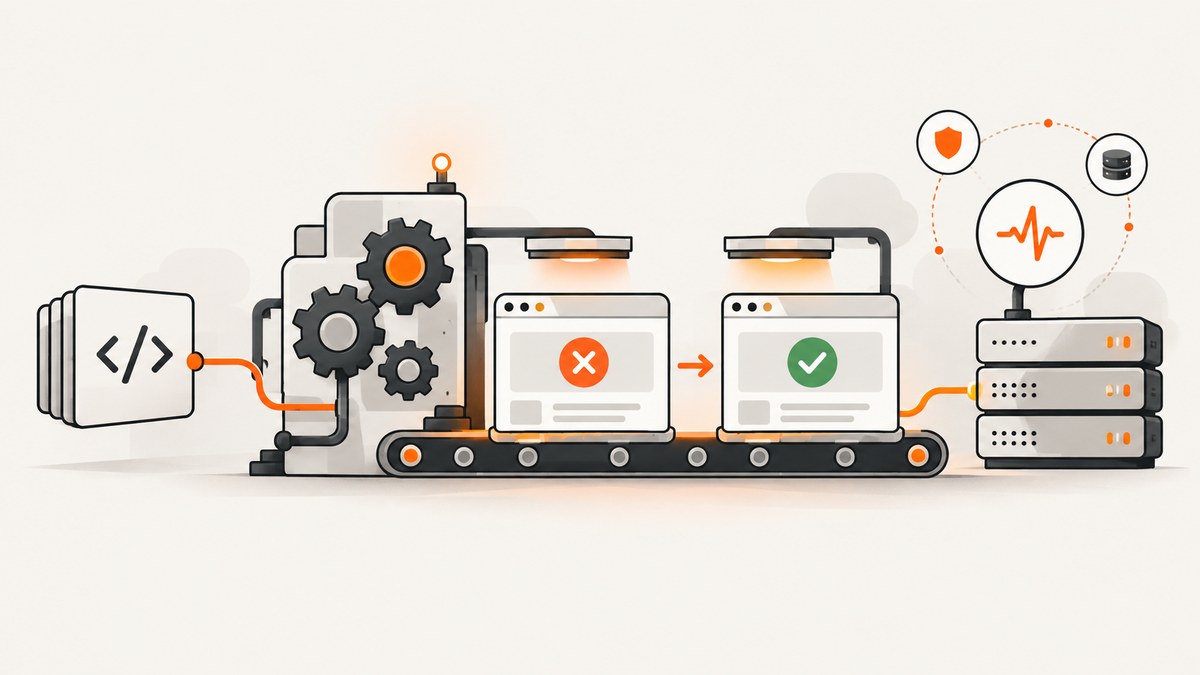
Most Cypress failures in GitHub Actions headless mode come from differences between the CI environment and your laptop: the browser or viewport differs, the application is not ready when Cypress starts, environment variables are missing, or the runner is short on memory. Fix the execution environment and synchronization first, then change a test only when the failure proves the assertion is wrong.
cypress run is expected to run headlessly; since Cypress v8, that is the default. Reproduce that mode locally, pin the versions that matter, start your app through the maintained GitHub Action, wait for a real health URL, and preserve screenshots and videos for every failure.
1. Use a reliable GitHub Actions baseline
The maintained Cypress action is the shortest path to a consistent workflow. Pin its major version, build the application, start it, wait for an endpoint that proves readiness, and select the browser you intend to run.
name: Cypress Tests

on:
  push:
  pull_request:

jobs:
  cypress-run:
    runs-on: ubuntu-24.04
    steps:
      - name: Check out repository
        uses: actions/checkout@v7

      - name: Run Cypress
        uses: cypress-io/github-action@v7
        with:
          build: npm run build
          start: npm start
          wait-on: http://localhost:8080/health
          wait-on-timeout: 120
          browser: chrome
The action installs dependencies, can build and start your application, waits for configured URLs, and runs Cypress. The official guide recommends cypress-io/github-action@v7. The action’s default wait-on retry period is 60 seconds; increase wait-on-timeout when a slow build is healthy but needs more time.
Use the port and health path your application actually exposes. A health endpoint should return a successful response without requiring a user session or frontend JavaScript.
2. Reproduce headless mode locally
A headed run can hide layout, timing, and browser-launch problems. Run the same command CI uses before changing assertions:
npx cypress run --browser chrome
Record the values below locally and in CI:
| Dimension | What to compare |
|---|---|
| Browser | Name and exact version |
| Viewport | Width, height, device scale factor, and responsive breakpoint |
| Runtime | Node.js, npm, Cypress, and operating-system versions |
| Application | Build command, commit, feature flags, API base URL, and assets |
| Timing | Server readiness, network idle behavior, animation, and third-party requests |
| Resources | Runner memory, CPU contention, parallel jobs, and browser crashes |
GitHub-hosted Ubuntu and Windows runners include Chrome, Firefox, and Edge; macOS runners also include Safari. Runner images change over time, so browser versions can drift. When exact reproduction matters, run the action in a pinned cypress/browsers Docker image rather than using a floating latest tag.
3. Fix server-start races before changing tests
Cypress documents that there is no guarantee your server has booted when cypress run executes. Avoid backgrounding a process and guessing with a sleep:
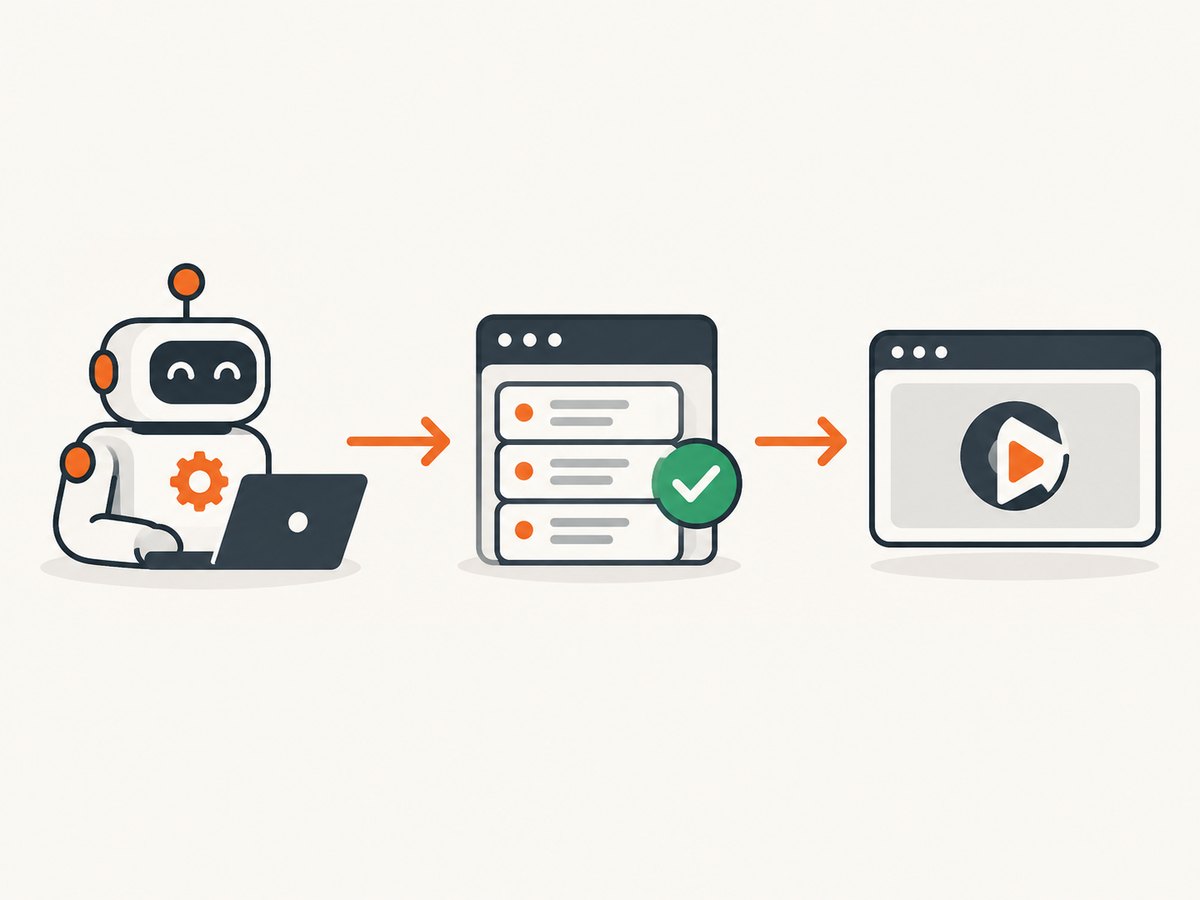
# Fragile
npm start &
sleep 20
npx cypress run
Use the action’s start and wait-on settings instead. If readiness fails, inspect the application process output and query the endpoint from the runner.
curl --fail --show-error --silent http://localhost:8080/health
A successful health response should mean the server is listening and its required startup work is complete. If your app has separate API and frontend processes, wait on both:
      - uses: cypress-io/github-action@v7
        with:
          build: npm run build
          start: npm start
          wait-on: 'http://localhost:8080/health,http://localhost:3000'
          wait-on-timeout: 180
          browser: chrome
Health checks for applications that need warm-up
Make the endpoint return a non-success status until migrations, configuration loading, and required dependencies are ready. Do not make the check depend on a slow page or an external service that is not required for the test.
// server.js (Node.js example)
import http from 'node:http';

const server = http.createServer((req, res) => {
  if (req.url === '/health') {
    res.writeHead(200, { 'content-type': 'application/json' });
    res.end(JSON.stringify({ status: 'ok' }));
    return;
  }
  res.writeHead(404);
  res.end();
});

server.listen(8080, '0.0.0.0');
4. Make browser and Cypress versions reproducible
Compare the browser name and version shown in the Cypress output. Select the same browser locally and in CI with --browser chrome or the action’s browser: chrome setting.
Pin dependency inputs in the repository:
npm ci
npx cypress verify
npx cypress version
node --version
For stronger reproducibility, use a specific Cypress browser image tag:
jobs:
  cypress-run:
    runs-on: ubuntu-24.04
    container:
      image: cypress/browsers:node-22.14.0-chrome-133.0.6943.53-1-ff-135.0.0-edge-133.0.3065.82-1
    steps:
      - uses: actions/checkout@v7
      - uses: cypress-io/github-action@v7
        with:
          build: npm run build
          start: npm start
          wait-on: http://localhost:8080/health
          browser: chrome
Use an image tag supported by your project and update it deliberately. Pinning prevents an unrelated runner image update from changing browser behavior.
5. Check viewport, display, and responsive behavior
Headless Chrome can expose a different responsive breakpoint than your desktop browser. Set the viewport explicitly in cypress.config.js:
import { defineConfig } from 'cypress';

export default defineConfig({
  e2e: {
    baseUrl: 'http://localhost:8080',
    viewportWidth: 1280,
    viewportHeight: 720,
    video: true,
    screenshotOnRunFailure: true,
    retries: {
      runMode: 2,
      openMode: 0
    }
  }
});
If a test targets a mobile layout, set that viewport in the test or a project-specific configuration instead of relying on the developer’s monitor size.
6. Separate timing defects from slow CI
Cypress commands retry while their assertions are waiting for the application. Prefer waiting for a state that matters:
cy.intercept('GET', '/api/orders').as('orders');
cy.visit('/orders');
cy.wait('@orders').its('response.statusCode').should('eq', 200);
cy.get('[data-cy=orders-table]').should('be.visible');
Use a targeted timeout when one operation is known to be slower:
cy.get('[data-cy=report]', { timeout: 30000 }).should('be.visible');
Do not globally multiply every timeout to hide a deterministic defect. First verify that the server is ready, the request succeeds, and the selector represents a user-visible state.
7. Verify environment variables and secrets
A test can pass locally because a .env file, service, or browser profile exists on the developer machine. In Actions, explicitly provide the values required by the build and Cypress:
      - uses: cypress-io/github-action@v7
        env:
          CYPRESS_baseUrl: http://localhost:8080
          CYPRESS_API_URL: http://localhost:8080/api
          NODE_ENV: test
        with:
          build: npm run build
          start: npm start
          wait-on: http://localhost:8080/health
          browser: chrome
Never print secret values. Log whether a required variable is present and fail with a clear message when it is missing.
8. Capture evidence from every failed run
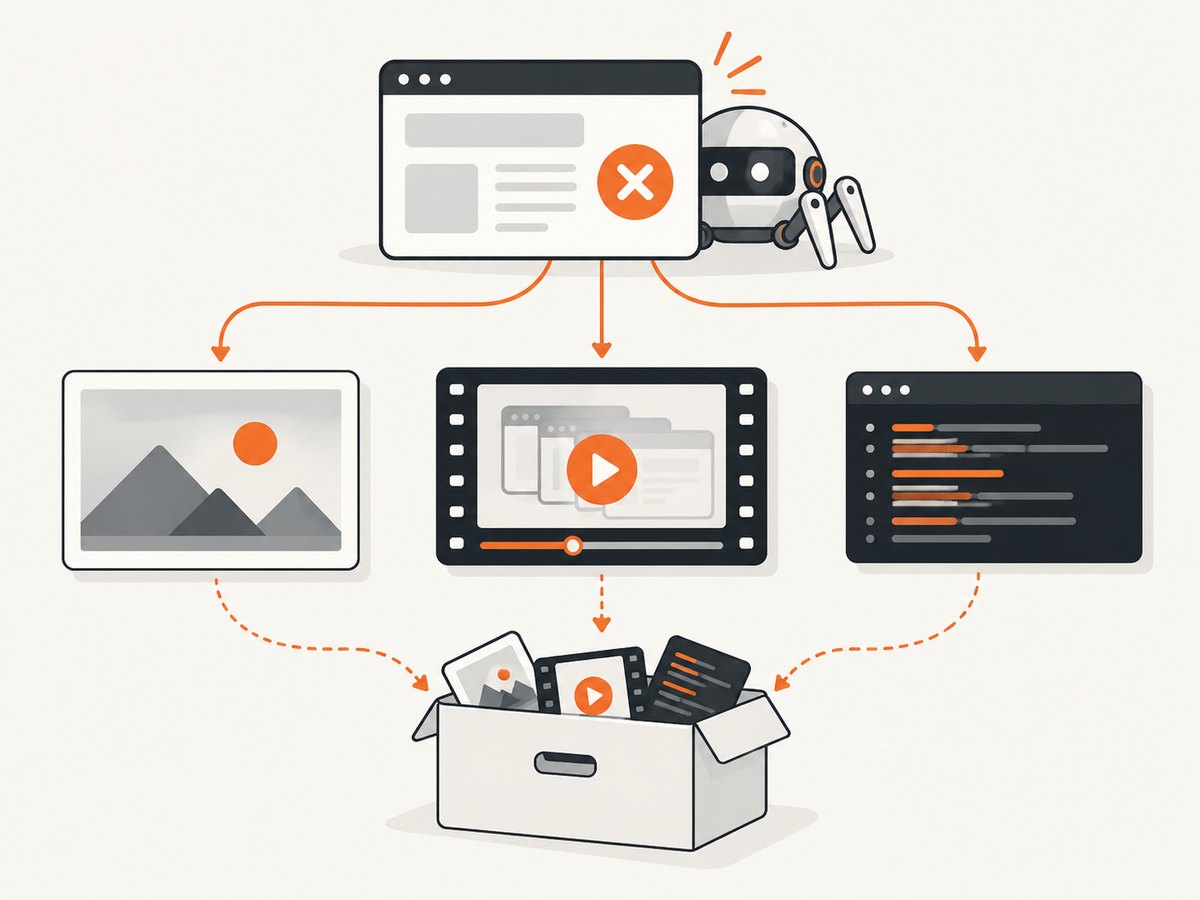
Enable screenshots and video in the Cypress configuration. Upload them as workflow artifacts so a failure can be diagnosed after the runner is gone.
name: Cypress Tests

on: push

jobs:
  cypress-run:
    runs-on: ubuntu-24.04
    steps:
      - uses: actions/checkout@v7
      - uses: cypress-io/github-action@v7
        continue-on-error: true
        with:
          build: npm run build
          start: npm start
          wait-on: http://localhost:8080/health
          browser: chrome
      - name: Upload Cypress evidence
        if: always()
        uses: actions/upload-artifact@v4
        with:
          name: cypress-evidence
          path: |
            cypress/screenshots
            cypress/videos
            cypress/downloads
Use DEBUG='@cypress/github-action' for action-level diagnostics. Cypress Cloud can add shareable reports, screenshots, videos, stack traces, Test Replay, and flaky-test visibility when you need a longer-lived record of CI behavior.
9. Diagnose the failure category
| Symptom | Likely cause | First fix |
|---|---|---|
| Connection refused or wrong URL | Server has not started, wrong port, or wrong base URL | Use start plus wait-on; query the health URL from the runner |
| Element never appears | API request failed, selector changed, or viewport differs | Inspect screenshot and network log; assert the request and use a stable data-cy selector |
| Timeout only in CI | Slow build, race, missing dependency, or resource contention | Wait for readiness, check logs, then apply a targeted timeout |
| Browser fails to launch | Unsupported or drifting browser/runtime | Print versions and use a pinned browser image |
| Blank page | Application crash, asset failure, or missing environment variable | Inspect server logs, browser console output, and build configuration |
| Process exits with out-of-memory | Browser, app, and server exceed runner memory | Reduce parallel load or use a runner with more memory after confirming the symptom |
| Flaky pass/fail results | Uncontrolled network, animation, clock, or shared state | Stub nondeterministic dependencies and wait on explicit application states |
10. Use a diagnostic checklist
- Run
npx cypress run --browser chromelocally. - Print Node, Cypress, browser, and operating-system versions.
- Confirm the workflow uses the intended commit and lockfile.
- Replace arbitrary sleeps with a real health URL.
- Check the application process log before changing assertions.
- Set viewport dimensions explicitly.
- Verify CI environment variables without printing secrets.
- Upload screenshots, videos, and downloads with
if: always(). - Check for browser crashes and out-of-memory messages.
- Pin a browser image when runner drift is a factor.
11. Performance, reliability, and cost choices
Reproducibility: pinned action, Node, Cypress, browser, and container versions reduce environmental drift.
Startup correctness: a health endpoint is faster to diagnose and safer than a fixed sleep. Increase wait-on-timeout only when logs show a healthy but slow startup.
Execution cost: parallel jobs can shorten wall-clock time but increase runner usage and memory pressure. Reduce parallelism when browser crashes or out-of-memory errors appear.
Reliability: retry a run to expose transient infrastructure issues, but keep test-level synchronization explicit so retries do not mask product defects.
Diagnosis quality: artifacts are the minimum evidence; Cypress Cloud is useful when failures need replay, history, and flaky-test visibility.
Or skip the browser setup
If your goal is to capture a page from a CI job, documentation pipeline, or failure report, ScreenshotNeo provides a screenshot API without installing or maintaining a browser in the workflow. It accepts a URL and returns PNG, JPEG, WebP, or PDF.
See the ScreenshotNeo API documentation for all options. A minimal call is:
curl -G "https://api.screenshotneo.com/v1/shot" -d access_key=YOUR_API_KEY --data-urlencode url=https://stripe.com -o shot.webpimport requests
r = requests.get("https://api.screenshotneo.com/v1/shot", params={"access_key": "YOUR_API_KEY", "url": "https://stripe.com"}, timeout=90)
open("shot.webp", "wb").write(r.content)
const q = new URLSearchParams({ access_key: 'YOUR_API_KEY', url: 'https://stripe.com' });
const res = await fetch(`https://api.screenshotneo.com/v1/shot?${q}`);
Cookie banners, newsletter popups, and chat widgets are removed before the shot. Bot checks, blank pages, failed loads, timeouts, and cache hits are not billed, and response headers identify the page verdict and billing status. An MCP server lets Claude, Cursor, and other MCP clients take screenshots, inspect pages, and capture PDFs. The Free plan includes 1,000 screenshots each month with no card; paid plans start at $5 for 3,000 shots.
Create a free ScreenshotNeo account and use the API when a CI screenshot does not need a project-specific Cypress browser.
FAQ
Is Cypress headless mode a different test runner?
No. cypress run runs the Cypress tests in a headless browser by default. The environment around the browser is what usually differs from local development.
Should I use headed mode in GitHub Actions?
Use headed mode for local diagnosis when it helps you see the page. A headed pass does not prove that the headless CI path is fixed.
How long should wait-on-timeout be?
Keep the default when startup is normally quick. Increase it only after confirming from logs that the application is healthy but needs longer on the selected runner.
Should every Cypress test get a larger timeout?
No. Apply timeouts to the specific command whose legitimate operation is slow, and fix missing synchronization or server failures first.
When should I pin a Docker browser image?
Pin one when browser version drift or runner-image changes make failures hard to reproduce. Update the tag deliberately with the rest of your dependency changes.


