How to Fix Common Cypress Installation Errors
Diagnose Cypress installation failures by layer—package, binary, cache, OS, network, or CI—and apply the documented fix.
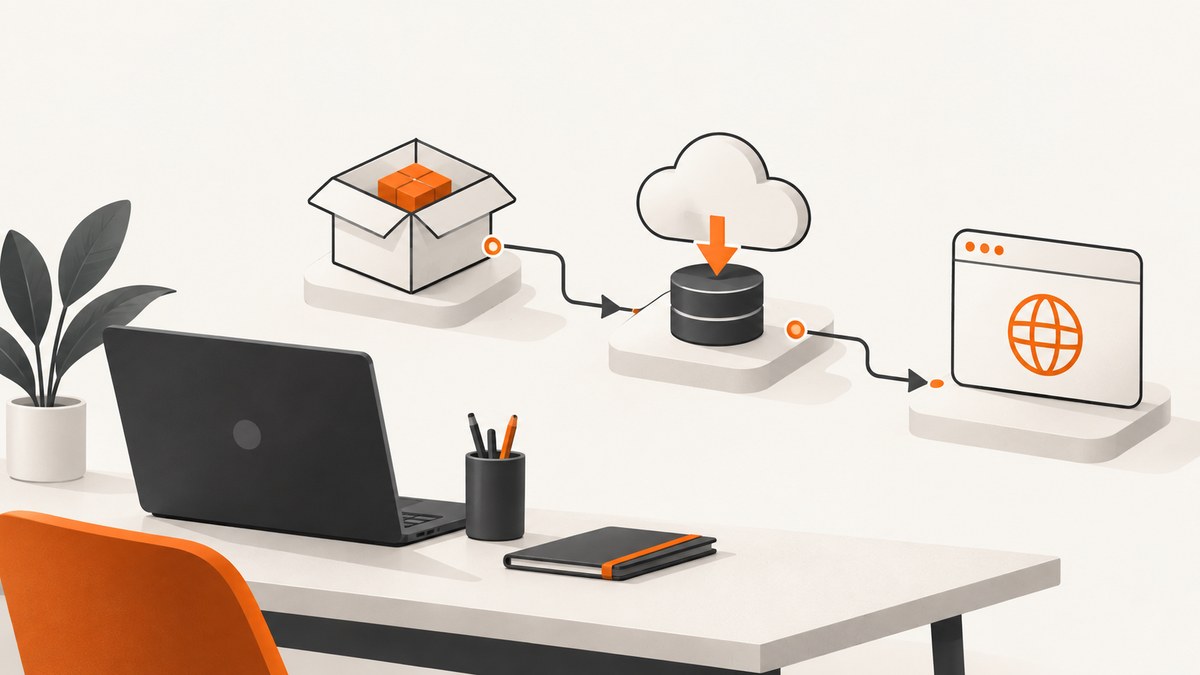
Cypress installation failures are easier to fix when you identify which layer failed. The JavaScript package, Cypress’s platform-specific binary, its global cache, application data, operating-system libraries, and browser launch are separate parts of the installation.
Start by checking the exact error, operating system, architecture, Node.js version, package manager and package-manager version. Then use the matching section below.
1. Understand what Cypress installs
A normal install has three distinct pieces:
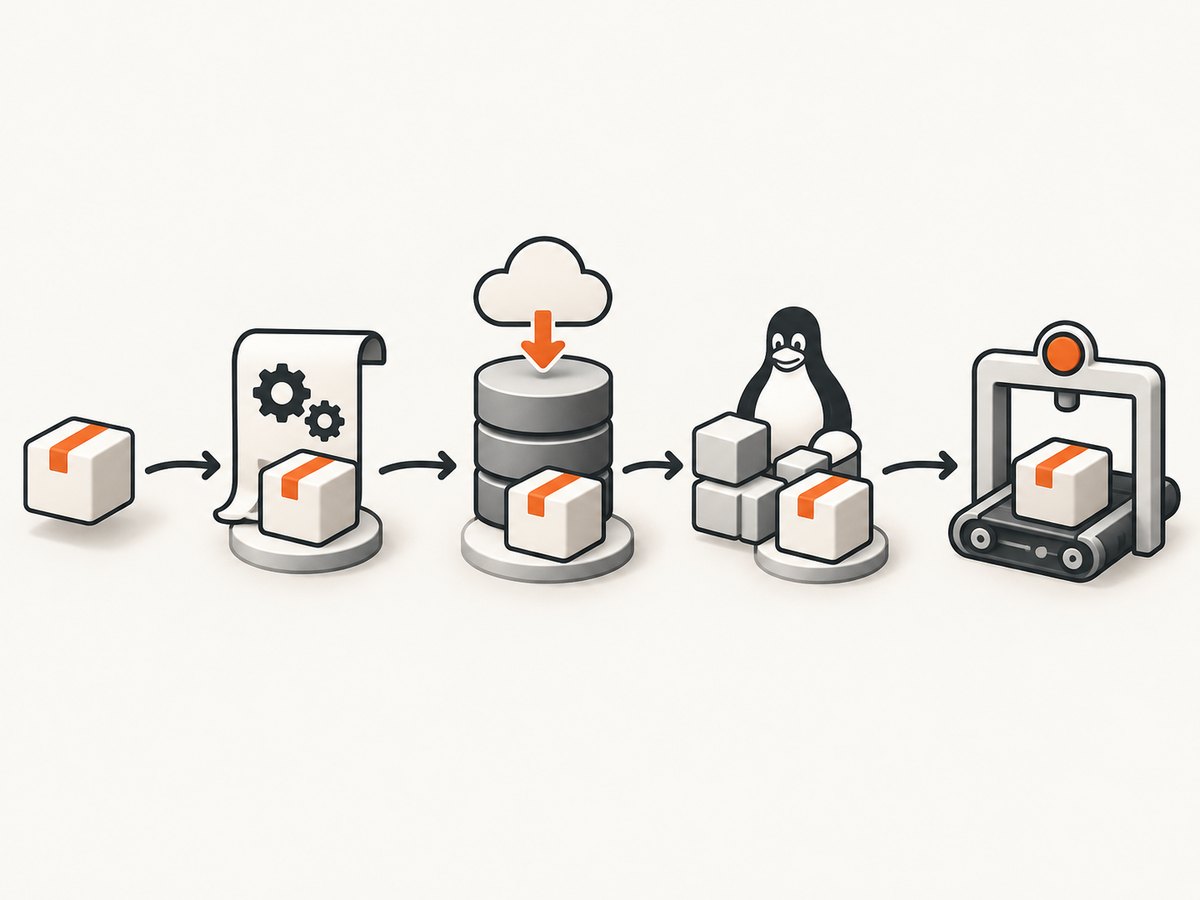
- JavaScript package: the
cypresspackage placed in your project. - Application binary: the platform-specific Cypress executable downloaded by the package lifecycle script.
- Application data: Cypress state stored separately from both the package and binary cache.
A successful npm install, yarn add, pnpm add or bun add therefore does not prove that the executable exists. Lifecycle scripts can be disabled, downloads can fail, or a cache can become unusable. See the current Cypress installation requirements before changing configuration.
2. Quick diagnosis checklist
- Run
node --versionand identify your OS, release and CPU architecture. - Confirm that your Node.js and OS versions are supported by the current Cypress install page.
- Check whether the package is present with your package manager.
- Check whether Cypress can find a binary with
npx cypress verify(or the equivalent package-manager command). - Inspect the cache with
npx cypress cache pathandnpx cypress cache list. - Decide whether the failure is a lifecycle-script, download, unzip, cache, Linux dependency, permission, or CI problem.
3. Fix a missing Cypress binary
The common symptom is that the package is installed but Cypress reports that its binary could not be found. This usually means the package manager did not run or complete Cypress’s install hook.
npm
Recent npm releases can warn about or block lifecycle scripts. Follow the current Cypress instructions for approving Cypress in npm’s allowScripts configuration, then rebuild the package:
npm rebuild cypressIf you need to install the binary directly, run:
npx cypress installDo not assume a setting from an older npm article applies to your installed npm version. The behavior changed in recent npm releases.
Yarn Modern
Yarn Modern can disable scripts by default. Enable scripts and preapprove Cypress according to the current Cypress guide, then run the documented Cypress install command. If you use Plug’n’Play, note that Cypress Component Testing is not currently compatible with Yarn Plug’n’Play’s default nodeLinker: pnp; use the documented node-modules setup where required.
pnpm
Use Cypress’s current allow-build guidance for your pnpm version. Also review pnpm’s side-effects cache behavior if the package appears installed but its postinstall output never ran. Configuration names and defaults can change, so copy the setting from the live Cypress installation guide.
Bun
If Bun installed the package with lifecycle scripts ignored, trust Cypress for install scripts or run the binary installation explicitly:
bunx cypress installThen verify the binary:
bunx cypress verify4. Expose hidden download or unzip errors
Package managers often compress or hide postinstall output. Cypress’s advanced installation guide recommends separating package installation from binary installation and enabling CLI debug logging:
CYPRESS_INSTALL_BINARY=0 npm install cypress --save-dev
DEBUG=cypress:cli* npx cypress install
Use the equivalent package-manager command if you use Yarn, pnpm or Bun. The debug output helps distinguish a blocked URL, proxy failure, certificate problem, incomplete archive or unzip error.
Proxy, firewall and certificate failures
- Confirm the machine can reach the download endpoint from the same shell and user that runs installation.
- Ask your network administrator to allow the URLs required by the current Cypress documentation.
- Configure the approved proxy and certificate chain for your environment.
- If direct downloads are prohibited, use the documented binary URL or mirror mechanism.
- Do not copy a generic firewall allowlist from an old post; endpoints and requirements can change.
See Cypress’s advanced installation documentation for the supported mirror, proxy and certificate options.
5. Repair or inspect the Cypress cache
A broken cache is different from a disabled install hook. First inspect it:
npx cypress cache path
npx cypress cache list
To remove every cached Cypress binary:
npx cypress cache clear
npx cypress install
cypress cache clear removes all installed Cypress binary versions, so install the required version again afterward. If only obsolete versions should be removed, use the documented prune command:
npx cypress cache pruneCypress application data is stored separately. Clear app data only when evidence points to corrupted application state; deleting the binary cache does not reset that state.
6. Fix Linux dependency and sandbox errors
Linux failures are distribution and release specific. Check the current Cypress prerequisite list for your exact distribution before installing packages. Names differ between Ubuntu, Debian, Fedora, Alpine and other environments.
Find missing shared libraries
Run the Cypress binary smoke test and inspect unresolved libraries with ldd. A line ending in not found identifies a library the operating system must provide.
npx cypress version
ldd ~/.cache/Cypress/*/Cypress/Cypress | grep 'not found'
The cache path can differ, so obtain the real location with npx cypress cache path. Install the matching system packages from the official prerequisite list, then rerun verification.
Containers and Ubuntu sandbox cases
Cypress Docker images include the browser dependencies required by supported images and can simplify CI setup. Cypress also documents a sandbox case specific to Ubuntu 24.04. Treat that workaround as environment-specific and follow the current troubleshooting page rather than applying it to every Linux host.
7. Fix Cypress that works locally but fails in CI
CI needs both the JavaScript package and the matching Cypress binary. A restored node_modules directory is not a substitute for a restored Cypress binary cache.
- Check that the CI package-manager configuration permits Cypress lifecycle scripts.
- Restore or install the Cypress binary cache before running tests.
- Cache Cypress’s binary directory and your package manager’s cache using keys that include the Cypress and lockfile versions.
- Avoid caching
node_modulesdirectly as the only installation strategy; it can leave the binary undownloaded. - Verify Linux libraries and browser dependencies on the CI image.
- Print
npx cypress cache pathandnpx cypress cache listin a diagnostic job when restoration is uncertain.
Use Cypress’s continuous integration guidance for the CI provider and cache implementation you use.
8. Fix permissions errors safely
Permission errors often mean Node.js, the package-manager cache or the Cypress cache belongs to another user. Confirm that Node.js is installed and inspect ownership and write permissions for the project and cache directories.
Correct ownership and the package manager’s configured directories for the CI or workstation user. The Cypress FAQ mentions sudo for some system-level permission problems, but running sudo npm install is not a universal fix: it can create root-owned files that break later installs.
9. Common errors and their fixes
| Symptom | Likely cause | Action |
|---|---|---|
| “The Cypress npm package is installed, but the Cypress binary is missing” | Lifecycle script was blocked or binary cache was not restored | Approve the package-manager script, run the explicit install command, and inspect the cache |
| Install hangs or fails while downloading | Firewall, proxy, certificate interception or unavailable endpoint | Run with DEBUG=cypress:cli*; configure the approved proxy, mirror or certificate setup |
| Archive downloads but cannot be extracted | Incomplete download, corrupted cache or disk/permission issue | Clear the affected cache, check disk space and permissions, then reinstall |
| Linux reports a shared library as “not found” | OS prerequisite is absent | Use ldd, install the package for that distribution and rerun verification |
| Works on a laptop but not in CI | Binary cache or install hook differs between environments | Permit scripts, restore the Cypress cache and validate the CI image dependencies |
| Browser starts with a sandbox error | Container or distribution-specific security configuration | Follow the current Cypress troubleshooting instructions for that exact environment |
| Permission denied writing cache | Wrong owner or unwritable package-manager directory | Fix ownership and configured paths for the active user |
10. A repeatable clean reinstall
Use this sequence after recording the original error and only when inspection has not identified a narrower fix:
- Remove the project’s Cypress package using your package manager.
- Inspect and clear the Cypress binary cache.
- Check ownership, disk space, Node.js and supported versions.
- Reinstall the package with lifecycle scripts enabled.
- Run the explicit Cypress install command with debug logging.
- Run
cypress verify, then launch a minimal test.
Do not delete unrelated application data or global package-manager directories as a first step; broad cleanup can hide the original cause.
11. Performance, reliability and cost considerations
- Installation time: restoring a versioned Cypress binary cache avoids repeating a large download on every CI job.
- Reliability: pin the Cypress version in your lockfile and use cache keys that change when that version changes.
- Network resilience: approved mirrors and proxies can make downloads predictable in restricted networks.
- Reproducibility: use the same Node.js, package-manager and OS image across local development and CI where practical.
- Cost: Cypress installation itself has no API capture charge. Your CI provider, network egress and storage may still have their own costs.
12. Or skip the browser setup
If your goal is to obtain a clean page image or PDF rather than run Cypress tests, ScreenshotNeo provides a single HTTP request. It handles browser setup for the capture and supports PNG, JPEG, WebP and PDF output. See the ScreenshotNeo API documentation for all options.

cURL
curl -G "https://api.screenshotneo.com/v1/shot" -d access_key=YOUR_API_KEY --data-urlencode url=https://stripe.com -o shot.webpPython
import requests
r = requests.get("https://api.screenshotneo.com/v1/shot", params={"access_key": "YOUR_API_KEY", "url": "https://stripe.com"}, timeout=90)
open("shot.webp", "wb").write(r.content)
Node.js
const q = new URLSearchParams({ access_key: 'YOUR_API_KEY', url: 'https://stripe.com' });
const res = await fetch(`https://api.screenshotneo.com/v1/shot?${q}`);
Cookie banners, newsletter popups and chat widgets are removed before the shot. Bot checks, blank pages, failed loads and cache hits are never billed, and response headers identify the page verdict and whether it was billed. ScreenshotNeo also has an MCP server with take_screenshot, get_page_info and capture_pdf tools for Claude, Cursor and other MCP clients. The Free plan includes 1,000 screenshots a month with no card; paid plans start at $5 for 3,000.
Create a free ScreenshotNeo account to get started.
13. FAQ
Why is Cypress not installing?
Separate package installation from binary installation. A blocked lifecycle script, failed download, unsupported host or missing Linux dependency can each produce a different failure.
Why does cypress install fail behind my firewall?
Use debug logging to identify the network step, then apply your organization’s approved proxy, certificate, mirror or allowlist configuration from Cypress’s advanced installation guide.
Should I clear Cypress app data or the cache?
Clear the binary cache for missing or corrupt executables. Clear application data only when the Cypress app state itself is corrupted.
Can I fix every Linux error by installing the same packages?
No. Required libraries vary by distribution and release. Use the current prerequisite list and ldd output for the host you are running.
Is caching node_modules enough for CI?
No. CI must also have the matching Cypress binary in its global cache, and the install hook must be allowed to run.


