How to Fix Cypress Not Starting from the VS Code Terminal
Fix Cypress when npx cypress open does nothing, cannot find its binary, fails verification, or has Linux, browser, and display issues.
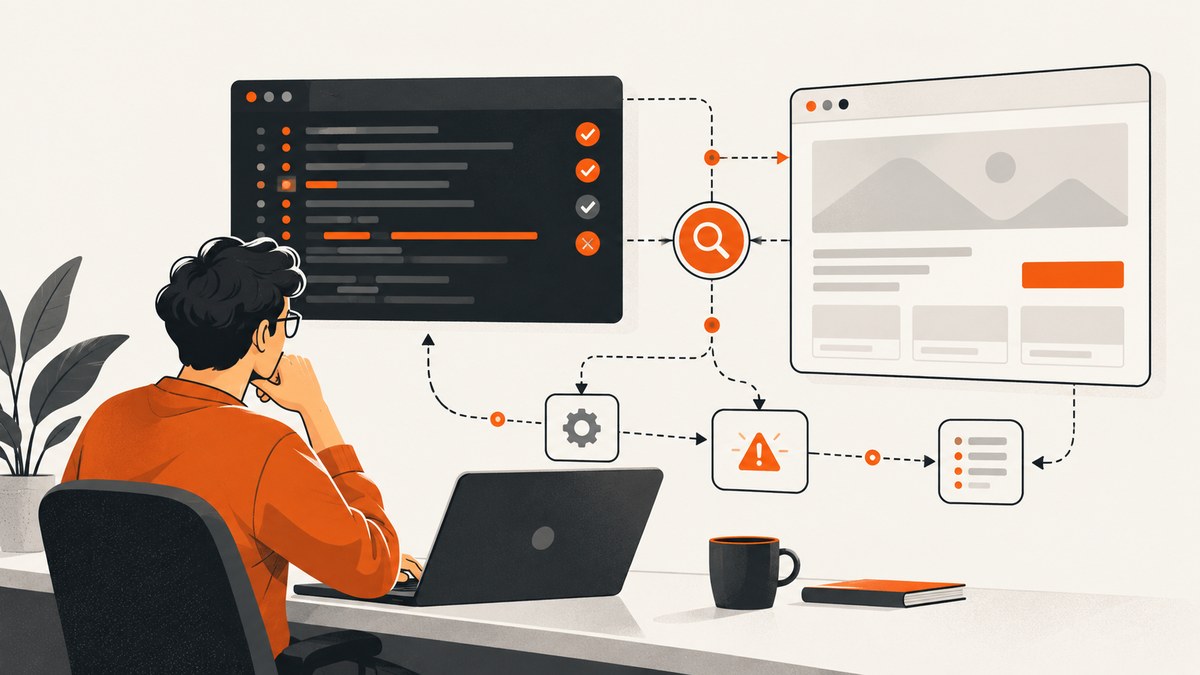
If Cypress will not start from the VS Code terminal, begin in the project root and run npx cypress open. Most failures come from launching in the wrong folder, having the npm package without its separate Cypress binary, a damaged global cache, shell-specific environment variable syntax, missing Linux libraries, browser detection, or an environment without a graphical display.
This guide classifies the symptom first, then gives the shortest repair for each case. The commands work with a locally installed Cypress project and cover npm, Yarn, pnpm, Bun, Windows, macOS, Linux, WSL, remote sessions, containers, and CI.
1. Confirm the VS Code terminal is in the Cypress project
Cypress is normally installed locally in the project. The terminal must therefore be opened at the workspace that contains both package.json and the Cypress dependency.
- In VS Code, choose Terminal → New Terminal.
- Print the current directory with
pwdon macOS/Linux orcdon Windows. - List files and confirm that
package.jsonis present. - Check that Cypress is listed under
devDependencies. - Run the official launch command:
npx cypress openIf the project defines a script, use a descriptive name such as cy:open:
{
  "scripts": {
    "cy:open": "cypress open"
  }
}
npm run cy:openDo not name the script cypress. Cypress documents that Yarn can resolve a script with that name instead of the Cypress binary.
Equivalent package-manager commands
| Package manager | Launch command |
|---|---|
| npm | npx cypress open |
| Yarn | yarn cypress open |
| pnpm | pnpm cypress open |
| Bun | bunx cypress open |
2. Identify the exact startup symptom
| Symptom | Likely cause | First action |
|---|---|---|
cypress is not recognized or command not found |
Wrong directory or package not installed | Open the project root and install Cypress locally |
| Package resolves but binary is missing | Install lifecycle script was skipped or blocked | Run npx cypress install |
| Verification fails | Corrupt or incompatible cached binary | Run npx cypress verify, then clear and reinstall if needed |
| Command returns with little or no output | Shell environment, permissions, or display issue | Enable Cypress debug namespaces |
| Linux shared-library error | Required OS libraries are absent | Use ldd to find libraries marked not found |
| Cypress opens but the browser is unavailable | Browser is not auto-detected | Pass the browser executable path |
| Running in a container or remote session | No graphical display | Use a desktop-enabled environment for open, or use cypress run |
3. Install Cypress in the same project
If npx cypress open cannot resolve Cypress, install it as a development dependency from the directory containing package.json:
npm install cypress --save-devThen retry:
npx cypress openA package-manager install can complete while the separate Cypress desktop binary is absent. This happens when npm lifecycle scripts were disabled by --ignore-scripts, a security policy, or CYPRESS_INSTALL_BINARY=0. Install the binary explicitly:
npx cypress install
 npx cypress verify
On npm setups that blocked install scripts, approve the current npm install-scripts workflow and run npm rebuild, or use the explicit install command above.
4. Verify and repair the Cypress cache
Cypress stores downloaded binaries in a global cache. The npm package in your project and that cache are separate failure points. Verify the executable before deleting anything:
npx cypress verifyVerification checks that Cypress is installed correctly and executable. If it reports a cache problem, clear cached versions and reinstall:
npx cypress cache clear
npx cypress install
npx cypress verify
Use --force when the matching cache entry exists but is corrupted:
npx cypress install --force
npx cypress verify
Because the cache is global, a stale entry can affect more than one project. Clearing it removes cached versions, so every project that needs Cypress must download its binary again.
5. Turn on debug output in the VS Code shell
Use the environment-variable syntax for the shell selected by VS Code. A command copied from another shell may silently fail to set DEBUG.
macOS, Linux, and Git Bash
DEBUG=cypress:* npx cypress openWindows Command Prompt
set DEBUG=cypress:*
npx cypress open
Windows PowerShell
$env:DEBUG='cypress:*'
npx cypress open
For narrower logs, target a namespace such as:
DEBUG=cypress:server* npx cypress openIf no debug output appears, check whether terminal permissions prevent setting environment variables. Cypress notes that missing logs can be caused by terminal permissions. Confirm the shell profile and try a newly opened VS Code terminal.
6. Fix Linux library and executable errors
On Linux, Cypress can resolve correctly and still fail before its window appears because a shared library is missing. Locate the Cypress binary, then inspect its dependencies with ldd. Any line ending in not found identifies a missing library.
ldd /path/to/Cypress | grep "not found"Install the distribution package that supplies each missing library, then verify again:
npx cypress verify
npx cypress open
The exact package names depend on the Linux distribution and image. Avoid copying a package list intended for a different distribution; use your distribution’s package index for the library names reported by ldd.
7. Supply a browser path when detection fails
If Cypress itself starts but cannot find the browser you intend to use, pass the executable path explicitly:
npx cypress open --browser /usr/bin/chromiumReplace the path with the browser executable installed on your machine. This is useful on Linux hosts, custom browser installations, and remote development images where standard detection paths are not present.
8. Understand containers, WSL, and remote VS Code sessions
cypress open is interactive. It needs a graphical display. A plain headless container can install and verify Cypress but has nowhere to draw the desktop application.
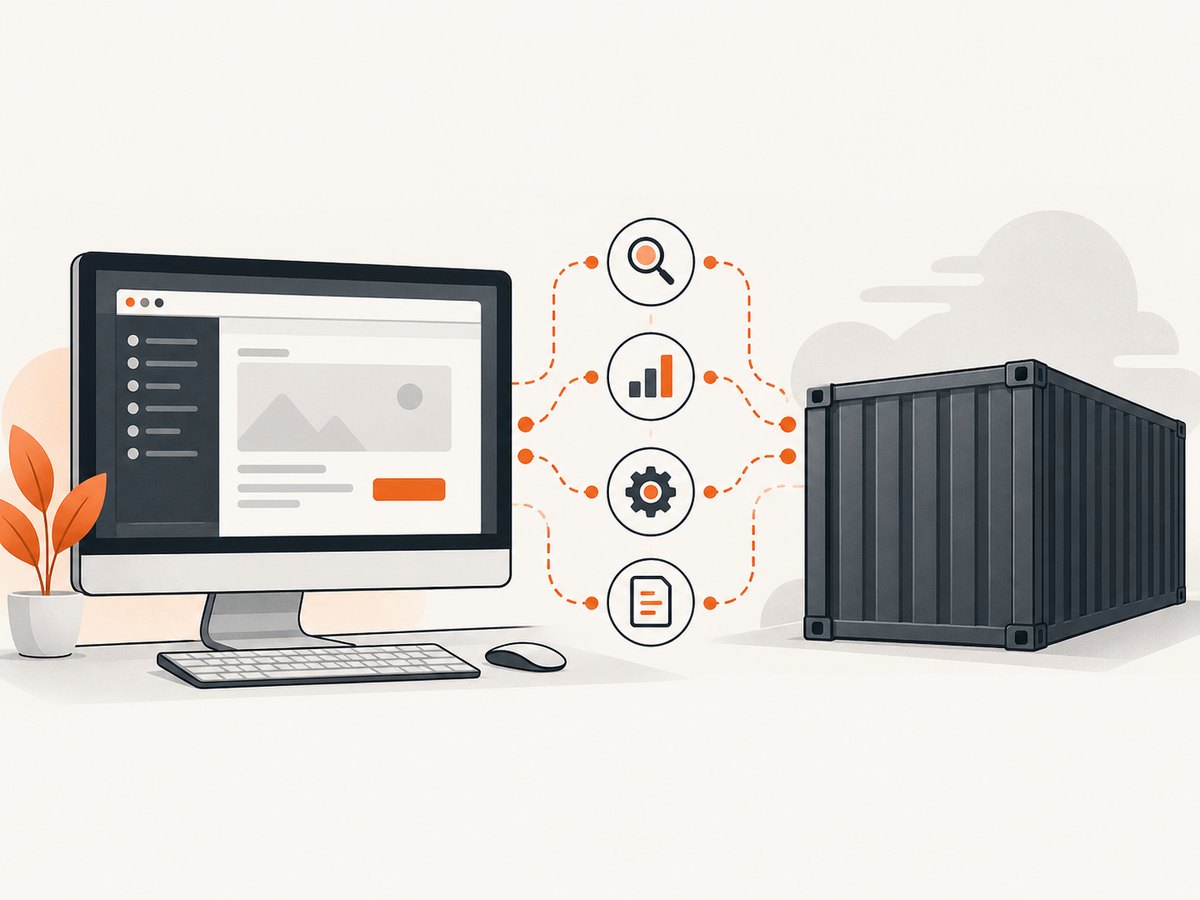
Use a desktop-enabled development-container pattern with a forwarded display or remote desktop support when you need the interactive runner. If the environment is intentionally headless, run tests instead:
npx cypress runThe same distinction applies to SSH sessions, minimal CI images, and WSL configurations without an available display server. A successful npm install does not create a graphical display.
9. A repeatable repair sequence
- Open the VS Code terminal at the directory containing
package.json. - Run
npx cypress openonce and record the symptom. - Confirm Cypress is installed with
npm ls cypress. - If absent, run
npm install cypress --save-dev. - Install the separate binary with
npx cypress install. - Run
npx cypress verify. - If verification reports cache corruption, run
npx cypress cache clear, reinstall, and verify. - Enable shell-correct
DEBUG=cypress:*output. - For Linux errors, inspect dependencies with
ldd. - For browser errors, pass
--browserwith the executable path. - For containers or headless sessions, provide a graphical display or use
cypress run.
10. Common errors and fixes
“command not found” or “not recognized”
Cause: The terminal is outside the project root, or Cypress is not installed locally.
Fix: Change to the workspace containing package.json, install Cypress, and use npx cypress open.
“Cypress binary is missing”
Cause: The npm package exists but its post-install download did not run.
Fix: Run npx cypress install, then npx cypress verify.
Verification fails after an update
Cause: A stale or corrupted global cache entry.
Fix: Clear the cache, reinstall, and verify. Use npx cypress install --force when only the matching entry needs replacement.
Debug mode prints nothing
Cause: Environment-variable syntax does not match the VS Code shell, or permissions prevent setting it.
Fix: Use POSIX, CMD, or PowerShell syntax from this guide and open a fresh terminal.
“error while loading shared libraries”
Cause: Linux dependencies are missing.
Fix: Run ldd, install the libraries reported as not found, and verify again.
Cypress starts but no window appears
Cause: The session has no graphical display, common in containers, CI, SSH, and headless WSL.
Fix: Use a desktop-enabled environment or run npx cypress run.
11. Performance, reliability, and repeatability
- Keep Cypress local to the project. This makes the version selected by the VS Code terminal match the lockfile and project configuration.
- Cache dependencies in CI. Cache management reduces repeated downloads, but invalidate the cache when the Cypress version changes.
- Verify after image or Node changes. A new operating-system image can remove libraries even when
package-lock.jsonis unchanged. - Separate interactive and headless workflows. Use
openfor local debugging with a display andrunfor automation. - Capture debug logs for failures. The namespace output identifies whether the failure occurs during package resolution, binary startup, browser discovery, or display initialization.
- Do not clear the cache as the first step. Verification is faster and preserves working cached versions.
Or skip the browser setup
If your goal is to obtain a reliable screenshot rather than operate Cypress interactively, ScreenshotNeo provides a website screenshot API and MCP server. It accepts one GET request and returns PNG, JPEG, WebP, or PDF. Before capture it accepts consent banners and removes more than 60 known consent platforms, newsletter popups, and chat widgets; each step can be turned off. Bot checks, blank pages, timeouts, failed loads, and cache hits are not billed, and response headers identify the page verdict and billing result.
See the ScreenshotNeo API documentation for all options. A minimal cURL request is:
curl -G "https://api.screenshotneo.com/v1/shot" -d access_key=YOUR_API_KEY --data-urlencode url=https://stripe.com -o shot.webpPython:
import requests
r = requests.get("https://api.screenshotneo.com/v1/shot", params={"access_key": "YOUR_API_KEY", "url": "https://stripe.com"}, timeout=90)
open("shot.webp", "wb").write(r.content)
Node.js:
const q = new URLSearchParams({ access_key: 'YOUR_API_KEY', url: 'https://stripe.com' });
const res = await fetch(`https://api.screenshotneo.com/v1/shot?${q}`);
The API also supports full-page capture with lazy images loaded, CSS element capture, device presets and custom viewports, dark mode, retina scale, PDF paper and page settings, custom CSS and JavaScript, clicks, selector waits, delays, network-idle waits, blocked resources, headers, cookies, user agents, authorization, timezone, geolocation, transparent backgrounds, resizing, TTL caching, signed image links, asynchronous jobs with signed webhooks, bulk capture for up to 100 URLs, usage reporting, and an OpenAPI specification. Its MCP server exposes take_screenshot, get_page_info, and capture_pdf to Claude, Cursor, and other MCP clients.
Free accounts include 1,000 screenshots per month with no card. Paid plans start at $5 for 3,000 shots; every feature is available on every plan. Create a free ScreenshotNeo account and try the API without setting up a browser desktop.
FAQ
Why does Cypress work in one terminal but not VS Code?
The terminals may use different working directories, shells, Node installations, environment variables, or permissions. Compare the project path and shell first.
Should I reinstall Cypress globally?
No. Cypress is normally a local project dependency. Install it locally and invoke it through npx, Yarn, pnpm, or Bun.
When should I use --force?
Use it when the matching cached binary is corrupted. Try normal verification and cache repair first.
Can Cypress open run in CI?
Only when CI provides a graphical display. Most headless CI jobs should use npx cypress run.
Does clearing the cache remove the project dependency?
No. It removes globally cached Cypress binaries. You must reinstall the binary afterward.


