How to Fix DevToolsActivePort Errors With Capybara Headless Chrome in Docker
Fix Chrome’s DevToolsActivePort startup error in Capybara and Docker with a diagnostic workflow for users, versions, shared memory, and drivers.
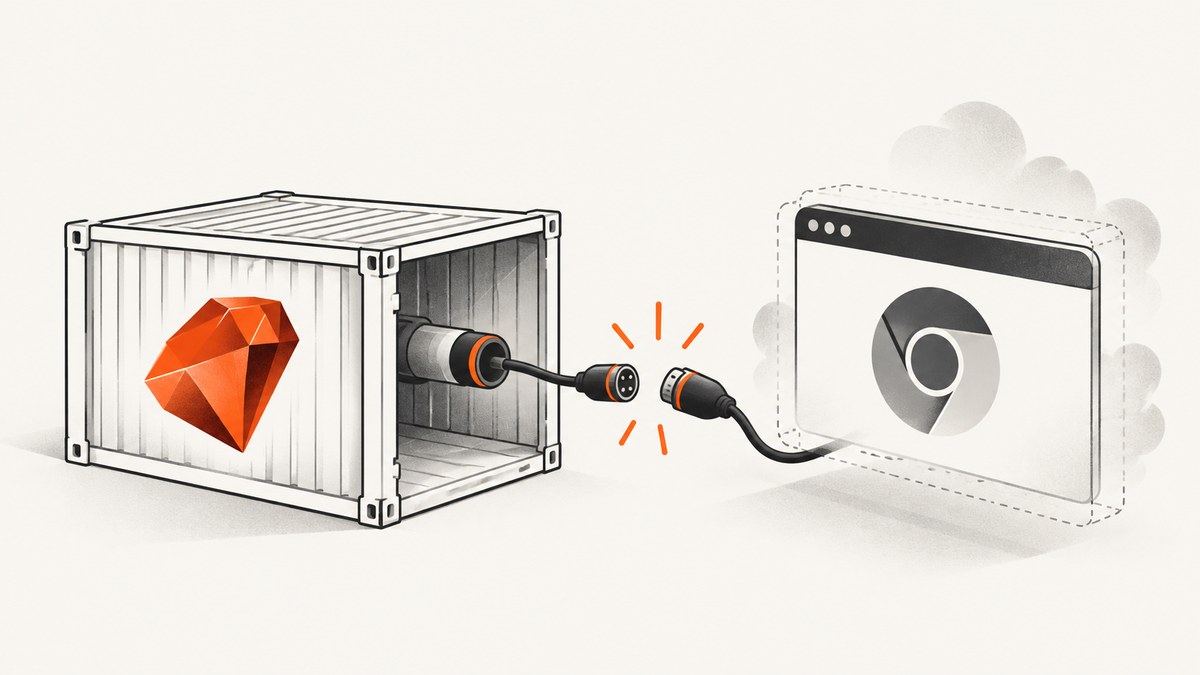
“DevToolsActivePort file doesn’t exist” means Chrome failed to start correctly or ChromeDriver could not connect to the DevTools endpoint. The message is a symptom, not a diagnosis. In a Capybara test running inside Docker, the reliable fix is to reproduce the exact Chrome launch outside WebDriver, inspect ChromeDriver logs, then check the container user and sandbox, browser and driver versions, shared memory and resource limits, and the Capybara driver registration.
This guide gives a repeatable workflow instead of a list of flags to paste into a Dockerfile. It also explains when headless Chrome needs Xvfb, how to configure Capybara, and how to separate an installation problem from a Selenium or CI configuration problem.
1. Confirm what the error means
ChromeDriver reports this error when it cannot complete browser startup and establish a DevTools connection. The file is an internal startup signal; its absence does not tell you whether the cause is root execution, an incompatible browser, a crashed process, exhausted shared memory, or an incorrect binary path.
Start with the ChromeDriver troubleshooting guidance: find the Chrome executable path in the driver log, then launch that same binary with the same arguments as the test. If Chrome fails when launched directly, repair the browser or container first. If it starts directly, focus on Selenium, Capybara, WebDriver configuration, and the CI runtime.
2. A diagnostic workflow that narrows the cause
Step 1: Capture the exact command and logs
Enable ChromeDriver logging in the environment where the failure occurs. Preserve the executable path, arguments, process user, exit code, and Chrome stderr. Avoid adding several popular flags at once: a change that makes the test pass is difficult to attribute when the underlying cause is unknown.
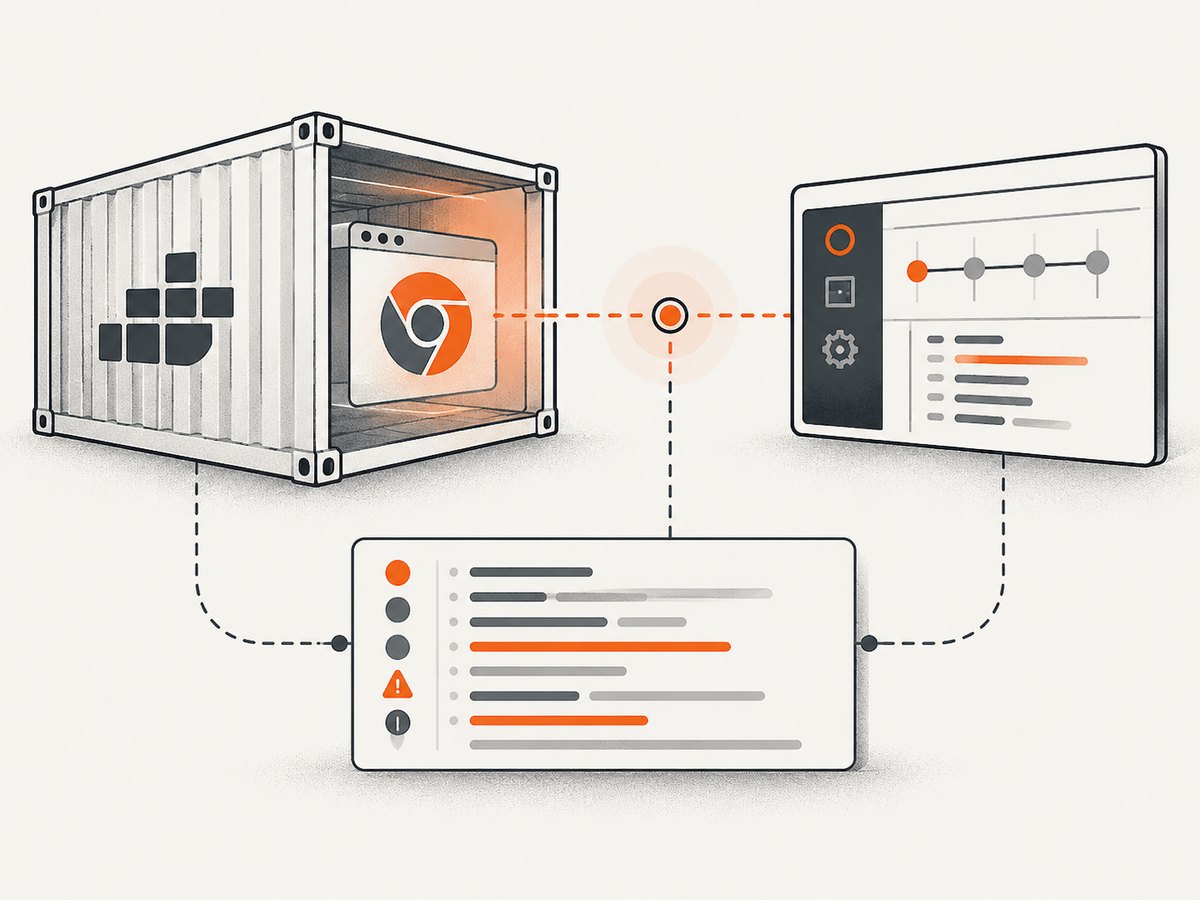
Run a shell inside the same image and as the same user as the test. First identify the binaries:
which google-chrome || which chromium || which chromium-browser
which chromedriver
google-chrome --version || chromium --version
chromedriver --version
Use the binary path printed by ChromeDriver rather than assuming that google-chrome is the one being launched. A container can contain multiple Chrome or Chromium installations.
Step 2: Launch Chrome without WebDriver
Use the same headless mode and any environment-specific switches from the test. A minimal diagnostic command is:
google-chrome --headless --remote-debugging-port=0 --user-data-dir=/tmp/chrome-diagnostic about:blankReplace google-chrome with the actual executable. Check whether the process remains alive and whether stderr reports a missing library, permission error, crash, or failure to create a profile. If this direct launch fails, changing Capybara settings cannot fix the root problem.
Run the command as the same non-root account used by the test. If the command only fails as root, you have isolated a user and sandbox issue.
Step 3: Check the container user and Chrome sandbox
ChromeDriver documentation identifies running Chrome as root on Linux as a common startup-crash cause. Prefer creating a regular user in the image and running the test under that account while retaining Chrome’s sandbox. Chrome’s headless documentation explains that a correctly configured container does not need --no-sandbox.
FROM debian:bookworm-slim
# Install Chrome and dependencies using your approved package process.
RUN useradd --create-home --shell /bin/bash tester
USER tester
WORKDIR /home/tester/app
The Dockerfile above shows the identity pattern only; browser installation packages vary by base image. Check ownership of the home directory, the temporary directory, and the profile directory Chrome uses. A read-only home directory or unwritable temporary directory can look like a browser startup failure.
--no-sandbox is an unsupported and strongly discouraged workaround in the ChromeDriver guidance. Use it only when an unavoidable deployment constraint has been documented and understood. It should not be the default recipe for CI.
Step 4: Verify browser and ChromeDriver compatibility
Confirm that the browser and driver versions are the pair you intend to run. Selenium’s Chrome documentation says browser and driver versions should match and describes Selenium 4 support for modern Chrome versions. That compatibility statement is not a guarantee for arbitrary combinations.
Pin the browser, driver, base image, and Selenium gem deliberately. Print versions in CI before the test suite starts:
google-chrome --version
chromedriver --version
bundle exec ruby -e 'puts Gem.loaded_specs["selenium-webdriver"].version'
If an image update changed only one of these components, roll back or update the pair together. Also verify that ChromeDriver is not resolving to a system binary while the browser comes from a different image layer.
Step 5: Inspect shared memory and resource limits
Chrome uses shared memory for browser processes. Inspect the container’s shared-memory mount and its memory and CPU limits:
df -h /dev/shm
cat /proc/meminfo | head
ulimit -a
Selenium’s Docker project documents configuring shared memory and shows a 2 GB example for a container. Treat that value as an example, not a universal requirement. Test with a deliberately sized shared-memory mount and observe whether the Chrome process stays alive under your actual concurrency:
docker run --shm-size=2g your-test-imageIf increasing shared memory changes the result, measure how many browser processes run concurrently and whether the container is also hitting its memory limit. --disable-dev-shm-usage is frequently suggested online, but its presence does not prove that shared memory caused the failure or that the problem is resolved.
Step 6: Check Capybara’s driver selection
Capybara’s README lists the built-in :selenium_chrome and :selenium_chrome_headless drivers. Confirm those names against the Capybara release installed in your bundle. Local defaults can differ from CI needs, so pass browser options through a named driver when the environment requires customization.
require "capybara/rspec"
require "selenium/webdriver"

Capybara.register_driver :docker_chrome do |app|
  options = Selenium::WebDriver::Chrome::Options.new
  options.add_argument("--headless")
  # Add an option only when your diagnosis justifies it.
  Capybara::Selenium::Driver.new(app, browser: :chrome, options: options)
end

Capybara.javascript_driver = :docker_chrome
This follows Capybara’s registration API and Selenium’s Chrome options mechanism. Adapt the require paths and option names to the installed gem versions. Do not automatically add --no-sandbox, --disable-dev-shm-usage, or --disable-gpu. Chrome’s headless documentation describes --disable-gpu as a Windows-specific workaround for some bugs, not a routine Linux Docker setting.
If your application uses Rails system tests, check whether the framework selects a driver separately from Capybara.javascript_driver. A correct registration is ineffective if the test suite never uses that driver.
3. Headless Chrome and Xvfb
Headless Chrome does not create a visible window and generally does not need a display server. That is the browser-level behavior documented by Chrome. Selenium’s Docker images are a separate layer: their startup scripts and image tags can have version-specific Xvfb settings, especially as Chrome and Chromium headless modes change.
Follow the documentation for the exact Selenium Docker image tag you have pinned. Do not install Xvfb reflexively, and do not remove it from a Selenium image without checking that image’s requirements. A display-server change can hide the original problem while leaving browser startup fragile.
4. Complete Capybara example for a Docker CI job
The following example keeps the configuration small and makes the diagnostic layers visible:
# spec/support/capybara.rb
require "capybara/rspec"
require "selenium/webdriver"

Capybara.register_driver :ci_chrome do |app|
  options = Selenium::WebDriver::Chrome::Options.new
  options.add_argument("--headless")
  options.add_argument("--window-size=1280,1000")
  Capybara::Selenium::Driver.new(
    app,
    browser: :chrome,
    options: options
  )
end

Capybara.javascript_driver = :ci_chrome
Capybara.default_max_wait_time = _pQ
Set default_max_wait_time to a value appropriate for your application; it controls Capybara’s waiting behavior and does not repair a browser that cannot start. Keep browser startup options separate from application waits so that a slow page is not mistaken for a DevTools connection failure.
5. Troubleshooting table
| Symptom | Likely layer | Action |
|---|---|---|
| Chrome exits immediately when launched directly | Installation, permissions, user, or resources | Run the exact binary as the test user; inspect stderr, profile permissions, libraries, memory, and /dev/shm. |
| Works locally, fails in Docker as root | User and sandbox | Create a regular user and retain the sandbox. Treat --no-sandbox only as a documented exception. |
| Chrome launches, but WebDriver fails | Driver path, versions, or Selenium configuration | Compare browser and ChromeDriver versions, confirm the binary path in logs, and test the named Capybara driver directly. |
| Failures increase with parallel jobs | Shared memory or container limits | Inspect /dev/shm, memory, CPU, and process counts; size resources for measured concurrency. |
| Adding common flags changes nothing | Unidentified root cause | Remove speculative flags and return to direct Chrome reproduction and logs. Docker Selenium issue reports include failures that persisted despite popular switches. |
| Headless test fails after an image upgrade | Image-specific browser/Xvfb behavior | Read the README for the pinned image tag and compare the browser and driver versions before changing display settings. |
6. Reliability and performance practices
- Pin and update deliberately. Keep the image, Chrome, ChromeDriver, Selenium gem, and Capybara versions reproducible. Upgrade them as a tested set.
- Change one layer at a time. Record the user, binary path, versions, limits, arguments, and result for each run.
- Control concurrency. More parallel browsers require more memory, CPU, temporary storage, and shared memory. A passing single-worker run does not establish capacity for a large CI matrix.
- Keep profiles isolated. Give parallel sessions separate temporary profile directories to avoid lock and corruption failures.
- Collect startup logs. Save ChromeDriver logs and Chrome stderr as CI artifacts. The DevToolsActivePort message alone is not enough evidence.
- Separate page waits from startup. A selector timeout after Chrome connects is an application or network timing problem, not the same failure as a missing DevTools port.
7. Or skip the browser setup
If your goal is a clean website image rather than maintaining Chrome in a CI container, ScreenshotNeo provides a one-request screenshot API and MCP server. See the ScreenshotNeo API documentation for request options.
curl -G "https://api.screenshotneo.com/v1/shot" -d access_key=YOUR_API_KEY --data-urlencode url=https://stripe.com -o shot.webpimport requests
r = requests.get("https://api.screenshotneo.com/v1/shot", params={"access_key": "YOUR_API_KEY", "url": "https://stripe.com"}, timeout=90)
open("shot.webp", "wb").write(r.content)const q = new URLSearchParams({ access_key: 'YOUR_API_KEY', url: 'https://stripe.com' });
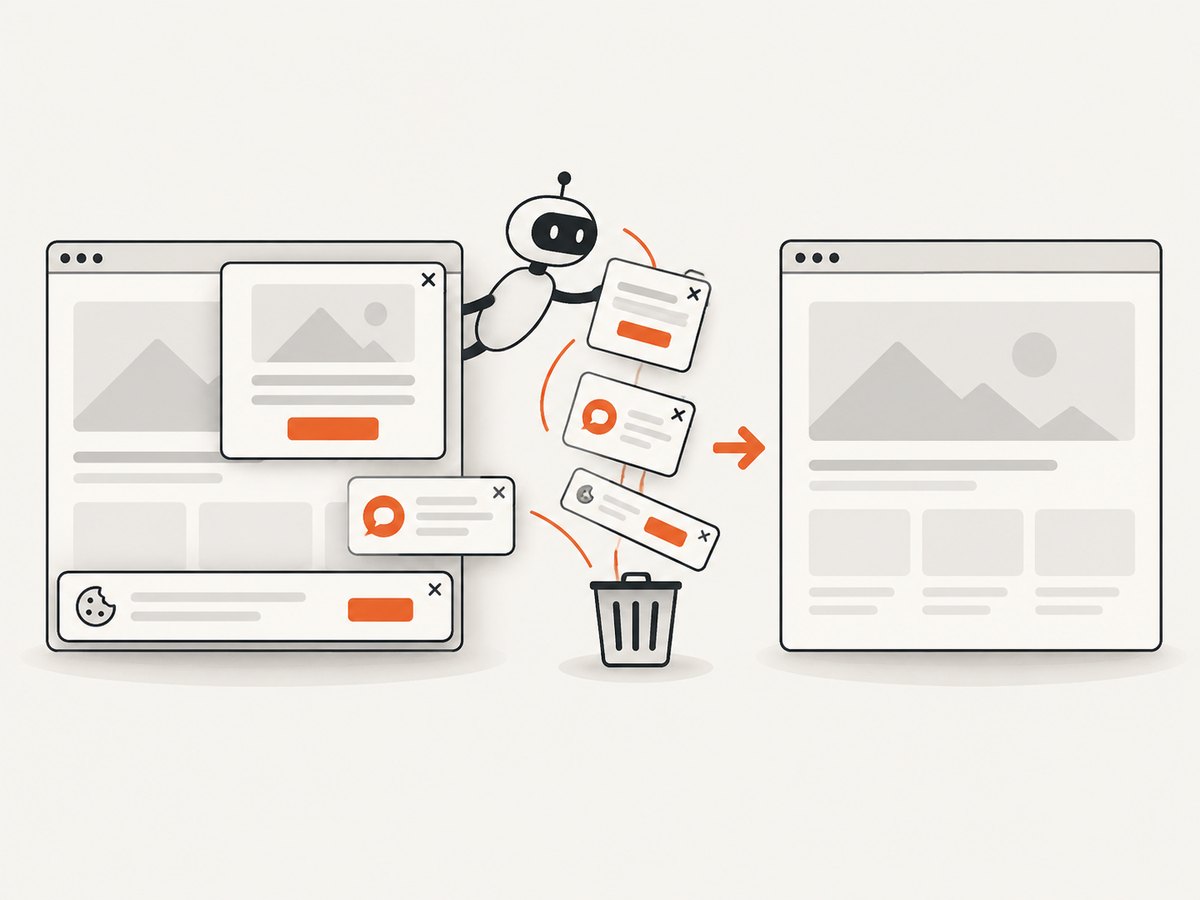
const res = await fetch('https://api.screenshotneo.com/v1/shot?' + q);ScreenshotNeo accepts cookie and consent banners like a visitor, then removes more than 60 known consent platforms along with newsletter popups and chat widgets. Each cleanup step can be turned off. Bot checks and CAPTCHAs, blank pages, timeouts, failed loads, and cache hits cost nothing, and the response says which result occurred in X-Page-Verdict and X-Billed headers.
You can also use full-page capture with lazy images, CSS element capture, dark mode, device presets or custom viewports, retina scale, custom CSS and JavaScript, clicks, selector or network-idle waits, request blocking, headers, cookies, user agents, authorization, timezone, geolocation, transparent backgrounds, resizing, chosen cache TTLs, signed image links, asynchronous jobs with signed webhooks, bulk capture of up to 100 URLs per call, usage reporting, PDF output, and HTML/CSS-to-image conversion. An MCP server exposes take_screenshot, get_page_info, and capture_pdf to Claude, Cursor, and other MCP clients.
The Free plan includes 1,000 screenshots each month with no card. Starter is $5 for 3,000, Growth $15 for 15,000, Pro $39 for 60,000, Scale $99 for 250,000, and Business $249 for 1,000,000; yearly billing gives two months free and every feature is available on every plan. Create a free ScreenshotNeo account.
8. FAQ
Does the error always mean shared memory is too small?
No. Shared memory is one possible container constraint. Directly launching the exact Chrome binary and reviewing logs distinguishes it from root execution, incompatible versions, permissions, and driver configuration.
Should I always add --no-sandbox in Docker?
No. Use a regular user and keep Chrome’s sandbox when possible. ChromeDriver calls root execution a common startup-crash cause and describes --no-sandbox as an unsupported, discouraged workaround.
Can I fix this by installing Xvfb?
Usually headless Chrome does not need a display server. Selenium Docker images can have their own, version-dependent display behavior, so follow the documentation for the exact image tag.
Why does Capybara work locally but fail in CI?
CI may use a different user, image, browser path, driver version, shared-memory size, resource limit, or driver registration. Compare those values directly instead of assuming the application code changed.
What should I keep from a failed run?
Save the ChromeDriver log, Chrome stderr, executable path, arguments, browser and driver versions, process user, container limits, and the exact Capybara driver selected. Those details turn a generic message into a testable hypothesis.


